
Feature release – September 2026
This article highlights the new features and enhancements released by Qargo this month.
Week 1
➕ Planning – Add a stop to a load from the open load detail
📦 Planning – Send a multi-order terminal split to “To plan”
💰 Planning – Cost & profitability totals on the Planboard
🔎 Planning – ‘Next order’ suggestions: capacity toggle and distance filter
📍 Planning – Smarter location visibility on the Planboard
Week 3
🚚 Planning – Distribution planning view
📍 Planning – Stop arrival and departure events
🔀 Planning – Split a shipment into parallel stages
🌡️ Planning – Temperature, voltage and plugged-in status for containers and trailers
🧩 Planning – Custom Planboard layouts
Week 4
🖥️ Customer portal – Dashboard statistics and time at stop
🤖 Qargo Intelligence – Assign fields tasks
⚙️ Configuration – Auto-assign stop and freight extras
🤝 Resources – Status column on the contract carriers list
💰 Rates – Charge currency on rate card charges
Week 5
🧾 Invoices – Auto-create invoice when an order is Ready to invoice
🔎 Invoices – Surcharge revenue breakdown and Is / Is not filter
💱 Invoices – Automatic exchange rate date for currency conversion
💰 Invoices – Refund status column on credit memos
⏱️ Planning – Stored driver activity events on loads and resources
Week 1
➕ Planning – Add a stop to a load from the open load detail
A stop can now be added to a load straight from the open load detail on the Planboard. After one or more orders are selected in the To plan: Orders list, the route highlights where a stop can be inserted. Clicking the position adds the stop and saves it immediately. No modal opens and no drag and drop is needed.
What’s included:
- Works in both the Table route view and the Blocks view
- Insert indicator with a tooltip describing the insert position
- Stops saved straight away, with the order dropping out of the To plan list
Add a stop to a load from the load detail
📦 Planning – Send a multi-order terminal split to “To plan”
When a load carrying two or more orders is split over a terminal, the Status created load field can now be set to To plan. Each split order lands as its own row in To plan: Orders. Planners can then send the orders to different outbound vehicles without first unplanning the new load and dragging each order back into the planning bin.
What’s included:
- Status created load selectable on multi-order splits, defaulting to To plan for the Terminal: unload + load goods action
- Each split order available individually in To plan: Orders
- Planning group behavior following the existing Recalculate planning group toggle
Hook and drop splits are unchanged. The goods stay in the same trailer, so those splits keep defaulting to Planned and the orders stay grouped on one new load.
Sending multi-order terminal splits to ‘to plan’ status
💰 Planning – Cost & profitability totals on the Planboard
Revenue on the Planboard now comes with Cost and Profitability alongside it, each available per load and per resource. Planners can see what every load and every driver’s day costs and earns without opening each load individually. Profitability is shown in green for a profit and red for a loss.
What’s included:
- Six Load totals sub-toggles covering Revenue, Cost and Profitability, per load and per resource
- Each sub-toggle enabled independently, and available for the A+ and A- views separately
- Totals recalculated for whatever date range the Planboard view is set to
- One line per currency on loads that mix currencies
- Visible only to roles with permission to view financial data on loads
Cost & profitability totals on the Planboard
🔎 Planning – ‘Next order’ suggestions: capacity toggle and distance filter
Find nearby loads now hides loads that have no room left, so the suggestions shown are ones planners can actually use. A new Distance filter on the To plan: Orders table narrows the results further inside the searched radius. For example, it can narrow the results down to the closest 2 km within a 5 km search.
What’s included:
- Only loads with loading capacity toggle on the Find nearby loads dropdown, switched on by default
- Capacity checked against loading meters, pallet spaces and weight, with any metric left blank ignored
- Distance column filter on the To plan: Orders table once a Find nearby search is active
Filtering ‘Find nearby loads’ on loading capacity and distance
📍 Planning – Smarter location visibility on the Planboard
The Planboard can now show where a driver will finish the selected day, not only the driver’s current location or last finishing point. Follow-up work can then be planned from where the driver will actually end up. When nothing is planned, the display falls back to the last known location instead of going blank. Adding a start stop is quicker too. When one of the company’s own trailers or containers is picked in the Assign resources window, Qargo fills in the pickup location from wherever that resource was last dropped off. The location can still be changed if the resource needs to go elsewhere first, for example to cleaning.
What’s included:
- Final planned location for the selected day, set up from Customize > Resource info on the Planboard
- Column header showing the date the location refers to, for example “before 3/17” or “incl 3/18”
- Fallback to the last known location when no load is planned in the selected period
- Saved per user, so each planner keeps their own preference
- Pickup location filled in automatically from a trailer’s or container’s last drop-off when adding a start stop, on both the load-level and order-level Assign resources window
- New Order start location and Order end location dropdowns on the order-level window
Auto-fill start location when adding trailer/container resources
Week 3
🚚 Planning – Distribution planning view
Multi-stop distribution rounds can now be planned from a Legs view split into two stacked tables: orders still to plan on top, planned loads below. A new load can be built straight from checked orders. Late incoming orders can also be merged into a round that’s already running, and the optimizer inserts each stop at the right point in the route. Every order stage sits nested under its load summary row, so what each truck is carrying is visible at a glance. The view is rolling out progressively. To have it switched on, contact the account manager or Qargo Support.
What’s included:
- Two stacked tables with linked horizontal scrolling
- Create new load directly from checked unplanned orders
- Merge orders into an existing load, with the primary resource prefilled
- Sorting of unplanned orders by the combined Pickup/Delivery location column
- Stop order warnings with a Reorder stops shortcut into Load details
Using the distribution planning view
📍 Planning – Stop arrival and departure events
Qargo now stores an event every time a driver or a connected integration marks a stop as arrived or completed. The event captures the vehicle’s last known position, mileage and fuel at that moment. This provides proof of location for pallet networks and visibility platforms, and one reliable record to fall back on when a delivery is disputed. Arrived and Departed markers appear on the planner map alongside the existing geofence markers. There is nothing to configure; events are created automatically.
What’s included:
- Events created automatically from the driver mobile app, telematics, EDI or pallet network scans
- Coordinates, mileage and fuel captured with the timestamp of each tracking update
- One event per allocated resource, so vehicle and driver data stay separate
- Arrived and Departed markers on the planner map
Learn more about stop arrival and departure events
🔀 Planning – Split a shipment into parallel stages
Cross dock scanning in the mobile app now works with parallel stages. Each pallet scan is registered against the leg the pallet is actually loaded onto, rather than against the whole shipment. Scans on parallel stages therefore stay independent of each other. Splits remain planner-driven from the order detail page: scanning fewer pallets than expected on a leg will not split a shipment on its own. A few limits apply. Bulk-editing a field still updates all the goods on a split shipment, and Create similar order and Add similar shipment are unavailable for orders with parallel stages.
Scanning parallel stages in Qargo Mobile
🌡️ Planning – Temperature, voltage and plugged-in status for containers and trailers
Temperature, Supply voltage (mV) and Plugged in columns can now be added to planning views for container, trailer and chassis resources. The columns are filled in automatically from each resource’s own tracking data. This makes it possible to check whether a container is still plugged in and holding temperature while it sits dropped at a terminal. There is no need to leave Planning or open an external track & trace tool, and it is easy to confirm whether a billable plug-in applies.
What’s included:
- Three optional columns on To plan: Resources, switched on from Edit columns
- The same columns on the container booking and intermodal booking views
- Filtering on any of the three columns, for example to isolate containers that are not plugged in
- Plugged-in status derived automatically from the supply voltage reading
View temperature, plugged-in and voltage status in planning
🧩 Planning – Custom Planboard layouts
The Planboard is no longer one fixed arrangement. It can be split into up to four blocks, with any planning component in any block. The result can be saved as a named layout that persists across sessions. Combinations that used to be mutually exclusive now sit side by side, for example To plan: Orders next to To plan: Loads, or the map without the planning board. There is nothing to configure and no permissions to set.
What’s included:
- 1 to 4 blocks using predefined grid variants such as Side by side, Stacked and 2x2 grid
- Any component in any block: To plan, Planning board: Loads, Pre-planning, Map, Statistics, Containers, Intermodal, Resource availability and Container booking
- Named layouts that can be switched, edited and deleted from the toolbar
- Layout choices saved per user and restored automatically
Week 4
🖥️ Customer portal – Dashboard statistics and time at stop
Super admins can now choose what the Customer portal dashboard shows. The view can be kept simple for customers by showing one figure per order or hiding time at stop. Statistics can also be hidden altogether so only the News feed remains.
What’s included:
- Show a single total-per-order dial instead of separate pickup and delivery dials
- Hide the time at stop figure
- Hide all statistics, which renames the Dashboard tab to News feed
- Settings apply to the whole portal, and nothing changes until a setting is switched
Customer portal – Configure dashboard statistics for stops
🤖 Qargo Intelligence – Assign fields tasks
Qi tasks can now write a value into a field, not just add a tag. The rule is described in plain language and tested against a real order or load. Qargo then fills in the field whenever the condition is met, giving one clear value to filter and report on.
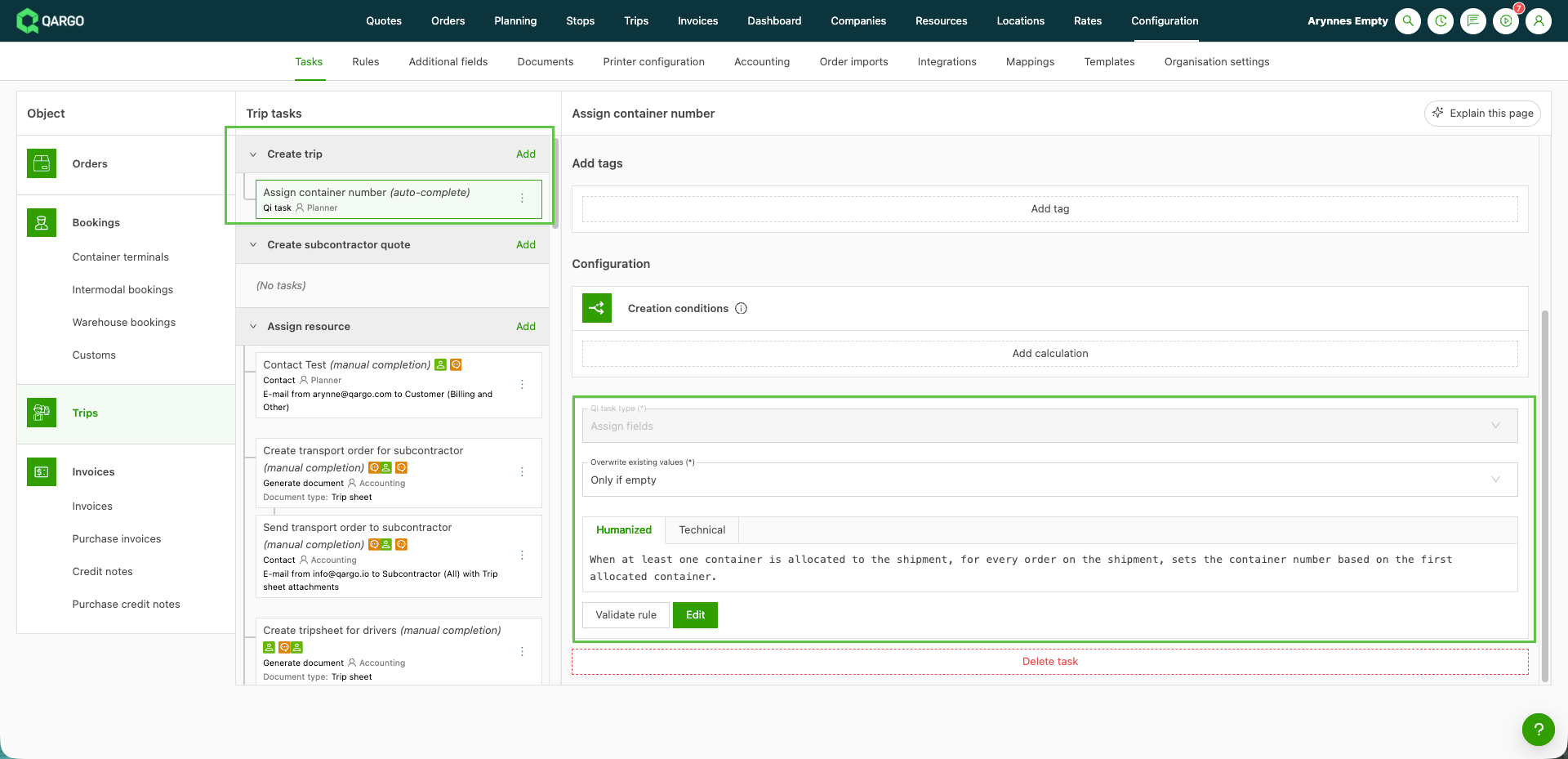
What’s included:
- Set fields on orders, shipments, loads and stops
- Use a fixed value or one worked out from data already in Qargo
- Test the rule against a record before saving it
- Choose whether to overwrite existing values or only fill empty fields
Qargo Intelligence – Assign fields tasks
⚙️ Configuration – Auto-assign stop and freight extras
Auto-assign rules can now add stop extras and freight extras automatically, not just fill in fields. The same extra may be needed every time a certain product is moved or a certain customer receives a delivery. In that case, it can be set up once as a rule instead of being added by hand on every order.
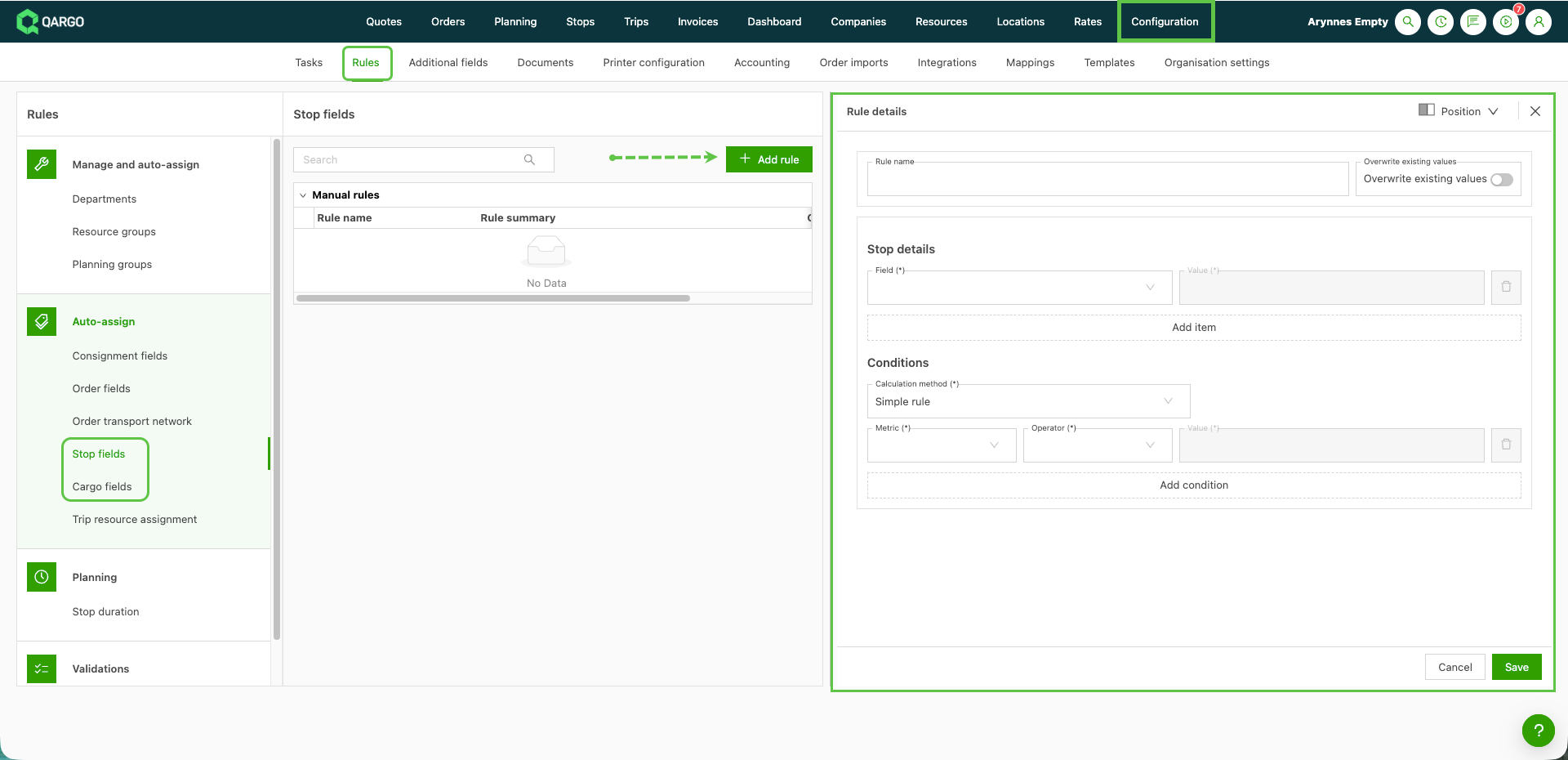
What’s included:
- Add stop extras automatically with rules in the Stop fields category
- Add freight extras automatically with rules in the new Freight fields category
- Use rule conditions, such as the customer or the freight product, to decide where each extra is added
- Stop rules now also run on stops added to an existing shipment, so it’s worth checking that current stop rules still give the expected result
Auto-assign stop and freight extras using rules
🤝 Resources – Status column on the contract carriers list
A status column can now be added to the Contract carriers list. Each contract carrier’s status is then visible at a glance, without opening the contract carrier’s details. The column is switched on through Customize. It can then be filtered and sorted to find the right contract carriers.
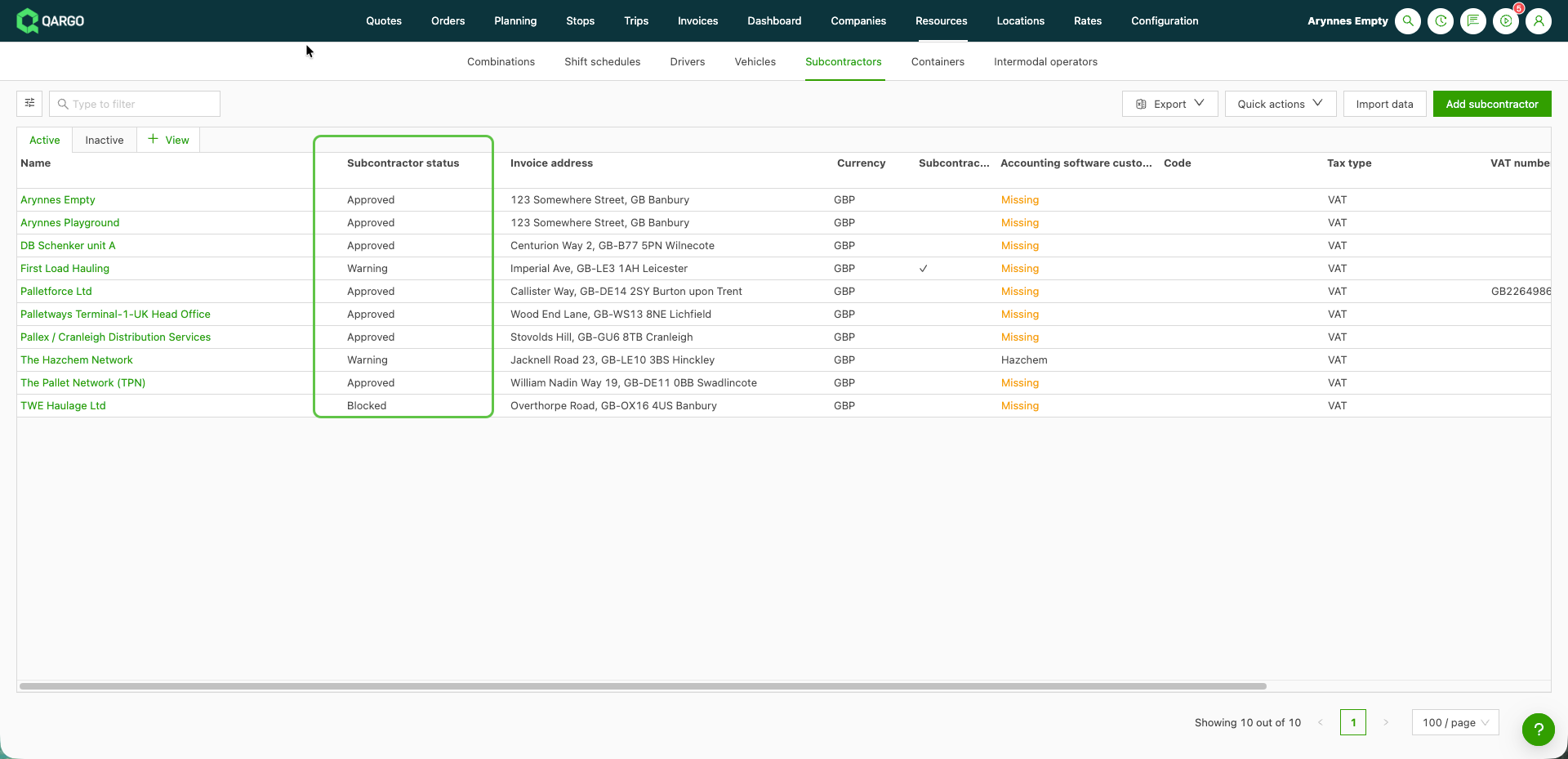
Assign contract carrier status
💰 Rates – Charge currency on rate card charges
A currency can now be set on individual charges in a rate card. Some customers are invoiced in more than one currency, for example EUR for European legs and GBP for UK legs. The right currency is now applied automatically, and planners no longer need to change it on each order.
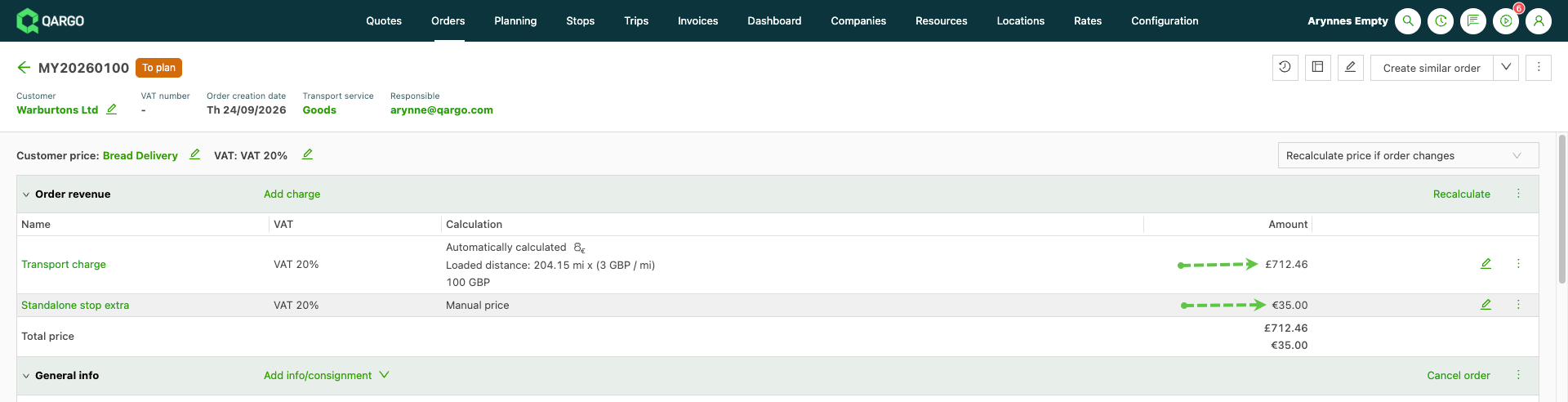
What’s included:
- Choose a different currency for any charge on a rate card
- Charges on orders and loads are calculated in the currency set on the rate card
- Charges already on orders keep the currency they were created with
Week 5
🧾 Invoices – Auto-create invoice when an order is Ready to invoice
Qargo can now create the invoice automatically the moment an order reaches Ready to invoice. The finance team no longer has to open each order and invoice it by hand. The setting creates either a finalized invoice or a draft to review first, and it can be overridden per customer where needed. This first version applies to customers set to Separate invoice per order.
What’s included:
- New Auto create invoice when order is ready to invoice toggle on the Create invoice task in Configuration > Tasks
- Choice between Create invoice and Create draft invoice as the default action
- Per-customer override in the customer’s Invoice config panel
- Default Invoice date and Default action now sit on the Create invoice task screen, so all invoice-creation settings are in one place
Auto-create invoices when ready to invoice
🔎 Invoices – Surcharge revenue breakdown and Is / Is not filter
The Surcharge revenue column in Orders to invoice (Order View) and on the Orders overview can now show exactly which surcharges make up the total. The column can also be filtered on those surcharges. This makes it easy to spot orders that are missing a specific surcharge before invoicing, for example a holiday surcharge on a public holiday.
What’s included:
- Switch between Total amount and Breakdown display modes, for example Holiday: EUR 120, Standard: EUR 50
- Filter with Is or Is not on any surcharge name
- Save the view to keep the display mode and filter for next time
Improve visibility by using the Surcharge revenue column option
💱 Invoices – Automatic exchange rate date for currency conversion
The exchange rate date no longer needs to be typed in on every converting invoice. Each billing entity can now set a rule that fills in the Exchange rate date automatically. The field stays editable whenever the date needs to be changed.
What’s included:
- Separate rules for sales invoices (Revenue exchange rate invoice date) and carrier invoices (Cost exchange rate invoice date)
- Four options to base the date on: Same as invoice, Current date, Earliest charge date or Latest charge date
- An Adjust by option to shift the date one day earlier or later
- The field only appears when the invoice currency differs from the billing entity’s legal currency
- A confirmation pop-up when charges change on a converting invoice, so the date can be checked
Using the automatic exchange rate date
💰 Invoices – Refund status column on credit memos
It is now possible to see at a glance which credit memos have been refunded, without opening each one. A new Refund status column on Credit memos and Carrier credit memos shows Refunded or Unrefunded, based on the Mark credit memo as refunded task.
What’s included:
- Refunded (green) and Unrefunded (orange) tags straight in the list
- Sort and filter on refund status
- Save a view that lists only the credit memos still waiting for a refund
Using the refund status on credit memos
⏱️ Planning – Stored driver activity events on loads and resources
Qargo now keeps a full history of what drivers were doing on each load: driving, resting, on a break, waiting or refueling. Events are captured automatically from Transics, Trimble or Samsara. Rest and break logging in the Qargo mobile app is coming soon.
What’s included:
- Driving, rest, break and waiting durations shown on the load detail
- A View activities timeline with every activity period on the load
- Driving duration now shows net working time, so multi-day loads report the hours actually worked rather than the full elapsed time
- Active waiting or rest extends the load leg on the planning board, so delays are visible as they happen