
FAQ: How to handle splitting and merging orders or shipments in Qargo
Table of contents
- How to handle splitting and merging orders or shipments in Qargo
- Splitting orders in Qargo
- Sending a multi-order terminal split to “To plan”
- Merging shipments into a single order
- Plan on separate load
- Merging two loads
- Combining load times for rating calculations
- Special considerations
- Quick reference: do’s and don’ts
How to handle splitting and merging orders or shipments in Qargo
Managing orders and stops in Qargo often involves tasks like splitting orders, regrouping shipments, or working around software limitations for specific actions. Below is a comprehensive guide to handling these scenarios effectively.
Splitting orders in Qargo
Individual order split
Orders can be split individually from the Planning screen. Follow these steps:
- Locate the order in the Planning screen.
- Click the + icon between stops on the order’s route.
- Select Split order from the menu.
- Enter the terminal details and confirm the split.
Selecting specific shipments when splitting an order
When splitting an order, planners can choose which shipments are routed through the terminal stop. This gives planners granular control over which stops are included in the split, rather than routing all shipments through the terminal automatically.
How to deselect shipments when splitting:
-
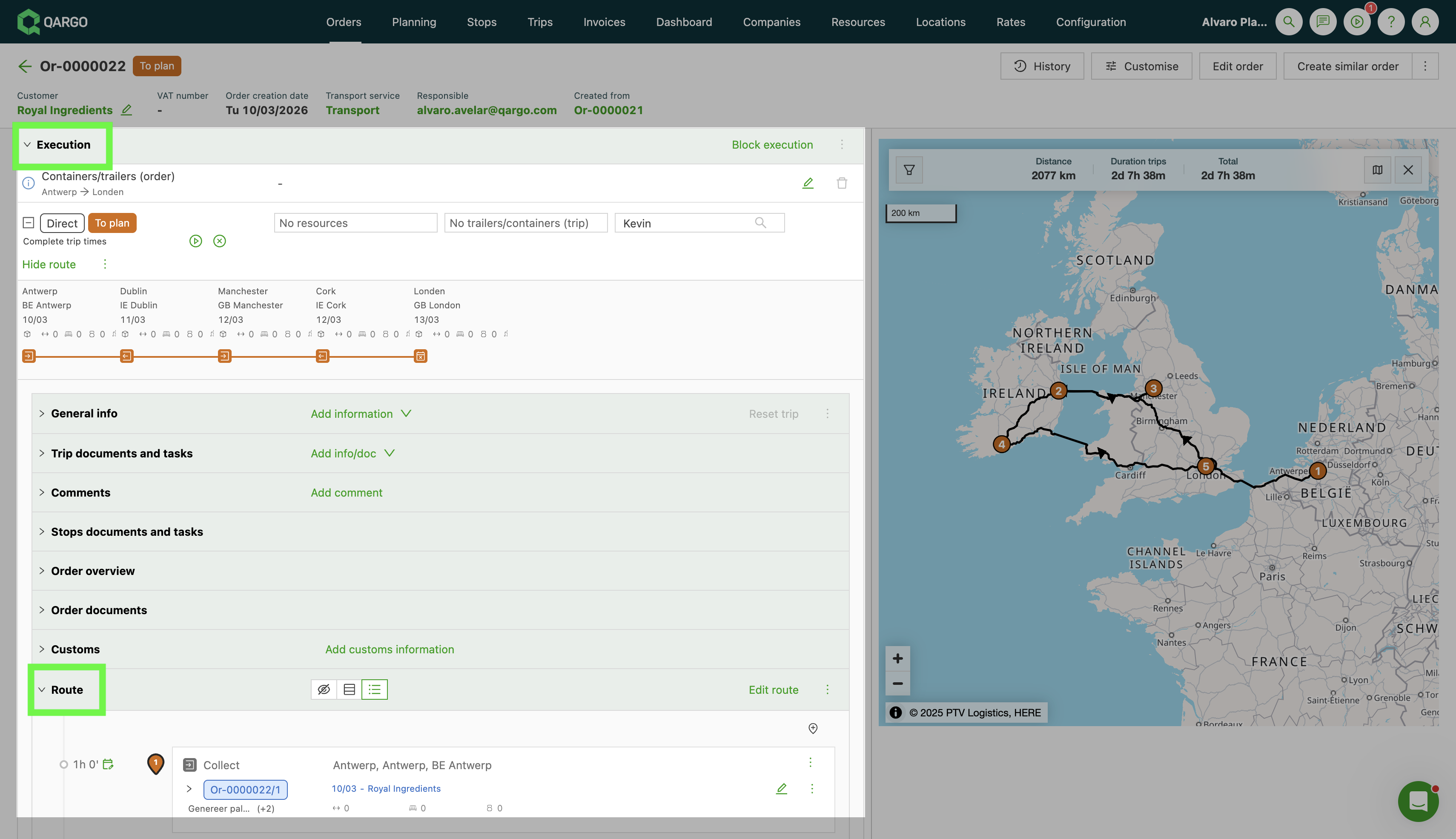
Open the order detail page and scroll to the Operations section.
-
Expand the Route section.
-
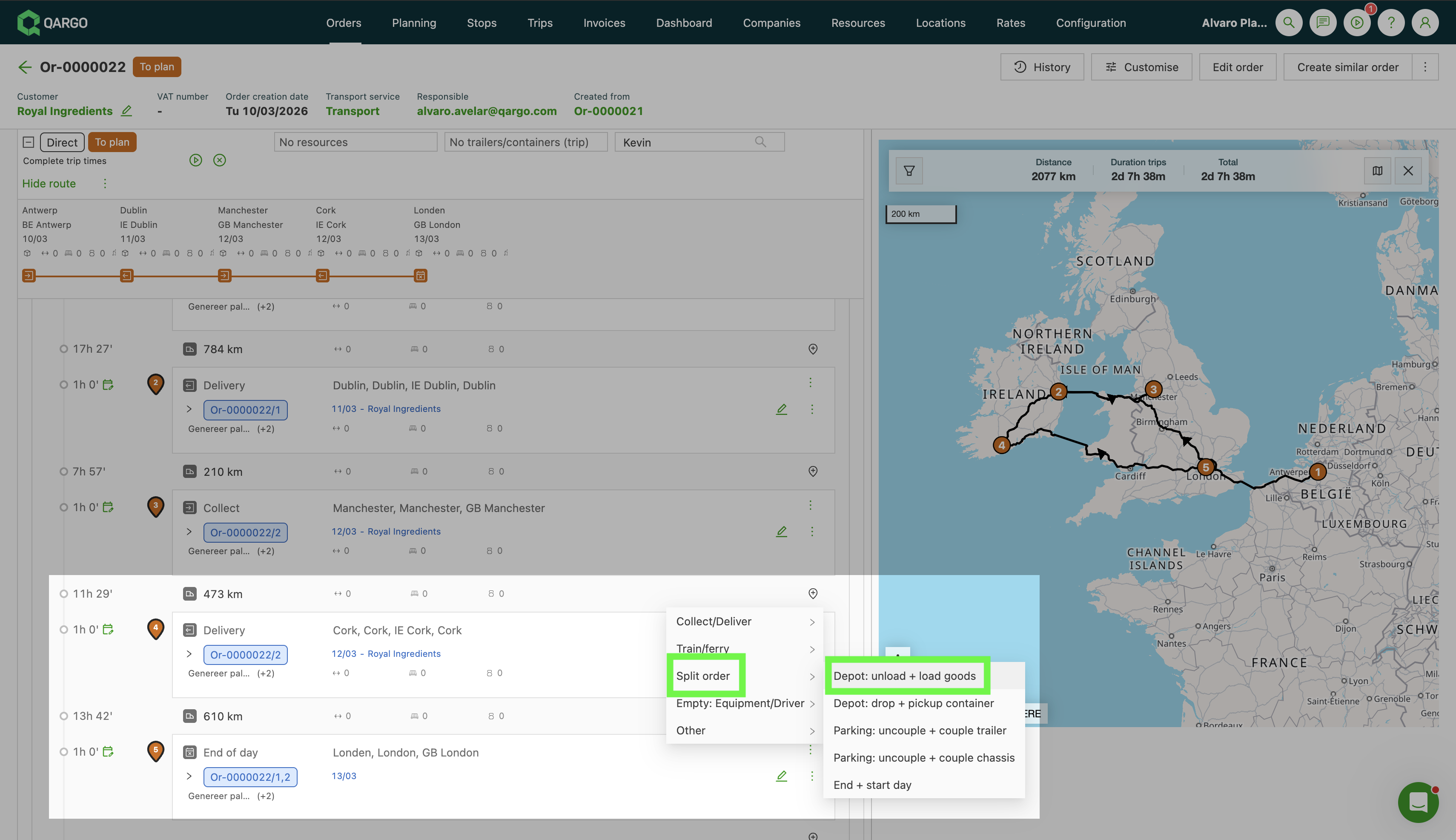
Click the + icon between two stops on the route timeline.
-
Hover over Split order in the dropdown menu.
-
Select a terminal type from the submenu, for example Terminal: unload + load goods.
-
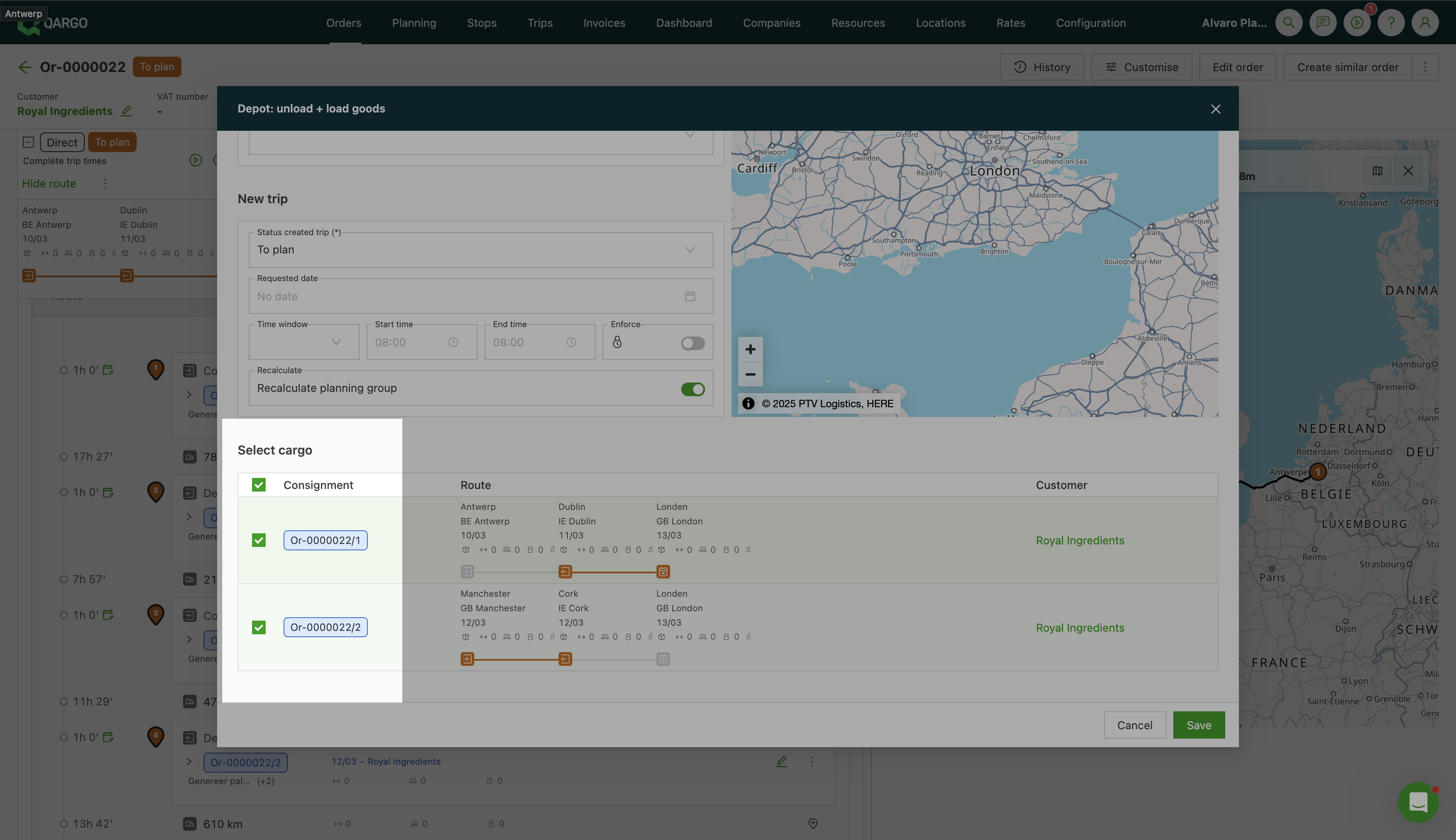
In the dialog that opens, review the Select freight panel on the left. Deselect any shipments that should not be routed through the terminal stop.
-
Fill in the New load details (status, requested date, time window).
-
Click Save.
Only the selected shipments will be routed through the terminal. Deselected shipments remain on their original route and are not affected by the split.
Bulk splitting orders
Bulk splitting cannot be performed directly from the Planning screen. Instead, use the following workaround:
- Navigate to the Orders page.
- Use the Quick actions to apply a bulk split order.
These steps enable efficient splitting for larger sets of orders.
Sending a multi-order terminal split to “To plan”
When a load carries two or more orders and it is split over a terminal, the Status created load field in the split dialog can now be set to To plan.
How it works
- On the planning board, split the load over the terminal using the Terminal: unload + load goods action.
- In the split dialog, open the Status created load field. On a multi-order split, this field is now selectable, and for the Terminal: unload + load goods action it defaults to To plan.
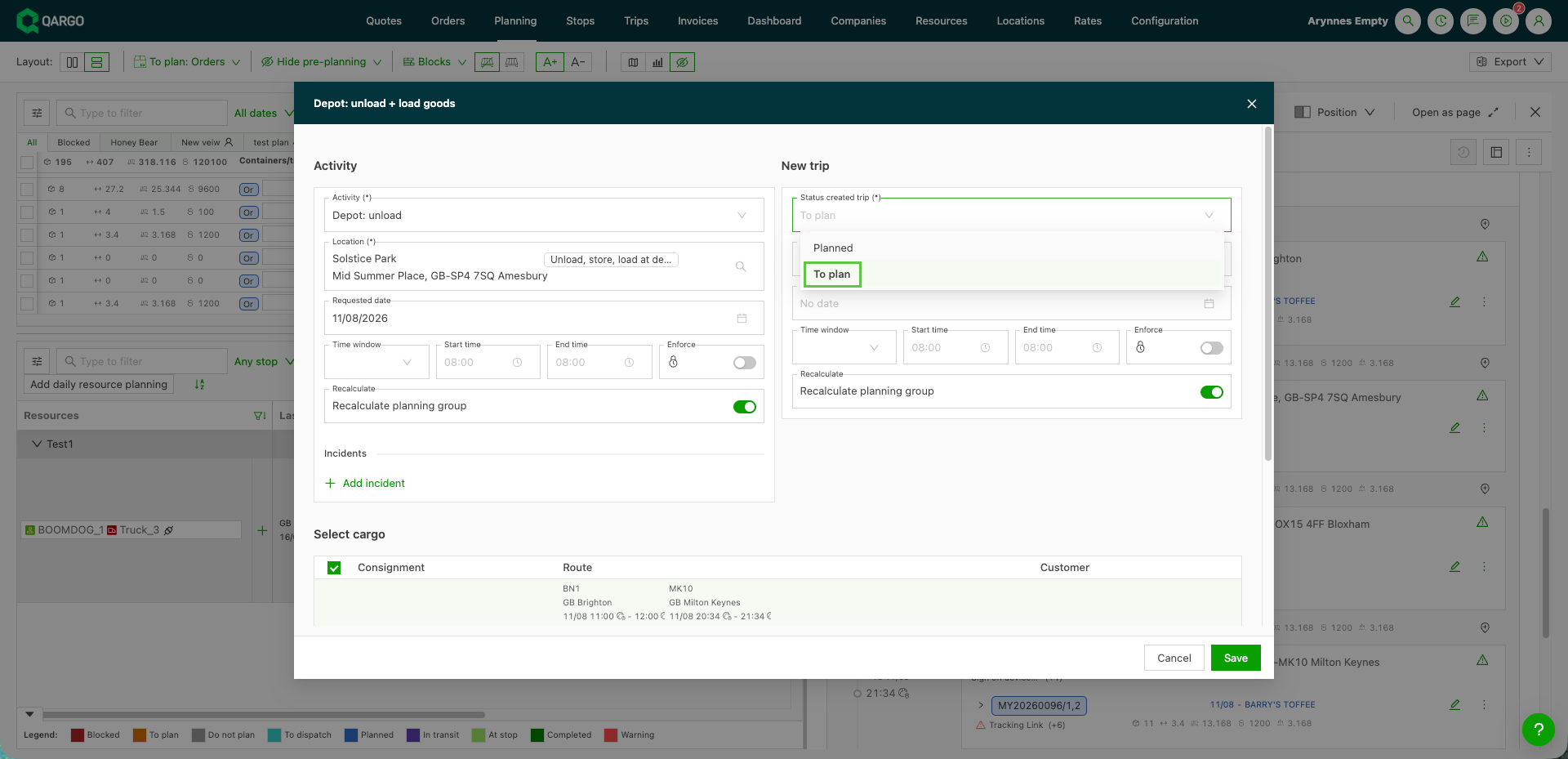
- Confirm the split. With To plan selected, each split order becomes its own individual row in To plan: Orders.
- Assign each order to whichever outbound vehicle is required. Because the orders are no longer grouped on one new load, they can go to different vehicles.
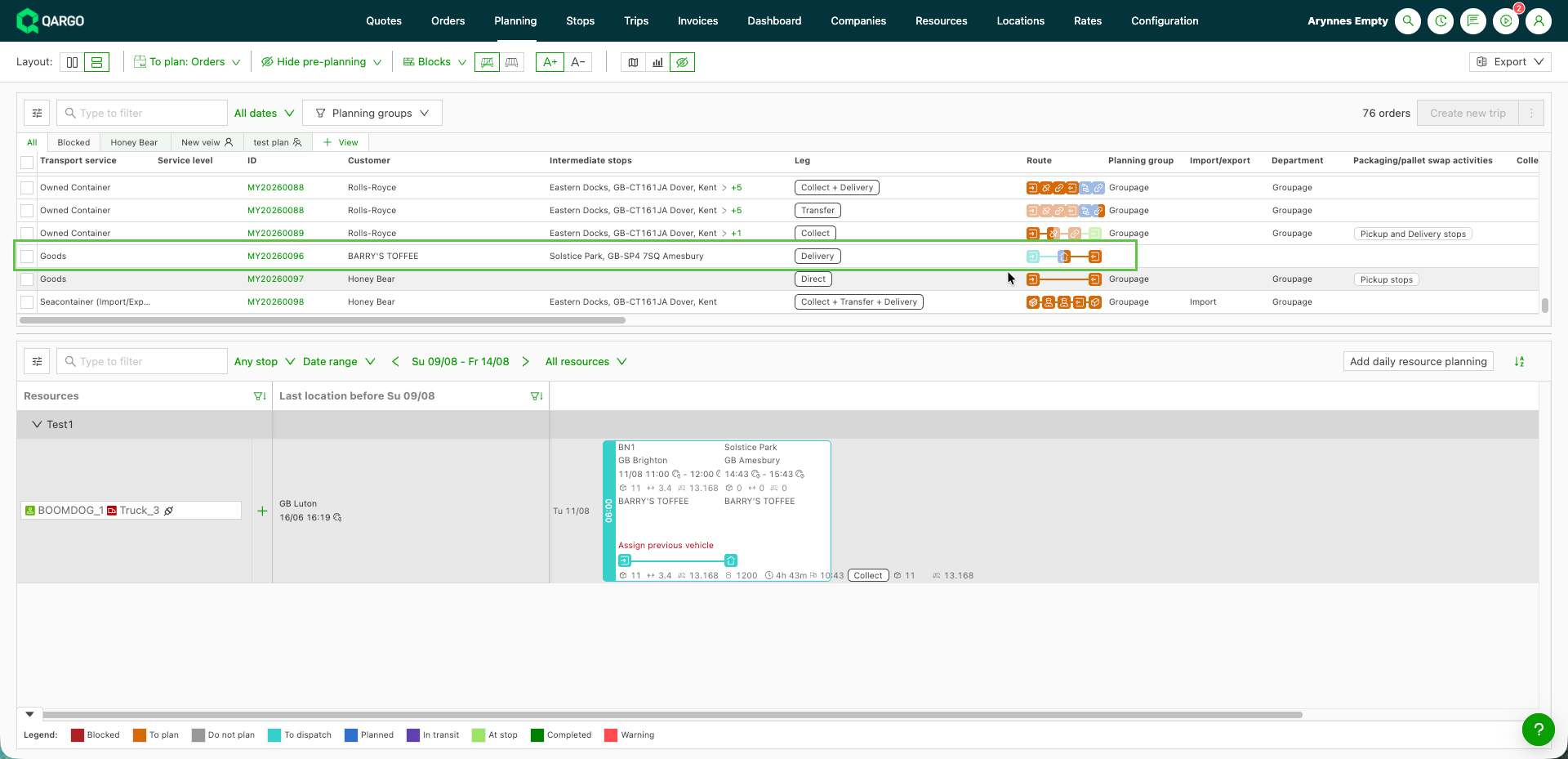
The planning group on the split orders follows the existing Recalculate planning group toggle. When the toggle is on, the planning group is recalculated; when it is off, the planning group selected in the split dialog is kept on each individual order.
Limitations
- One status choice applies to the whole split. Choosing per order which ones go to To plan and which stay Planned is not available in this version.
- The other values set in the split dialog, such as planning group, requested date and time window, also apply to every resulting load.
- A multi-order hook/drop still produces one grouped Planned load.
Merging shipments into a single order
If an order shows as two or more shipments, regroup them without creating a new order:
- Go to the Planning tab and open the list of Orders to plan.
- Select all the shipments from the affected order.
- Create a New load with the selected shipments.
- Drag the load back to the Orders to plan list to unplan and consolidate the shipments.
This workflow ensures the order can be handled as a single shipment.
Plan on separate load
- Use this option when multiple shipments appear on an order, but a single shipment needs to be delivered separately, or “split off” from the main order.
Steps to separate a shipment
-
From the order details, navigate to the Operations panel.
-
Click the stop icon for the stop that needs to be separated.
-
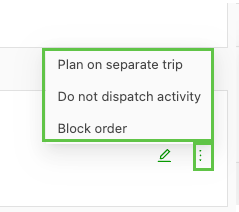
A new modal pops up. Next to the location details is a menu that shows 3 options:
- Plan on separate load
- Do not dispatch activity
- Block order
-
Clicking ‘Plan on separate load’ automatically moves the shipment to a separate route.
-
The other option is to expand the route completely by clicking the +.
-
The route expands with additional information, including stop details.
-
If the stop details show as a list, without the full details, click the icon to expand the details.

-
-
This shows the individual stop details. Use the menu on the right side, as described above.
Merging two loads
To merge two loads into a single continuous load, follow these steps:
- Locate the parking drop/hook, terminal load/unload or similar stop that is splitting the load flow.
- Remove the parking/terminal stop.
- Once it is removed, the loads automatically consolidate into one continuous load.
This merging method applies only if the loads are separated by a split order stop type. Make sure that any resource allocations (e.g., drivers, vehicles) are fully compatible before combining.
Combining load times for rating calculations
When the drive times of multiple drivers need to be summed under a single rating calculation, note the following constraints and steps:
-
Qargo does not support summing drive time across separate orders.
-
To include multiple drivers’ time in one calculation, split an order into multiple loads as follows:
- Add a “drop/hook” order split between the pickup and the first delivery. This ensures the order contains two separate loads.
- Assign different drivers to each load if necessary.
- The system calculates the load durations independently but within the same order framework, excluding idle or wait times between the drop and re-hook actions.
This ensures driver hours are recognized and included accurately in rating computations.
Special considerations
-
Load merging dependencies: Only loads separated by parking/terminal or stop-end day stops can be merged, and resource allocations (e.g., drivers, vehicles) must be compatible before consolidating. Make sure all adjustments align with planned schedules.
-
Splitting at the end of the timeline: An order cannot be split at the very end of the day or between timeline periods. Splits must occur between two shipments at the logical point in the timeline where division is needed.
-
Bulk splitting alternative for terminals: While bulk splitting is unavailable on the Planning screen, the Orders page provides this functionality via Quick actions.
-
Trailer assignments during splitting: If a trailer is assigned to an order, it must be removed before performing a split and reassigned afterward to avoid interference.
-
Load generation settings: Make sure load generation settings are configured correctly before attempting to split shipments. Incorrect settings may prevent successful splitting.
Quick reference: do’s and don’ts
Do:
- Use the Orders page for bulk order splits via Quick actions.
- Use the Planning screen for individual order splits.
- Regroup shipments on the planning board to consolidate orders.
Don’t:
- Attempt to split orders after a drop or delivery stop.
- Split orders at the very end of the timeline.
- Expect bulk splitting functionality from the Planning screen.
Following these guidelines helps manage the splitting and merging of orders effectively within Qargo, ensuring seamless operations and optimal use of the tools available.