
FAQ – How to add / remove a terminal stop from an order
Table of contents
The Split order option splits the order and creates a different plan load. Different actions are possible there, for example:
- Terminal: unload + load goods
- Terminal: drop + pick up container
- Parking: drop + hook trailer
- Parking: drop + hook chassis
- End + start day
Add a split to an order:
To split an order, first open the order page and scroll down to the route details:
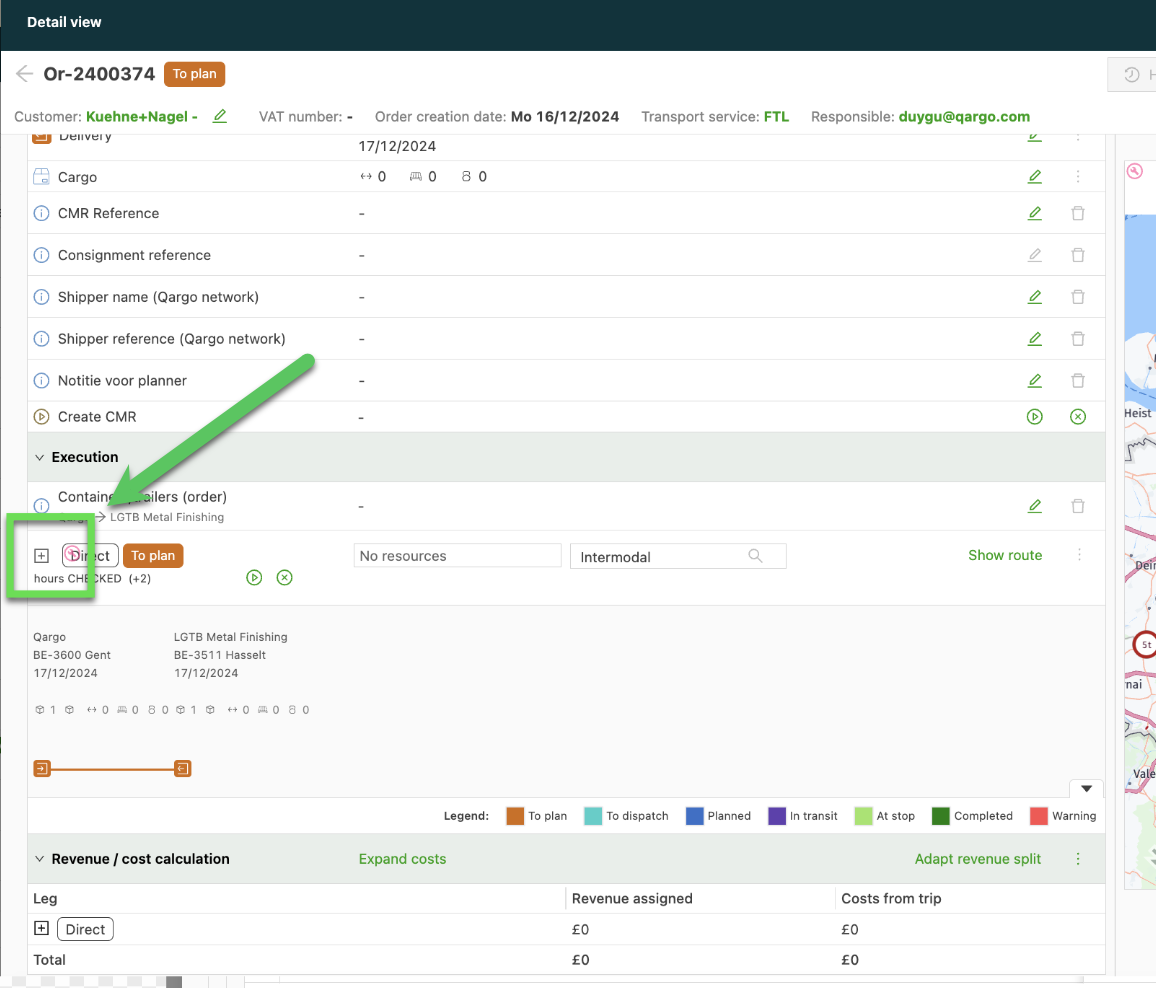
Locate the point to split the order from and use the ’+ icon’ (found along the route on the order) in between the related stops:
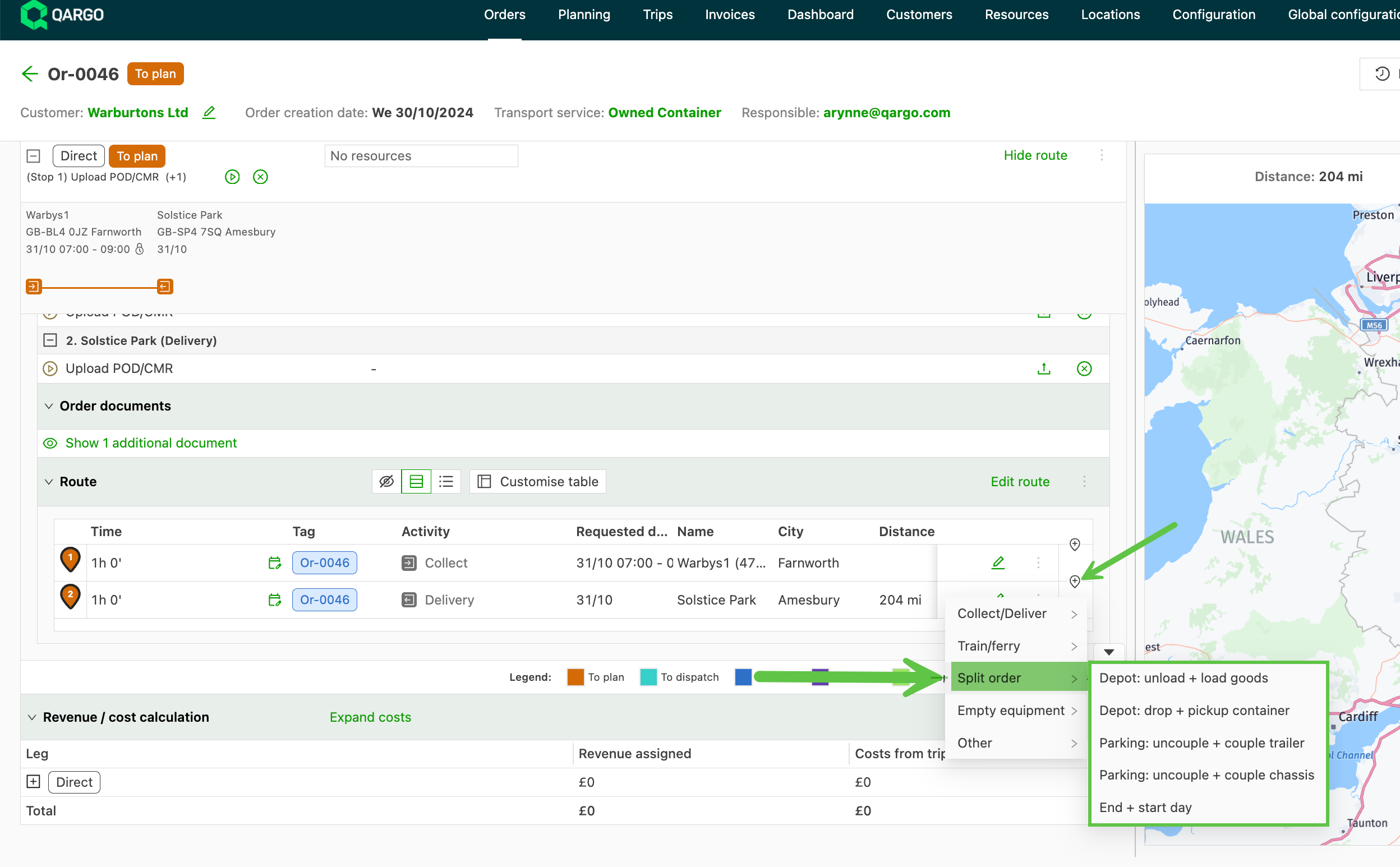
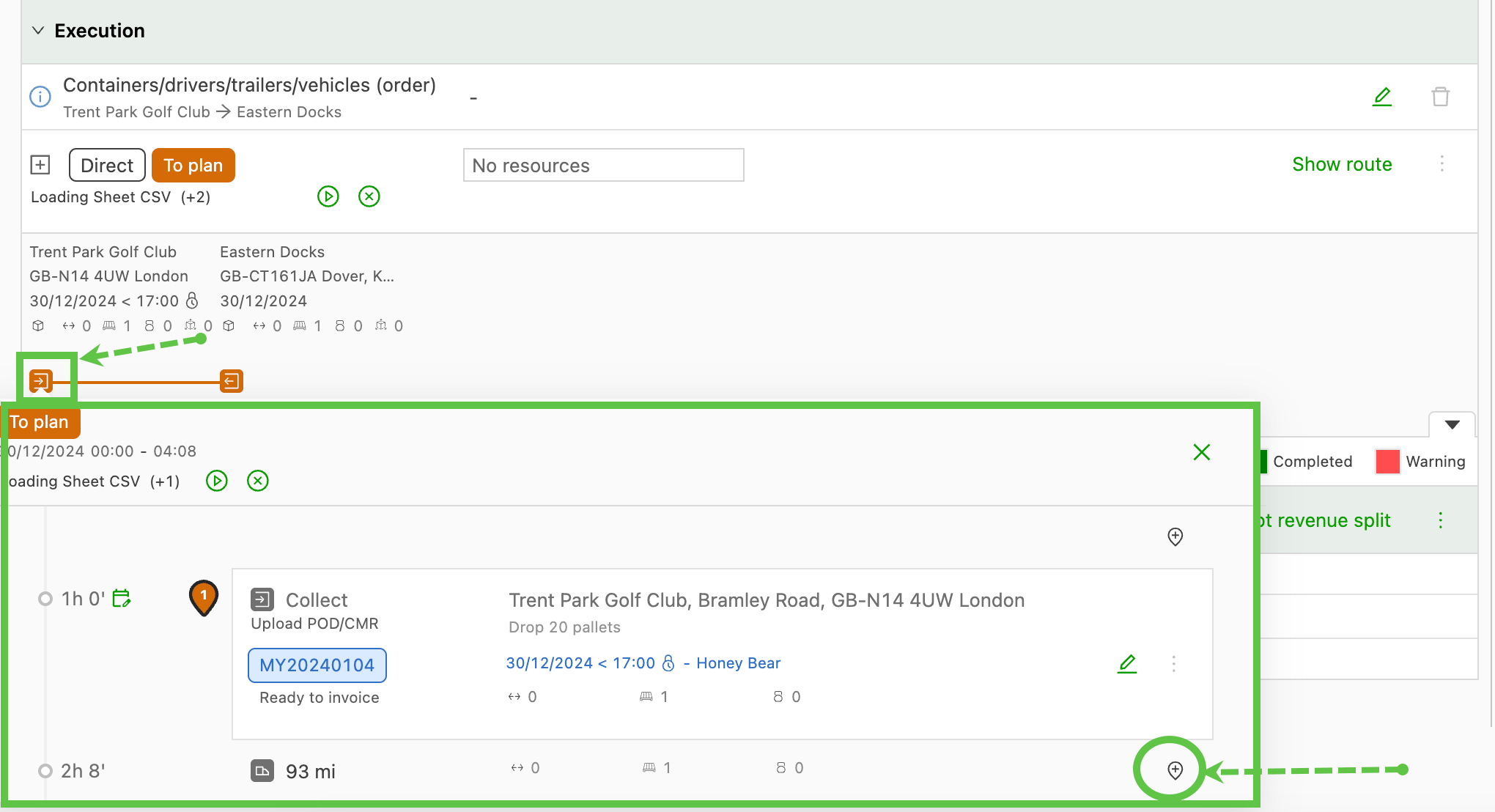
Click the icon to add the split with the terminal location. The example below adds a terminal stop:
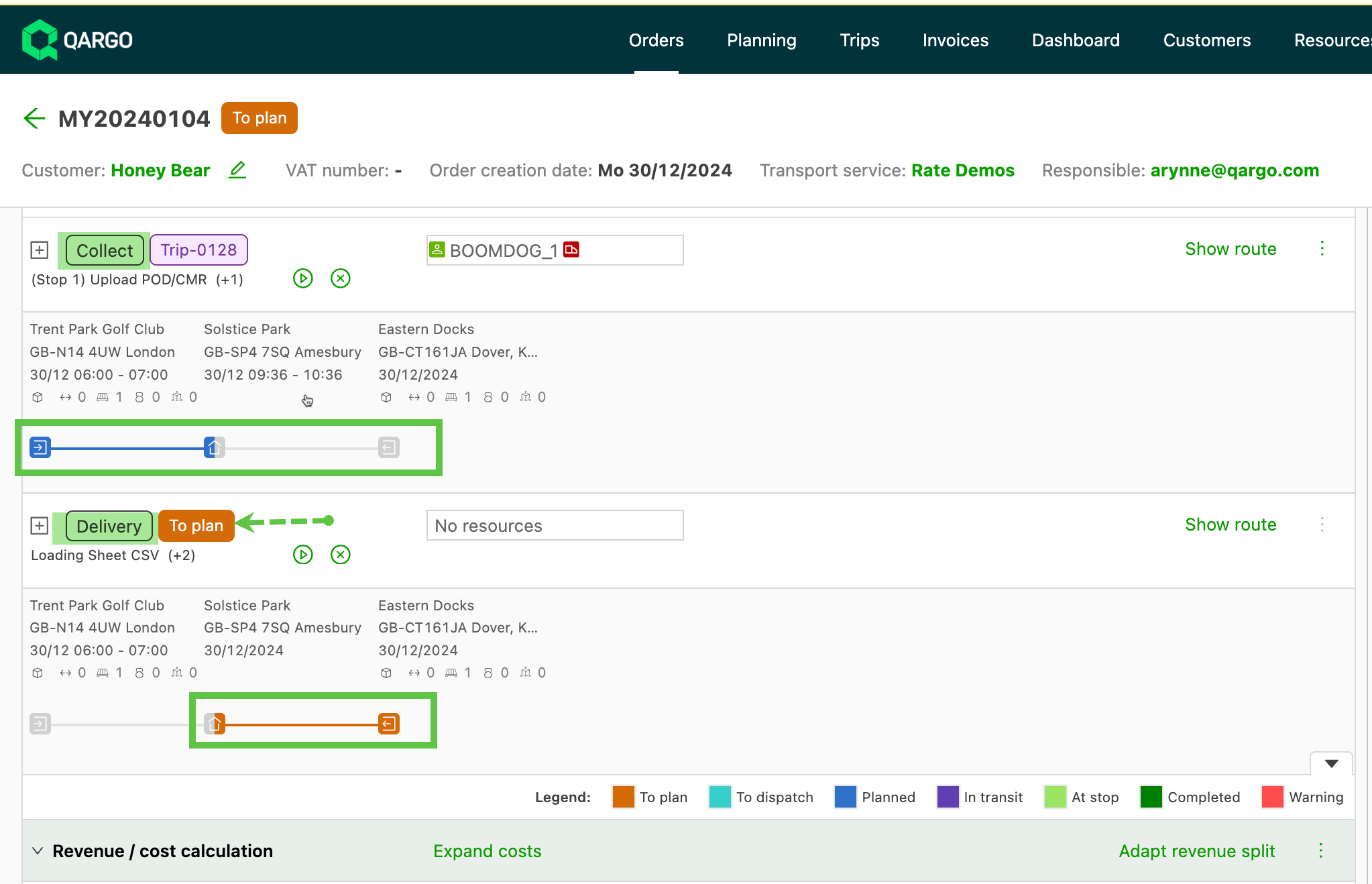
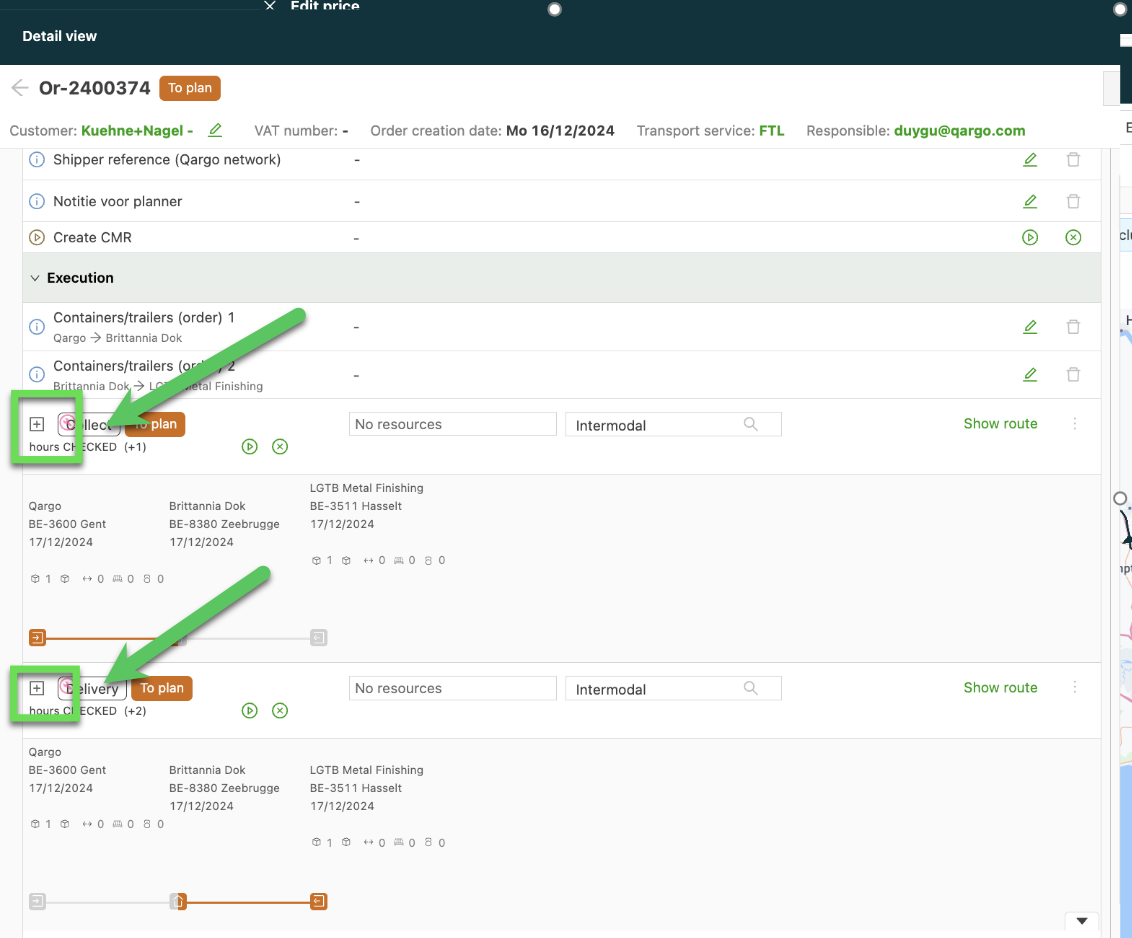
Once a split has been added to the order, the order is separated into legs:
- Collect: Pickup - Terminal
- Delivery: Terminal - Delivery
If the order was dispatched before the split, only the first pickup leg remains dispatched to the resource. The second leg (Delivery) is set to a ‘To plan’ status. This allows another resource to be planned to the load. The same resource can still be dispatched onto the Delivery leg if required.
Remove a terminal from a split order
If an order has a split that is no longer required, it can be removed in a few clicks.
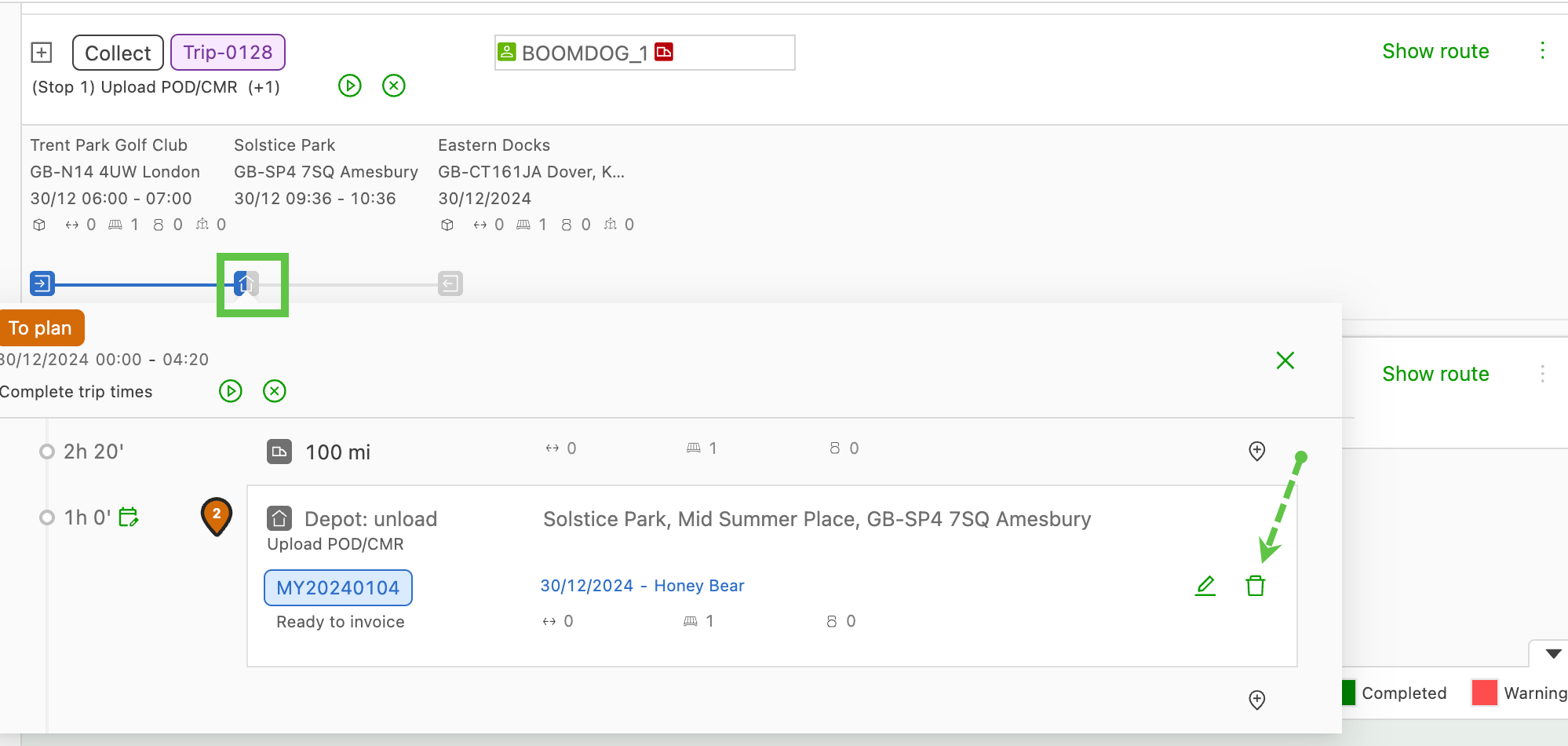
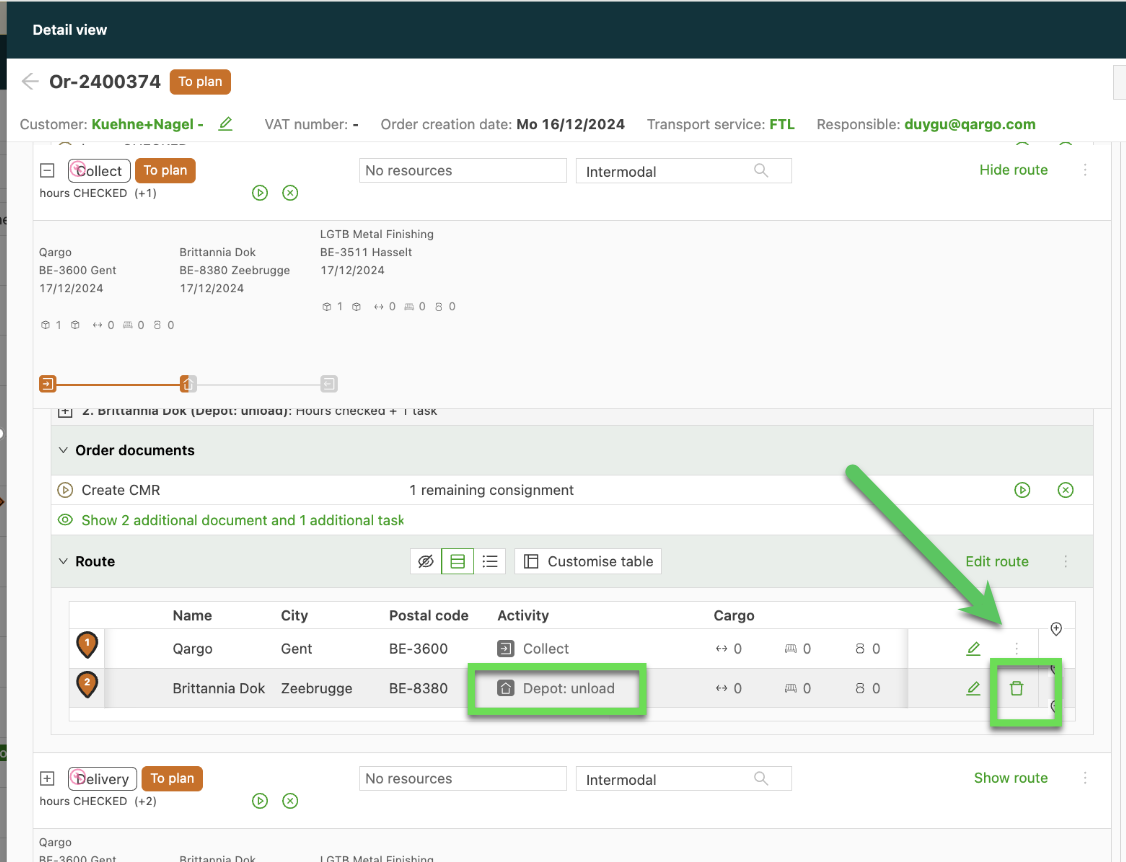
Navigate to the order and locate the terminal stop action:
Locate the terminal stop in the route. Click the ‘Trash’ icon to remove the stop.
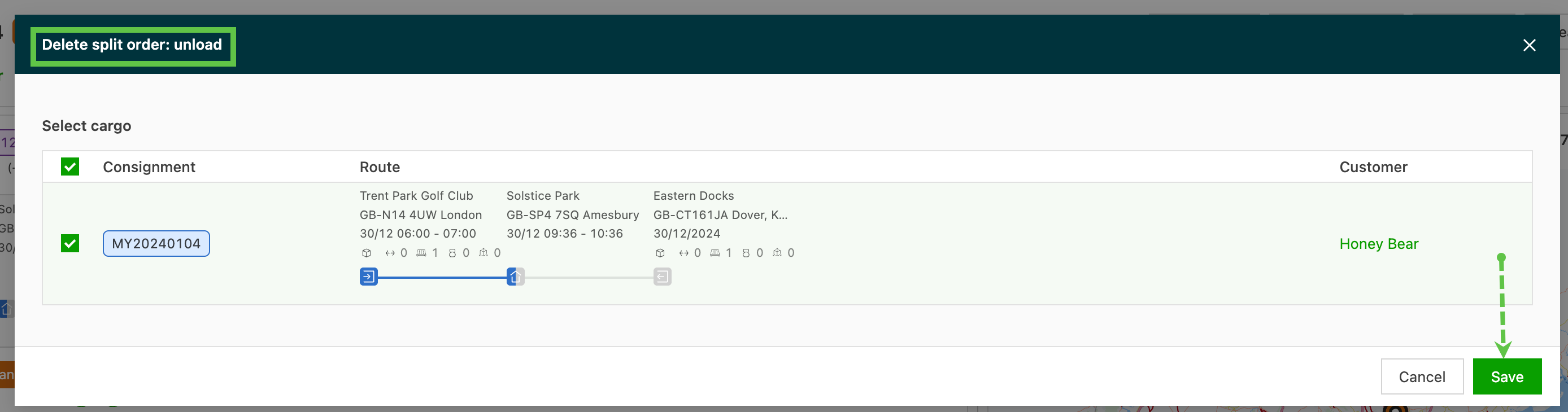
This opens the new Delete split order window. Select the shipment (or all, if removing the split entirely) and click Save.
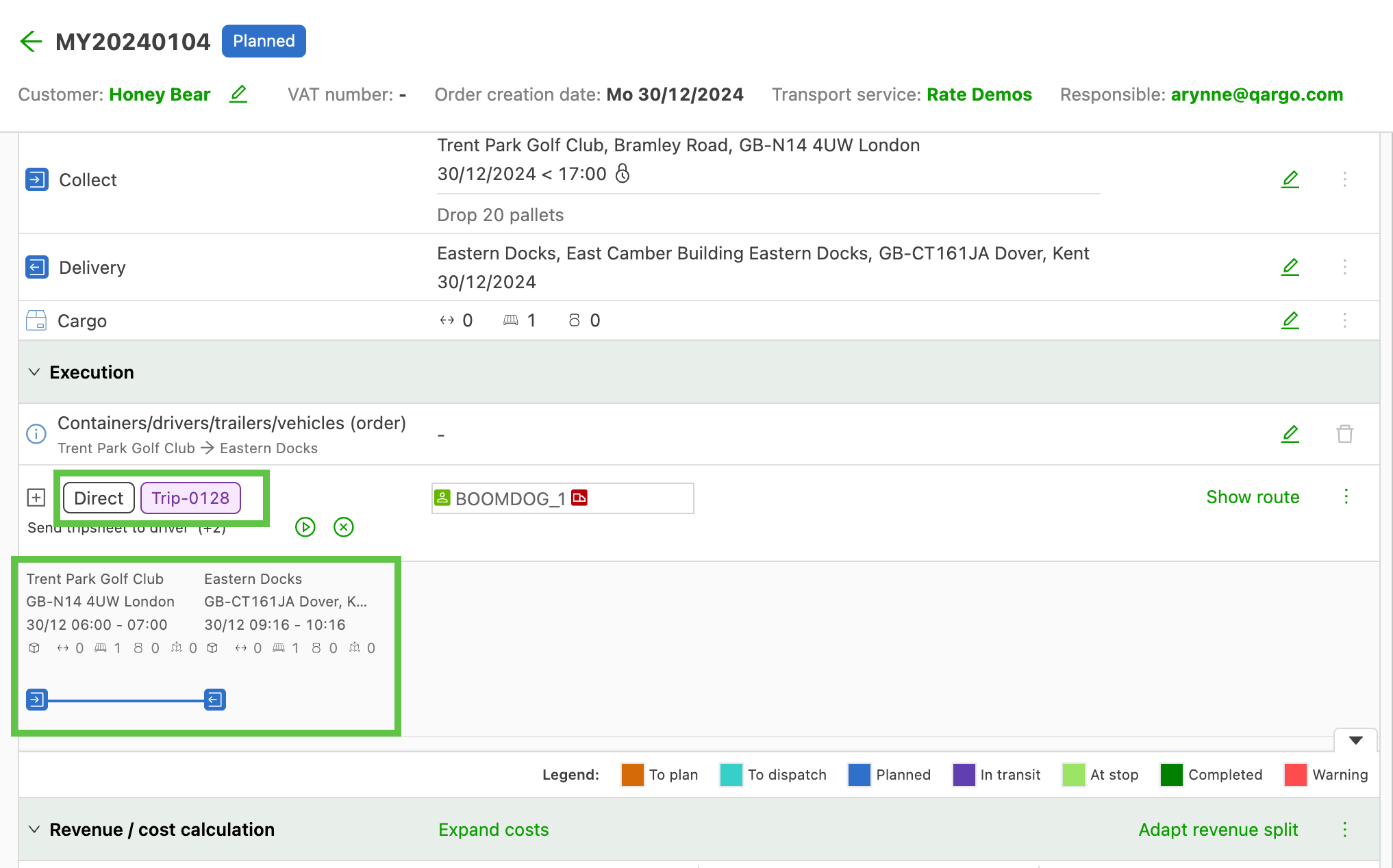
The split is removed. In the example below, the Collect leg was already planned, so the direct load remains in a planned status. If no load had been planned yet, the status would revert to ‘To plan’.
Full demonstration: