
Multi-currency with exchange rates on invoices
This article explains how to configure exchange rates when they need to be displayed on the invoice
Table of contents
Introduction
Qargo has multi-currency built in. Billing in multiple currencies is possible, and Qargo can also keep track of exchange rates to display both currencies on the invoice.
Configuration for multi-currency
The currencies to be used must be activated first. Contact the Onboarding Manager, Account Manager, or Support to enable the following, depending on the case:
- Legal currency: this is the main currency the company works with
- Allowed customer currencies: these are the currencies used to invoice customers, so they will be used for sales invoices.
- Allowed contract carrier currencies: these are the currencies contract carriers use when sending invoices, so they will be used for carrier invoices
This allows billing in multiple currencies, but it doesn’t keep track of exchange rates, so the invoice will only contain the amount in the customer currency.
Configuration to use exchange rates
To use exchange rates, go to Configuration > Accounting > Exchange rates:
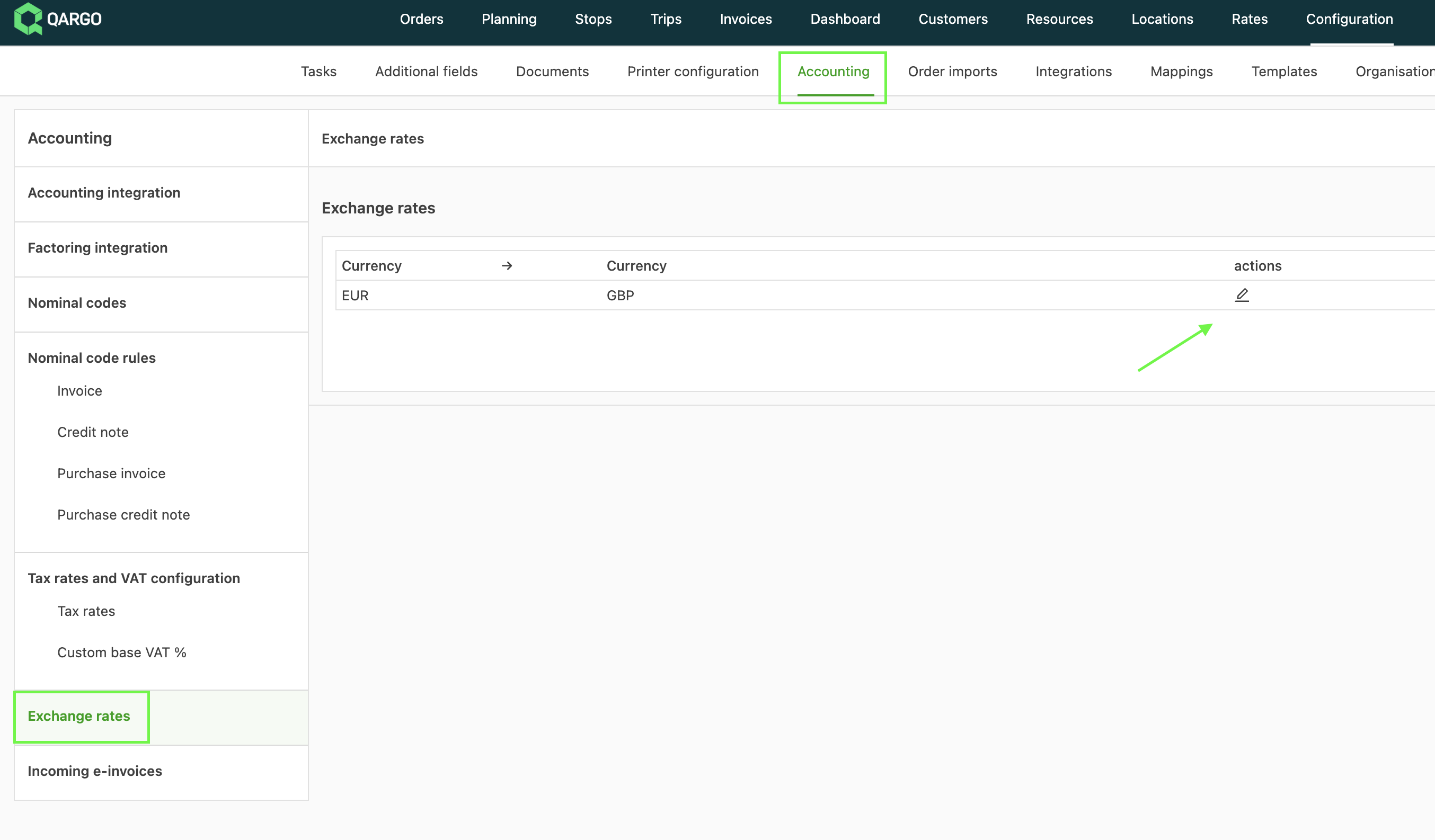
Click the edit button next to the exchange rate. This displays the table where exchange rates can be filled in:
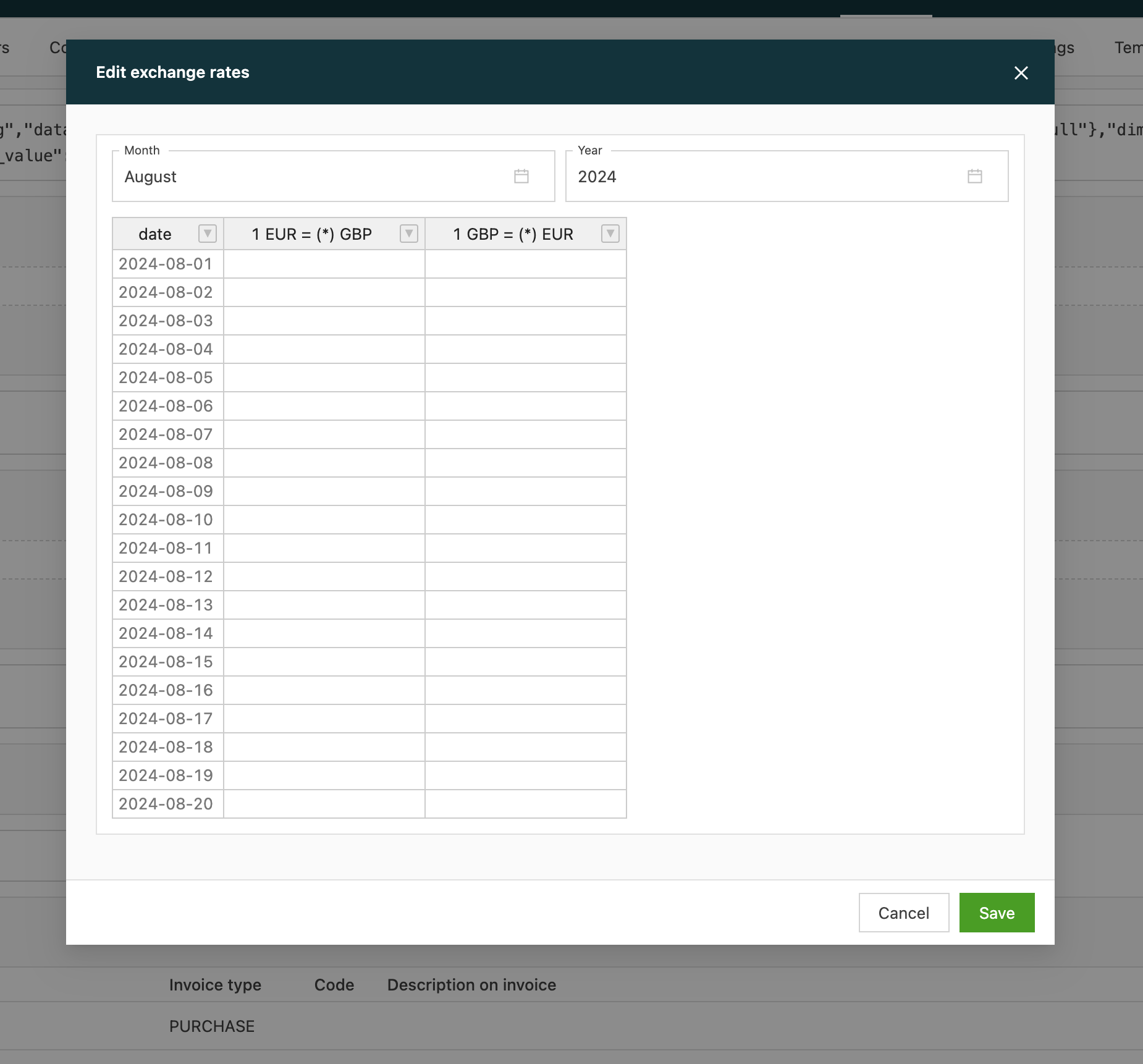
Once the exchange rate is filled in, press the save button:
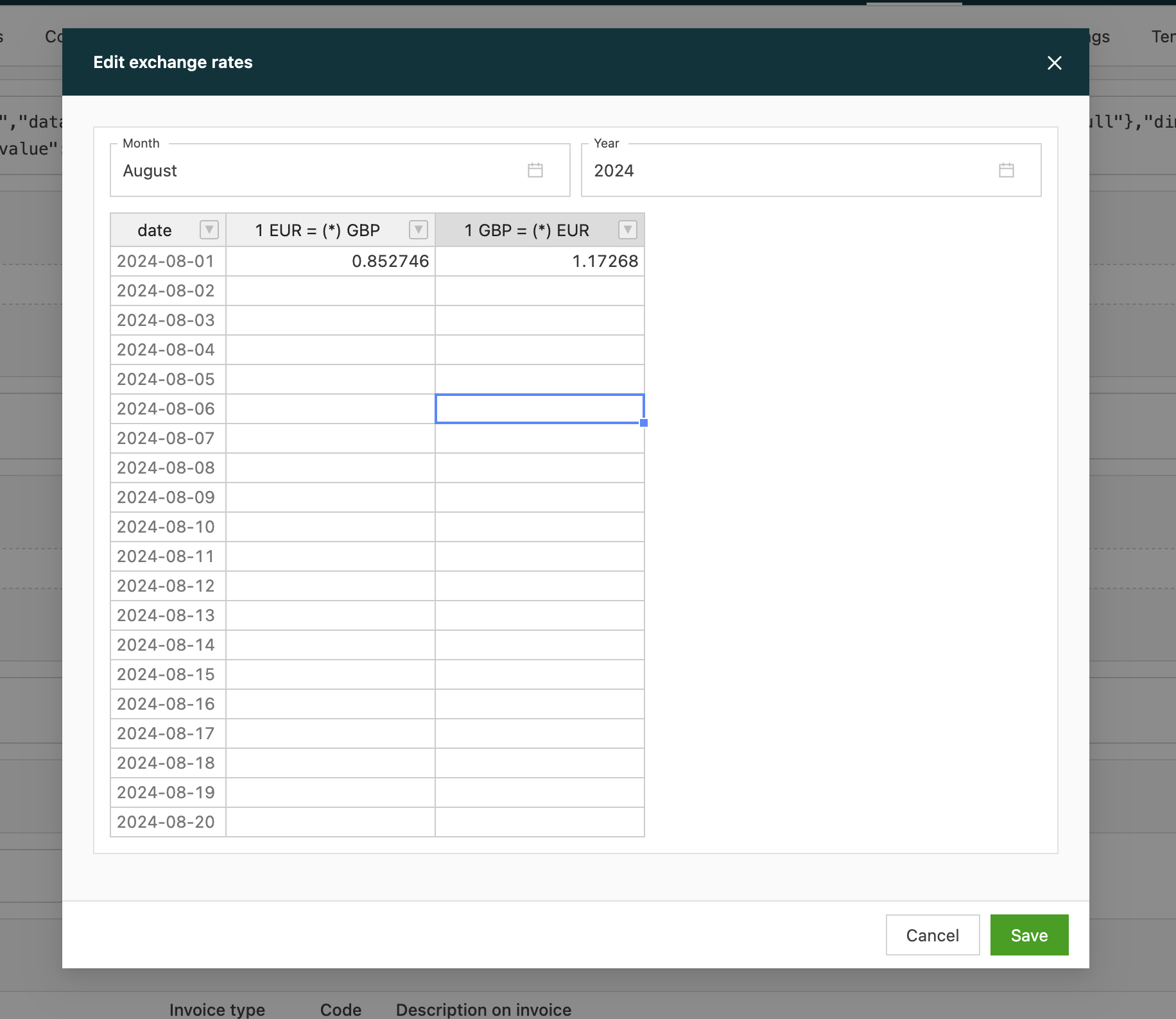
Exchange rates can only be added for past dates, not for future dates. When an invoice is created, Qargo always uses the most recent exchange rate it finds. In the example above, the exchange rate for 8/1/24 is filled in. When an invoice is created on August 20, Qargo looks back in the table and uses the exchange rate for August 1.
If an exchange rate in the past is changed, existing invoices won’t be updated. They may already have been sent to customers and accounting systems, so Qargo doesn’t risk making changes to them.
Creating invoices
When an invoice is created, the following appears at the top:
- Invoice date is when the invoice was created
- Exchange rate date is the date of the most recent exchange rate found. The exchange rate on that date is used. If this date is wrong, it can still be adjusted, which updates the exchange rate used.
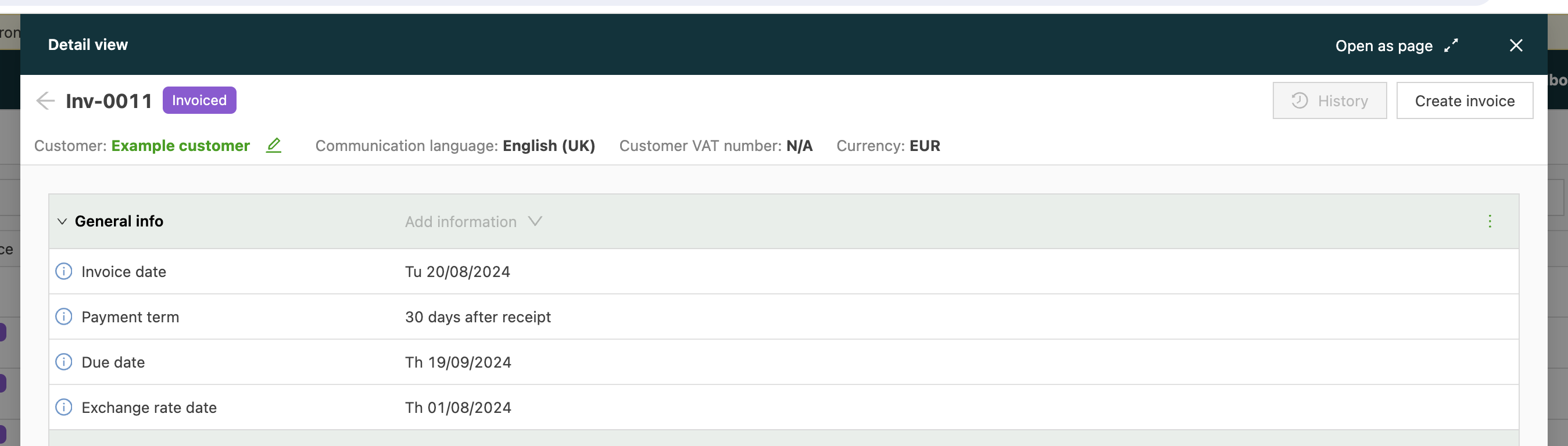
The exchange rate and the converted amount can also be shown on the PDF.
Reporting
Exchange rates are currently only used for display on the invoice. They are not used for reporting.
Automatic exchange rate date
Every converting invoice has one Exchange rate date, and billing entities can derive that date automatically from a rule, so the billing team no longer has to type it in on every invoice. The Exchange rate date field stays editable, and any edit re-triggers the conversion.
Prerequisites
- Keep Configuration > Accounting > Exchange rates filled in for the dates being invoiced. If a cross-currency invoice is saved without any exchange rate set up, the save is blocked. If no rate exists for the exact resolved date, Qargo falls back to the closest earlier date that has one.
Setting the exchange rate date rules
The rules are set per billing entity.
- Go to Configuration > Organization settings.
- Open Billing entity > a relevant entity.
- Scroll down to the Accounting information section.
- Open the Default invoice dates block. Two rules are available:
- Revenue exchange rate invoice date: applied to sales invoices and credit memos.
- Cost exchange rate invoice date: applied to carrier invoices and carrier credit memos.
Each rule offers four bases:
- Same as invoice: the exchange rate date matches the invoice date. This is the default for every billing entity, new or existing, on both sides.
- Current date: the exchange rate date is the current date.
- Earliest charge date: the earliest charge date across the charges being invoiced.
- Latest charge date: the latest charge date across the charges being invoiced.
An Adjust by dropdown below each rule shifts the resolved date by a set number of calendar days: 1 day earlier, Same day (the default), or 1 day later.
How the date is applied
- In the Create invoice modal opened from an order, the Exchange rate date is pre-filled from the Revenue exchange rate invoice date rule.
-
Carrier invoices and carrier credit memos are pre-filled from the Cost exchange rate invoice date rule.
-
Collective invoices resolve Earliest charge date / Latest charge date across every charge on the invoice.
- Editing the Exchange rate date from the Invoices page re-triggers the conversion.
Note:
- Earliest charge date / Latest charge date cannot resolve on the standalone Create invoice page before any charge is linked, and linking one afterward does not fill in the field retroactively.
- Qargo never reads the rate or rate date from a self-bill invoice or a scanned carrier invoice. A scanned carrier invoice always applies the billing entity’s Cost exchange rate invoice date rule.
- The Exact Online accounting export does not pass on the exchange rate, converted amount, or rate date.
- Under Polish law, invoices issued before delivery and after delivery require different exchange rate date bases. Since the rule is set once per billing entity, a single entity billing both cases cannot satisfy both automatically, so one of the two will need the date corrected manually.
Troubleshooting
| Symptom | Cause | Fix |
|---|---|---|
| The Exchange rate date field isn’t filled in on the standalone Create invoice page. | No charge linked. | Link a charge; it won’t be backfilled retroactively. |
| The Exchange rate date field doesn’t show up at all on the invoice. | Either the exchange rates capability isn’t enabled on the account, or the invoice currency matches the billing entity’s legal currency, so there’s nothing to convert. | Contact the Account Manager or Support to enable it, or confirm there’s actually a currency mismatch. |
| The invoice was saved with a different exchange rate date than expected. | No rate is configured for the exact date, so Qargo silently fell back to the closest earlier configured date. | Add the missing rate in the Exchange rates setting. |