
Invoices – Configuring the accounting setup
Accounting configurations to manage accounting software imports, GL codes and tax rates.
When a new account is set up with Qargo, the accounts configuration is set up to mirror existing workflows and processes as closely as possible. This includes configuring integrations with approved third-party accounting software to transfer cost and revenue data from Qargo efficiently.
The user role determines what can be updated in the application. Typically, the Super admin has the widest access to update the application. In some cases, however, updates may be restricted (grayed out) and require Qargo’s assistance.
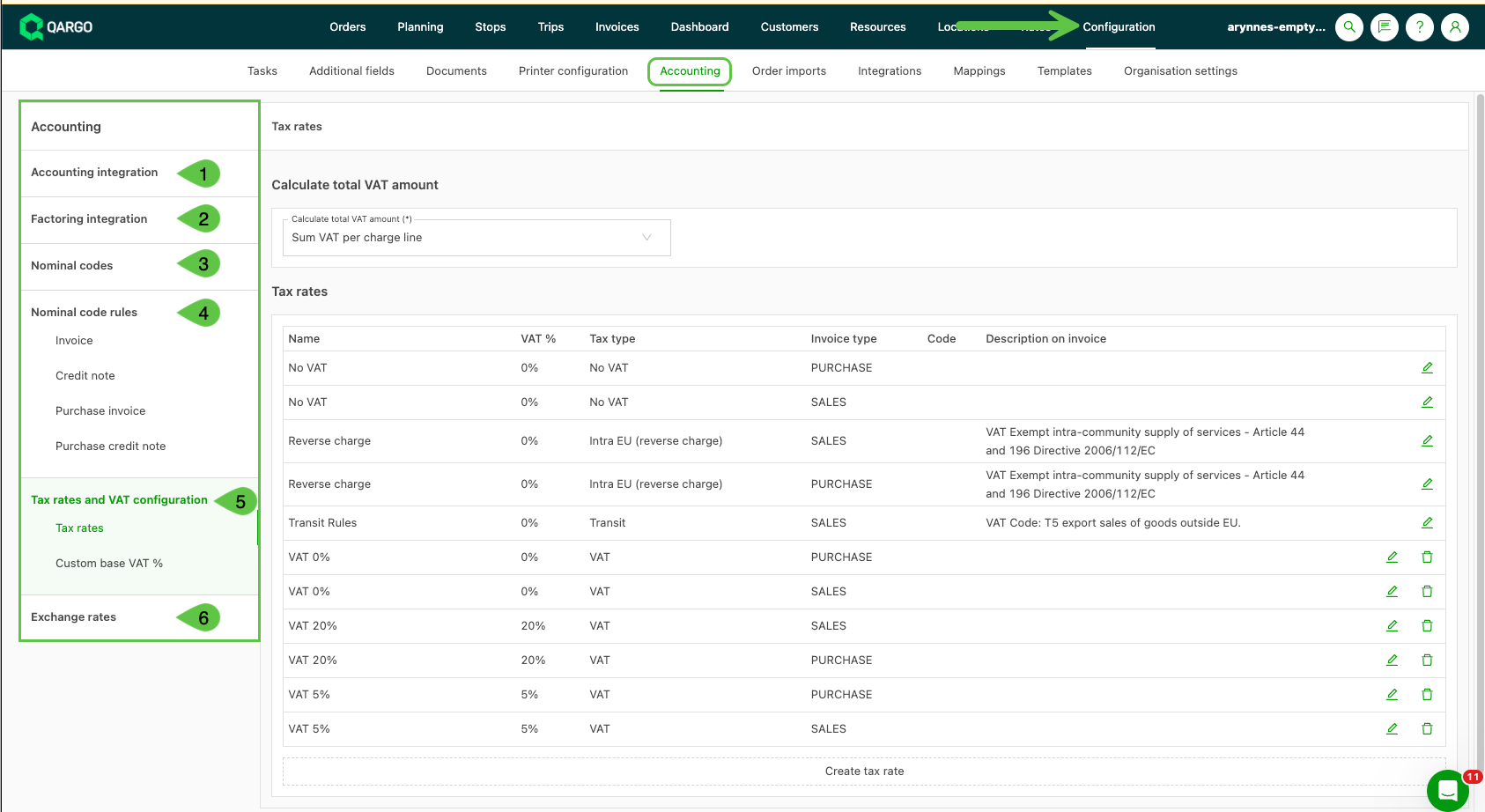
- Go to Configuration > Accounting.
- From the side menu, select the area to update.
-
Accounting & ERP integrations. Integrations exist with a large number of third-party accounting software packages. The Onboarding Manager sets up integrations as part of the setup and onboarding process for the new account. Once they are configured, contact the Qargo Account Manager for any changes.
-
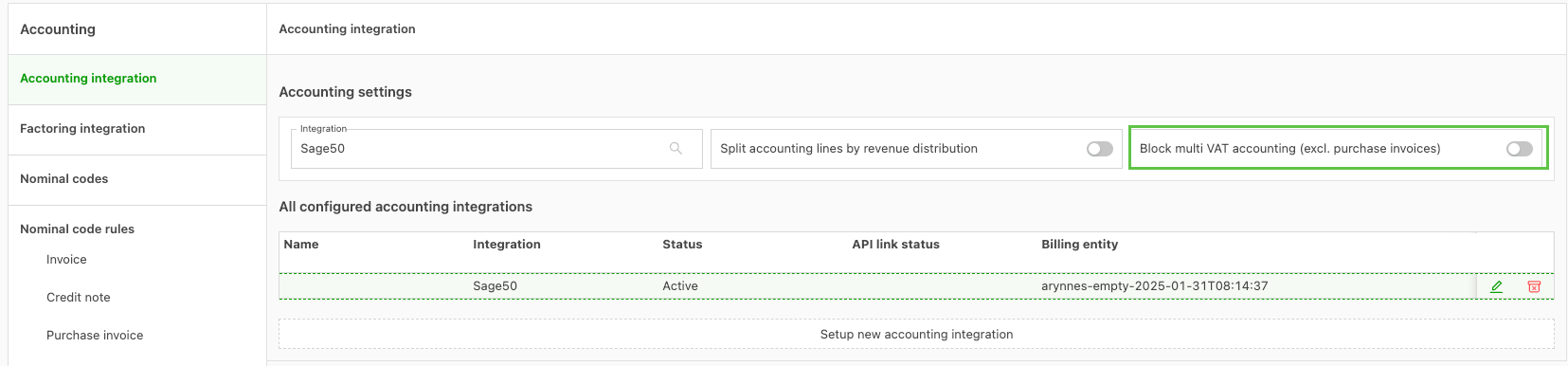
If a single invoice has multiple charges with different tax rules (for example, Charge 1 = tax / Charge 2 = no tax), the ‘Block multi-tax accounting’ setting restricts the Generate / Post task.
-
If the accounting software cannot handle imports with multiple tax rates on a single invoice, set this toggle to ON. Applies to sales invoices only.
-
-
Factoring software. An integration with approved third-party factoring software can be configured. Functions include exporting invoices, tracking factoring codes for customers, and managing accounts and contract numbers. This applies to sales invoices only.
-
GL codes. GL codes are added as part of the initial account configuration. These can include codes for both sales (revenue) and purchase (cost) invoices. Rules can be assigned based on various factors (transportation services, tax rates, etc.).
Only Qargo can update GL codes. For any changes, contact the support team via chat. -
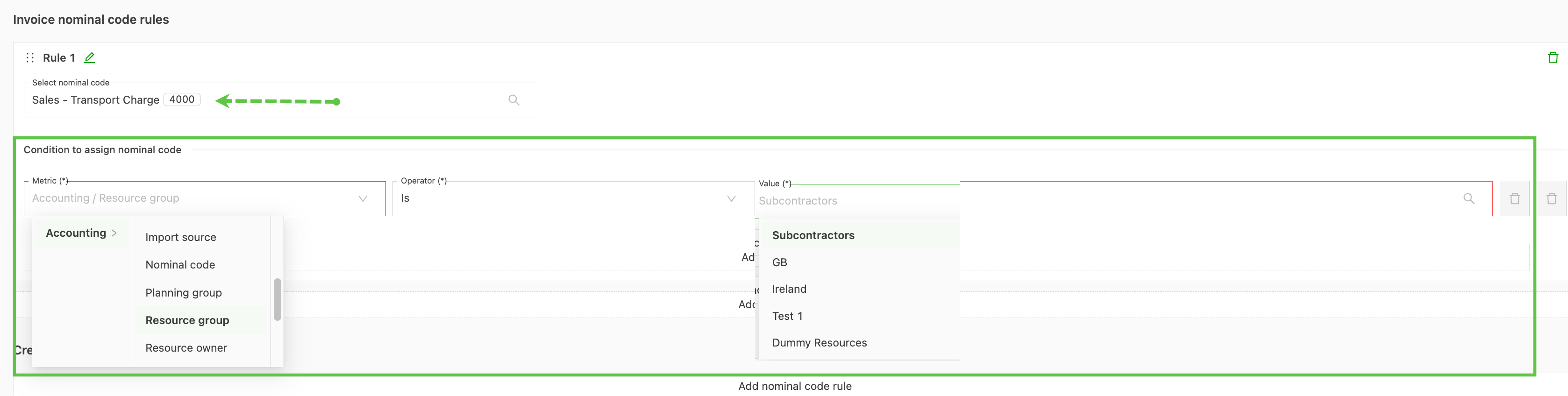
GL code rules. These rules can be configured to map codes automatically based on specific conditions, for example different codes for company fleet and contract carrier deliveries. If no GL code rule matches, the system defaults to ‘0000’. This can cause issues with imports, so it is important to make sure the right rules are configured.
-
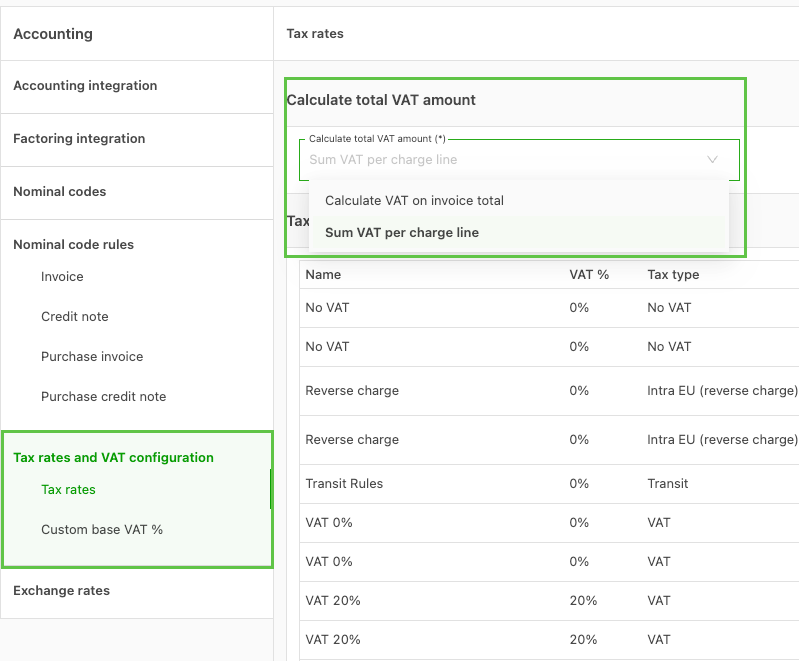
Tax rates & tax configuration. Calculate total tax amount. There are two options for calculating tax, which the Onboarding Manager configures as part of the initial setup: ‘Calculate tax on invoice total’ and ‘Sum tax per charge line’. Once this is configured, contact the Qargo Account Manager for any changes.
-
Tax rates.
Tax rates are configured to handle different tax scenarios (standard or special tax rates, such as reverse-charge tax). Once configured, rates can be used on price lists and charge masters. Automatic calculations are possible based on origin and destination countries and customer-specific settings. -
Custom base tax %.
The base tax percentage is the standard tax rate that would normally apply to a transaction that isn’t subject to any special tax rules. Multiple rates can be saved. The rates set up here are used to create the tax rates.
-
-
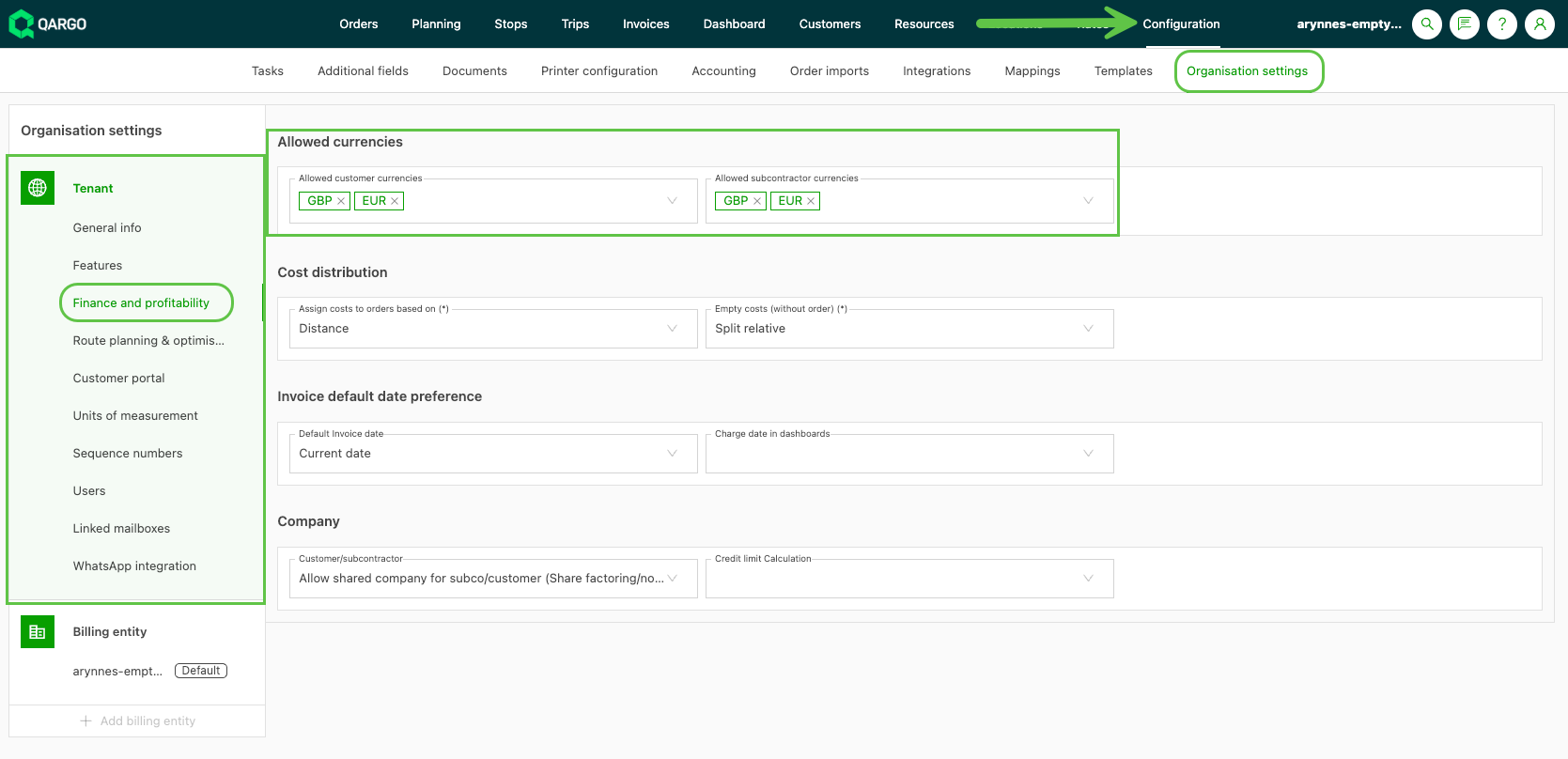
Exchange rates. Allowed currency must be set under Organization settings for exchange rates to be available. When working in a single currency, this section is not required.
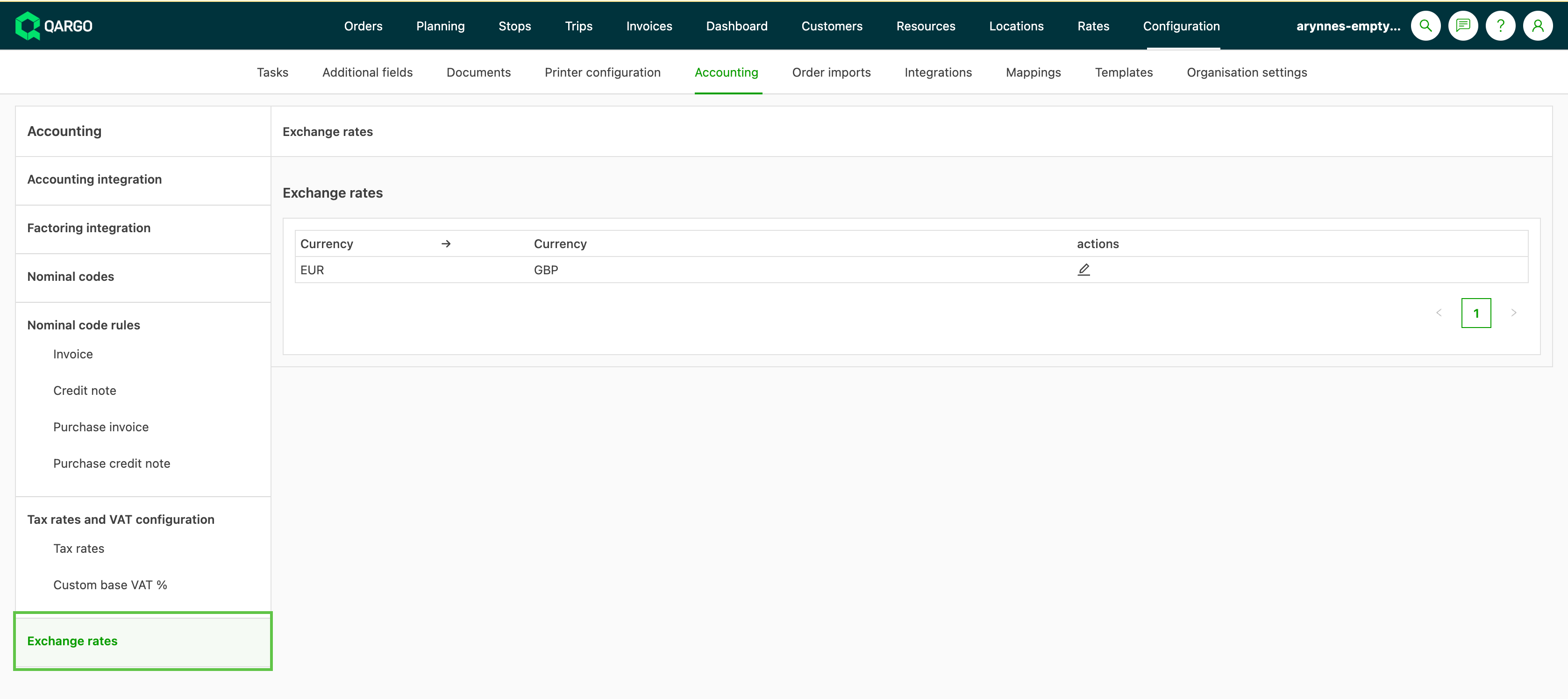
Click the pencil icon to add or edit the exchange rates to use for the listed currency. These are based on the default legal currency listed.
To learn more about using multi-currency and exchange rates, click the link below 👇