
FAQ: How to use GL codes
Learn how to set up, manage and apply GL codes to correctly categorize financial transactions and ensure accurate exports.
Table of contents
Introduction
GL codes help categorize financial transactions correctly in the accounting system. This supports accurate reporting and financial statements. This article explains how to configure them so that accounting exports include all financial data in the appropriate categories.
Understanding how these codes work is critical for smooth accounting and bookkeeping operations.
What is a GL code?
A GL code is a unique identifier assigned to a specific accounting category in the chart of accounts. Each code represents an account where financial transactions are recorded (such as sales revenue, vehicle expenses or fuel costs).
These are also called general ledger accounts. They identify where financial transactions are posted in accounting systems.
Accessing GL codes
- Go to Configuration > Accounting in the main menu
- In the side menu, select GL codes
- This page lists all GL codes available on the tenant
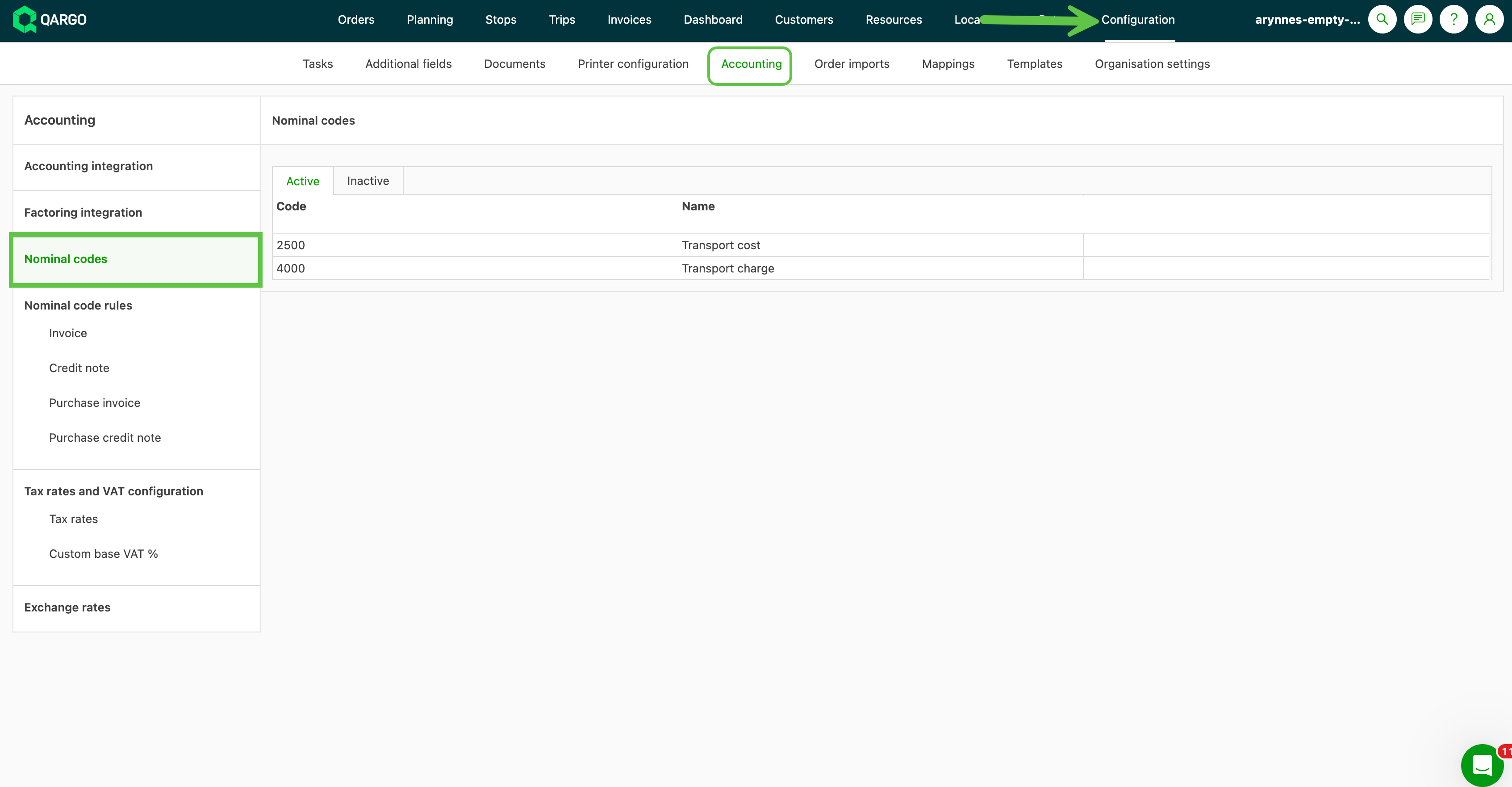
Configuring GL codes
Standard assignment
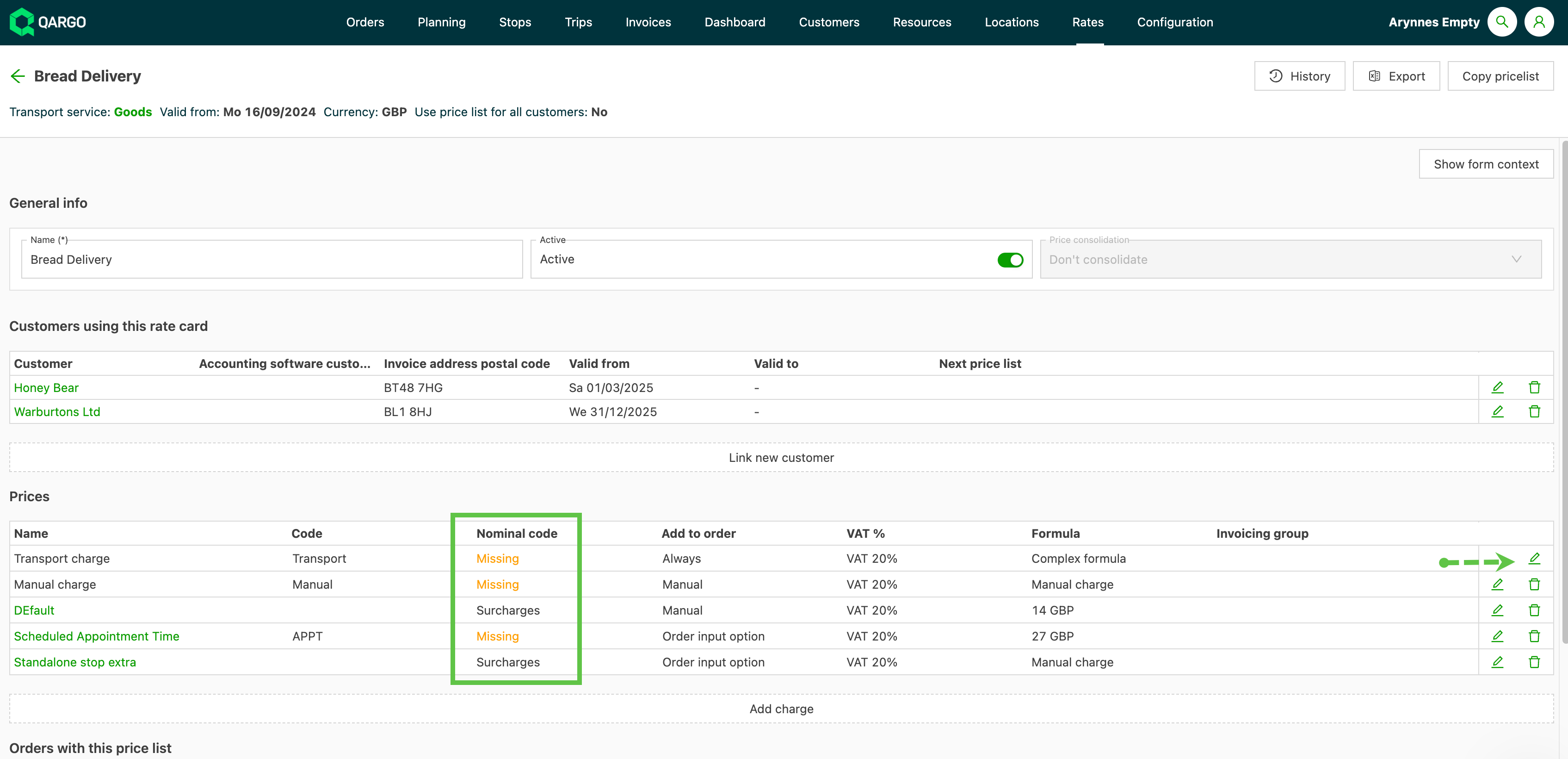
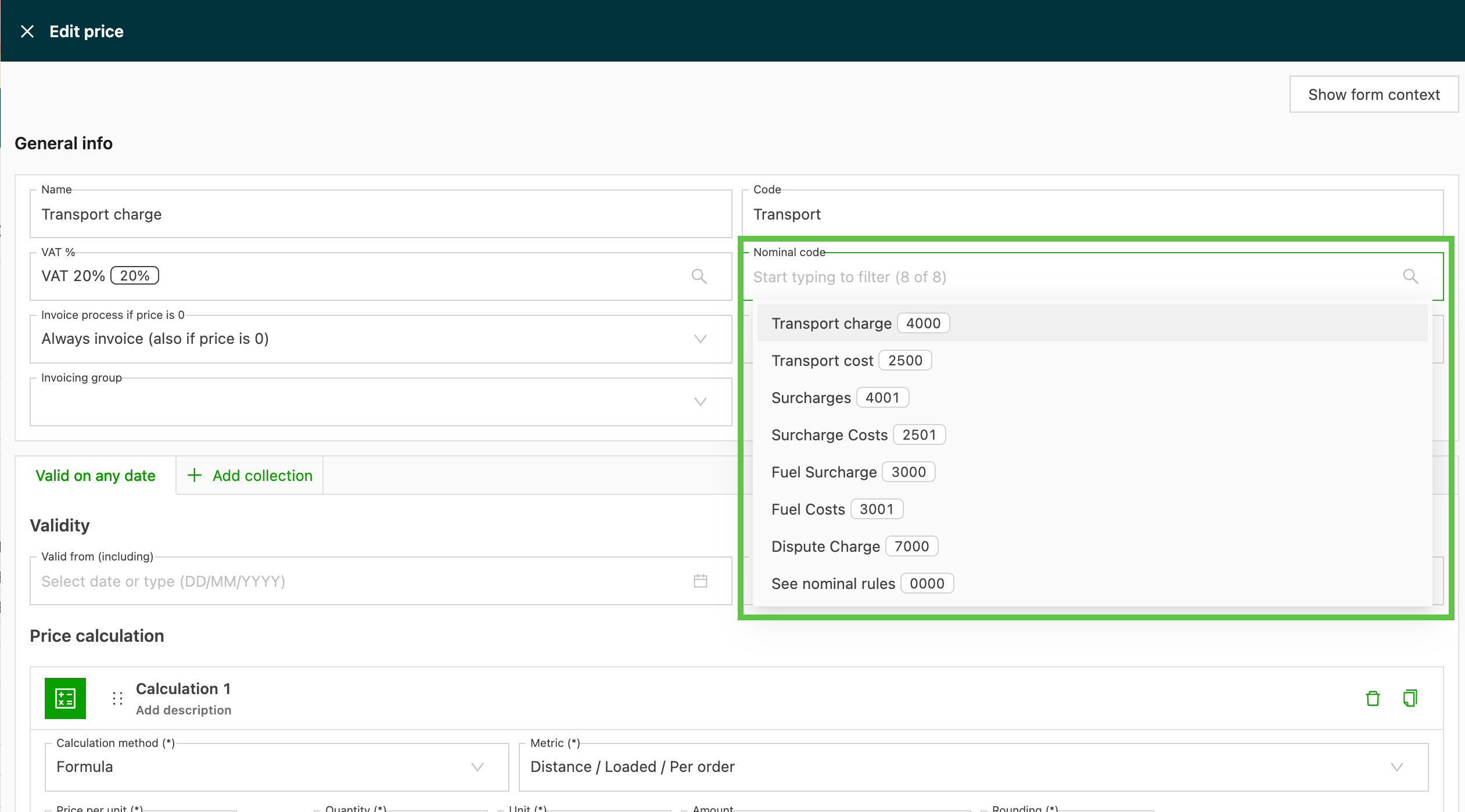
When configuring services, general surcharges and fuel surcharges (order input), there is a field for the GL code linked to the charge for the selected service. To link a GL code to specific charges in rate cards, open the rate card, edit a charge by clicking the pen icon, and set or change the GL code linked to that charge.
In some cases, there may be an option to add a GL code for both sales invoices and carrier invoices.
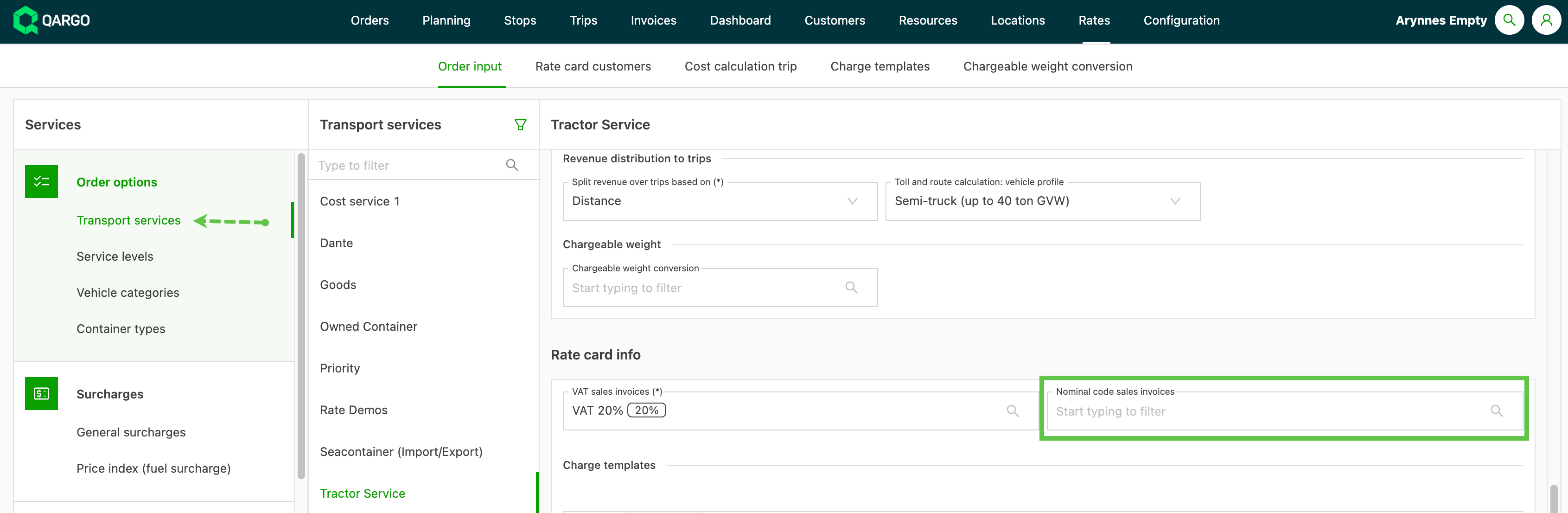
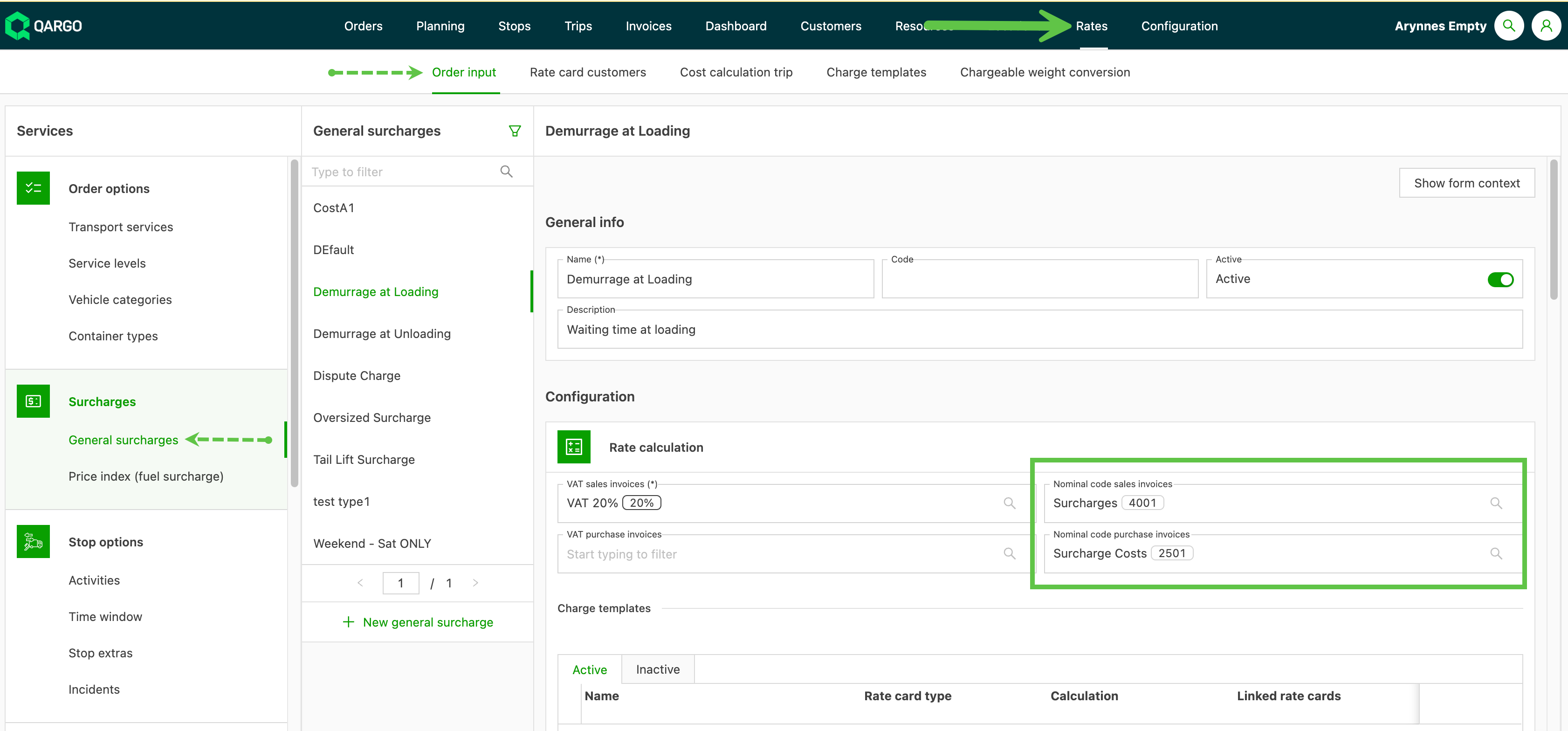
Each charge uses the same GL code across all price lists. When every charge on a price list has a GL code assigned, the price list shows a check mark. If any charge has no GL code, the price list shows Missing. A GL code set on a surcharge set becomes the default GL code for that surcharge when it is used on charges across rate cards. This ensures consistency and reduces manual effort.
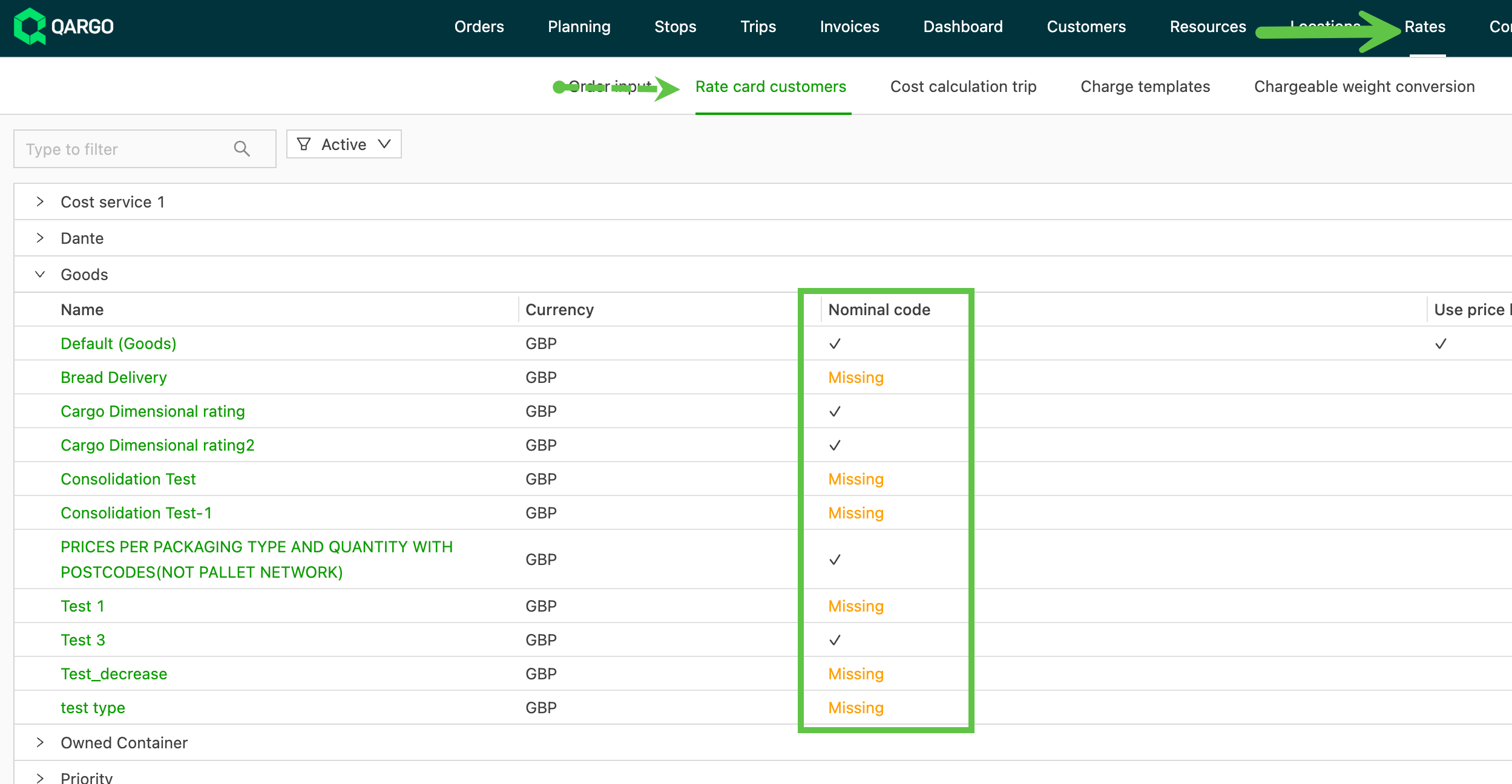
GL codes can be added to the charges on price lists that show Missing.
- Open the price list
- For each charge, select the appropriate GL code from the dropdown
- Save the changes
Dynamic assignment via mapping
When GL codes need to be determined based on operational data:
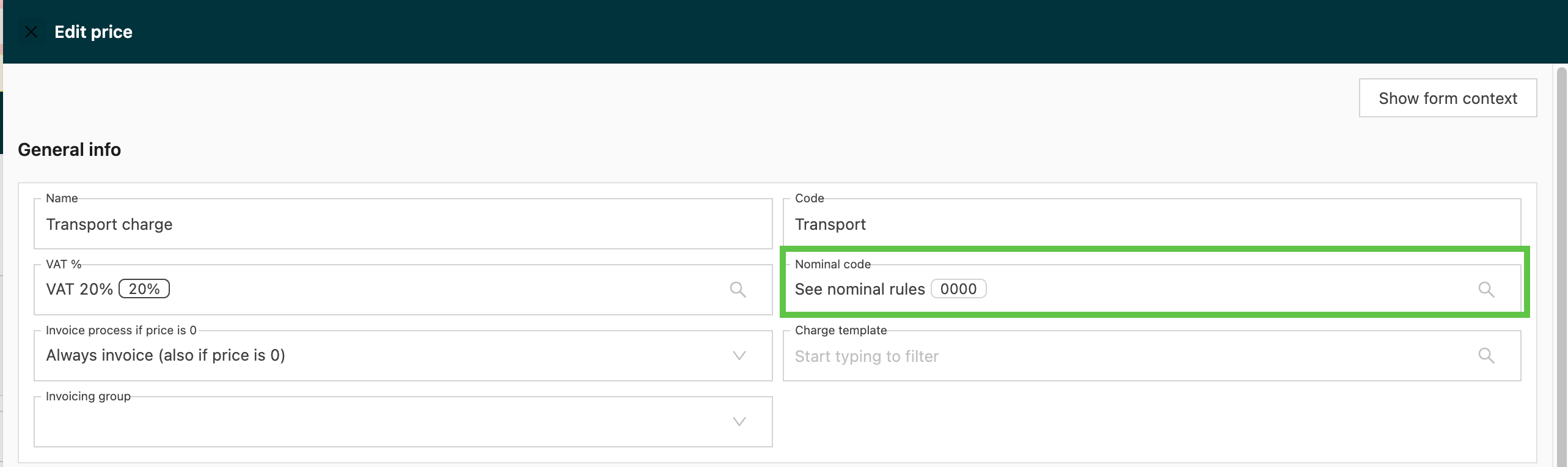
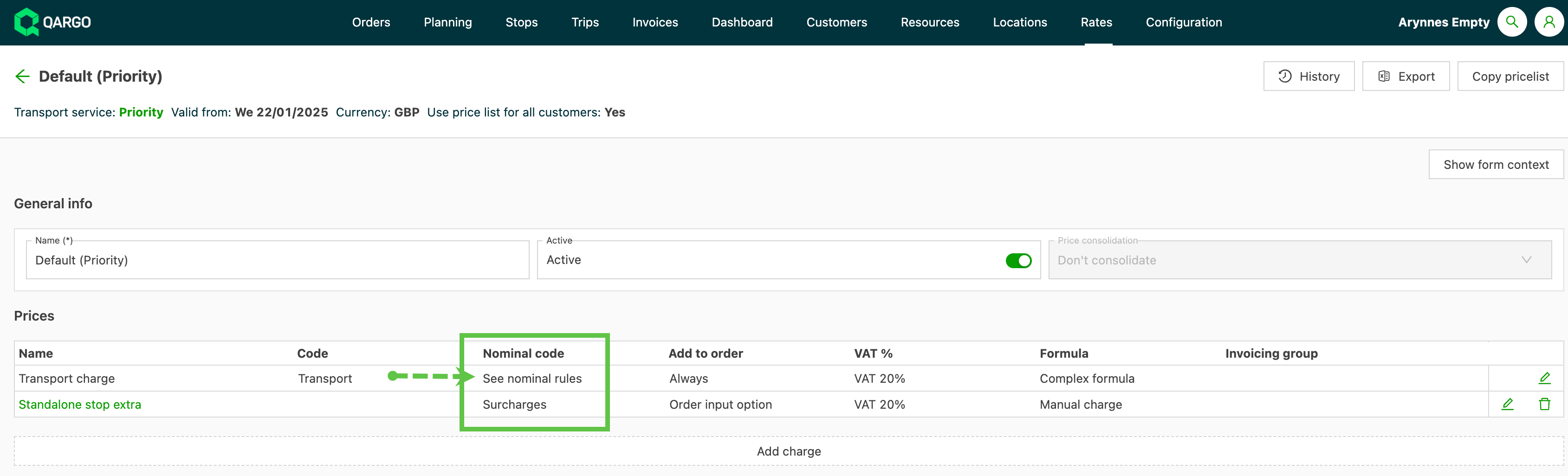
- In the charge master configuration, select the ‘0000’ accounting code
- This indicates that the GL code will be calculated through mapping rules
Setting up GL code mapping rules
Mapping rules determine which GL code to use based on specific conditions.
Best practice:
- Create rules with conditions that determine when specific GL codes should be used
- Give each rule a meaningful name for tracking purposes
- Arrange rules in priority order: the first matching rule is applied- Place broader rules lower in the sequence so they don’t overshadow specific rules. For example, a department-based rule should not take precedence over a rule targeting a specific surcharge.
-
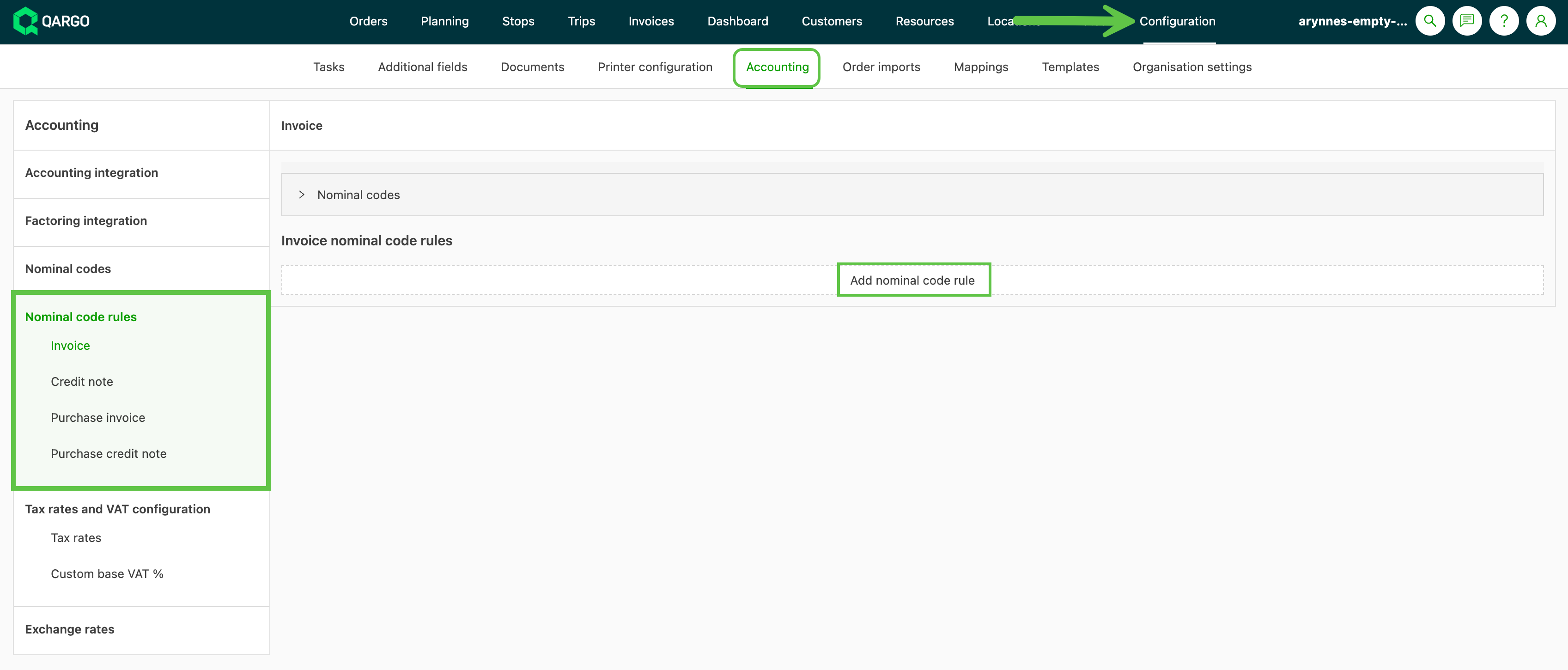
Go to Configuration > Accounting
-
In the side menu, select GL code rules
-
Click Add GL code rule and enter the rule configuration
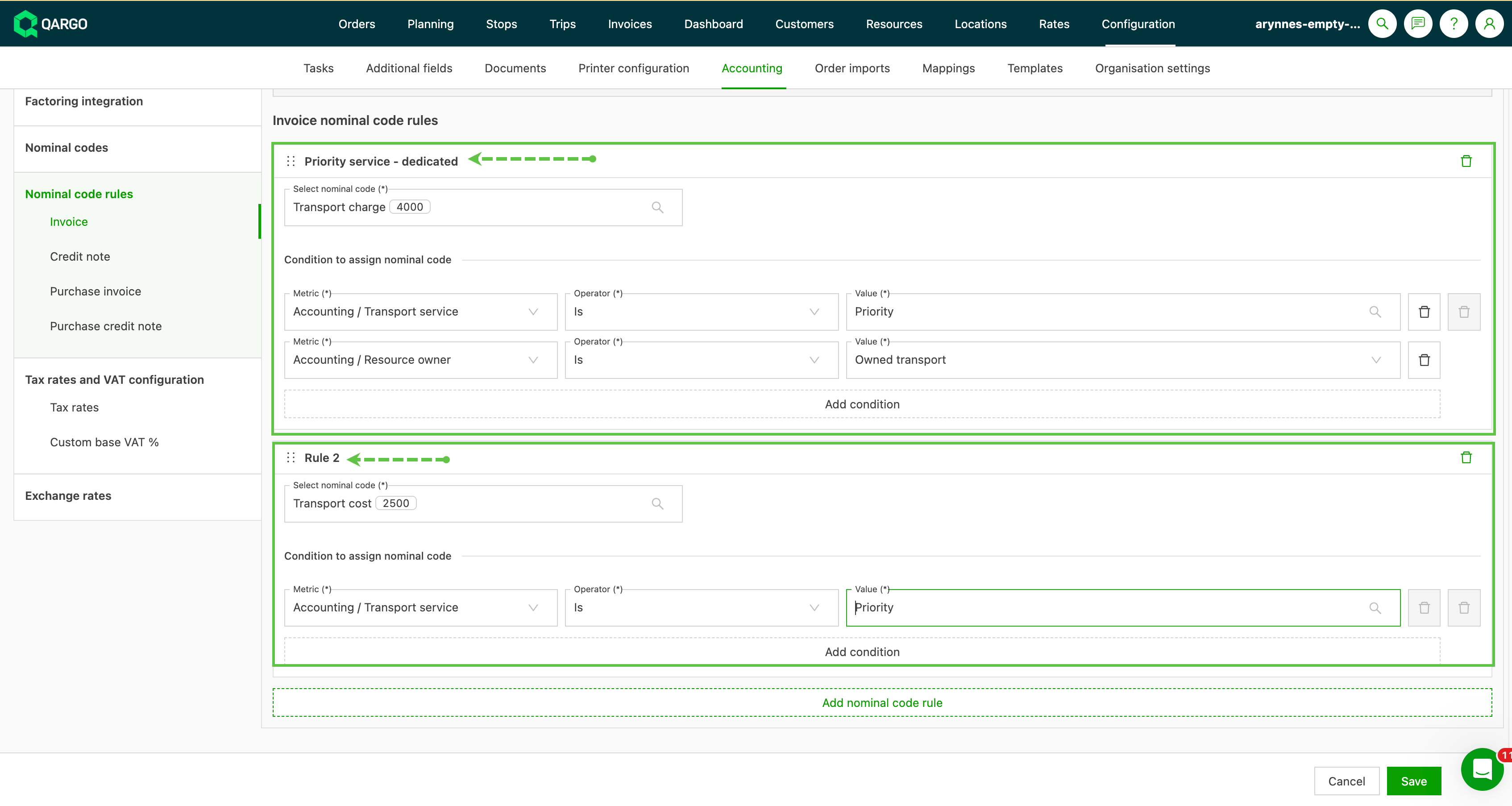
📚 Rules are evaluated in sequence, and the first match is applied. Make sure the rules are in the right order.When setting up rules, remember that Qargo evaluates them one at a time and applies the first rule whose conditions match. Later rules are not considered, so an accurate rule order is vital.For example, if a rule for transport lines is placed above a rule for custom surcharges, the transport rule always applies first, which can lead to unintended postings.
To prioritize conditions such as vehicle allocation for delivery, reorder the rules so that the preferred conditions are evaluated first. Save the updated rule order so that future postings reflect the changes.This ensures that specific scenarios such as vehicle allocation are evaluated before less specific ones, so codes are applied accurately.For example, if a custom surcharge rule is critical, make sure it is placed above general transport rules. This prevents broader rules from overriding specific conditions.
Can users add a new GL code themselves?
No. If a new GL code that doesn’t exist yet is needed, contact the Qargo support team directly via chat.
Add contract carriers and intermodal operators
-
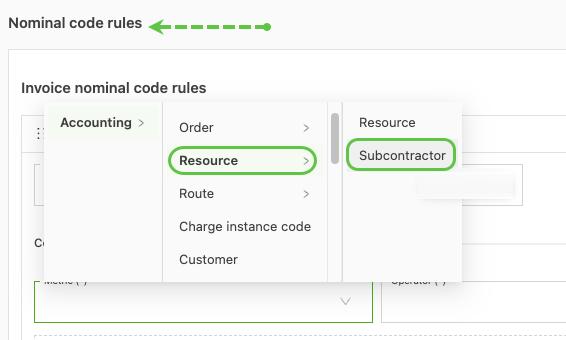
Add new GL code rules that include Contract carriers and Intermodal operators
-
In the main menu, go to Configuration > Accounting, then scroll down to the GL code rules section.
-
In the Metric input, Resource > Contract carrier can now be selected
-
All costs related to loads that contain an intermodal connection should receive a specific GL code.
- Previously, the user had to select all connections; now the user can simply select the intermodal operator.
Viewing applied GL codes
To see which GL codes have been applied to charges:
- Open the invoice or charge details
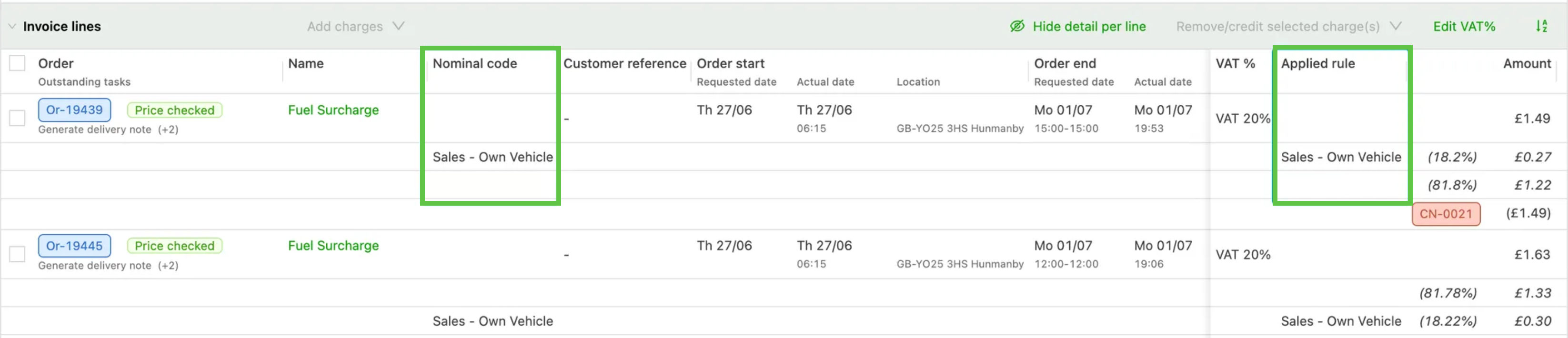
- Click Show detail per line to expand the information
- The GL codes and the rule that determined them are displayed
This error means GL (accounting) codes are missing for the items on the invoice. Use one of the following resolutions:
- In the accounting system: Edit the posted transaction directly in the accounting software (e.g., Sage200) and change the GL code to the correct one.
- In Qargo: Unpost the document, edit it to use the correct GL code or rule, and repost it.
Troubleshooting GL code mismatches
Resolving the “No accounting code defined” error
This error means GL (accounting) codes are missing for the items on the invoice. Use one of the following resolutions:
Option 1: Assign codes on the price list
- Add GL codes directly to the rate card or price list.
- Once set up, these codes apply automatically to future invoices.
Option 2: Assign codes on individual bills
- Open the specific invoice.
- Manually add GL codes for the required invoice items.
Option 3: Configure invoice GL code rules
To automate GL code assignment:
- Go to the accounting settings.
- Find the GL code rules section.
- Create rules that define the conditions for assigning specific codes to invoices.
- Make sure rule names are descriptive.
- Organize rules by priority, as the first matching rule applies.- Add exception rules for unique cases and place them higher in the sequence so they are evaluated before general rules.
- Adjust broader rules to limit their scope, for example by applying them only to specific transaction types such as transport lines.
These steps ensure invoice items have the correct accounting codes, which clears the error. If credit memos show See GL rules, review the GL code settings under Configuration > Accounting > GL code rules. Add or adjust rules specifically for credit memos so they are applied accurately.
Fixing “Customer should have a valid accounting customer code”
This error usually occurs when the customer’s accounting code in the system does not match the corresponding code in the external accounting software.
Steps to fix:
- Compare the customer’s accounting code in the external accounting software with the code stored in the system.
- Make sure they match exactly (case-sensitive).
- Update the code in Qargo to match the external system.
- Retry posting the invoice after making the corrections.
Aligned codes reduce validation issues during postings.
- Review existing rules: Confirm that the rules match the document and service criteria.
- Update rules: Edit the rules to include all relevant services and document requirements.
- Reprocess the document: Refresh the invoice or credit memo by regenerating its PDF to update the posting codes before retrying.An incorrect rule order can stop matching too early; always structure rules to capture specific transactions before broader cases.
Advanced feature: splitting charges across multiple accounts
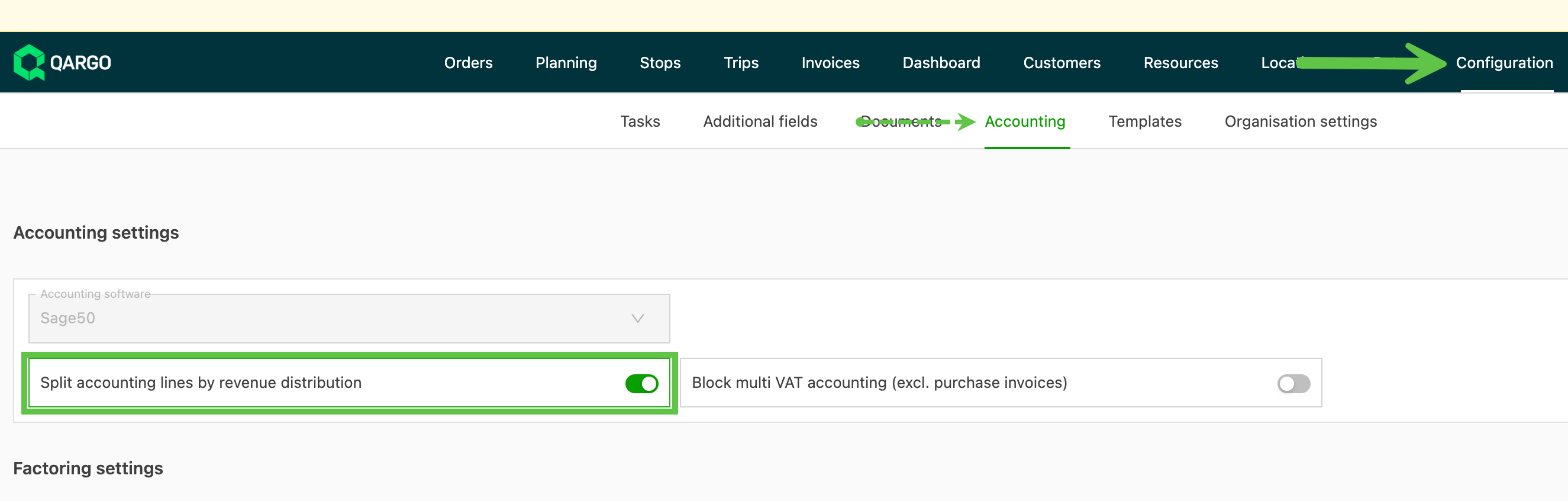
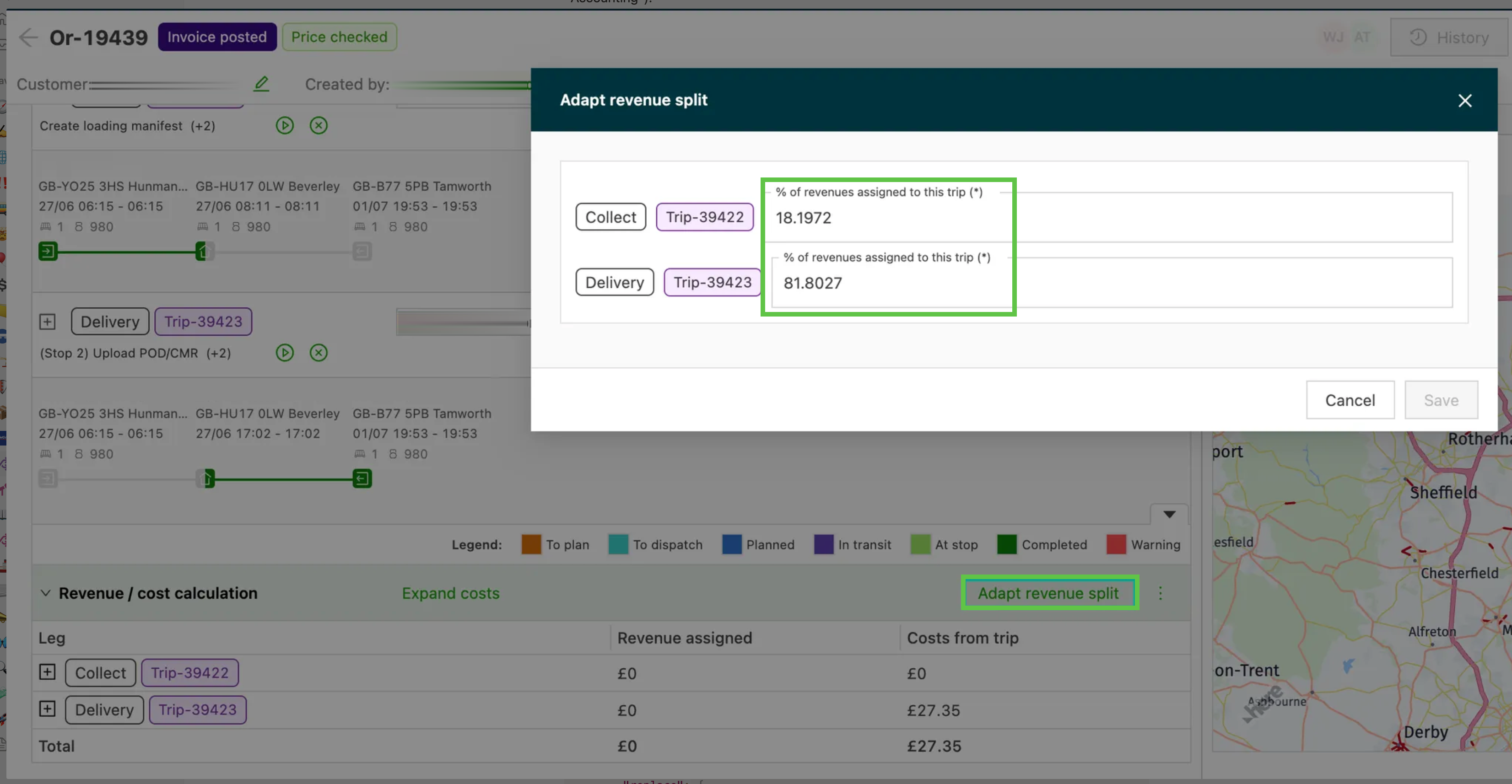
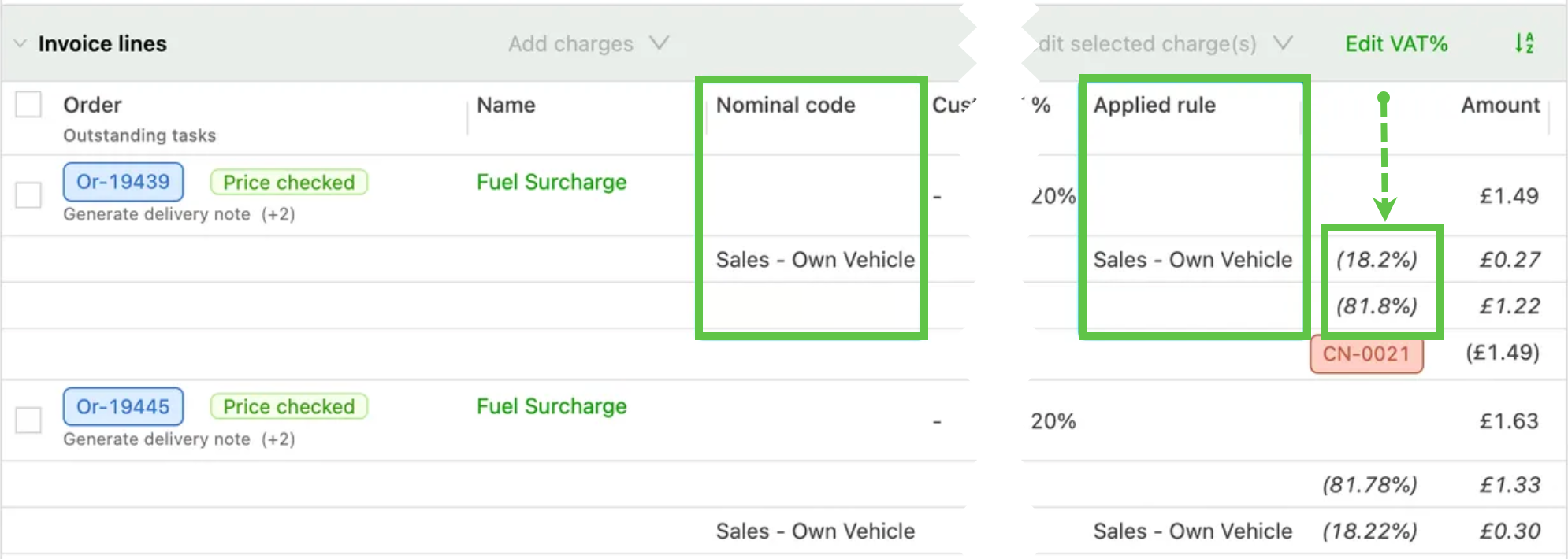
A single charge can be distributed across multiple accounting lines based on revenue distribution:
- Go to Configuration > Accounting
- Enable the Split by revenue distribution option
This feature works with the revenue distribution settings on transportation services:
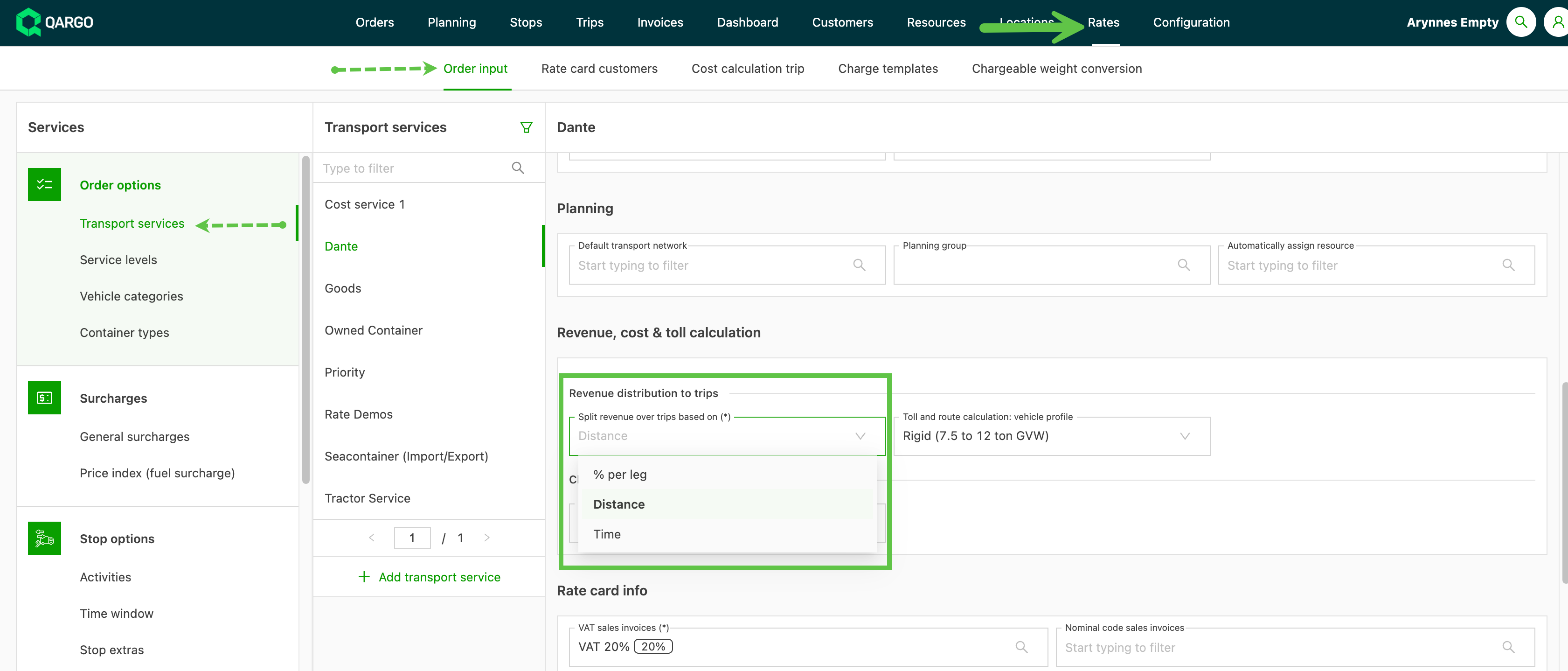
Available distribution types include:
- Distance-based
- Time-based
- Percentage per leg
When splitting is enabled, each segment may receive a different GL code, depending on the mapping rules.
When are GL codes applied?
GL code mapping runs during:
- Export of charges to the accounting software
- Invoice regeneration
Best practices for managing GL codes
- Audit rules regularly: Review the GL code rules periodically to make sure they reflect current business processes.
- Validate configurations: Test that the rules work as intended before processing invoices or credit memos.
- Reduce manual overrides: Rely on automated rule configurations to maintain accuracy and consistency.