
FAQ - Why is an invoice calculating tax incorrectly?
Tax can be calculated on the invoice total or per charge line and then rounded. This may affect the total tax amount calculated.
Table of contents
Q: Why is an invoice calculating tax incorrectly?
A: Rounding affects the total tax amount. Tax can be calculated on the invoice total or per charge line. The method is set under Configuration > Accounting, usually during initial setup, and it cannot be changed after setup. If customer data such as an address or tax number is missing, the system defaults to “No tax”.
Q: How can tax be adjusted, or a default tax be set, in Qargo?
A: Tax is set per charge on the rate card (Rates > Rate card customers), per cost rate for contract carrier orders (Rates > Cost calculation load), and per customer through the Tax type in the customer’s billing config. See “Setting default tax settings” below.
Calculation options
-
Calculate tax on invoice total: adds up all charge lines, then applies tax. This avoids rounding discrepancies.
-
Sum tax per charge line: rounds tax to 2 decimals on each line. This can cause minor variances.
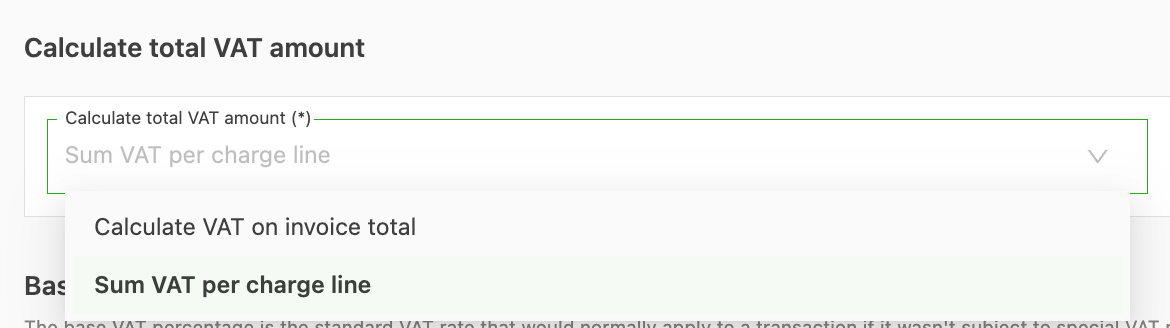
These methods can result in small differences in tax totals. For example, calculating tax on the invoice total avoids rounding discrepancies. Summing tax per charge line may introduce minor variances because each line is rounded individually.
The option to select may depend on the accounting package used, as the rounding may affect whether the totals match how that package calculates.
If any type of “errors” occurs while posting invoices, contact the Qargo support team via chatbox. To prevent tax-related errors, always make sure the customer address and tax number are completed before creating orders. Review rate card settings regularly to confirm that tax configurations align with the applicable tax regimes. Consider conducting periodic audits to identify and correct discrepancies early.
Causes of tax-related errors
Qargo sets automatic tax (tax type and tax %) using a “most specific data wins” approach. Order countries drive the decision, and manual overrides take precedence.
Inputs, in order of preference:
- Goods origin and destination countries (if filled in). For container import/export, these replace pickup and delivery.
- Otherwise: pickup & delivery countries on the order, if goods origin or destination is blank.
- Customer or contract carrier country: uses the tax number first, then the billing location.
Steps to correct tax errors
Add missing customer information
- Navigate to the customer’s record in Qargo and make sure the address and tax number are filled in.
- Review the customer profile settings, particularly the “Apply tax exceptions for import/export” option. Disable it if manual charge tax configurations should take precedence.
- If the issue exists in an existing order, edit the order directly and manually update the tax on each order line where needed.
Adjust rate card settings
- Find the rate card linked to the affected charge.
- Update the tax configuration in the rate card to apply 0% tax if the job or charge qualifies for tax exemption.
Manually set tax on specific charges
- Open the order and find the charge.
- Disable “Set tax automatically.”
- Manually set tax to the correct percentage or 0%, as required.
Fix line-specific discrepancies
- Open the invoice.
- Locate the lines that need correction.
- Click the pen/edit icon and adjust tax values directly on each relevant line.
Correcting tax on posted invoices
Posted invoices cannot be recalculated. To fix tax:
- Create a credit memo for the incorrect invoice.
- Correct tax on the underlying orders or charges.
- Reissue the invoice with the corrected tax.
Incorrect tax on manual costs
Manual costs without a tax rate cause wrong totals. To solve this:
- Open the invoice and find the manual costs.
- Assign the correct tax rate to each manual cost.
- Save and reissue the invoice.
Setting default tax settings
Where can a default tax be set?
In three places: on the rate card (customer charges), on the cost rates (contract carrier orders), and on the customer (tax type).
How can tax be adjusted on a rate card?
From the menu
- Navigate to Rates > Rate card customers.
- Open the rate card to change. Rate cards are grouped by transportation service.
- In the Prices table, click the edit (pencil) icon of the charge.
- Under Per billing entity configuration, select the Tax % (for example, Tax 20%, Tax 5%, Tax 0%, No tax or Transit) and click Save.
From an order
- Open the order.
- In the header line of the order, next to Customer price, click the rate card name. The rate card opens.
- Adjust the charge as described above.
How can a default tax be set for contract carrier orders?
- Go to Rates > Cost calculation load.
- Open the Contract carrier rates tab.
- Open the cost rate list (for example, the default list for contract carriers).
- In the Prices table, click the edit (pencil) icon of the charge.
- Under Per billing entity configuration, select the Tax % (for example, 20%).
- Click Save.
- Result: the rate applies automatically to all newly created contract carrier orders. Tax no longer needs to be selected manually on each order.
- Required field: a tax rate is mandatory on every cost or charge line. See FAQ - Tax on carrier invoices.
How can a default tax be set for a specific customer?
- Create or select a dedicated rate card for the customer (Rates > Rate card customers). Use Link new customer on the rate card to link the customer.
- Open the rate card and set the Tax % on every charge line, as described above.
- Open the customer (Companies > Customers). Under Billing config, check the Tax type (Tax, Intra EU (reverse charge), No tax, Transit, UK reverse charge, Co-contracting or Other) and the Apply tax exceptions for import/export toggle.
Future orders for that customer use the tax % of the customer’s rate card, unless the tax type or the tax exceptions override it. Existing orders keep their tax. Edit the order to change it.
Best practices to prevent tax errors
- Proactively fill in customer details: complete the address and tax number before creating orders.
- Verify rate card configurations: review them regularly. Misconfigured rate cards are a common cause.
- Conduct periodic audits: check invoices and orders routinely.
- Test tax configurations: create test orders and verify the calculated tax.
- Timing: automatic tax is set when an order is created or when the customer or contract carrier changes. It does not recalculate if pickup or delivery changes later.