
FAQ: Automatically determine the tax type on an order
Is it possible to automatically set tax on an order based on the shipment or the customer/contract carrier?
Table of contents
Introduction
Specific tax rules determine when and if tax rates apply to specific orders. At the basic level, this can be set at the customer/contract carrier level. The options are:
-
Intra EU (reverse charge): use this option when the company and the customer/contract carrier are both inside the EU. The invoice shows reverse tax as the description.
-
No tax:
- Use this option if the company is based in the EU and the customer/contract carrier is based outside the EU.
- Select this option if the company is based in the UK and the customer/contract carrier is based outside the UK.
-
Tax: use this option if the customer/contract carrier is based in the same country as the company.
However, this is often not the only factor in deciding which tax to apply. It can also depend on the goods and where they are picked up and ultimately delivered.
Automatically determine tax
The system can automatically determine the appropriate tax type for the order. To set this up, turn on the ‘Apply tax exceptions for import/export’ toggle in the customer/contract carrier profile.
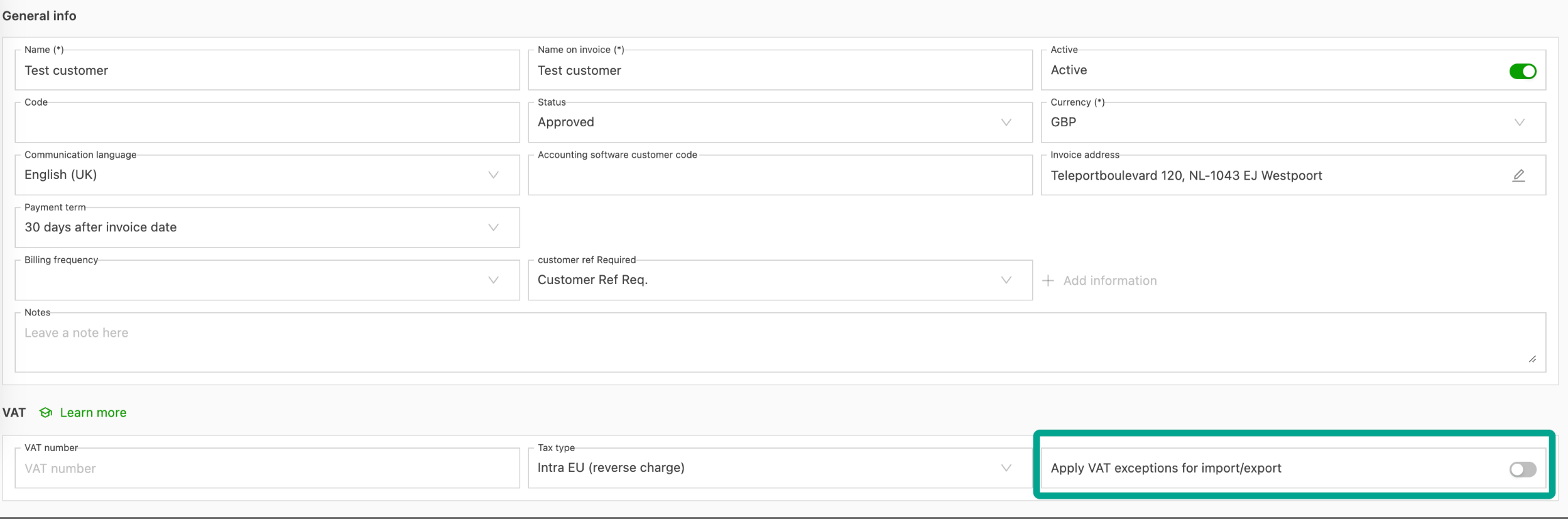
The tax type is then determined based on:
- The country of the customer/contract carrier, based on the tax number and the billing address.
- The order pickup and delivery locations.
For import/export orders (containers), the tax type is often determined by the country of origin or country of destination of the goods, not by the pickup or delivery locations. This information can be added under the shipment information.

Tax type in orders
When adding a charge to an order, if the ‘Set tax automatically’ toggle is on, the tax % rate is grayed out and unavailable.
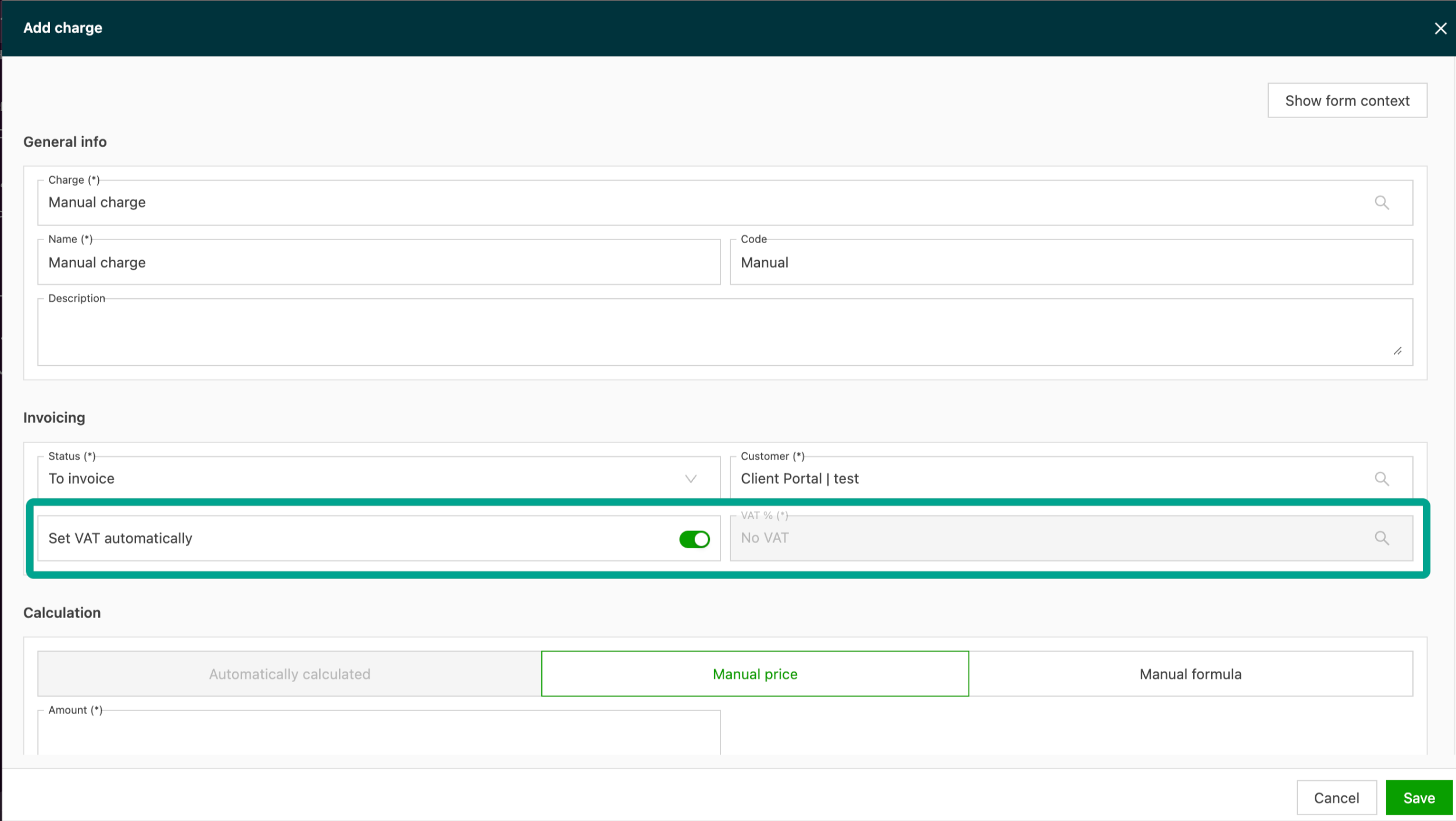
Tax exceptions are shown, if applicable, when adding a charge to the order.

Summary guide to tax rules, based on country.
Click here for more information about tax calculation in Qargo.