
Invoices – How does tax work in Qargo?
This article explains the tax configuration in Qargo and how tax is calculated automatically for goods (non-container).
Table of contents
Introduction
Value-added tax (VAT) is a consumption tax on the value added to nearly all goods and services bought and sold in, and into, the UK and the European Union. It is charged as a percentage of the sale price. It is applied at the point of sale, included on the invoice to the consumer (if applicable), and collected by the supplier.
Specific tax rules determine the correct tax rates on orders. These rules can vary based on multiple factors, especially for import/export shipments. For example, the customer’s location or the country of origin of the goods can affect whether tax applies.
For tax charges, the question is not only when to apply them, but also which type or percentage of tax applies. Most countries have the following types of tax %:
- Low: this is usually 0%
- Medium: e.g 5% for UK, 6% Belgium, 9% Netherlands
- High: e.g. 21% for Belgium and Netherlands, 20% for the UK
- Special rules: export (e.g. containers) doesn’t need to pay tax in certain countries
Tracking how and when to apply tax can be complicated and time-consuming. Automated calculations can make invoicing more efficient and reduce errors when determining tax rates.
Default tax configuration
Default tax rates are configured when the tenant is created, and any changes are typically made during the initial onboarding.
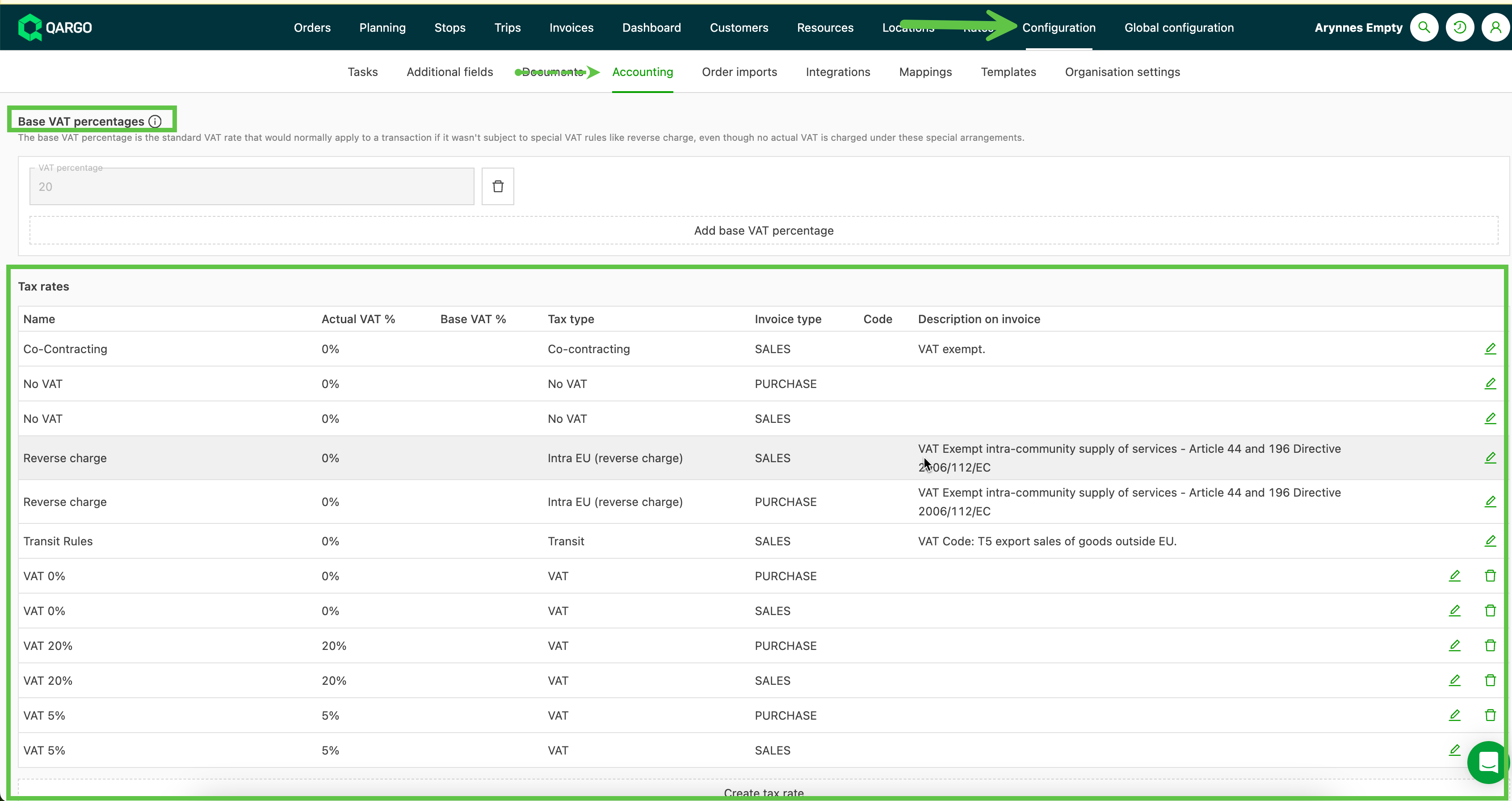
To view the available tax types:
- Go to Configuration > Accounting.
- Scroll down to the Tax rates panel, which lists all available tax rates.
In addition to the tax rates, a Base tax rate can be set. This is the rate that typically applies unless one of the specific rules takes precedence.
- Some accounting & ERP integrations (Business Central / Multivers / Adfinity) allow both the base rate and the specific tax rate applied to be exported.
Tax configuration on the customer
When adding a customer in Qargo, completing the Tax section in the customer profile helps automate the tax calculation on orders for that customer.

Tax number
A tax registration number is a unique number that identifies a taxable business (or person) or a non-taxable legal entity registered for tax.
Tax type
-
Co-contracting:
-
Intra EU (reverse charge): use this when both the company and the customer are inside the EU. The invoice shows reverse tax as the description.
-
No tax:
- Use this if the company is based in the EU and the customer is based outside the EU
- If the company is based in the UK and the customer is based outside the UK, select this option
-
Transit: Use if the delivery or pickup is outside the EU.
-
Tax: if the customer is based in the same country as the company
Tax exceptions toggle
When set to on, the correct tax exceptions are applied automatically to import/export orders.
To apply manual tax configurations, such as setting charges to ‘Tax exempt’, turn off the ‘Apply tax exceptions for import/export’ setting. This ensures that automatic tax rules do not override manual tax setups.
Tax configuration on rate cards, surcharges/extras
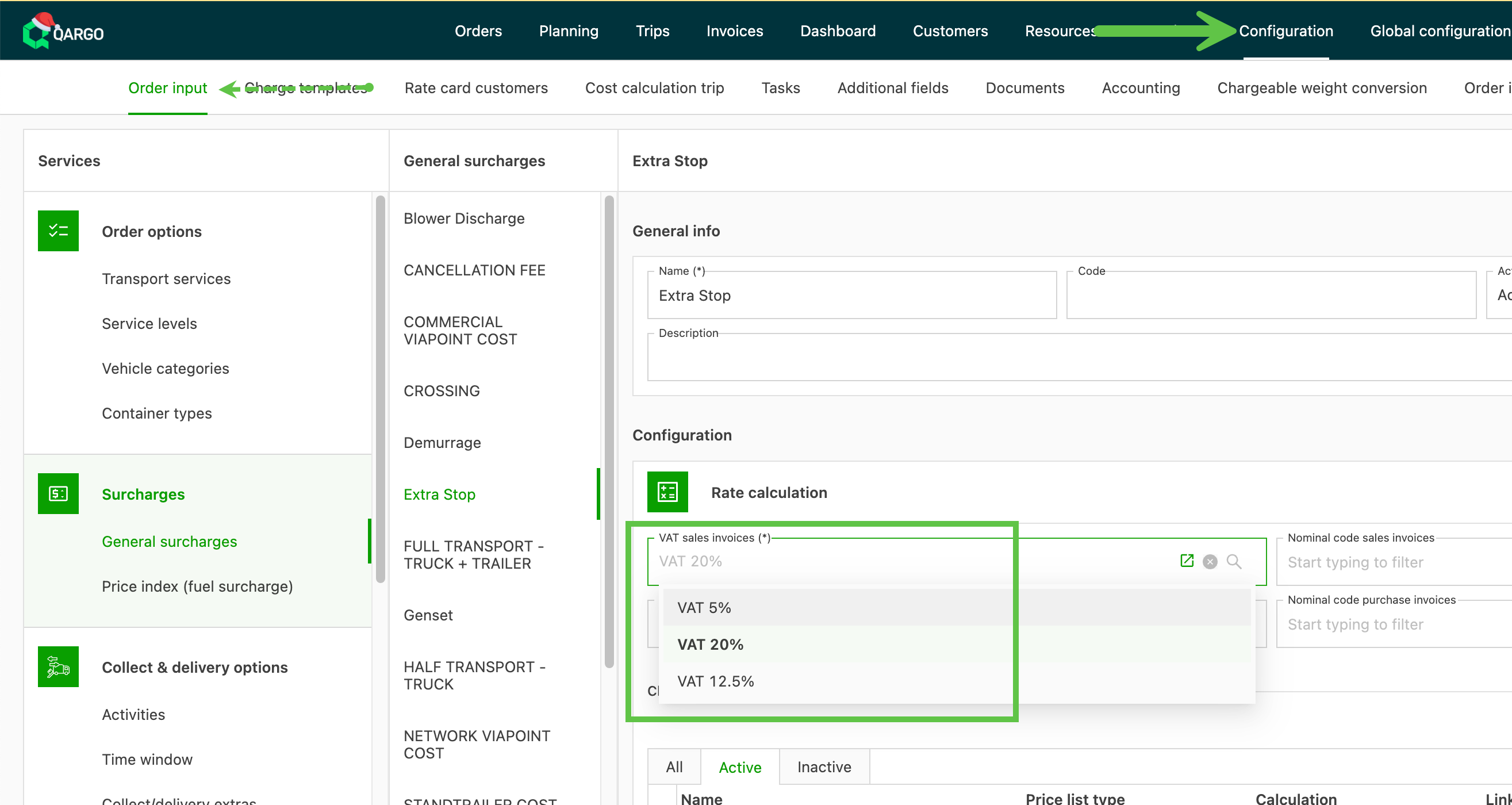
When configuring transportation services and surcharges/extras, the tax for the sales invoice is mandatory.
-
Rate cards that use any of the saved charges include the tax added to that charge.
-
This avoids having to configure the tax % separately for each rate card.
- This applies to both transportation charges and any surcharges or extras that are set up.
Most countries have the following types of tax %:
- Low: this is usually 0%
- Medium: e.g 5% for UK, 6% Belgium, 9% Netherlands
- High: e.g. 21% for Belgium and Netherlands, 20% for the UK
- Special rules: export (e.g. containers) doesn’t need to pay tax in certain countries
Tax calculations in Qargo
Summary
Tax calculation priority:
-
Customer tax configuration takes precedence!
- Determines the overall tax treatment
-
Rate card tax percentages
- Only applied if the customer is set to the “Tax” type
To determine the tax for the order, Qargo first checks the tax configuration on the customer profile:

When saved in the customer profile, the tax number is shown at the top of the order.

This must be configured correctly. Based on the customer configuration, Qargo applies the following logic:
-
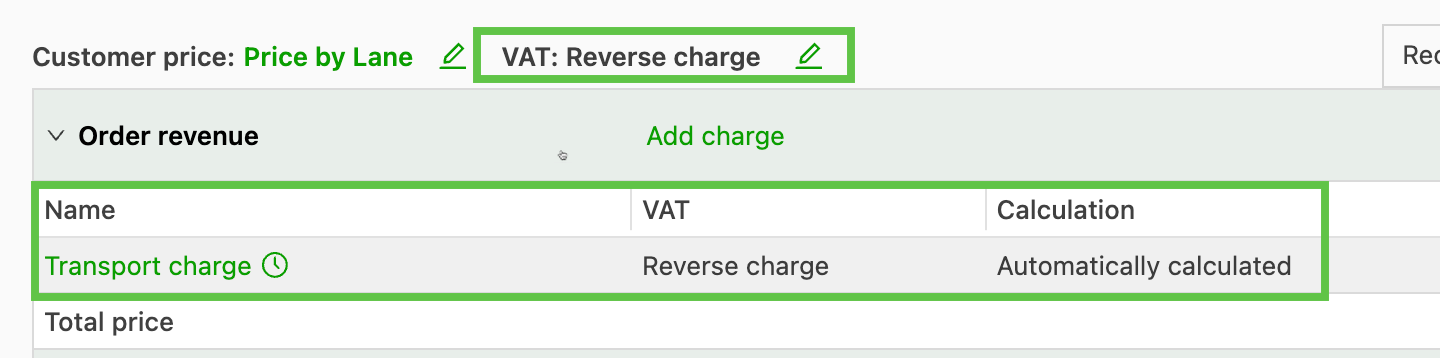
Customer is Intra EU => tax on the order is set to reverse charge. Any configuration on the rate card is ignored.
-
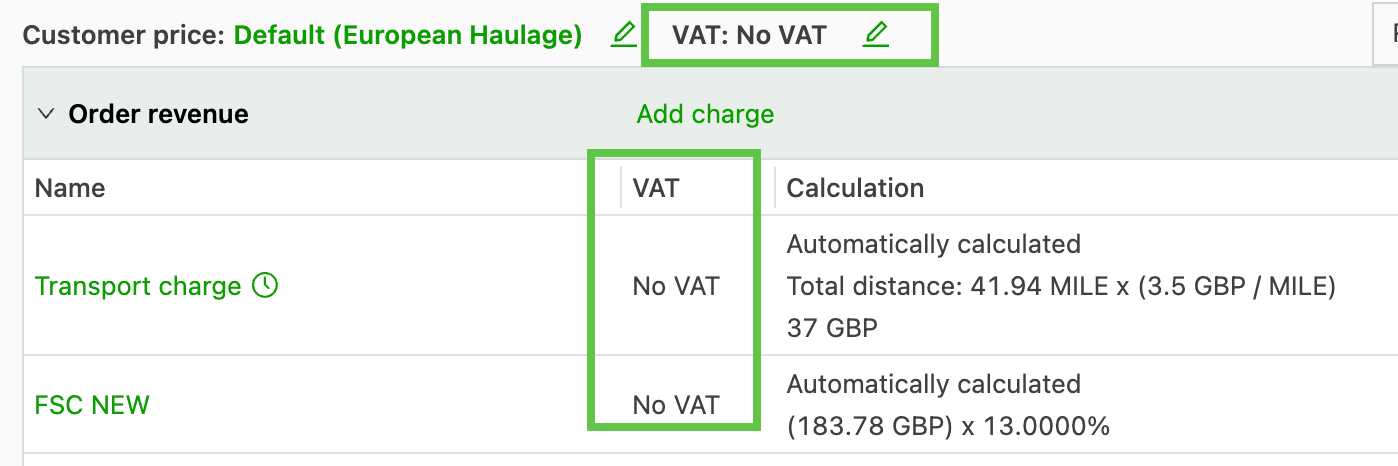
Customer is No tax => tax on the order is set to No tax. Any configuration on the rate card is ignored.
-
Customer is Tax => Qargo looks at the rate card configuration to determine which tax % to use.
Example: Customer tax rate is set. The rate card for this order is set at 5%.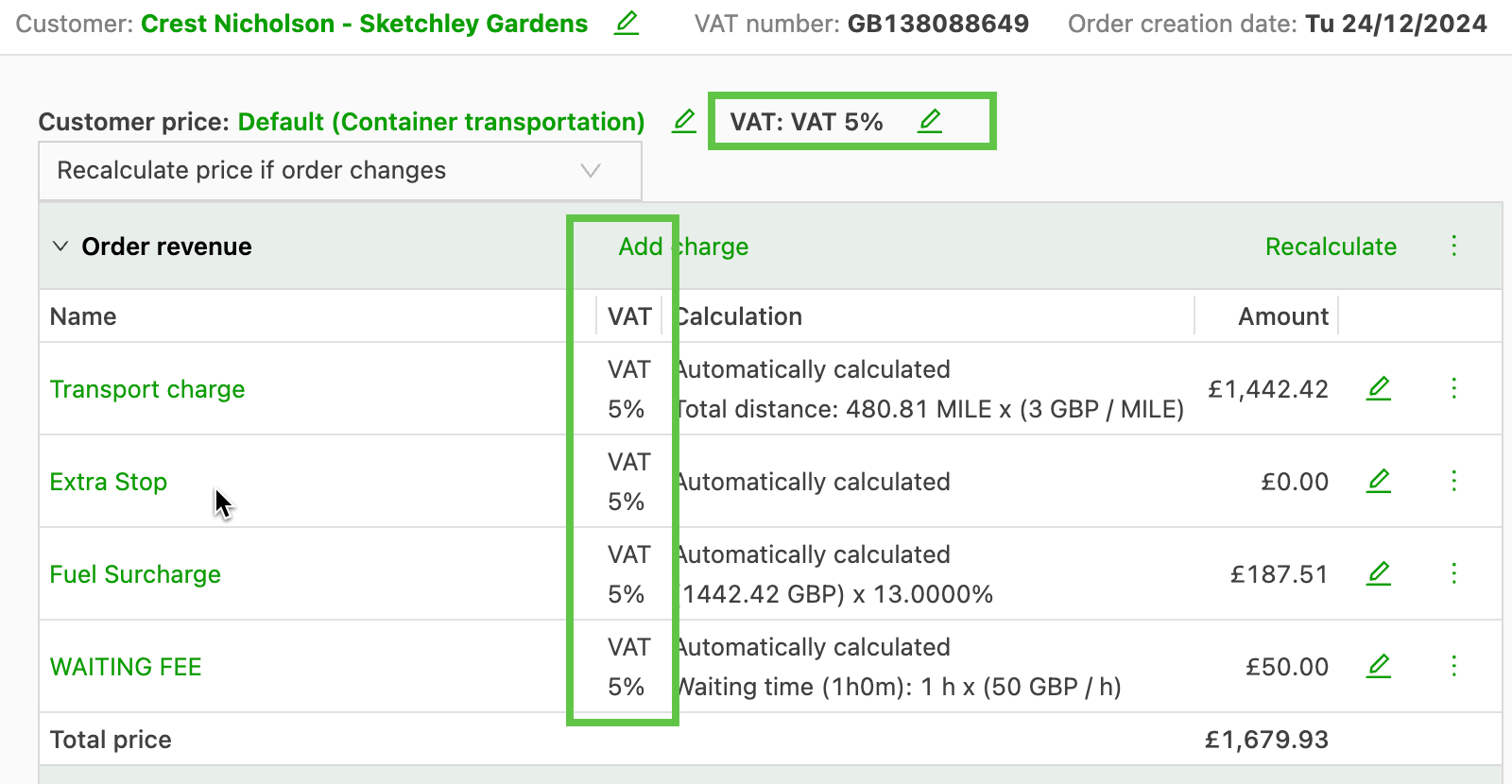
-
Rate card check: which % to use.
- Only done if the customer falls under the tax rules (customer configuration is Tax)
- Does not apply if the customer falls under reverse charge or No tax
This is often not the only factor in determining the correct tax. It can also depend on the goods: where they are picked up and where they are finally delivered.
Calculating the total tax amount on the invoice
Two methods for calculating tax on an invoice can be set up on the Configuration > Accounting page. This is typically set during the initial account configuration and cannot be updated once set. The tax calculation method is an account-wide setting, so any change affects all invoices generated in the account. The method cannot be adjusted for a single invoice, so switching methods to resolve discrepancies on individual invoices is not recommended.
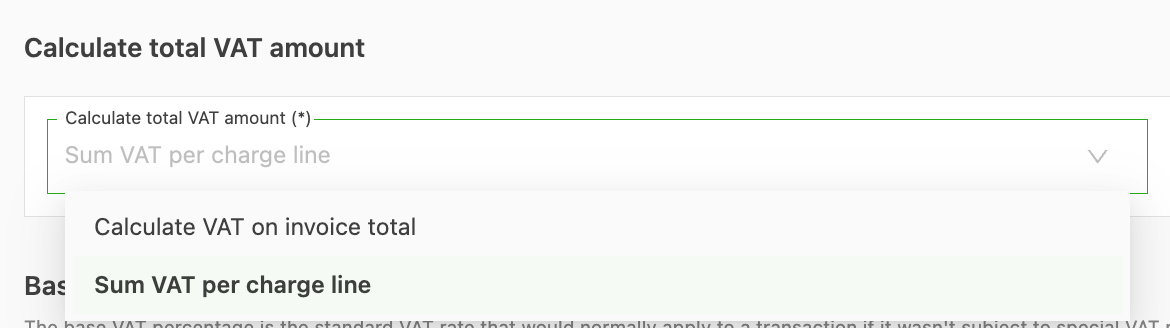
The two available options are:
- Calculate tax on invoice total. All charge lines are added up and tax is applied to the total of all charges.
- Sum tax per charge line. Tax is calculated and rounded to 2 decimals on each individual charge line.
📚The option to select may depend on the accounting package used, as the rounding may affect whether amounts match its calculation. Once configured, contact the Qargo account manager for any changes. Avoid frequent changes to the tax calculation method, as it is an account-wide setting. Frequent changes can lead to inconsistencies across invoices and potential disputes with customers.
Automatically determine tax
The system can automatically determine the correct tax type for the order.
- Set this in the customer profile with ‘Apply tax exceptions for import/export’ toggled on.
Note that for domestic routes, where pickup and delivery points are in the same country, tax exceptions do not apply and the domestic tax rate is used automatically.
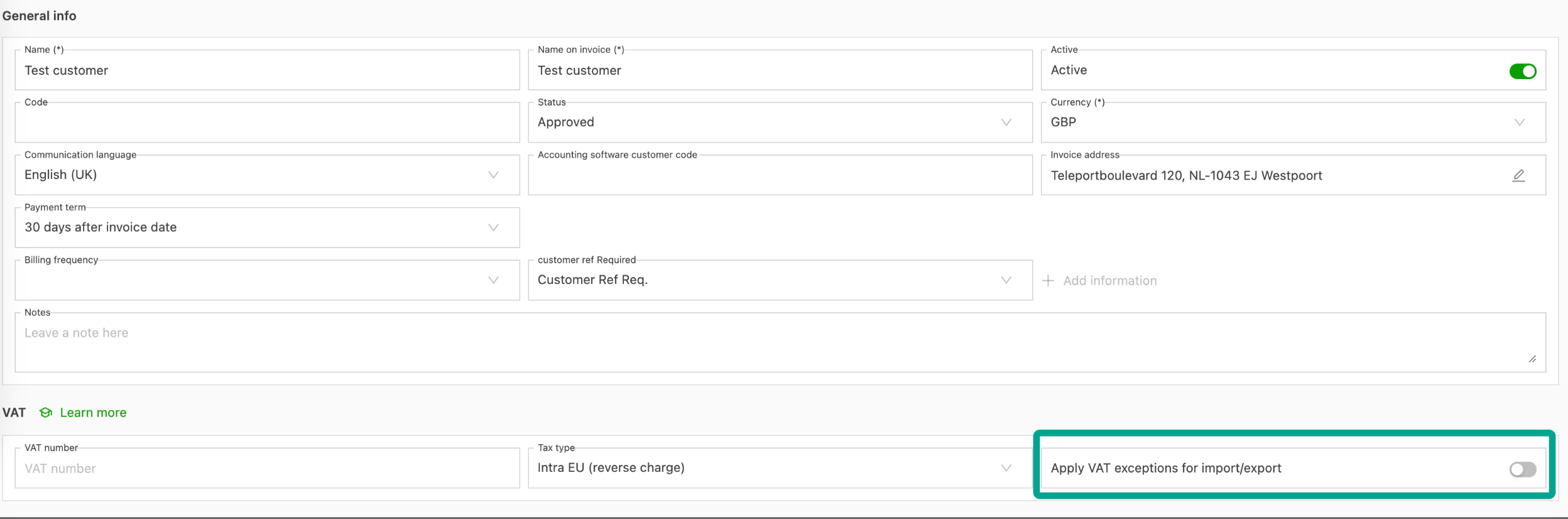
The tax type is then determined based on:
- The customer’s country, determined from the tax number and the billing address.
- The order pickup and delivery locations.
For import/export orders (containers), the tax type is often determined by the country of origin or country of destination of the goods, not by the pickup or delivery locations.
- Add this detail under the shipment information

Tax type in orders
When adding a charge to an order, if the ‘Set tax automatically’ toggle is on, the tax % rate is grayed out and unavailable.
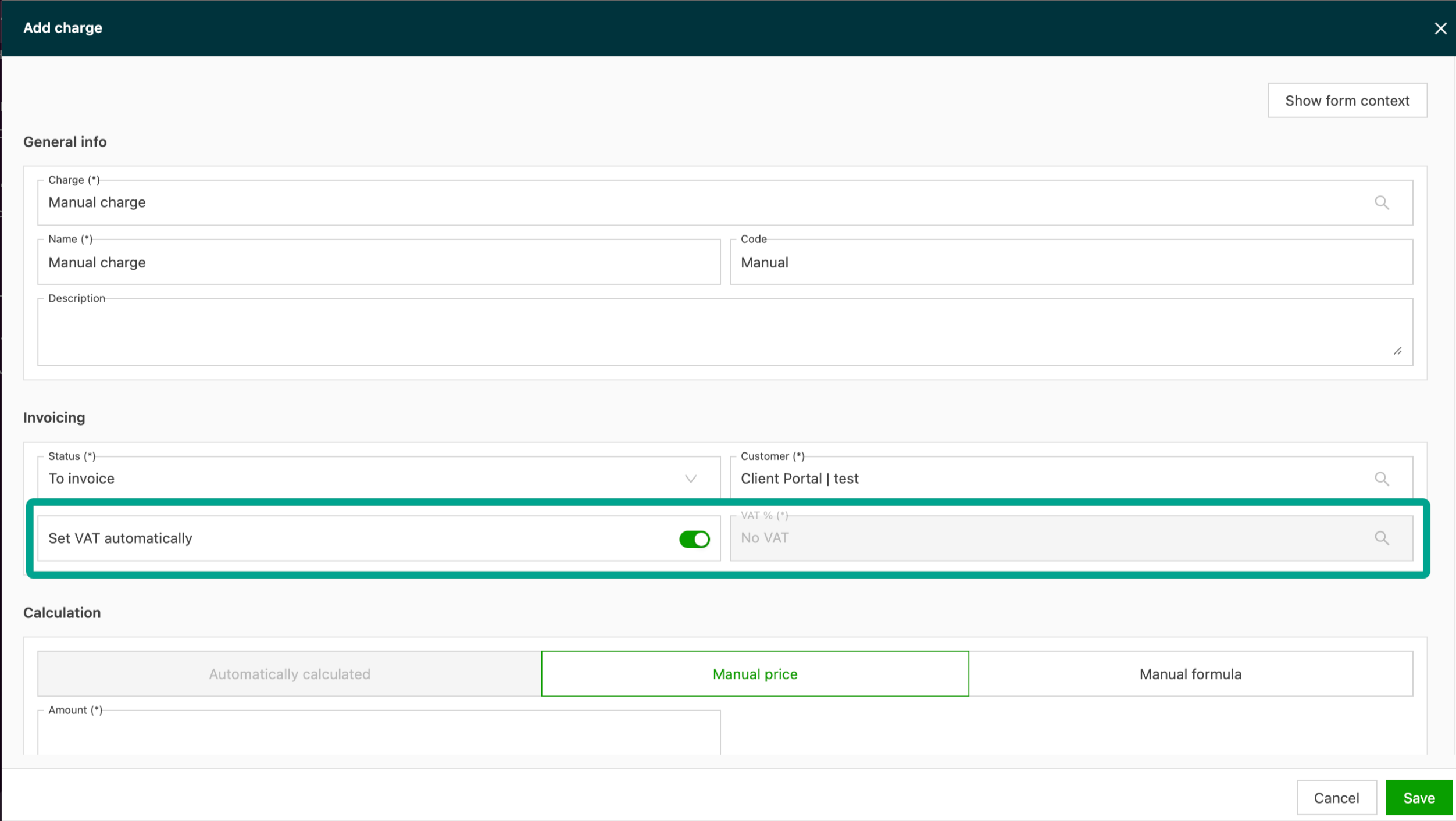
Tax exceptions, if applicable, are shown when adding a charge in the order.

Summary guide for tax rules, based on the tenant’s country
BE tenant overview
| Transportation | BE customer | EU customer | Customer outside EU |
|---|---|---|---|
| Domestic transportation\ | |||
| \ | |||
| Example:\ | |||
| Antwerp → Ghent\ | |||
| | Tax | Reverse charge (Art 44) | Tax |
| Transportation within EU\ | |||
| \ | |||
| Example:\ | |||
| Paris → Ghent\ | |||
| | Tax | Reverse charge (Art 44) | No tax |
| Pickup outside EU, delivery inside EU\ | |||
| \ | |||
| Example:\ | |||
| UK → Ghent\ | |||
| | Transit Art 41\ | ||
| No tax | Transit Art 41\ | ||
| No tax | Transit Art 41\ | ||
| No tax | |||
| Pickup inside EU, delivery outside EU\ | |||
| \ | |||
| Example:\ | |||
| Ghent → UK\ | |||
| | No tax\ | ||
| Export outside of EU (Transit Art 41)\ | |||
| | Transit Art 41\ | ||
| No tax | Transit Art 41\ | ||
| No tax | |||
| Transportation outside EU\ | |||
| \ | |||
| Example:\ | |||
| Switzerland → UK\ | |||
| | No tax | Reverse charge (Art 44) | No tax |
EU tenant overview
| Transportation | Customer in same country as tenant | EU customer | Customer outside EU |
|---|---|---|---|
| Domestic transportation\ | |||
| \ | |||
| Example:\ | |||
| Antwerp → Ghent\ | |||
| | Tax | Reverse charge (Art 44) | Tax |
| Transportation within EU\ | |||
| \ | |||
| Example:\ | |||
| Paris → Ghent\ | |||
| | Tax | Reverse charge (Art 44) | No tax |
| Pickup outside EU, delivery inside EU\ | |||
| \ | |||
| Example:\ | |||
| UK → Ghent\ | |||
| | Transit / No tax | Reverse charge\ | |
| (Art 44) | No tax | ||
| Pickup inside EU, delivery outside EU\ | |||
| \ | |||
| Example:\ | |||
| Ghent → UK\ | |||
| | Transit / No tax | Reverse charge (Art 44) | No tax |
| Transportation outside EU\ | |||
| \ | |||
| Example:\ | |||
| Switzerland → UK\ | |||
| | No tax | Reverse charge (Art 44) | No tax |
UK tenant overview
| Transportation | UK customer | Customer outside UK |
|---|---|---|
| Domestic transportation\ | ||
| \ | ||
| Example:\ | ||
| London → Manchester\ | ||
| | Tax | No tax |
| Pickup outside UK, delivery inside UK\ | ||
| \ | ||
| Example:\ | ||
| Antwerp → London\ | ||
| | No tax\ | |
| (Transit) | No tax | |
| Pickup inside UK, delivery outside UK\ | ||
| \ | ||
| Example:\ | ||
| London → Antwerp\ | ||
| | No tax\ | |
| (Transit) | No tax | |
| Transportation outside UK\ | ||
| \ | ||
| Example:\ | ||
| Ghent → Amsterdam\ | ||
| | No tax | No tax |
IE tenant overview
| Transportation | Customer in same country as tenant | EU customer | Customer outside EU |
|---|---|---|---|
| Domestic transportation\ | |||
| \ | |||
| Example:\ | |||
| Limerick → Dublin\ | |||
| | Tax | Reverse charge (Art 44) | Tax |
| Transportation within EU\ | |||
| \ | |||
| Example:\ | |||
| Limerick → Ghent\ | |||
| | Tax | Reverse charge (Art 44) | Tax |
| Pickup outside EU, delivery inside EU\ | |||
| \ | |||
| Example:\ | |||
| UK → Limerick\ | |||
| | No tax\ | ||
| (Transit) | Transit | Transit | |
| Pickup inside EU, delivery outside EU\ | |||
| \ | |||
| Example:\ | |||
| Limerick → UK\ | |||
| | No tax\ | ||
| (Transit) | Transit | Transit | |
| Transportation outside EU\ | |||
| \ | |||
| Example:\ | |||
| Switzerland → UK\ | |||
| | No tax | Reverse charge (Art 44) | No tax |
Troubleshooting common tax issues
Domestic routes and import/export toggle
Even when the “Apply tax exceptions for import/export” toggle is on, tax may still be charged at standard domestic rates (e.g., 21%) on domestic routes. Tax exceptions only take effect on cross-border routes.
Tax-exempt lines despite exceptions being disabled
Incorrectly configured rate cards can result in tax-exempt line items. To prevent this, check and update the default tax rates in the customer rate cards.
EU customers and reverse charge tax rules
If reverse charge tax is applied incorrectly, turn on the “Apply tax exceptions for import/export” toggle and make sure the reverse charge settings are configured correctly in Qargo.
Display Tax 0% on the invoice instead of ‘Tax exempt’
Invoices can show ‘Tax 0%’ instead of ‘Tax exempt’ because of how ‘No tax’ is mapped in Qargo’s configuration settings, or when automatic tax rules override manual tax setups. Adjusting the tax mappings and toggling the relevant settings can fix these display issues.