
Rates - Rate card customers
This article covers how to add and configure customer rate cards, including specific metrics or conditions to apply when rating orders.
Table of contents
Introduction
Users can create rate cards for customers that automatically link to the correct customer, transportation service, and order type, so that orders are rated without any manual input.
Qargo supports two types of rate cards: a default rate card that applies to all customers as a fallback, and customer-specific rate cards that override the default for individual customers or contract carriers. Prices can still be adjusted manually or supplemented with one-off items on individual invoices when needed.
Add a new price list
- Navigate to Rates > Rate card customers
- Click Create price list to create a new list, or select an existing one to update it.
- Select the Transportation service the price list applies to.
- Under General info, give the price list a Name and set a Valid from date.
- If creating a default price list, enable the Use price list for all customers toggle.
- Save the price list.
Configure a price list
If the price list was not set as the default for all customers, a Link new customer option is available.
- Click it and enter the customer name in the Customers field. Multiple customers can be selected. Any orders created for linked customers automatically have the saved prices applied.
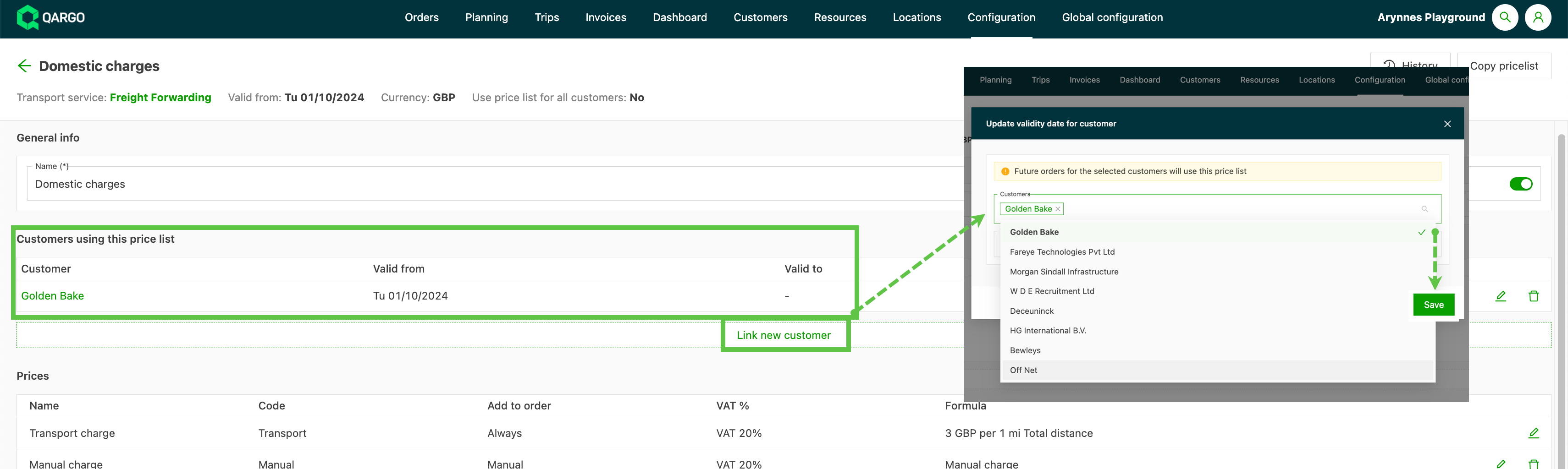
How default and customer-specific rate cards interact
-
Customer-specific rate card assignments take precedence for new orders.
-
If no specific rate card applies, the default is used as a fallback.
- For customers not assigned to the default rate card, any applicable surcharges must be added manually to their customer-specific rate card.
-
Changes to rate cards only apply to new orders. Completed orders always retain their original rating.
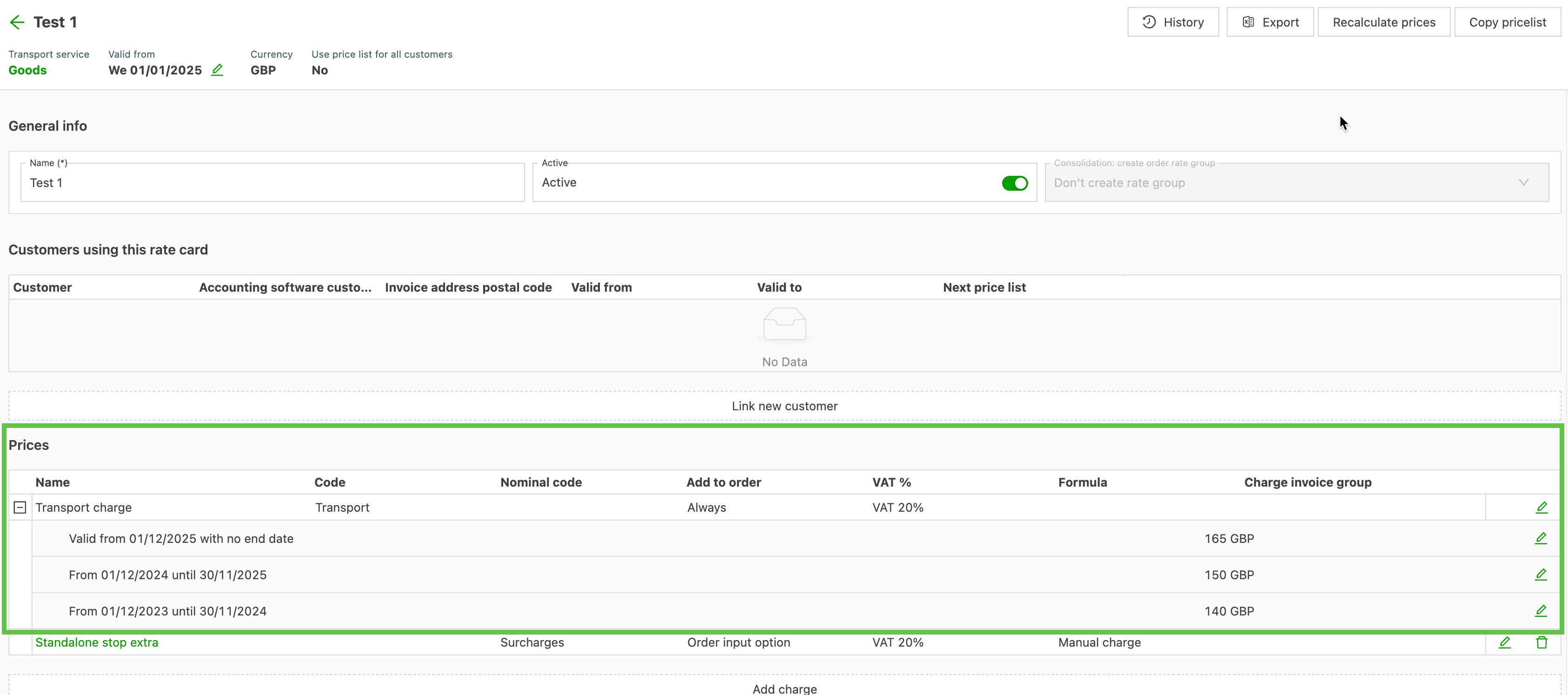
The Transport charge is always shown on the invoice; all other items can be added as preferred.
- Click the edit icon (pencil) to open the Edit price page.
- Click Add charge to add an additional item to the invoice.
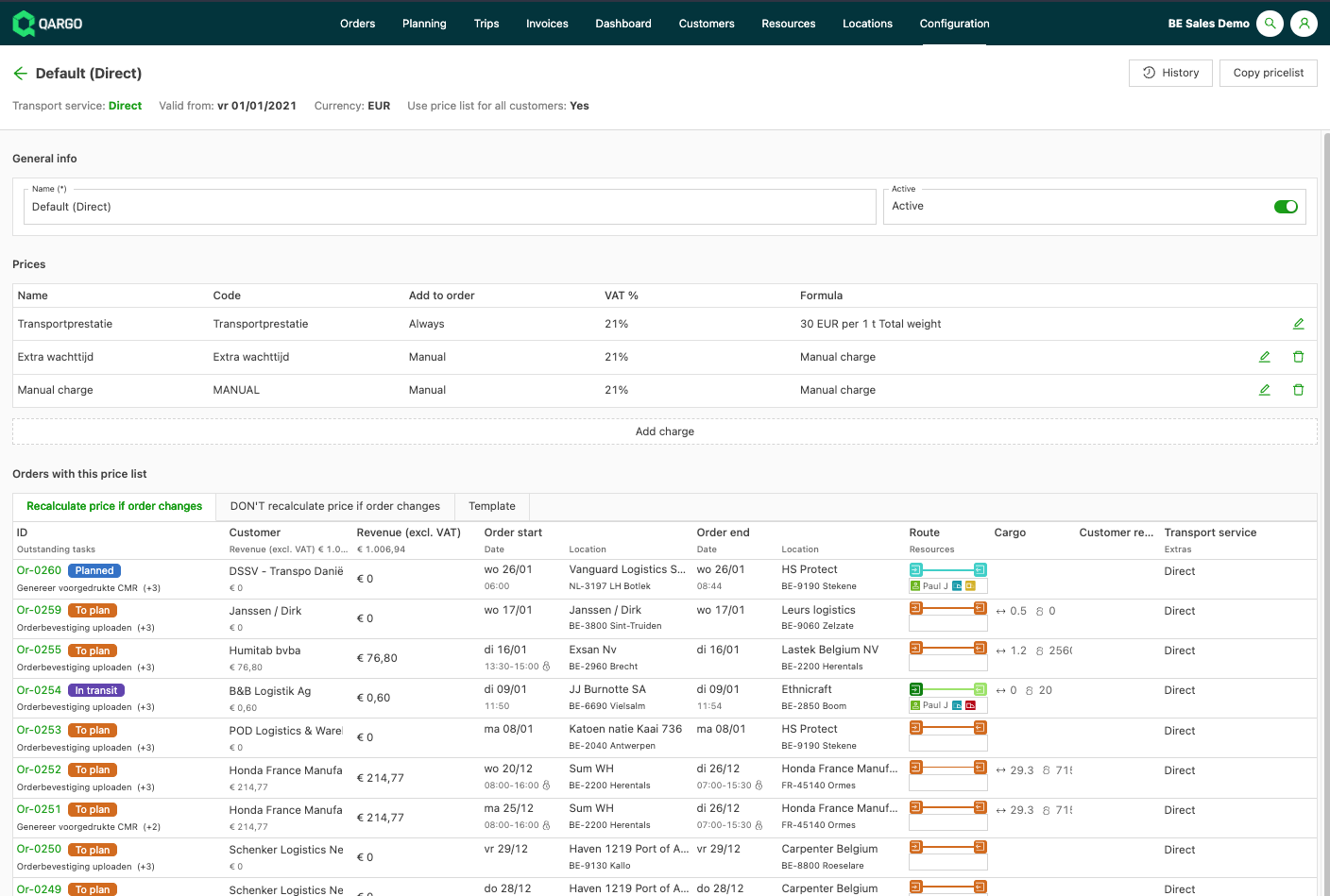
Set up a price calculation
From the Prices table, click the edit icon (pencil) to enter or edit charges associated with that charge type. This opens a new Edit price page.
Step 1: General info
- Name: Name of the charge that will appear on the invoice
- Code: GL code associated with the accounting package
- Tax %: Tax percentage to be applied (if applicable)
- Invoice process if price is 0: Option to select whether this charge type appears as a line item on the invoice if no value is present
Step 2: Create / name a price collection
Charges are grouped by collections, shown as individual tabs that can be named for ease of identification.
- If no name is specified, the collection (tab) defaults to the validity date(s) entered.
- Each collection has a Valid from and Valid to date.
- If only the Valid from date is entered, the collection has no end date.
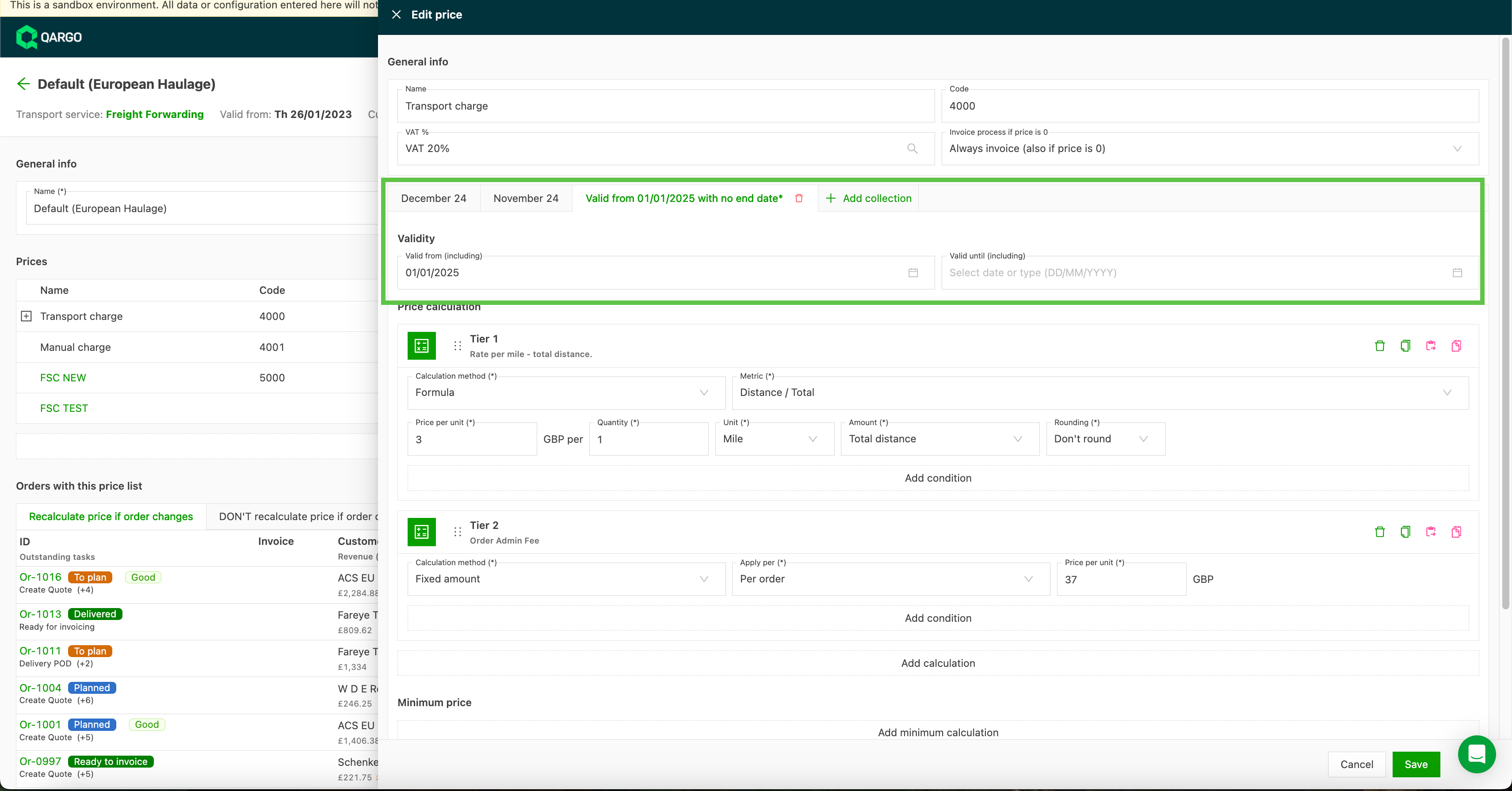
Create price collections
Use this option to add multiple price collections with different valid from/to dates, for instance for monthly rates, or when updating a price list to reflect a price change while still retaining the original.
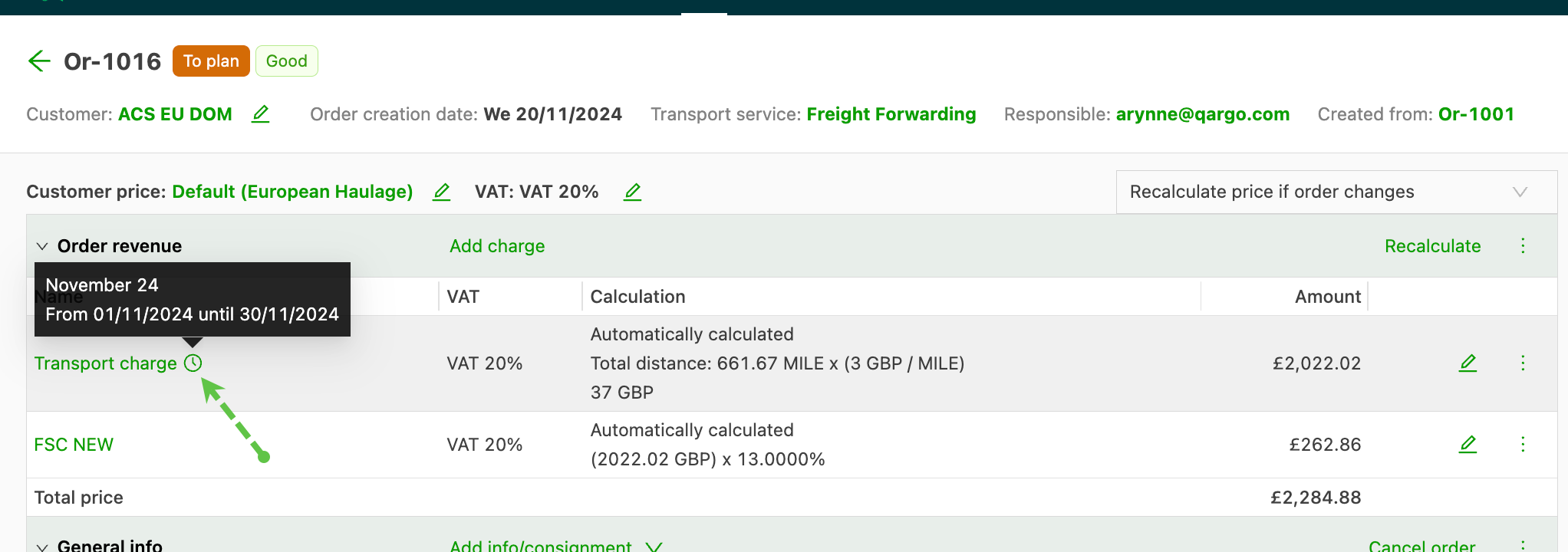
- To create multiple collections, click + Add collection to add another tab.
- When the Duplicate option is used on a collection that has a Valid to date, the new collection automatically starts from the next available date.
- The collection Name defaults to the start date. Click it to overwrite it with the correct name.
-
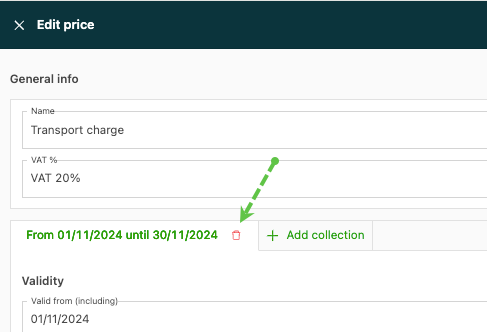
To remove a price collection, click the trash icon next to the name.
Step 3: Add price calculation
There is an option to give the calculation a Name and Description, which is useful if a price list has multiple calculation scenarios.
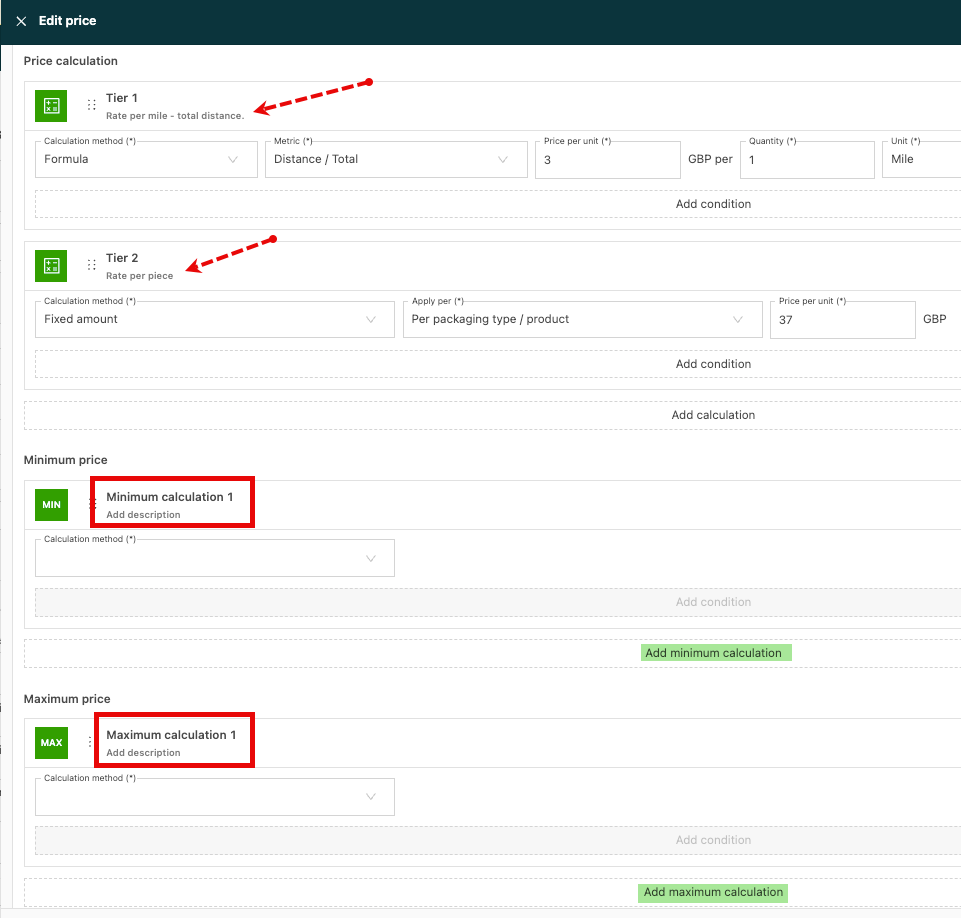
- Price calculations can be set up based on a Fixed amount, Formula, or Rate table.
Step 4: Add metrics
Once a method is selected, metrics can be added in Options based on what the price depends on, e.g., delivery location or number of pallets. This creates the first column and first row of the table.
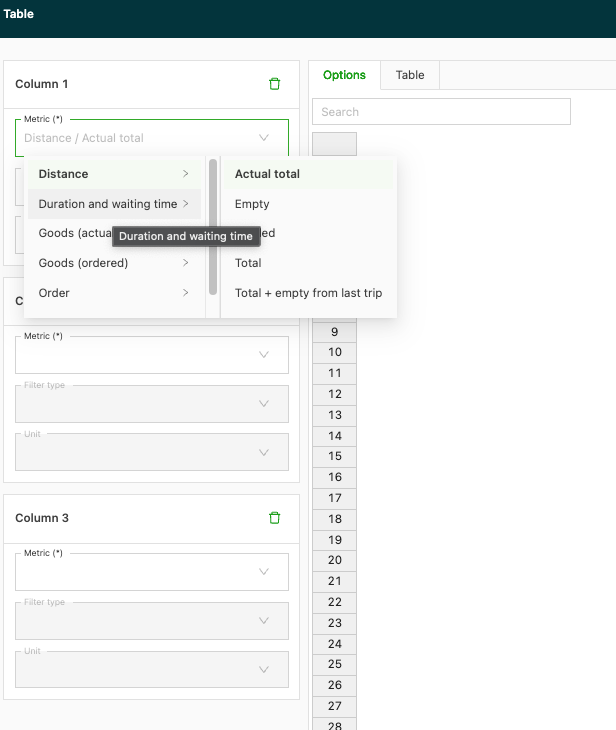
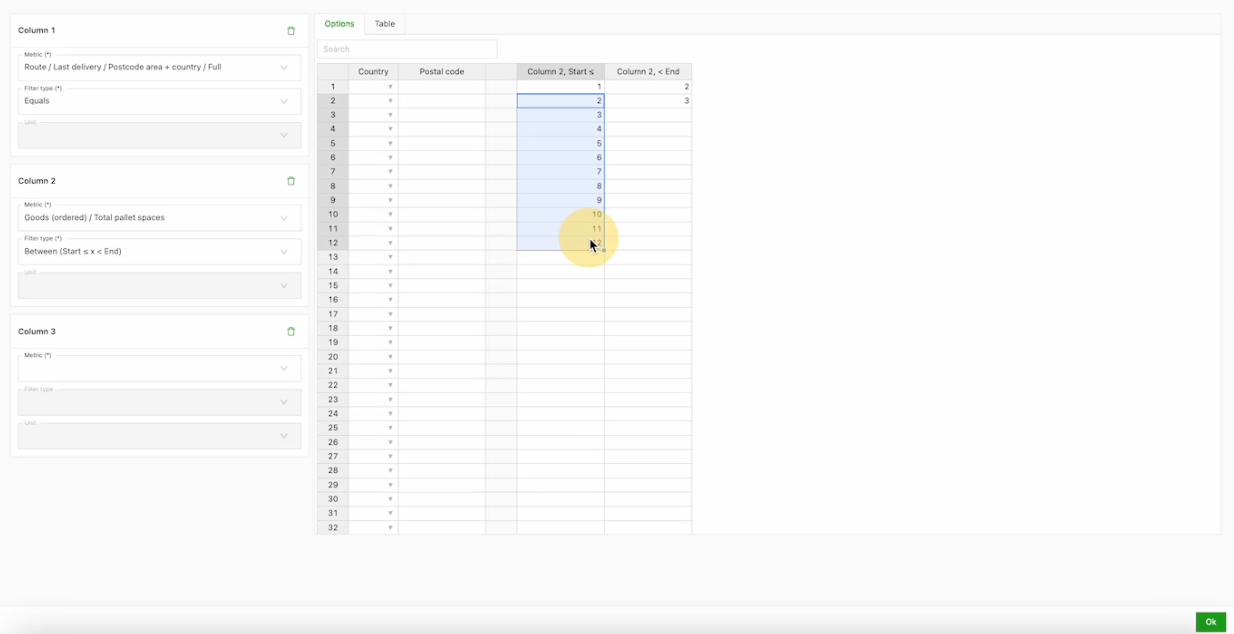
- Once the metrics are chosen, navigate to Table to add prices.
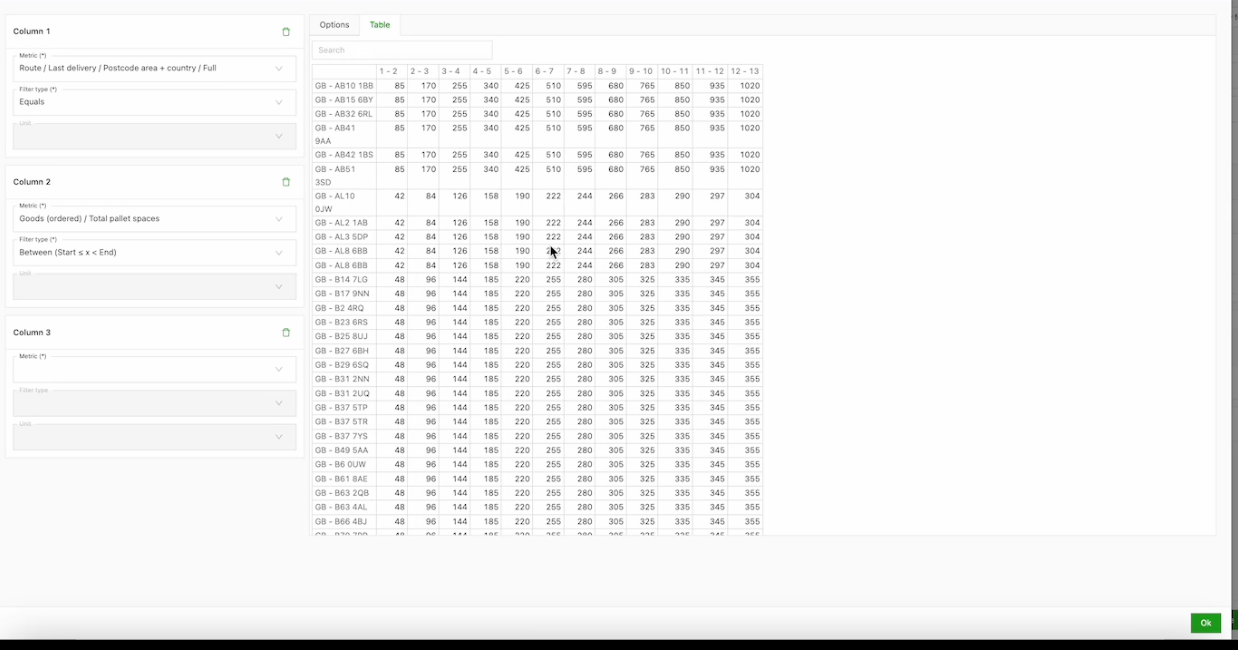
Step 5: Add conditions to the price (if applicable)
Optionally, specify that a price is not charged if a certain condition is not met, for instance a price list that does not apply to a certain zone (e.g., central London).
Once set up, conditions are visible when creating an order.

Standard price templates
Standard price templates streamline the configuration of price calculations across multiple price lists.
- Configured under Transportation services, templates make it possible to define a calculation structure once and apply it broadly. Existing price lists automatically become default templates.
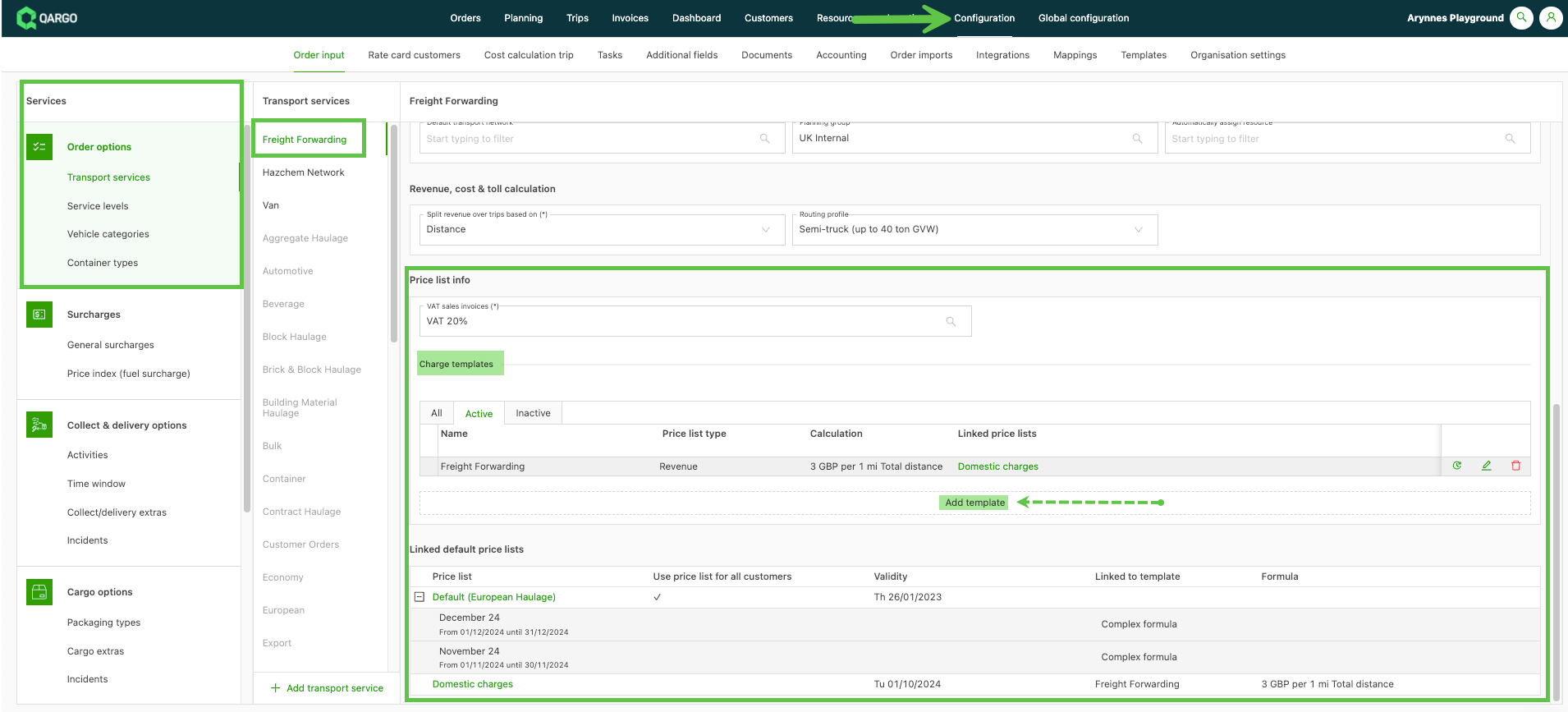
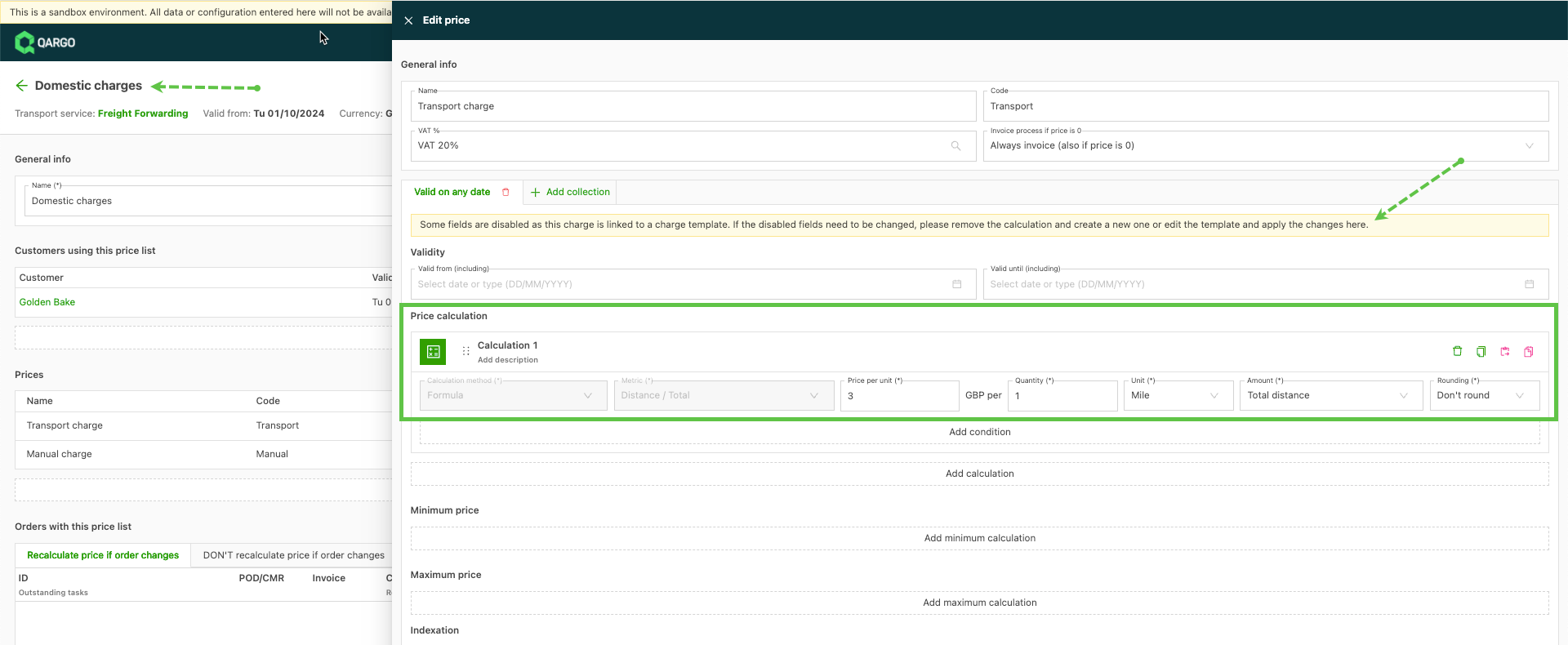
- Once a charge template is linked to a price list or charge, the metrics on that calculation can no longer be changed.
- To update the metrics, delete the calculation and add a new one. The same applies to calculations on a charge linked to a charge template.
🎥 Watch this video for a full overview of creating and using rate cards.
FAQ and best practices
Will existing orders be affected if a rate card is updated?
No. Changes to a rate card only apply to new orders. Existing orders retain their original rate card unless manually updated.
What if a setting on an existing rate card needs to change?
Some settings, such as switching the Calculate charges per order option from No to Yes, cannot be changed on an existing rate card. In these cases, create a new rate card with the desired configuration and apply it going forward.
Can the rate card on a job be edited?
The system only allows editing a rate card on a job when it detects that a more suitable rate card is available. In that case, a warning appears and the edit (pencil) icon is enabled. If no alternative is detected, the option is not available.
What if a customer isn’t assigned to the default rate card?
Any applicable surcharges must be added manually to that customer’s specific rate card.
Can price collections overlap?
No. Make sure each collection has distinct validity dates to avoid conflicts.
Should old price collections be deleted?
It’s best to keep them. Historical collections are useful for audits and for maintaining billing consistency.
Can one condition match multiple packaging types?
Yes. On the Goods (ordered) / Predefined package size + packaging type condition in the Edit price modal, select the In or Not in operator.
The Value field then becomes a multi-select, so one condition can match a list of packaging types instead of one at a time. Is and Is not keep their single-value behavior.
Conditions are evaluated per freight line, so In and Not in match packaging types within a single freight line, not across different lines on an order.
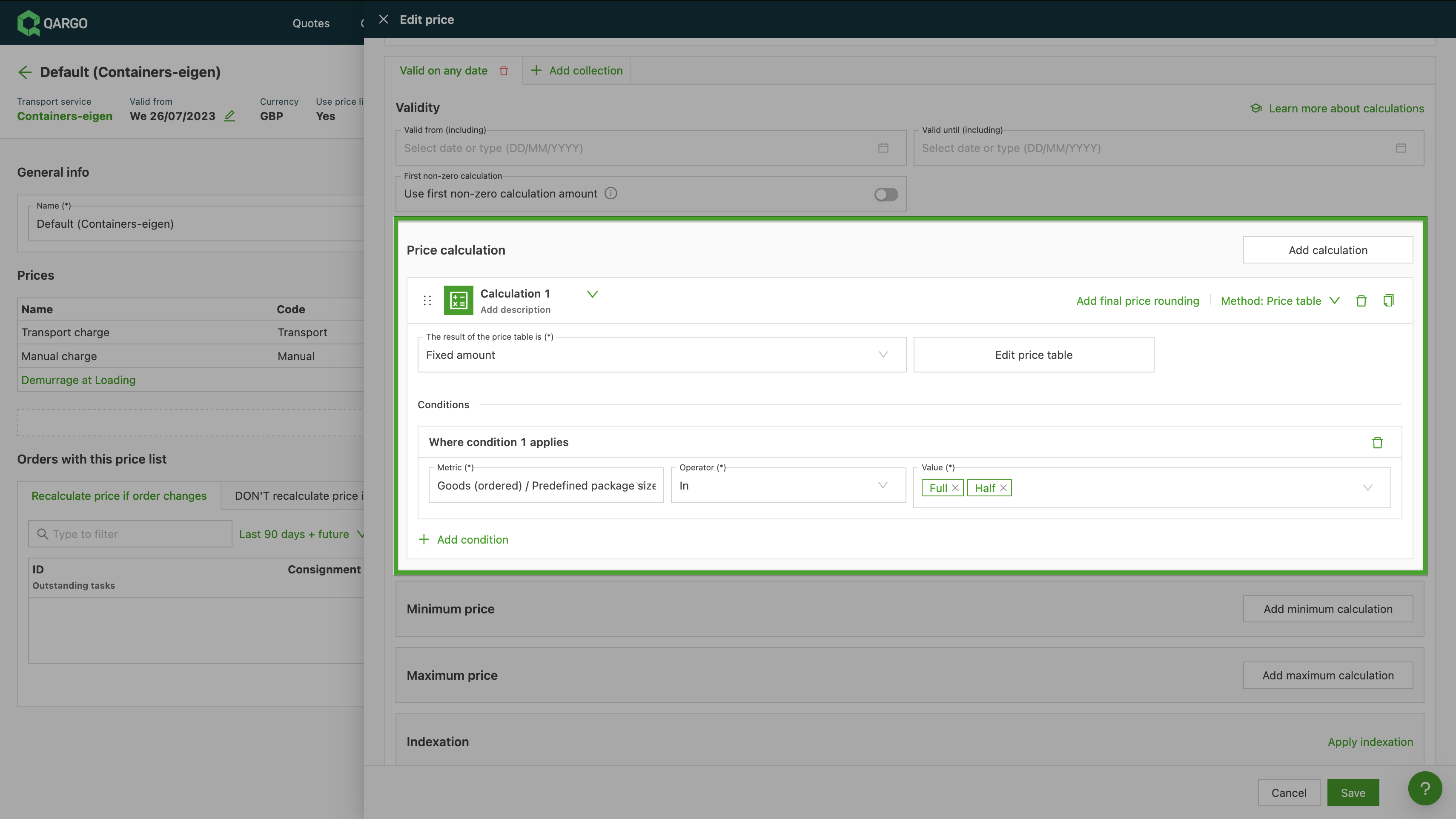
To set this up:
- Navigate to Rates > Rate card customers and open the relevant rate card.
- Open the Edit price modal and add or edit a Predefined package size + packaging type condition.
- Select the In or Not in operator.
- Configure the Value field, now a multi-select, and choose the list of packaging types to match.