
Charge template: configuration for rate cards.
This article gives an overview of how to configure customer charge templates that will be associated with sales invoices.
Table of contents
Configuring a charge template uses the same workflow found throughout Qargo when adding charges, costs and similar items.
Navigate to Configuration > Charge template.
Click ‘Add charge template’.
Complete the details under General info, as described in this article.
Define collection & set validity.
Click the ‘New collection’ title. Give the collection a recognizable name, i.e. charge/customer. If no name is given, the title changes automatically when the ‘Valid from’ date is entered. If no dates are entered, the collection is set to ‘Valid on any date’.
- Multiple collections can be created by clicking ’+ Add collection’.
- Collection valid from / to dates cannot overlap.
- Multiple calculations, with conditions, can be created within each collection.
- Example: Customer rates are set for the year but have multiple options. These are created in a single collection, using the ‘Add calculation’ and ‘Add condition’ options.
Price calculation.
Add calculation:
When adding price calculations, 4 options are available to start the calculations.
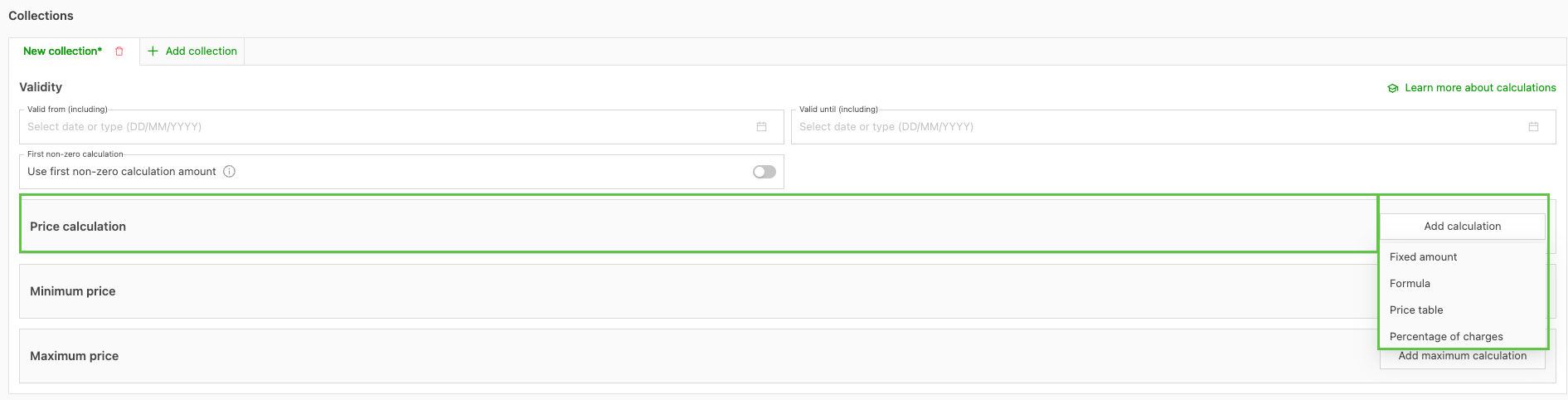
Fixed amount: Add a single charge. The options available to apply it are Per freight item, Per order or Per packaging type/product.

Formula: Add a specific charge based on a particular set of metrics, i.e. distance, goods ordered, route. Each metric has an additional set of options that can be selected and that drive the specific rating.

Rate table: This is the most complex rating method. It involves setting up an additional rate table, which includes its own set of metrics and rates. The rate table looks at the selected option to determine the final price. These tables are often used for rating tiers or geographic / ZIP code regions.

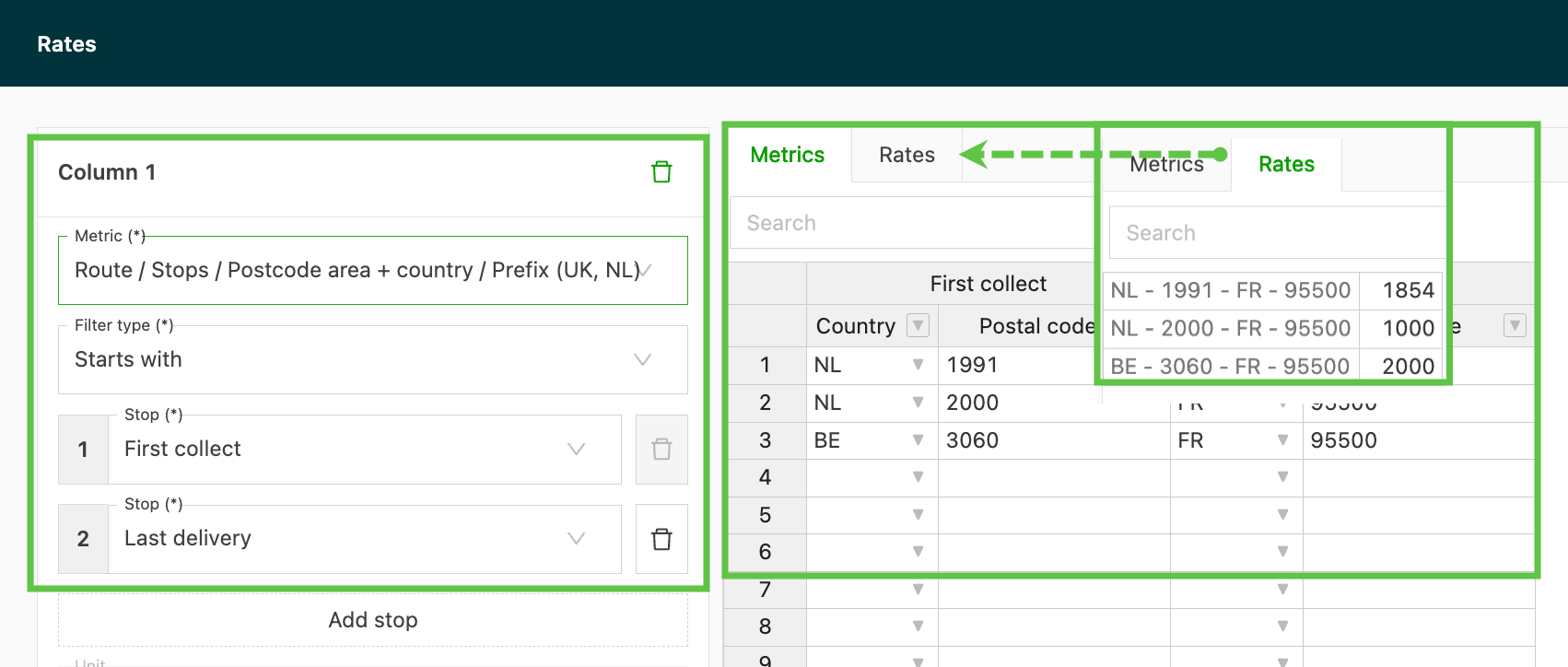
Select the most appropriate calculation method for the charges being added and add the relevant rating metrics, i.e. rate amount / distance format.
Percentage of charges: This option lets users base the charge on the order or load revenue. This can be based on All charges on the order, or only the Transport charge.
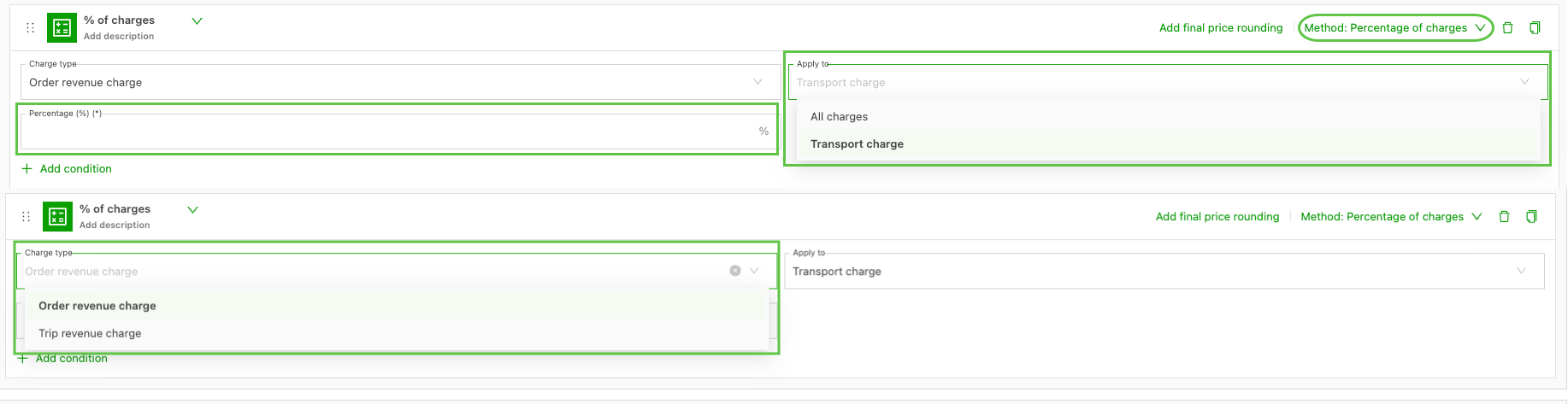
Users set the percentage that should be calculated against the specified charge. This becomes the charge line that is added.
Add conditions.
Where additional rates apply based on a set of criteria, these can be set up using the ‘Conditions’ option. Each price calculation can have additional conditions as required.