
Invoices: create a standalone credit memo
Create standalone credit memos by selecting the customer, date, and charges. Process as an invoice and post for accounting software import.
Table of contents
Creating a standalone credit memo
-
Navigate to Invoices > Credit memos. Credit memos are organized into default views:
-
All: Shows all credit memos, regardless of status.
-
Draft invoice: Shows credit memos that have been created and remain in a draft status.
-
Invoiced: Shows credit memos that have been verified and generated to an invoice. Depending on individual company processes, additional tasks may be available once invoiced, including sending to the customer.
-
Invoice posted: Shows credit memos that have been moved into a posted status for importing into accounting software. These cannot be modified.
-
Canceled: Shows credit memos that have been canceled and are no longer required. The credit amount resets to 0 and the status shows a new Canceled label.

-
Click the green ‘Create credit memo’ button.

- Select the customer name (1) and credit memo issue date (2), then save the settings (3). If needed, add the exchange rate date and set the currency.
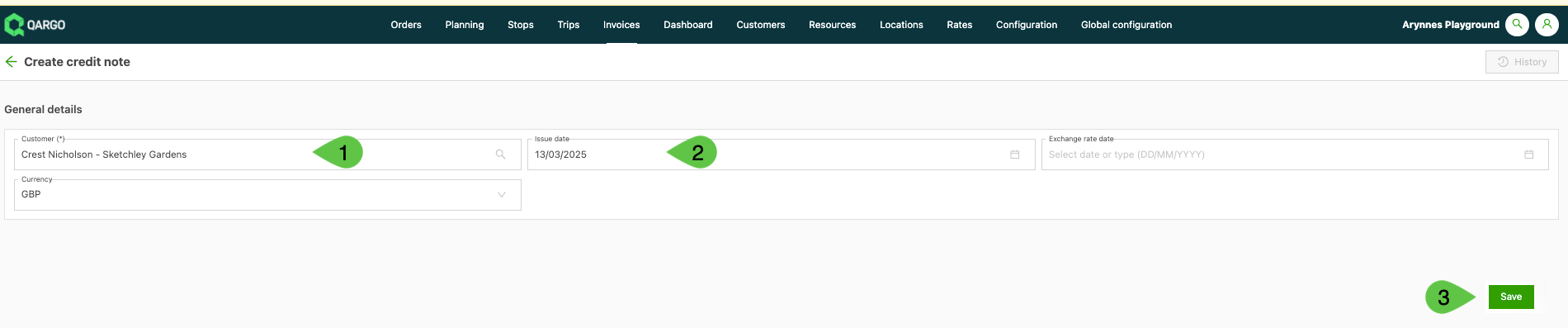
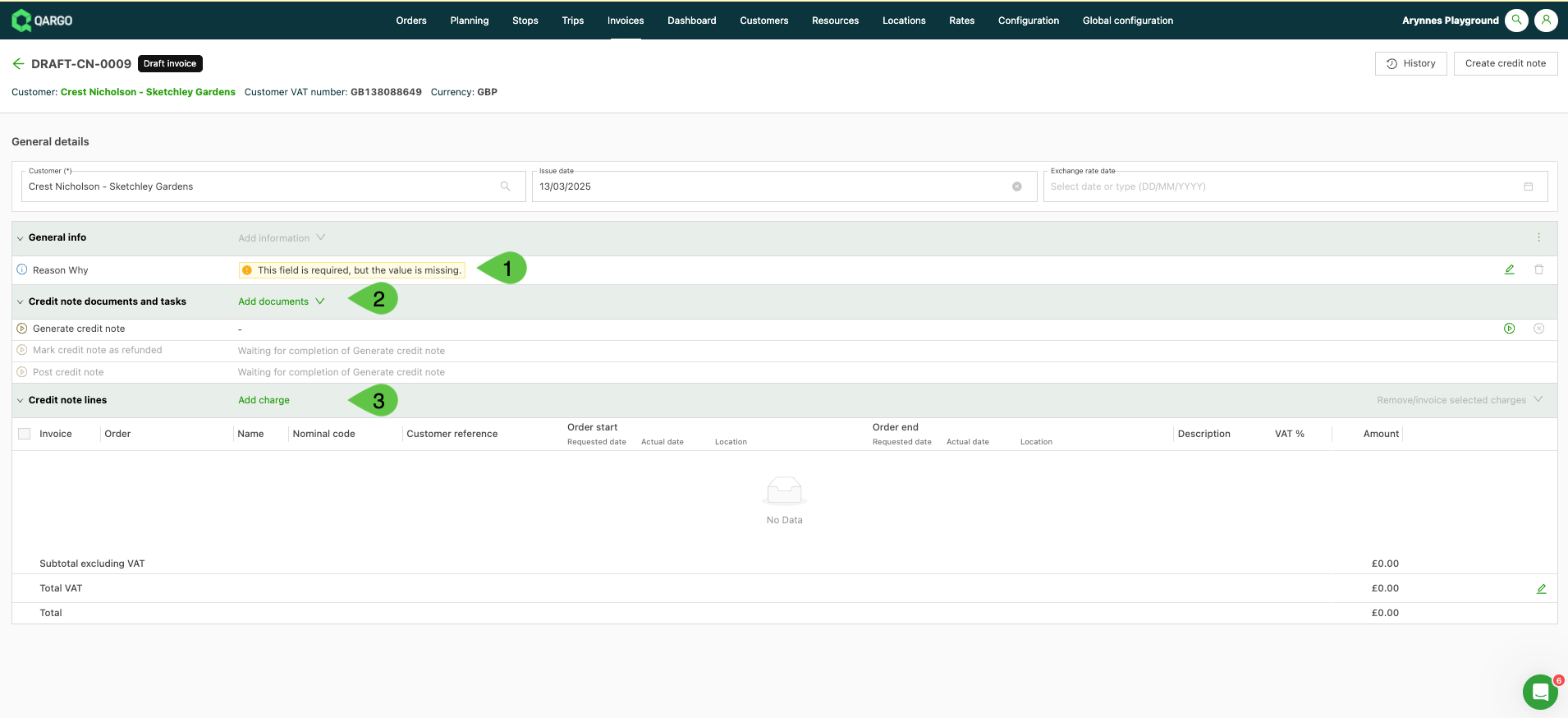
The credit memo is created in a Draft status, with a unique draft credit memo number.

- Add the reason for the credit memo. Click into the row and add the details. Click the save icon.
- Add any supporting documentation. The options are communication, another credit memo, and other. Each opens a new screen where the document can be uploaded.
- Add charges. A new window opens where the charge details can be entered.
Add charges:
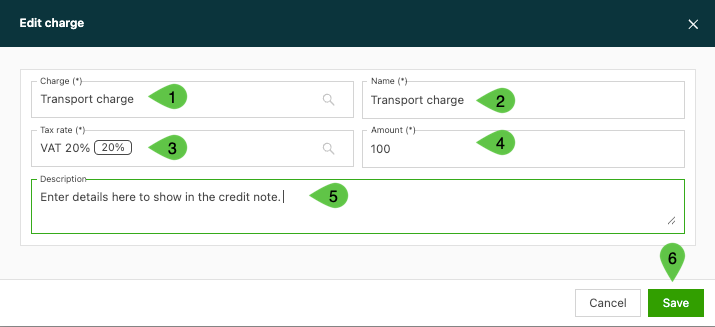
- Select the appropriate charge from the options in the drop-down. These come from the charges associated with the transport charge and surcharges.
- Update the name to show on the credit memo (if required).
- Confirm the tax rate is applied (if applicable). Select from the drop-down options if an update is required.
- Enter the amount to be credited.
- Enter the description or details for the credit memo.
- Click Save.
Once the credit memo details and any required documents have been added, use the ‘Generate credit memo’ task to move the credit memo from a draft status to invoiced.
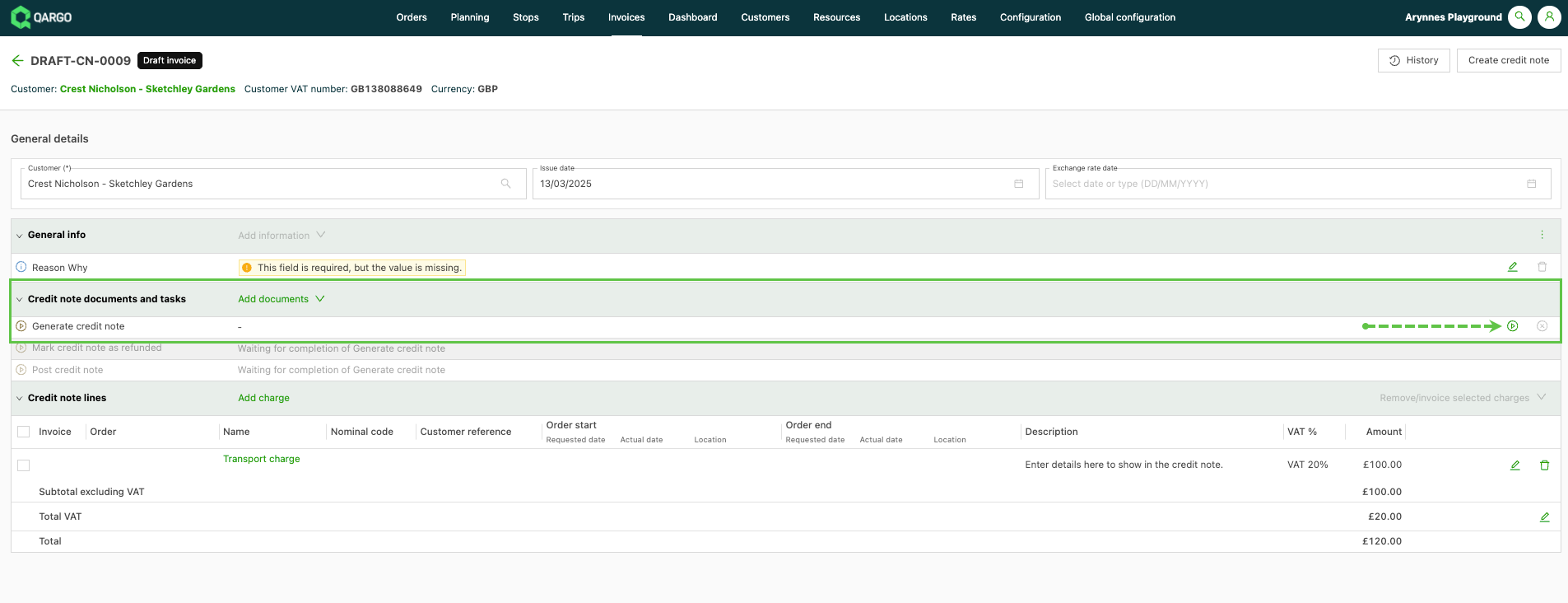
The credit memo now shows as Invoiced, with a unique credit memo number, and appears under the ‘Invoiced’ tab.
Once invoiced, the credit memo may be sent to the customer. To import it into accounting software, the credit memo must be moved to a Posted status.
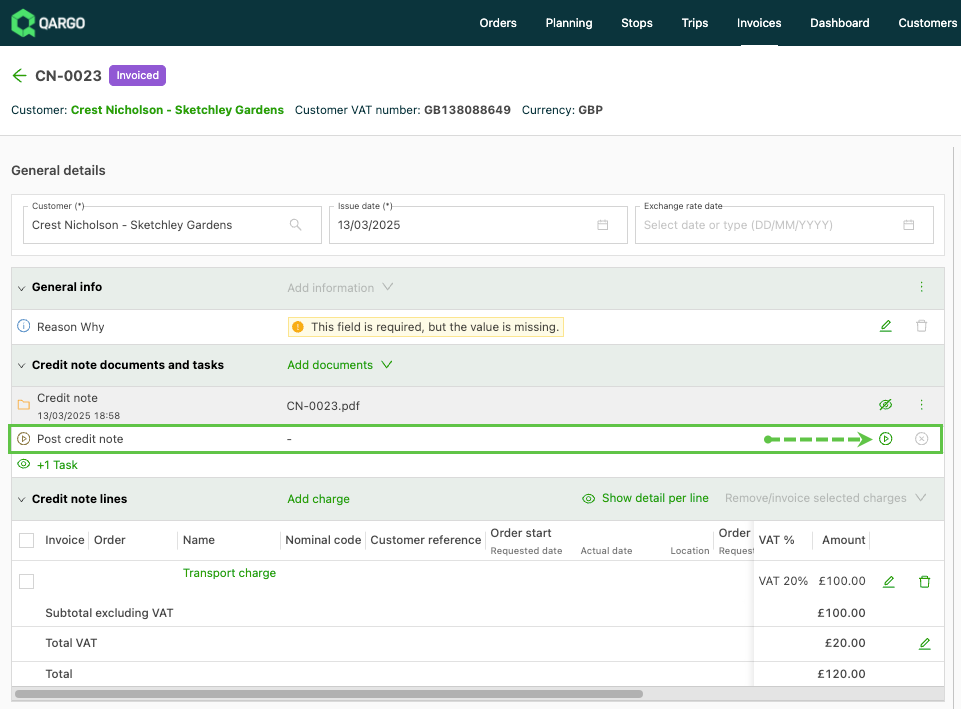
Once the post credit memo task is complete, the credit memo status updates and shows the ‘Invoice posted’ status.

The credit memo number remains the same. In a posted status, the credit memo is included in any export files used to import into third-party accounting software.
Create a sales credit memo via integration (API)
Qargo now supports standalone sales invoices and sales credit memos from external systems, allowing integration partners to push billing data directly into Qargo.
Why it helps
- Warehouse management systems (e.g., Coglas WMS) can push warehouse charges directly to Qargo for billing
- External systems can create invoices for services rendered outside of Qargo’s core TMS functionality
- Reduces manual data entry and improves the accuracy of billing data
- Enables faster billing cycles for customers with multiple integrated systems
Limitations
- Only standalone charges are supported (no charges linked to orders or loads)
- Invoices are created with an Invoiced status only
- Exchange rate functionality is not included
This can also be executed in bulk via Quick actions in the credit memo list view.
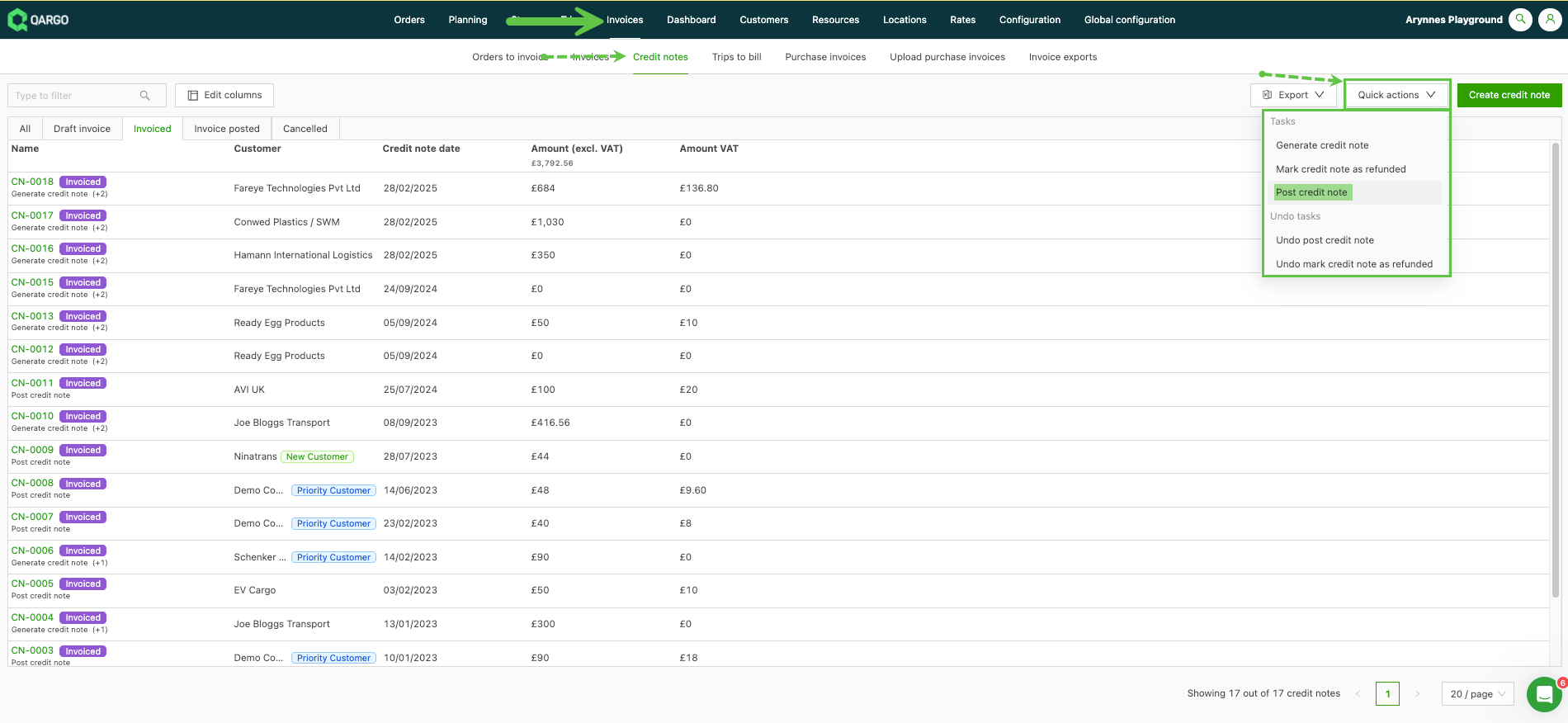
Credit memo process: