
INVOICES - Post-invoice actions and restrictions
This article outlines the restrictions and actions available once an invoice is marked 'Invoice posted', including limits on changes and tasks.
Table of contents
Complete a stuck post task
Mark a post task as completed when the invoice or credit memo is already in the accounting system. The task is completed and the document moves to Invoice posted. Qargo does not send the document to the accounting system again.
Prerequisites
- The invoice or credit memo is already booked in the accounting system, either by hand or by an earlier push.
- The post task (for example Post invoice to accounting) has the status To do, Waiting or Failed.
- The accounting & ERP integration is authorized. See INTEGRATIONS - Accounting software.
Mark the post task as completed
- Open the invoice or credit memo from Invoices.
- Locate the post task under Invoice documents and tasks. The task name follows the tenant’s configuration.
- Click the 3-dot menu at the end of the task row.
- Select Mark as completed.
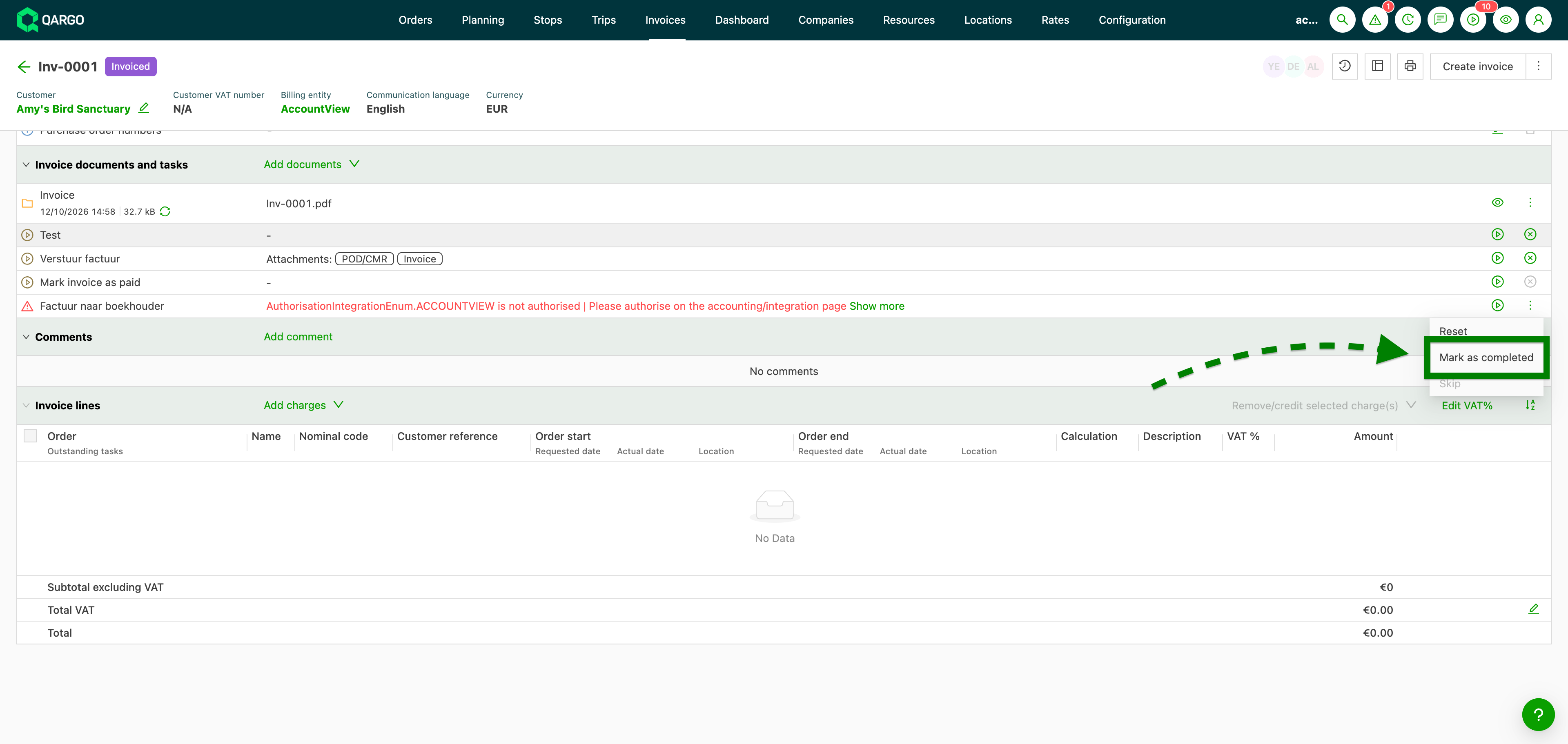
- Confirm with Yes in the Mark as completed dialog.
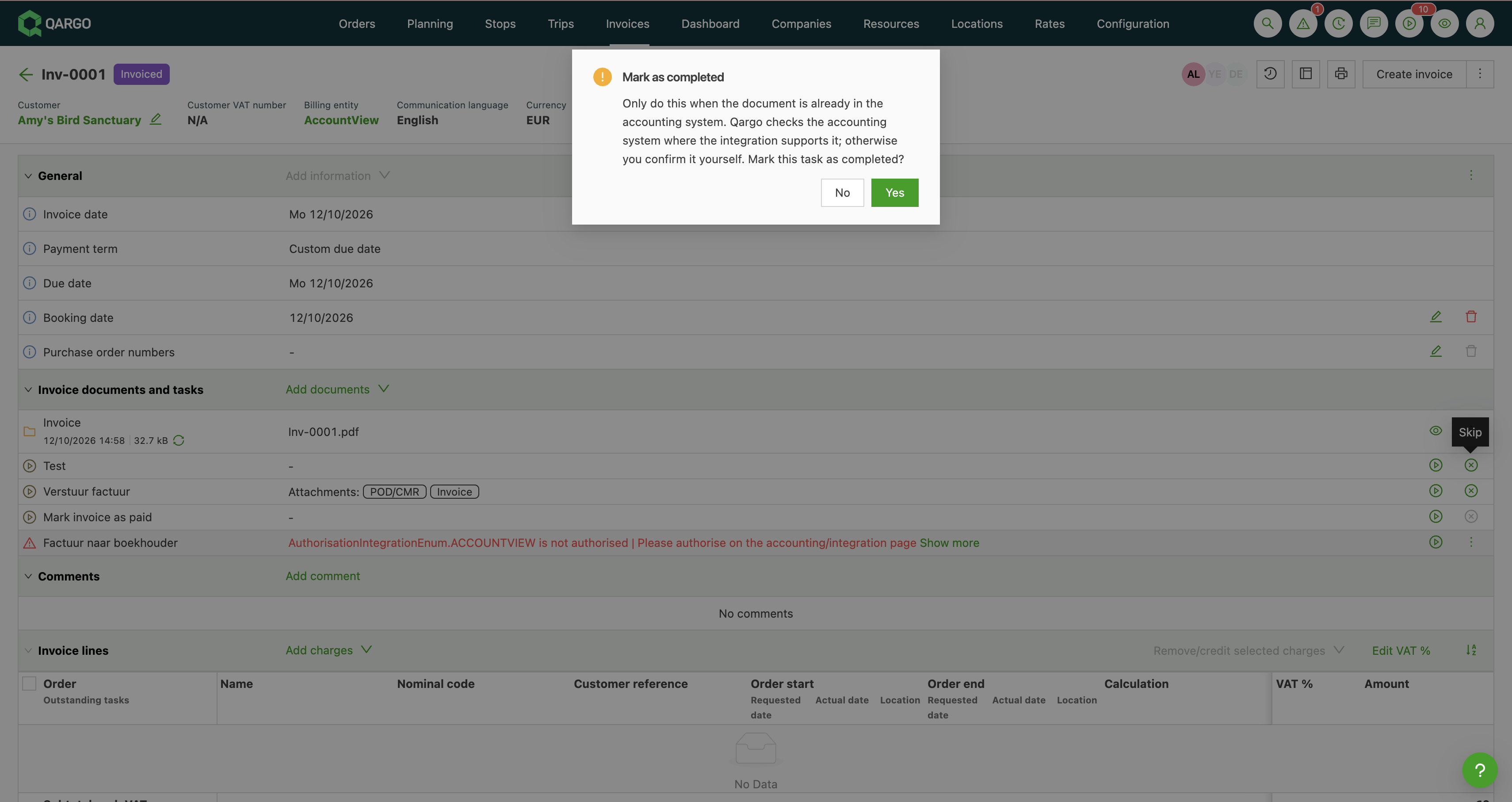
The accountant email linked to the task is not sent.
Check the result
Qargo looks up the document in the accounting system when the integration supports it. The completed task shows the result next to the “completed on … by …” line:
- Found in the accounting system: Qargo matched the document.
- Not verified in the accounting system: Qargo could not find or check the document. The task still completes.
Fix a task completed by mistake
Reset the task to remove the manual completion. Running the task again sends the document to the accounting system. Resetting a completed post task requires a Qargo admin or the permission to unpost invoices.
Limits
- Mark as completed only appears on the four post tasks (sales invoices, sales credit memos, carrier invoices and carrier credit memos) while the task is To do, Waiting or Failed.
- The action works on one document at a time. There is no bulk action.
- Qargo does not automatically flag or time out stuck post tasks. Check invoices that remain in Invoiced status.
Restrictions after an invoice is posted
When an invoice is marked with the Invoice posted status, the following actions are no longer allowed:
-
Updates to charge amounts or tax rates for the orders or invoice.
-
Moving a charge to another invoice or removing a charge.
-
Changes to the invoice date, due date or exchange rate date in the general information section.
-
Changing the customer associated with the posted invoice.
-
Canceling the posted invoice.
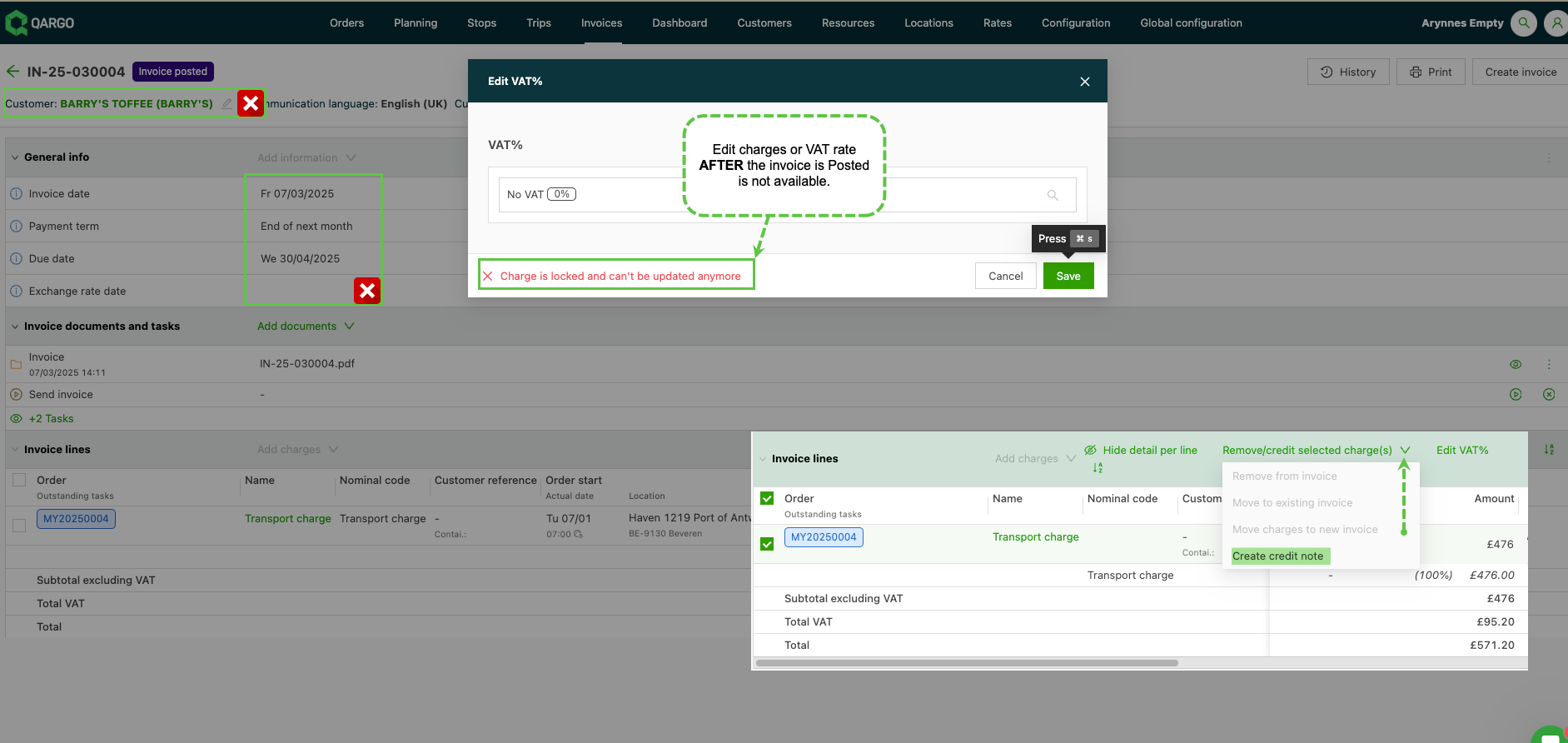
Additionally, at the order level, once an invoice is posted:
- Extra shipments cannot be added to the orders linked to that invoice.
- The task “Order ready to be invoiced” cannot be reset if there are posted charges on the order.
Actions available after an invoice is posted
At the invoice level:
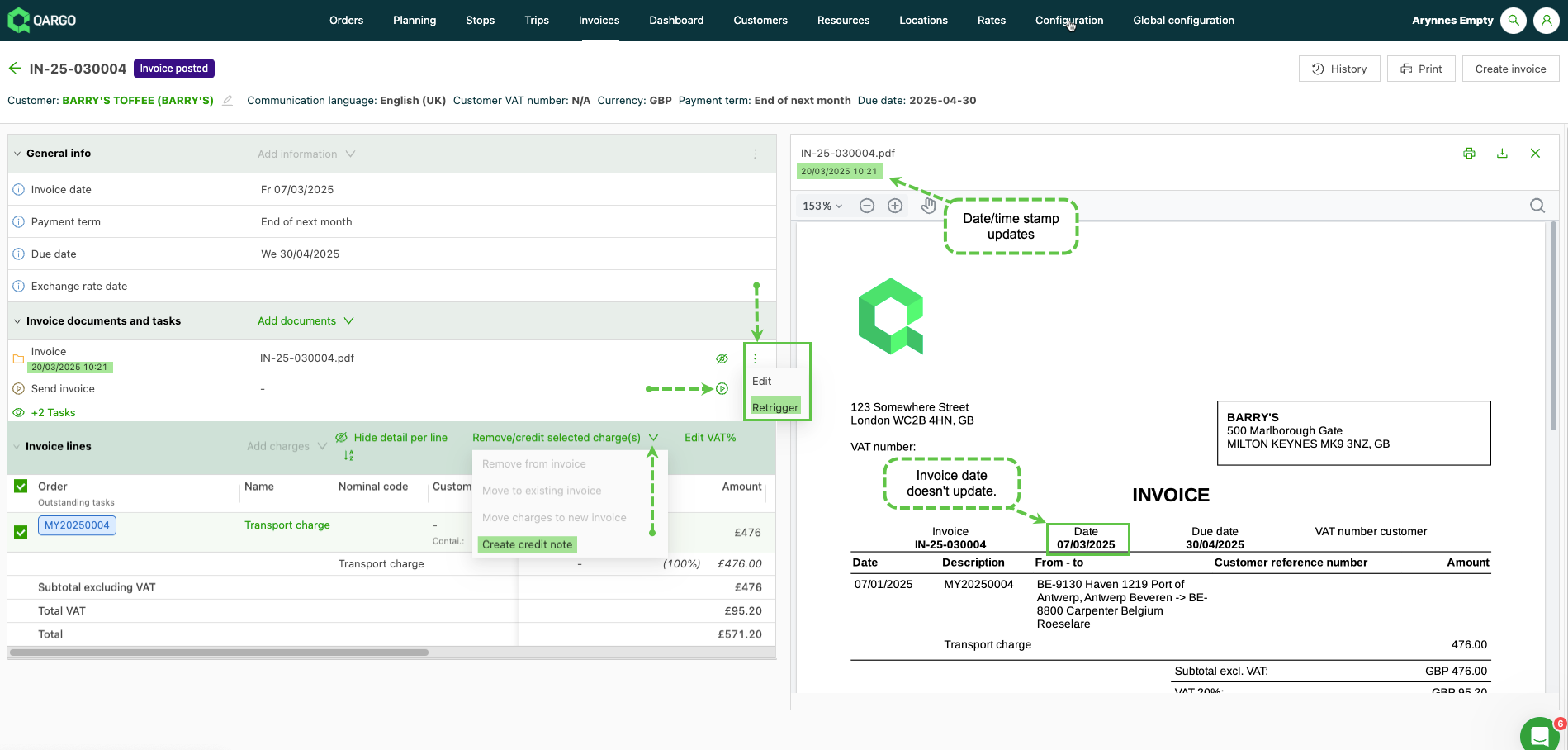
-
Re-trigger the ‘Create document’ task to generate an updated invoice document. This does not change the invoice date, but the generated date/time stamp is updated.
-
Resend the invoice or forward it by email.
-
Reset the invoice’s paid status.
-
Issue a credit memo for the posted charges.
-
Adjust the order of the invoice lines in the web application.
At the order level:
- Edit the customer reference.
- Update the requested and actual date/time.
- Add time windows
- Edit stop references, such as pickup or delivery references.
- Add extras for pickups or deliveries.
- Attach additional documents to the order.
- Run tasks not related to invoicing.