
Invoices – Create carrier credit memo
Carrier credit memos offset contract carrier costs; track load-specific or standalone expenses, track calculated costs and generate documents.
Table of contents
Introduction:
Carrier credit memos offset a cost, or part of a cost, that has already been billed and accounted for. A carrier credit memo applies specifically to contract carrier costs.
Credit memos can be linked to:
- Specific costs linked to a load, or to part of a load carried out by a contract carrier.
- A standalone cost incurred by a contract carrier, where payment responsibility has been assigned back to the main carrier.
In both cases, the contract carrier issues a carrier credit memo that accounts for the costs that need to be credited. Because this counts as income, it must be accounted for separately from a sales credit memo. For this reason, a carrier credit memo should be issued.
Key functions:
- Creating, editing, deleting and viewing carrier credit memos
- Calculated costs update to take carrier credit memos into account and show the lower costs.
- Creating custom CSV/Excel exports
- Generating documents for carrier credit memos (self-billing flow)
Tasks
Create a workflow task for the carrier credit memo process.
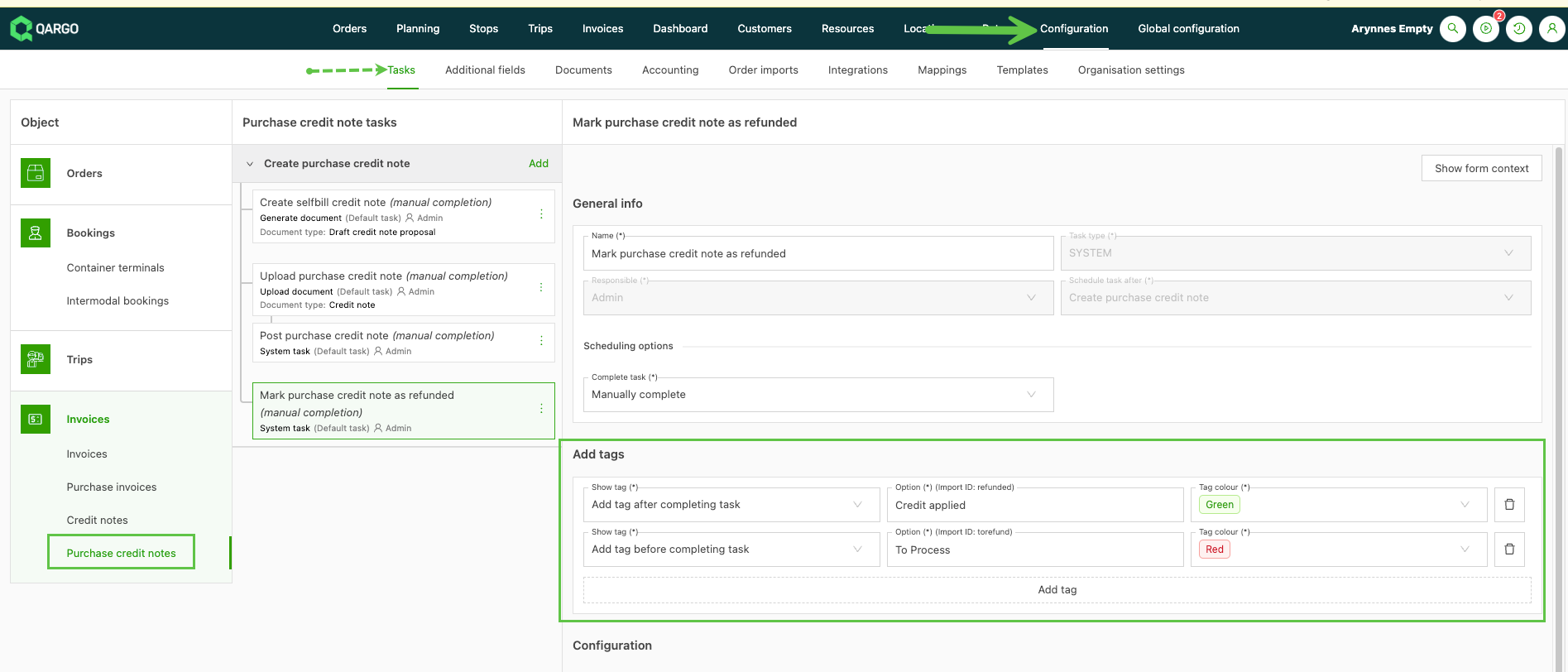
-
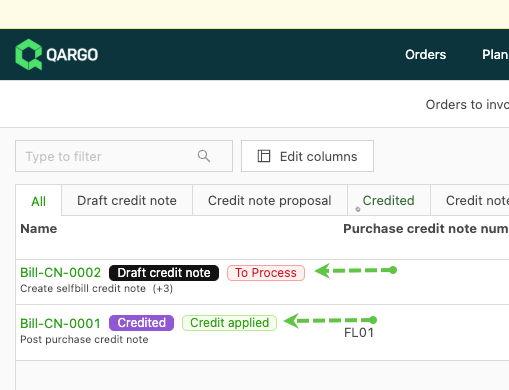
Tasks for credit memos are manual. Adding tags improves visibility.
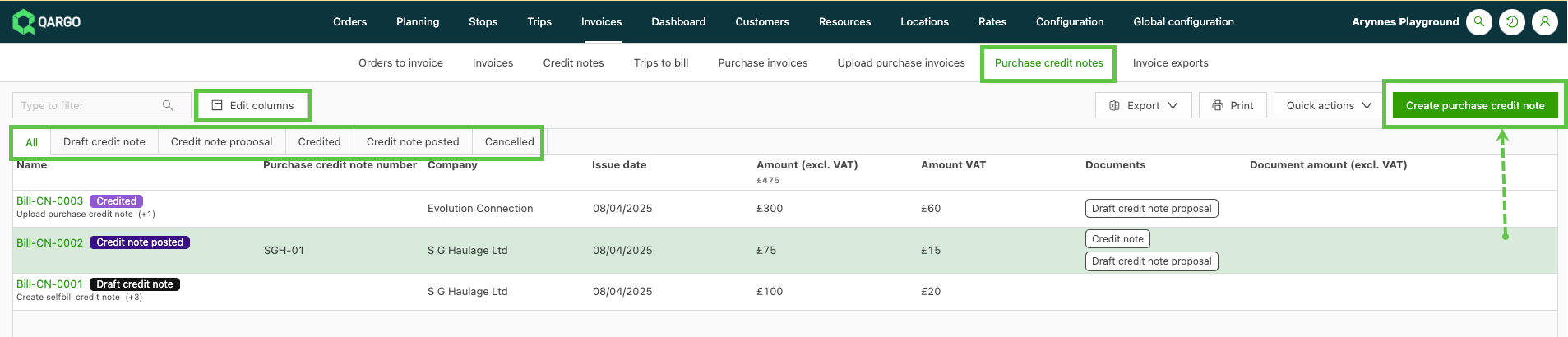
Carrier credit memo list view:
- The list view is organized into status tabs to make credit memos easy to find and process.
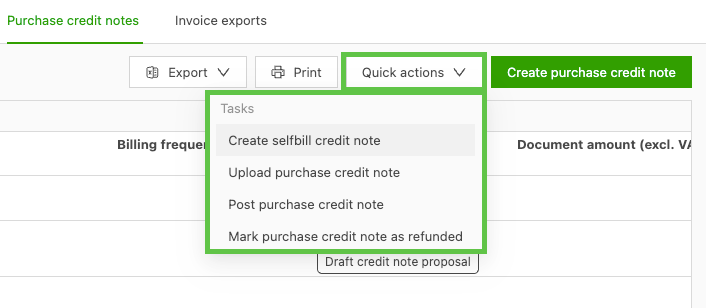
- Click Quick actions to perform actions in bulk. This updates multiple records at the same time.
- To create a new standalone credit memo, click Create carrier credit memo.
- To update an existing credit memo, click the number or the row to open the details page.
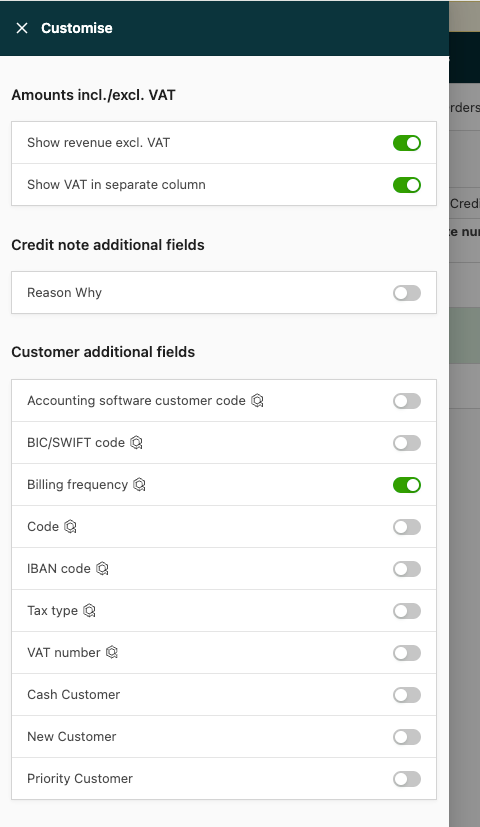
- Use Edit columns to display additional data columns from the available list. Drag a column to the desired position to change its order.
Carrier credit memo detail view:
-
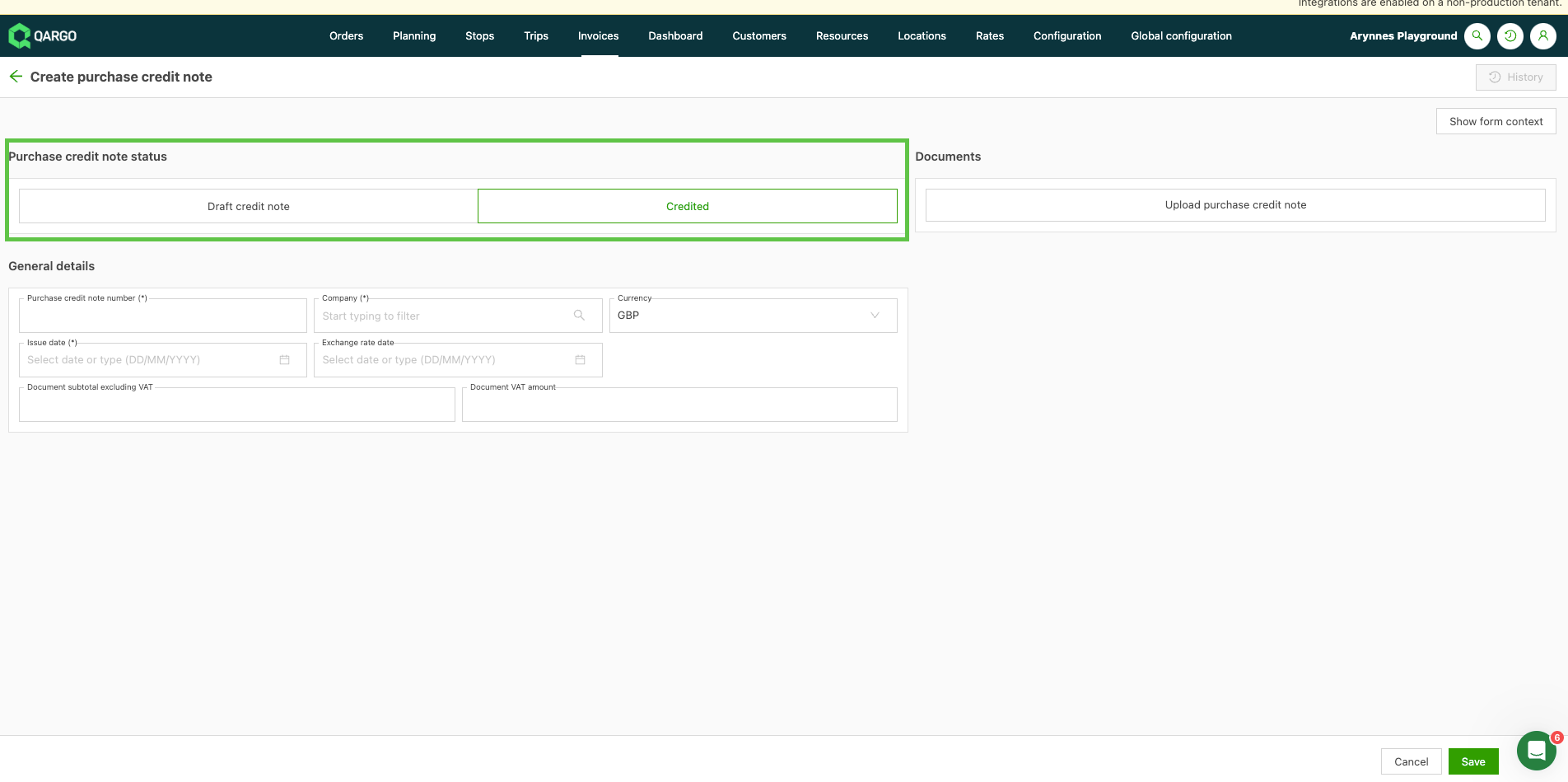
To create a carrier credit memo that is not linked to a load, use the Create carrier credit memo button.
-
Select whether to create the credit memo in Draft or Credited status.
- The required general details differ slightly between Draft and Credited status.
-
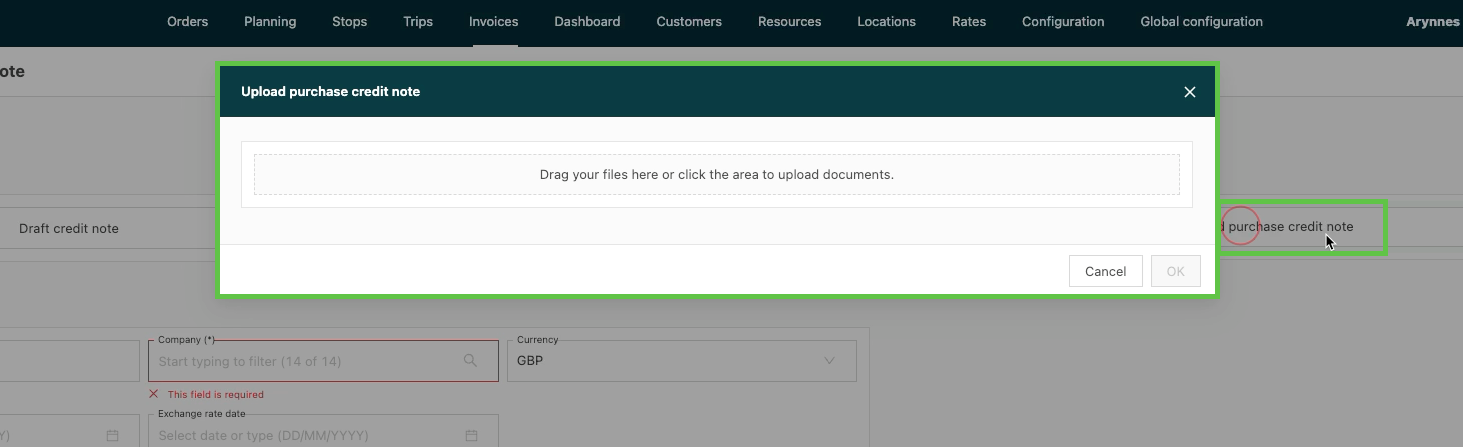
The carrier credit memo can also be created by uploading the document.
-
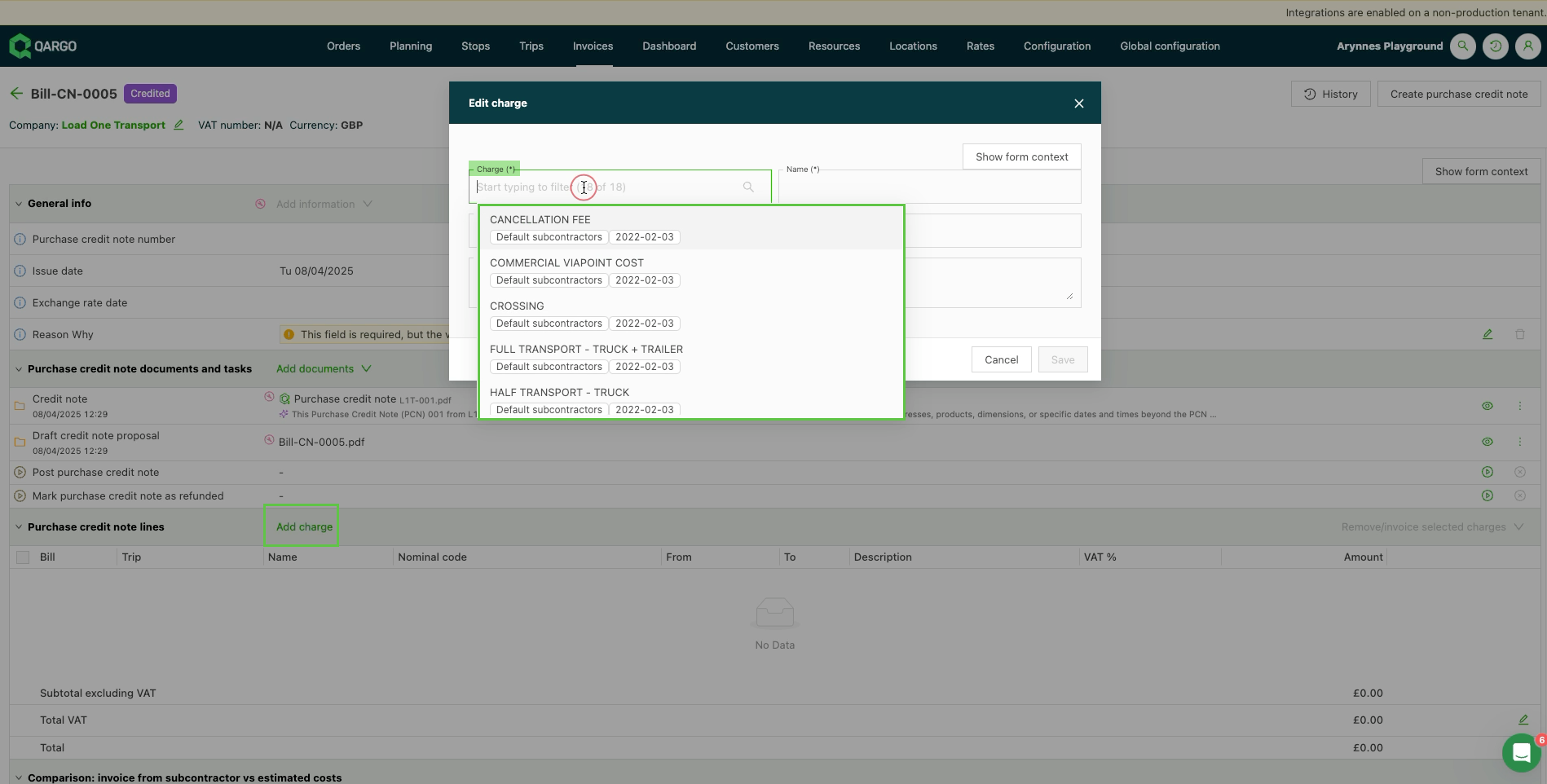
To add charges, add them as Standalone cost charges.
- Cost charges linked to specific loads cannot be added from this page yet.
- Select one of the available charge types. The charge can be renamed, and a description can be added if more clarification is needed.
- Add the costs and tax rates.
- Click Save.
-
Use the dropdown menu to modify or move the existing charge.
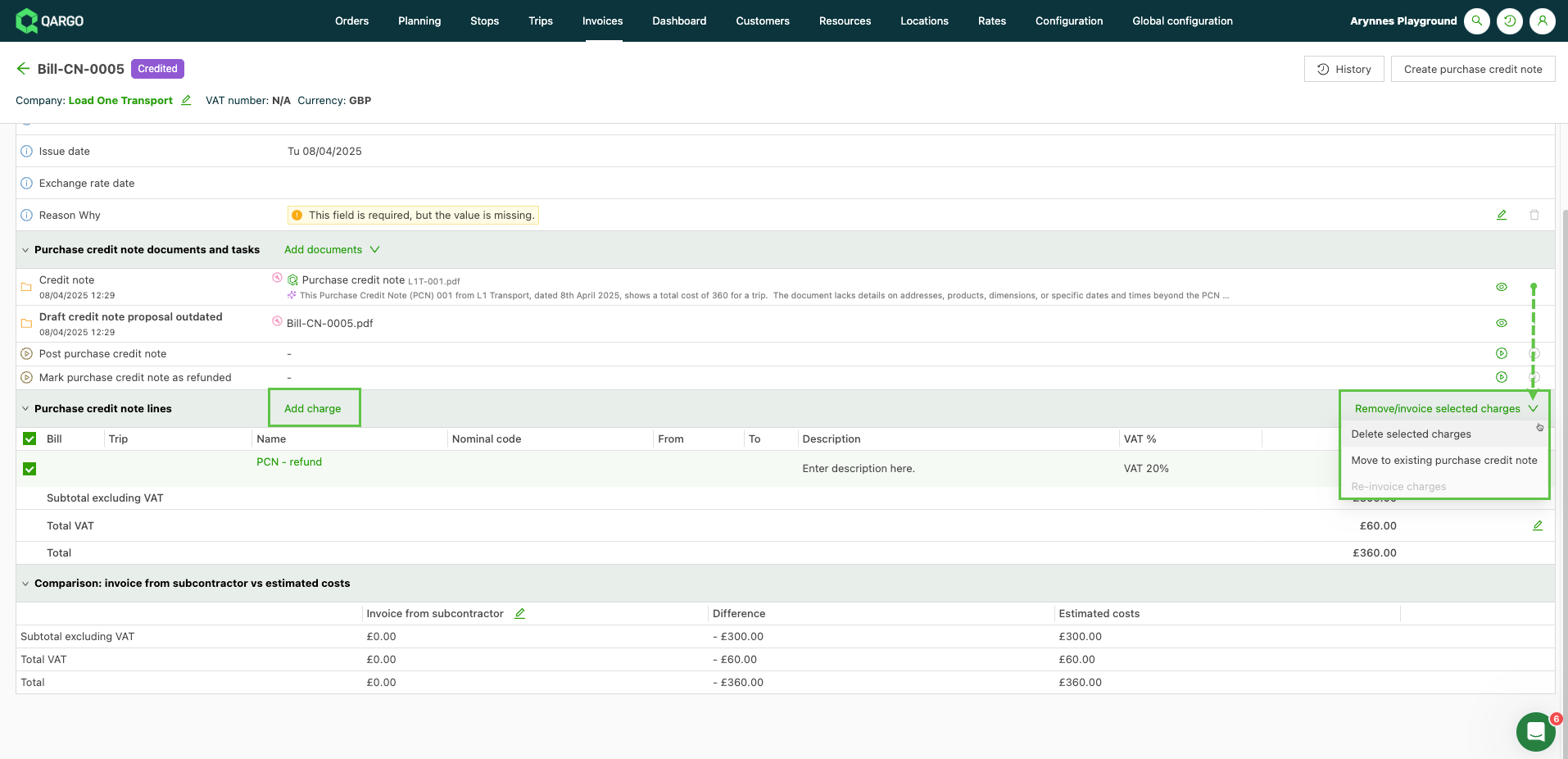
-
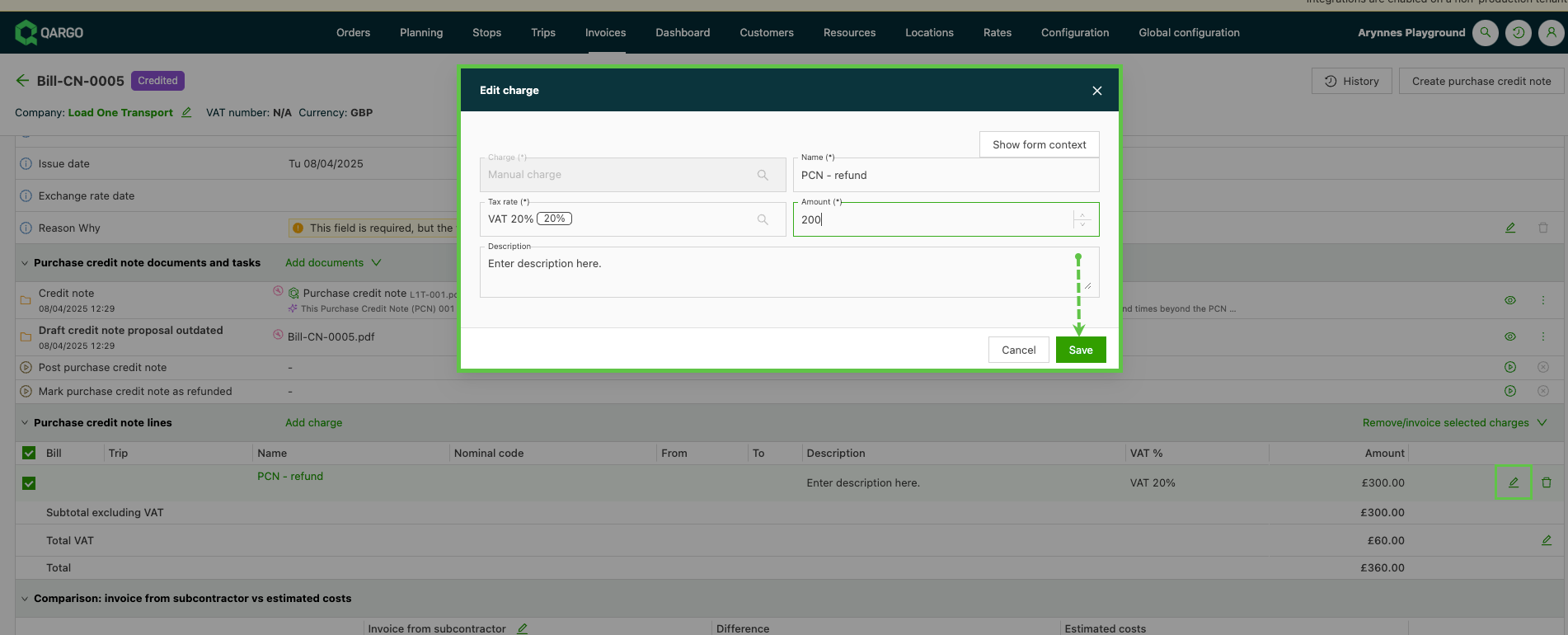
Use the pencil icon to edit a specific charge. Update the information and click Save.
Carrier invoice detail view:
- Create a carrier credit memo linked to specific loads. In the existing carrier invoice, select the load to credit.
- In the Remove/move selected charges dropdown menu, select Create carrier credit memo.
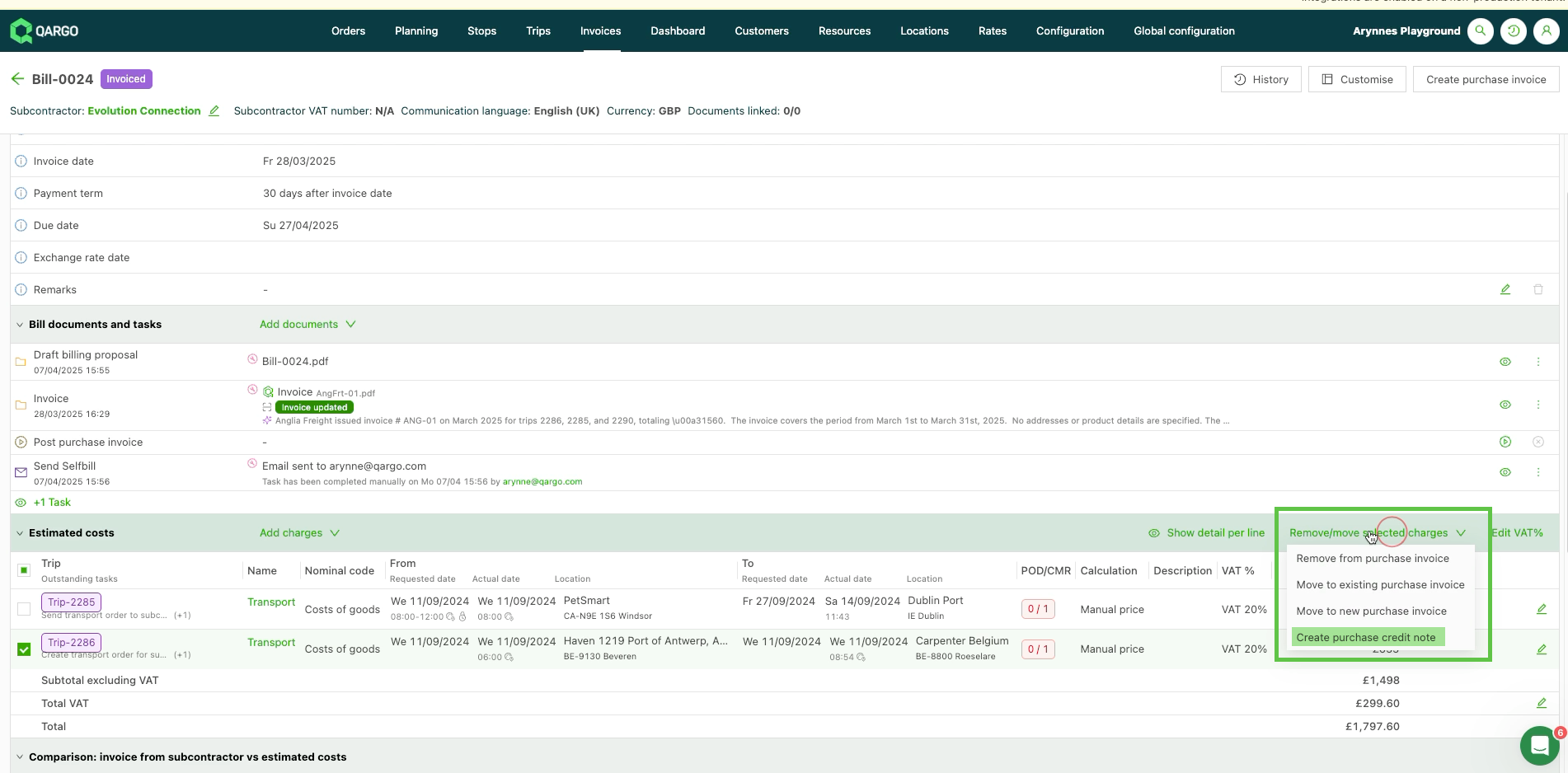
-
The Create carrier credit memo window opens. Select the appropriate action: create a new carrier credit memo in draft, or add to an existing invoice.
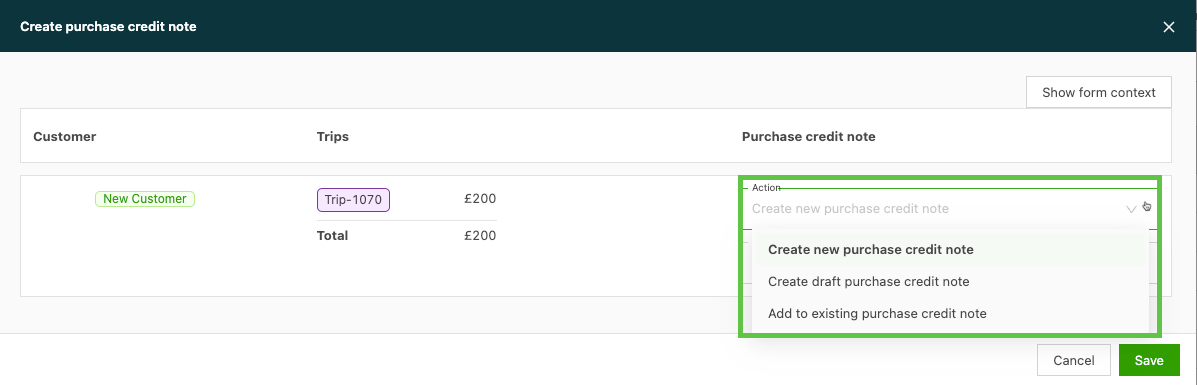
-
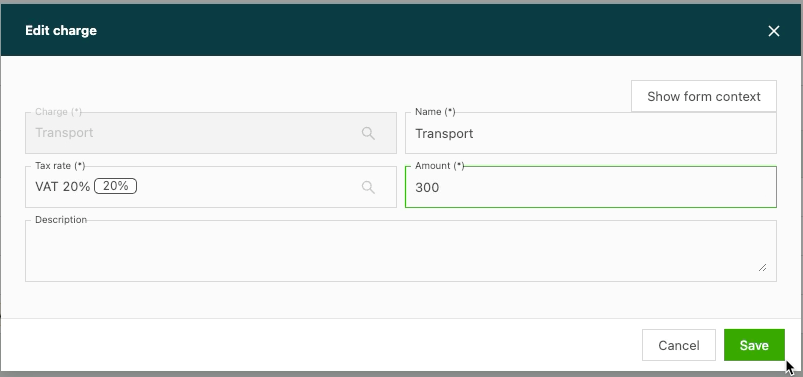
Once the credit memo is created, the costs can be updated to reflect the credit amount. Use the pencil icon on the charge line to open the Edit charge window. Enter the credit amount in the Amount field. Click Save.
- Note: When the carrier credit memo is created against a specific charge line, it defaults to the full amount.
-
The credit memo shows on the original bill.
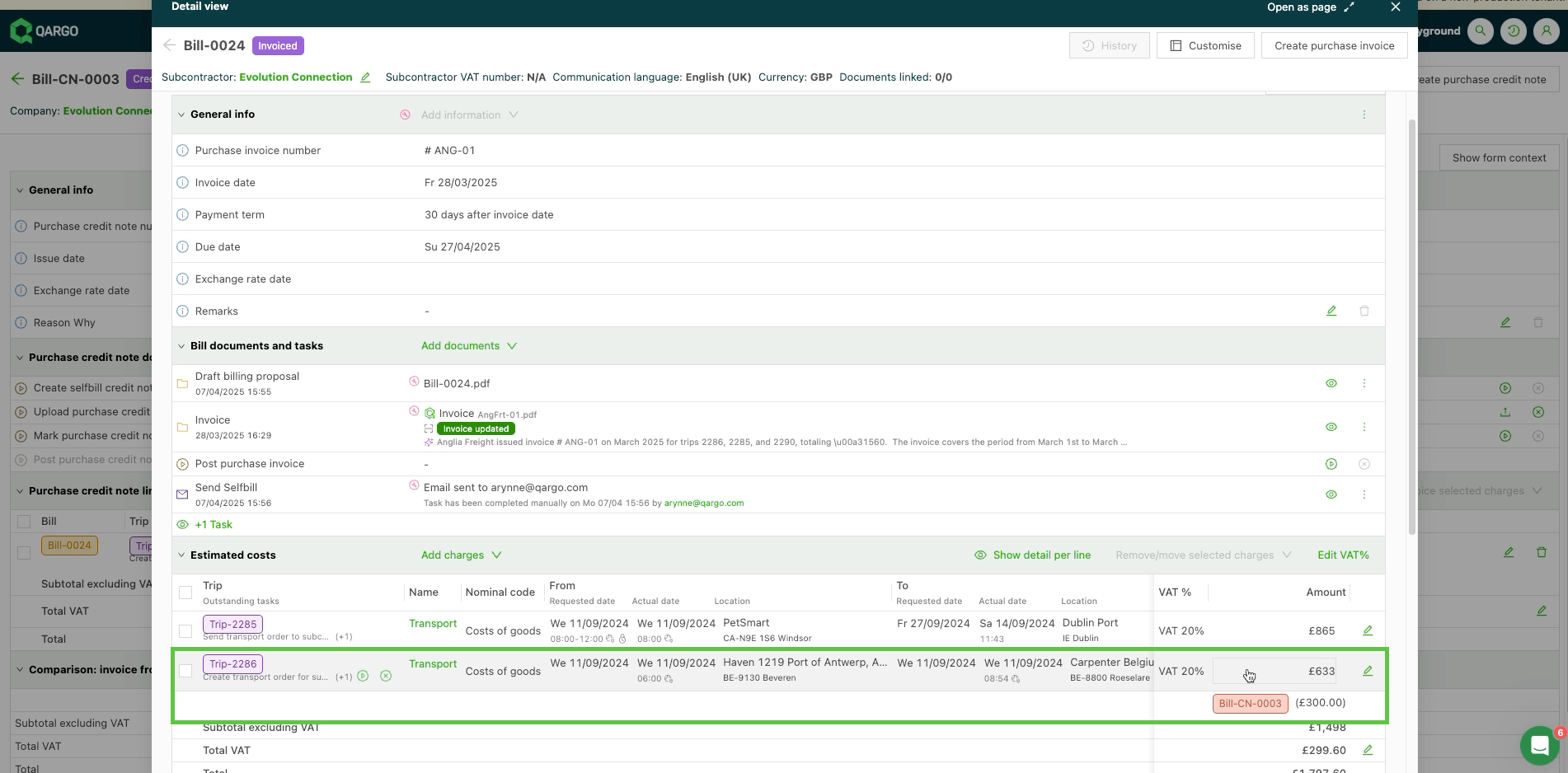
Carrier invoice with credit memo:
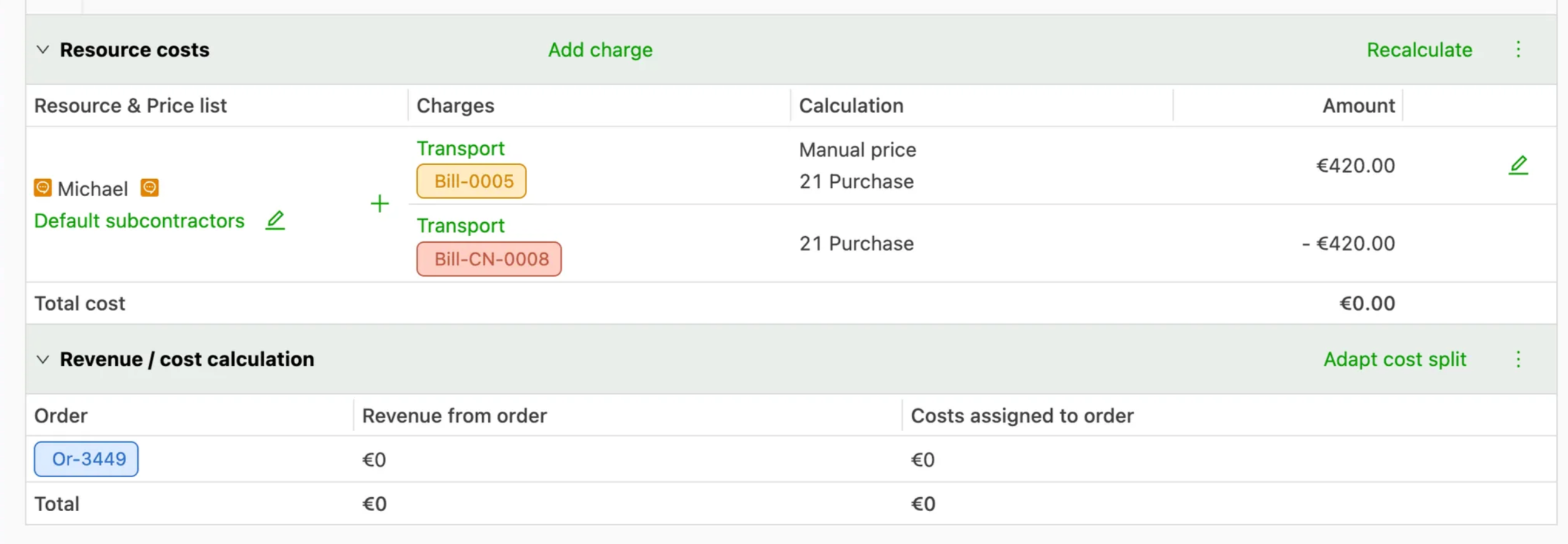
- When a credit memo is applied to an existing carrier invoice, the Bill-CN (or similar) label shows in the costs, with the credited amount added.
FAQ
Can a carrier credit memo be added to an existing load? The credit memo has been uploaded and now needs to be assigned to an existing load.
To assign a carrier credit memo to a load, a carrier invoice must first exist for the load.
- Go to Invoices > Carrier invoices and find the carrier invoice for the load.
- Select the load by checking the box.
- The Remove/move selected charges option becomes available in the right corner of the panel header.
- Click the arrow to expand the dropdown menu options.
- Select Create carrier credit memo.
- A new panel opens, showing the load and the original carrier invoice cost.
- In the Action dropdown, select Add to existing carrier credit memo.
- Click the Existing carrier credit memo field to display a list of available credit memos.
- Select the credit memo to assign the load to and click Save.
The credit memo now shows both the carrier invoice and the load details, along with the credited amount.
Supported accounting integrations
The following accounting integrations support carrier credit memos:
- Xero (API)
- NetSuite (API)
- Adfinity
- Exact Online
- Sage 200
- Odoo (API)
- Generic UBL (email export)
For more details on these integrations, contact the account manager.