
Invoices – edit an invoice
Summary overview of edit invoice features.
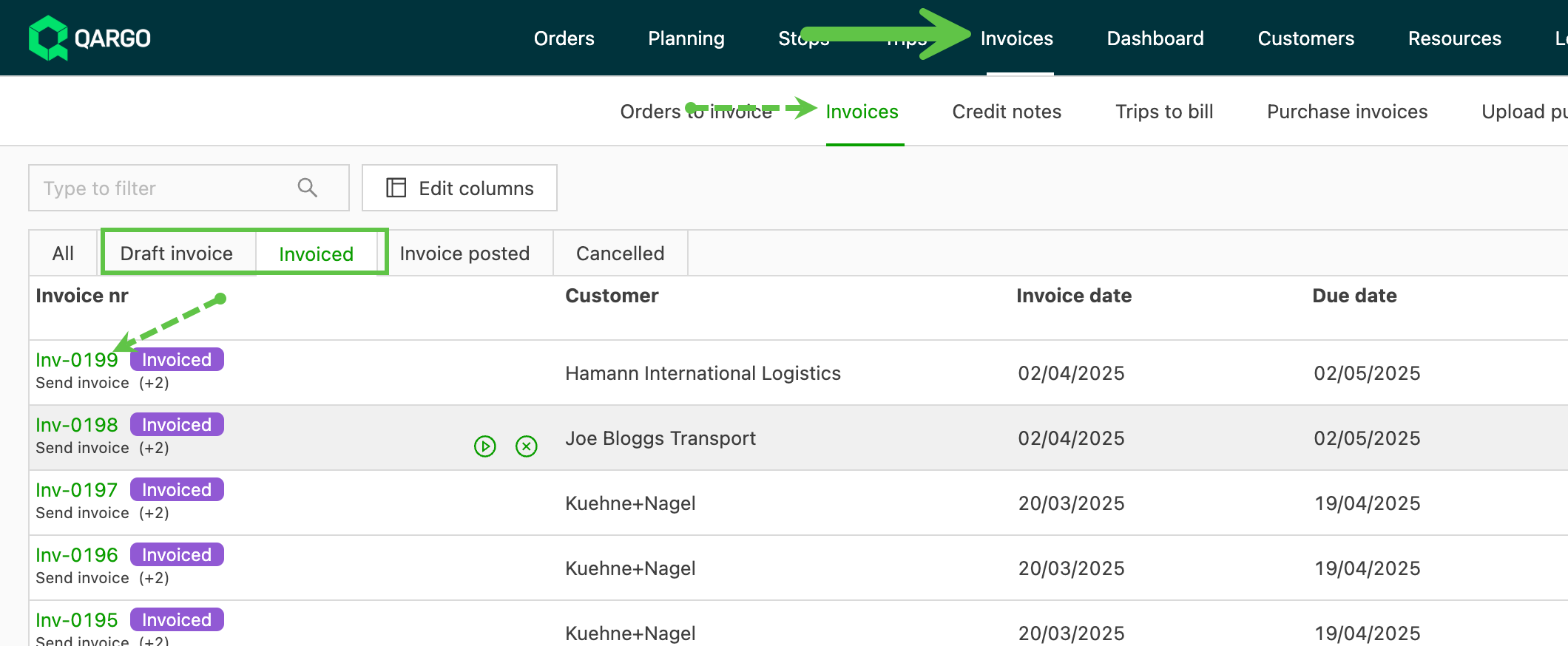
Once an invoice or draft invoice has been created, it appears under the invoices column. This process is the same for both sales and carrier invoices.
- Click the invoice ID to open the invoice page and make adjustments.
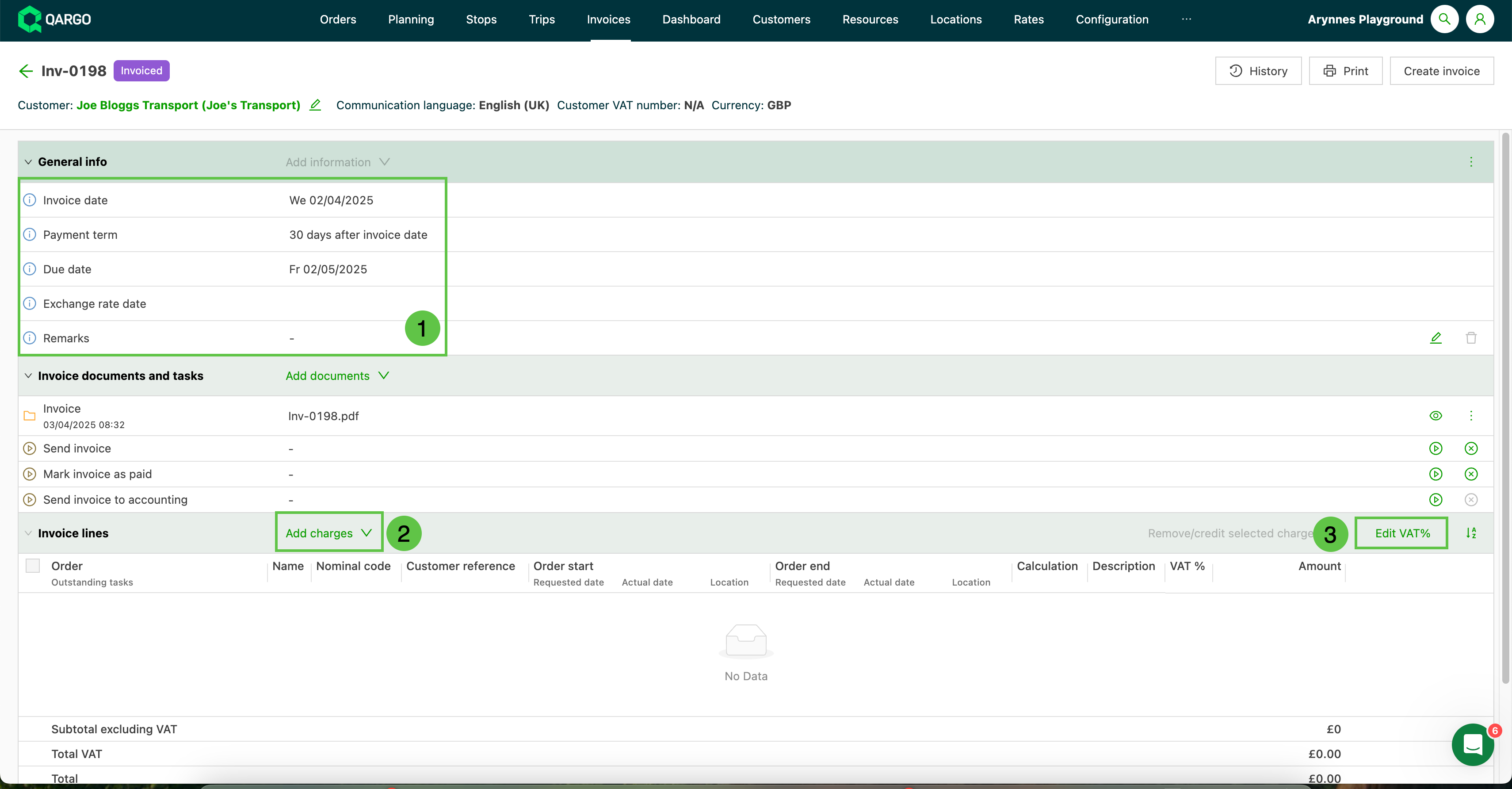
- General info: Click into a row to update the details if required.
- Add charges: Select to add charges from the order or a standalone charge.
- Edit tax %: Select from the dropdown to adjust the tax rate as required.
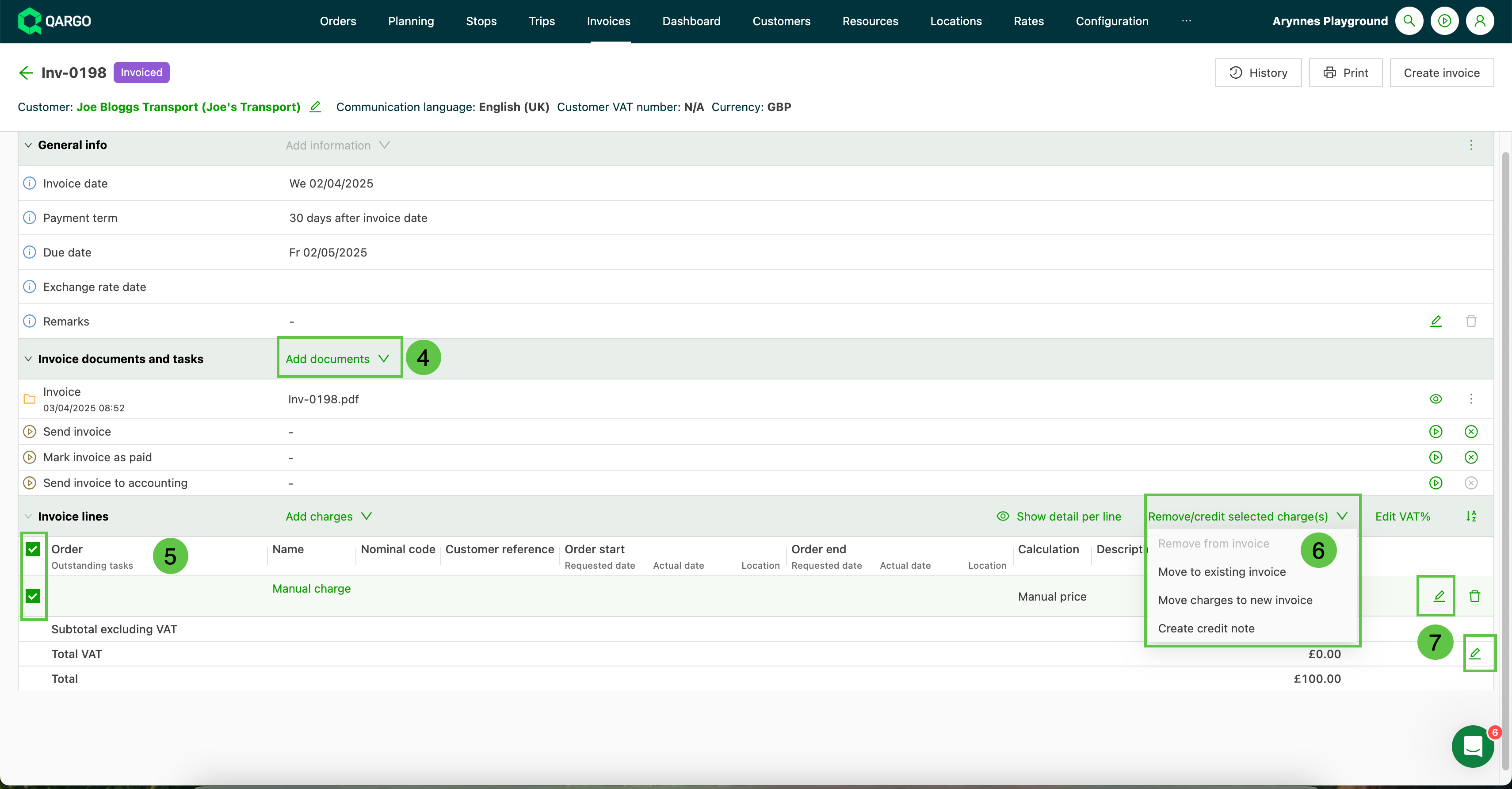
- Add documents: Add documents to support invoices and tasks
- Invoice lines: Click into the check box to select the line(s) to update
- Remove/credit selected lines: Select the action to perform on the selected charge
- Edit details: Click the pencil icon to update specific charge or description details
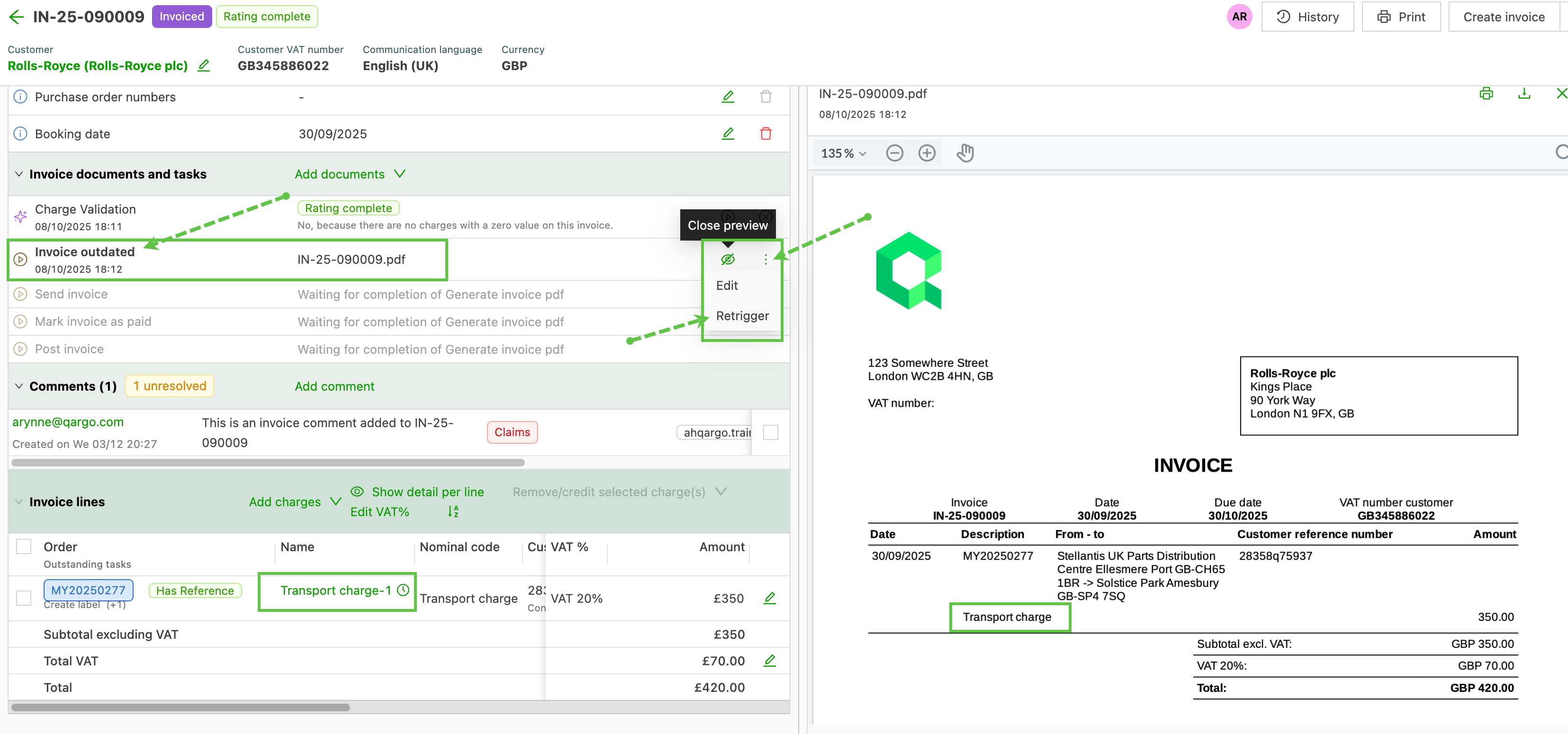
- Click the menu to the right of the row.
- Select the ‘Retrigger’ option and refresh the page.
- The invoice preview will update to reflect the changes made to the invoice.