
Planning: customization toggle options
This article gives an overview of the new customization options available to users, for more visibility when planning.
Table of contents
Introduction
Customization toggles in the planning board give more control over what the planning board displays. This makes the displayed information more granular overall.
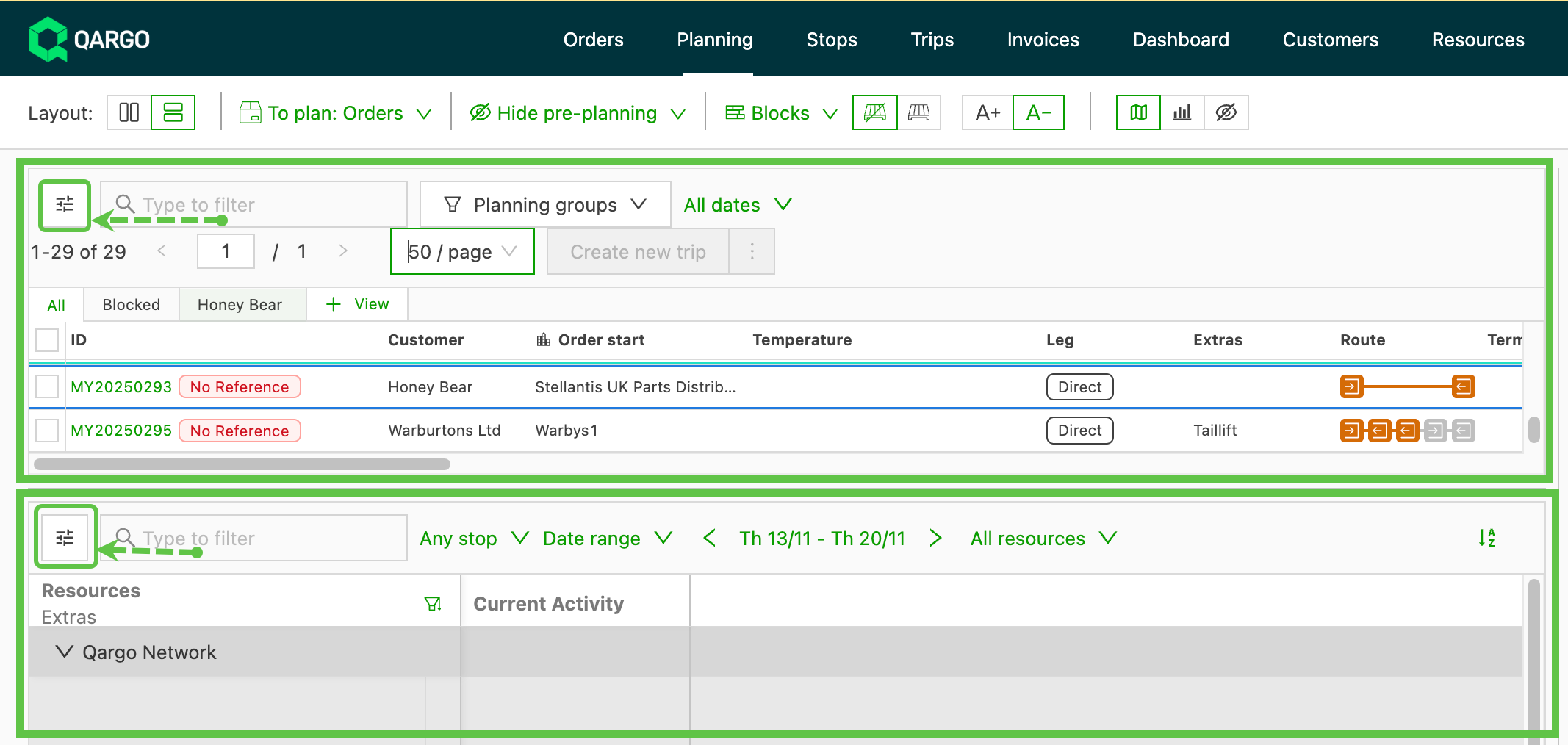
- Access customization on either the ‘To plan’ view (orders / resources) or the plan board.
Key features include:
- 3 customized view options (A+/A-, orders and loads)
- More consistent visualization for all information
- Additional fields for loads and stops
Summary of views
3 customizable views are available.
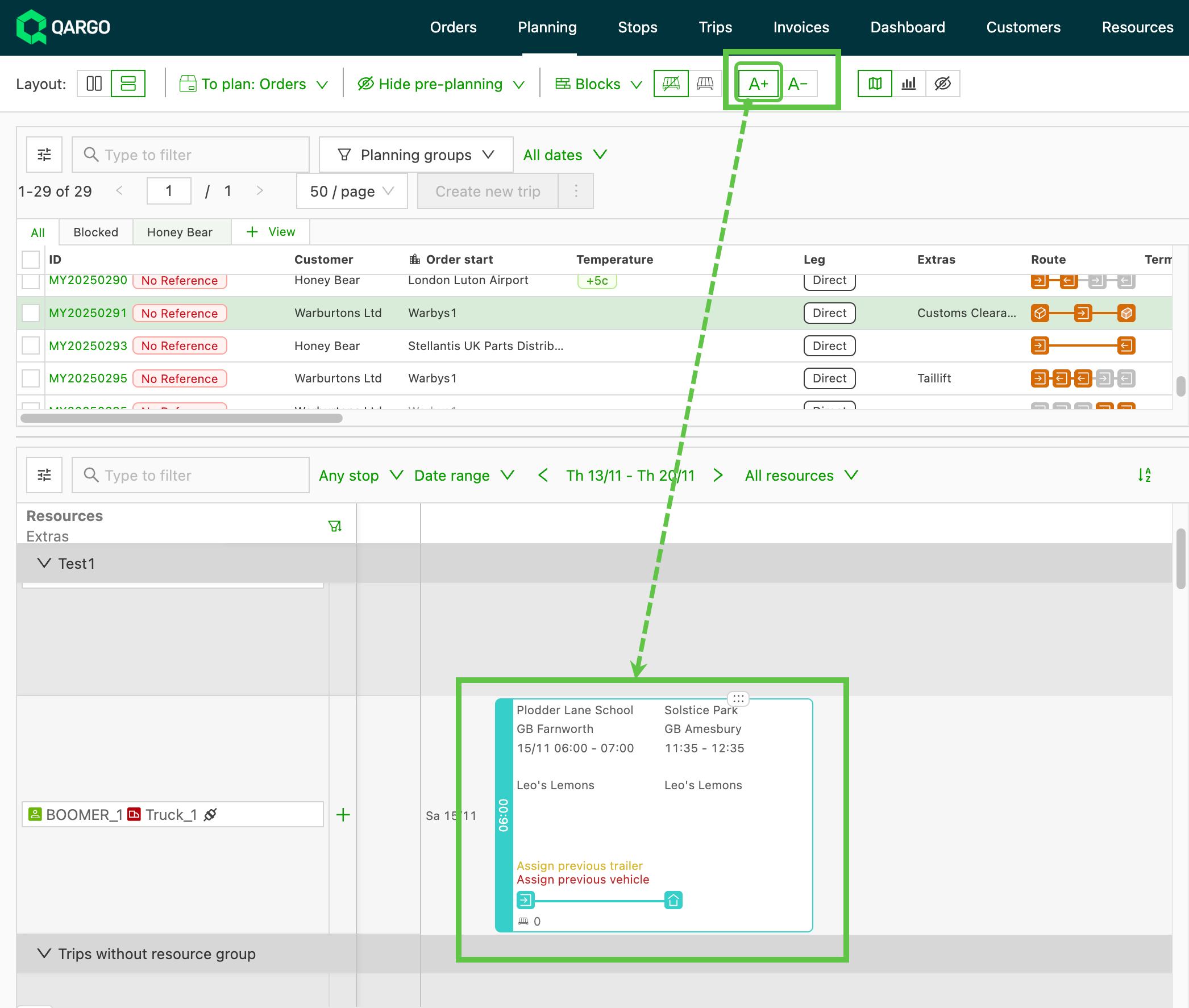
- A+ expanded view: Shows all the enabled toggles in the selected view (timeline / table).
-
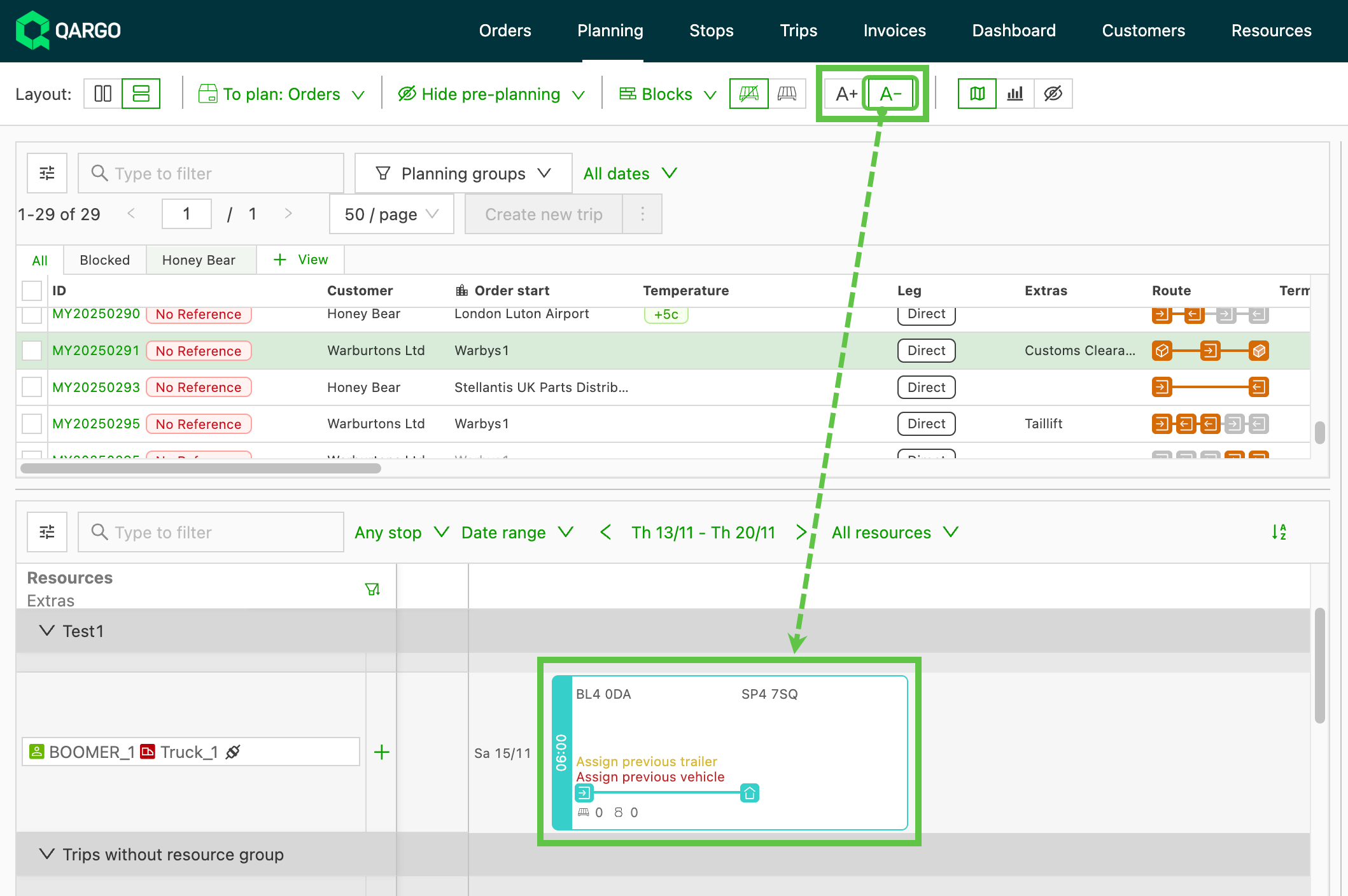
A- condensed view: Summary view with less information.
- Select which toggles to show, separately from what the A+ view displays.
-
Load / order detail page:
- Change toggles in Customize views, independently of what is selected for the planning board.
- Simplify the view and remove duplicate data that is already available on those screens.
Planning board: customize options
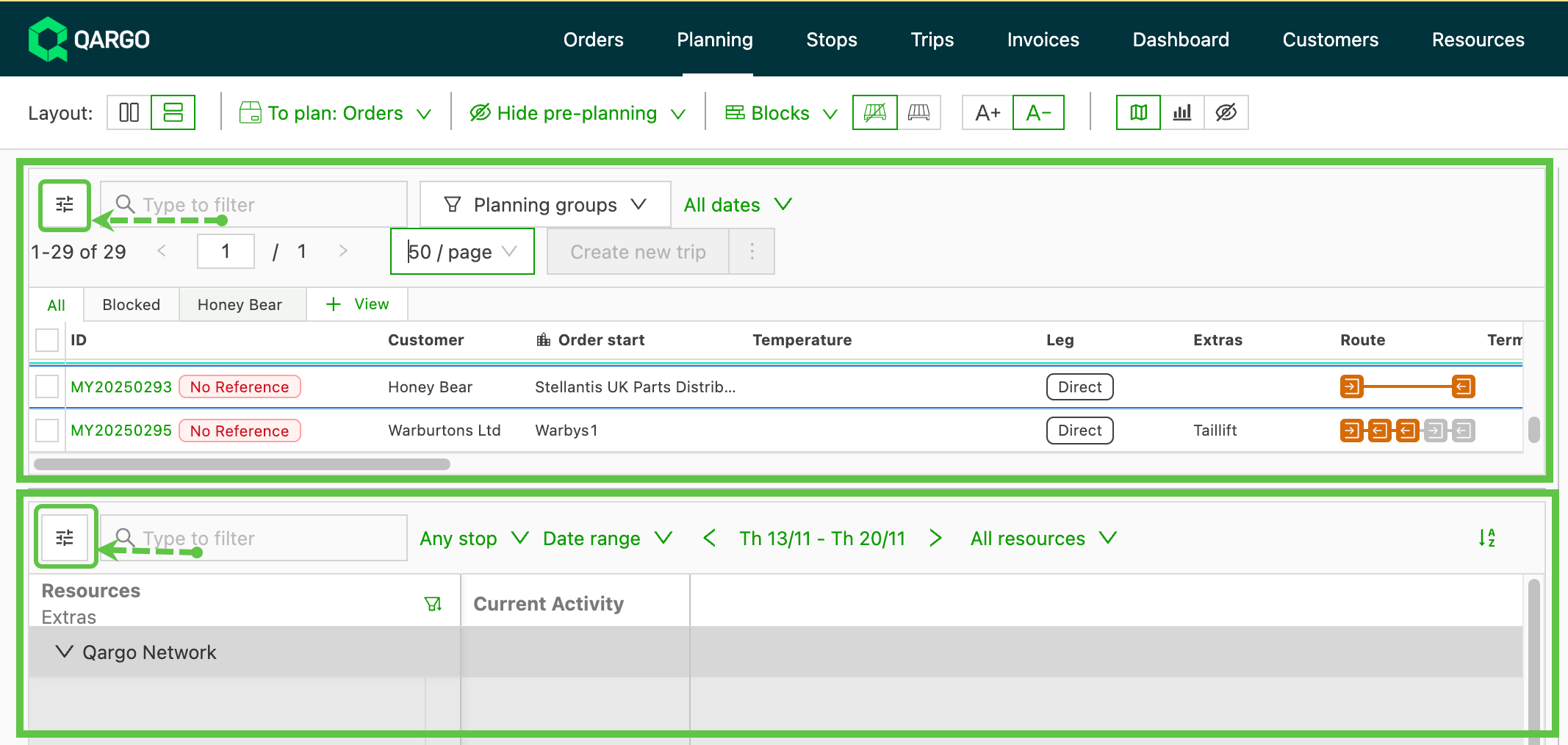
Use the Customize icon to open the customize menu for either the To plan view or the plan board view.
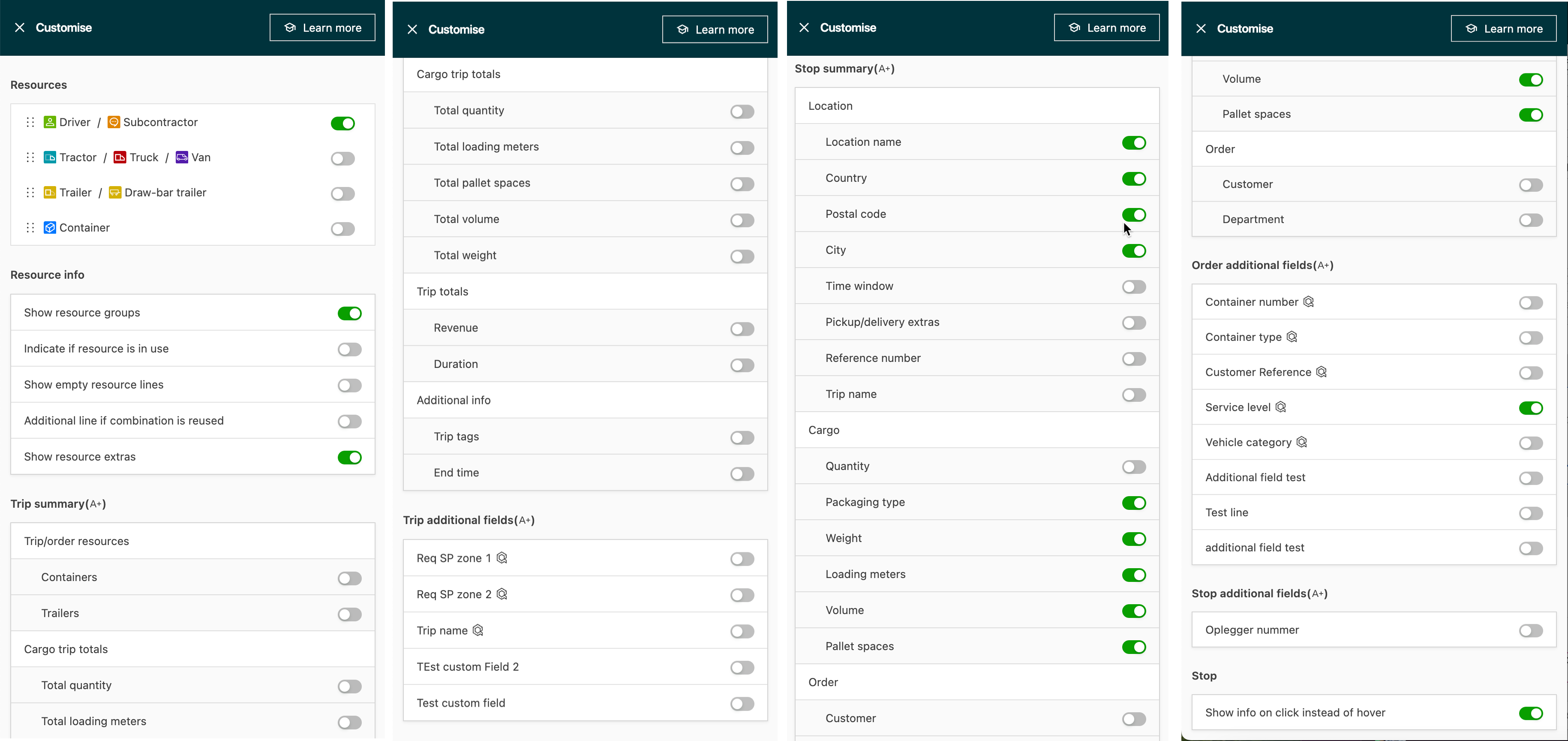
The customization view is ordered in logical groups:
- Resources have moved to the top and are grouped with resource info.
- Load info gives totals for the whole load (freight load totals / revenue / duration).
- New options to include load additional fields (where configured)
- Stop info gives specific details about the individual stop (location / freight / order).
- New option to show the department, if available on the customer order
- New options to include order additional fields (where configured)
- New options to include stop additional fields (where configured)
The customize options include a search for a specific piece of data.
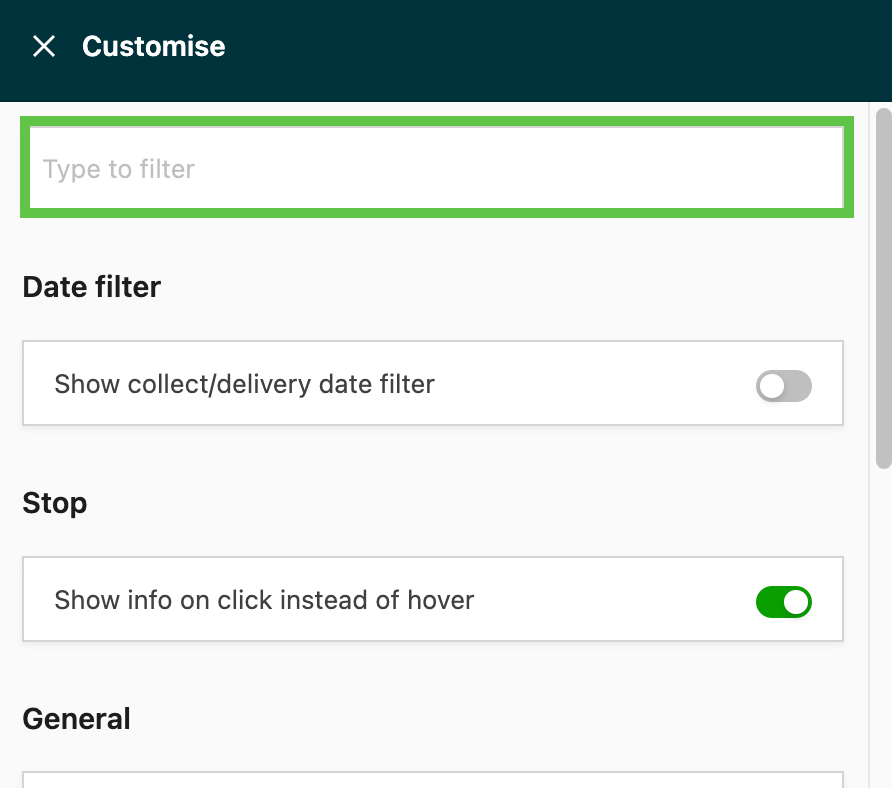
Customize toggles
Resources:
- Driver / Contract carrier
- Container
- Trailer / Drawbar trailer
- Tractor / Truck / Van:
Q: The vehicle license plate number isn’t shown next to the driver
A: Switching on ‘Tractor / Truck / Van’ and/or ‘Trailer / Drawbar trailer’ shows the vehicle’s license plate number.
-
Go to Planning and click Customize at the top right.
-
Switch on the ‘Tractor / Truck / Van’ and/or ‘Trailer / Drawbar trailer’ toggle under Resources.
The license plate number now shows next to the driver.
Resource info:
- Show resource groups
- Indicate if resource is in use
- Show empty resource lines
- Additional line if combination is reused
- Show resource extras
Load summary (A+/A-): Shows which view is being customized.

-
Load/order resources
- toggles for all secondary load/order resources (container/trailer/vehicle/driver)
-
Freight load totals
- Total quantity
- Total loading meters
- Total pallet spaces
- Total volume
- Total weight
-
Load totals
- Revenue
- Duration
-
Additional info
- Load tags
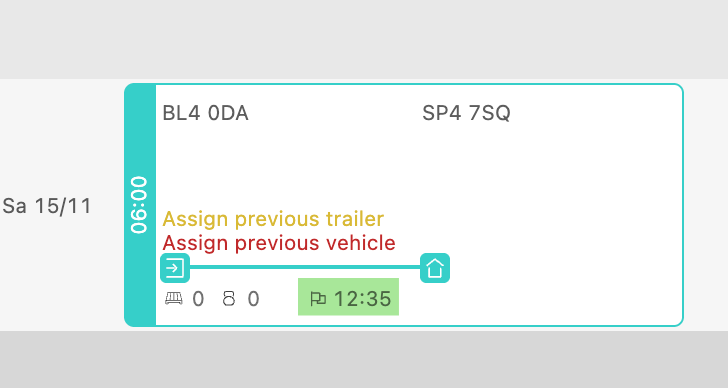
- End time
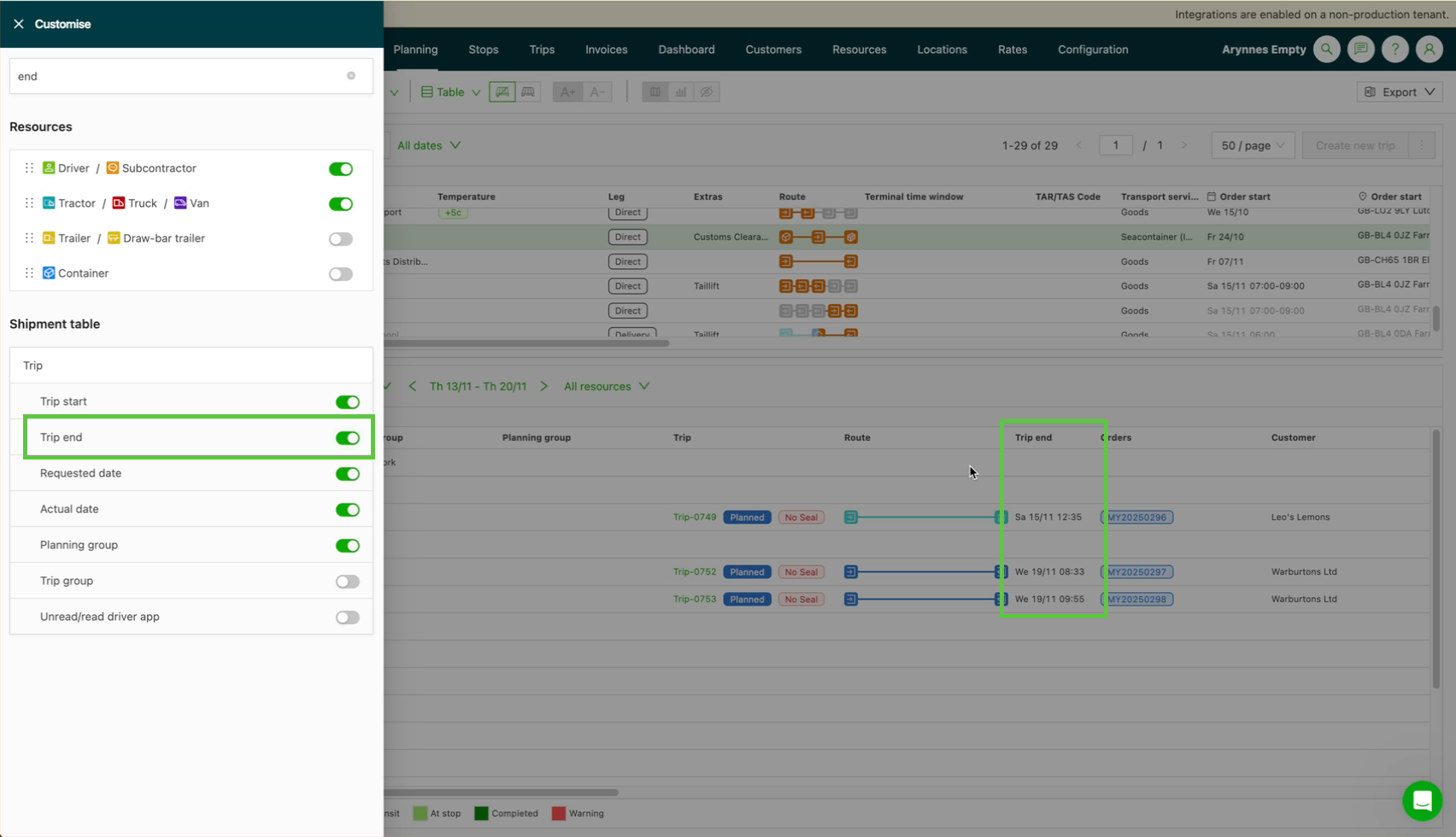
- End time can also show in other views, such as blocks or timeline.
Load additional fields (A+/A-) new Load additional fields that are enabled in Configuration can now be shown.
- Load default fields
- Load custom fields
Stop summary (A+/A-)
-
Location
- Location name
- Country
- ZIP code
- City
- Time window
- Pickup/delivery extras
- Reference number
- Load name
-
Freight
- Quantity
- Packaging type
- Weight
- Loading meters
- Volume
- Pallet spaces
-
Order
- Customer
- Department
Order additional fields (A+/A-) new Order additional fields that are enabled in Configuration can now be shown.
- Order default fields
- Order custom fields
Stop additional fields (A+/A-) new Stop additional fields that are enabled in Configuration can now be shown.
- Stop default fields
- Stop custom fields
Stop
- Show info on click instead of hover
Freight metrics: stop totals on the planning board
To give planners clear visibility of freight utilization across a load, enable the ‘Customize option’ to display freight totals per stop or the remaining occupied space after each stop. Planners can quickly assess available capacity throughout the journey and make more efficient planning decisions.
Three visualization modes are available:
-
Freight: total loaded / unloaded per stop
- This is the existing freight metric (renamed).
- Shows how much freight is loaded or unloaded at each stop.
-
Freight: space occupied after stop
- Shows the total space occupied after the loading/unloading activities at that stop.
- Lets planners track how utilization changes across the entire load.
-
Freight: capacity utilization after stop
- Shows the space occupied after the stop against the trailer’s total capacity (for example 10.56 / 11.8 LDM), in red when exceeded.
- See: Planning: live freight totals on loads without saving.
Users can switch between these modes in the planning board customization settings.
- Better visibility of capacity across the load
Planners can easily see how much space is available at any point, for more accurate and confident planning. - Faster and more efficient decisions
With utilization shown directly at each stop, planners can immediately see where additional freight fits or where there is a risk of overloading. - Better load optimization
Knowing how capacity changes from stop to stop helps planners optimize routing, stop order and freight distribution.
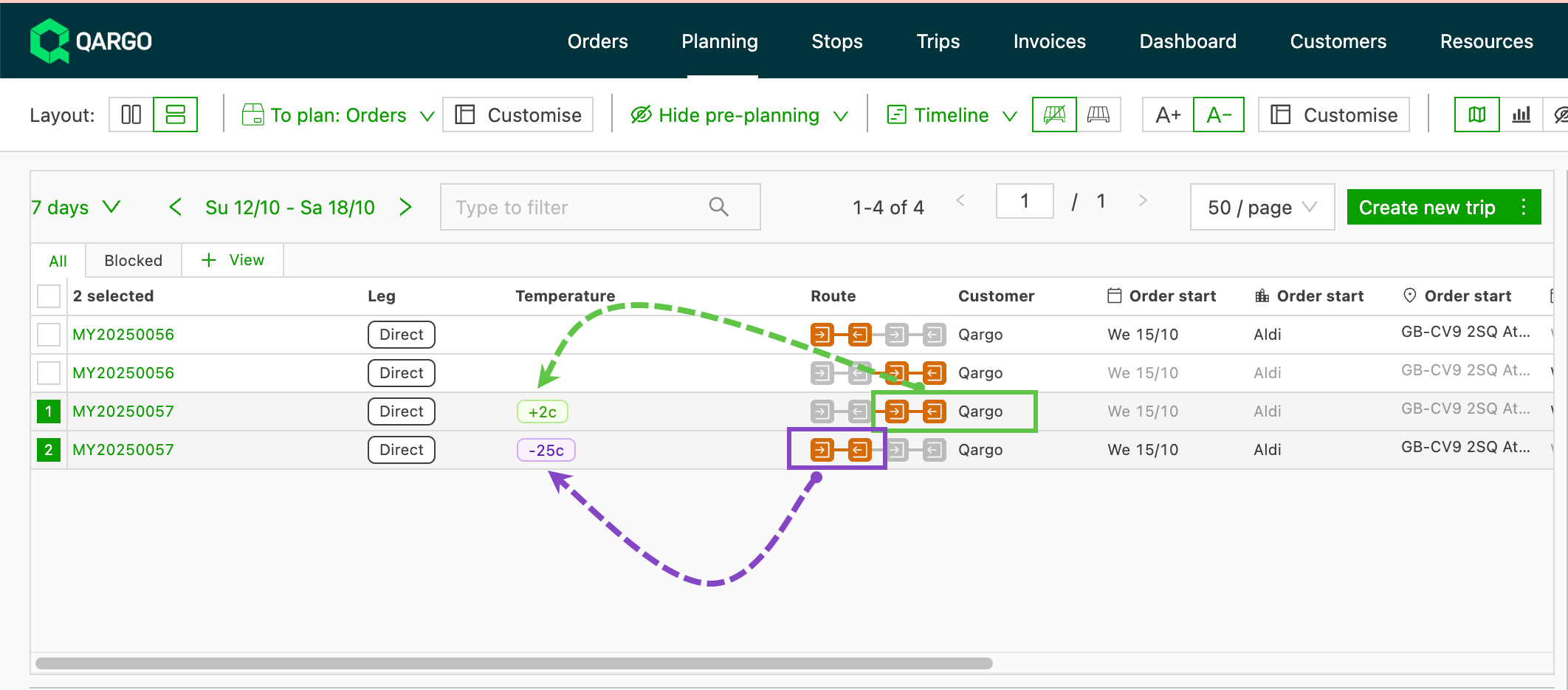
Display custom fields by freight
- Custom fields now display against each shipment (that is, per load) when the shipments are split into separate loads.
- This gives planners the visibility they need to group shipments with compatible attributes and avoid shipping conflicts.
- Custom fields tied to freight details can now appear in the load planning view.
- Use the “Customize” button to add these freight-level custom fields as table columns.
- Use the “Plan onto separate load” option to split individual shipments into their own load rows.
- Once split, custom fields display per shipment, so each load row shows the correct values.
Use cases
-
Suppose there is a custom field “Temperature requirement” at the freight level.
-
An order is submitted with three shipments:
- Shipment A: requires 2–4 °C
- Shipment B: requires –20 °C
- Shipment C: ambient
-
After splitting into separate loads, these different temperature values appear directly in the planning table. Planners can then group compatible shipments together (for example A with C, but B separately).
Limitations and notes
- This feature applies only in the load planning view, not in other order or shipment views.
- Only custom fields defined at the freight/shipment level show with this method (fields at the order level still work as before).
- If a shipment hasn’t been split into its own load, it may keep showing a default or blank value until the split happens.