
Planning: live freight totals on loads without saving.
Freight totals now update instantly as orders are added to or removed from a load. No save is needed to see whether the next order still fits.
Table of contents
Summary
-
What is it?
- Freight totals (loading meters, weight, volume, pallet spaces, quantity) update live on the Planning Timeline as orders are added to or removed from a load.
- The Freight column can also show the freight on the trailer after each stop against the trailer’s total capacity (for example 10.56 / 11.8 LDM). The value is red when capacity is exceeded.
-
Why use it?
- Previously, the totals refreshed only once a load was saved. On large consolidation or distribution loads, that save can take 15–20 seconds, which turns every “does this fit?” check into a wait. Live totals remove that wait.
-
How does it work?
- As orders are dragged onto or off a load, the totals recalculate in place. They use the same “max needed space across the load” logic as the saved totals, so what is shown while editing matches what is shown after saving. No configuration is required; live totals are on by default for all tenants.
Use cases
- A planner builds a large consolidation load and needs to know the remaining loading meters after each order, without waiting on a save.
- A planner shapes a distribution load on the planning board and wants loading meters and other freight dimensions to update while dragging orders on and off.
- A consolidation planner fills a trailer stop by stop and needs to see how much room is left before adding the next order, instead of finding out from a capacity violation afterward.
Terminology
| Term | Definition |
|---|---|
| Planning Timeline | The timeline view of the planning board, where loads appear as bars. |
| Load detail | The detailed view of a single load, including its freight block. |
| Loading meters (LDM) | The floor length the freight occupies on the vehicle. |
| Max needed space | The logic that reports the highest space the load needs at any point, rather than adding up every loading and unloading. |
| Capacity utilization after stop | A Freight display option that shows the freight on the trailer after a stop against the trailer’s total capacity. |
| Trailer capacity | The combined capacity of all resources (vehicles and containers) assigned to the load, taken per metric: loading meters, weight and volume. |
Viewing live totals on the Timeline
-
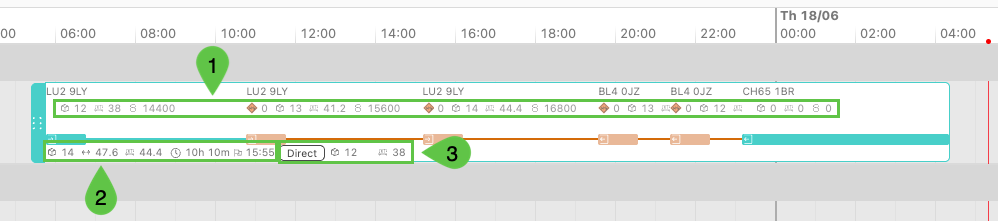
Stop-level freight details. Three display options are available from the ‘Customize’ icon.
-
Freight: Total loaded/unloaded per stop
-
Freight: Space occupied after stop
-
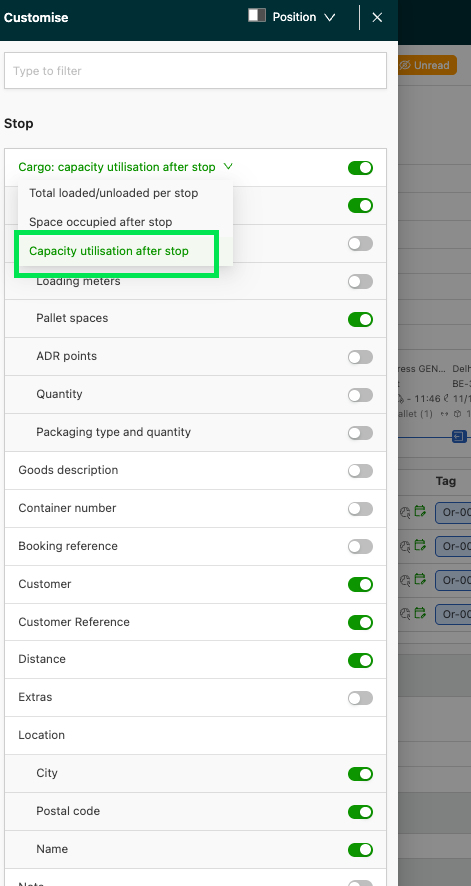
Freight: Capacity utilization after stop (see the section below)
-
-
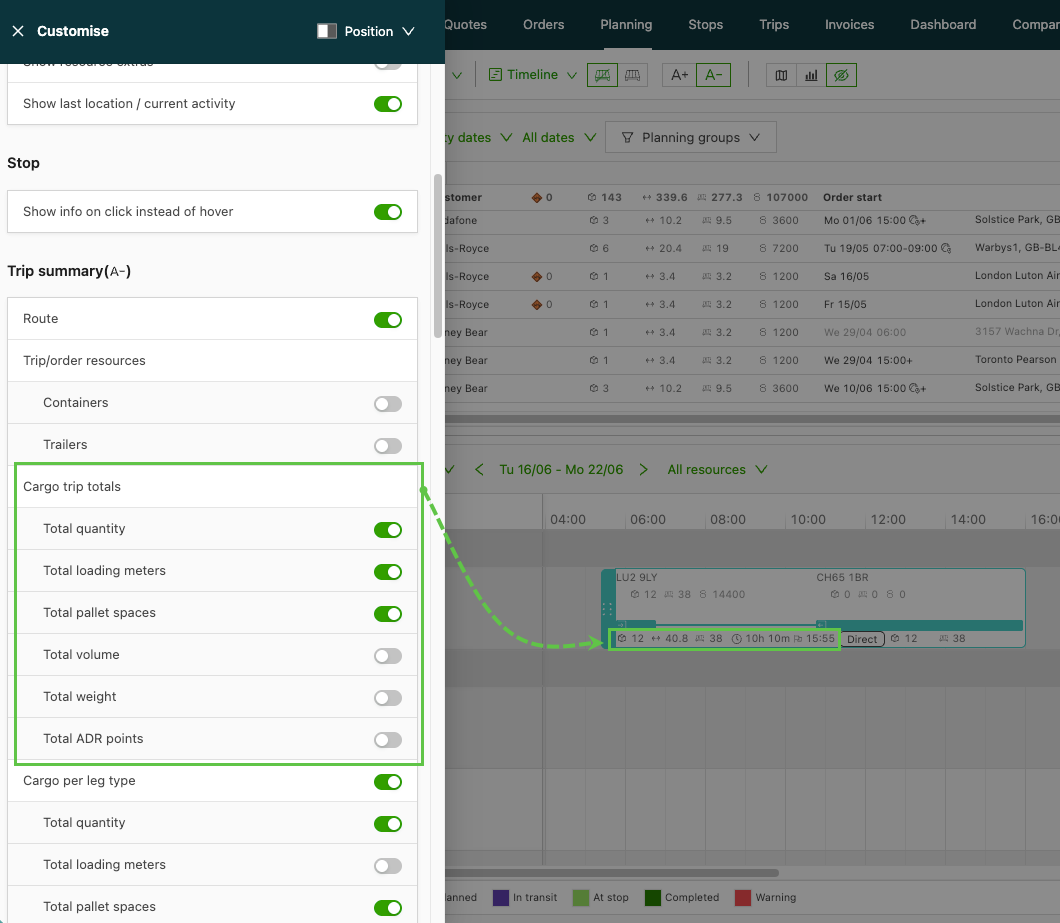
Load total freight details. This displays the totals for the entire load.
-
Use the ‘Customize’ feature to toggle the visibility of metrics on or off.
-
-
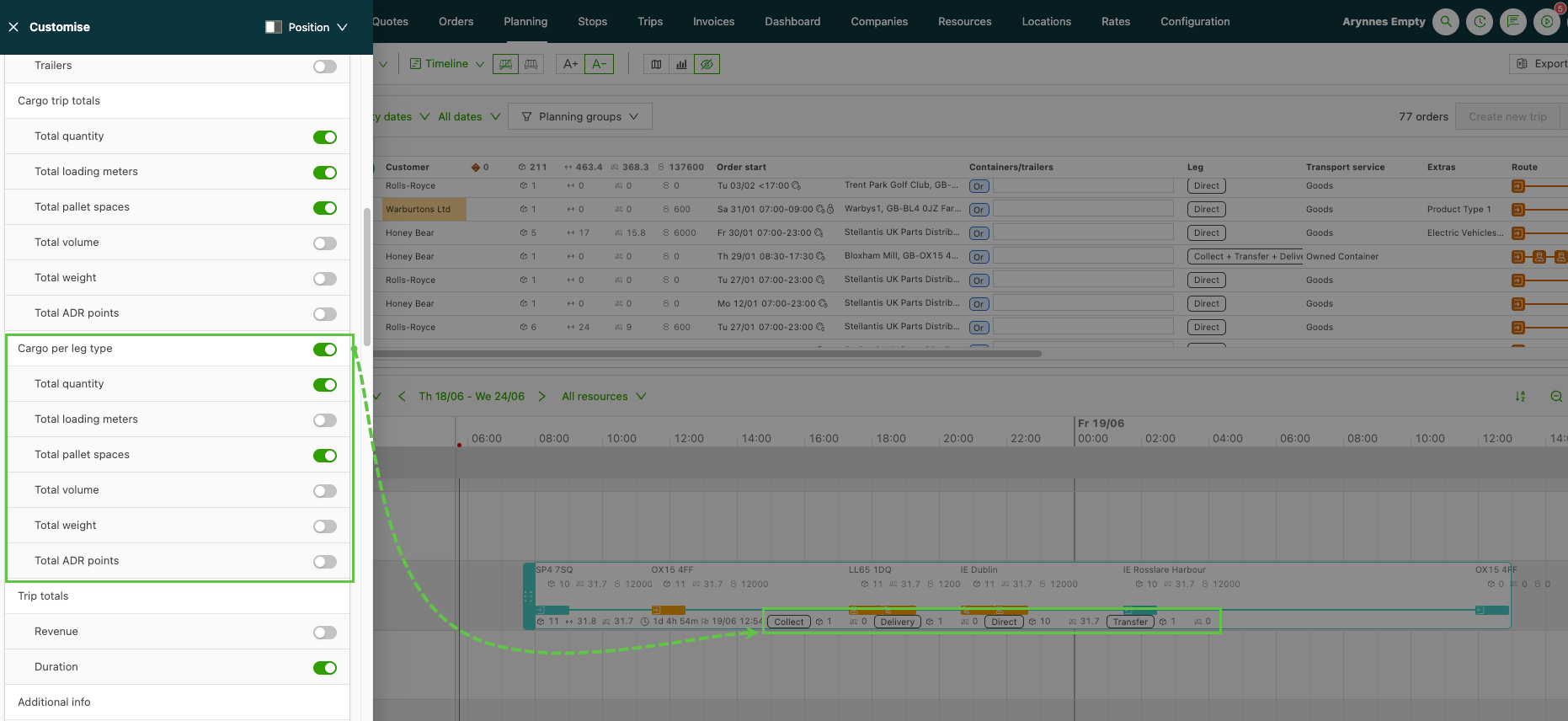
Freight per leg details. This displays freight details broken down by the legs of the load.
-
Use the ‘Customize’ feature to toggle the visibility of metrics on or off.
-
Using live totals
- Open Planning and switch to the Timeline view.
- Select the order(s) to add to the load, or remove one from it.
- Watch the totals update immediately (loading meters, weight, volume, pallet spaces and quantity) without requiring a save.
- Save the update once the changes to the load are final.
This video explains the full flow behind live freight totals on loads:
Capacity utilization after stop
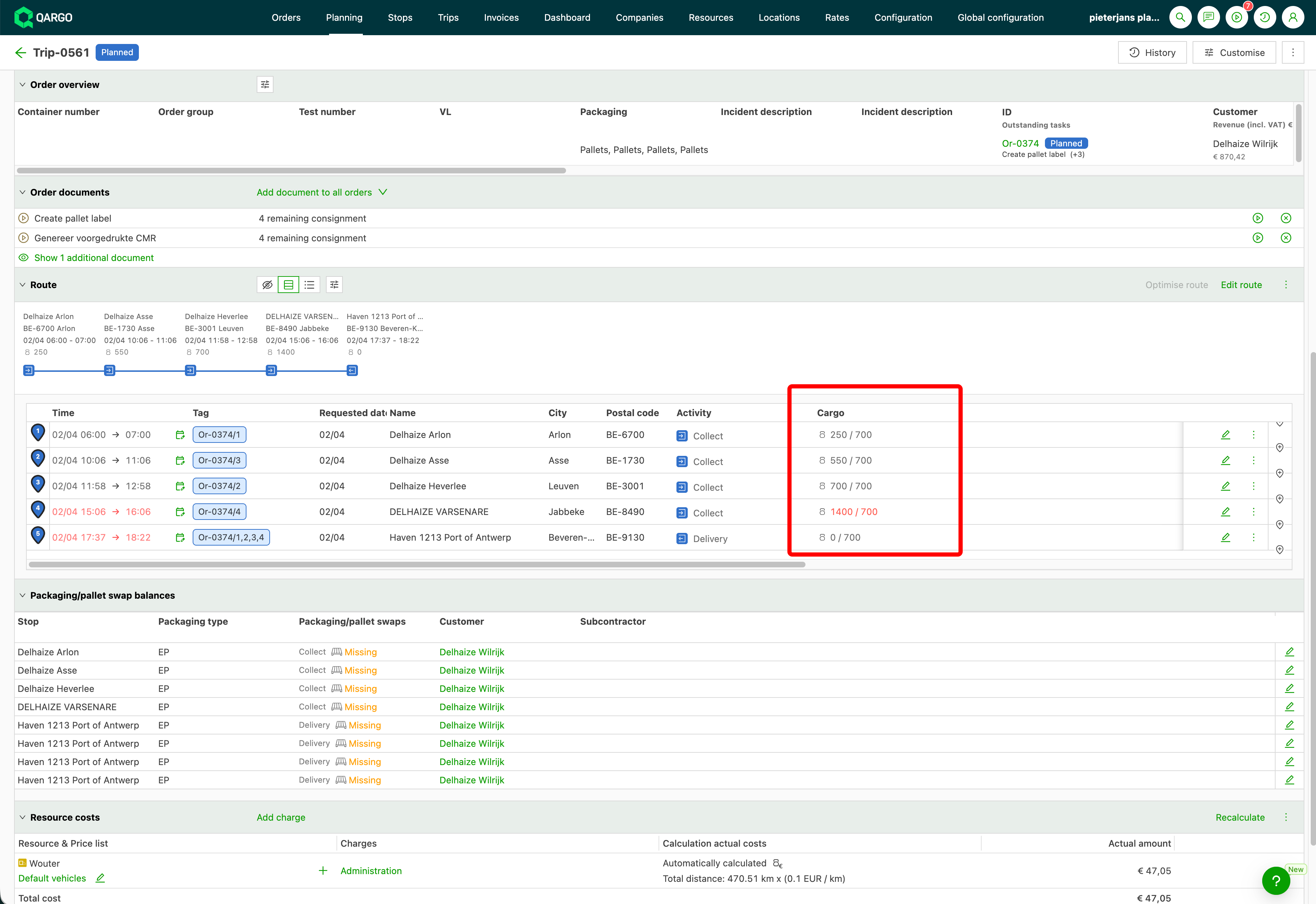
Freight: capacity utilization after stop is a third display option for the Freight column. It shows the freight on the trailer after each stop next to the trailer’s total capacity, for example 808 / 1000 kg. Planners see how much room is left while loading, instead of finding out from a capacity violation after the limit is exceeded. The option builds on Freight: space occupied after stop. The occupied value is identical. The capacity is added after the slash.
Where the option is available
- Planning in the Timeline and Blocks views.
- The Stops table of a load detail page.
- The Blocks view of an order detail page.
Selecting the option
-
Navigate to Loads > Loads.
-
Open a load detail page by selecting the relevant load.
-
Expand the Operations section.
-
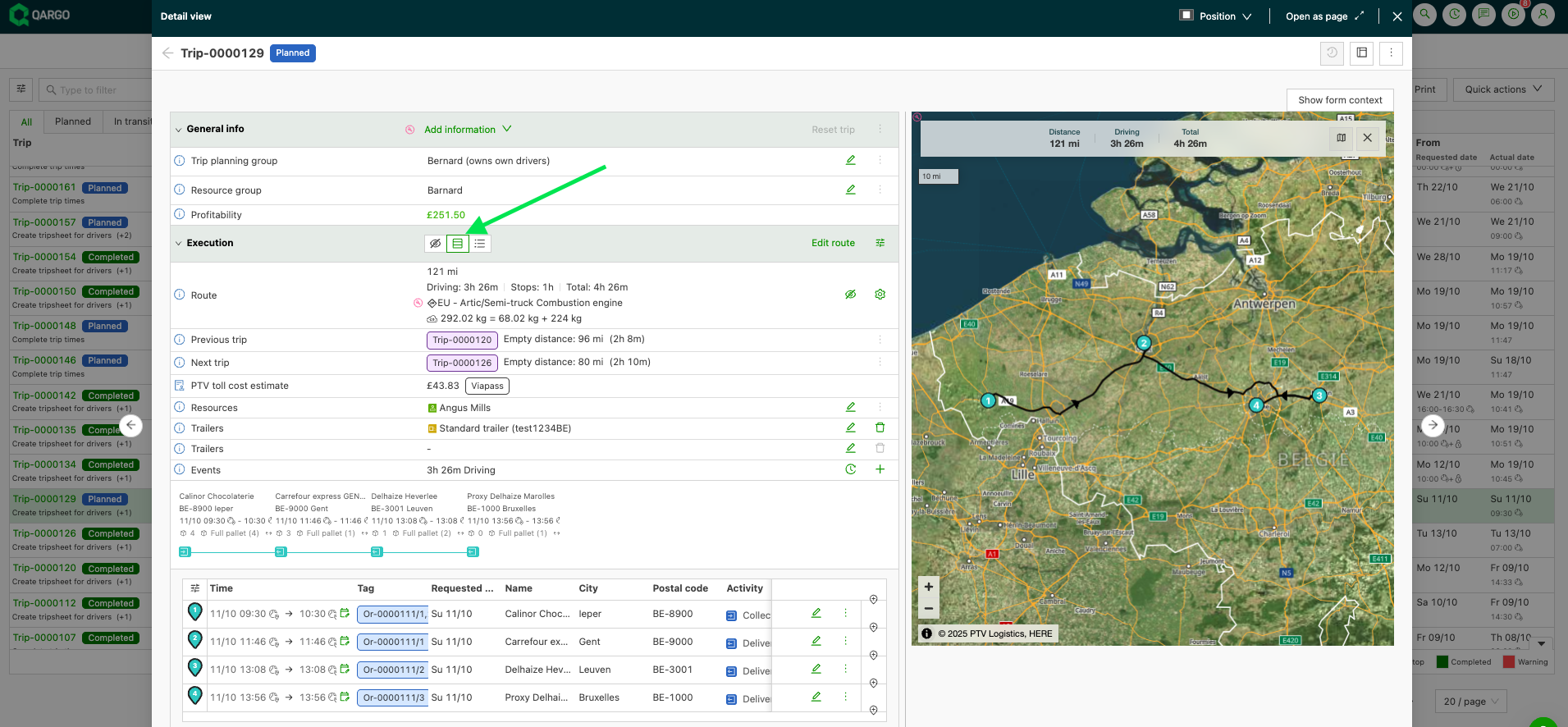
Switch the route operations to the table layout.
-
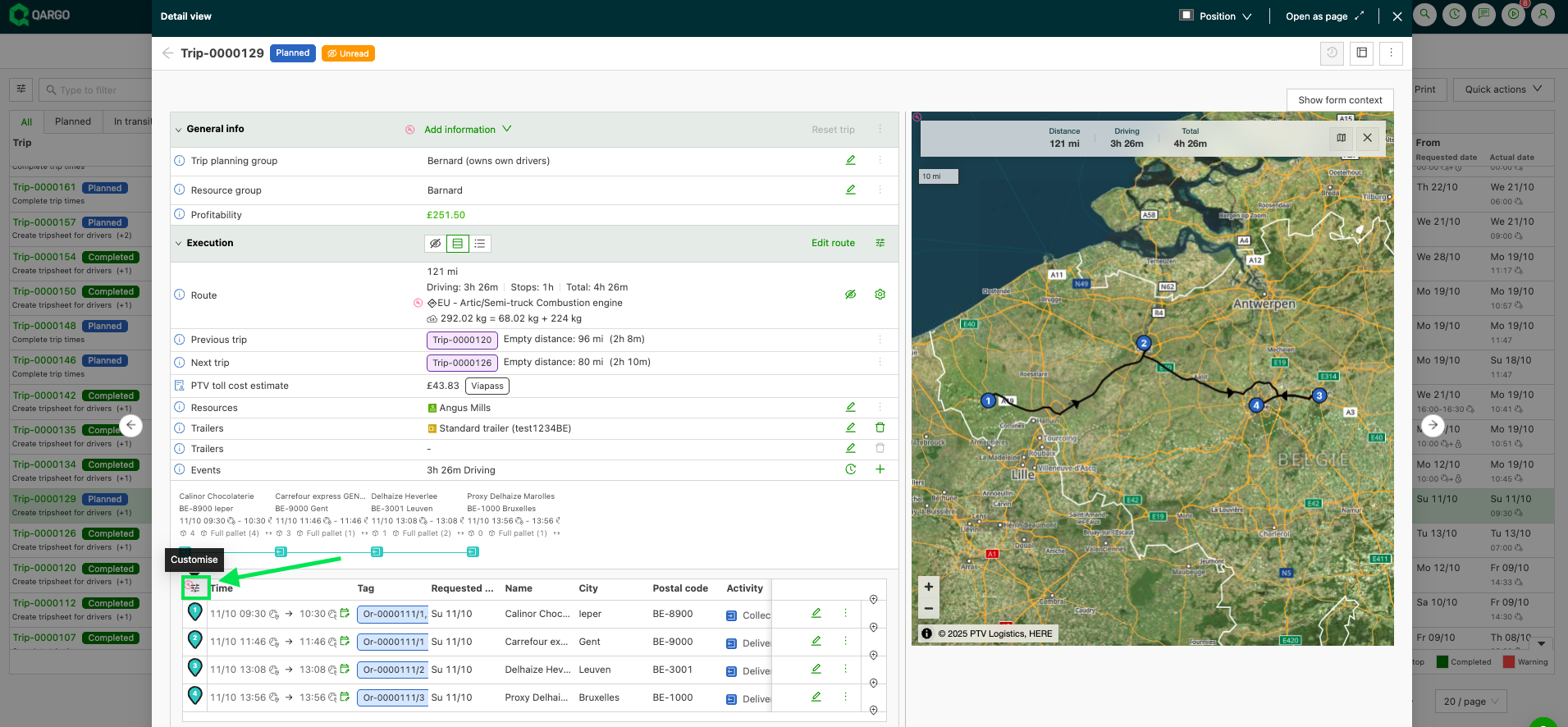
Click the Customize icon at the top left of the Stops table.
-
Select Capacity utilization after stop in the Freight dropdown. The selected value then reads Freight: capacity utilization after stop.
Walkthrough video
| Option | What the Freight column shows |
|---|---|
| Total loaded/unloaded per stop | Freight picked up or delivered at that stop. Default. |
| Space occupied after stop | Freight on the trailer after that stop. |
| Capacity utilization after stop | Freight on the trailer after that stop, against the trailer’s total capacity. |
The two existing options are unchanged for everyone who already uses them.
How capacity is calculated
-
Capacity is the combined capacity of all assigned vehicles and containers, primary and secondary, at order and load level. Drivers are not counted.
-
The calculation is done per metric (loading meters, weight, volume). A metric with no capacity defined on any assigned resource shows only the occupied space, while the other metrics still show used / capacity.
-
The value turns red when the freight is higher than the capacity. Exactly 100 percent stays in the normal color.
Good to know
- The totals use “max needed space”, not a running sum. For a load that loads 10 LDM, unloads 10 LDM, then loads 5 LDM, the totals show 10, not 15.
- The save speed itself is unchanged. Live totals remove the need to save while shaping a load.
- Refreshing the page mid-edit discards unsaved changes; the totals revert to the last saved state.
- Capacity utilization after stop shows the running freight after each stop, like space occupied after stop. It differs from the load totals, which use “max needed space”.
Troubleshooting
| Issue | Explanation / resolution |
|---|---|
| Totals did not change after adding an order | Confirm that the order was actually added to the load. An order with zero loading meters or weight leaves the relevant totals unchanged. |
| Totals reverted after a page refresh | A refresh discards unsaved edits, so the totals return to the last saved state. Add the orders again or avoid refreshing mid-edit. |
| Saving still takes 15–20 seconds | This is expected on very large loads; the save speed is a separate matter. With live totals, a save is needed only once, at the end. |
| A metric stays empty | Only metrics defined on the orders update. Metrics with no values on the load’s orders stay empty rather than showing placeholder values. |
| Only the occupied value shows, no ”/ capacity” | No assigned resource has a capacity for that metric. Define the loading meters, weight or volume capacity on the vehicle or container in Resources settings. |
| One metric shows used / capacity, another shows used only | Capacity is checked per metric. Add the missing capacity to the resource. |
| The value is not red at exactly full capacity | Red appears only when the freight is higher than the capacity. |
| The Stops table is missing on an order detail page | Order detail pages use the Blocks view. The option is available there. |