
Planning: 'Next order' planning suggestions
Optimize planning with 'Next order' suggestions that match vehicle capacity with nearby locations to boost efficiency and cut costs.
The ‘planning flow suggestion’ feature optimizes order combinations based on vehicle capacity and location. It helps with challenges like high order volumes and resource compatibility, which improves efficiency and reduces operational costs.
The planning flow provides suggestions based on the available capacity in vehicles and planned locations. The suggestions are available in two directions:
-
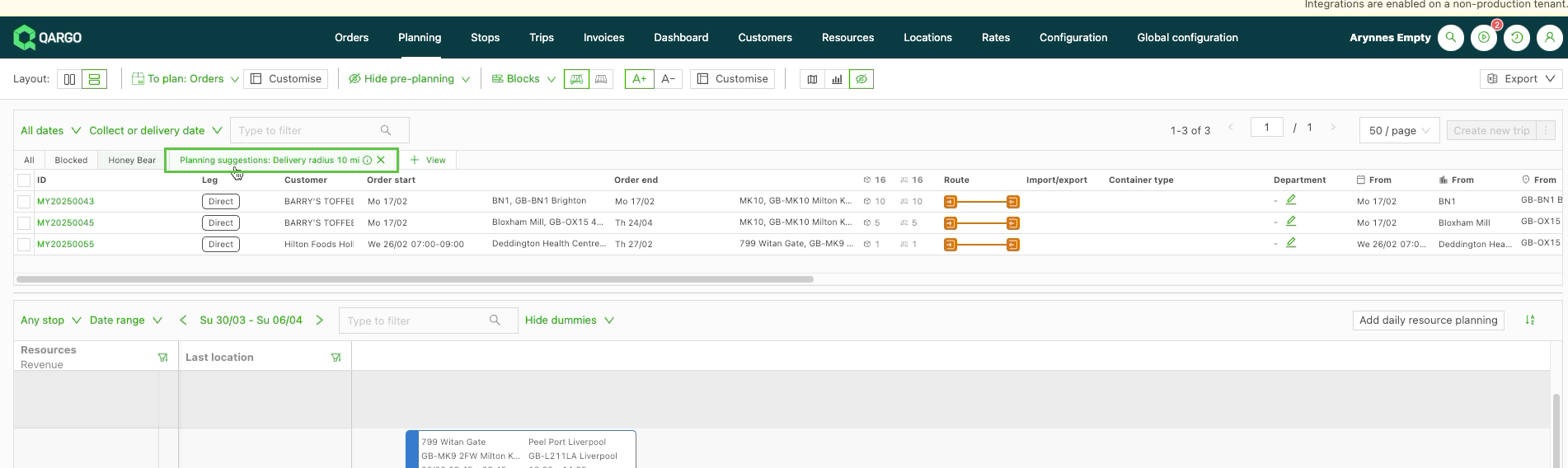
Planning → to plan: From a planned load, open the stop actions button. Use the ‘Find nearby’ function and choose either pickup or delivery within one of the given distances.
This creates a temporary view in the to plan table. The view combines the existing filters with an additional filter containing:
- The distance from the selected location
- The current available capacity in the truck (if applicable)
The temporary view’s name explains the applied filter:
-
To plan → planning: From the order list, select 1 row in the ‘To plan’ table, then click the ‘Find nearby loads’ dropdown. Filter the planning view on a given distance from the pickup or delivery location of the selected to plan order. Matching loads appear, and the order can be added.
Filter the planning view on a given distance from the pickup or delivery location of the selected to plan order.
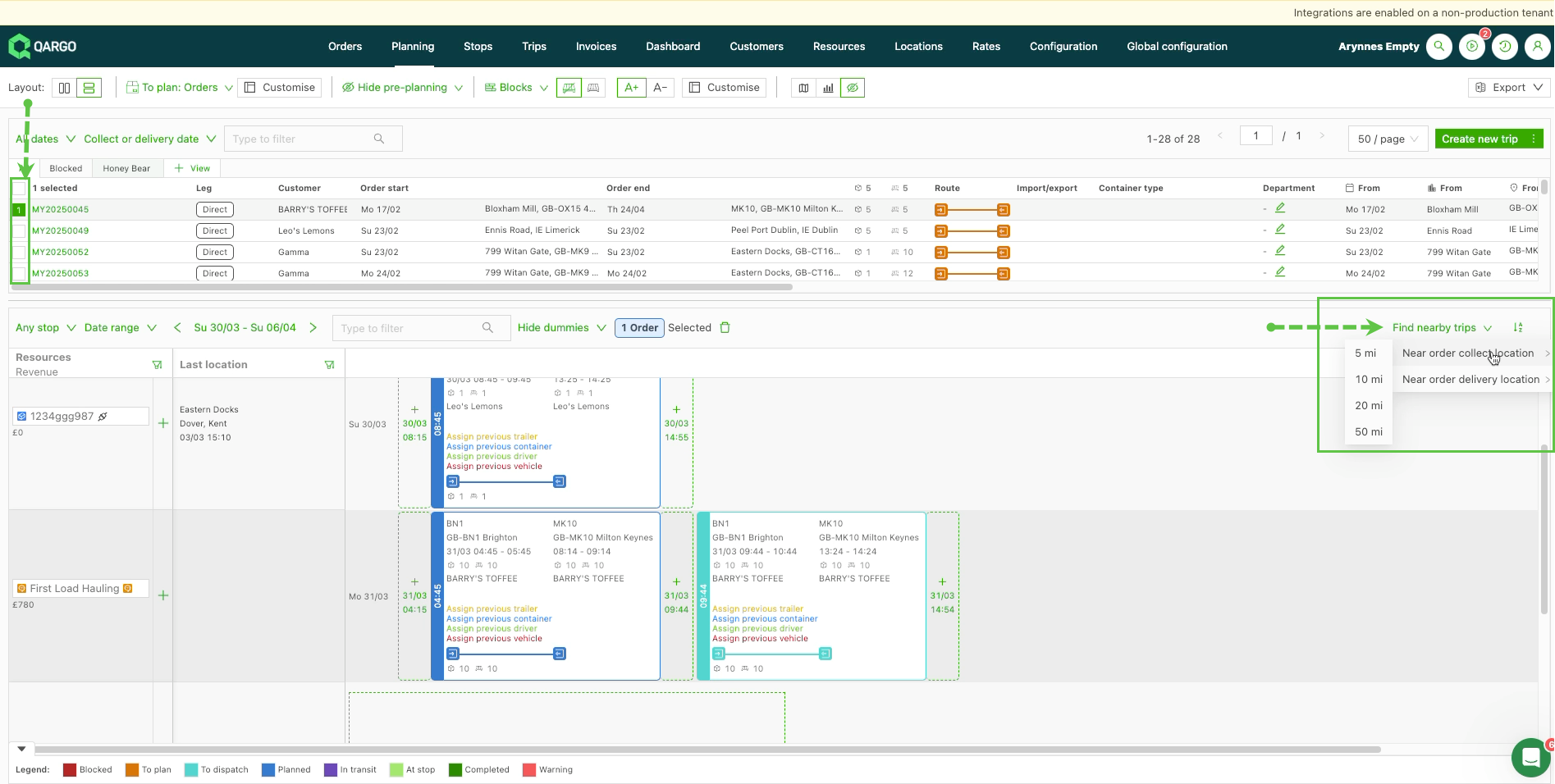
Matching loads appear, and the order can be added.
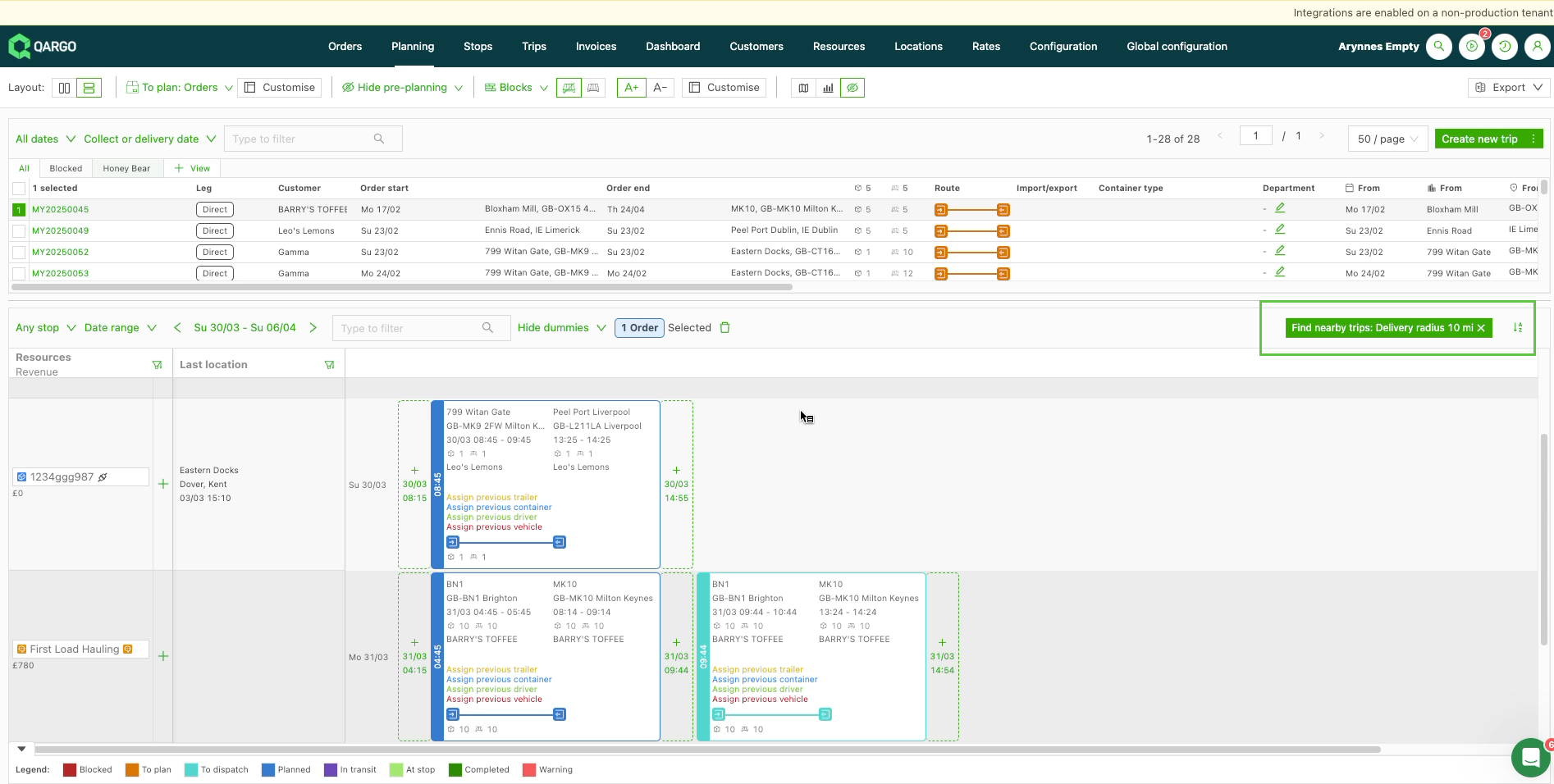
The following distances are available to select (km/mi):
- 5
- 10
- 20
- 50
Filtering Find nearby loads by remaining loading capacity and by distance
Two additions extend the ‘Find nearby loads’ flow (To plan → planning direction).
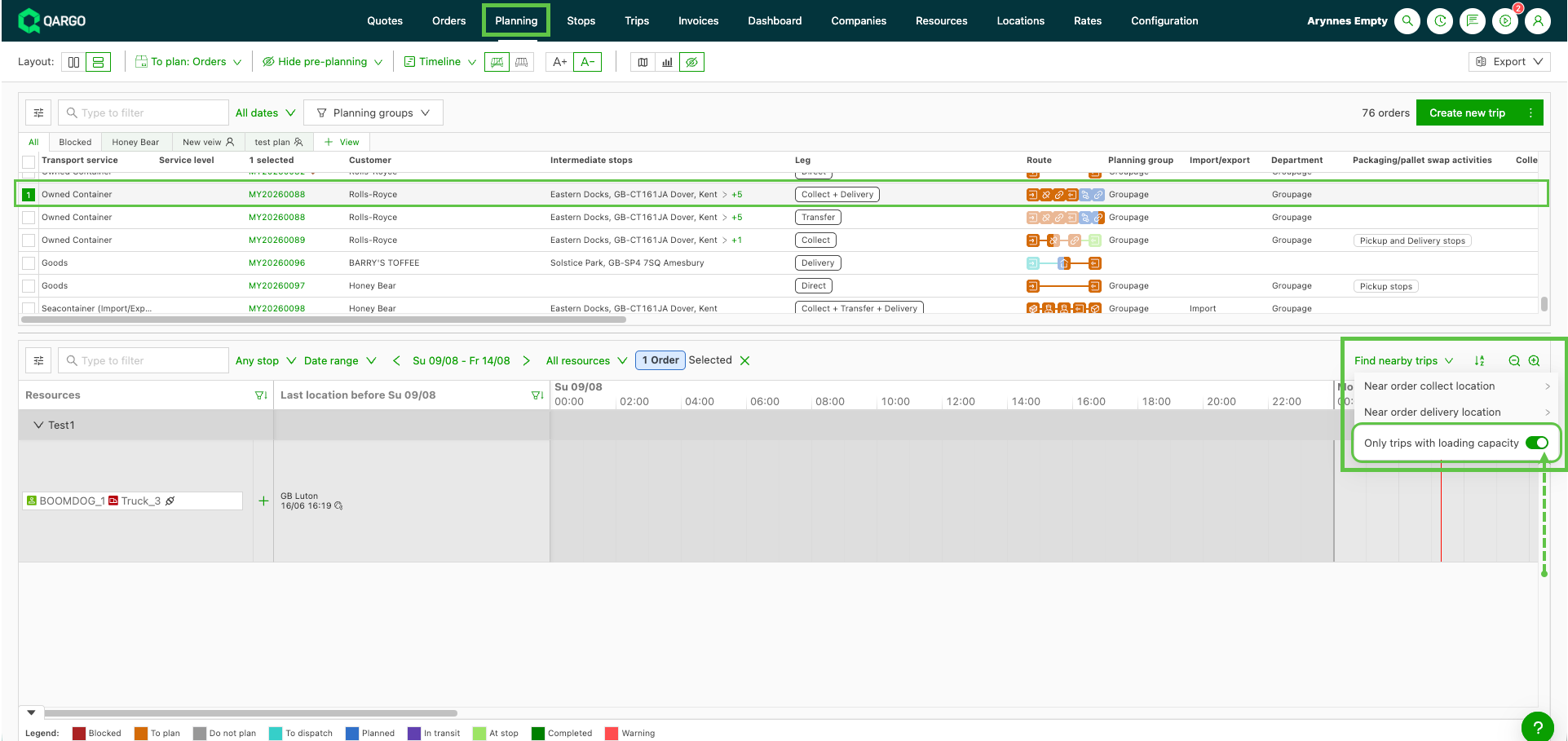
Only loads with loading capacity toggle
Selecting an order and opening the ‘Find nearby loads’ dropdown now shows an ‘Only loads with loading capacity’ toggle, which is on by default.
-
Select an order in the To plan: Orders table.
-
Open the ‘Find nearby loads’ dropdown and choose ‘Find nearby to pick up’ or ‘Find nearby to deliver’
-
Choose one of the preset distances (5, 10, 20 or 50 km, or the mile equivalent).
-
With the toggle on (default), only loads whose nearby stop still has room appear in the results.
- Switch the toggle off to see every load within the chosen radius again, regardless of remaining capacity.
Distance column filter
Once a ‘Find nearby’ search is active, the To plan: Orders view can now be filtered on the Distance column. This narrows the results further inside the chosen radius, for example down to the closest 2 km within a 5 km search.
- Trigger a Find nearby search from either direction (right-click Find Nearby, or the Find nearby loads dropdown).
- Filter the Distance column header in the To plan: Orders table to the desired range.