
PLANNING - Route optimization
Qargo's optimization automates efficient groupage and LTL route planning using time windows, weight, volume, loading meters and pallet metrics. It reduces costs, maximizes capacity, adapts to changes and supports re-optimization when loads are updated.
Table of contents
Introduction
The optimization feature in Qargo is designed to automatically generate the most efficient routes for groupage and less-than-truckload (LTL) shipments. This process relies on various metrics to determine the optimal sequence of deliveries.
Benefits of route optimization
Efficiency improvements:
- Automatically calculates the most efficient delivery sequences
- Reduces total travel time and fuel consumption
- Maximizes vehicle capacity utilization
- Minimizes operational costs through optimized routing
Automated decision making:
- Eliminates guesswork from manual route planning
- Considers multiple variables simultaneously
- Provides data-driven routing recommendations
- Adapts to changing conditions and requirements
Optimization tool options
Qargo offers configuration options for the optimization tool, which is configured as part of the onboarding process. Options include:
- HERE Maps
- More Optimal
- Optimize
- PTV Optiflow
Key metrics for optimization
**1. Time windows**
Function: Determines delivery sequence priority based on customer time requirements
How it works:
- Orders with defined time windows are prioritized in the optimization sequence
- The algorithm ensures deliveries occur within the specified time frames
- Earlier time windows receive higher priority in route sequencing
- Helps maintain customer service commitments
Configuration requirement: Time windows must be defined in the order details for this metric to work
2. Weight distribution
Function: Optimizes load distribution based on shipment weight and vehicle capacity
Optimization factors:
- Shipment weight: Individual order weight requirements
- Vehicle payload: Maximum weight capacity of assigned vehicles
- Load balance: Ensures even weight distribution across the load
- Capacity utilization: Maximizes payload efficiency without exceeding limits
Result: Prevents overloading while maximizing vehicle capacity utilization
3. Volume optimization
Function: Maximizes space utilization within vehicle freight areas
Calculation components:
- Shipment volume: Cubic space required for each order
- Vehicle volume capacity: Maximum freight space available
- Space efficiency: Optimizes three-dimensional space utilization
- Load configuration: Considers how items fit together in the freight space
Benefit: Ensures maximum freight space utilization for cost-effective transportation
4. Loading meters
Function: Accommodates linear freight space requirements
Considerations:
- Order loading meters: Linear space required for each shipment
- Vehicle loading capacity: Available linear loading space
- Freight configuration: How items are arranged linearly in the vehicle
- Space allocation: Ensures proper accommodation for all freight
Application: Particularly important for long or irregularly shaped freight
5. Pallet spaces
Function: Optimizes pallet-based freight organization
Optimization elements:
- Pallet requirements: Number of pallet spaces needed per order
- Vehicle pallet capacity: Maximum pallet spaces available in the vehicle
- Pallet configuration: How pallets are arranged and secured
- Space efficiency: Maximizes pallet space utilization
Result: Ensures efficient pallet-based freight management
Planning considerations:
- Group orders with similar time windows when possible
- Consider geographic proximity when selecting orders for groupage
- Balance vehicle capacity utilization with delivery time requirements
- Plan for contingencies and potential route changes
Data entry requirements
For successful optimization, all the above metrics must be filled in accurately in the order and in the vehicle capacity details (see: 👉Creating drivers/vehicles/containers).

Complete information ensures that the calculations are performed effectively.
Important note:
-
If any order is removed from a load, it is essential to trigger the re-optimization function.
- This dynamically adjusts the remaining orders and creates a new optimal route without the removed order.
-
The system includes error-handling mechanisms. If any required metric is missing or incomplete, the system issues a warning and blocks the optimization process until the necessary information is provided.
Applying optimization to existing loads
Step-by-step process
To optimize routes for existing loads:
Step 1: Navigate to the load details
- Open the page of the load to optimize
- Scroll down to the Route details section
- Review the current route configuration
Step 2: Start the optimization
- Click the Optimize route button in the route details section
- The system automatically analyzes the current orders and constraints
- The algorithm calculates the most efficient route sequence
Step 3: Review the optimized route
- The route is automatically adjusted for optimal efficiency
- The new sequence is displayed in the route details
- Manual adjustments can still be made if needed using the route editing features
Step 4: Apply the changes
- Review the optimized route for accuracy
- Make any necessary manual adjustments
- Save the optimized route configuration
Creating optimized loads from scratch
Use case scenario
When multiple trucks and orders need to be planned in the most effective way, use the optimization suggestions feature during load creation.
Step-by-step optimization process
Step 1: Select orders for groupage
-
Navigate to the list of To plan orders
-
Select the orders to include in the groupage shipment
-
Make sure all selected orders have complete metric information
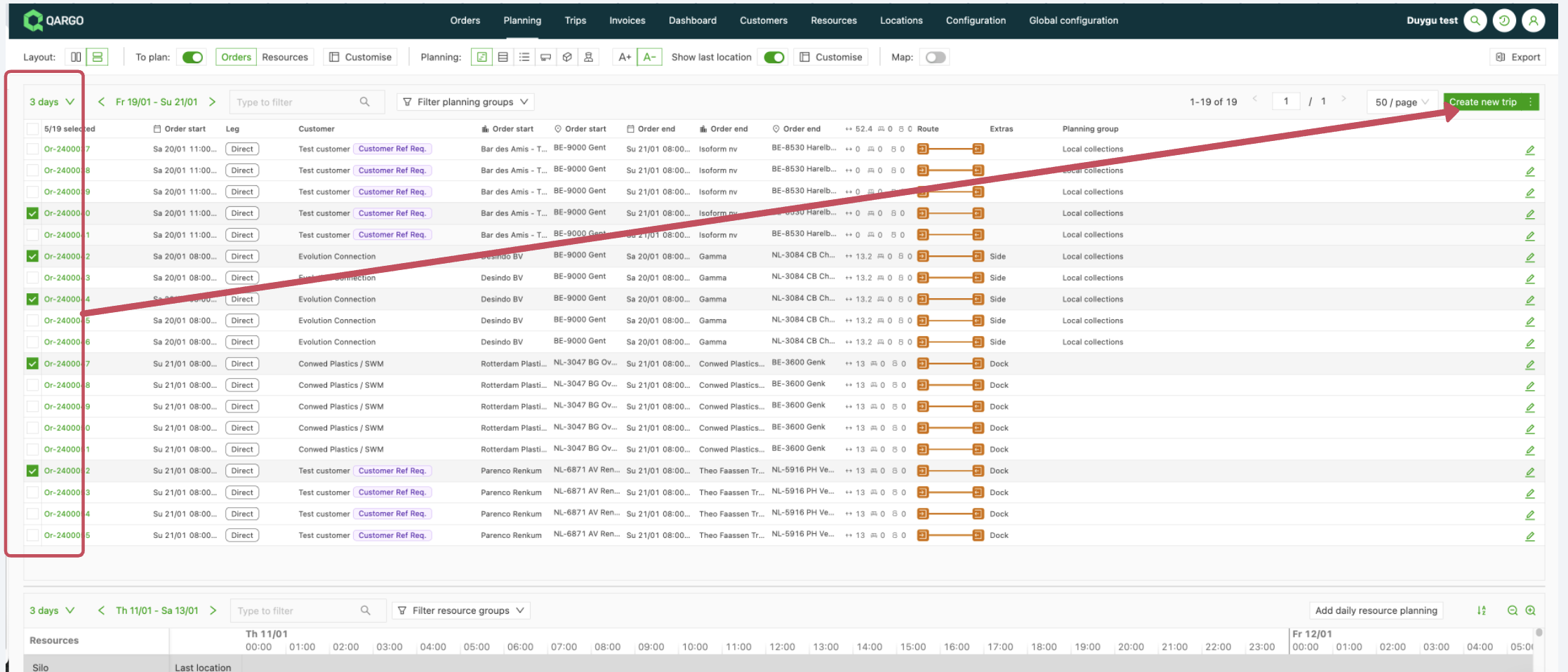
Step 2: Start load creation
- Click Create new load after selecting the orders
- The load creation interface opens with the selected orders
- Proceed to the optimization configuration
Step 3: Open the optimization settings
-
Switch to the Optimization page within the load creation interface
-
This page gives access to all optimization configuration options
-
Review the available optimization parameters
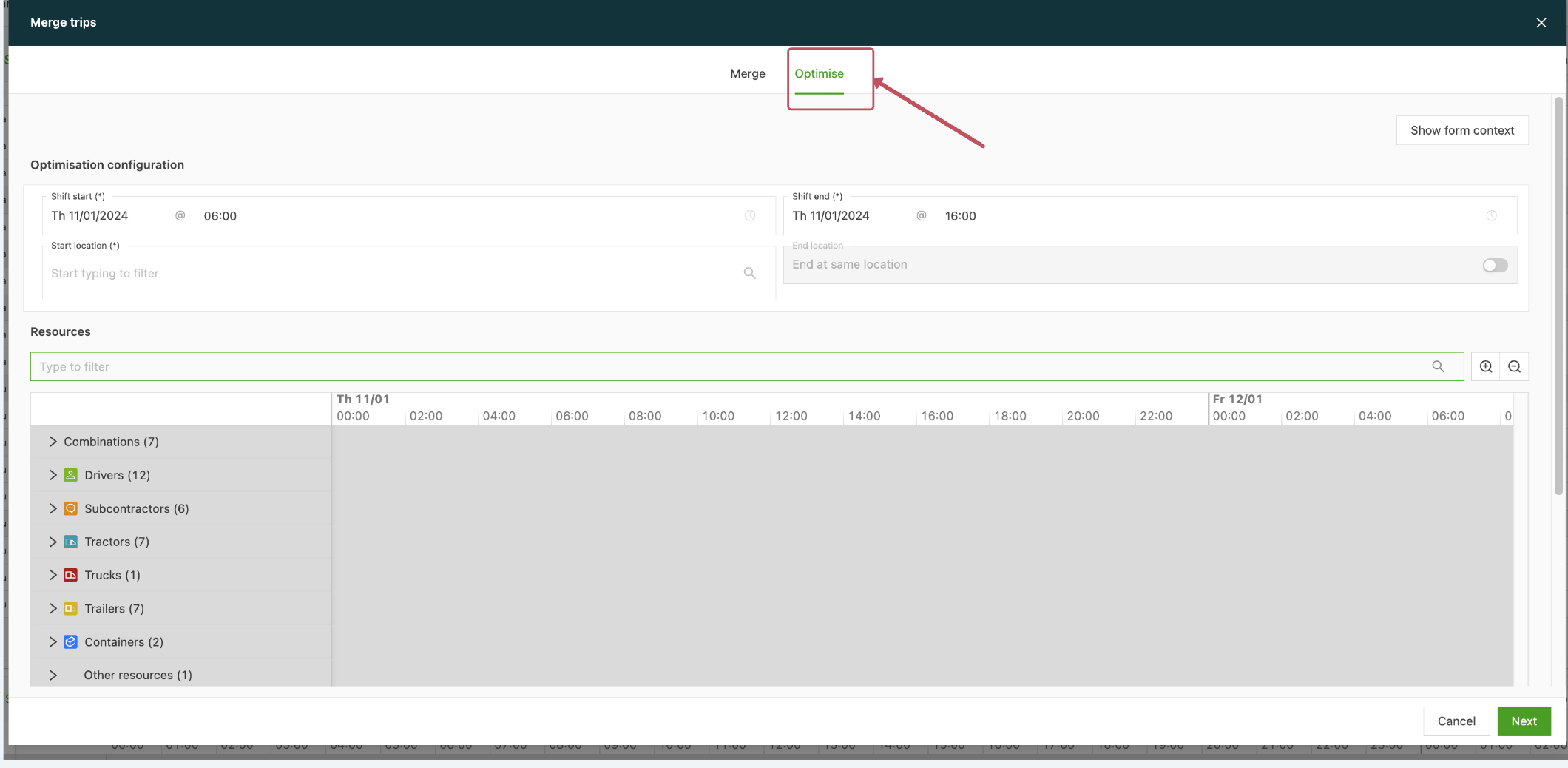
Step 4: Configure the start parameters
- Start location: Set the departure point for the load
- Start date: Define the load start date
- Start time: Specify the departure time
- Make sure all start parameters align with operational requirements
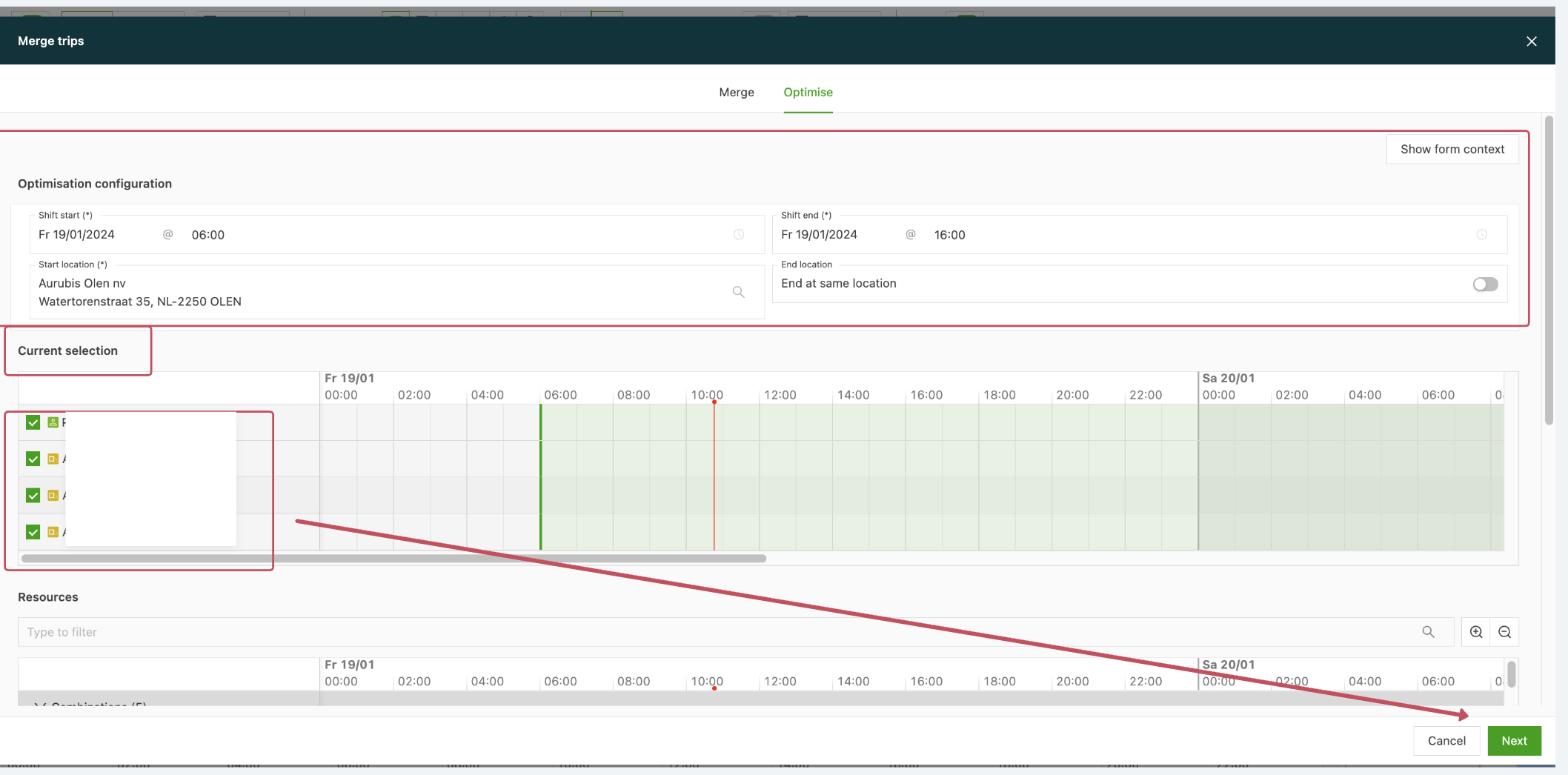
Step 5: Select vehicle resources
Choose from the available vehicle resources based on the requirements:
Available resource types:
- Resource combinations with trailers: Tractor-trailer combinations
- Trailers: Standalone trailer units
- Containers: Shipping container options
- Vans: Delivery van configurations
- Straight trucks: Straight truck options
After selecting the appropriate resources, click Next to generate optimization suggestions
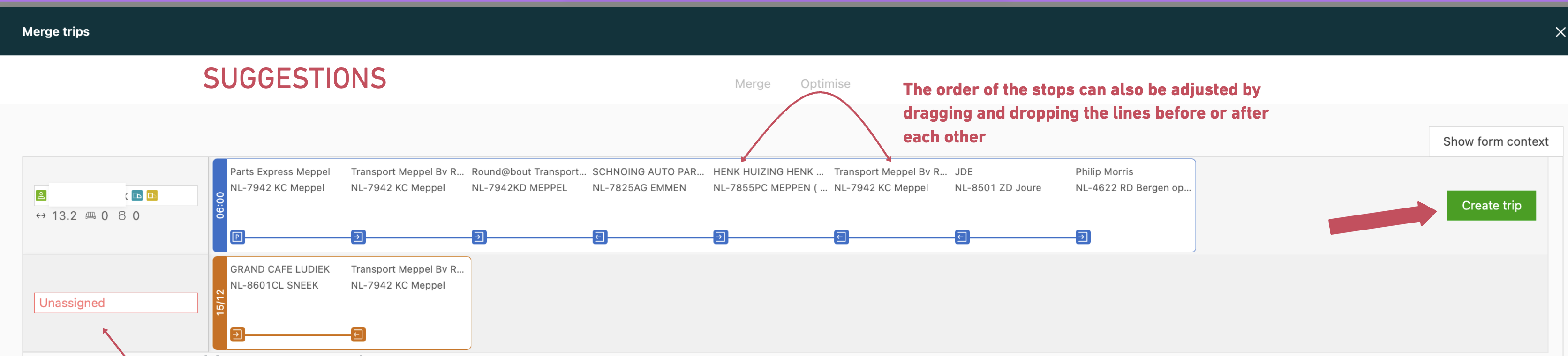
⚠️ The order of the stops can also be adjusted by dragging and dropping the lines before or after each other.
Step 6: Review the optimization suggestions
-
The system generates route suggestions based on:
- Configured dates and time windows from the orders
- Selected vehicle resources and their capacities
- All optimization metrics (weight, volume, loading meters, pallet spaces)
-
Multiple route options may be presented for comparison
-
Each suggestion shows efficiency metrics and resource utilization
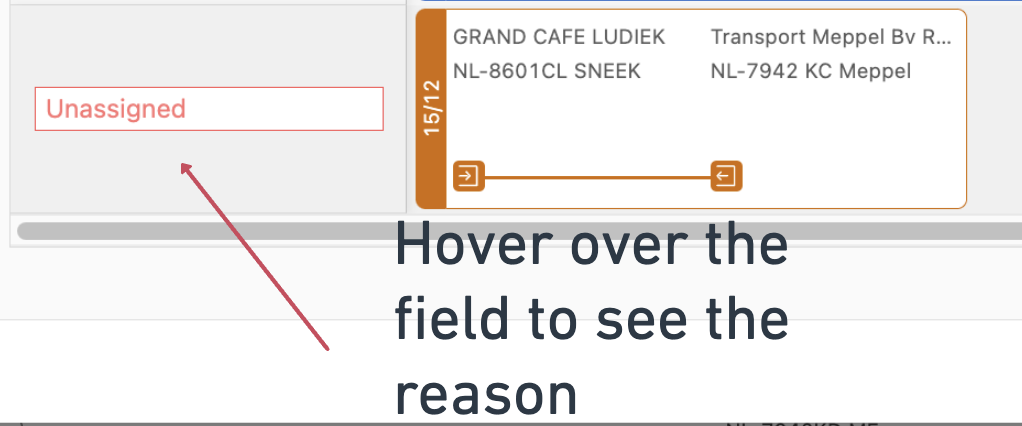
⚠️ A suggestion with no resources may mean that the resource limit is exceeded, or that some information is missing or does not match the requirements.
- To see the reason, hover over the ‘no resources’ field to display the message:
Step 7: Finalize load creation
- Review suggestions: Examine all optimization suggestions and select the best option
- Make adjustments: Apply any necessary manual changes to the route
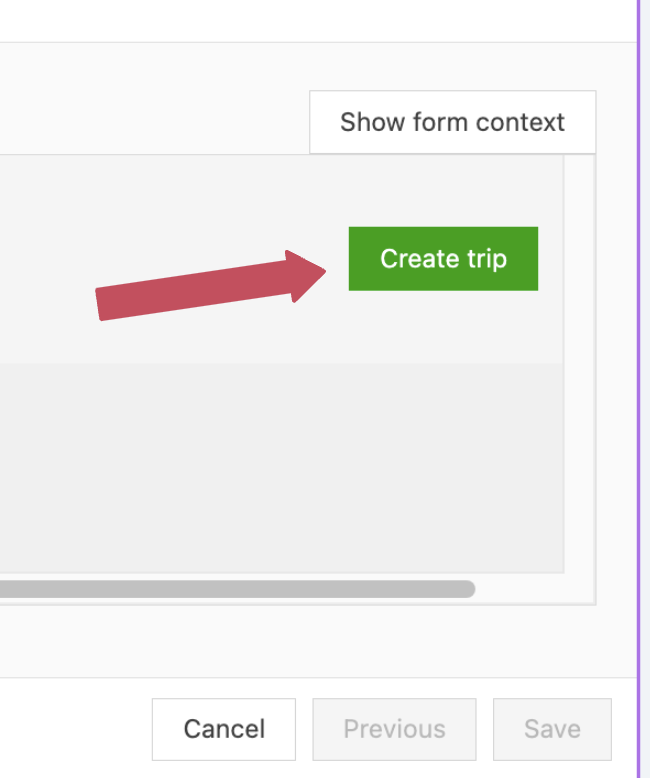
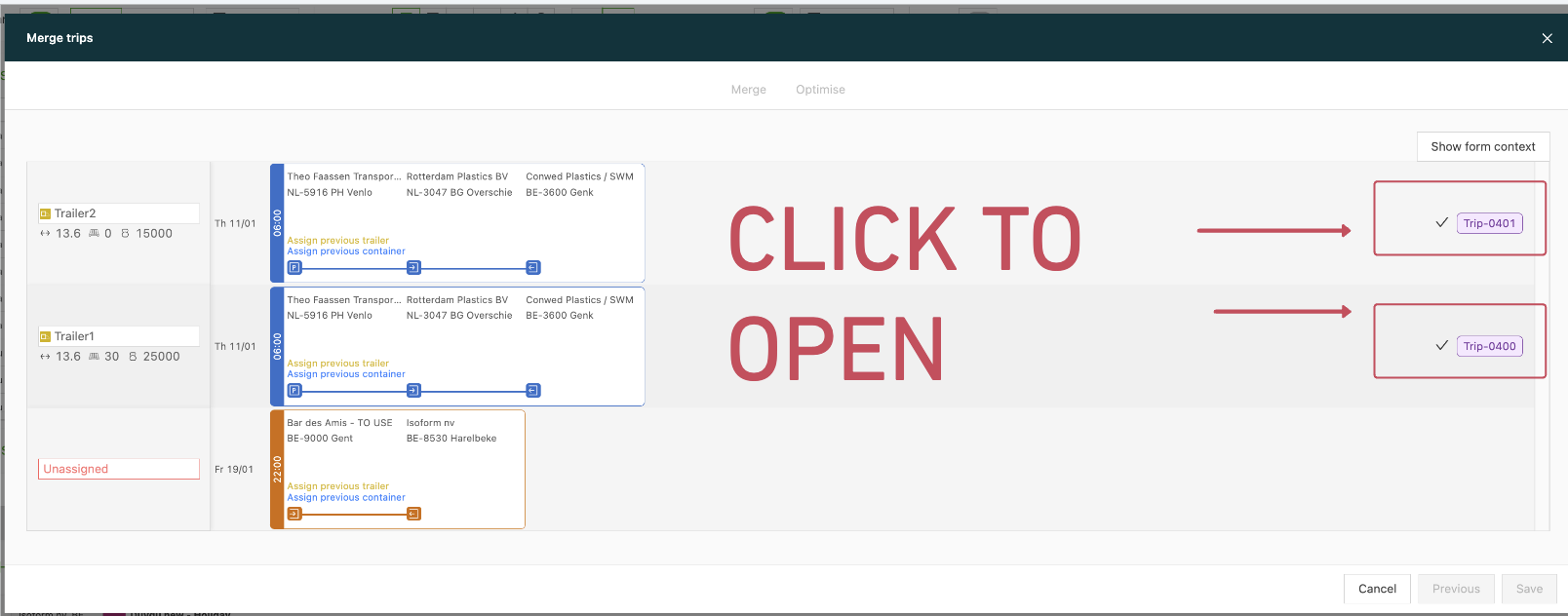
- Create load: Click Create load to finalize the optimized route
- Load assignment: The system generates a planned load number
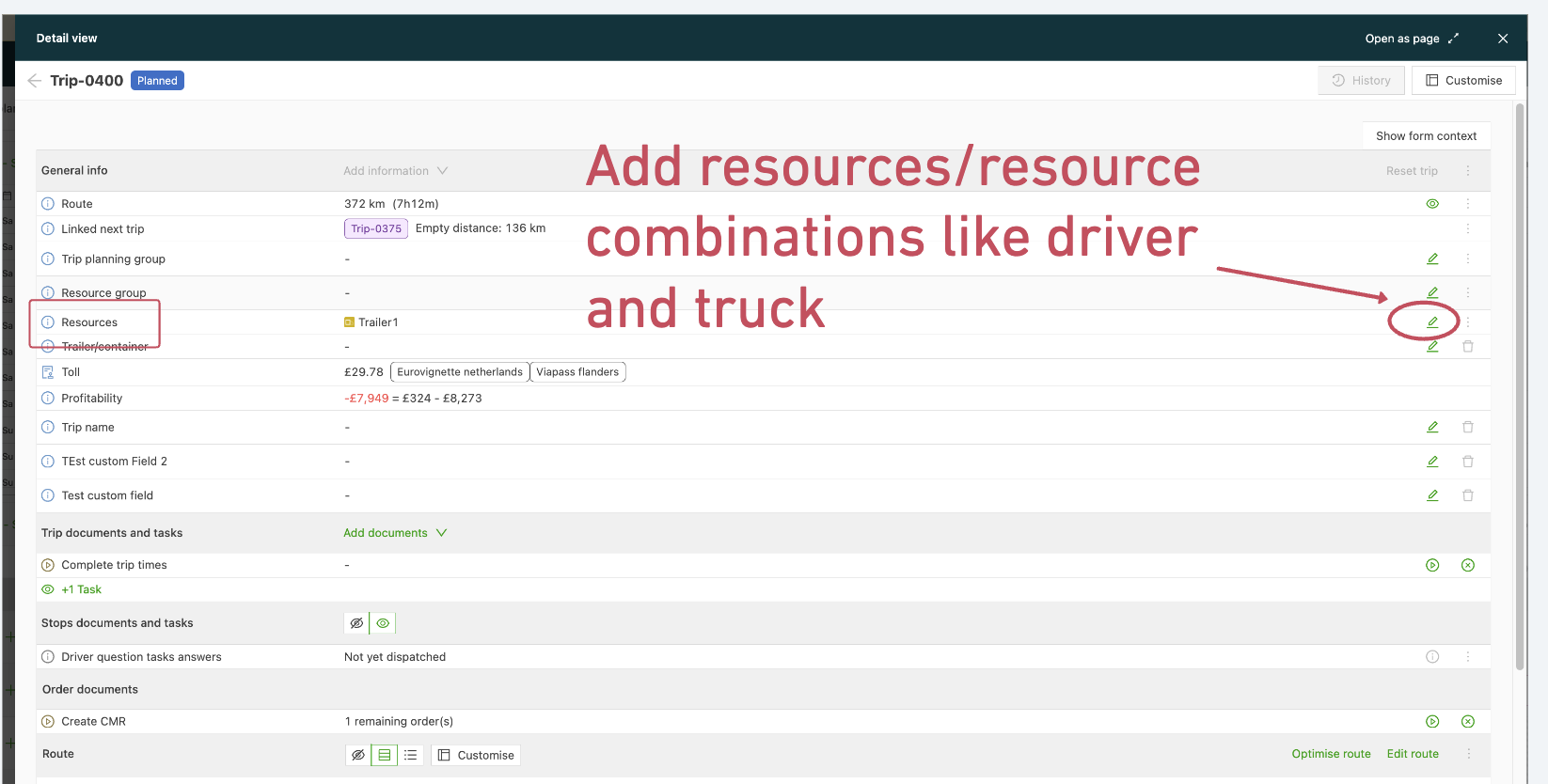
- Resource assignment: Assign specific drivers and tractors to the load (if applicable)
Re-optimization requirements
When to re-optimize:
- After removing any order from an existing load
- When adding new orders to a load
- After changing vehicle assignments
- When time windows or delivery requirements change
Re-optimization process:
- Trigger the re-optimization function after any load changes
- The algorithm dynamically adjusts the remaining orders
- Creates a new optimal route without the removed or changed orders
- Maintains efficiency despite load changes
Hidden operational stops on the route timeline
A tenant setting can hide selected operational stops from the customer portal route timeline. When enabled, stop types such as terminal stops, parking, hook and drop activities, empty container moves and day-boundary stops are removed from the portal timeline entirely, leaving only the stops relevant to the end customer.
This keeps the portal route timeline aligned with the visualized order route, with no gaps or grayed-out placeholders in place of the hidden stops.
A super admin selects the stop types to hide in the route planning and optimization settings. For the configuration steps, see PLANNING - Route optimization.
Error handling and warnings
System validation process
Automatic data validation:
- The system checks for missing or incomplete metric information
- Validates data consistency across orders and vehicles
- Identifies potential capacity conflicts before optimization
- Provides specific error messages for missing data
Warning system:
- Issues warnings when required metrics are missing
- Blocks the optimization process until the necessary information is provided
- Highlights the specific data fields that need to be completed
- Ensures data integrity before route calculation