
Edit the stops of an order
This article covers editing and resequencing stops on an order, including unplanned orders and orders on the Planboard.
Table of contents
The order of the stops can be edited after the order has been created and/or extra stops have been added.
There are multiple options for editing the stops of an order.
Edit unplanned orders
Change the sequence of unplanned orders
- Navigate to Orders and click the order to change.
- Click Show route in the Operations section of the order.
- Click Edit route.
- Drag and drop the stops.
- Save the changes. This method is particularly useful for making quick adjustments to the order of the stops with a visual overview of them.
Edit the details of a stop of an unplanned order.
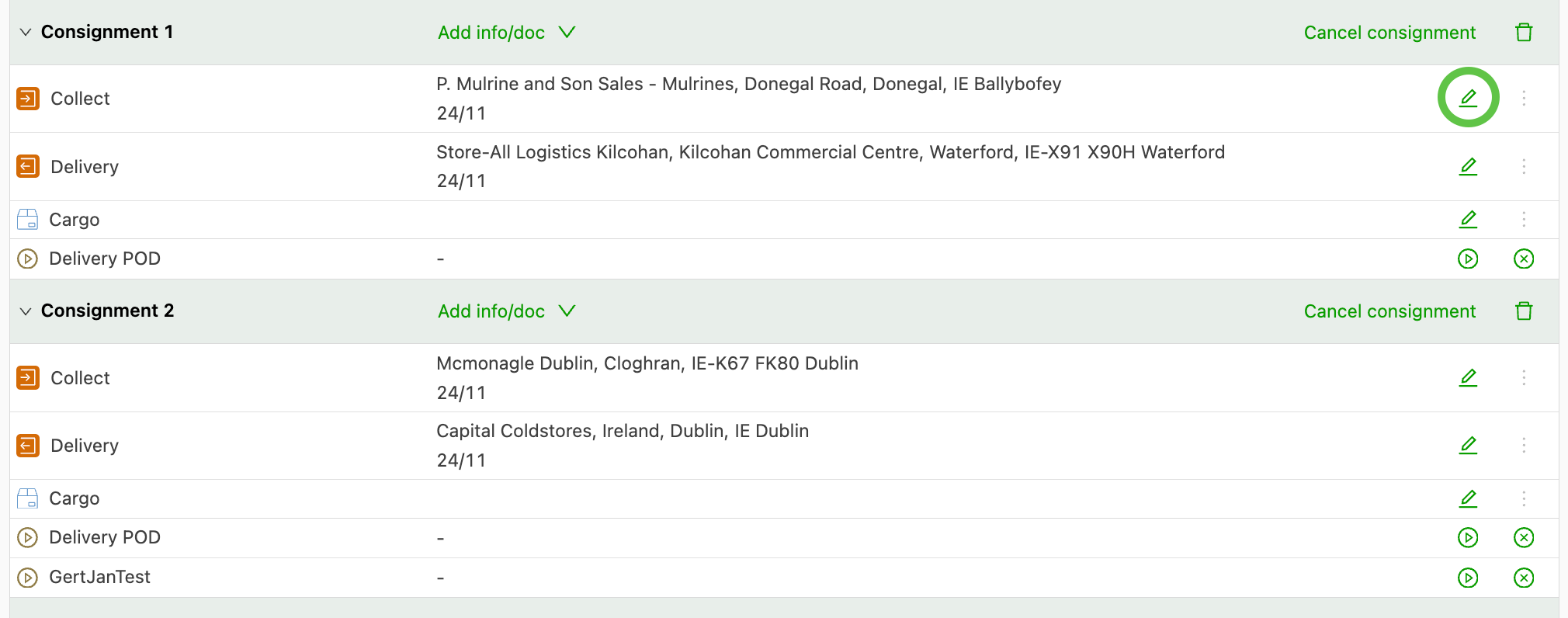
Stops on an order can be updated in 2 places in the order.
-
Shipment
-
Route
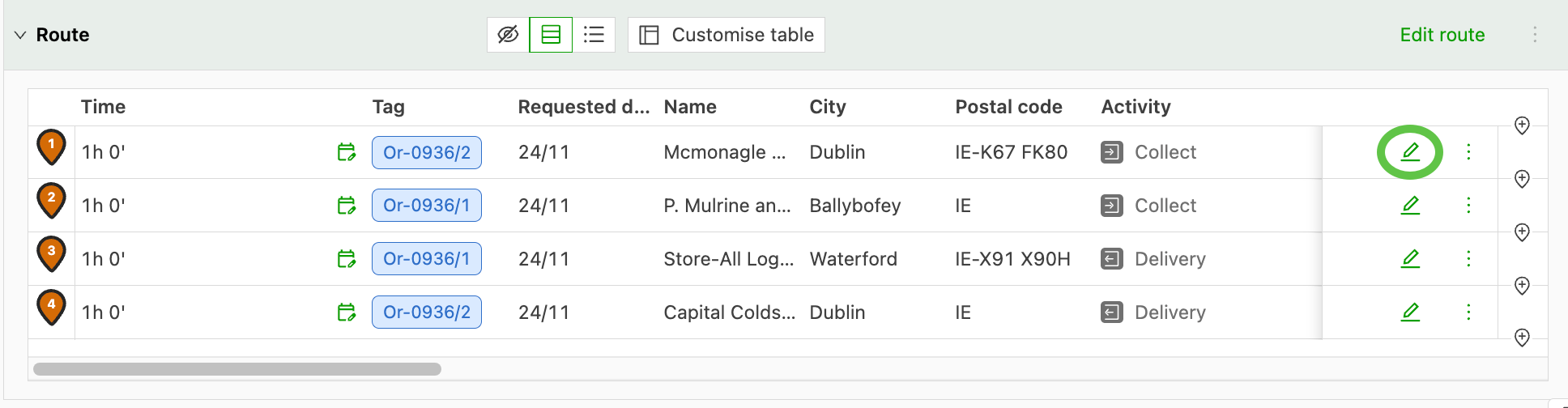
In both cases, to update the stop details, click the Edit icon (green pen) to the right of the stop information.
The ‘Edit pickup / delivery’ screen opens so changes can be made. This screen allows edits to the address, the time window, the activity or other relevant details for a stop.
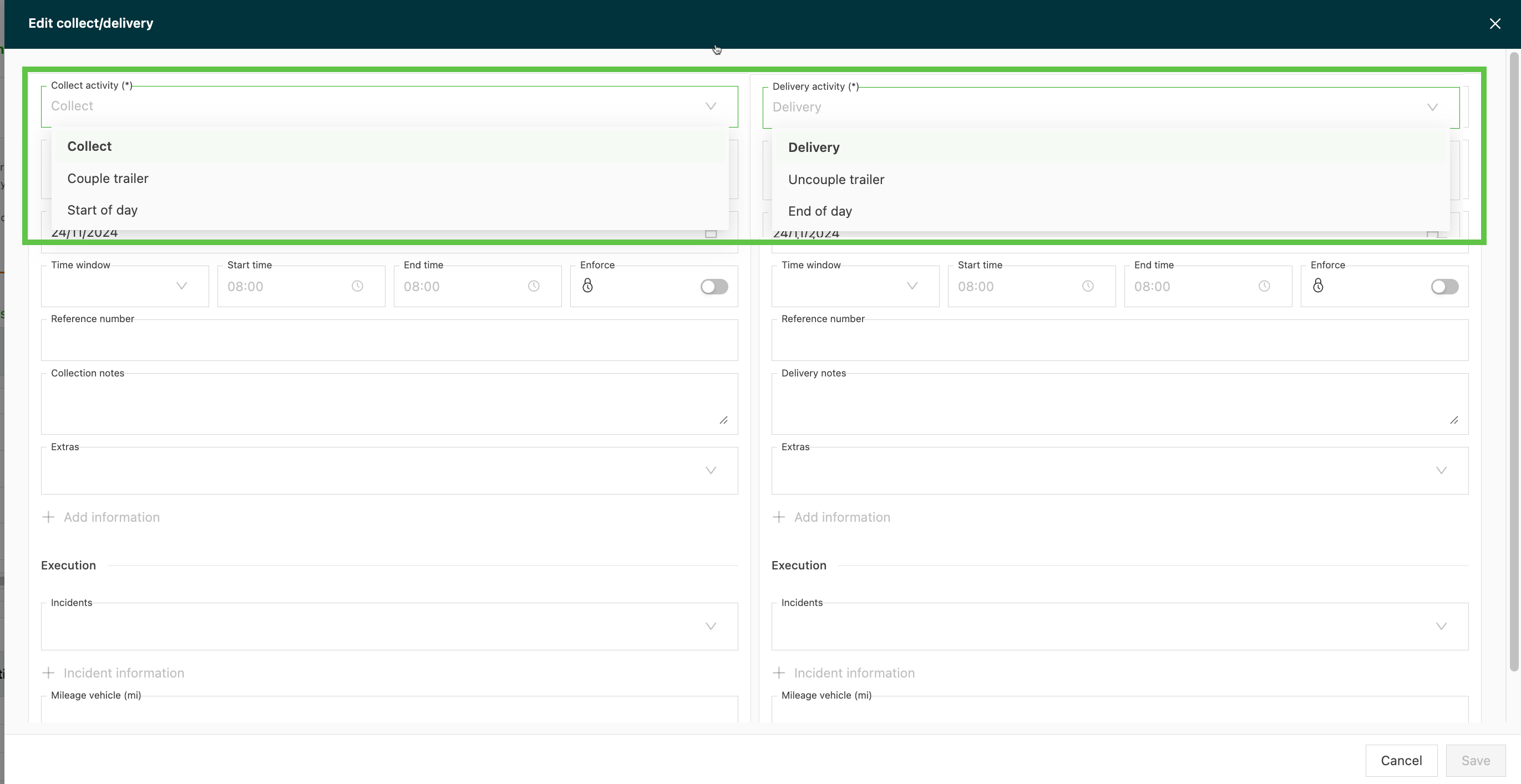
Different stop activity options are available for selection.
| Stop activity | Description |
|---|---|
| Pickup | Pick up / load freight at a specified location |
| Hook trailer | Pick up a trailer at a specified location. |
| Start of day | Driver starts the day’s driving from a specified location, e.g., overnight parking. Typically does not include loading / unloading freight. |
| Delivery | Drop off freight / empty container at a specified location |
| Drop trailer | Disconnect the trailer from the power unit and leave it at a specified location. |
| End of day | Driver finishes driving and parks at a specified location. Typically does not include loading / unloading freight. |
Edit planned orders
Edit planned orders on the Planboard
A stop can also be edited on the Planboard if the load has already been planned.
- Navigate to Planning.
- Navigate to the load to edit in the planning view.
- Drag and drop the stop to the desired position in the load.
- Save the changes.
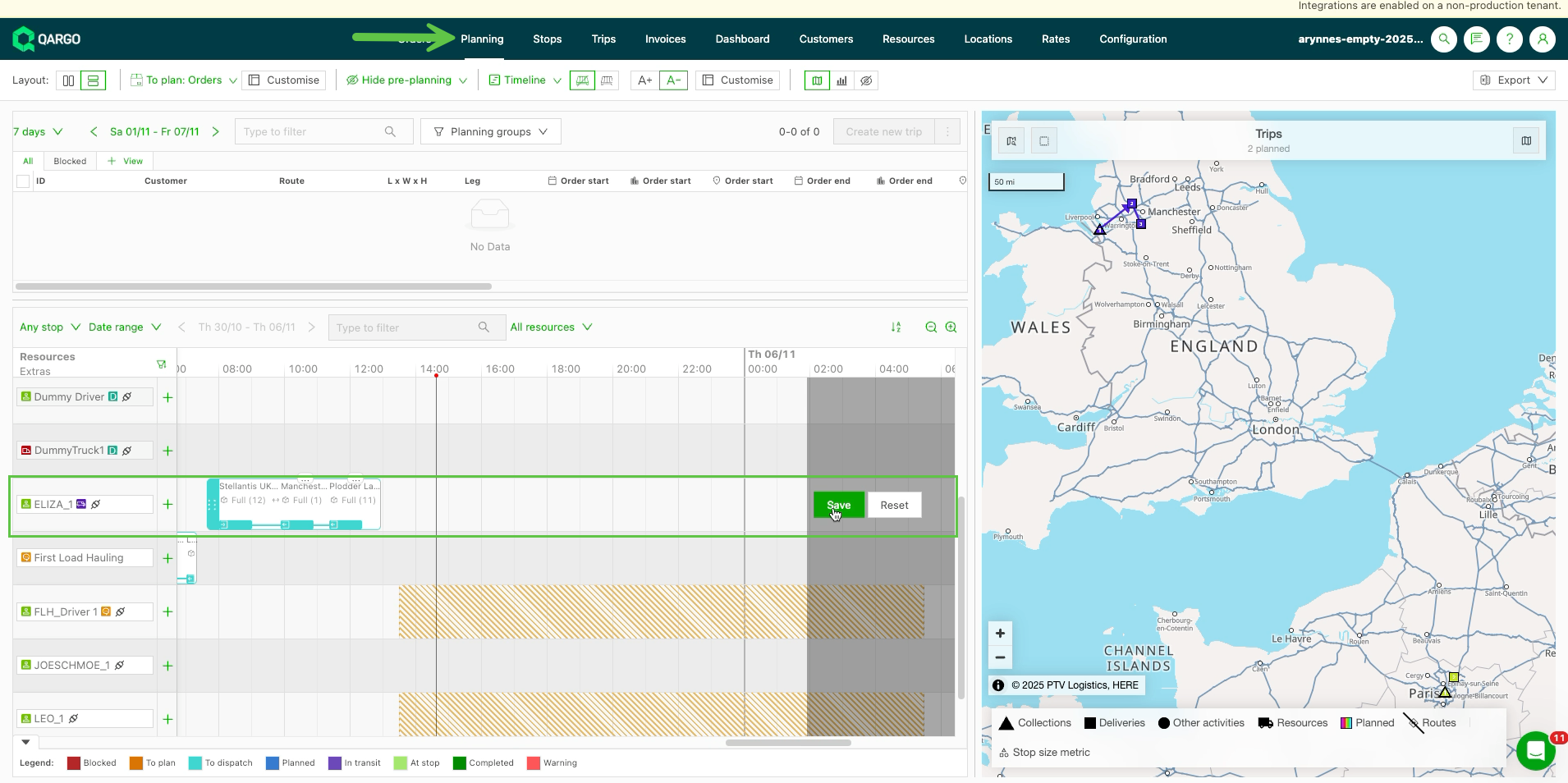
- When orders with the same stop locations are planned to a resource, the system consolidates those stops.
- Reorder the stops on the load by dragging them to the desired position in the load.
- Save the changes.
- The stop is shown as a gray highlighted area in the route details.
- Clicking the gray area opens the stop.
- Click the Load number to open the load details.
Change the stop sequence of planned orders on the Loads page
The stop sequence can be updated from the load detail view page. This page can be accessed in a few ways, offering more flexibility to make edits on the fly. This approach is ideal for adjusting individual loads while working in the more focused, detailed view of a single load.
-
Planning > Planboard view. Click anywhere in the planned load to open it.
-
Loads. Click the Load number, or anywhere in the row, to open the load.
- Click Edit route
- Drag and drop the stops
- Save the changes