
Plan load
This article gives an overview of how to plan an order to a load.
Planning on the planning board
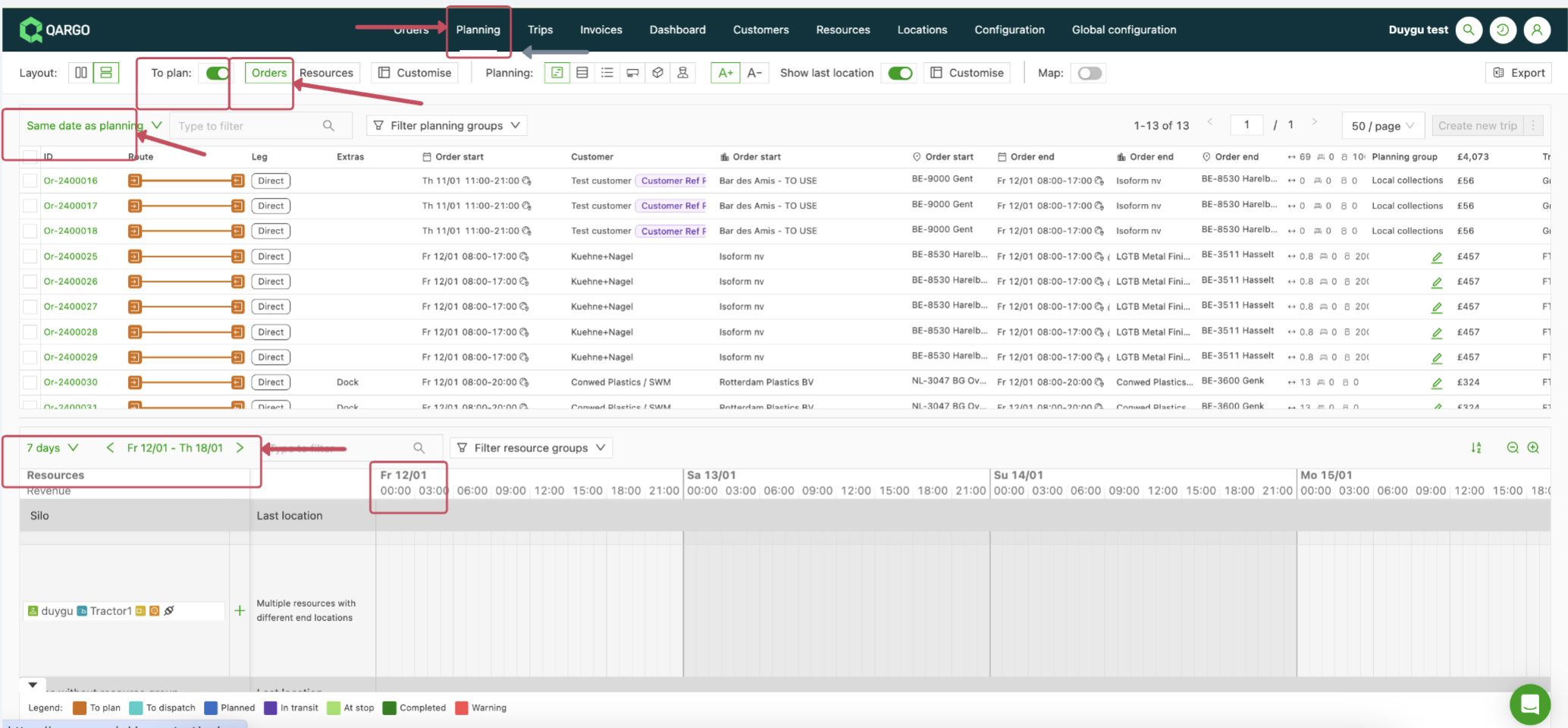
- Navigate to the Planning tab – orders to plan: Go to the Planning tab and choose the “Orders” + to plan section. (The planning view can also be customized, or a load planned; also see 👉 customize planning view)
-
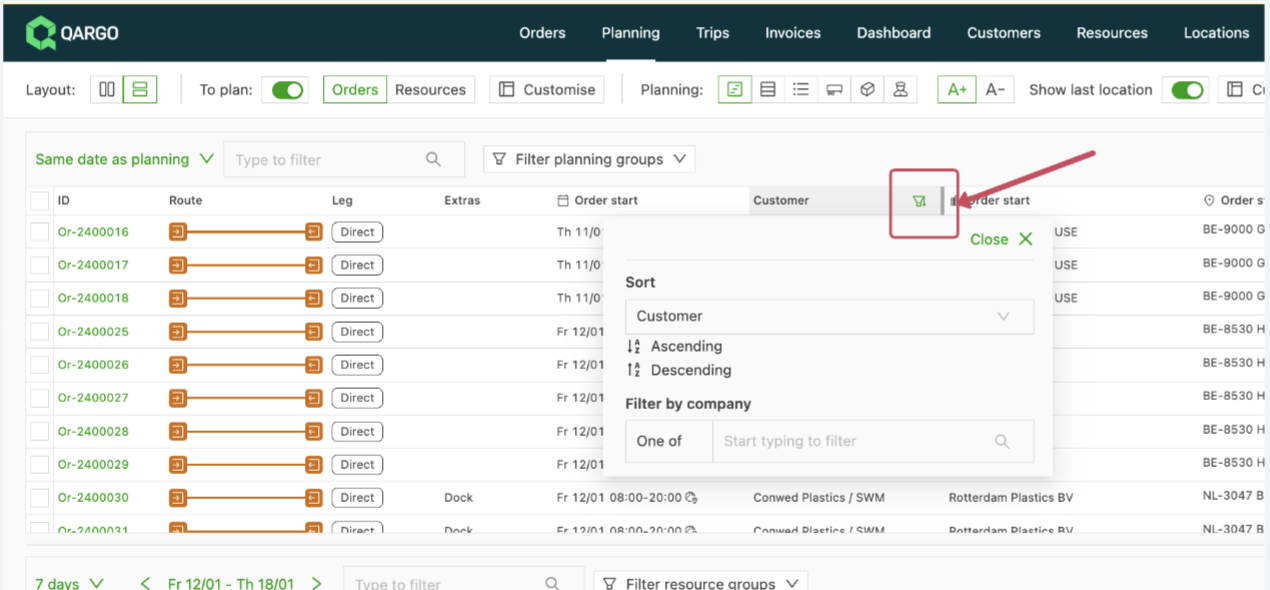
Apply filters (if applicable): To narrow down the selection, use filters based on date, customer, or any related fields such as 👉planning group.
- Also see 👉 customize planning view)
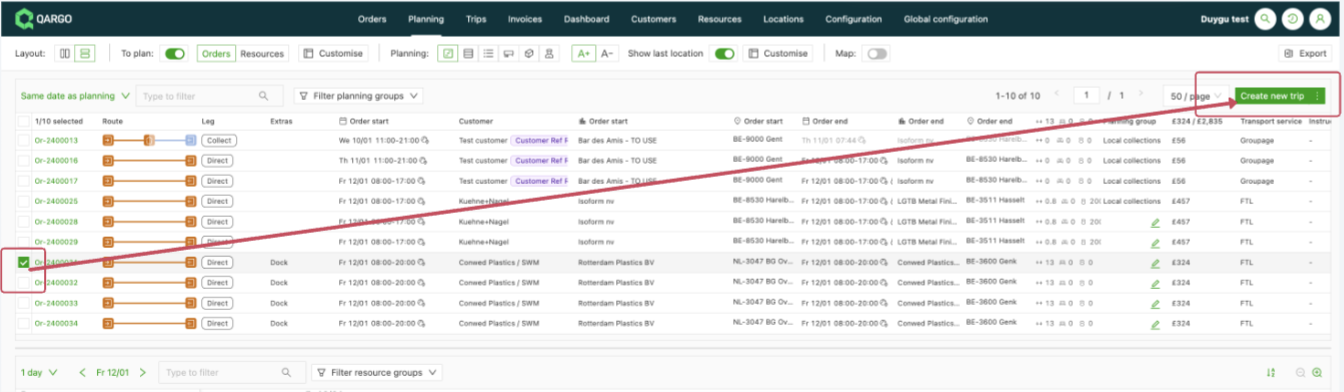
Select the order: Highlight the specific order to plan a load for.- Initiate load planning: Click “Plan new load” to start the load planning process.
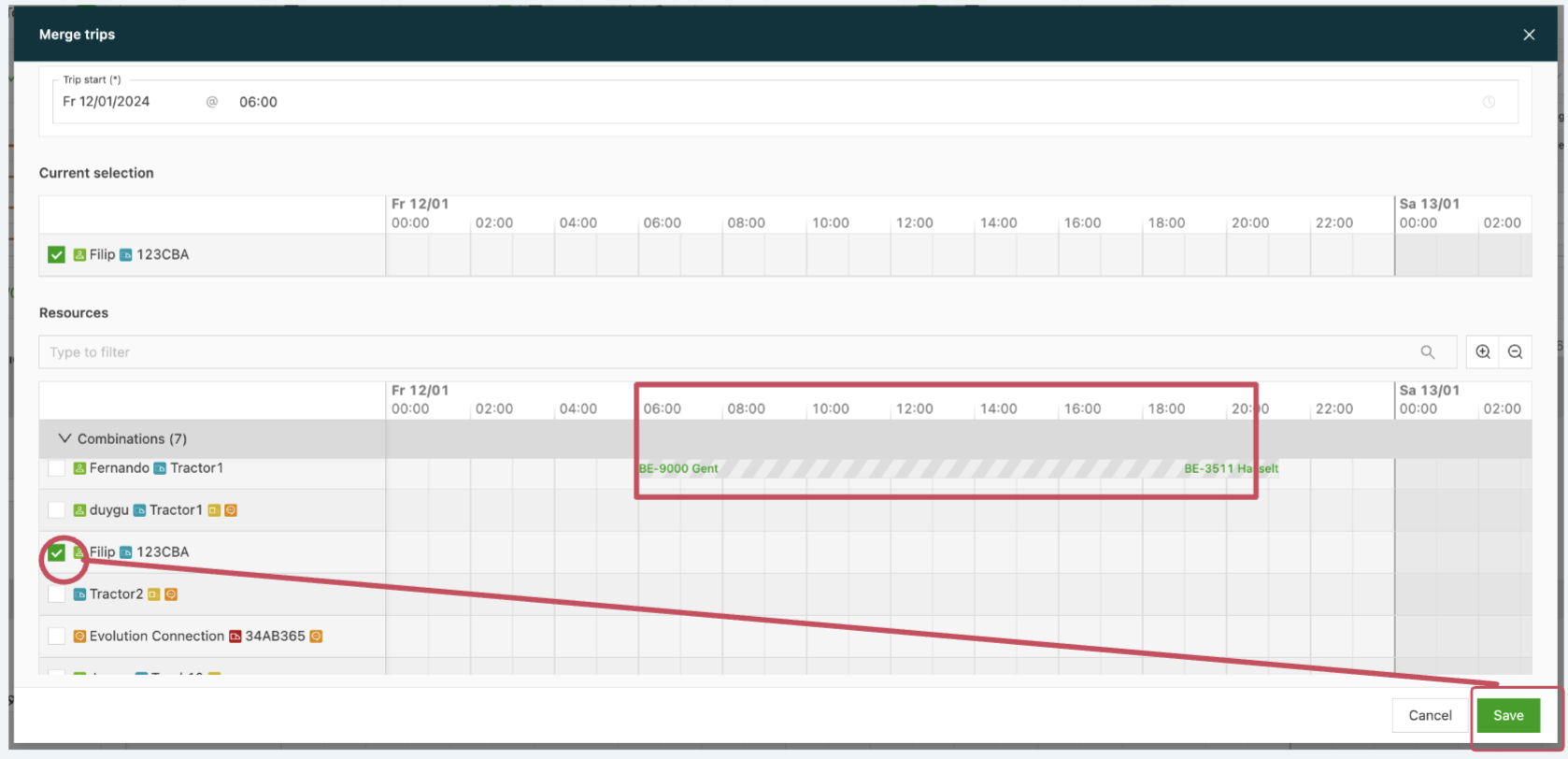
- Define resources and save: Select the resources associated with the load and save the selection.
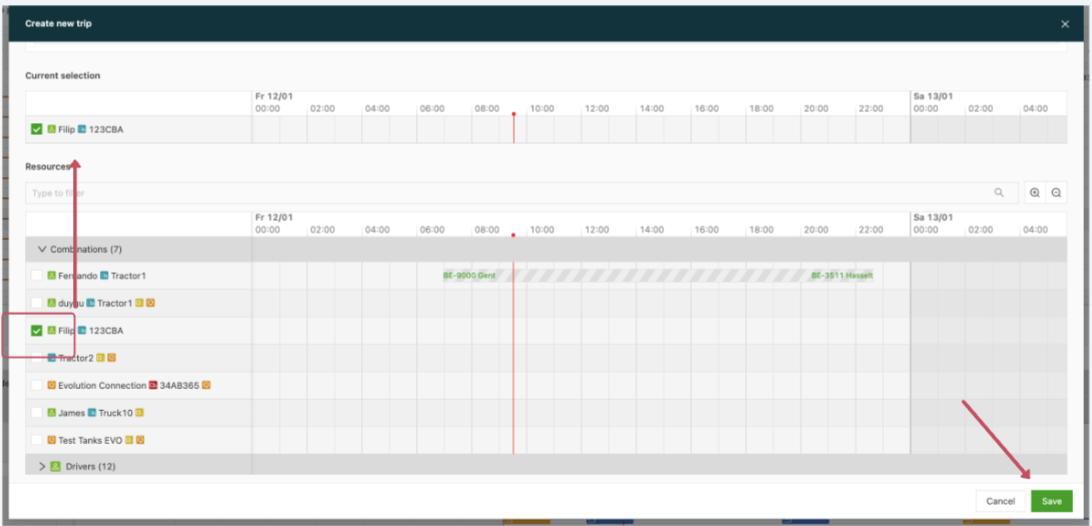
**Note:** If a resource (combination) is already in use for the selected day, the lined view appears with the locations as marked below.
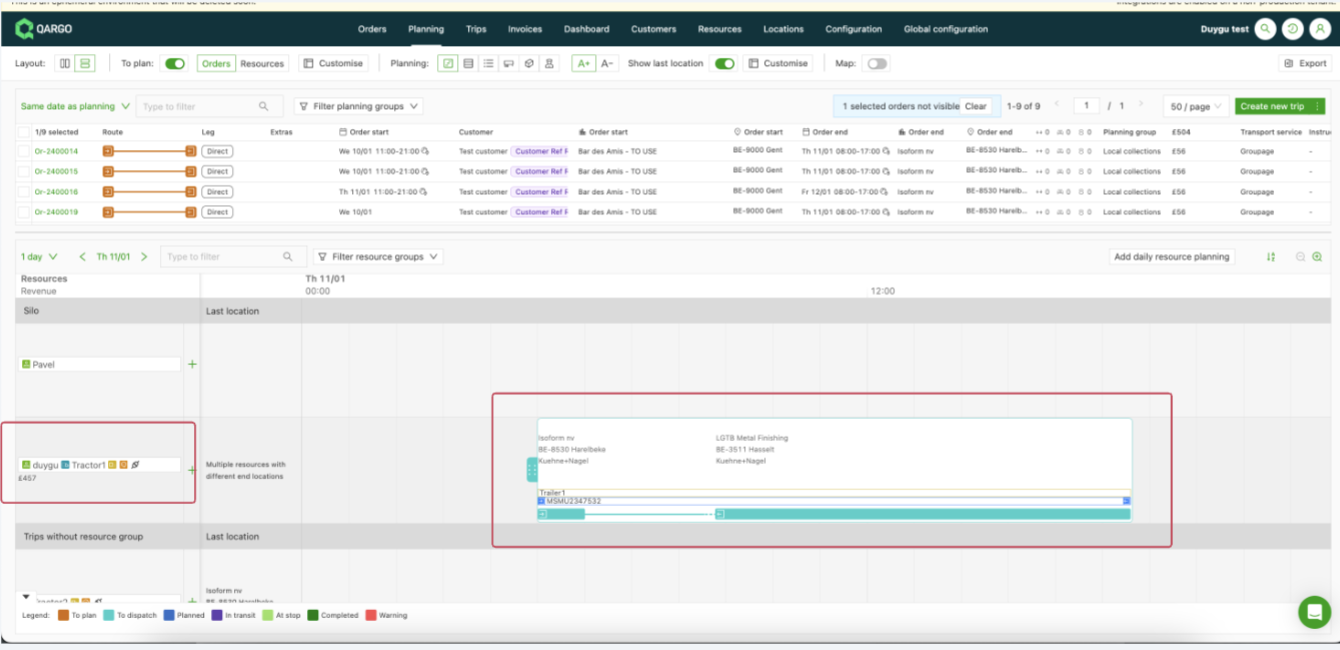
- View load on the board: Once the load is planned, it is visible in the board view, providing an organized overview.
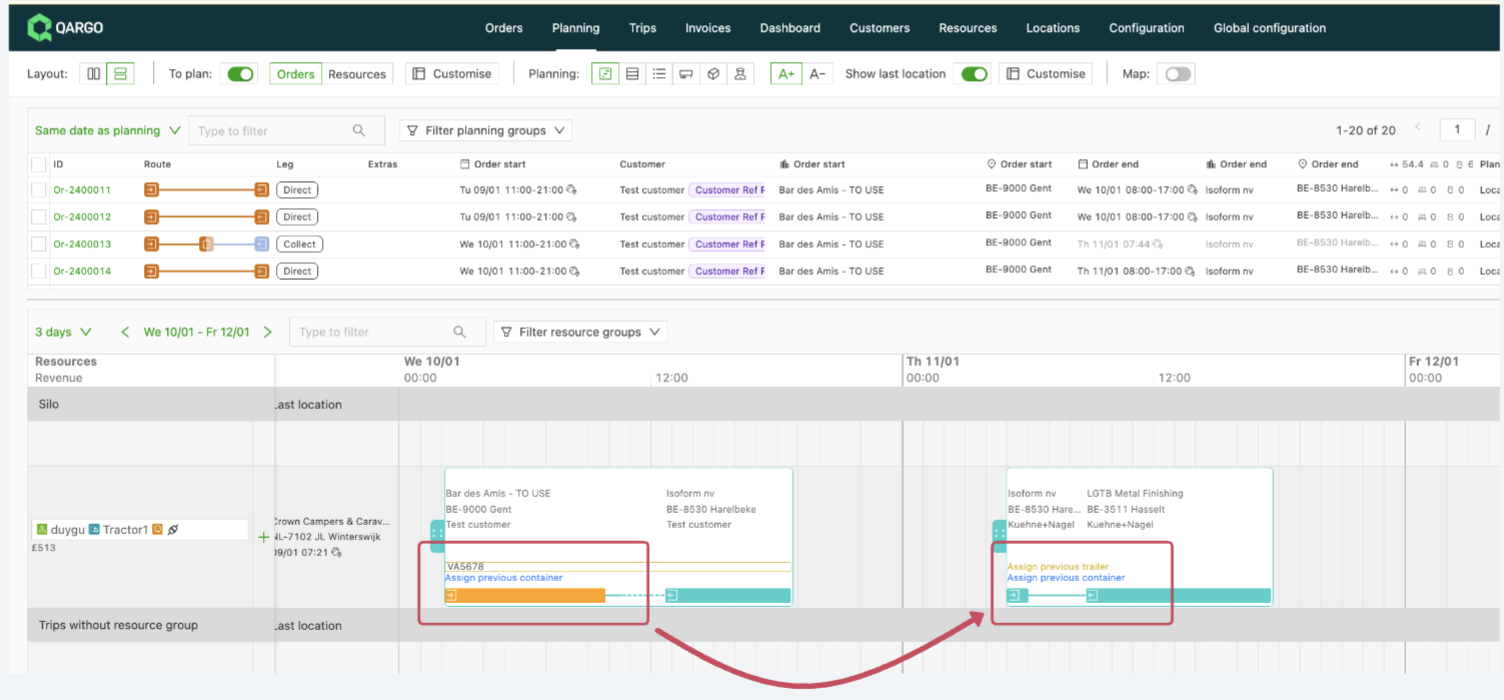
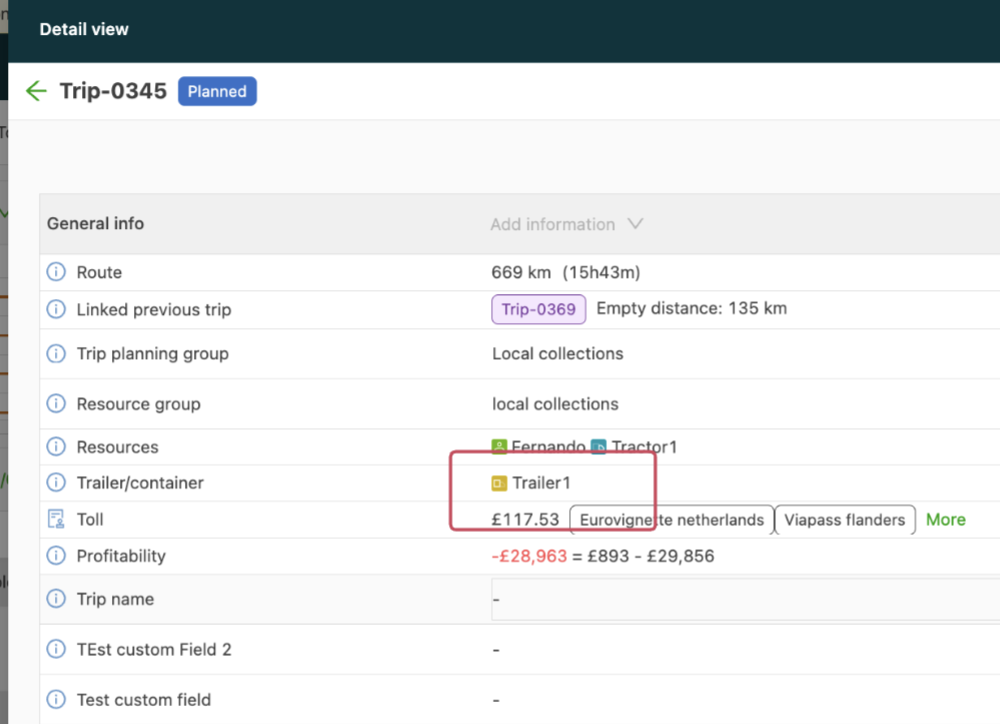
If a trailer or container was previously used for the same resource set the planning was made for, suggestions to add it to the load appear once the load is planned. To assign the same trailer or container, click the text to add the trailer to the new load:
- If the resource has already been added to the planning board via the “👉always on planning board toggle” or via the resources page in 👉planning, the specific order can also be dragged to the resource’s line to plan a load.
Planning: “Next order” planning suggestions.
The new planning flow suggests optimal order combinations based on vehicle capacity and location, addressing challenges like high order volumes and resource compatibility to improve efficiency and reduce operational costs.
The planning flow provides suggestions based on the available capacity in vehicles and planned locations. The suggestions are available in two directions:
-
Planning → to plan: open the stop actions button, go to ‘Find nearby’ and choose either pickup or delivery within one of the given distances.
-
To plan → planning: select 1 row in the to plan table, then click the ‘Find nearby loads’ dropdown to filter the planning view on a given distance from the pickup or delivery location of the selected to plan order.
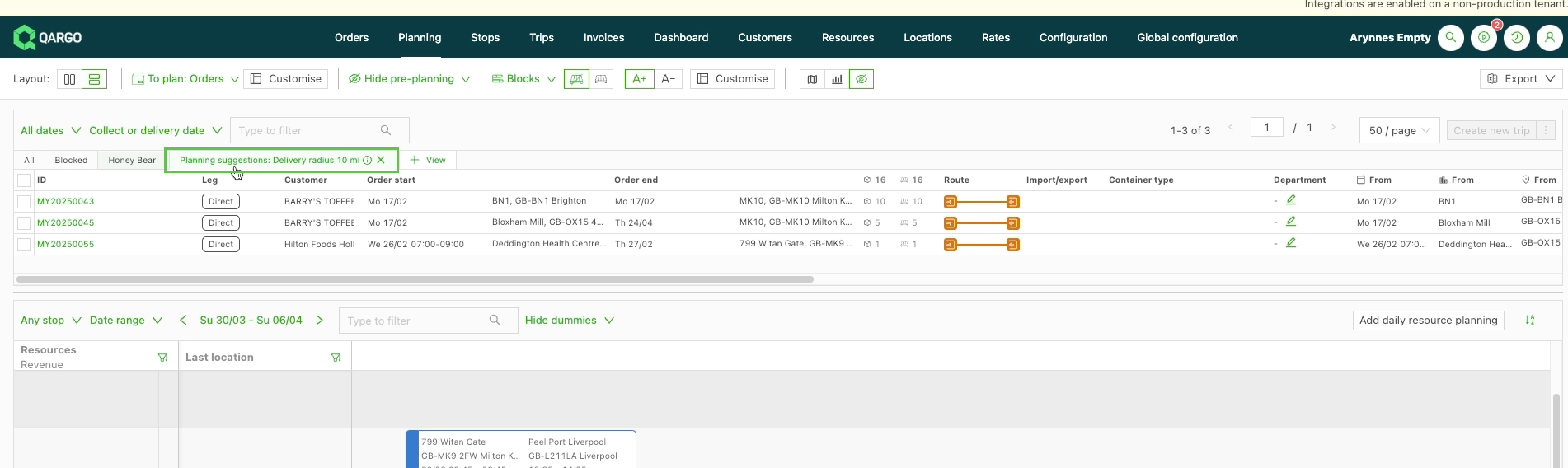
Learn more about ‘Next order’ planning here.
Planning a time window.
If the 👉time window on the first stop in the order is enforced, the load is planned taking the enforced time into consideration. An ‘Enforced time’ icon (lock) appears under the order start/end details in planning:
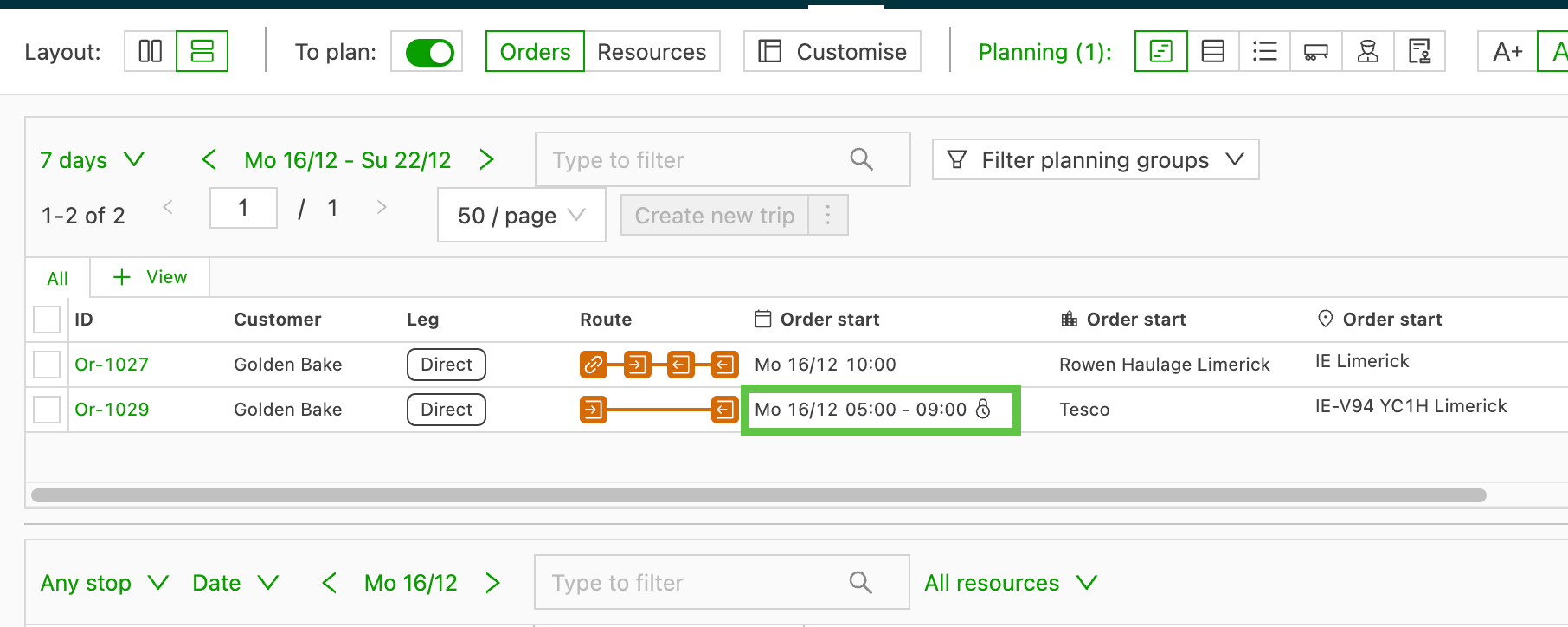
-
If the load is planned outside of the enforced time, the load defaults to the planned time.
- For example: if an order has an enforced time window for pickup, the order is automatically moved to the start time of the enforced time window, regardless of the hour at which it is dropped in the planning.
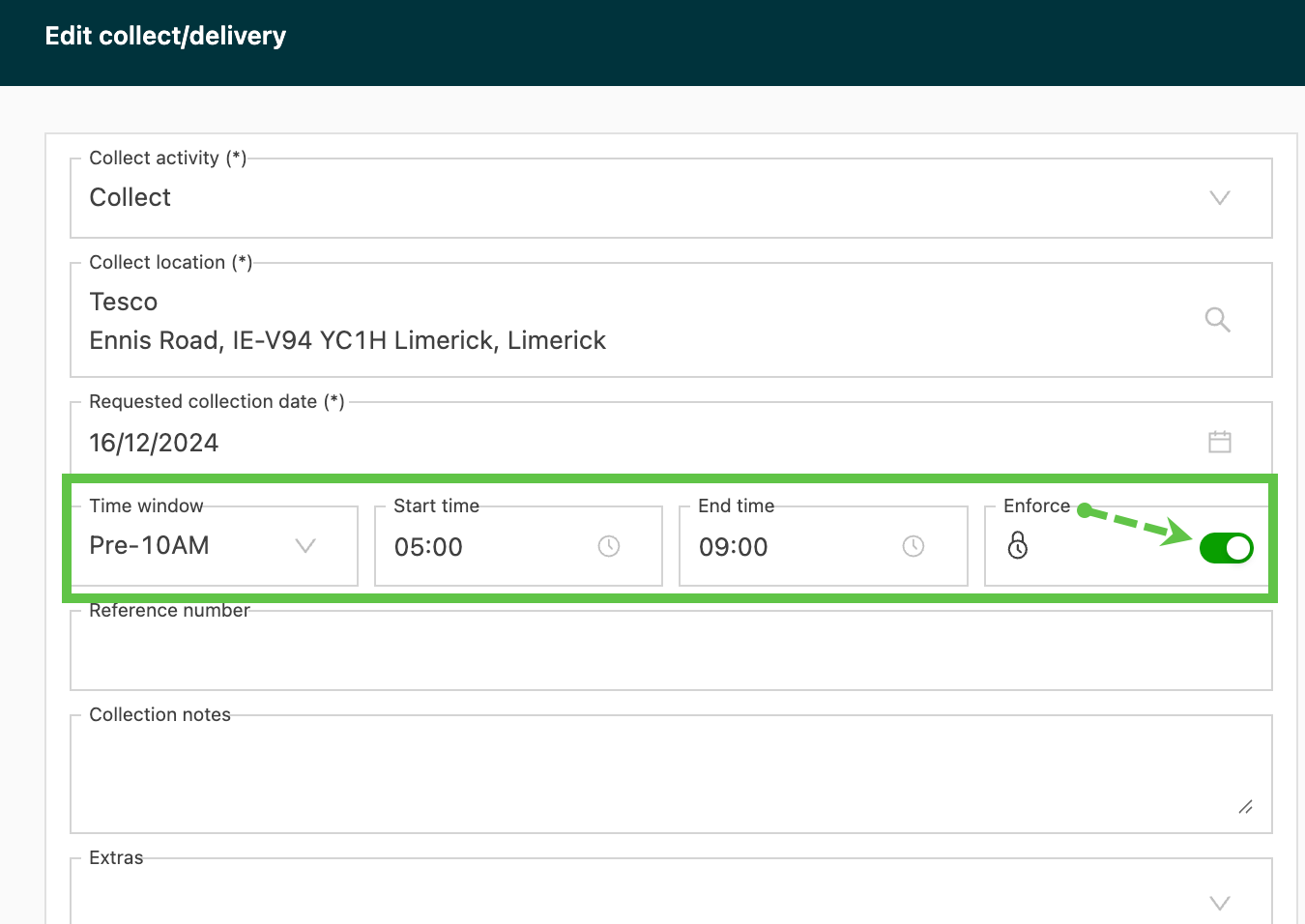
What a time window violation means
A violation appears when a planned stop doesn’t fit inside its time window. It shows as a red or orange warning on the planning board.
When it happens: The first stop fits its time window, but a later stop can’t make its enforced time. This often happens on loads with several stops, or when the delivery is the stop with the enforced time.
How enforced times work on each stop:
- First stop (for example, the pickup): Qargo locks the planned time to the time window.
- Later stops (for example, deliveries or unloads): These can still be planned outside the time window. Qargo allows it but flags the stop with a warning.
Click the stop to open it. It shows the violation, along with the planned time outside of the window.
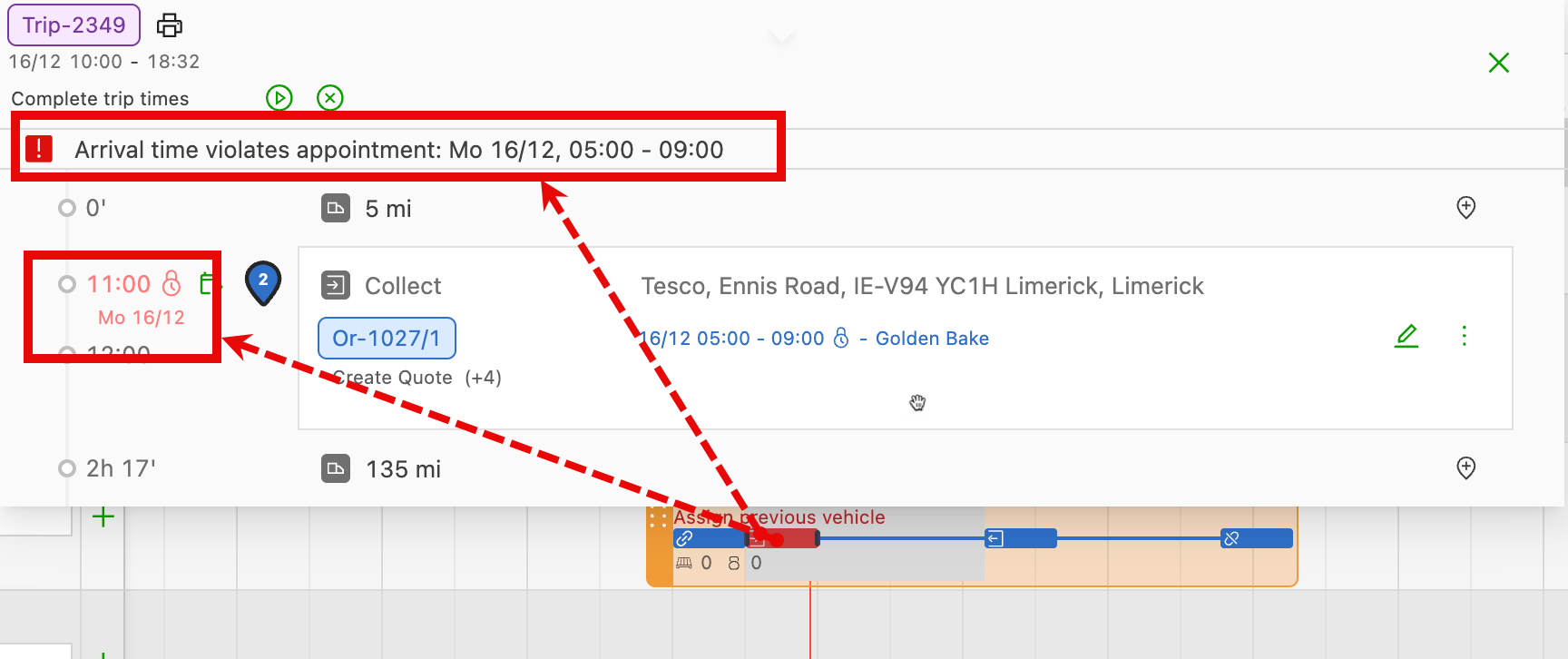
The arrival time and duration can be adjusted with the calendar icon next to the estimated hours. The options to modify the time include:
- Set the arrival time (manually set)
- Calculate the arrival time
- Enforce the time window
In addition to the above, the duration of the stops can also be adjusted on the planning board by dragging the route bar left or right. If changing the stop duration creates an issue with an enforced time window on another stop, the stop shows a warning by turning orange. The stop can be readjusted to bring the load back into compliance.
Planning by adding resources to the order
- A load can also be planned by adding resources to the order as below:
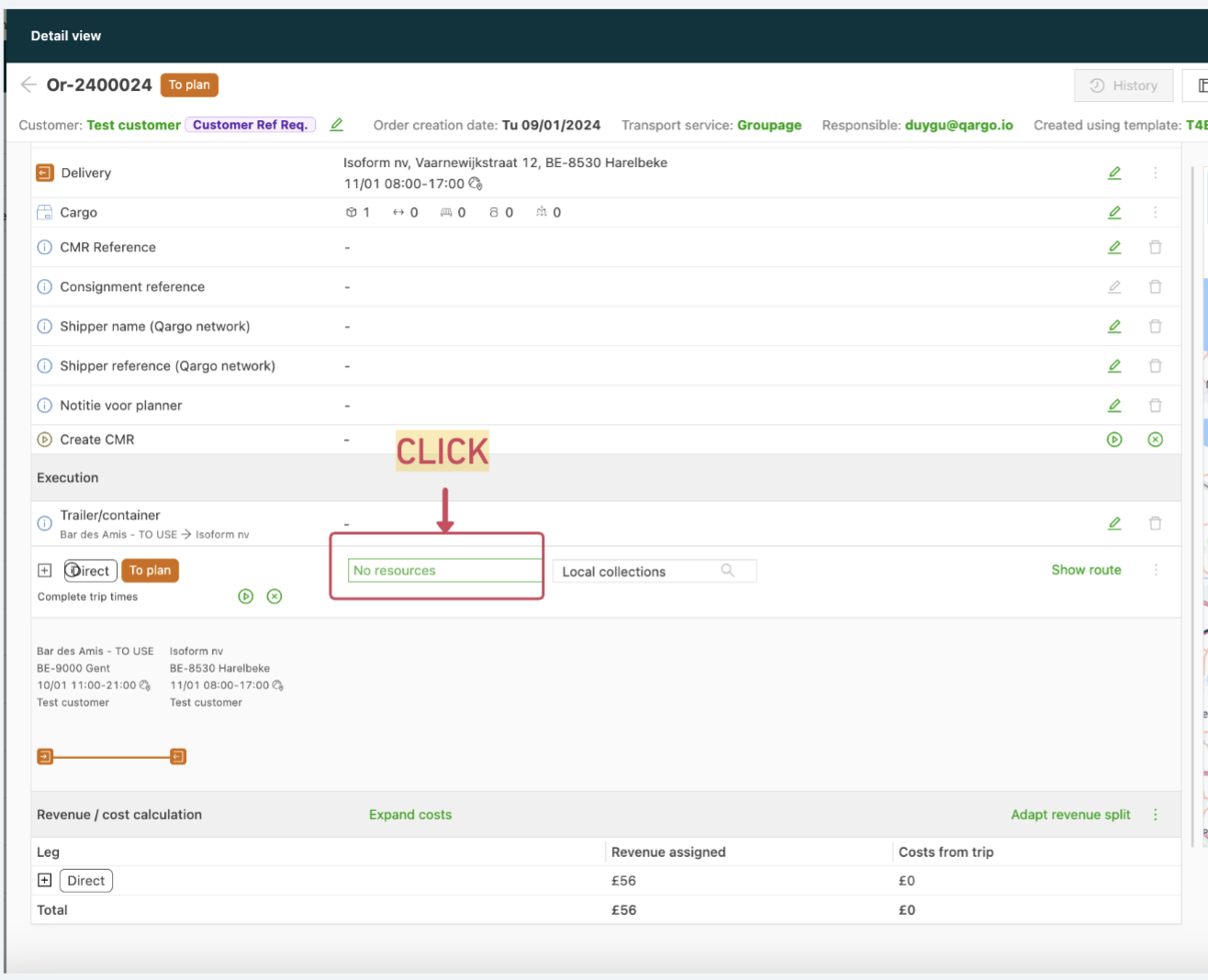
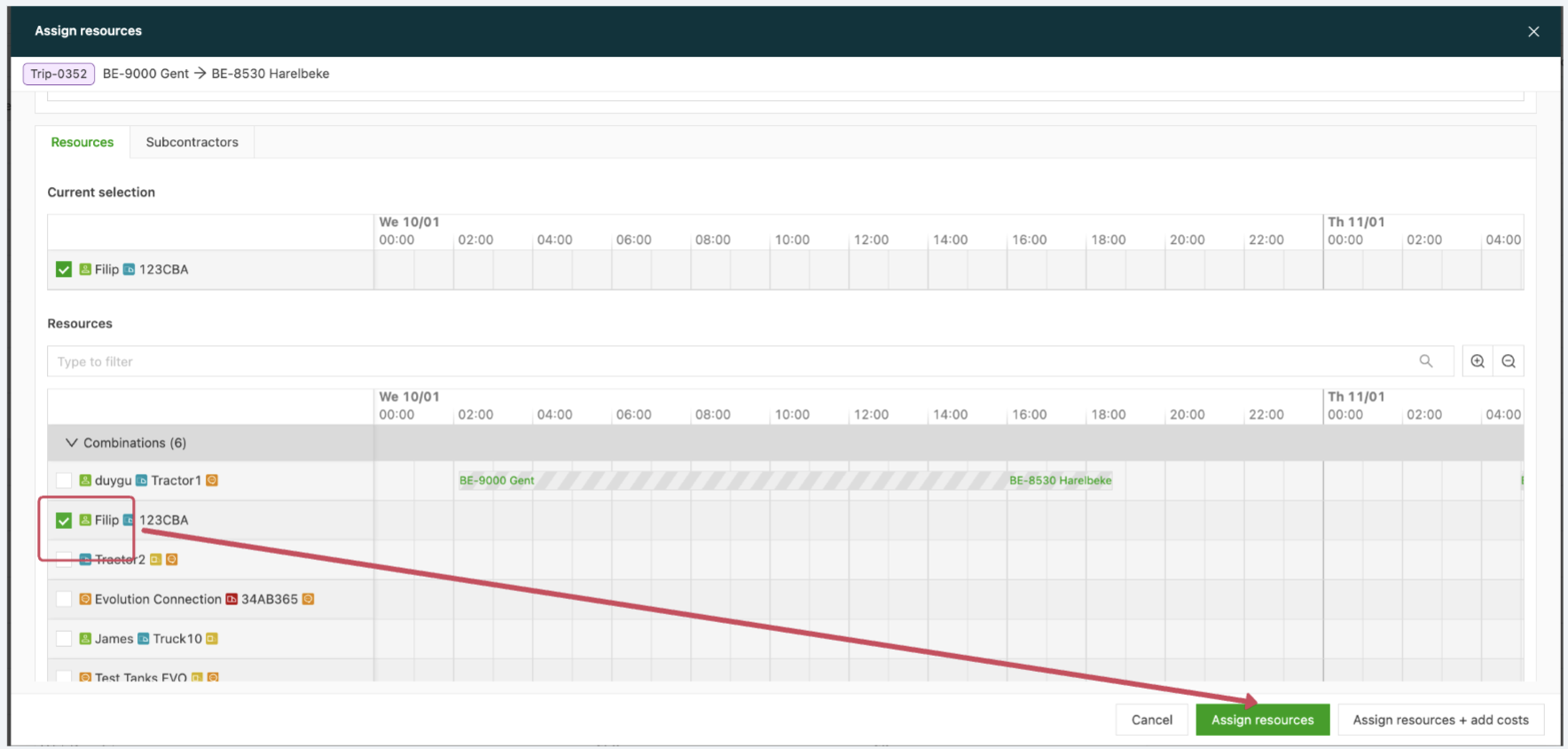
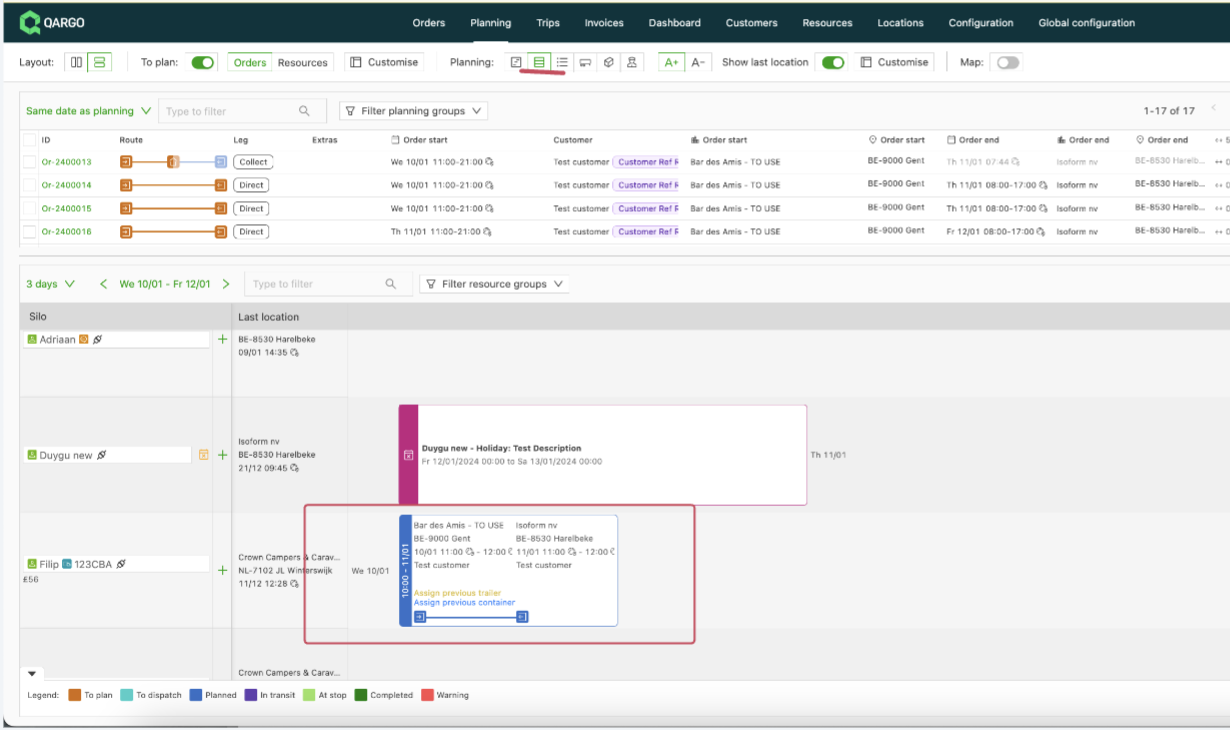
- It can then be viewed in the planning by navigating to the planning board:
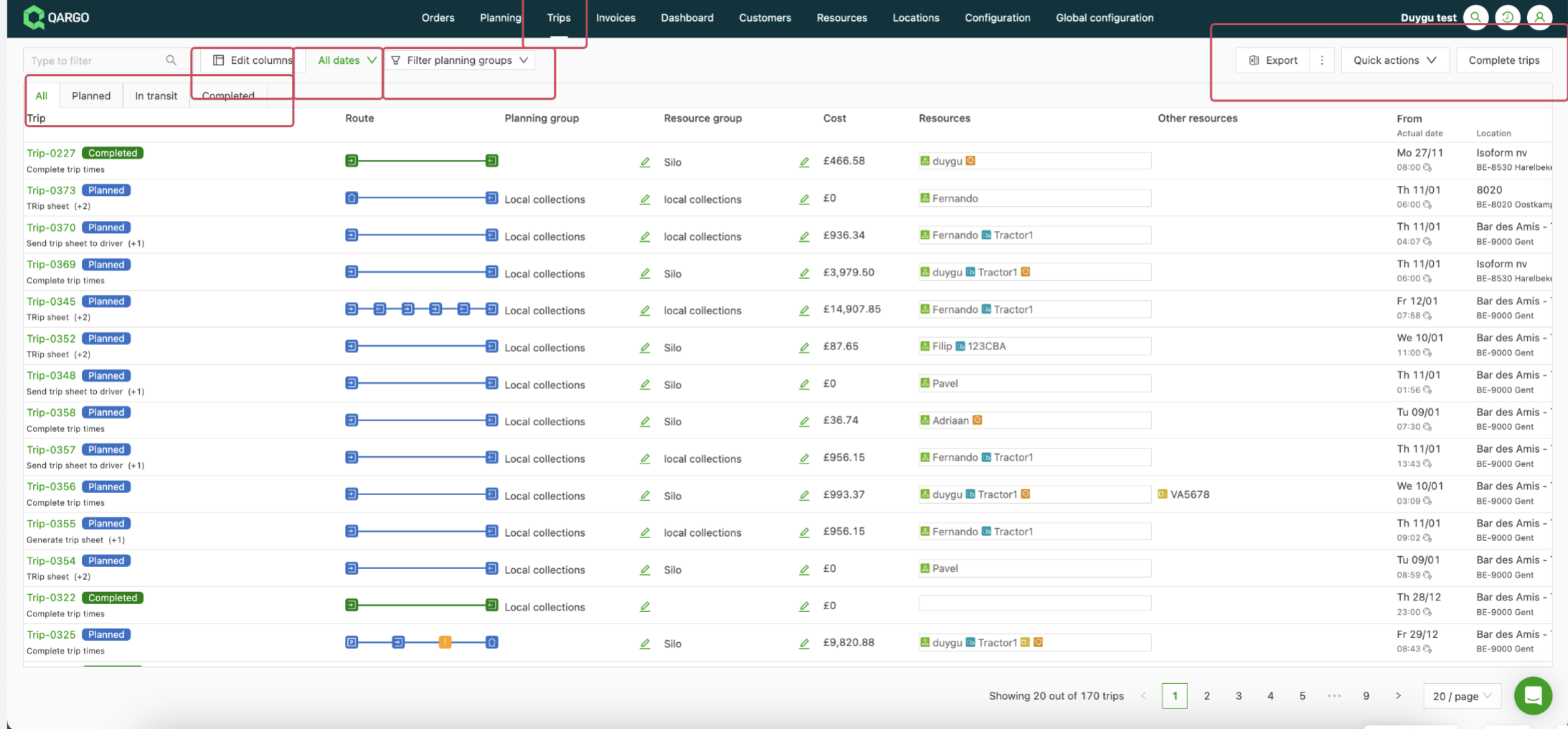
- All planned loads are then also visible in a list view under the “Loads” column, where it is possible to apply filters, 👉customize columns and 👉export data.
- For planning multiple orders in 1 load (groupage): 👉Planning loads in bulk (groupage)
- For planning deadheads 👉Deadheads
-
Generating load documents: 👉Generating load documents
-
Dispatching loads to the drivers: 👉Dispatching the loads