
Rates – Add time windows
This article explains how to set up different time window options that can then be used on stop activities in orders.
Table of contents
Configuring time windows allows users to quickly add predetermined time options to an order. If the time window is activated on the transportation service selected when creating the order, the options are available from the dropdown.
To set up or modify time windows, go to Rates > Order input > Stop options > Time window.
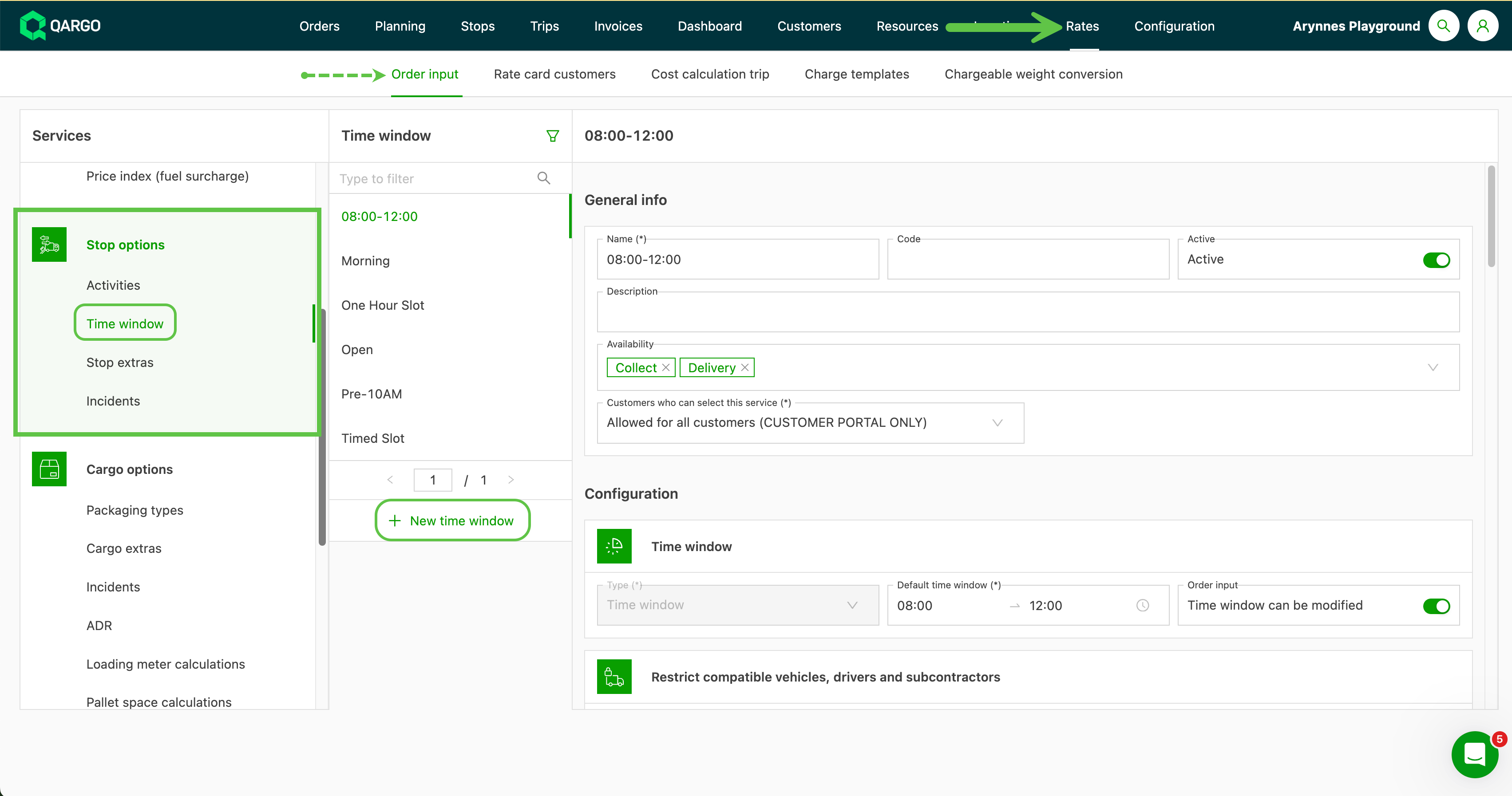
- Click New time window to add a new time window.
- Click an existing time window to edit it.
Examples of frequently used options include:
- Full day, e.g., between 8 am and 4 pm
- Morning, between 8 am and 1 pm
- Appointment between set times, or at a fixed time.
When delivery time windows are enforced, the system switches to calculating the route starting from the delivery time. This may result in longer calculated durations, potentially causing inaccuracies in cost estimates.
General info
-
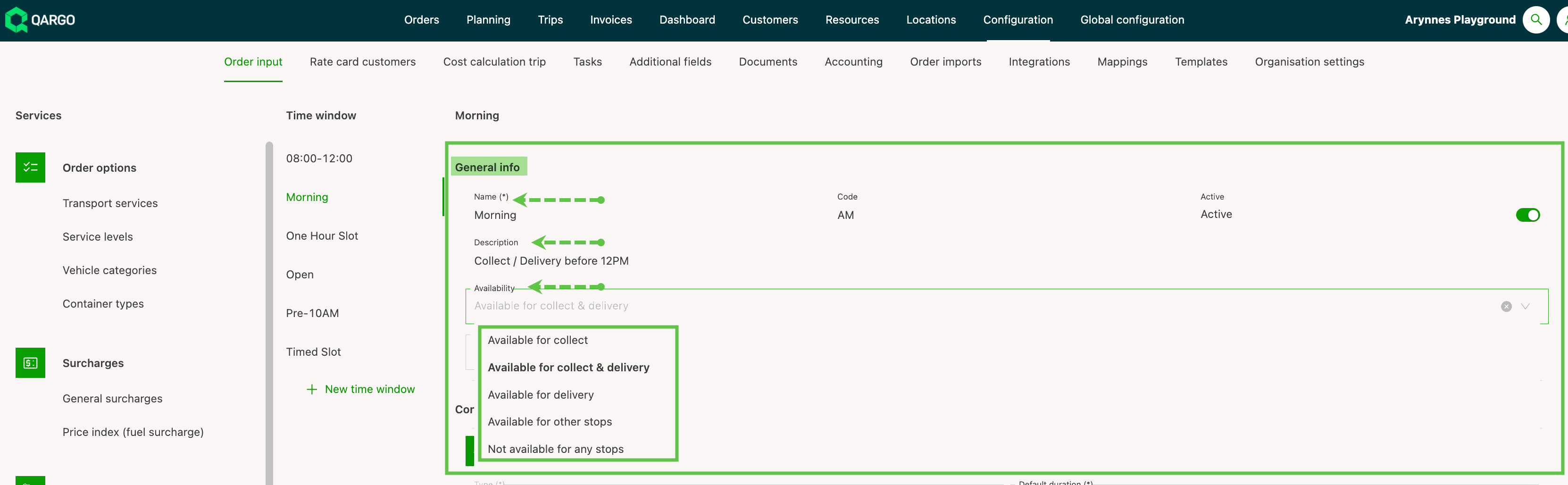
Name and description: Add a name and a description of how or when this option can be used.
-
Availability: Choose in the dropdown menu when this option should be available. The options are:
- Available for pickup: the option only shows on pickup stops
- Available for pickup & delivery: the option shows on both pickup and delivery stops
- Available for delivery: the option only shows on delivery stops
- Available for other stops: the option shows if other stops are added, for instance border crossings, cleaning appointments, etc.
- Not available for any stops: prevents the option from being shown as an option.
-
Active: Toggle this off when the service is no longer used. It then no longer appears as an option when creating an order.
💡 Adding the start and end time to the name of the time window can make it easily recognizable.
Configuration
Time window
This section configures the start and end times used for the time window. There are 3 types of time windows.
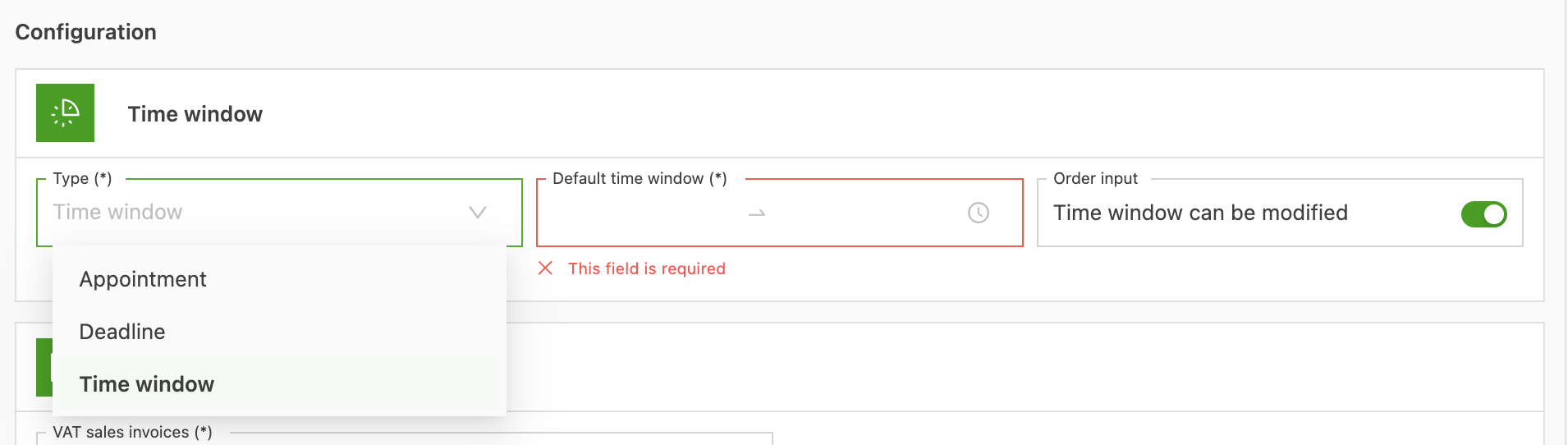
- Time window: The selected time window determines the Start / end time, when the stop activity can Start. When an order is created, the start and end time are filled in automatically.
- Appointment: Set the duration of the appointment window by choosing the default duration for the appointment. To use this option to set a fixed time, enter ‘00.00’ in the Default duration. This allows users to enter the specific time when building the order.
- Deadline: Set the deadline of the appointment to a fixed time by which the order should be delivered or picked up.
List of transportation services
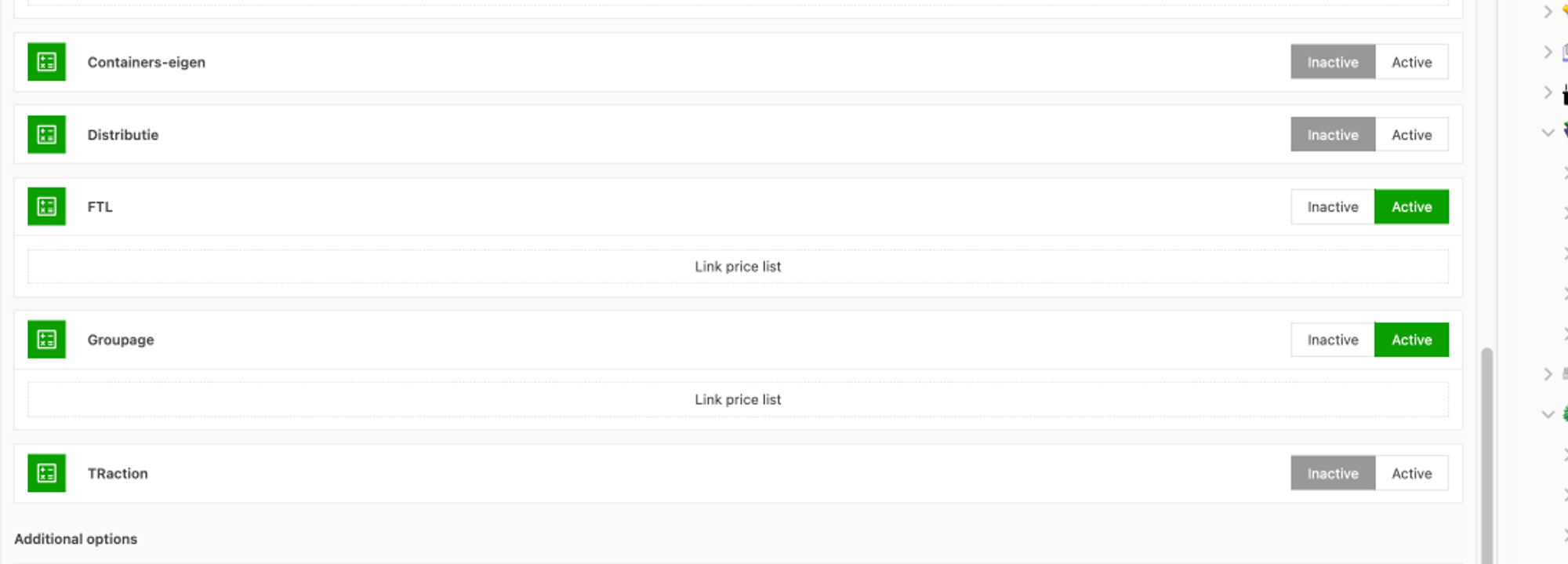
The time window can be assigned to all or just a selection of the transportation services the company provides. To define which transportation service the time window applies to, click Active to select it; multiple services can be selected. Only the active options for the selected transportation service are visible when creating an order.
Adding charges
If additional charges apply based on the selected time window, these can be configured as a charge template, which can then be applied automatically.
Click Add template to create a new charge, or click the edit icon (pen) to modify an existing charge.
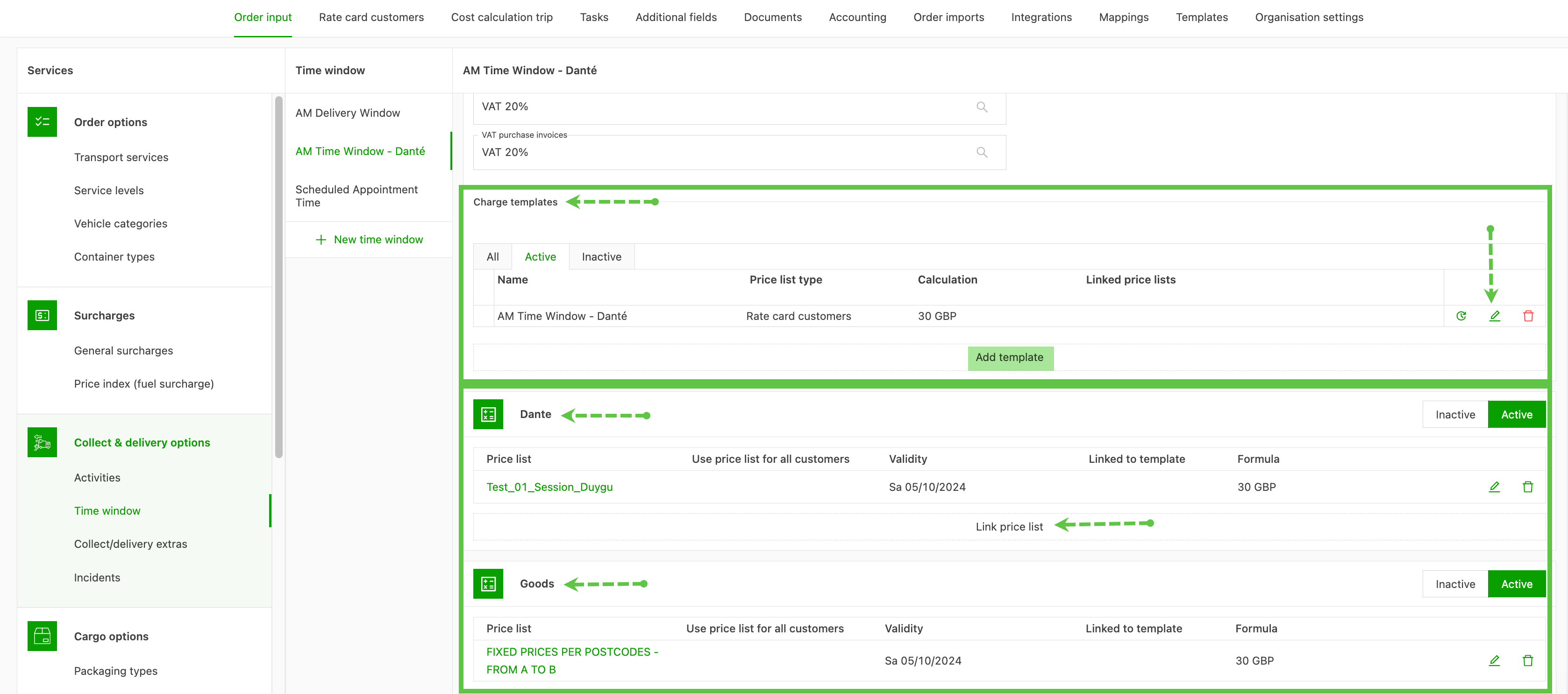
After the price has been configured, the time window can be linked to the rate cards under the transportation services.
Time window violations
Enforcing delivery time windows ensures strict adherence to the schedule but affects route calculation, as loads are calculated starting from the delivery time.
Non-enforced time windows
When a time window is created and used on an order, a violation shows if the order is planned or completed outside the specified window.
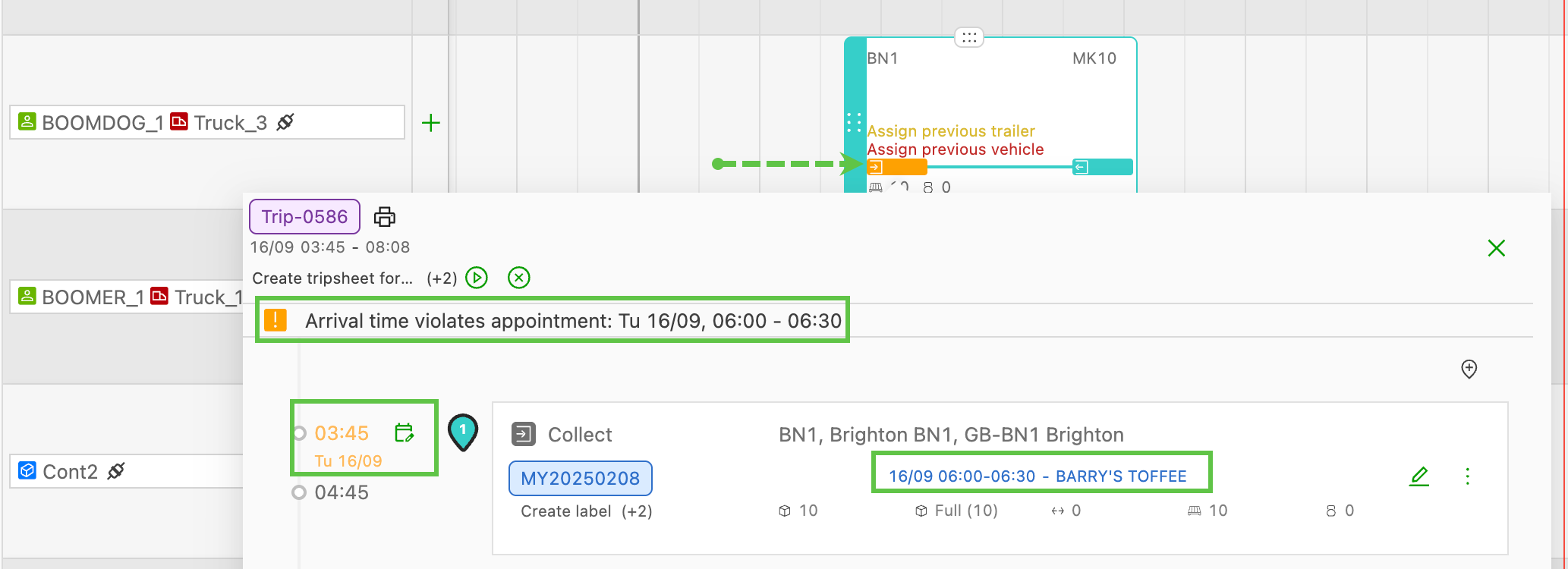
Time windows that are not enforced have a built-in tolerance before and after arrival times. Stops completed within this tolerance do not incur a violation.
- Before the specified arrival time: up to 1 hour.
- After the specified arrival time: up to 30 minutes
Example:
The order has a specified pickup stop time window between 6:00 and 6:30 am.
Stop completes before the time window
If the stop completes outside the 1-hour tolerance, a violation is shown; however, within the 1 hour before the stop time, no violation is incurred.
Stop completes after the time window
If the stop completes outside the 30-minute tolerance, a violation is shown; however, within the 30 minutes after the stop time, no violation is incurred.
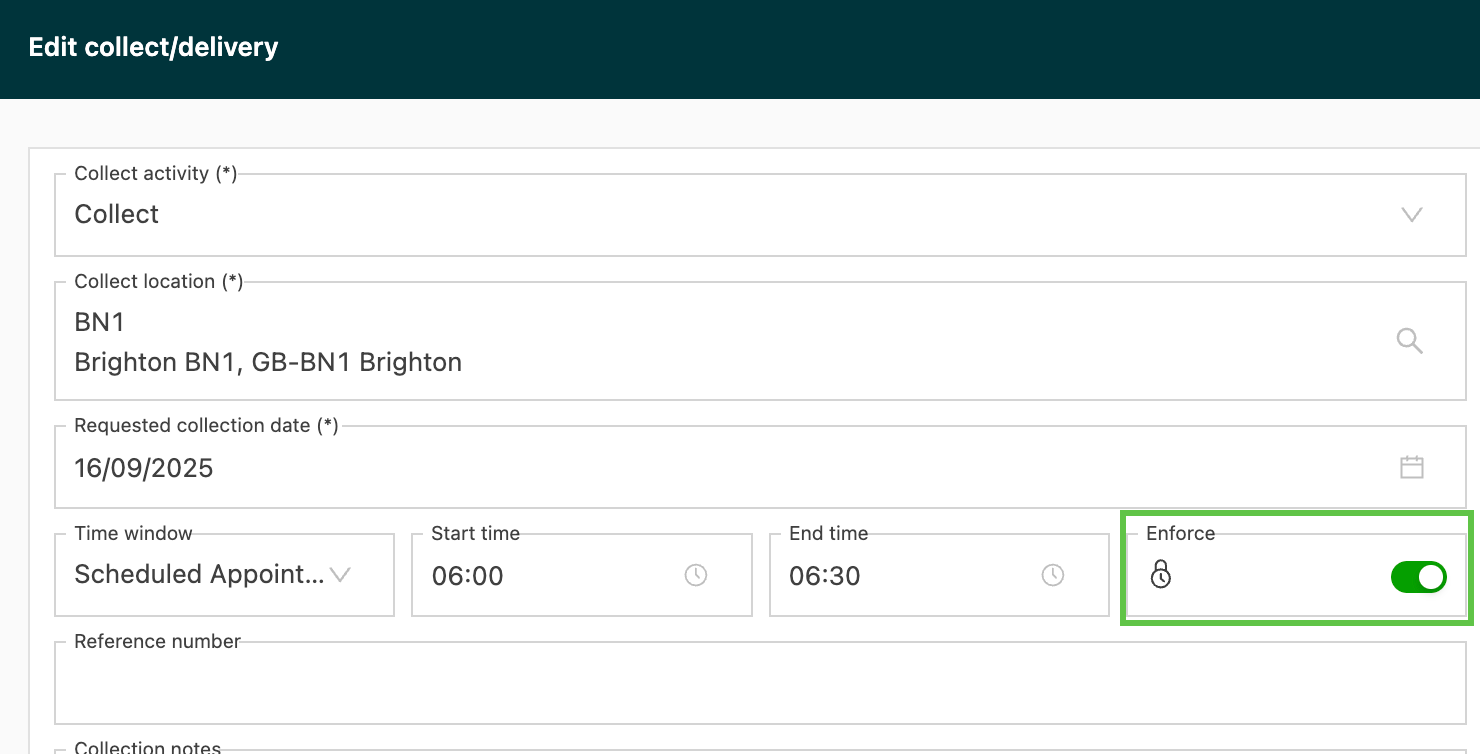
- Time windows can be enforced in the order.
-
Enforced time windows cannot be planned outside the specified time.
- When an attempt is made to plan outside the time, the stop automatically moves to the enforced time window.
-
A violation is displayed if part of the load causes one of the time windows to be missed.
Customizing delivery receipts to include time windows
To include delivery time windows in delivery receipts, follow these steps:
- Open the delivery receipt template in the Qargo application.
- Locate the field for the requested delivery date.
- After the requested delivery date syntax, add a space and insert the time window field by selecting
##{{consignment > delivery stop > time window}}.
This ensures that time ranges, such as fixed-time deliveries (e.g., “09:00–09:00”), are clearly communicated to stakeholders.