Configuration: transportation services
Setup in Rates: define the freight type (goods/containers/traction), configure time windows and planning networks, and set revenue splits and defaults
Table of contents
Introduction
When creating an order, choose the transportation service the order is linked to. The transportation services a company offers are set up in Rates. Examples include groupage, full loads and exceptional transportation.

Create a transportation service
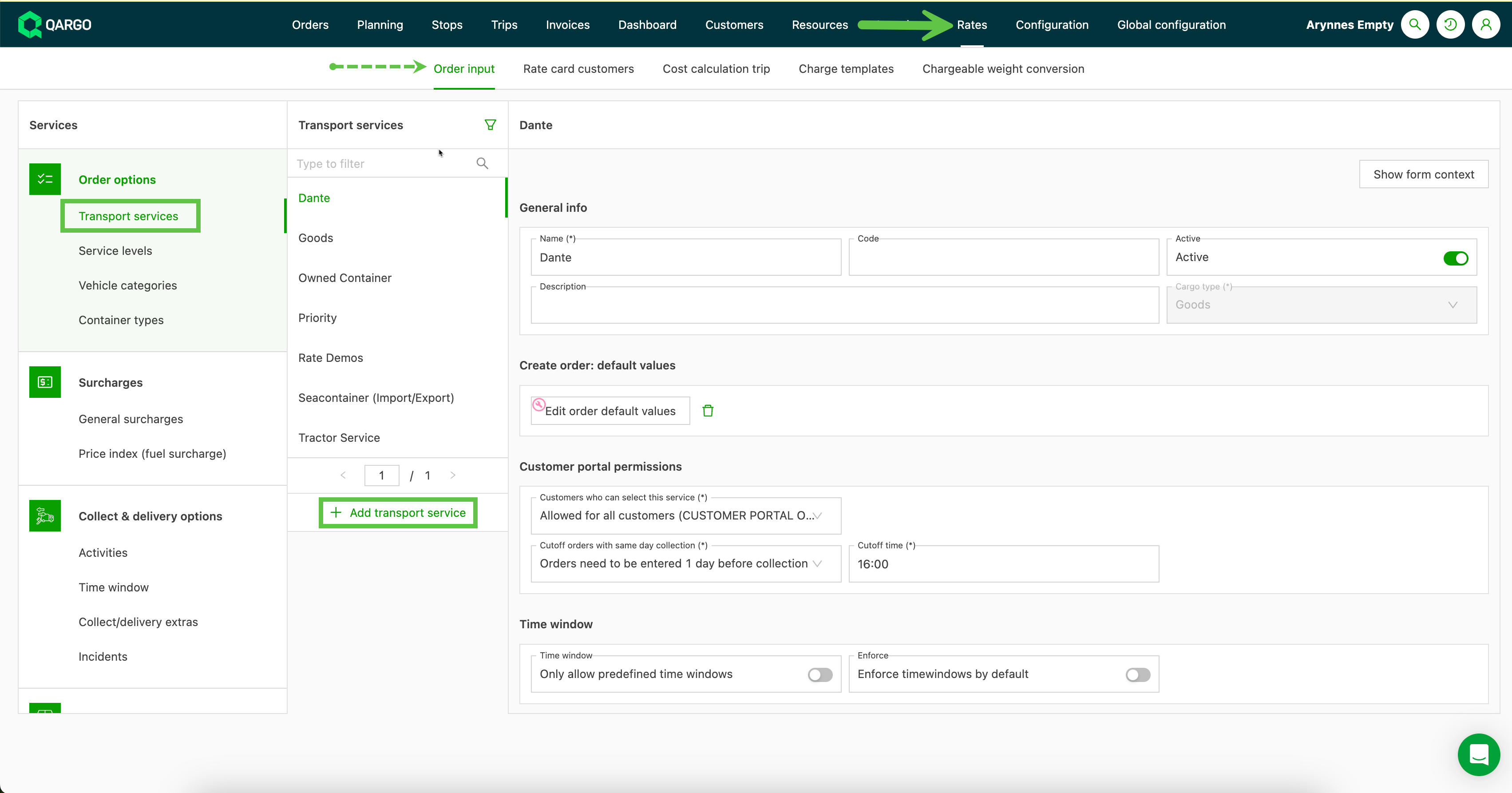
To add a transportation service, navigate to Rates in the main menu. Select Order input from the submenu. In the left-hand menu, select Transportation services.
General info
- Click + Add transportation service.
- Complete at least the mandatory fields, such as Name.
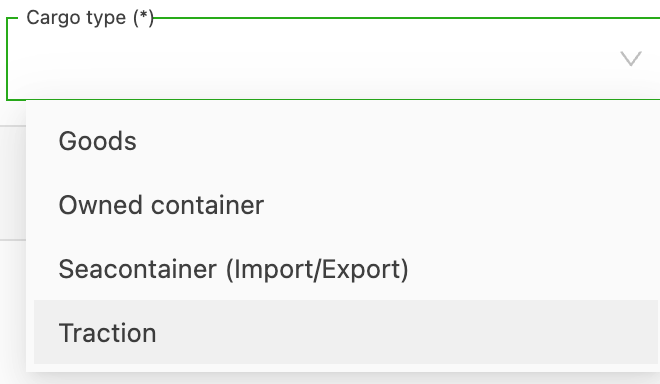
Select the Freight type. The following options are available:
- Goods: Use this for all types of transportation other than containers and traction-only transportation.
- Owned container: Use this for owned container transportation, where the containers are under the control of the transportation company.
- Seacontainer (import/export): Use this for sea container (import/export) transportation. These orders involve picking up containers (either full or empty) on behalf of a client and dropping them off (either full or empty) at predetermined locations.
- Traction: Use this when transporting customers’ trailers. In this scenario, the company only provides the tractor and driver.
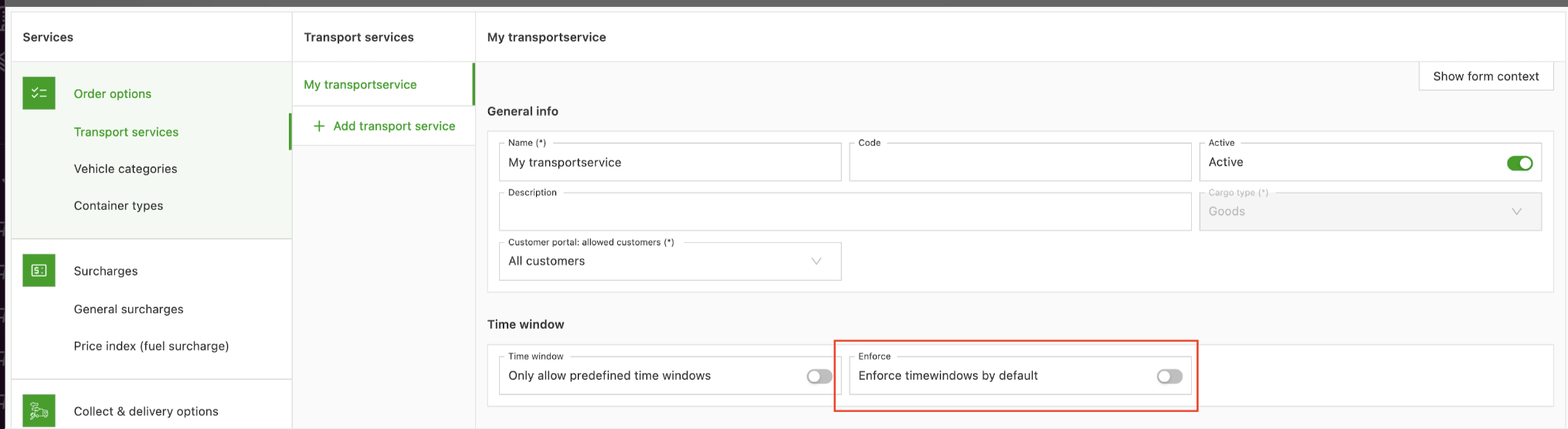
When configuring a transportation service level, select whether the Enforce time windows toggle is enabled by default when a time window is selected.
Planning
In the Planning category, choose a transportation network from the dropdown menu. This can be used to automatically add a stop for this type of service.
Example:
With groupage, the company can opt to always unload and reload at its terminal. When this transportation service is then selected, there is no need to manually add the unloading and loading at the terminal to the order each time.
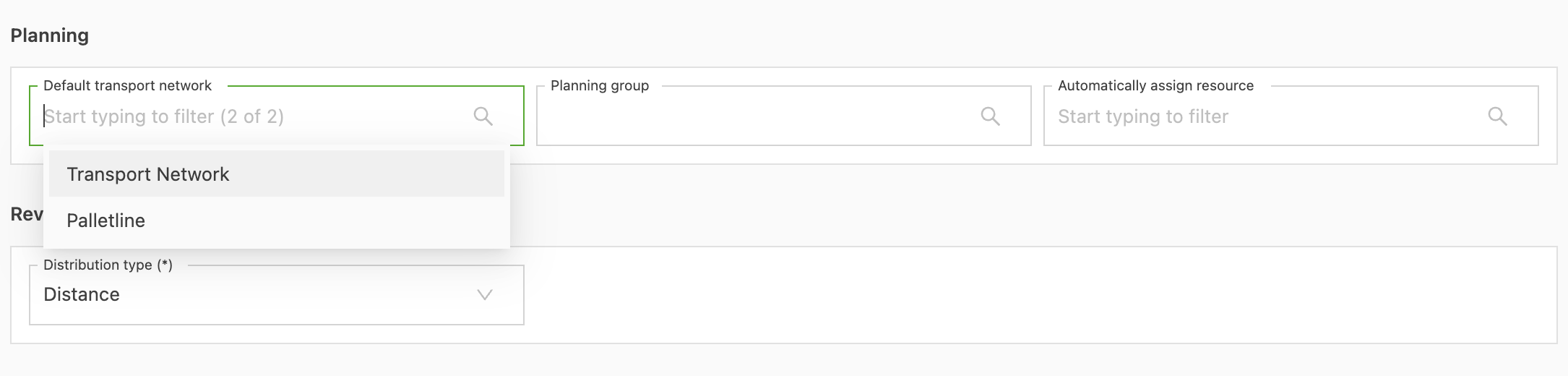
Create a transportation network via Location > Transport networks.
Price list info
-
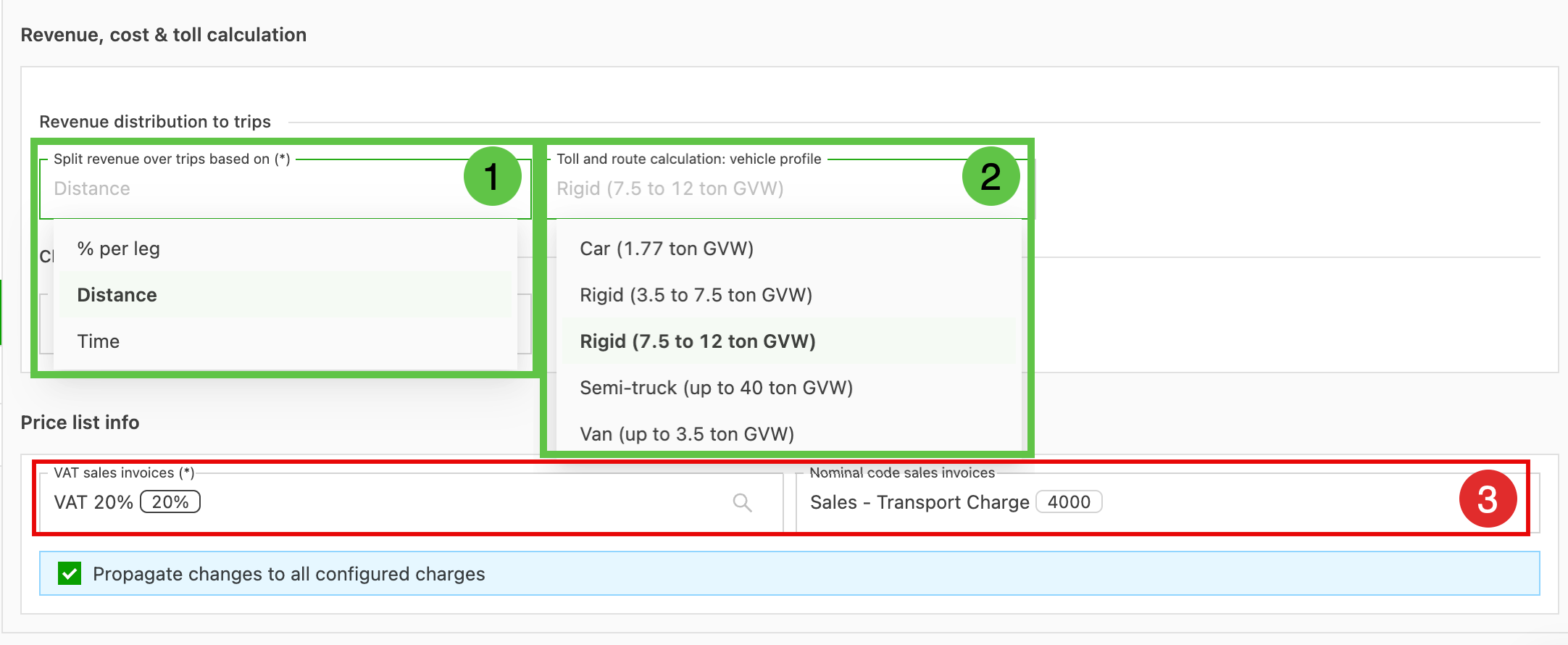
Split revenue over loads: Select how revenue is split if multiple resources are involved in the load. The options are:
- % of leg: Set a default percentage for each leg (pickup/delivery).
- Distance: Based on the distance completed per resource, i.e., load = 100 m and driver A completes 20 m = 20%.
- Time: Uses planned timestamps to distribute revenue across the loads according to how long each load takes, i.e., pickup leg = 50 minutes / delivery leg = 4 hours 50 minutes. The revenue is split proportionally based on these durations.
-
Select the default vehicle size used to calculate tolls and the route. If nothing is selected here, the default is RIGID (3.5 to 7.5 ton GVW).
-
Set the default tax rate and GL code for the sales invoice. Setting these here ensures invoice details are complete and ready for import into accounting software.
Using exceptions in revenue calculations
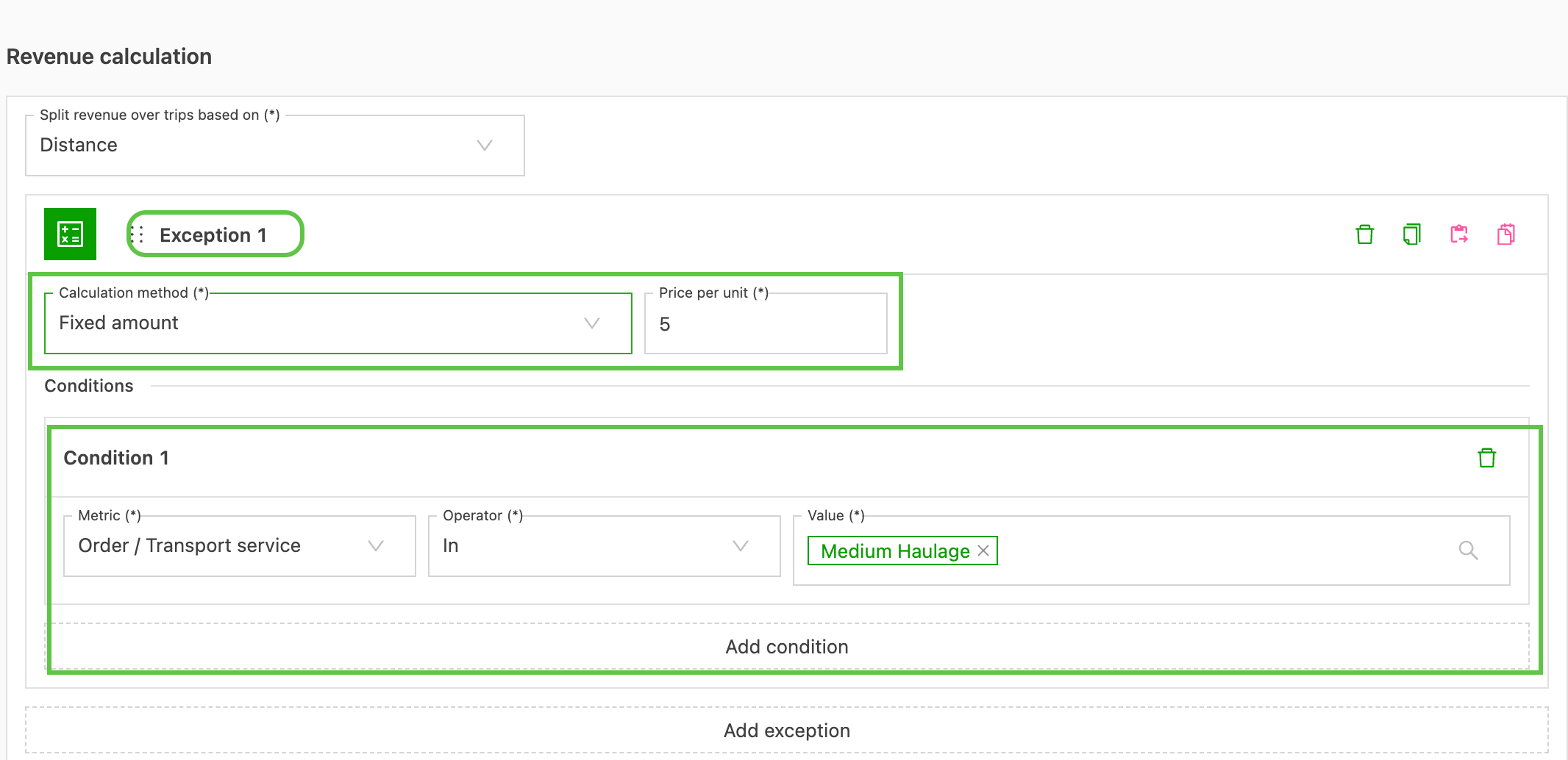
To offer more flexibility when determining revenue splits, add Exceptions to the split.
Similar to how rate cards are entered, the Exception uses conditions. These can be configured with specific criteria that determine when to apply additional charges or rules for adjusting revenue.