Export to Excel
Default data export options. Export records, including revenue and cost reports for orders and loads.
Table of contents
Data can be exported to Excel from various pages across the platform. Default export options are preconfigured and available to users across multiple roles.
- For default exports, choose to export all records shown on the list page or select specific records to include.
- In orders and loads, for a quick summary of revenue and cost, use the ‘Export revenue & cost report’ option. This automatically includes all order records.
Exporting data
-
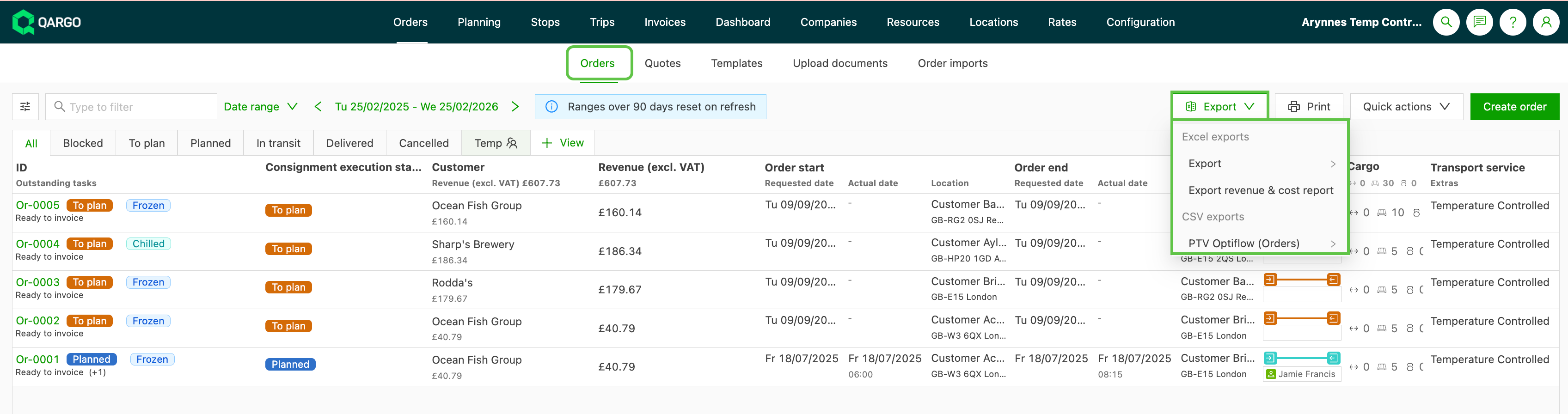
Click the ‘Export’ button where available.
-
Select the export option.
- Where default reports exist, there is an option to select all or by row.
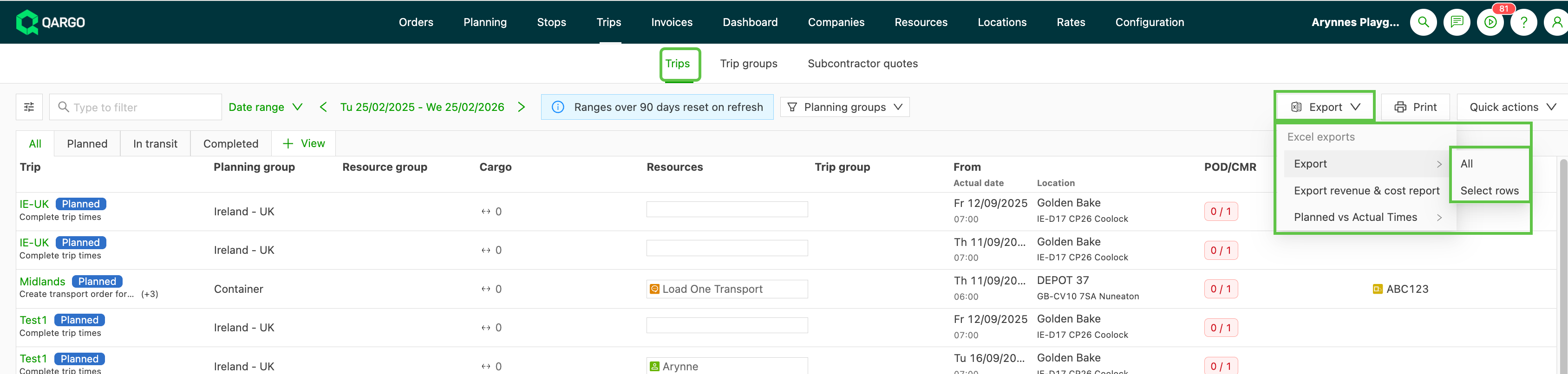
- Selecting all exports all the data that is visible in the list view to an Excel file.
Below is an example of the order export Excel file:
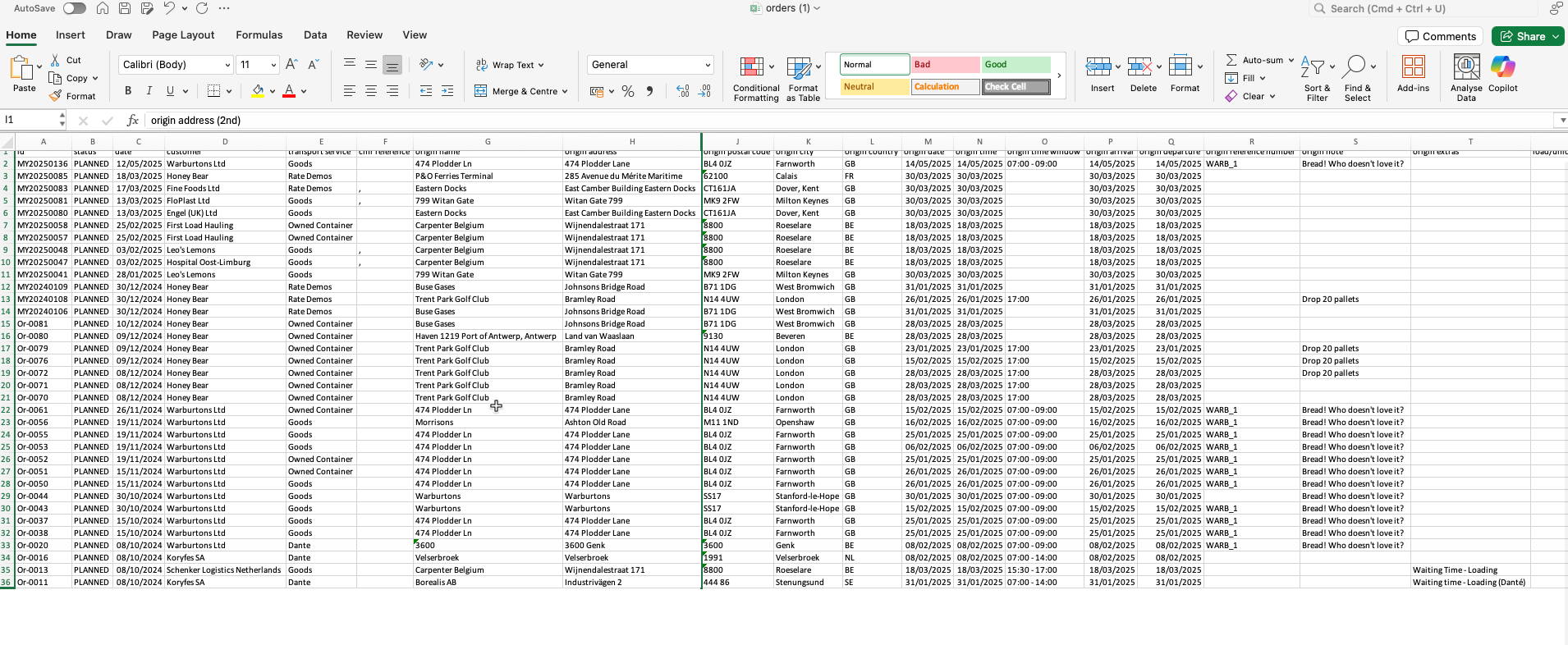
- Using Filters combined with the all option allows users to pull more granular data
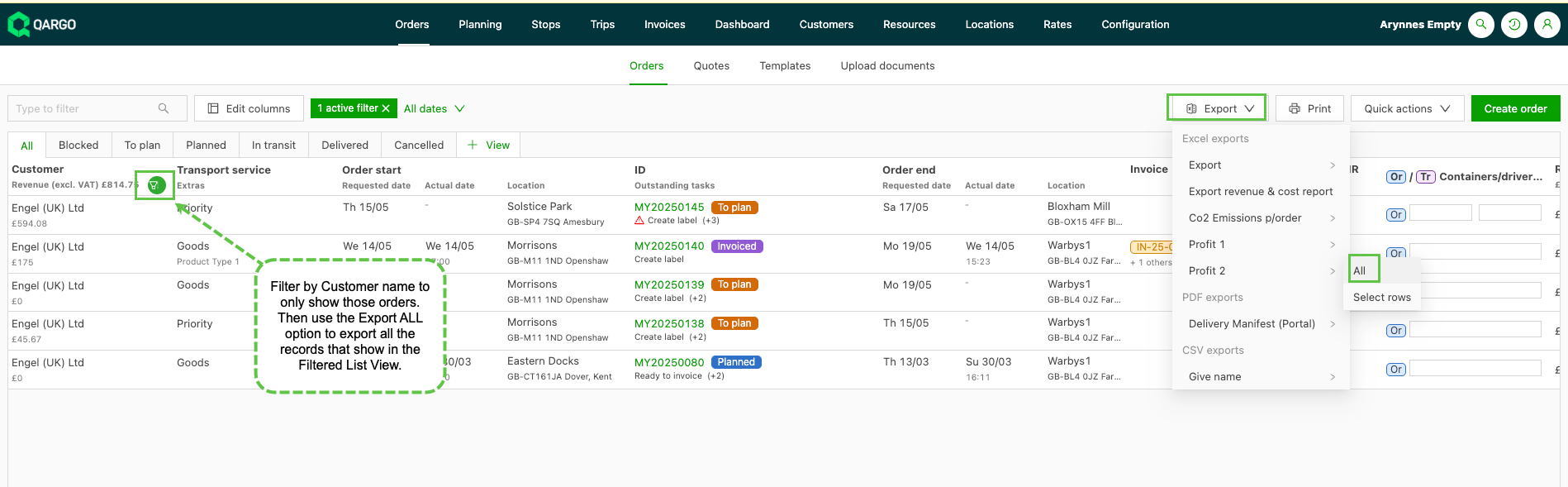
Export the orders cost and revenue report
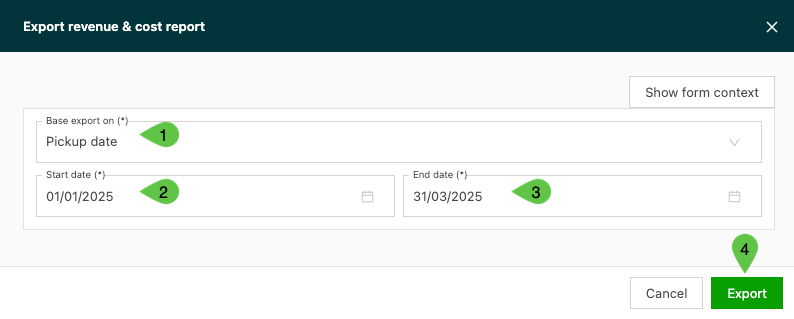
This export option provides an overview of costs and revenues for a specific time period. To export the data to Excel:
- Click ‘Export’
- Click ‘Export revenue & cost report’
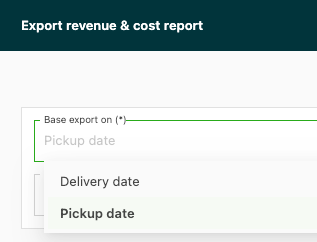
- Choose the date type (Pickup / Delivery)
- Enter the start/end date range
- Click Export to generate the report. If the ‘Costs and revenue data’ tab is missing from the export, data syncing delays may be the cause. To resolve this, exclude very recent dates (e.g., today) by setting the end date to the previous day. Alternatively, re-export the report once the data has finished syncing.
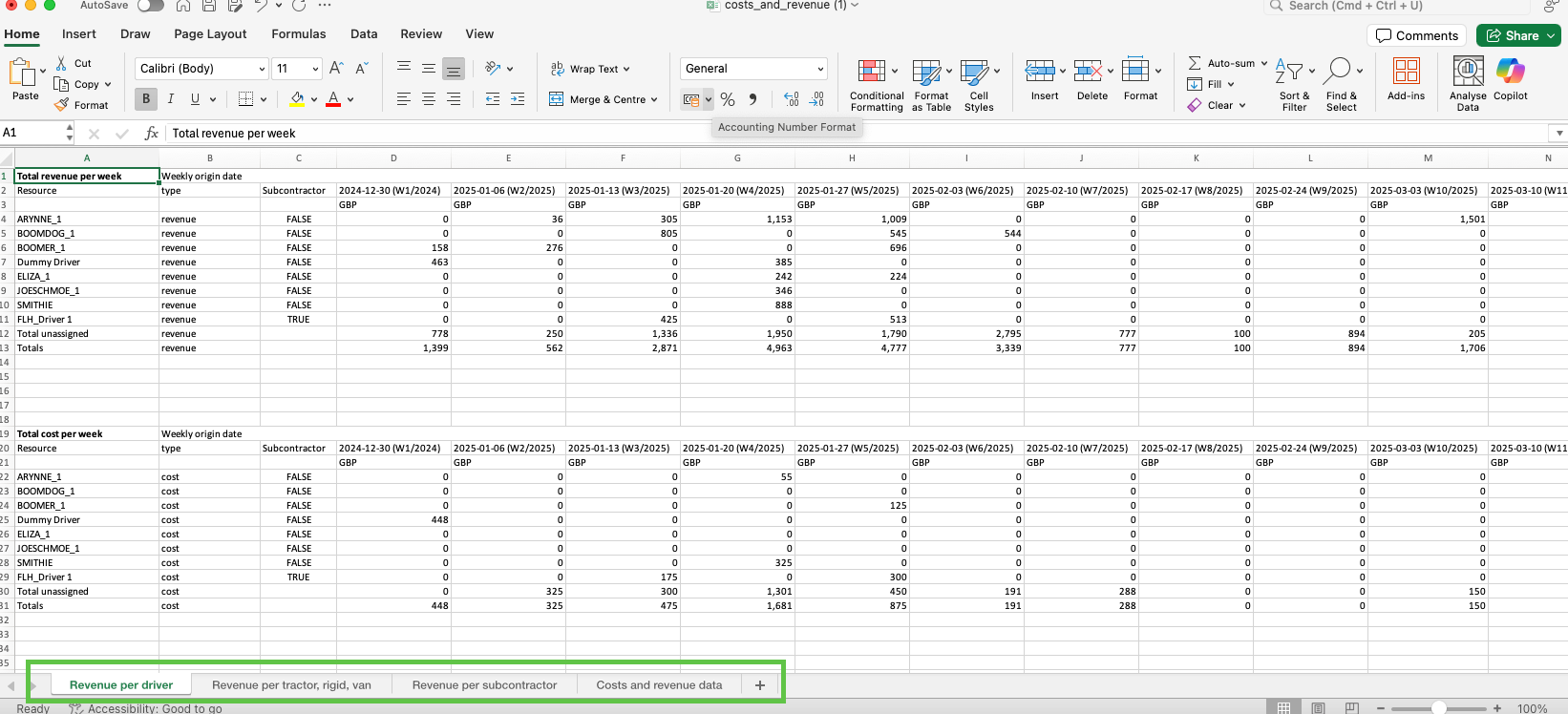
Below is an example of the Excel file, including an overview of the total revenue and costs broken out across additional tabs:
- per driver
- per transport
- per contract carrier To avoid such issues, consider scheduling exports for times when data syncing is complete, such as the following day. Note: If the ‘Costs and revenue data’ tab is missing, incomplete data syncing for very recent dates is the likely cause. Adjusting the date range or re-exporting after syncing can resolve this issue.
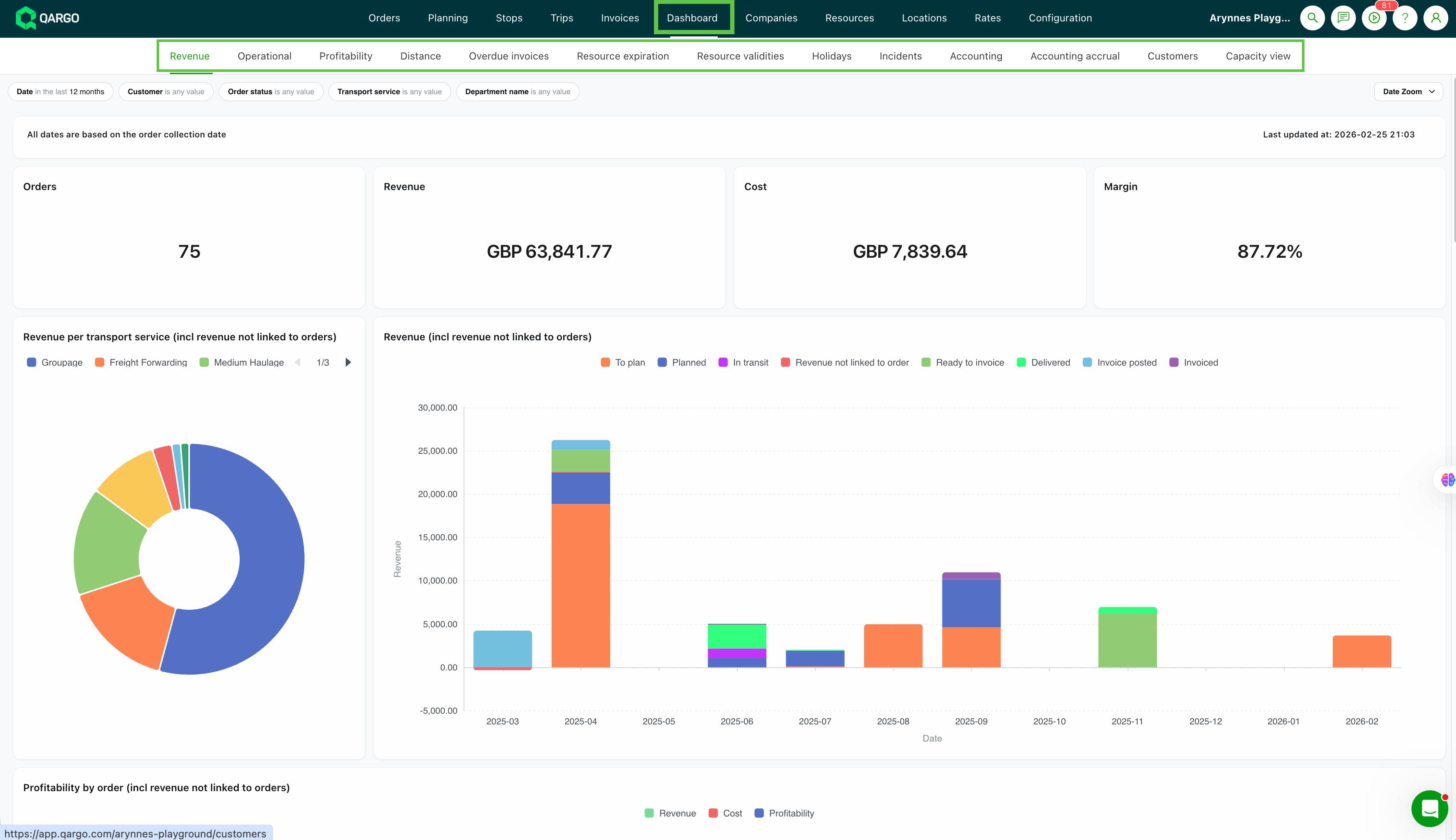
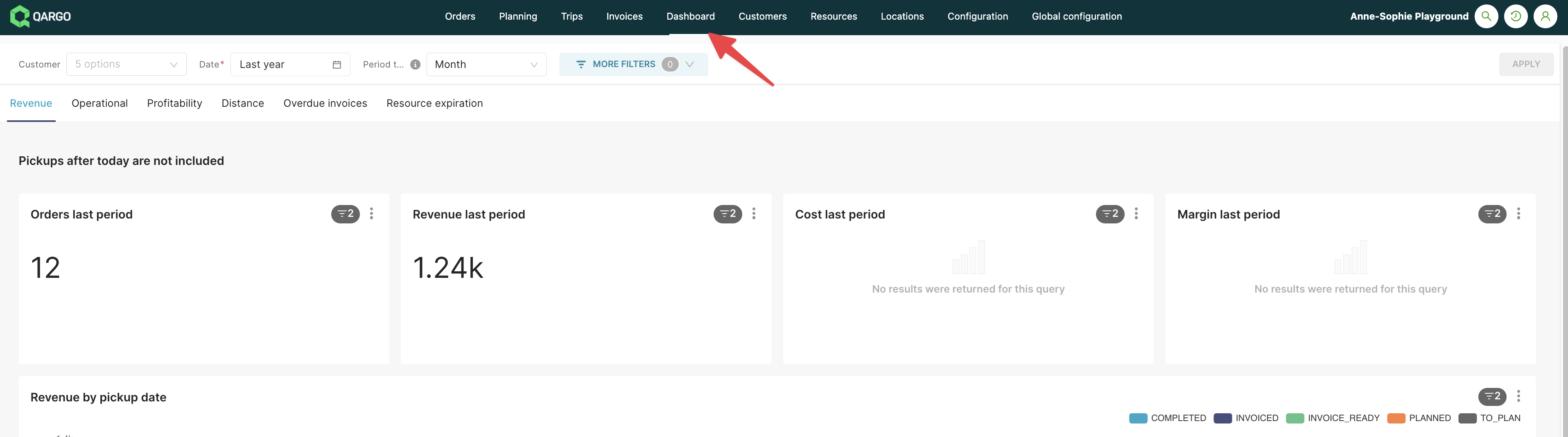
Instead of exporting data to Excel, numerous metrics can be viewed directly in the platform.
- Navigate to Dashboard in the main menu.