
Customer portal — Excel and CSV order export — what, why and how.
A new Export button on the customer portal lets portal users download their filtered order list as CSV or Excel using admin-enabled export templates.
Table of contents
Portal users can download their order list as a CSV or Excel file using any export template a Super Admin has enabled for the portal.
Summary
What?
- A new Export button is available on the customer portal Orders list and Dashboard.
- Portal users select from templates enabled for the portal and download a CSV or Excel file matching their current filter.
Why?
- Previously, portal users could only download PDF documents. Customers who needed to export order data for their own systems had to take screenshots or ask the carrier’s operations team to run exports manually.
How?
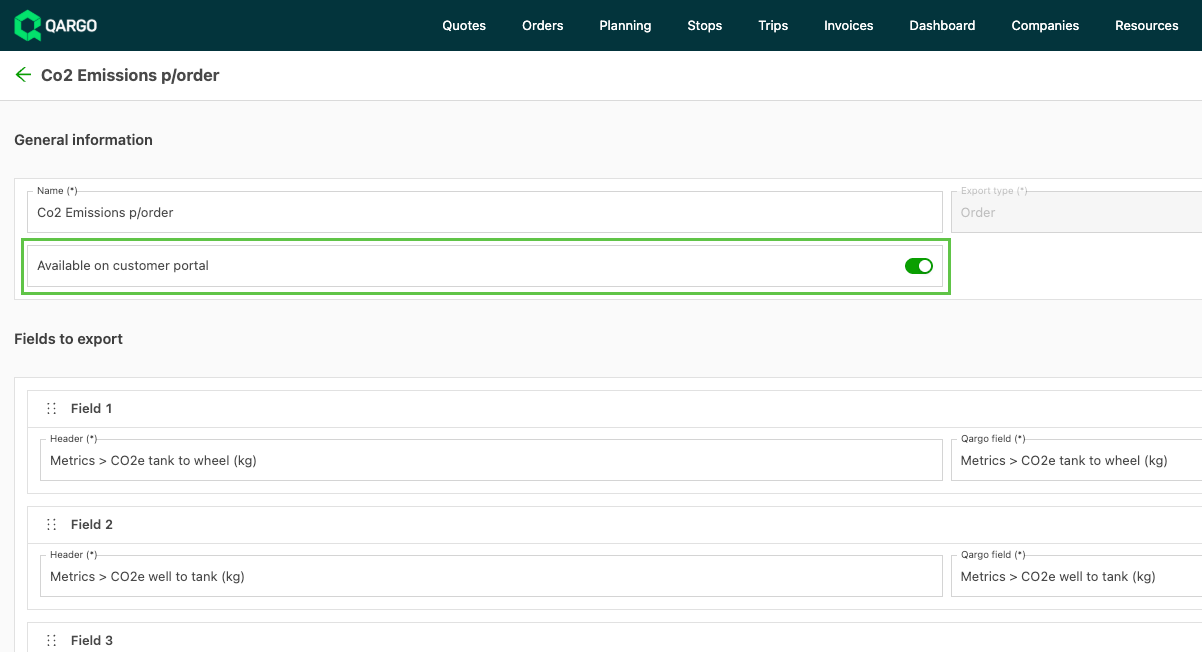
- A Super Admin enables an export template for the portal with the Available on customer portal toggle in Configuration > Templates > File exports/downloads. Once it is enabled, the Export button becomes visible to portal users.
Prerequisites
- Super Admin: At least one order export template must have Available on customer portal switched on under Configuration > Templates > File exports/downloads. Nothing appears on the portal until this step is complete.
Use cases
- A freight forwarder with portal access exports filtered orders for a specific date range directly to Excel to include in its own management reporting.
- A shipper downloads a CSV of all confirmed orders for the week to reconcile them against purchase orders, without needing to contact the carrier.
Terminology
| Term | Definition |
|---|---|
| Customer portal | The Qargo web interface available to a carrier’s customers for tracking and managing their shipments |
| Export template | A configurable file export definition in Configuration > Templates > File exports/downloads |
| Available on customer portal | The toggle on an order export template that makes it visible to portal users |
| Async delivery | Delivery of large exports by email instead of direct browser download, used when the export exceeds the direct-download size limit |
Enabling portal exports (admin setup)
- Navigate to Configuration > Templates > File exports/downloads.
- Select an order export template to make available to portal users.
- Enable the Available on customer portal toggle on the template.
- Save the template. The Export button now appears on the customer portal for users of that tenant.
Note: Only order export templates can be enabled for the portal. Only columns visible to portal users will contain data. Internal-only fields such as cost and margin are excluded.
Using the export (portal user)
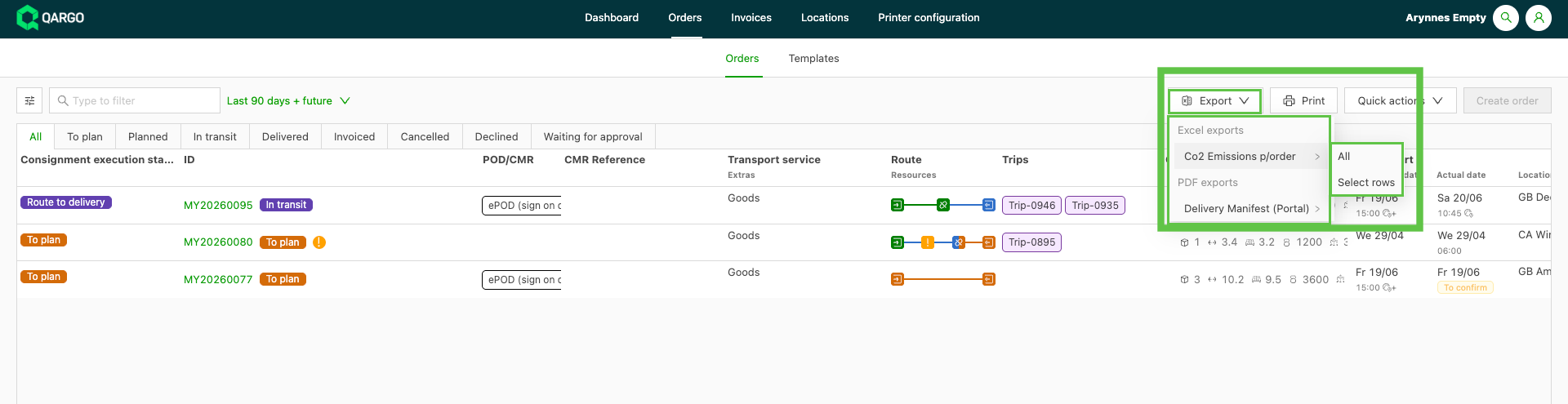
- Open the Orders list on the customer portal.
- Apply any required filters to narrow down the order list.
- Select the Export button.
- Choose the export template from the list of available templates.
- Download the file. Small exports download immediately in the browser; larger exports are delivered by email.
Troubleshooting
| Issue | Resolution |
|---|---|
| No Export button visible on the portal | A Super Admin must enable Available on customer portal on at least one order export template |
| Template not visible in the portal export picker | Verify that Available on customer portal is toggled on for that specific template |
| Some fields appear blank in the export | The field is internal-only and is not exposed to portal users; adjust the export template to use portal-visible fields only |
| Export delivered by email instead of direct download | The export exceeds the direct-download size limit. This is expected behavior; check the inbox associated with the portal account |