
Customer portal: How to create orders in bulk from an Excel or CSV file
Portal users upload a CSV, XLS or XLSX file to create many orders at once. This article covers setup, upload, status follow-up and fixing failed orders in Order imports.
Table of contents
Introduction
Portal users can upload one CSV, XLS or XLSX file to create many orders at once. This replaces entering orders one by one with a form or template. Every order in the file becomes its own order import. Valid orders are created or wait for approval. Failed orders stay in Error with a short reason.
Prerequisites
-
A Super Admin must switch on Customer portal order creation via order import for the customer portal and choose a File upload format (see ‘Set the file upload format for the customer portal’ below). Without a format, no portal user sees the Upload file button.
-
The customer portal must already create orders through the order import flow. See Customer portal - Creating and planning orders shown in customer portal views. for setup.
-
Portal users must be able to create orders. If the tenant forces template-only ordering, or the customer status is not Approved, the button is visible but disabled.
Use cases
- A shipper books dozens of orders a day from a spreadsheet and uploads the file directly, instead of sending it to the transport company to be re-keyed.
- A transport company asks all portal customers to send orders in one agreed file layout, and the orders arrive without manual entry.
- A shipper uploads a file where a few rows contain typos. The shipper sees the reason for each failed row and corrects the file without waiting for the transport company.
Set the file upload format for the customer portal
🎥 This video explains how to configure the settings for the file upload format, and how this works for customers on the portal:
- Navigate to Configuration > Organization settings.
- Open Customer portal in the left side menu.
- Enable Customer portal order creation via order import.
- Select the import source in the File upload format field. Only manual sources with an active CSV or Excel mapping that are not limited to specific customers are listed.
- Save the settings.
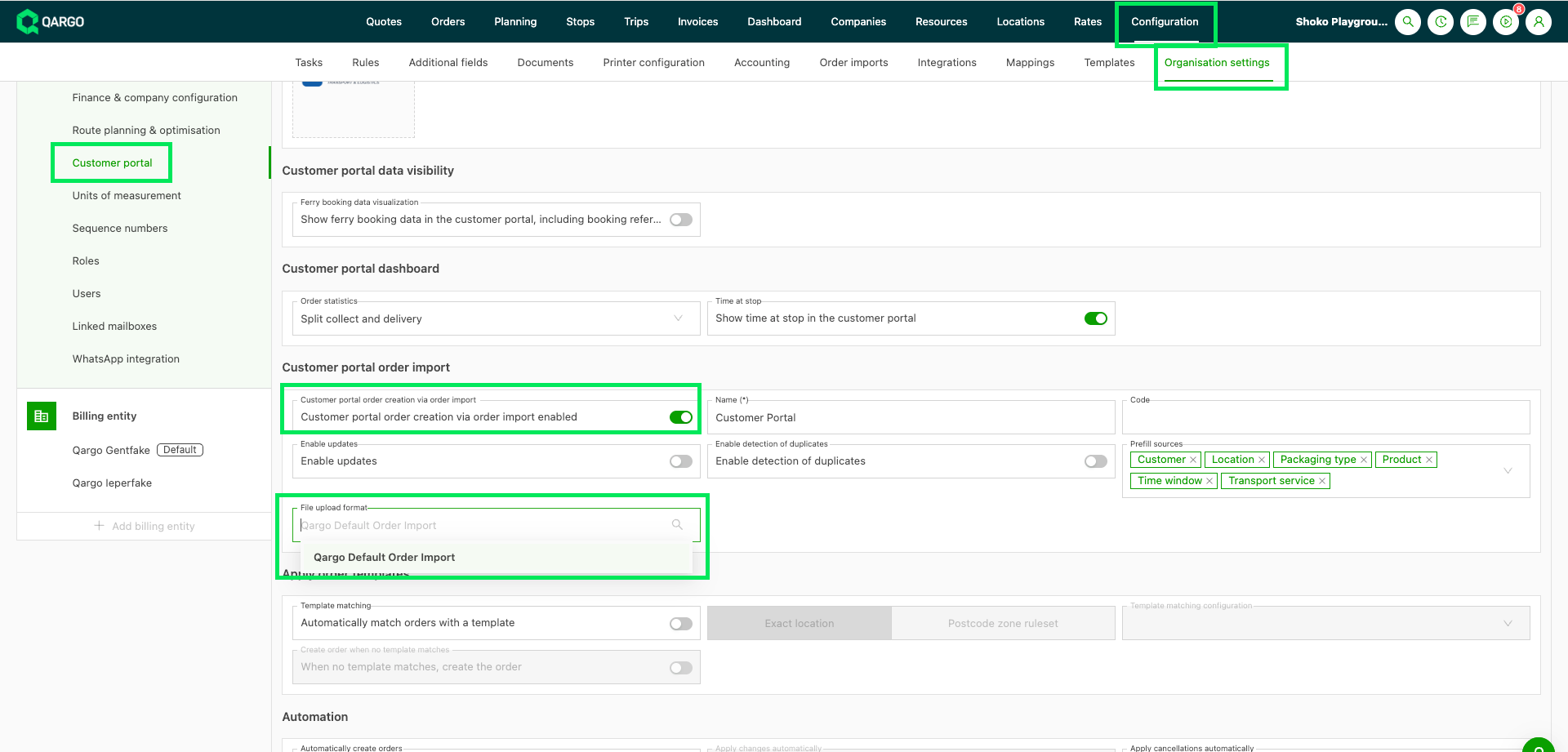
The Upload file button now appears for every customer with portal access.
Upload a file of orders on the customer portal
- Open Orders on the customer portal account.
- Click Upload file, next to Create order.
- Drop a file in the Upload orders dialog, or
browse to select it. - Click Upload to submit the file.
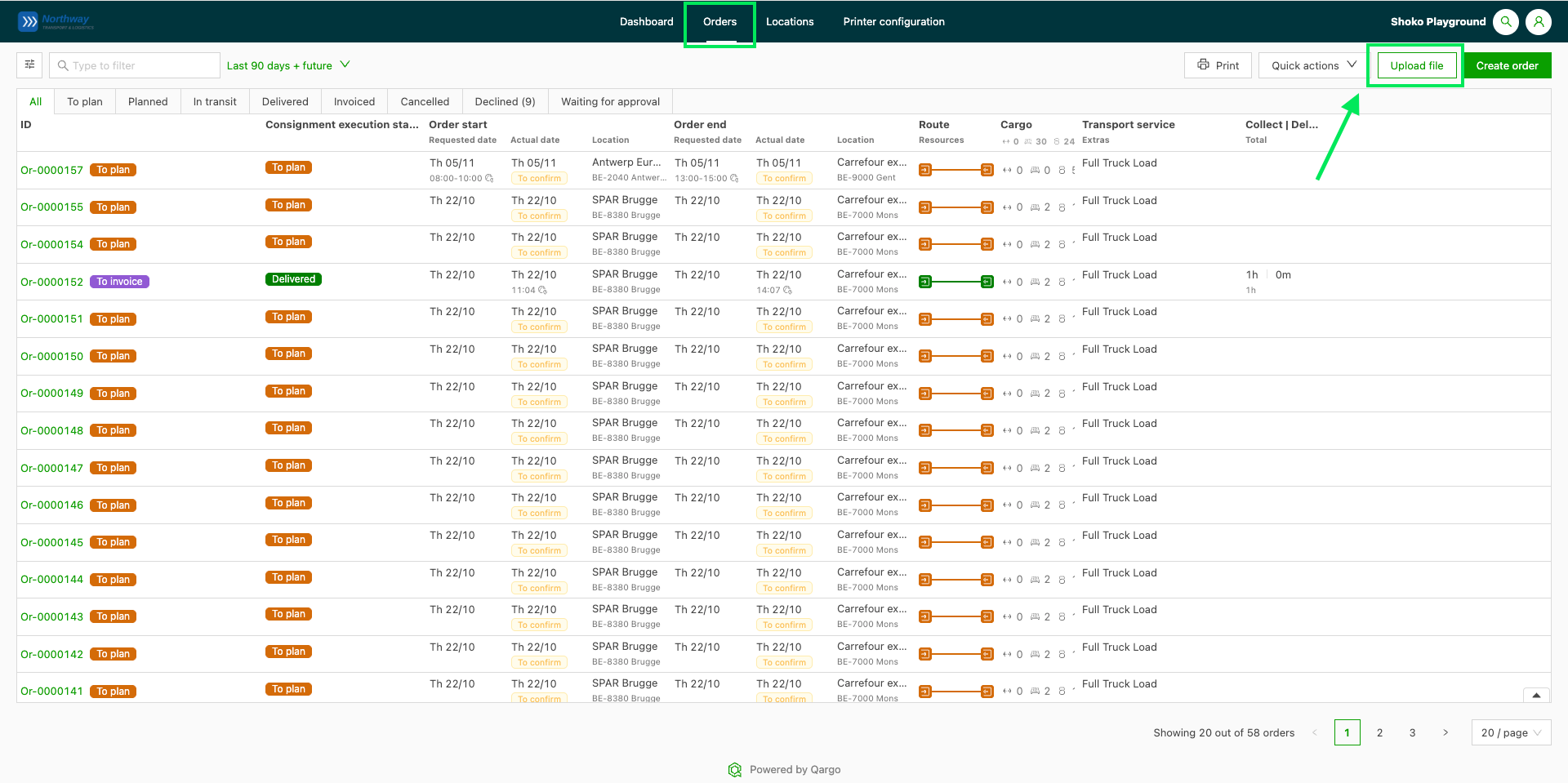
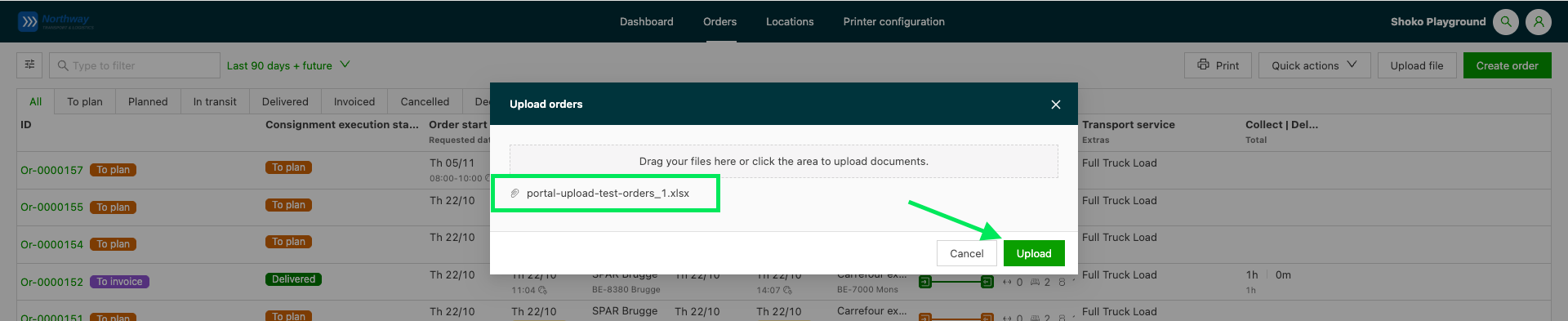
Every order in the file becomes its own order import. Each order is booked on the portal user’s own company, whichever customer the file names.
Follow the status of uploaded orders
- Open Orders on the customer portal account.
- Select the Waiting for approval tab.
- Locate the uploaded orders and read their status.
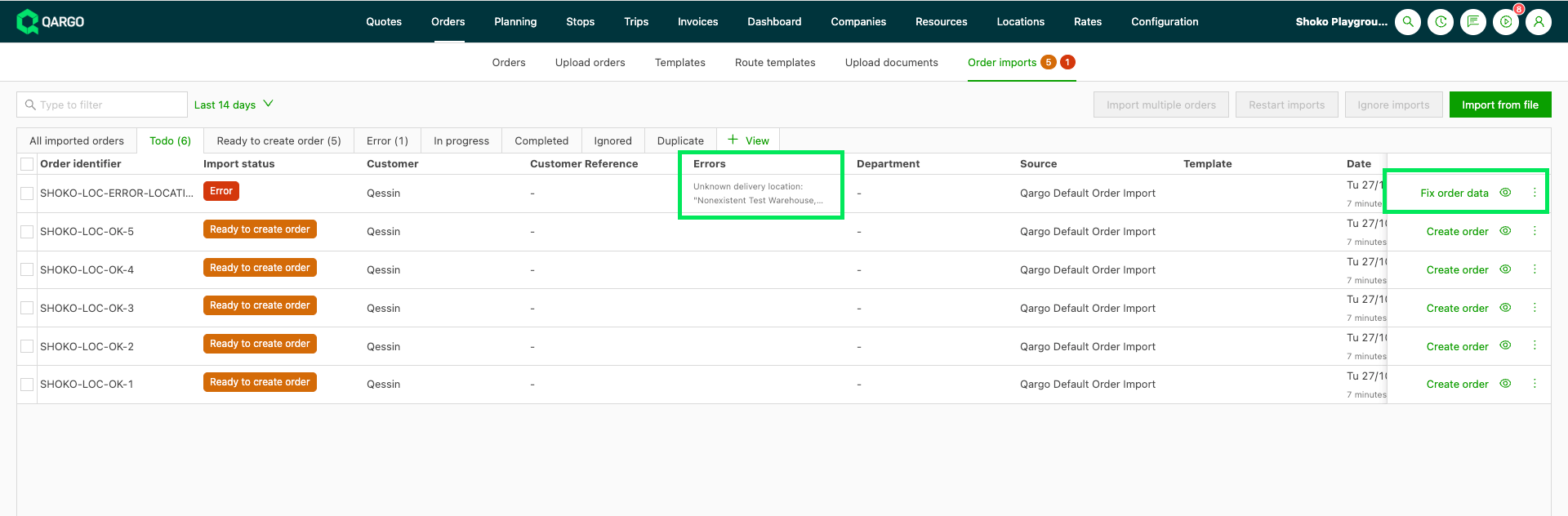
- Read the reason shown next to any order with status Error, such as an unknown location or an unknown value. When several reasons apply, the row shows the first one with a count. Hovering over it shows all of them.
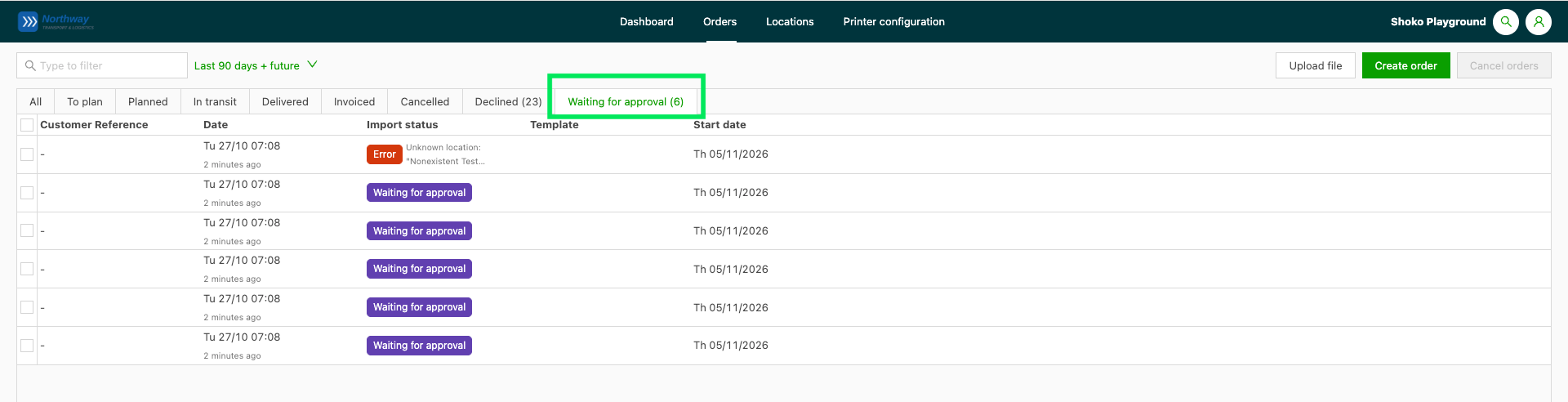
Valid rows are created as orders, or wait for approval, depending on the automation setting of the upload format. Failed rows stay in Error with a plain, read-only reason.
Create and fix uploaded orders as a tenant user
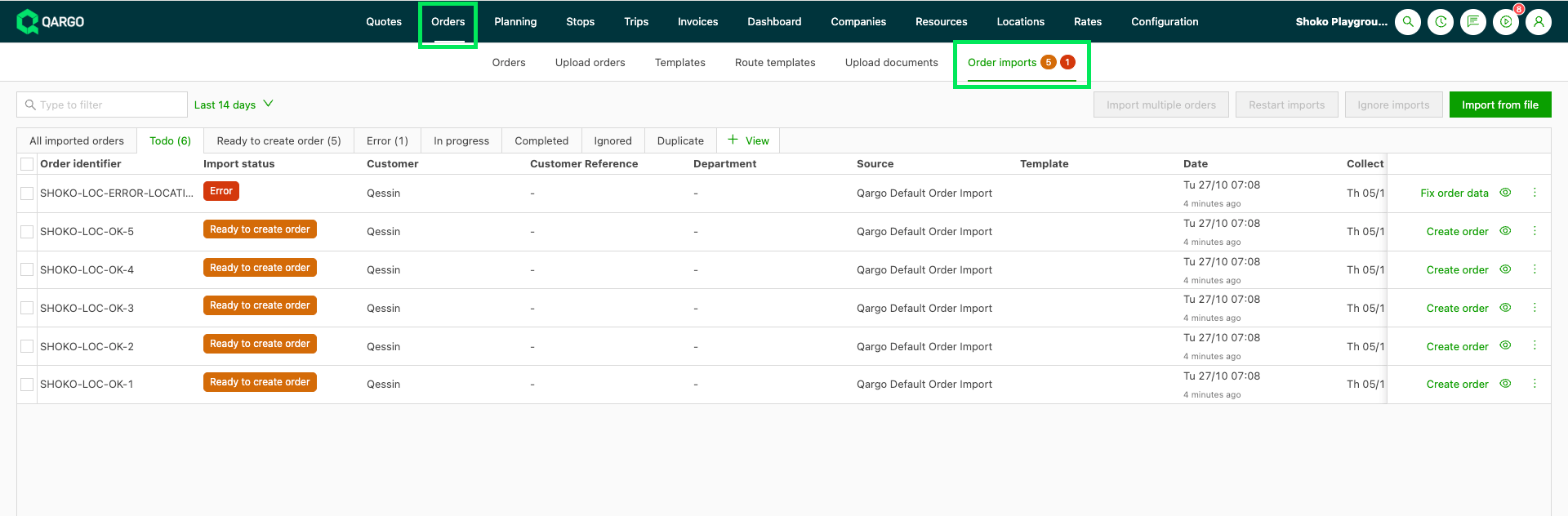
- Navigate to Orders > Order imports.
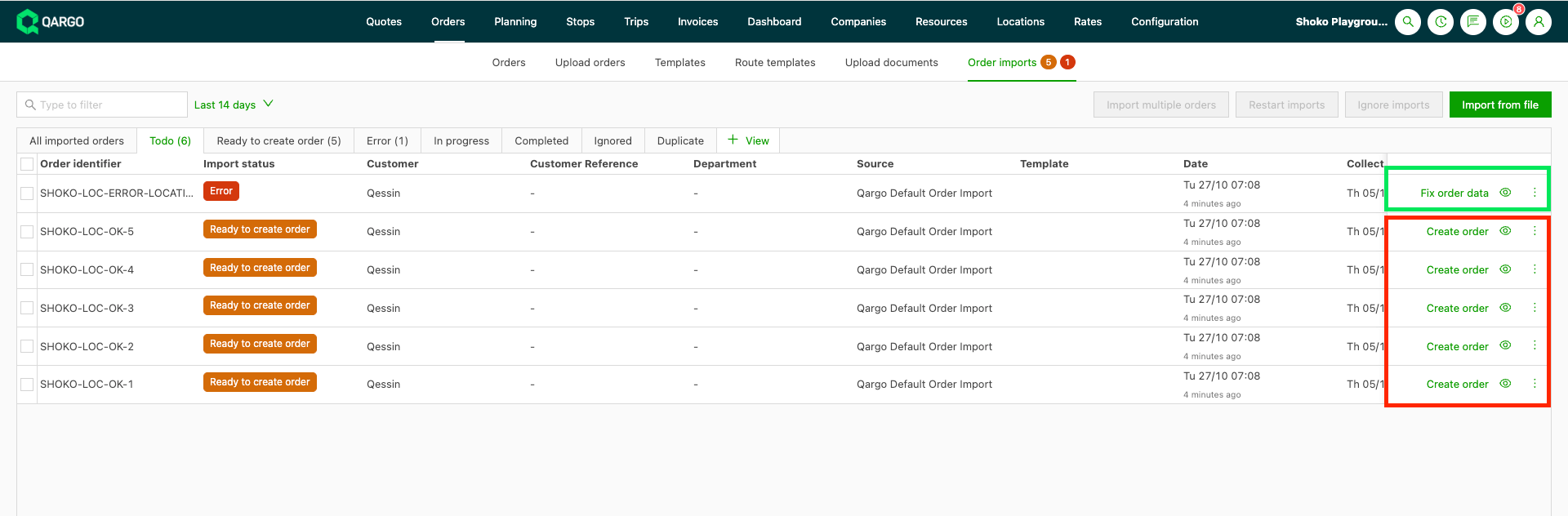
- Locate the uploaded rows. The upload format shows in the Source column and the portal customer in the Customer column.
- Click Create order on a row that is ready.
- Click Fix order data on a row in Error and correct the issue, for example the location.
- Save the order.
The order is created, and the row no longer shows Error on the portal.
Troubleshooting
| Issue | Resolution |
|---|---|
| The Upload file button is not visible on the portal | No File upload format is set, or Customer portal order creation via order import is off. A Super Admin must set both in Organization settings under Customer portal. |
| The Upload file button is visible but disabled | The button stays visible but disabled, with a tooltip, when the tenant forces template-only portal ordering or the customer status is not Approved. |
| A file fails with “Something went wrong, try submitting again” | The file type does not match the mapping of the upload format. Use a file of the same type as the template of the format. A PDF or Word file gives the same message. |
| A row names a different customer than the portal user’s company | This is expected. Every uploaded order is booked on the portal user’s own company. |
| One row failed but the other rows were created | This is expected. Each order is processed on its own, so one failed row never blocks the rest of the file. |
| A row with a missing value was not marked as Error | The value may have been filled from the customer default. Check the row in Order imports before creating the order. |
| An order that breaks an order capture validation rule was still created | The tenant sees the Order verification issues popup when creating the order from Order imports. |