
What is the difference between the time window and stop duration on an order?
This article explains the difference between a time window on an order stop activity and the stop duration.
Table of contents
Time window
When creating a new order, there is an option to manually enter a ‘Time window’ for the specific stop activity. Time windows can be configured or modified in Configuration, so the times are applied automatically once the window is selected. Time windows are also crucial for making sure delivery times match customer expectations and are not overridden during route optimization.
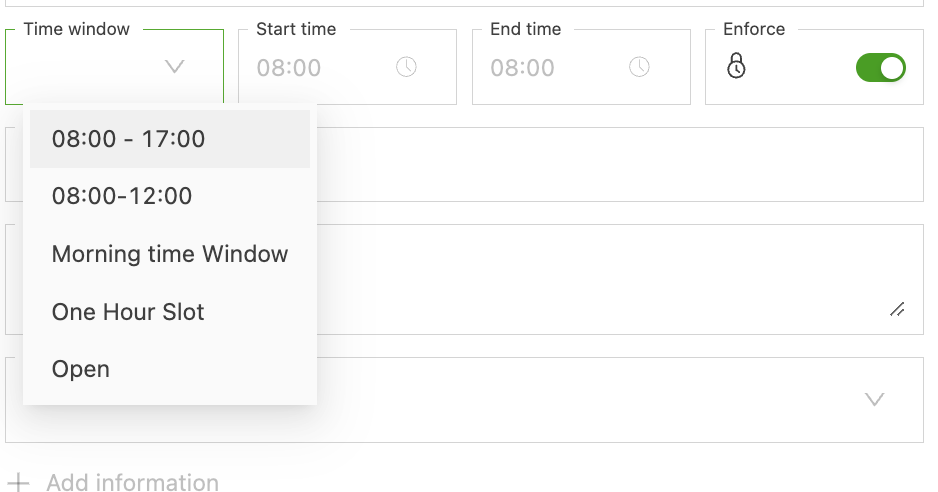
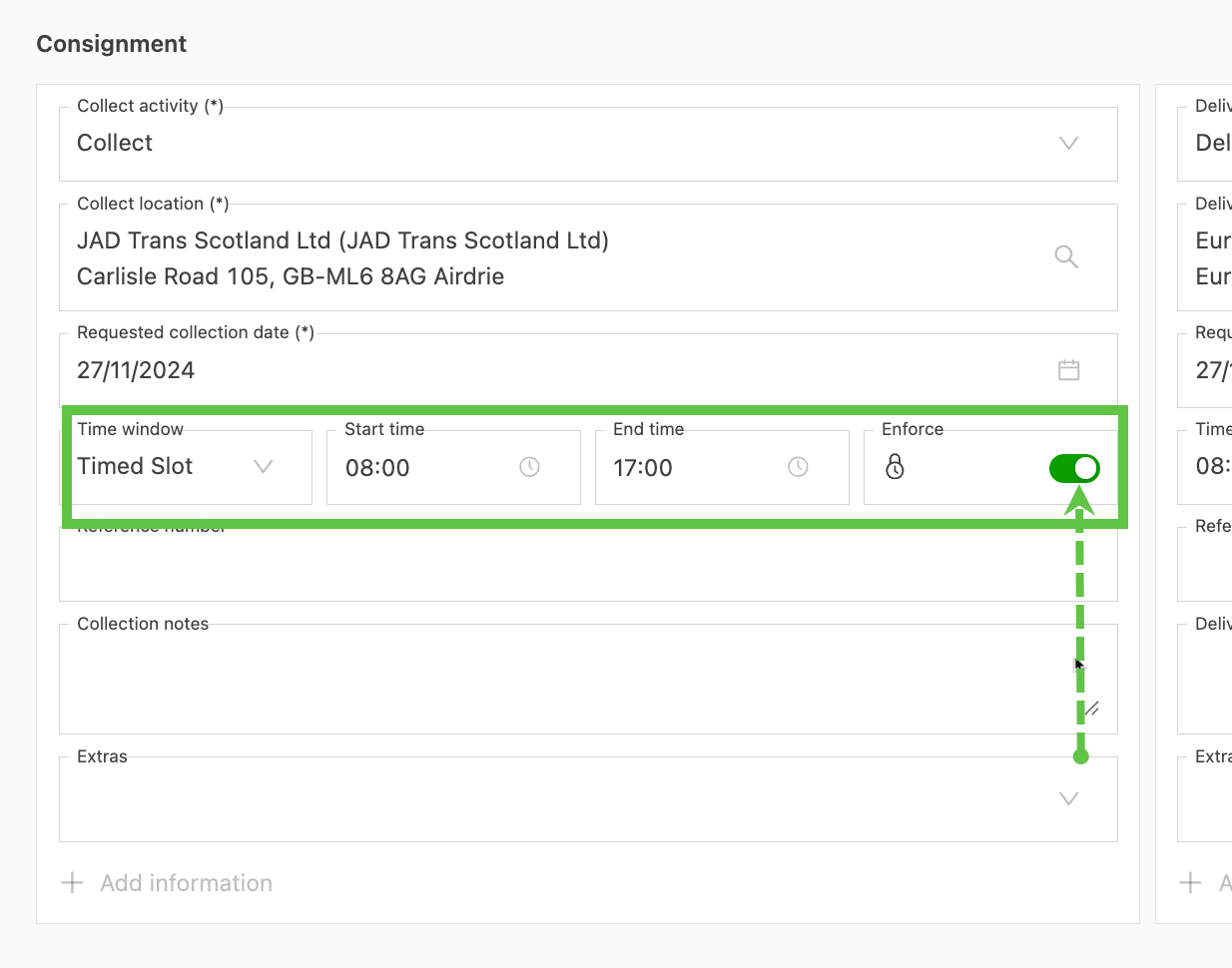
- The selected time window determines the ‘Start / end time’, when the stop activity can ‘Start’. For example, when planning the load with the time window set to start at 6 a.m. and end at 8 a.m., the pickup can begin at any time from 6 a.m. up to and including 8 a.m. Qargo’s optimization sometimes adjusts schedules based on factors such as distance, which can cause timing mismatches unless enforcement settings are applied.
- It is possible to enforce the time window, which means the order can only be scheduled within the time window.
- A violation is displayed when the order is planned outside of that time window. For example, deliveries planned for earlier dates require the ‘time enforcement’ feature to ensure compliance with the timing specified on the order.
- Completed 1 hour before the time window
- Completed 30 minutes after the time window Scenarios such as deliveries planned well before their specified window, or times overridden due to routing, can also result in a violation.
The time slot can also be changed when creating an order. To do this, open the order settings, go to the time windows section, make the necessary changes, and save before re-planning the load in Qargo.
Stop duration
A ‘stop duration’ is the time between when a vehicle arrives at a stop location and when it departs. It represents how long it takes to complete the activities at that stop, such as loading, unloading, or other tasks. The duration can be determined in several ways:
- Based on the location configuration
- Based on the type of stop activity being performed
- Manually overridden for specific stops
For stops at the same location, the system typically uses the longest duration among all stops at that location, unless there are specific overrides.
- To configure stop durations, go to Rates > Order input: Collect & Delivery options.
- Select the stop activity; the duration is displayed on the right.
- Update and Save.
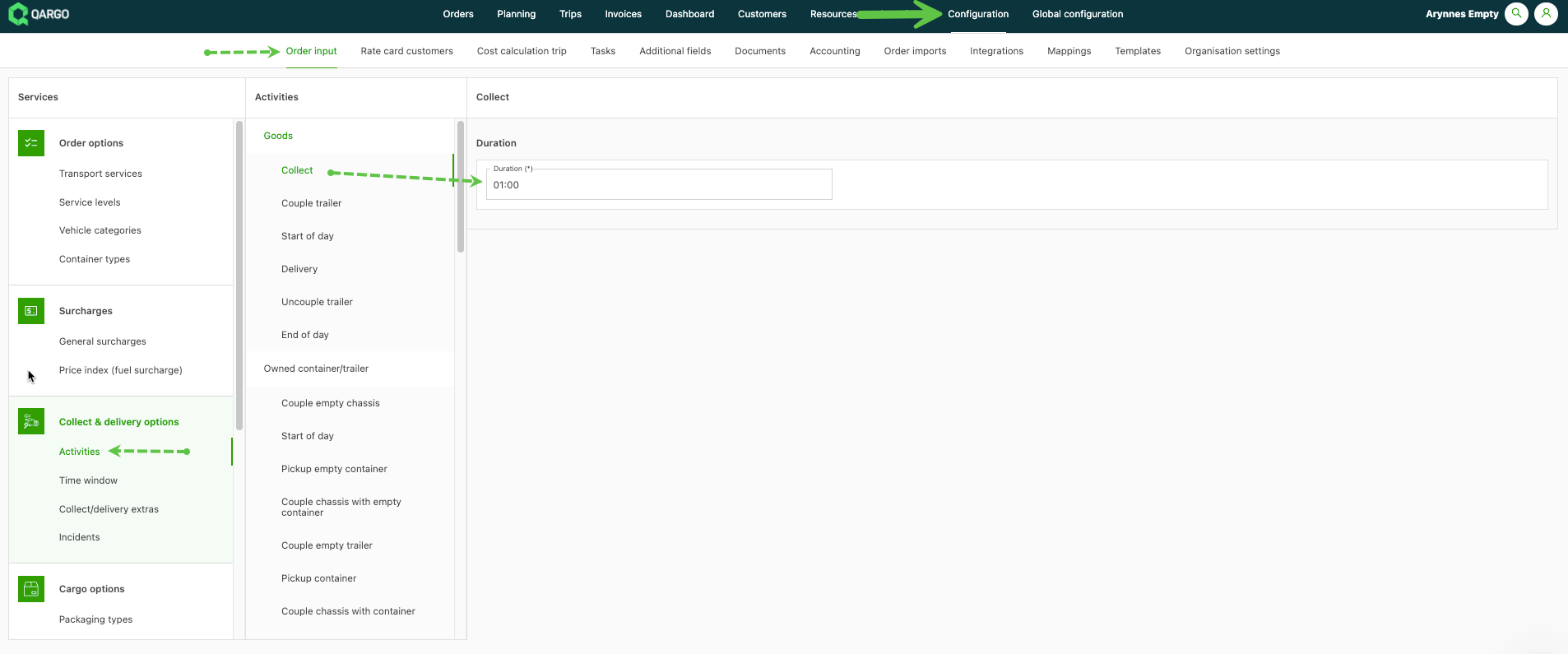
Stop duration times are used in optimization and in calculating ETAs for a load. They do not take into account any specific times entered in the time window.