
Resources – Add resources (drivers, vehicles, contract carriers, containers)
This article explains how to add resources, including dummy resources for preplanning.
Table of contents
Resources can be viewed, added, edited and removed in the Resources section.
- Navigate to Resources.
- Click one of the headers (Drivers, Vehicles…).
The following resources are available:
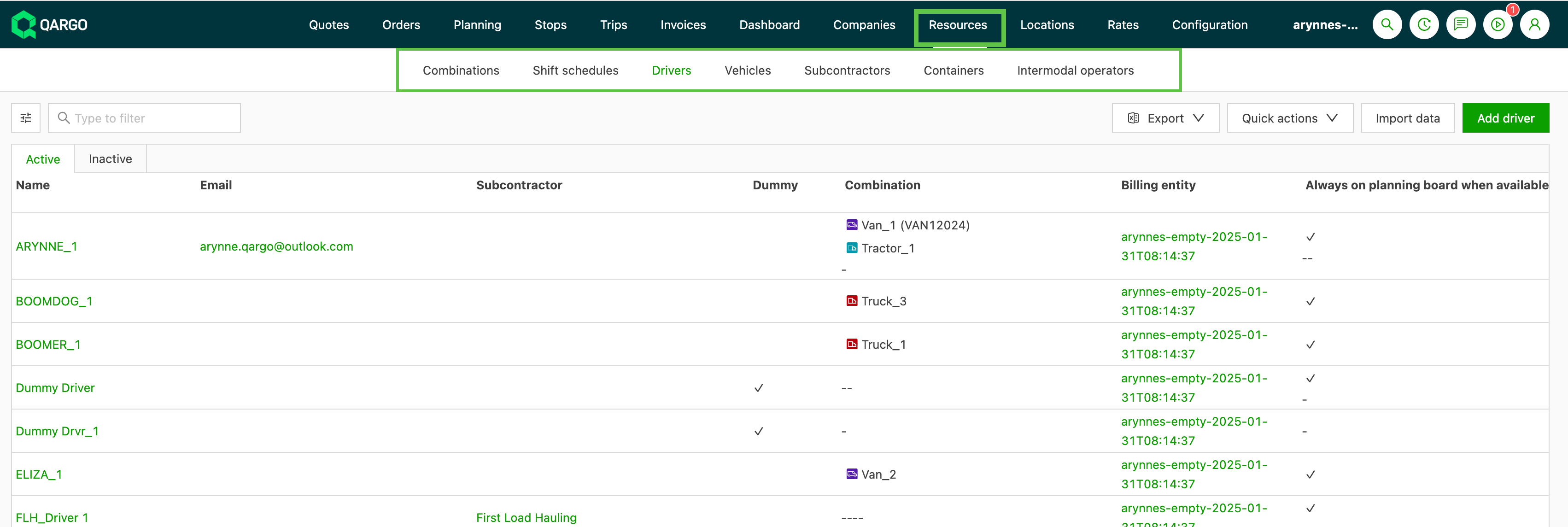
Add a driver
- Click Drivers in the header.
- Click Add driver.
- Complete the required fields.
- Save.
Add a vehicle
Vehicle options include both power units (Tractor, Truck, Van) and Trailer and Chassis options.
- Click Vehicles in the header.
- Click Add vehicle.
- Complete the required fields.
- Save.
Add a container
Click Containers in the header.
- Click Add container.
- Complete the required fields.
- Save.
It is possible to configure the fields that are shown when a new resource is added.
Add a contract carrier
-
Click Add contract carrier
- Search the Company field to check whether the contract carrier already exists.
-
Complete the required fields
-
Save
Click here to learn more about adding a contract carrier.
Add a dummy resource
A dummy resource can be any option in the vehicle, container and driver categories. When creating resources, use the toggle in the Dummy resource field to indicate whether a resource is a dummy.
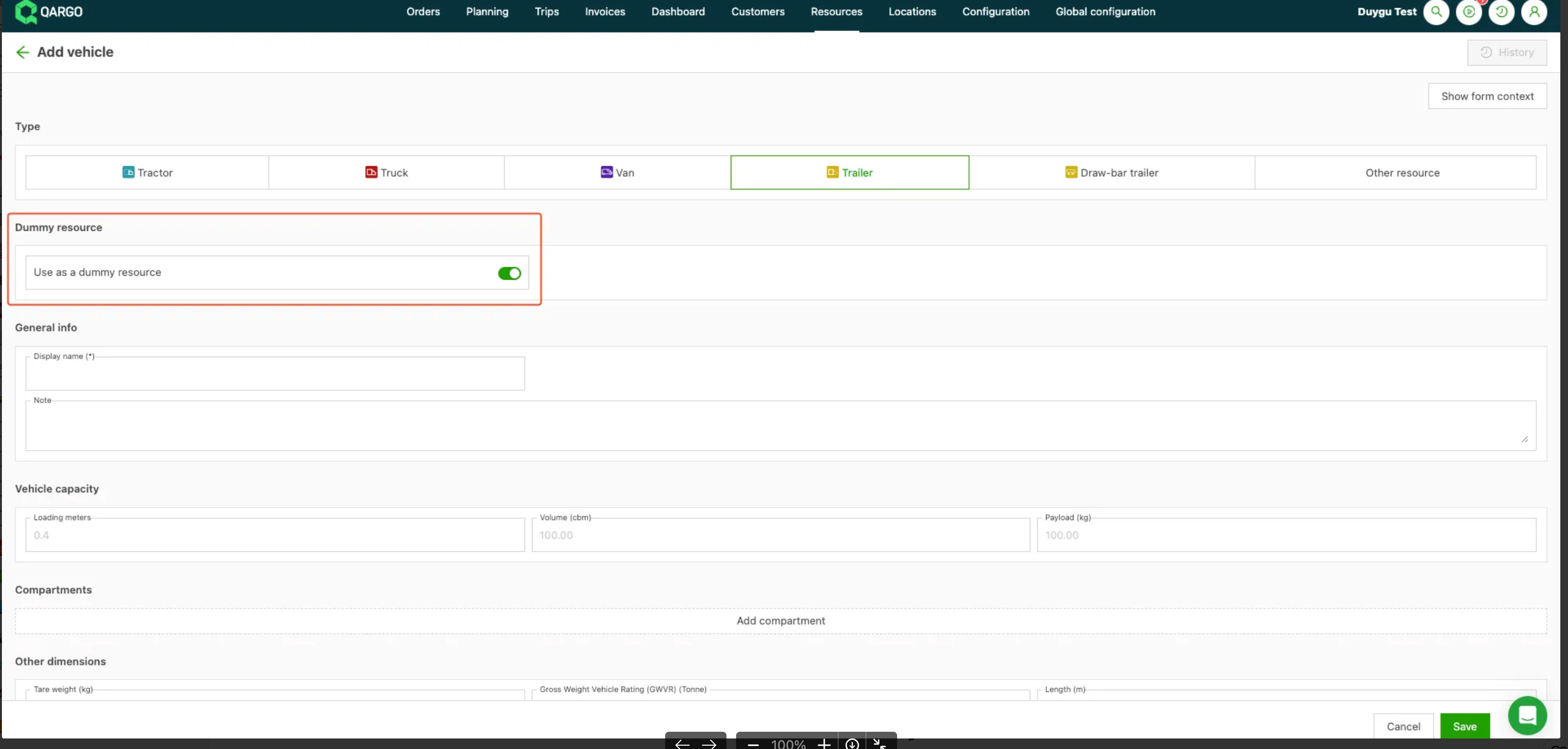
The fields available for dummies are limited to name, note and dimension information (for use in route optimization).
Existing resources (vehicles, trailers, containers and drivers) can be converted to a dummy resource, unless they are part of a combination.
Click here to see how dummy resources can be used for preplanning.
External resources
Prerequisites
- User role: Super Admin (to flag a resource as external and configure default values)
- User role: Planner or higher (to enter per-load override values)
- The resource must already exist in Qargo master data
Use cases
- A carrier uses a rented trailer for a single load; the trailer’s license plate differs from any permanent asset
- A shipper supplies their own container; the container no. must appear on the CMR
- A third-party driver covers a shift; the driver’s name must be recorded on the load document
Terminology
| Term | Definition |
|---|---|
| External resource | A resource flagged in master data as coming from outside the carrier’s company fleet |
| Per-load override | A name, license plate or container no. entered at load level that applies only to that specific load |
| License plate | The vehicle registration number recorded on load documents and border declarations |
| Container no. | The unique ISO identifier of a container, required on customs and shipping documents |
Add an external resource
-
Navigate to Resources
-
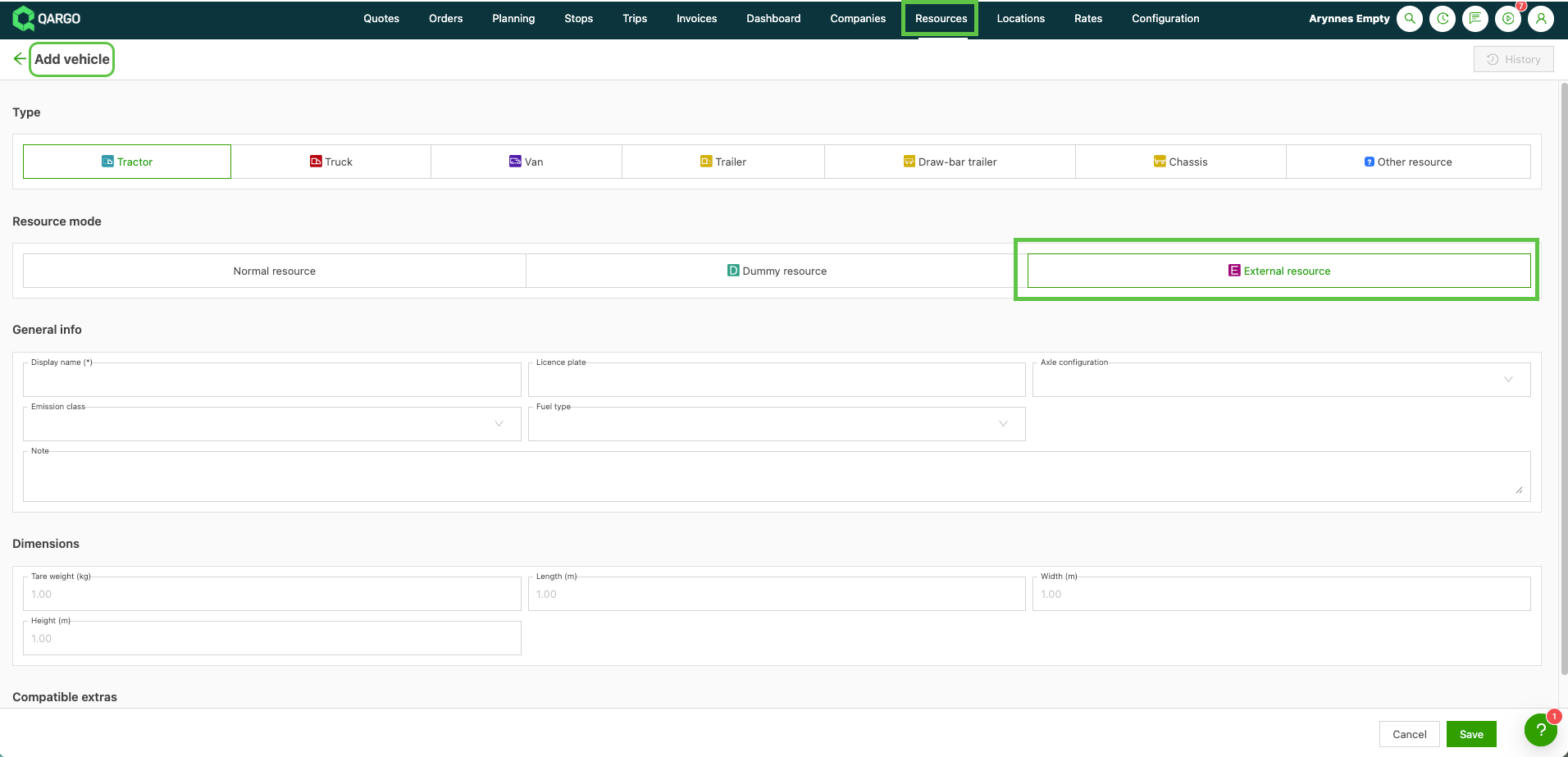
Select the asset to add (Driver, *Vehicle, Container)
-
Click External resource
-
Optionally, enter default Name, License plate or Container no. values. These are prefilled on every load unless overridden.
-
Save the resource.
Enter per-load override values
-
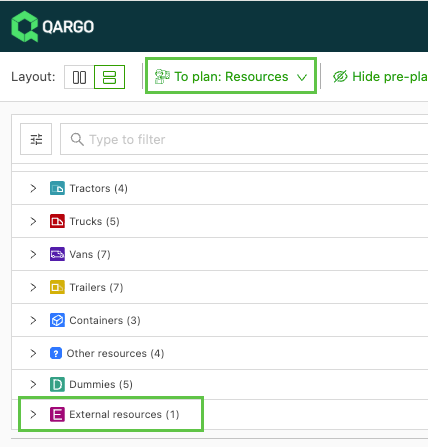
Open the relevant load on the Planning board.
-
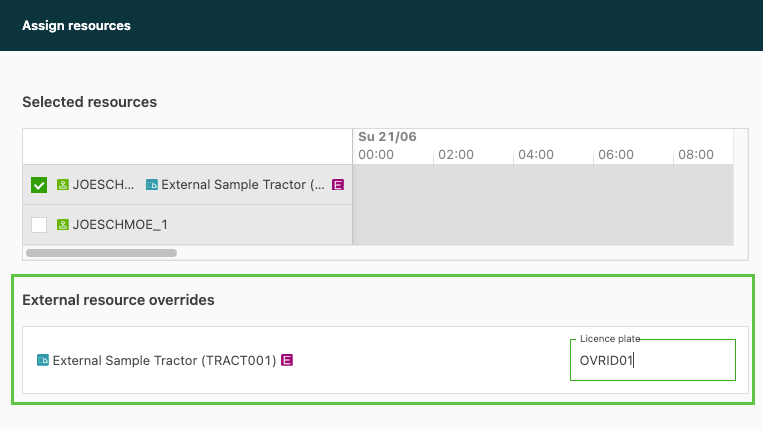
Click the resource assignment panel.
-
Locate the external resource row.
-
Enter the load-specific Name, License plate or Container no. in the corresponding fields.
-
Confirm. The override is saved to the load and shown on all load documents.
Troubleshooting
| Symptom | Likely cause / Resolution |
|---|---|
| External toggle not visible on a resource | Insufficient role permissions.\ |
| Log in as a Super Admin | |
| Per-load fields are grayed out | Resource is not flagged as external.\ |
| Flag the resource as external in master data first | |
| Override values not showing on load documents | Document template not configured to show resource fields.\ |
| Contact the Qargo onboarding manager to update the document template |