
Planning loads in bulk (groupage)
This article gives an overview of how to plan multiple orders onto a load.
Table of contents
Selecting orders
-
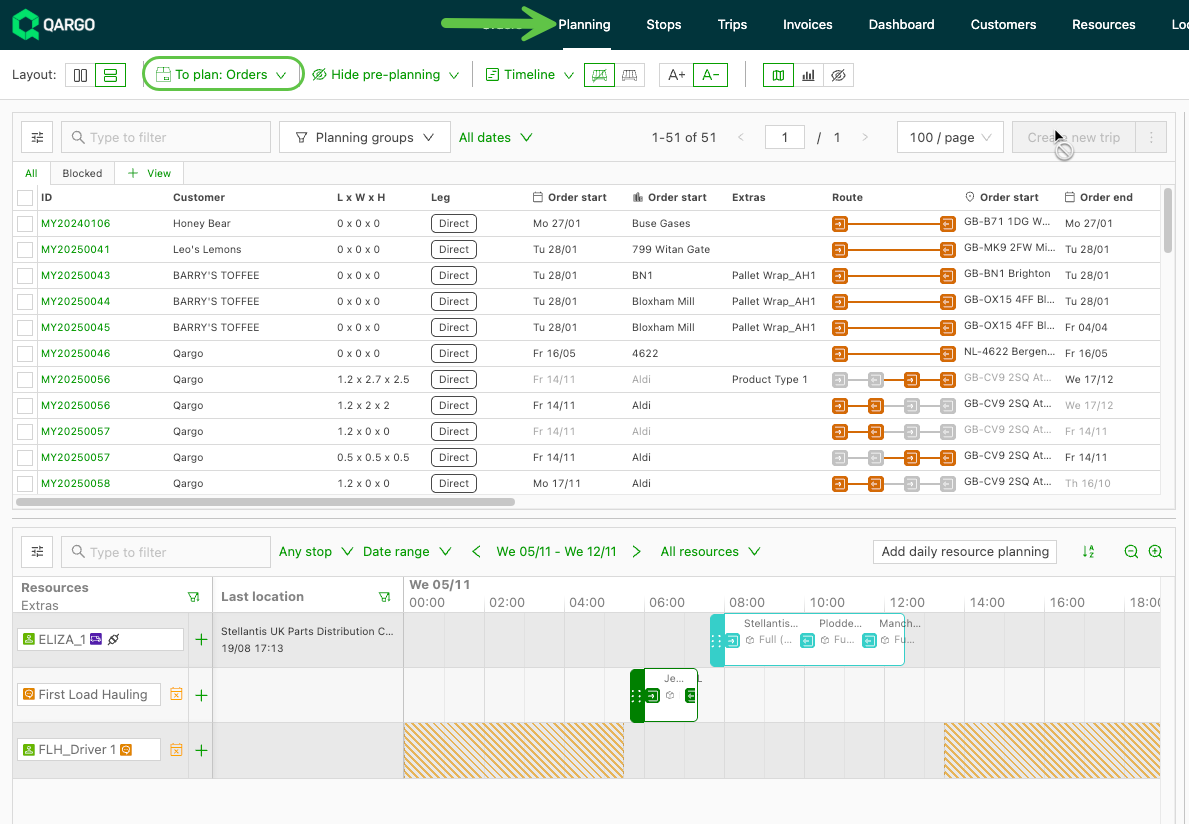
Go to Planning and make sure ‘To plan: Orders’ is selected.
- The planning view can also be customized, or a load can be planned. See 👉 customize planning view / 👉 plan load
-
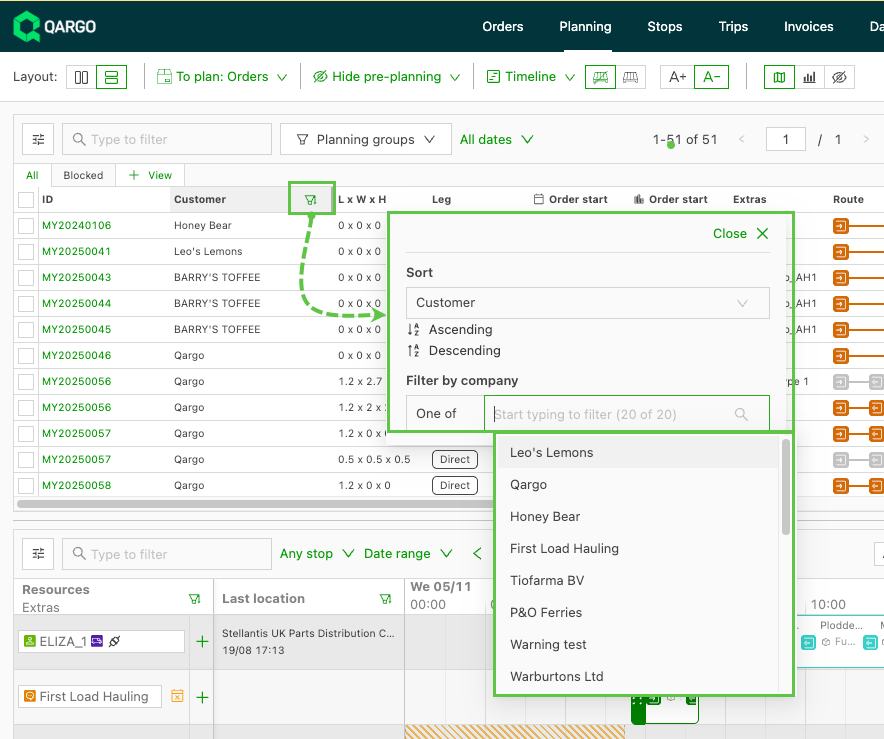
Apply filters (if applicable): To narrow down the selection
- Use filters based on date, customer or any related fields such as resource group. See 👉 customize planning view
-
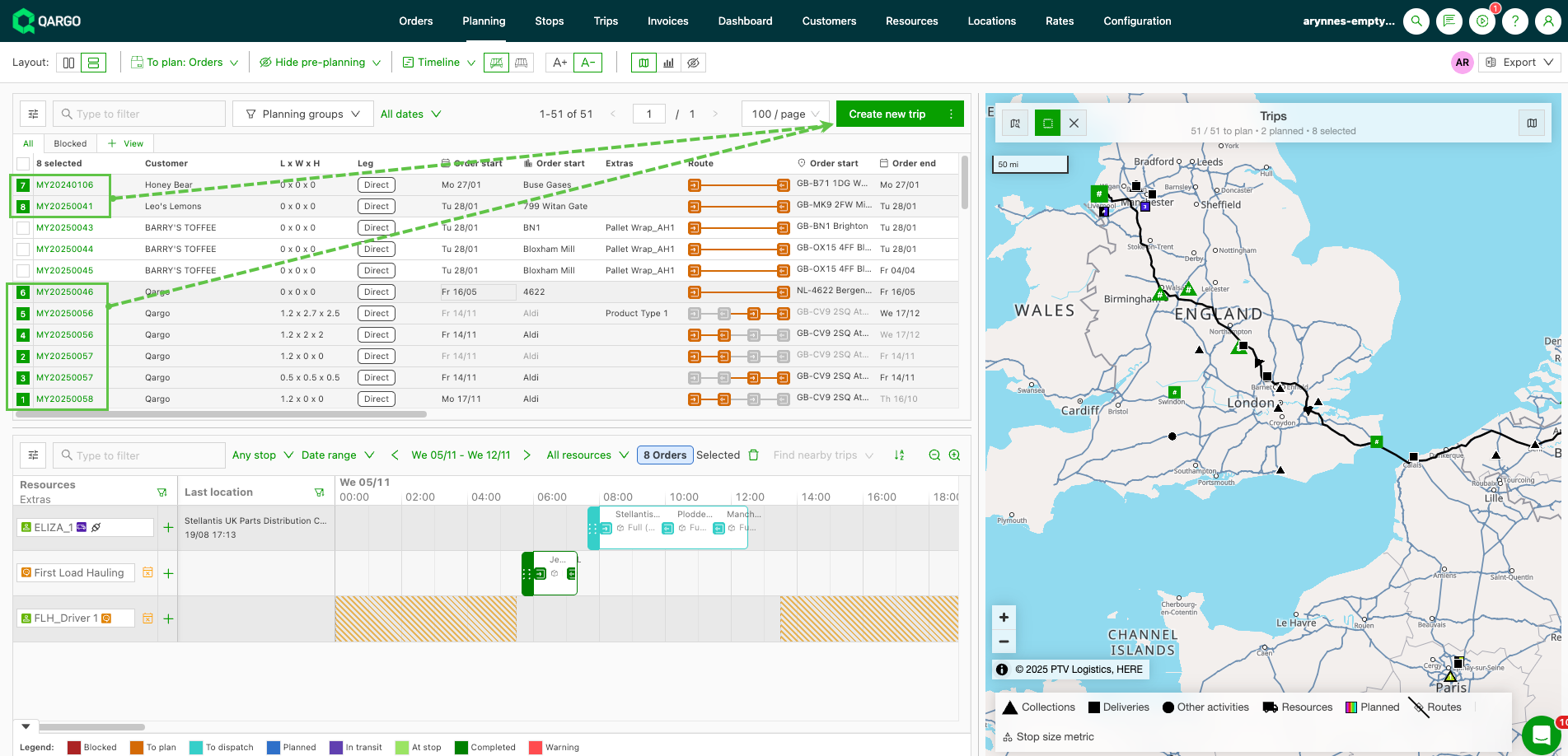
Select orders: Highlight the specific orders to include in the groupage load.
-
Click the ‘Create new load’ option.
-
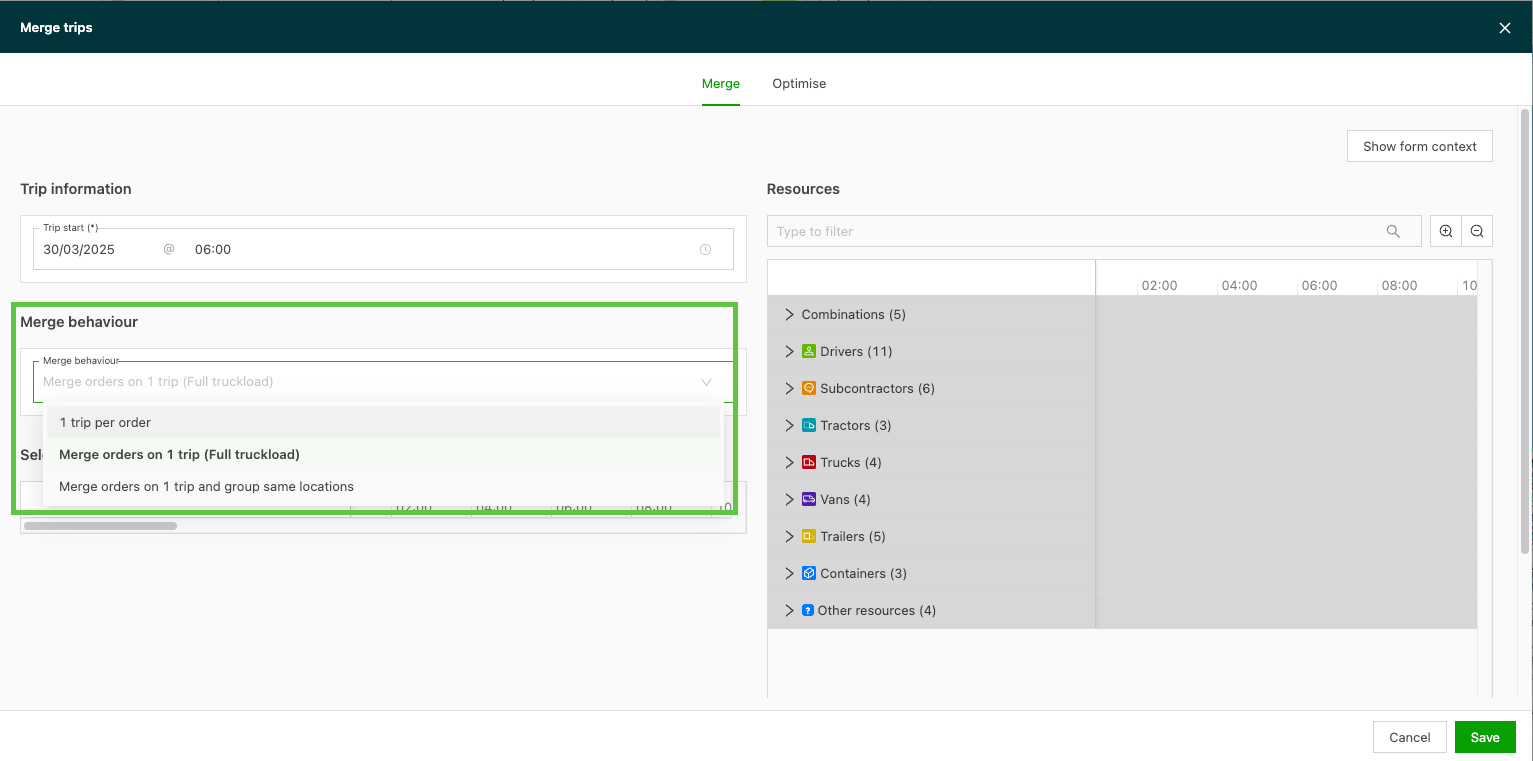
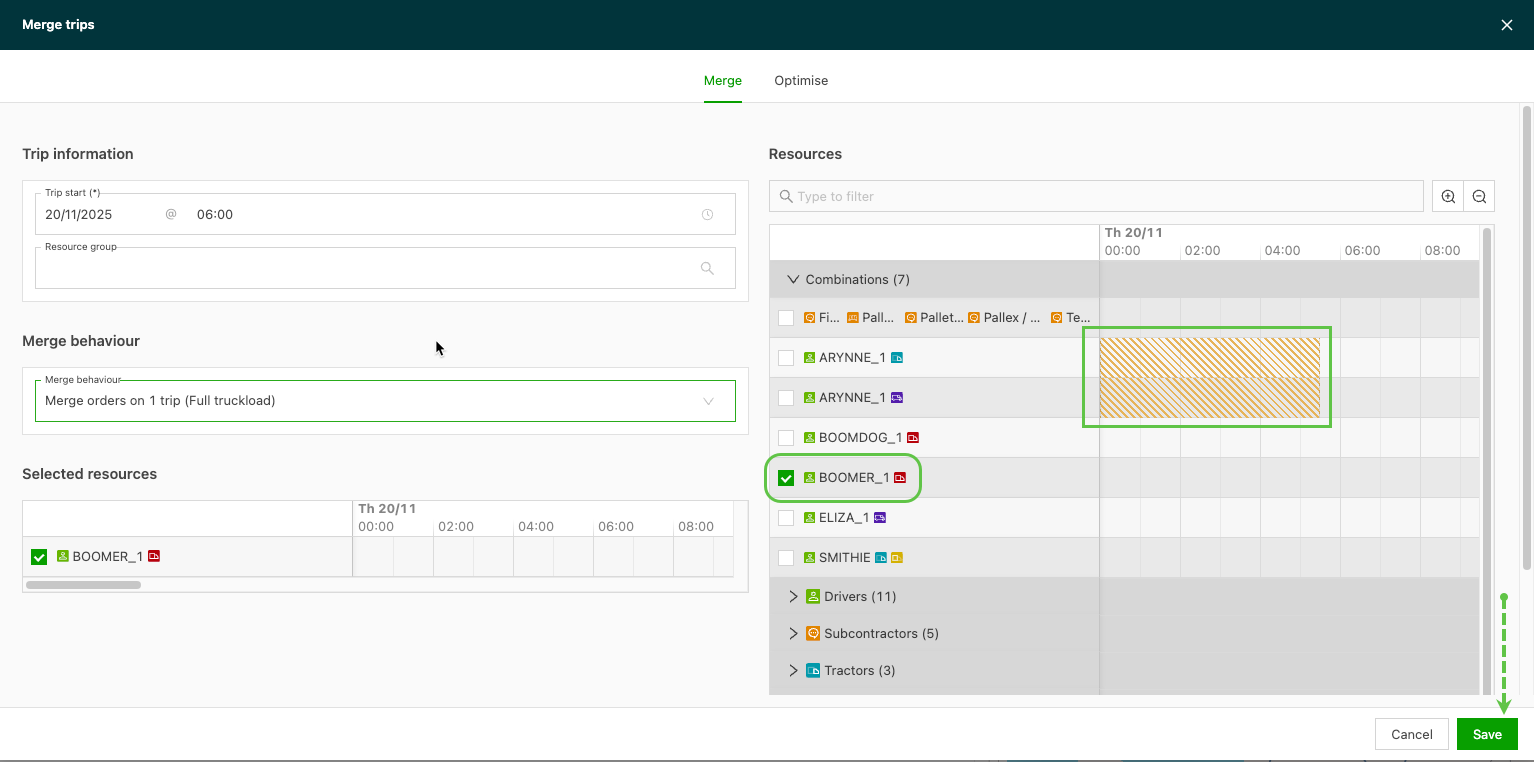
In the Merge loads window, an option under ‘Merge behavior’ selects how these loads should be planned:
- 1 load per order
- Merge orders on 1 load (full truckload (FTL))
- Merge orders on 1 load and group same locations
-
-
Load per order:
- Allows users to quickly send multiple orders in 1 transaction as individual loads, visualized with the same start date/time.
- This option is useful when multiple orders that require individual loads need to be sent to a resource (a contract carrier, for instance).
-
Merge orders:
-
When selecting the option to merge orders, 2 options are available:
- Merge orders on 1 load & group same locations: orders are combined into a single load.
- Merge orders on 1 load (FTL): orders are combined into a single load.
-
Stop order
-
The order in which the orders are selected determines the stop order of the load when merging orders together.
- Adjust stops by dragging them to a new position in the load, then click Save.
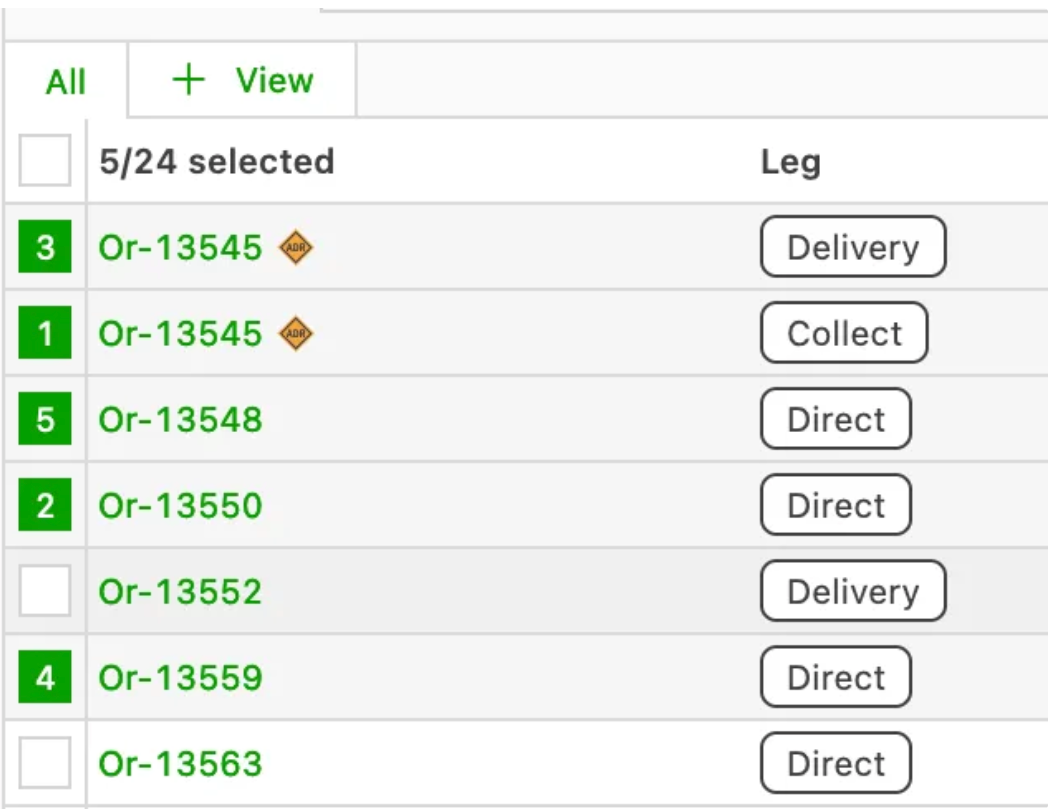
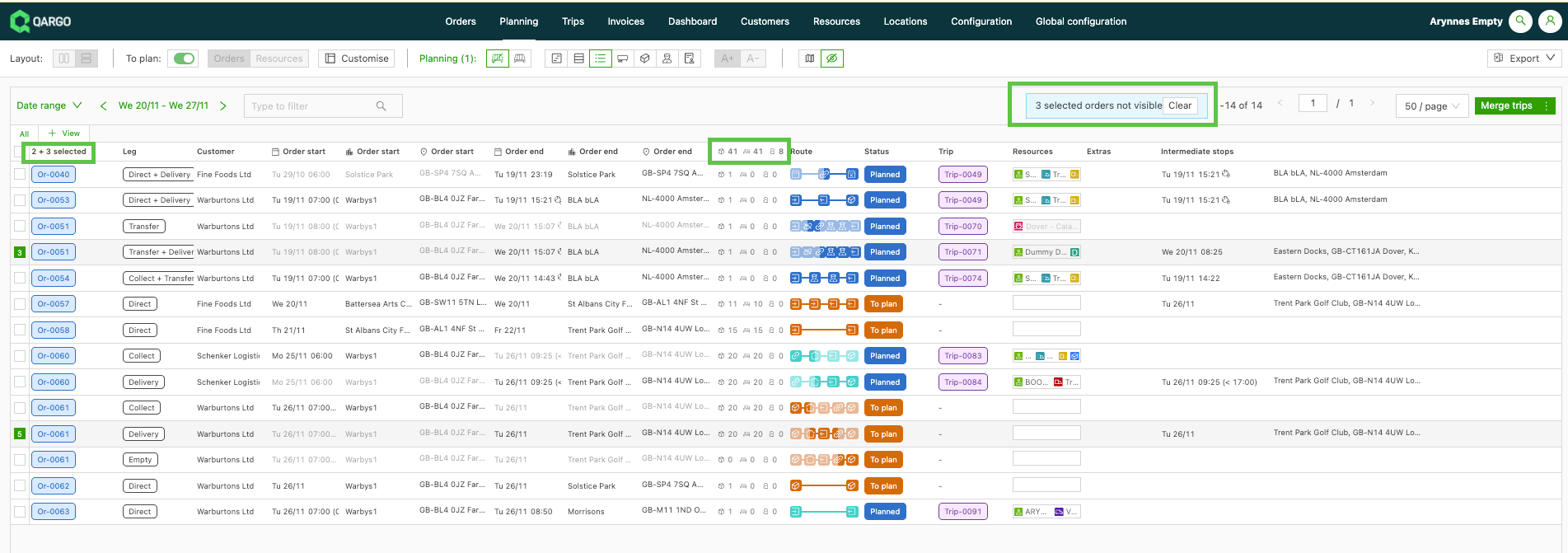
- When multiple orders are selected on the planning board, the column headers adjust dynamically to show the total quantity and weight of the selected orders.
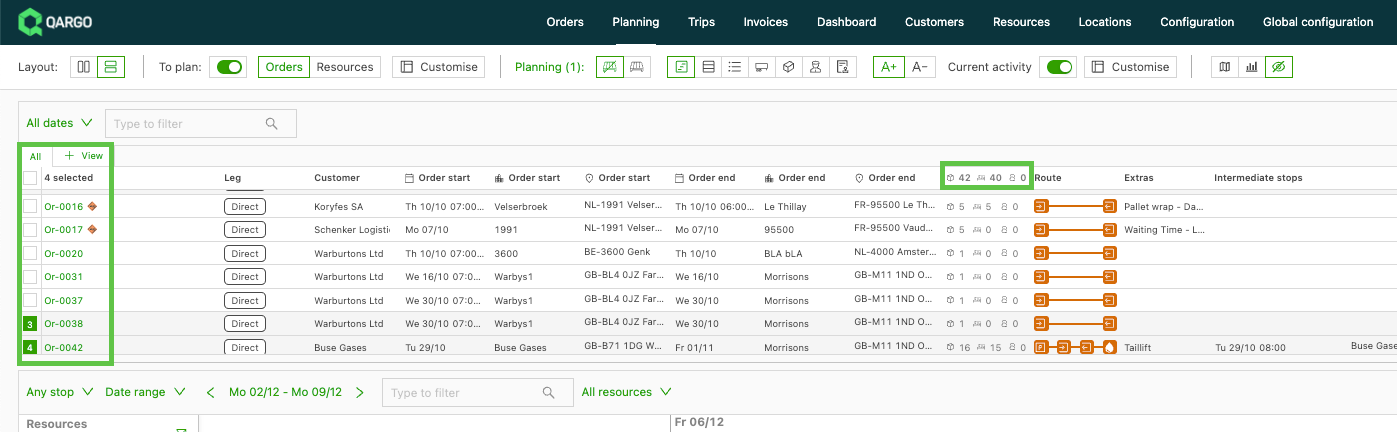
- This includes orders selected outside the currently visible range. This transparency gives better visibility for planning.
Initiate load planning
- Click the ‘Create new load’ button to start the load planning process.
- Define resources and save: Select the resources associated with the load and save the selection.
Note: If a resource (combination) is already in use for the selected day, the lined view is shown with the locations as marked below.
- View load on board: Once the load is planned, it is visible in the board view, giving an organized overview.
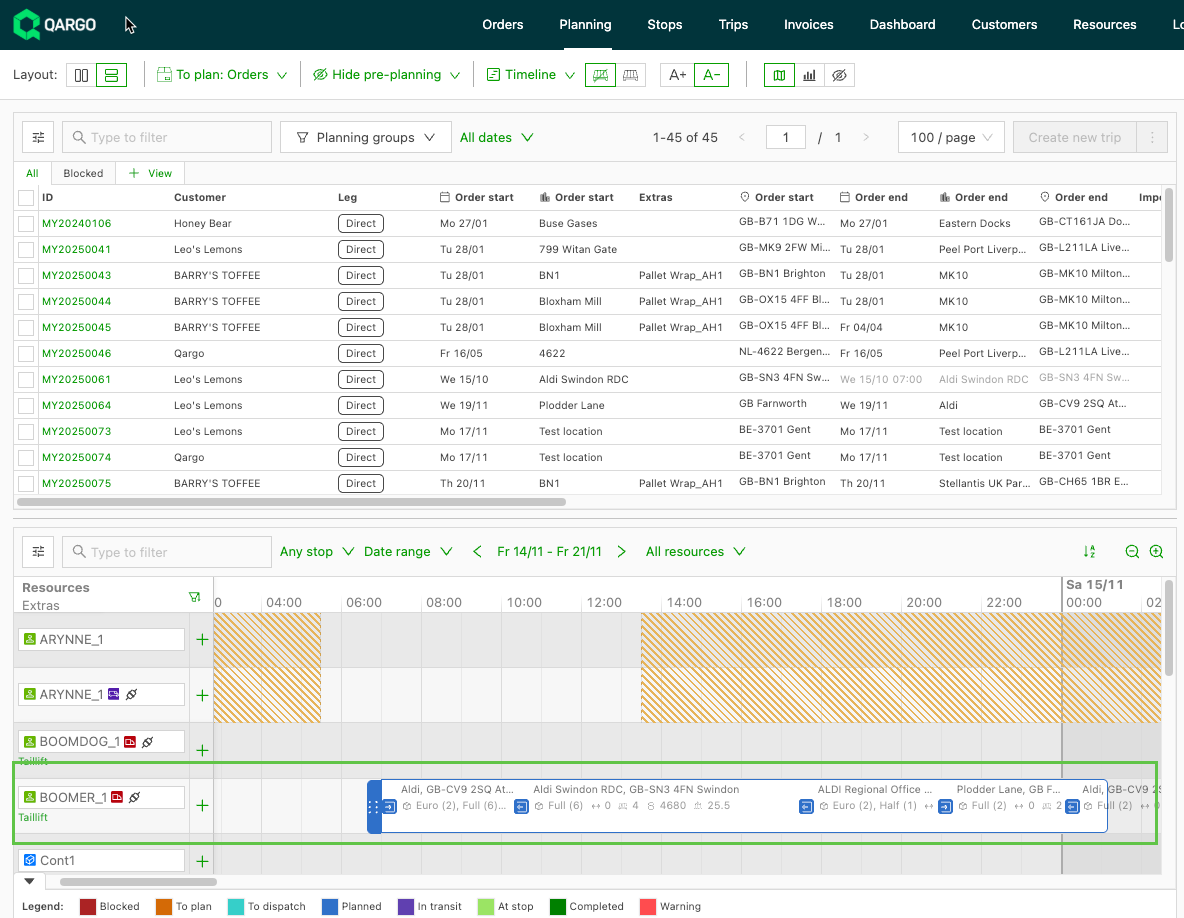
Viewing multiple orders on a load
-
View all orders easily from within the load details
- Click the arrow to expand the ‘Order overview’ panel (collapsed by default)
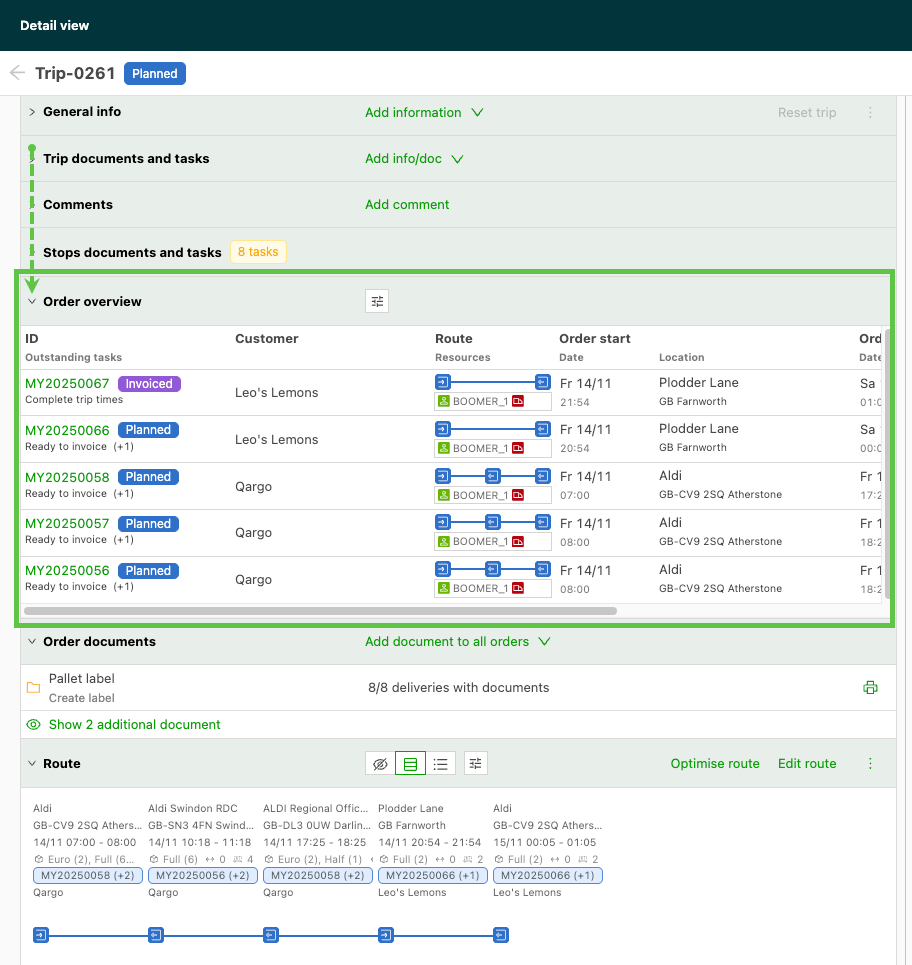
Order-focused table layout
The table provides a simplified, order-centric view, making it easier to:
- Review all orders at a glance
- Quickly identify missing or unexpected orders
- Go directly to order details without scanning stop tables
Customize the table layout to show only the columns and data required. This is set on an individual basis.

Benefits
- Faster load review: A clear overview of all orders at a glance.
- Reduced cognitive load: No need to scan duplicated stop rows.
- Improved data accuracy: A single consolidated table reduces missed orders or misassignments.
- Better user experience: Intuitive navigation and improved clarity for multi-order loads.
How to add new orders to a load
- To include new orders in the load, drag them into the load area.
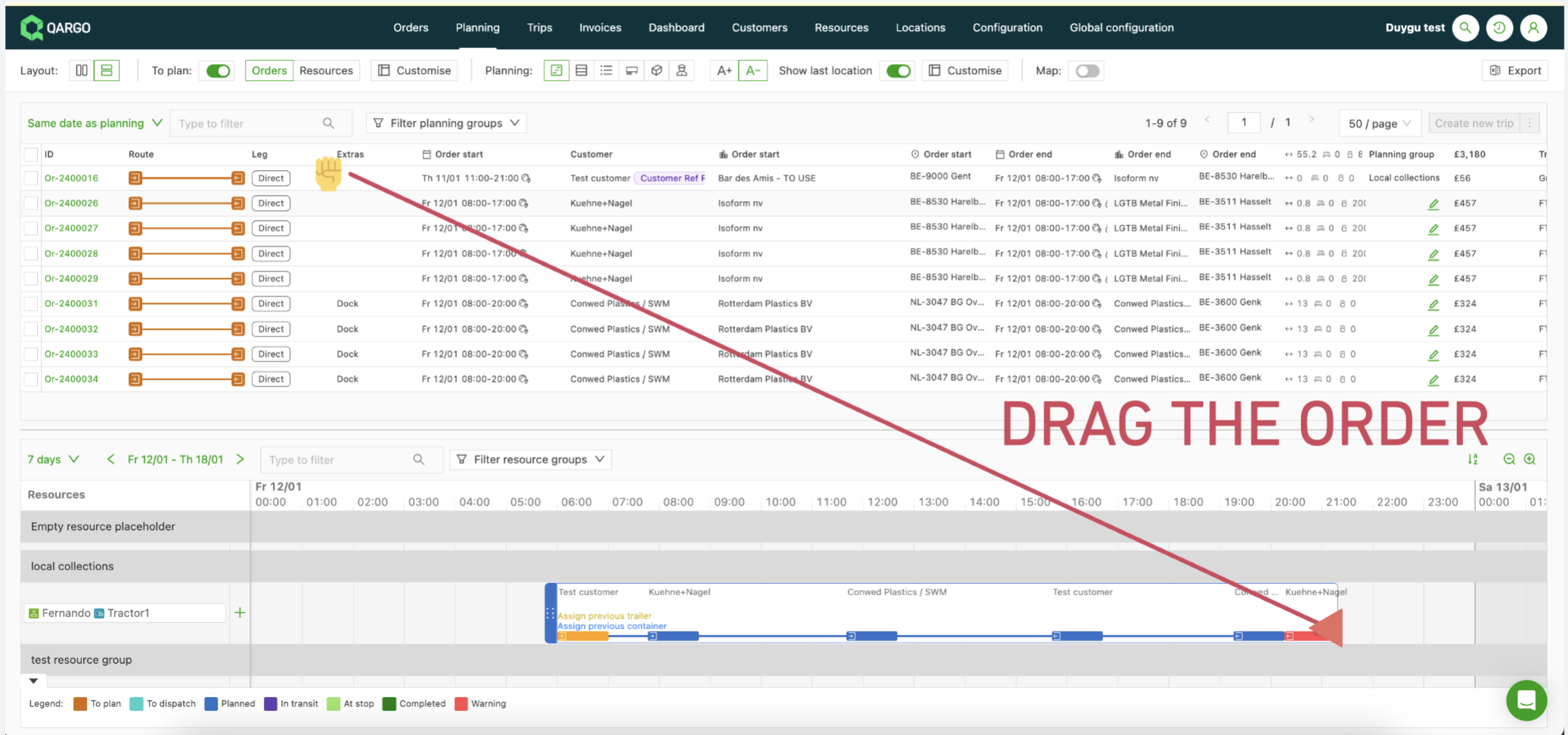
Stops can be edited on the planning screen by dragging them to the correct line, or on the load page itself by clicking the Edit route button. See the examples below:
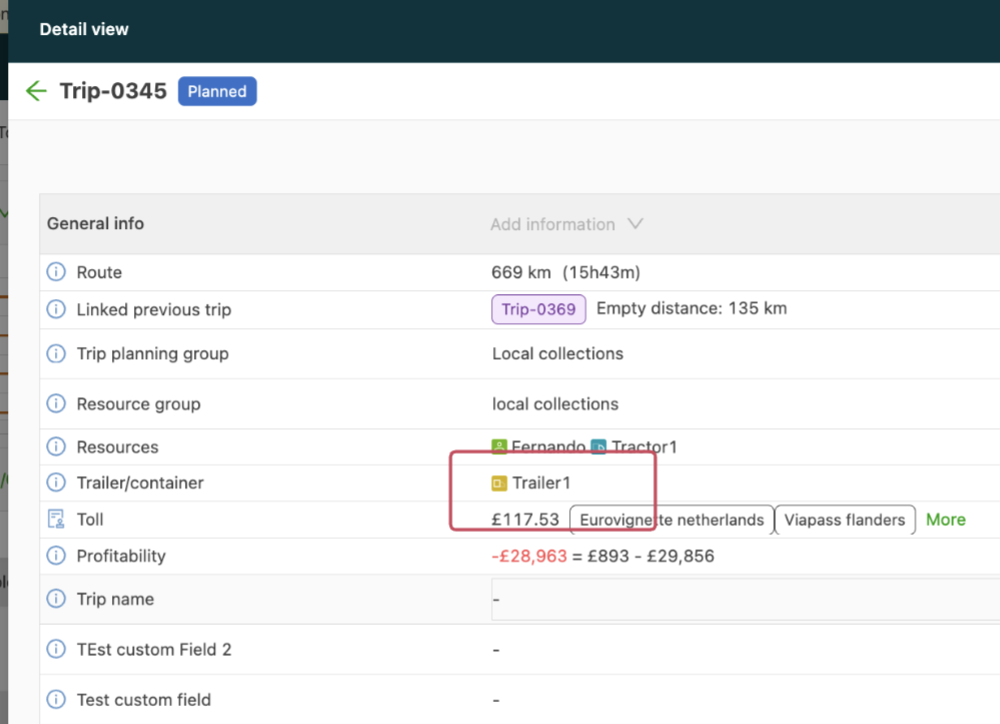
If a trailer or container was previously used for the same resource set the planning was made for, suggestions to add it to the load appear once the load is planned. To assign the same trailer or container, click the text to add the trailer to the new load:
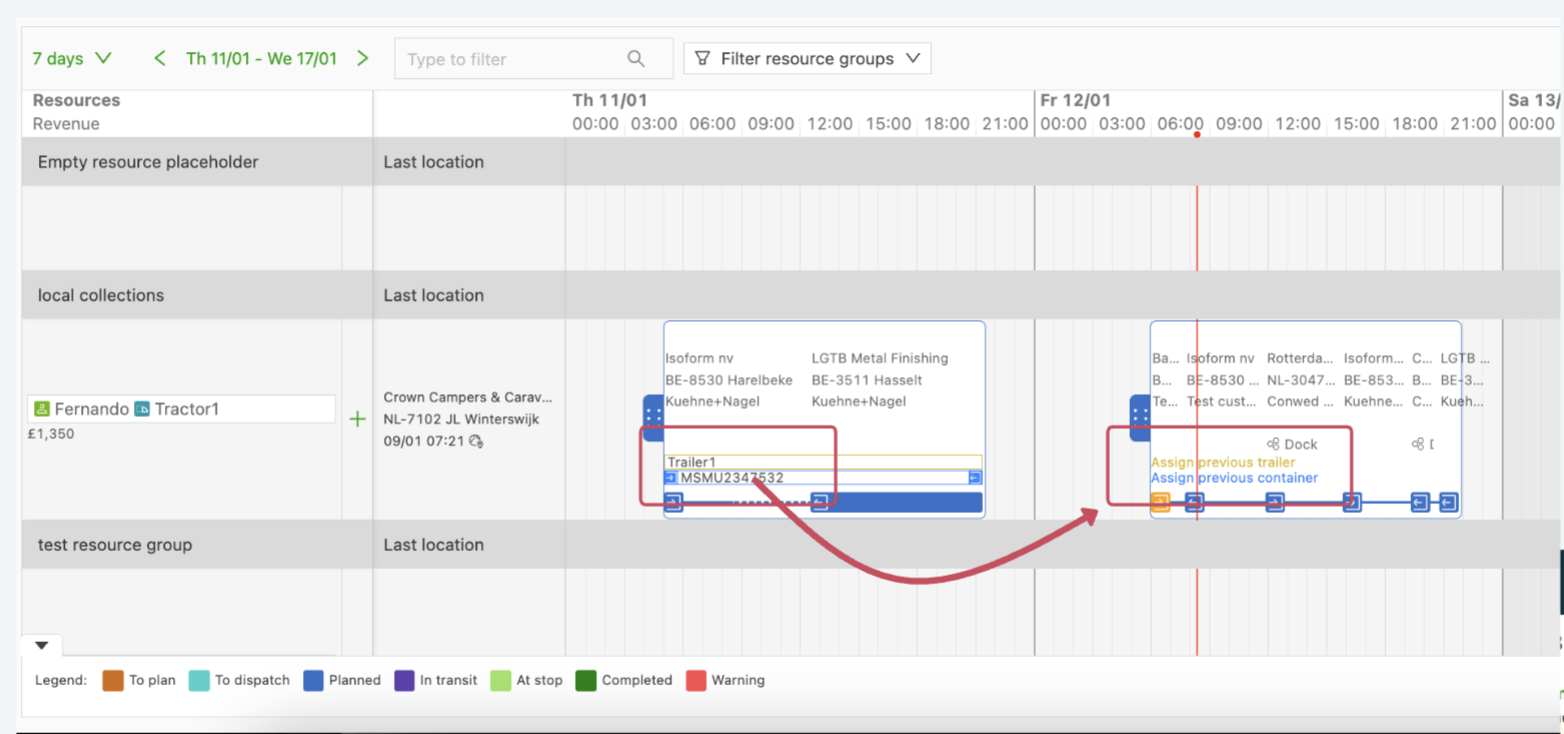
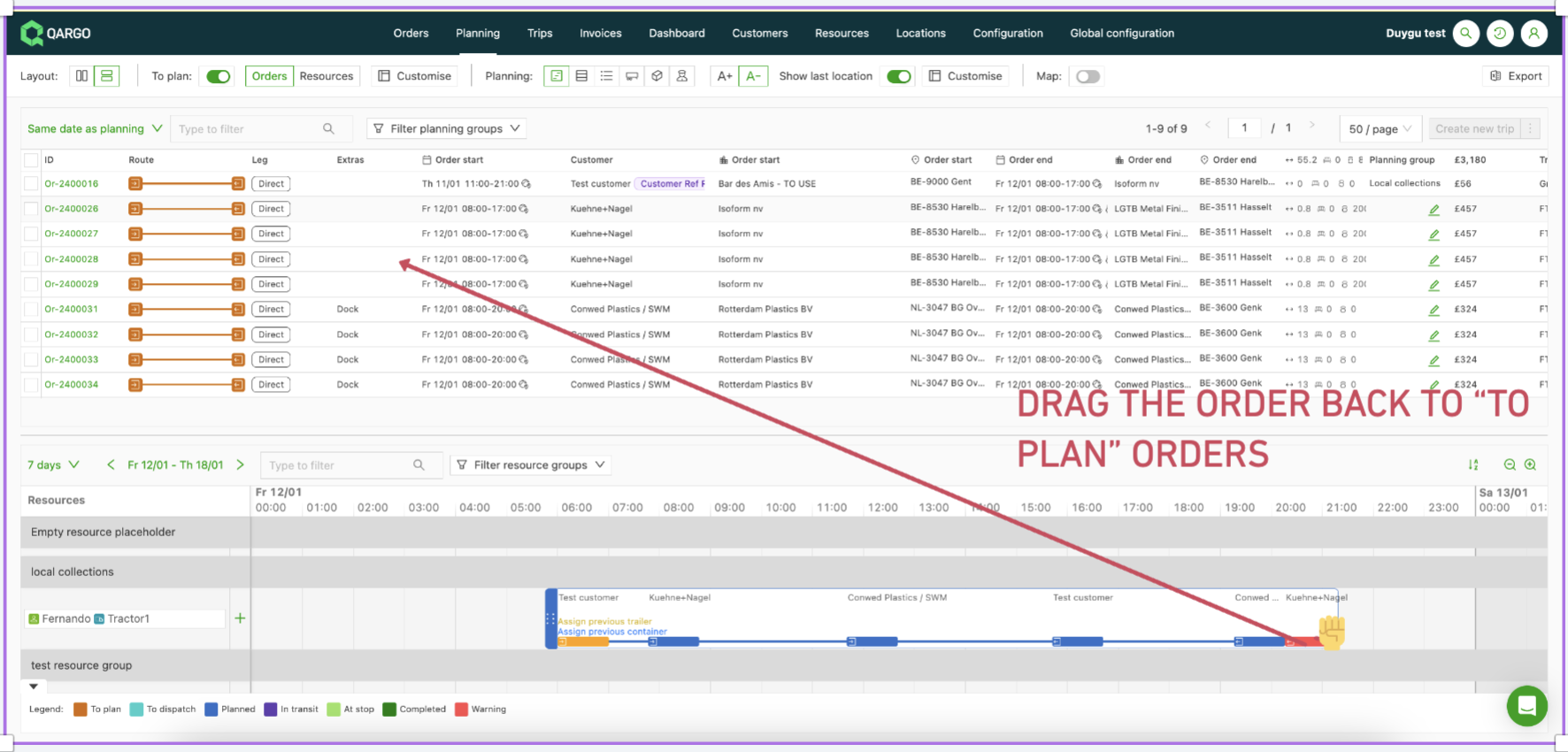
How to remove orders from a load: To remove orders from the load, either drag the leg back to the Orders to plan list or remove the order directly from the load or order page. (See the “👉Unplan/reset load” section for additional details.)
Via the planning board:
Via the load:
Via the order:
🚨Attention:
-
Order load limit: Each load has a limit of approximately 75 orders, with a total of around 300 stops. A warning appears when this limit is exceeded. Also note that mobile app dispatch remains limited to 30 orders per load. Loads exceeding this limit cannot be dispatched to the driver mobile app.