
Planning — Stop arrival and departure events — What, why & how.
Qargo stores an operations event whenever a driver or connected integration marks a stop as arrived or completed, capturing the last known position, mileage and fuel of the vehicle as proof of location.
Table of contents
Summary
What are stop arrival and departure events?
- Stored records created the moment a stop changes to at stop (an Arrived event) or to completed (a Departed event).
- Each event captures the tracking snapshot known at that moment: latitude and longitude, mileage and fuel. Each value includes the timestamp of the tracking update it came from.
- Arrived and Departed markers appear on the planner map with the same styling as the existing geofence markers. This lets planners see exactly where the driver confirmed the stop.
Why was this introduced?
- Previously, Qargo only stored a tracking snapshot when a vehicle crossed a geofence. When a driver manually pressed Arrived or Completed, the position known to Qargo at that moment was not recorded anywhere.
- Pallet networks and visibility platforms require proof-of-location data (coordinates plus timestamp) on arrival and departure updates. For example, they use it to confirm that a driver was on site and to resolve delivery disputes.
- Storing one canonical event per arrival and departure gives downstream integrations, documents and reporting a single reliable record to read from.
How does it work?
- A stop status change can come from the driver mobile app, a telematics or EDI integration, or a pallet network scan. In each case, Qargo creates the matching event automatically. No configuration is needed.
- Qargo looks up the most recent tracking update for each resource carrying out the stop. If that update is within 5 minutes of the stop status timestamp, the position, mileage and fuel are stored on the event. If it is older, the event is stored without position data.
- One event is stored per allocated resource on the stop (for example, the vehicle and the driver). Each event carries the tracking data of that specific resource.
Use cases
- A pallet network terminal questions whether a delivery was really made. The stored arrival event carries the coordinates and timestamp of the moment the driver pressed Arrived. This settles the dispute without sending queries back to the operations team.
- A visibility platform asks for the driver’s actual last known position at each milestone, rather than the planned stop coordinates. The stored events provide exactly that position.
- A planner wants to check where a driver actually confirmed a stop. The Arrived and Departed markers on the planner map show the recorded positions next to the planned route.
Terminology
| Term | Definition |
|---|---|
| Operations event | A stored record on a stop describing something that happened during operations, such as a geofence crossing or an arrival confirmation. |
| Tracking snapshot | The latitude and longitude, mileage and fuel values most recently reported by a resource, together with their timestamps. |
| Geofence | A virtual boundary around a location that detects vehicles entering or leaving. Geofence crossings create their own events, separate from arrival and departure events. |
| Telematics | The onboard system (or the Qargo driver mobile app) that reports vehicle positions, mileage and fuel to Qargo. |
How it works
When events are created
- A stop moving to at stop creates an Arrived event; a stop moving to completed creates a Departed event.
- Events are created when the status change comes from the driver mobile app, a telematics or EDI integration, or a pallet network scan. This includes stops completed automatically together with a scanned shipment.
- A stop that goes straight to completed without ever being marked as arrived receives both an Arrived and a Departed event. This way, an arrival record always exists for consumers that need proof of arrival. Both events then share the same timestamp and snapshot.
When events are not created
- Stops completed manually by a planner in the app do not produce events, because there is no driver or integration position to record.
- Stops completed automatically by geofencing do not produce these events. The geofence entry and exit events already carry the same tracking snapshot for those stops.
- Canceled stops, and stops with no recorded arrival or departure time, do not produce events. A missing record is preferred over a record showing the wrong moment.
The 5-minute freshness rule
Position updates rarely arrive at the exact moment a status changes. For this reason, Qargo uses the most recent tracking update from within 5 minutes of the stop status timestamp.
- All or nothing. The tracking data is saved as one set. If nothing in it is recent enough, the event is saved without position data. Connected systems then use their own fallback value instead.
- Once saved, it stays. Later tracking updates don’t overwrite it. The event records where the vehicle was when the status was reported.
- Time corrections don’t change it. If a driver later edits the arrival or departure time, only the stop is updated; the event keeps its original timestamp and data.
On the planner map
- Arrived and Departed markers are displayed with the same styling as geofence markers, next to the planned route.
- Markers show the position of the vehicle at the moment the status change was reported.
Arrival and departure times in the Operations events history
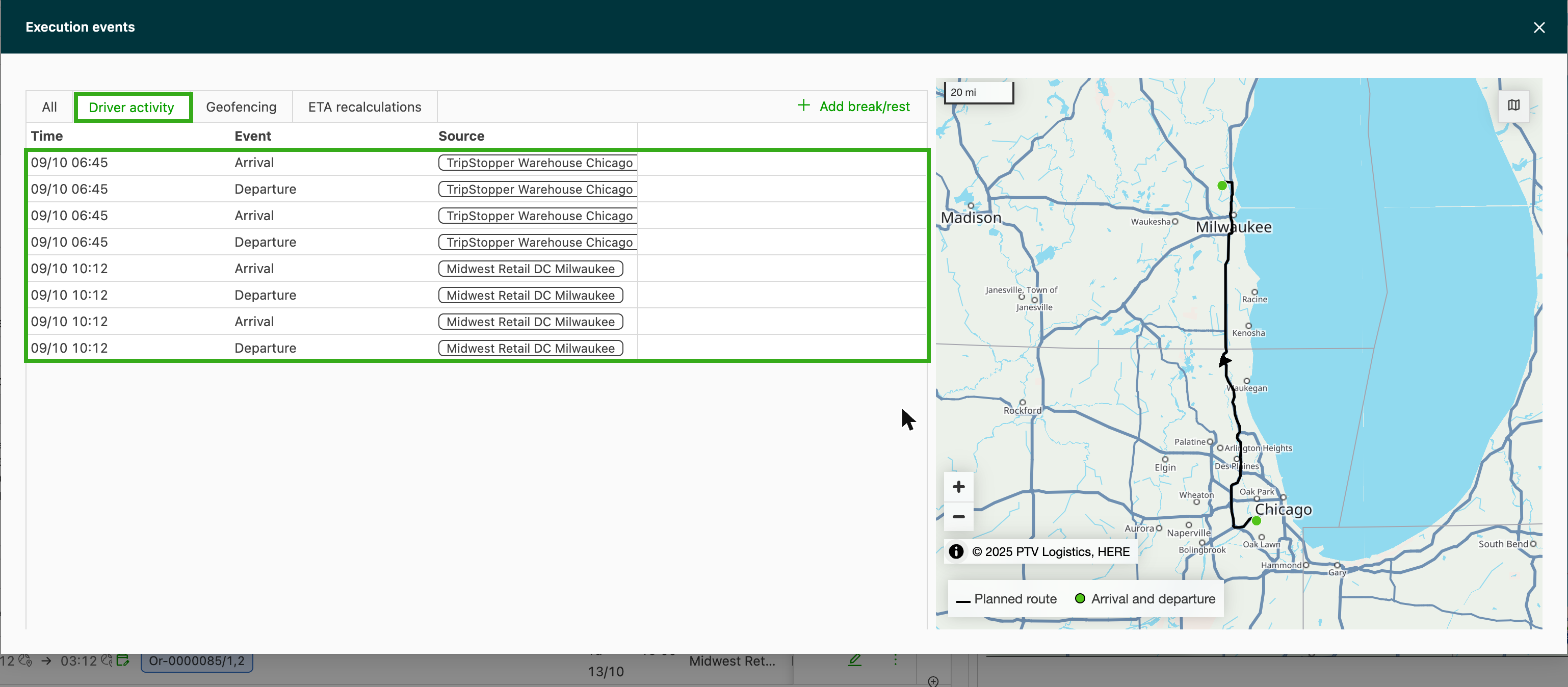
The Operations events window of a load lists an Arrival and a Departure row per stop, on the Driver activity tab.
Arrival and departure times: review them on a load
- Open a load: from LOADS > Loads, click the load to check, so its details page opens.
- Click the clock icon on the Events row in the Operations section. The Operations events window opens on the Driver activity tab.
- Check the Arrival and Departure rows of each stop.
How it works
- Source of the times: the rows use the actual start and end times of the stop. They do not come from the stored arrival and departure events.
- Other tabs: the window also has the All, Geofencing and ETA recalculations tabs.
Troubleshooting
| Issue | Resolution |
|---|---|
| An event exists but shows no position data | The most recent tracking update was older than 5 minutes at the moment of the status change. Check that the telematics unit or driver mobile app was reporting positions around that time. |
| A stop has a Departed event but no Arrived event | Geofencing detected the arrival, so the arrival record is on the geofence entry event instead. |
| A stop has no events at all | A planner completed the stop manually, or the stop was not part of a planned load, was canceled, or has no recorded arrival or departure time. |
| Two events exist for the same arrival | This is expected. One event is stored per allocated resource (for example, vehicle and driver), each with its own tracking data. Consumers read the resource they need. |