
Qargo Intelligence: Assign fields tasks — what, why & how
Qi Assign fields tasks check a plain-language condition and, when it is met, automatically fill in fields on orders, loads, or stops.
Table of contents
Summary
-
What is it?
- A new type of Qi task called Assign fields.
- When the task runs, it checks a condition. If the condition is met, it writes a value into one or more fields in Qargo.
- The rule is set up by describing it in plain language to a chat agent. No technical knowledge is needed.
-
Why use it?
- Standard Qi validation tasks can only add a tag. Many tags on one order or load make the overview hard to read, and a tag cannot hold a value.
- An Assign fields task stores a real value, such as a container no. or a booking instruction, in a field that can be shown in overviews, on documents, or in the customer portal.
-
How does it work?
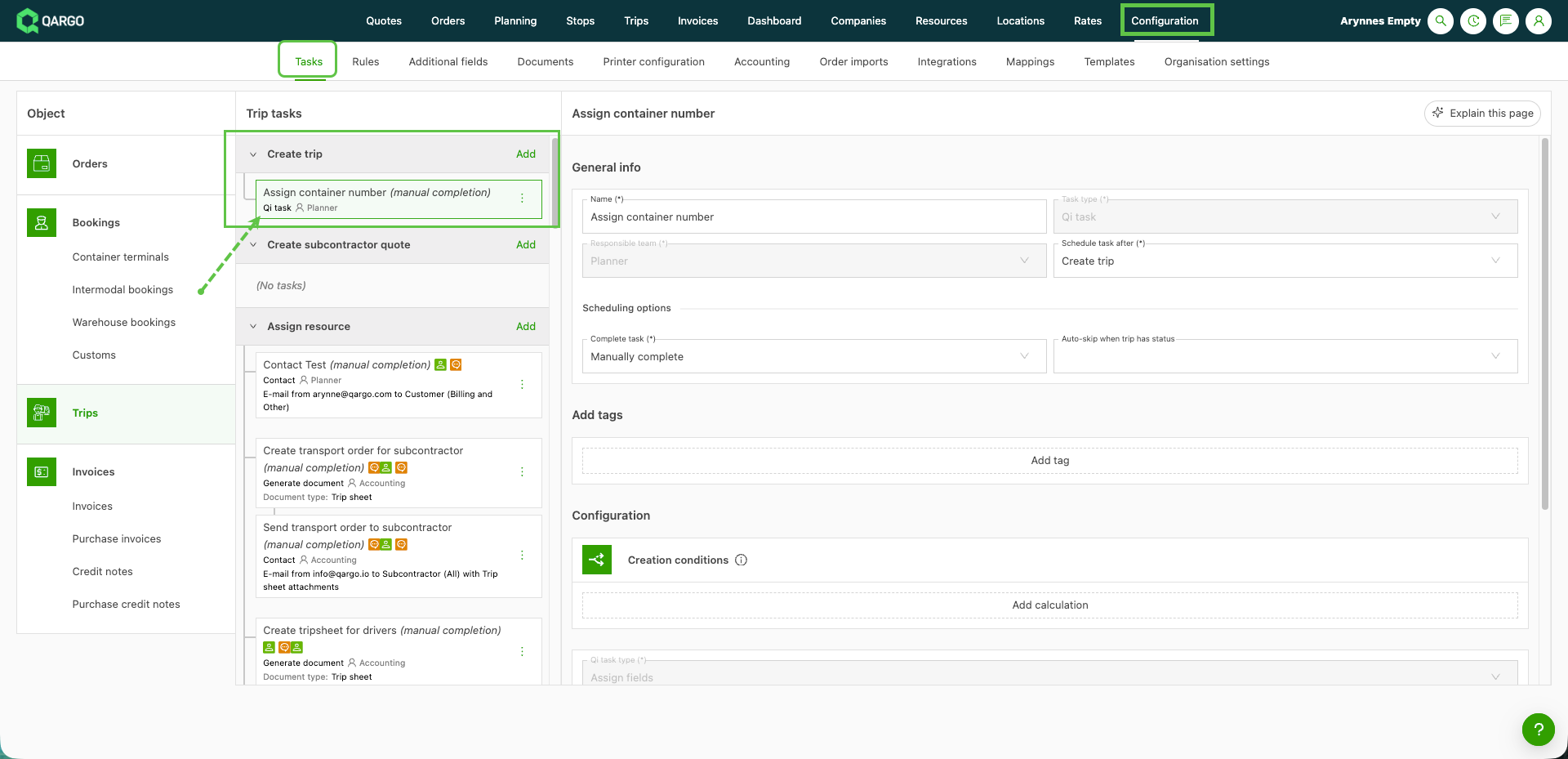
- The task is created under Configuration > Tasks like any other task.
- The chat agent turns the description into a rule, which can be checked against a real order or load before saving.
- The value can be fixed (for example “BOOK TIMESLOT”) or derived from current data (for example “the next Monday from today”).
- The rule can overwrite an existing value or only fill the field when it is empty.
Prerequisites
- Qargo Intelligence (Qi) must be enabled for the tenant.
- Super Admin or Admin permissions to configure tasks.
- Any custom field the task should fill in must already exist.
- Familiarity with tasks is helpful. See Tasks – what, why & how? and Qi – validation tasks.
Use cases
- Show the container or trailer number to customers: when a resource is assigned to a load, write the container or trailer number into a custom field that is visible in the customer portal.
- Set booking instructions automatically: set a dropdown field to “BOOK TIMESLOT” when a time slot time window has been selected.
- Replace tags with one clear value: instead of several Qi tags stacking up on a load, store the outcome in a single field that is easy to read and filter on.
- Flag special goods: set a field when the goods on an order meet a condition, such as specific UN numbers, so it stands out to planners.
Terminology
| Term | Definition |
|---|---|
| Qi task | A task that uses Qargo Intelligence (AI) to check or update data automatically. |
| Assign fields | The Qi task type that writes values into fields, instead of only adding a tag. |
| Chat agent | The AI assistant in the task modal that turns a plain-language description into a rule. |
| Condition | The check the rule makes first. Fields are only filled in when the condition is met. |
| Static value | A fixed value that is always the same, for example “BOOK TIMESLOT”. |
| Derived value | A value derived from current data, for example a container no. or a calculated date. |
| Humanized / Technical | Two views of the same rule: plain English, or the underlying expression the system runs. |
| Validate | A check of the draft rule against one real order or load, showing what would change. |
Creating an Assign fields task
Open a new Qi task
- Navigate to Configuration > Tasks.
- Select the object the task belongs to, for example Orders or Loads.
- Click Add to open the new task modal.
- Select Qi task as the Task type.
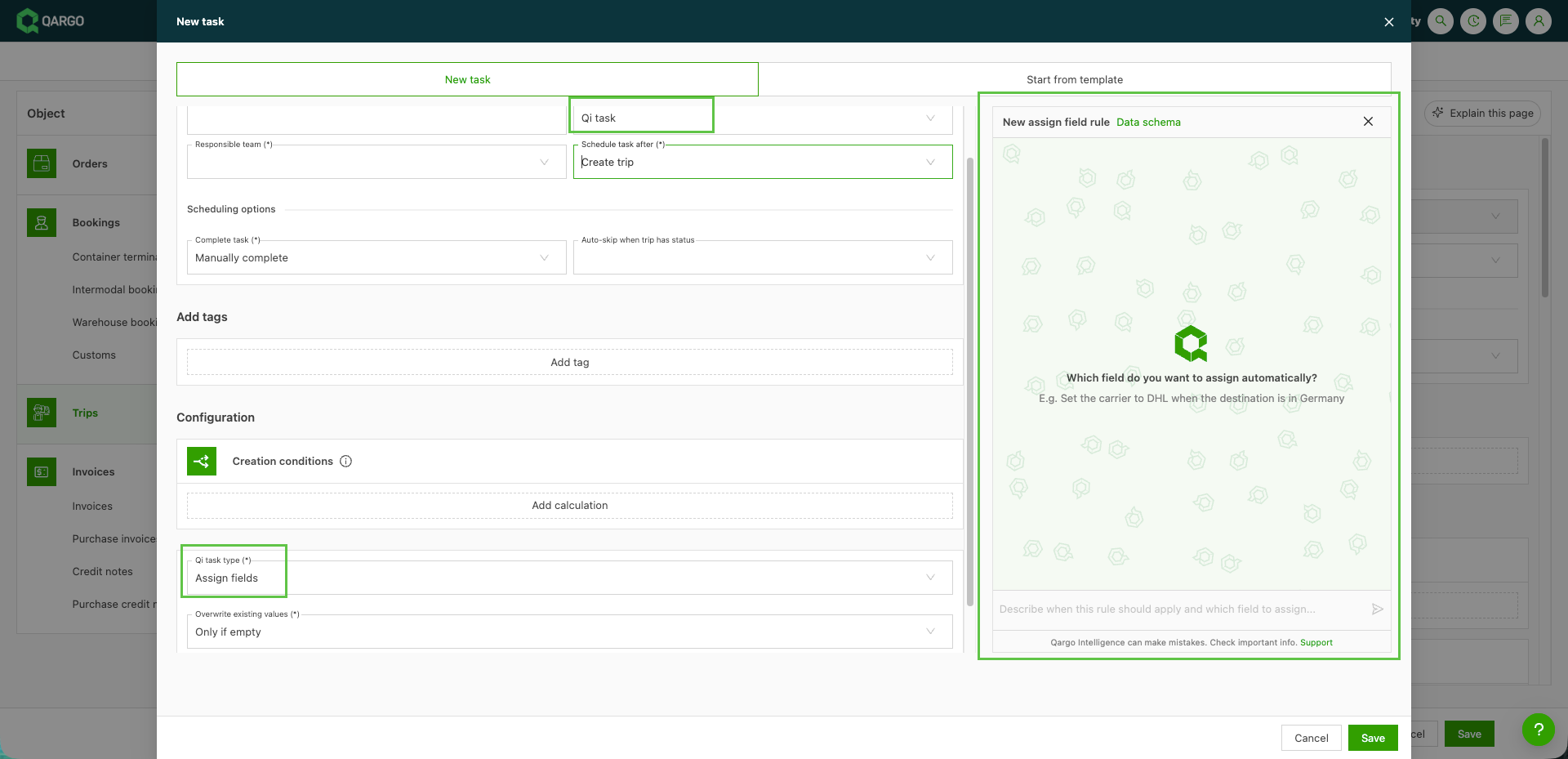
- Confirm that the Assign fields type is selected. The chat agent panel opens.
Describe the rule
-
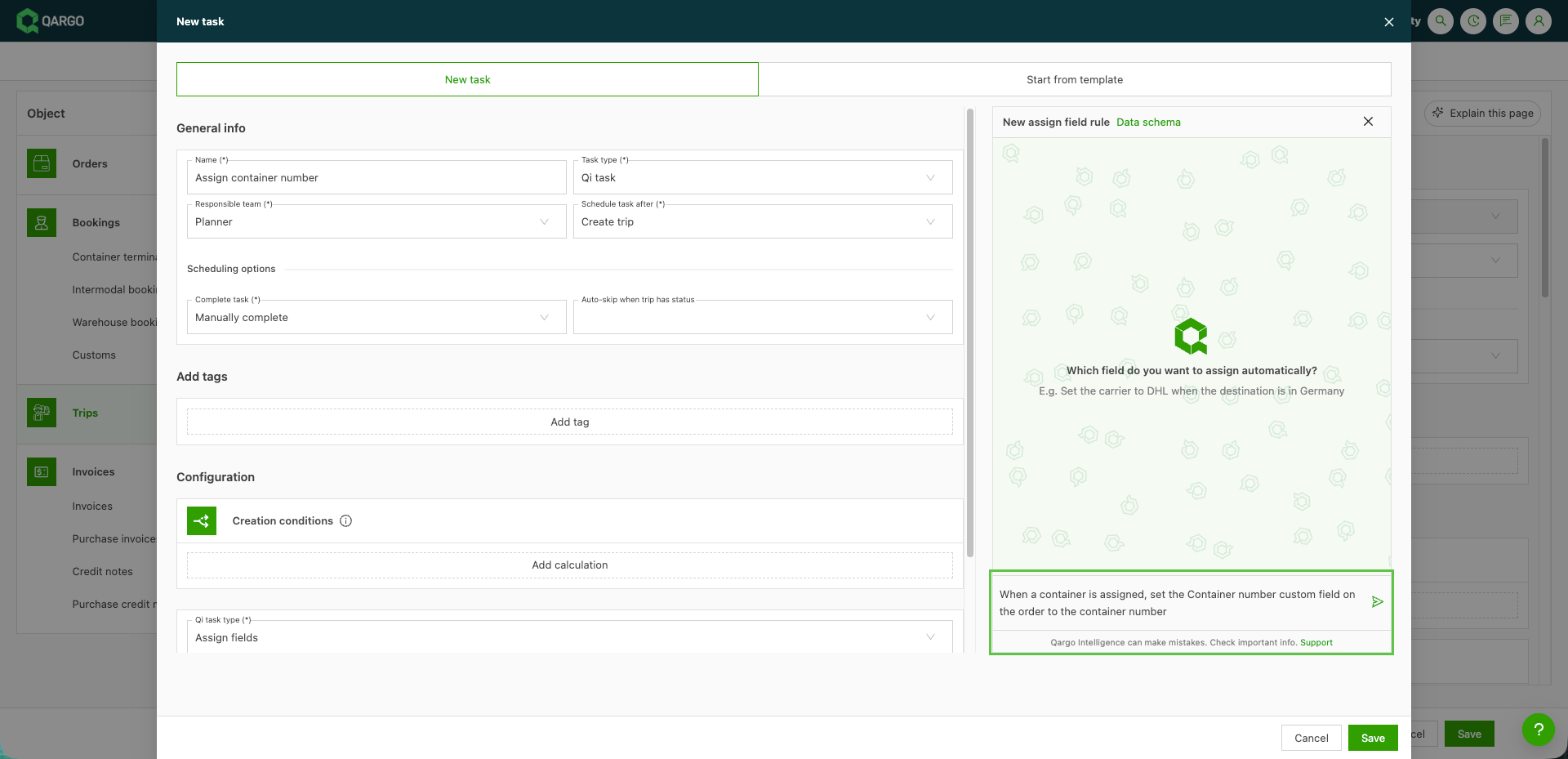
Describe the rule in the chat panel in plain language. Include the condition and the field and value to set, for example: “When a container is assigned, set the Container no. custom field on the order to the container no.”
-
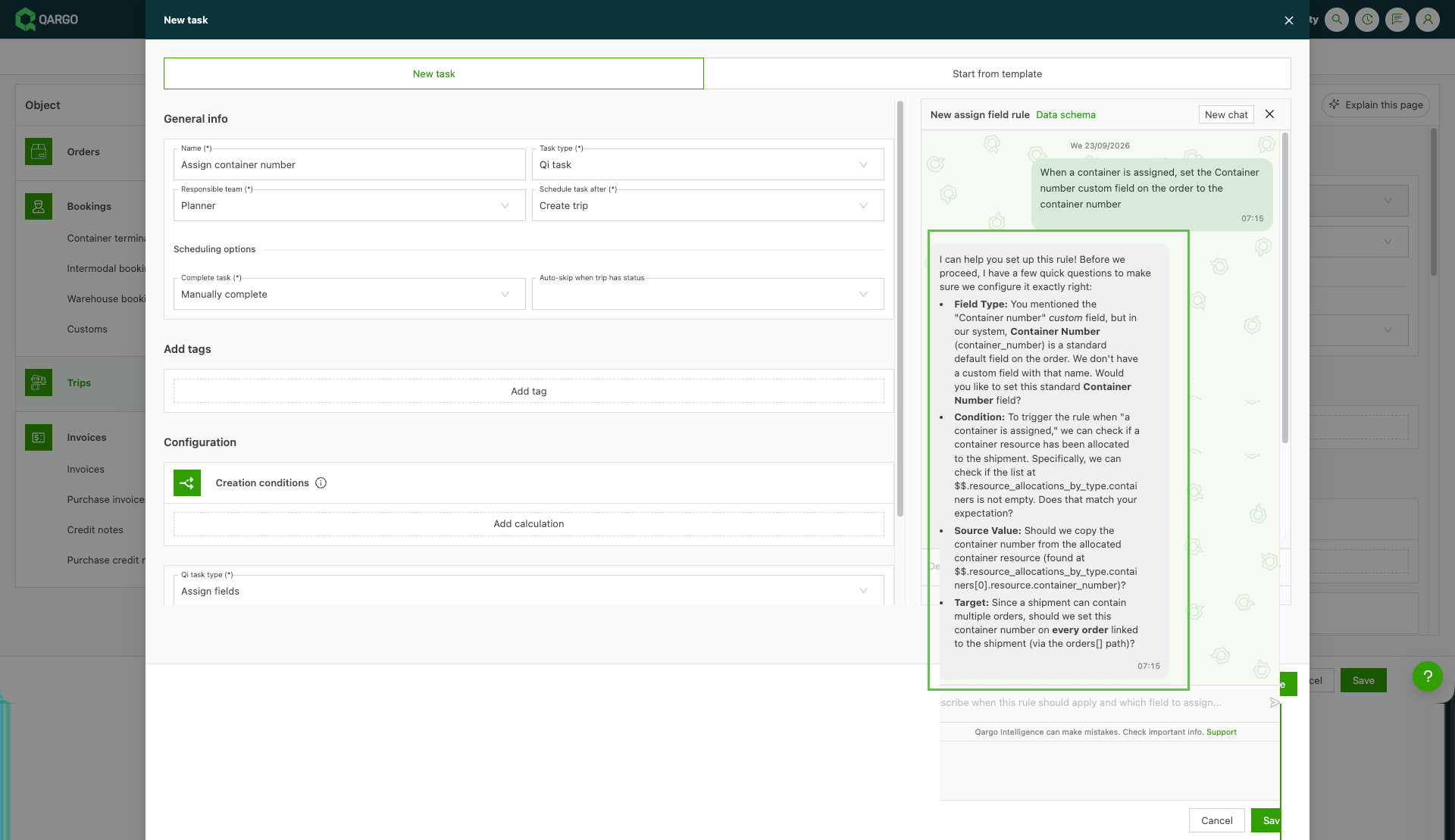
Answer any follow-up questions from the chat agent. It guides the description until the rule is clear.
-
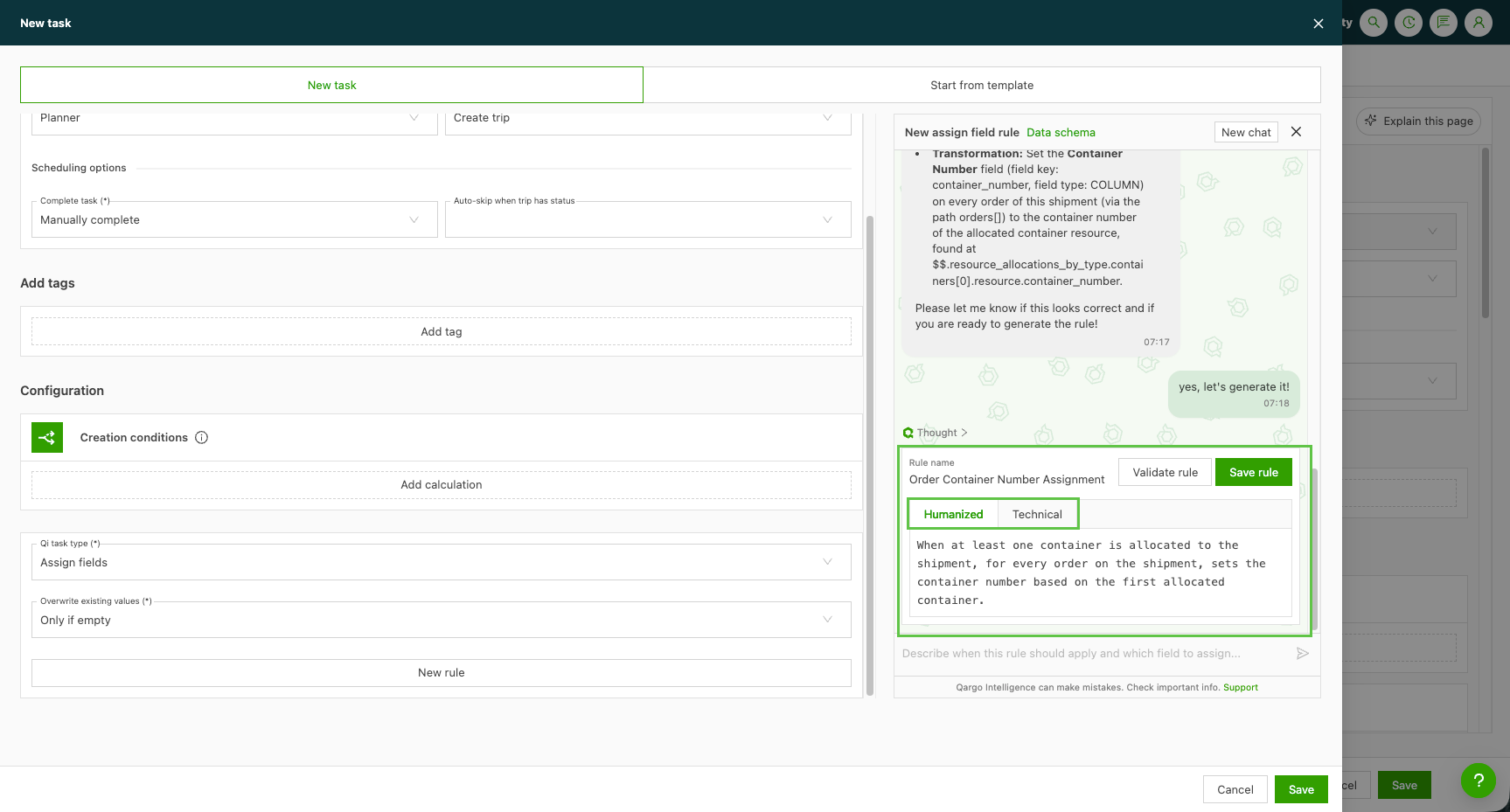
Review the rule in plain language, using the Humanized view. Switch to Technical to see the underlying expression if needed.
-
Choose whether the value may overwrite an existing value, or should only be written when the field is empty.
Validate the rule
-
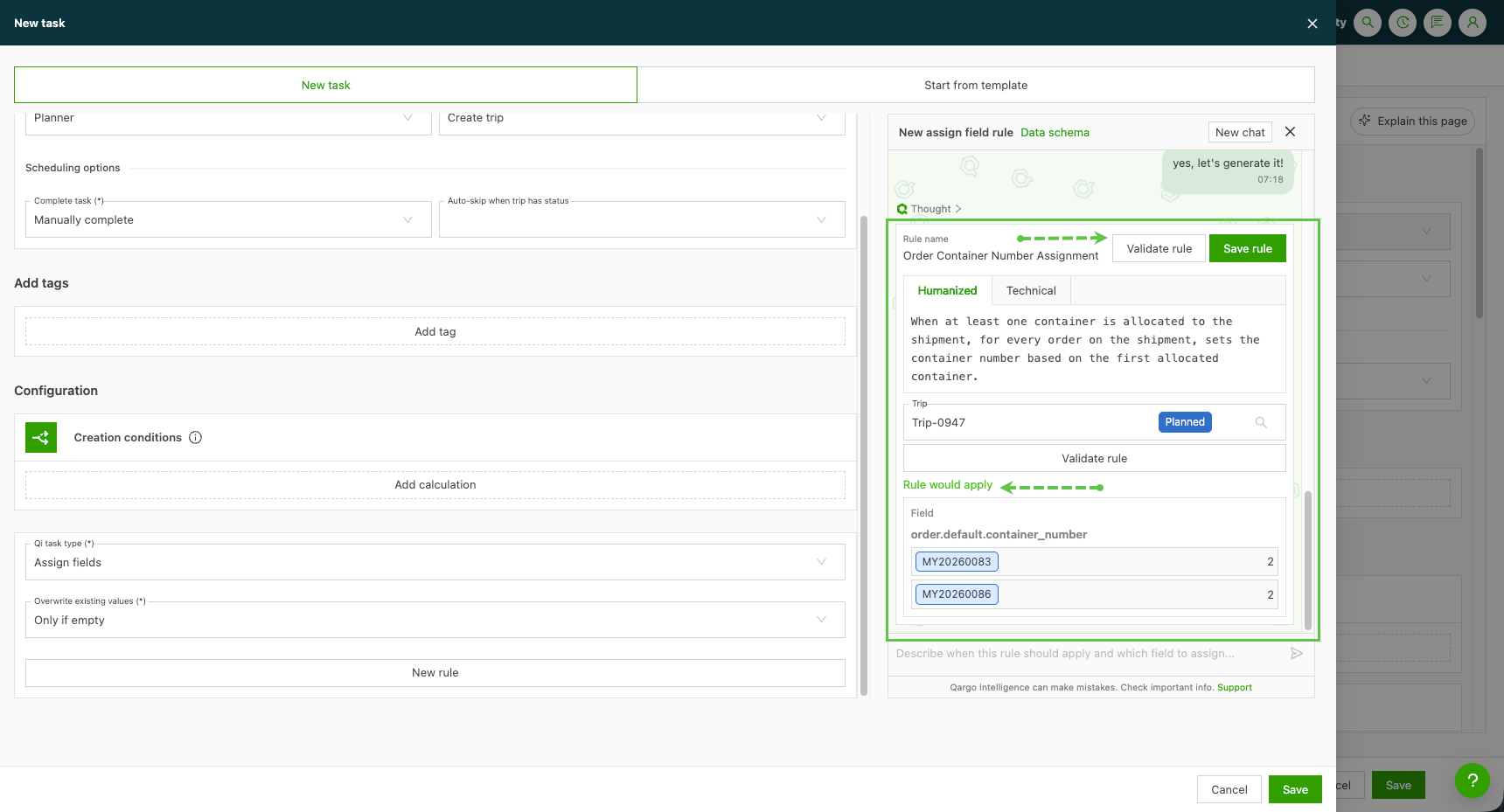
Click Validate. A search box opens.
-
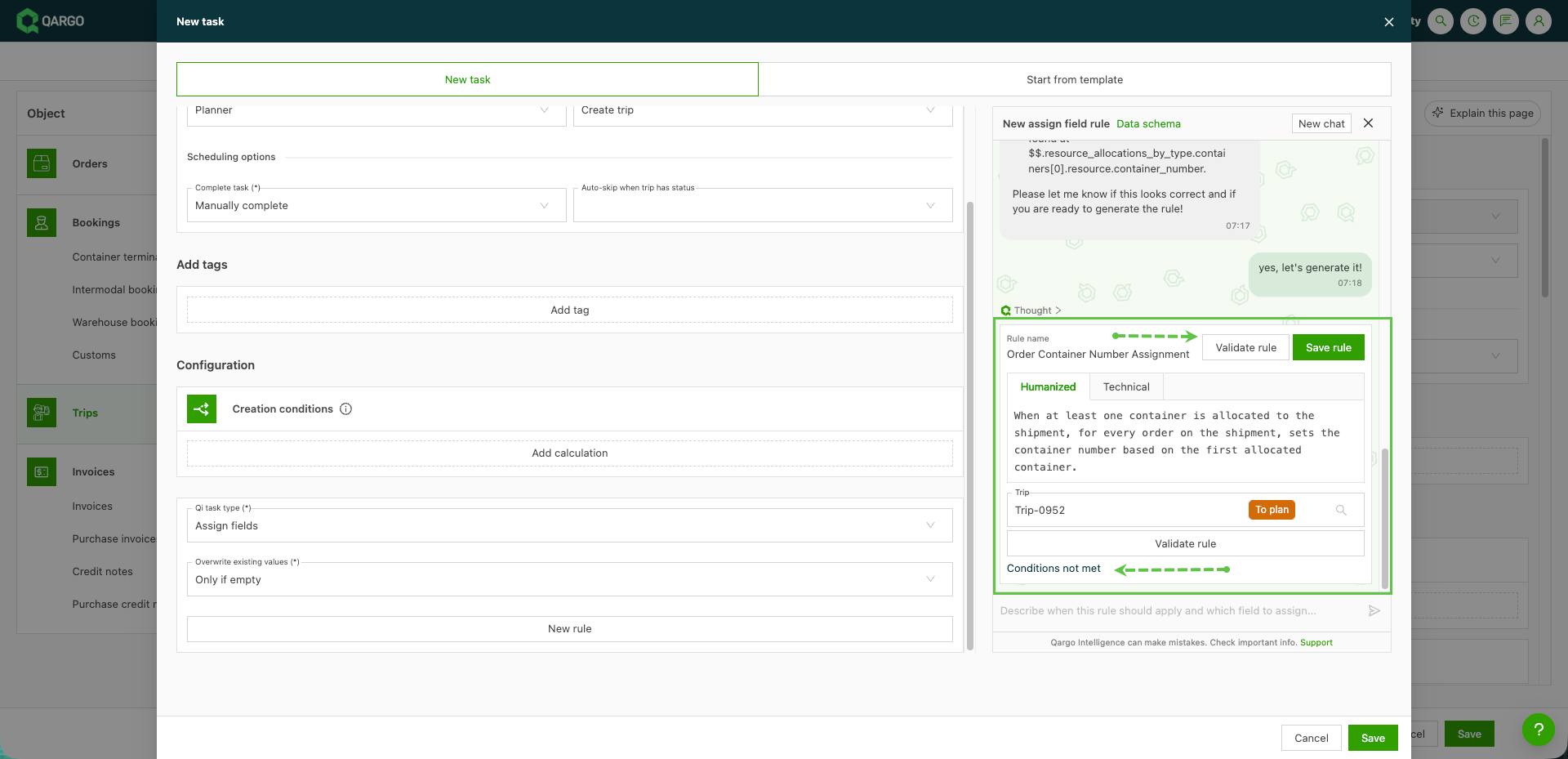
Select one order or load to test against. Only one record can be validated at a time.
-
Review the result:
- Rule applies: the condition is met, and the fields are shown with their values before and after.
- Rule doesn’t apply: the condition is not met for this record, so nothing would change.
-
Refine the description in the chat and validate again until the result is correct.
Save the rule and the task
-
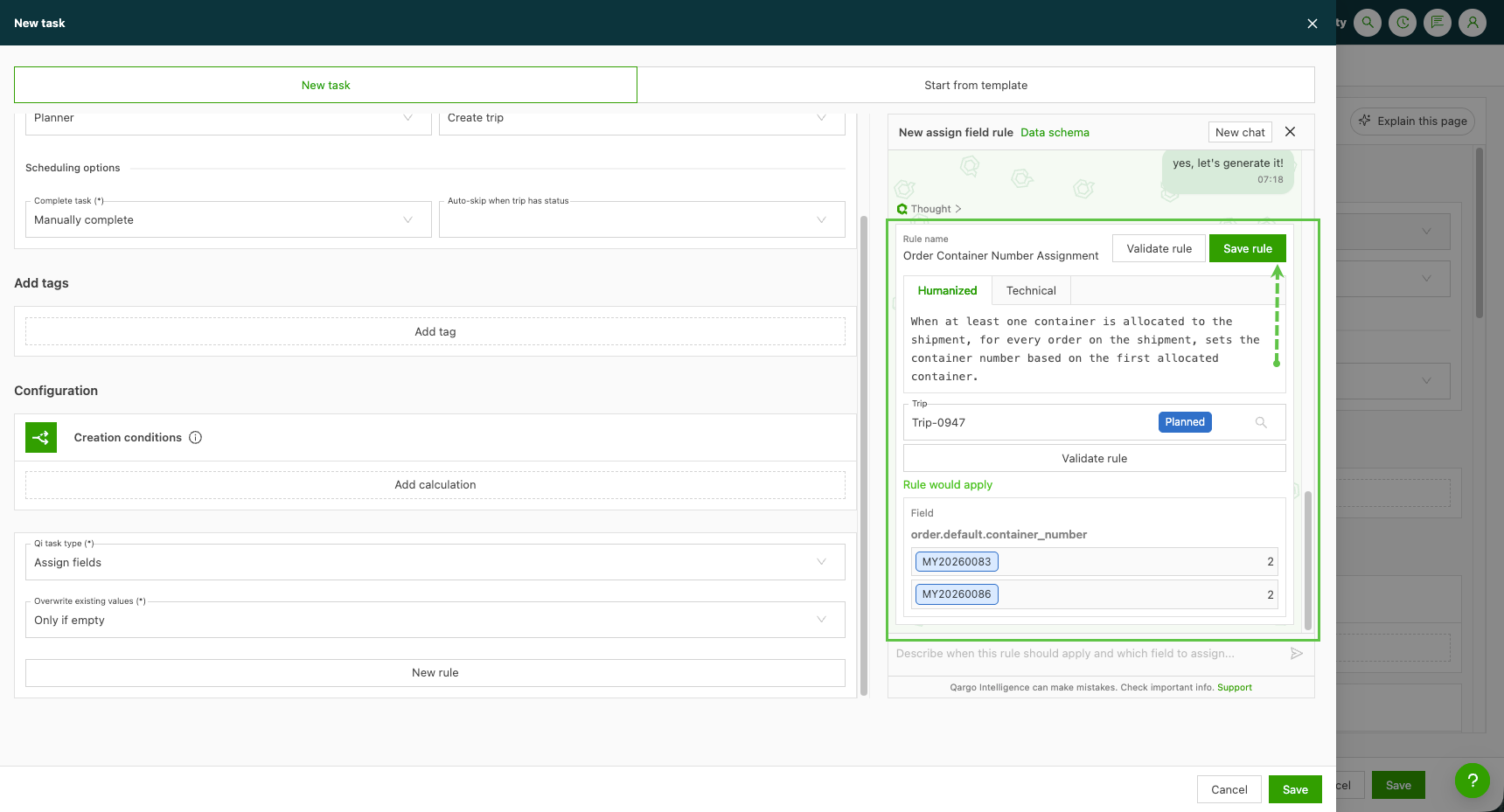
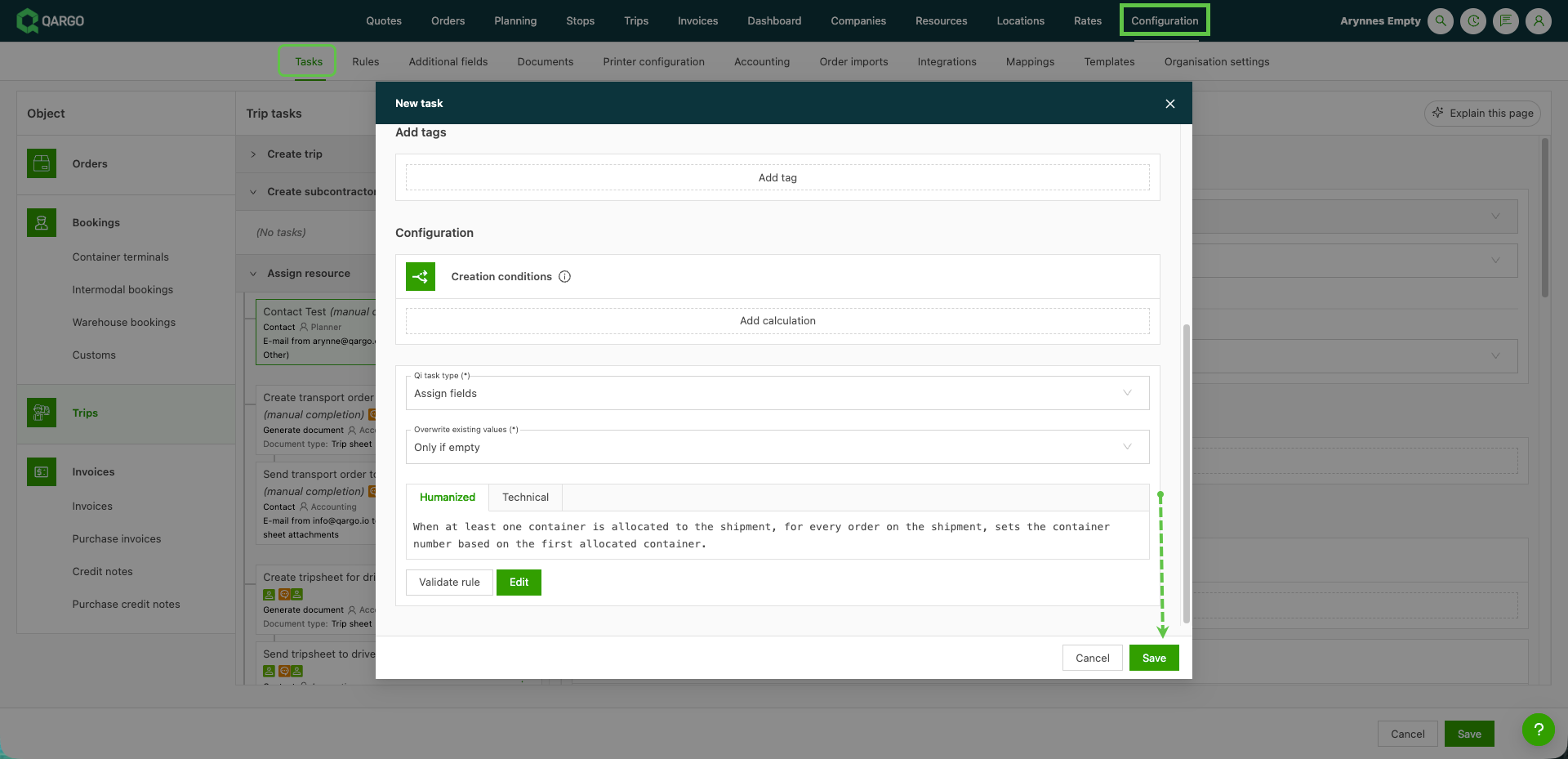
Click Save rule in the chat panel. The chat closes and the modal shows an overview of the configured rule.
-
Complete the remaining task settings, such as the name and when the task should run in the workflow.
-
Save the task. It appears on the task page with its rule.
Edit an existing rule
- Open the task on the task page and click Edit.
- Update the rule through the chat agent, which opens again for changes.
- Validate and save rule again before saving the task.
What happens when the task runs
- The task runs at the point in the workflow it is scheduled for.
- The condition is checked using data from orders, shipments, loads, and stops.
- When the condition is met, the value is written to the chosen field(s). The field then shows on the order, load, or stop like any manually entered value and stays editable.
- A field that is already shown in the customer portal also shows the new value there. No extra setup is needed.
Limitations
- No automatic re-run: the task does not re-run when the input data is updated.
- Supported objects: conditions use order, shipment, load, and stop data. Invoice and credit memo tasks cannot use the Assign fields type.
- Not yet supported as targets: time windows, vehicle categories, stop extras, freight extras, and incidents. These are planned for a future release.
- Early stage: the feature is new and still being improved. Feedback on the chat agent and setup screens is welcome through the Qargo account manager.
Troubleshooting
| Issue | Cause / resolution |
|---|---|
| Saving the task shows an error with no description. | The rule was not saved in the chat panel. Click Save rule in the chat first, then save the task. |
| The chat panel keeps loading and never finishes. | Refresh the page and try again. If it keeps happening, create the task again and contact Qargo Support. |
| The task ran but no field was filled in. | The condition was not met, or the rule reads the wrong data. Use Validate on the same record to see whether the rule applies, and refine the description. |
| The wrong value was written (for example a reference number instead of a container no.). | The chat agent picked a similar field. Name the exact source field in the description, check the Humanized view, and validate again. |
| An existing value was not replaced. | The rule is set to only fill empty fields. Edit the rule and allow it to overwrite existing values. |
| The field shows an old value after a trailer or container was changed. | Tasks do not re-run automatically. Run the task again on the order or load. |
| Assign fields is not available. | Qi is not enabled for the tenant, or the task object does not support it (for example invoices). Contact the Qargo account manager about Qi. |