
Configuration – Chat-based validation rules for order capture
Qargo has a built-in AI agent that lets users create order capture validation rules themselves just by describing them in plain language. Setting up a validation rule used to mean involving engineering. Now users can describe, test, and enable rules themselves.
Table of contents
Summary
-
What is it?
- A conversational AI agent in Configuration > Rules that turns a plain-language description into an order capture validation rule.
- The agent produces the same underlying rule mechanism used today. No new rule types or entry points are introduced.
-
Why use it?
- Until now, only Qargo Professional Services could author these rules, so every new rule became an internal ticket.
- Chat-based authoring lets users (Super admin / Qargo admin only) create and adjust validation rules directly.
-
How does it work?
- A rule is described in plain language and refined with the agent over several turns until it is correct.
- A rule can be tested against a mock order before saving, directly from the order create screen.
- Rules keep working when copied between sandbox and production.
Prerequisites
- Super admin access: rule authoring is located under Configuration > Rules.
- The Qargo Intelligence (Qi) feature flag must be enabled for the tenant.
Use cases
- Blocking an order when a required field, such as packaging type, is left empty.
- Enforcing packaging weight limits or locked pallet-space rules at the point of order capture.
- Restricting allowed time windows or service-level availability per ZIP code zone.
- Allowing Admin users to adjust a validation rule without raising a ticket.
Terminology
| Term | Definition |
|---|---|
| Validation rule | A check applied at order capture that blocks input on the portal and shows a warning in the web app when conditions are not met. |
| Chat agent | The conversational AI assistant that translates a plain-language description into a validation rule. |
| Master data | Reference records such as customers, locations, and packaging types, matched by their code. |
| Validation mode | A test mode that opens the order create screen so a mock order can be built to check a rule. |
Creating a rule
🎥 This video shows the entire process of creating chat-based validation rules:
- Navigate to Configuration > Rules.
- Create rule by clicking the button in the top right-hand corner.
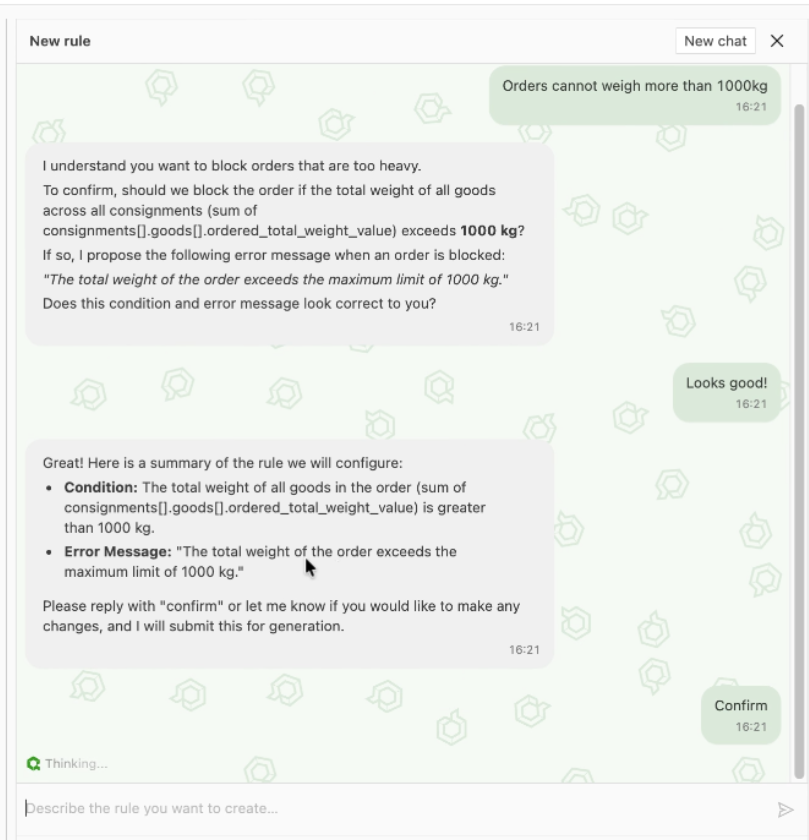
- Describe the required validation rule to the chat agent in plain language.
- Review the agent’s response and refine the description over additional turns until the rule reflects the intended check.
- Confirm the matched master data items. The agent auto-fills codes, and the resolved list remains editable.
Testing a rule before saving
- Open validation mode on the draft rule. A pop-over opens the order create screen.
- Build a mock order that should trigger the rule.
- Visualize the rule’s effect on the mock order before saving.
Saving a rule
Once validation is complete, the rule must be saved.
- Save rule by clicking the button next to Validate.
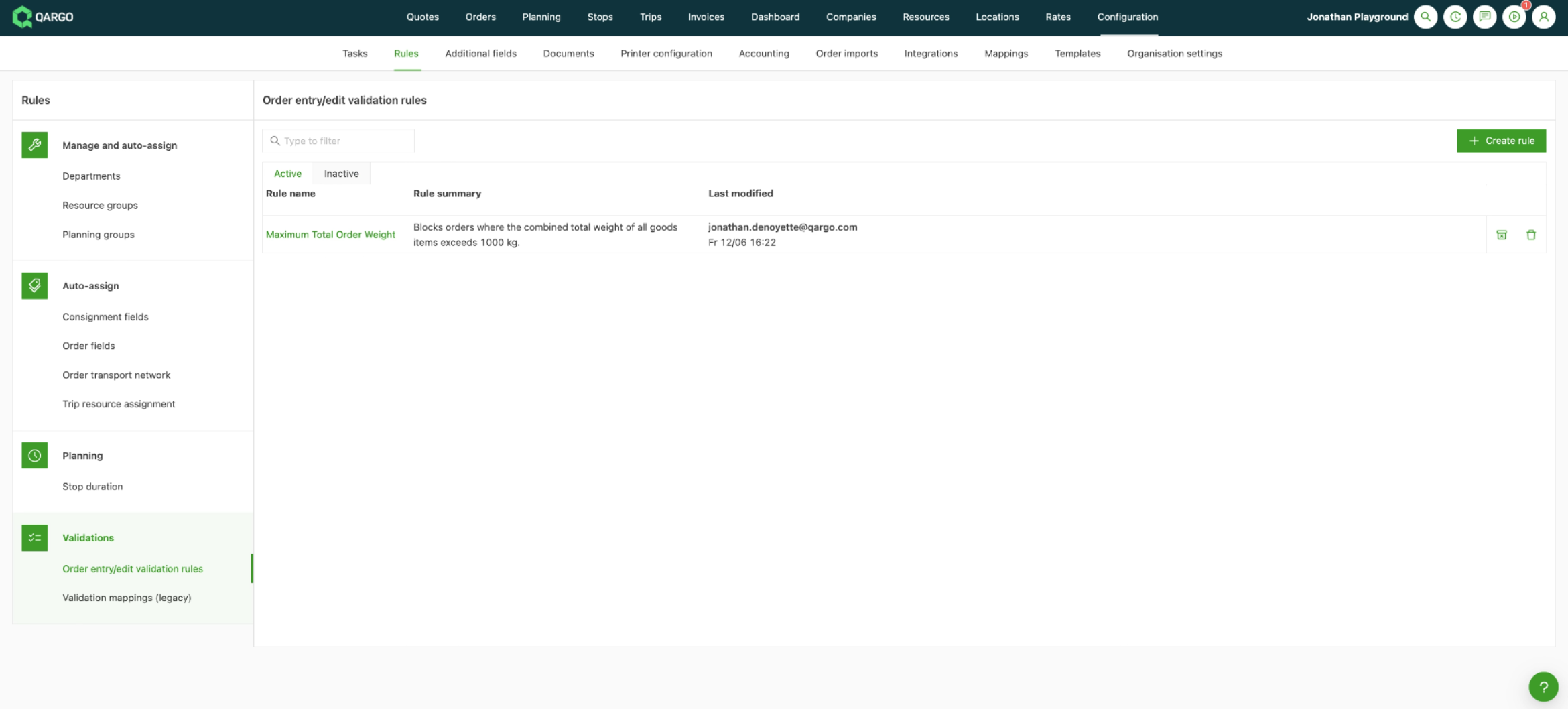
- The rule then appears in the Order capture/edit validation rules overview.
- From there, rules in the account can be edited, deactivated, or even removed.
How master data is matched
- Rules reference master data (customers, locations, packaging types, and so on) by code rather than by name.
- Setting a code on these entities is strongly recommended, because codes are more stable for rule generation.
- The same rule continues to work when copied between sandbox and production, since codes are consistent across environments.
Troubleshooting
| Issue | Cause / Resolution |
|---|---|
| The agent returns a formatting or syntax error. | The description may be ambiguous. Rephrase the request, or ask the agent to try again over additional turns. |
| The agent cannot find a referenced service or add-on. | A typo or an unrecognized name was used. Reference the entity by its exact name or code. Having a code set is strongly recommended. |
| A saved rule does not behave as expected. | The AI-generated rule may be incorrect. Retest in validation mode with a mock order and refine the description. |
Limitations
- Rules validate input on save. They do not lock fields or limit which options appear in the order form.
- Rules generated by AI can still be incorrect, so thorough validation is essential.