
Feature release - June 2026
This article highlights the new features and enhancements released by Qargo this month.
Table of contents
Week 1
📱 Mobile — Cross dock scanning: Question paths & incident registration
📱 Mobile — Cross dock scanning: Unload vehicle load sheet scanning
🗓️ Planning — Sort loads by planned start time
💰 Invoices — Loads to bill: Charge view & amount filter
🌍 Customs — HS commodity code count metrics
Week 2
🔗 Planning — Automatic trailer assignment on intermodal split
🚢 Planning — Container pickup & drop-off from the intermodal connection modal
🪧 Orders — Pallet pool comments & company-level manual transactions
📱 Mobile — Tap-based cross-dock mode
Week 3
🤖 Orders — Chat-based authoring for order capture validation rules
📊 Admin — Failed task overview: Inline errors & saved views
🔧 Tasks — Load tasks for third-party cost contract carriers
✅ Tasks — Autocomplete tasks on a status change
🙈 Orders — Restrict incident views from the customer portal
🚢 Customer portal — Intermodal booking visibility
Week 3 - Planning updates
📊 Planning — Live freight totals on loads without saving
🗓️ Planning — Per-day resource availability in To plan: Resources
🚛 Planning — Assigning compartmentalized trailers at load level
🔎 Planning — Combined location column filter
📋 Planning — ‘To plan: Loads’ mode on the planning board
📦 Planning — Assign previous container to orders on a load
Week 4
✅ Orders — Stop documents and tasks on order detail
📋 Planning — External resources: Per-load name, license plate & container no.
📦 Other — Export locations
📍 Planning — Intermodal planning: Timing violation indicators on the intermodal table
🛣️ Planning — Customer portal: Hide excluded stops and the empty stop option
Week 1
📱 Mobile — Cross dock scanning: Unload vehicle load sheet scanning
The Unload vehicle flow now opens with a load sheet scanning step. This gives operators an expected-pallet checklist, sorted back-of-truck first, before scanning begins. Color-coded progress indicators and a running counter make it easy to track exactly what has been unloaded in real time.
What’s included:
- Scan the inbound load sheet barcode (or enter the load number manually) at the start of the unload flow
- Expected-pallet checklist sorted back-of-truck first, with loading positions shown per pallet
- Color-coded indicators: dark green (scanned this session), pale green (previously scanned), orange (needs attention), red (error)
- Running pallet counter showing scanned vs. total expected
- Requires Qargo mobile app version 1.18.13 or later
Qargo mobile app - cross dock scanning
📱 Mobile — Cross dock scanning: Question paths & incident registration
Warehouse operators can now report incidents directly from the cross-dock scanning app. Configurable question paths guide operators through structured incident registration during unloading, loading or free scanning. Incidents sync automatically to the TMS.
What’s included:
- Incident reporting within the Unload vehicle, Load vehicle and Free scan cross-dock flows
- Configurable question paths with photo attachments, dropdown reasons and quantity fields
- Incidents push to the TMS and appear on the relevant order, stop and pallet history records
- Enabled per incident type in Configuration > Integrations > Mobile app > Cross dock incidents
- Requires Qargo mobile app version 1.18.13 or later
Cross dock scanning: Question paths & incident registration
🗓️ Planning — Sort loads by planned start time
Loads on the planning board can now be sorted by their planned start time. They keep their originally scheduled position even when actual operations times differ. Loads no longer jump around when drivers start late, which gives planners a stable, predictable view of the day.
What’s included:
- New sort option: Sort by resource: resource name + loads: planned start time on both the timeline and blocks views
- Loads stay in their planned position regardless of actual start time
- Applies per resource row; board-level resource sorting is unchanged
- No configuration required: available to all planners immediately
Planning resources to an order
💰 Invoices — Loads to bill: Charge view & amount filter
Two new enhancements to Invoices > Loads to bill give finance teams deeper visibility into purchase charge lines. They also offer a faster way to spot missing or zero-cost entries. Individual charge lines can now be viewed, filtered and actioned without opening each load.
What’s included:
- New Charge view tab showing one row per purchase charge line (alongside the existing Load view)
- Columns for Amount, Budgeted cost, Difference, Contract carrier and more, all filterable and sortable
- Multi-select charge lines to create a carrier invoice or billing proposal directly
- Amount column filter (With amount / Without amount) to instantly surface zero-cost or priced loads
- The amount filter requires Experimental Elastic Search to be enabled in Configuration > Features
🌍 Customs — HS commodity code count metrics
Two new rating engine metrics automate customs charge calculations based on the number of HS commodity codes per order. The count comes either automatically from existing Qargo data or from manual entry by planners. Both metrics are available as a condition or tiered charge basis on sales and purchase price lists.
What’s included:
- Number of HS codes (automatic): counts goods items with the HS code field populated; no manual input required
- Number of HS codes (manual): a new additional field on Freight that planners populate; Qargo sums it to order level
- Both metrics appear under the Goods ordered category in the rating engine
- Usable as a condition or tiered charge basis on sales and purchase price lists
- Enabled per tenant via Configuration > Additional fields (Super Admin)
Week 2
🔗 Planning — Automatic trailer assignment on intermodal split
When an intermodal split is performed on a load that already has a trailer (or container, or other secondary resource) assigned, that resource is now automatically shared to the new load group. No manual reallocation is needed. The same trailer becomes visible across the Pickup, Ferry and Delivery legs in a single action. This saves clicks and removes the need to remember and reassign the original resource.
What’s included:
- The secondary resource is promoted from the original load to the new load group automatically
- The resource is removed from the original load in the same operation
- The trailer shows on all legs (Pickup, Ferry and Delivery) through one load group allocation
- Applies to intermodal splits only (Park splits and Parking: Drop are out of scope for now)
Resource allocation on load groups
🚢 Planning — Container pickup & drop-off from the intermodal connection modal
Empty container pickup and drop-off stops can now be added directly from the intermodal connection modal, with terminal locations prefilled automatically. Previously, these empty stops had to be created manually after adding a connection, even though Qargo already knew the terminals. This update removes that step for ferry and rail operations.
What’s included:
- Optional Pickup and Drop-off sections within the connection modal
- Departure terminal prefilled for the pickup, arrival terminal prefilled for the drop-off
- Empty stops added at load level: one stop per load, not duplicated per order
- Connection modal reorganized into collapsible sections that auto-summarize their date and location
Learn more about intermodal planning
🪧 Orders — Pallet pool comments & company-level manual transactions
An optional comment can now be added to pallet settlements and manual transactions. Manual pallet transactions can also be recorded directly from the customer page. This captures context, such as invoice references, agreement numbers or the reason for a balance reset. It also allows company-level corrections without first navigating to a specific location page.
What’s included:
- Optional Comment field on the Settle transactions and manual transaction pop-ups
- New Add manual transaction button on the customer and contract carrier detail pages, with a Location selector
- New Comment column in the pallet balance overview table
- Comment field included in the Excel export of pallet balance data
📱 Mobile — Tap-based cross-dock mode
Cross-dock operators can now confirm pallet movements by selecting the pallet instead of scanning a barcode, turning the module into a digital “checklist”. This removes the need for scanner hardware and printed labels. It lowers the barrier for warehouses that want to start digitizing cross-dock operations. It can also run side by side with barcode scanning (Terminal / Free scan) as a stepping stone to full adoption.
What’s included:
- Tap to confirm each pallet during loading and unloading, with a progress counter tracking completion
- Tap confirmations generate the same tracking statuses as scans, so customer visibility is unaffected
- Action and location selection on unload (keep on truck, store in terminal or to delivery vehicle), with the last-used action carried over to the next pallet
- Configurable per tenant; activated by Qargo
Week 3
🤖 Orders — Chat-based authoring for order capture validation rules
Order capture validation rules can now be created in plain language through a chat agent under Configuration > Rules. Until now, Qargo Professional Services had to write these rules, so every new rule became an internal ticket. Admin users can now author and adjust them directly.
What’s included:
- Describe a rule in plain language and refine it with the agent over several turns
- Test a rule against a mock order from the order create screen before saving
- Rules keep working when copied between sandbox and production
- Requires Super Admin access and the Qargo Intelligence (Qi) feature flag
🎥 Click the link below for a video overview of this feature.
Configure validation rules via the Qargo Intelligence chat agent.
📊 Admin — Failed task overview: Inline errors & saved views
The reason a task failed is now visible straight away, without clicking through to the Error details dialog. Named, filtered views of the failed task overview can also be saved and shared with colleagues, just like order list views. This makes it far faster for teams to spot and act on the errors they own.
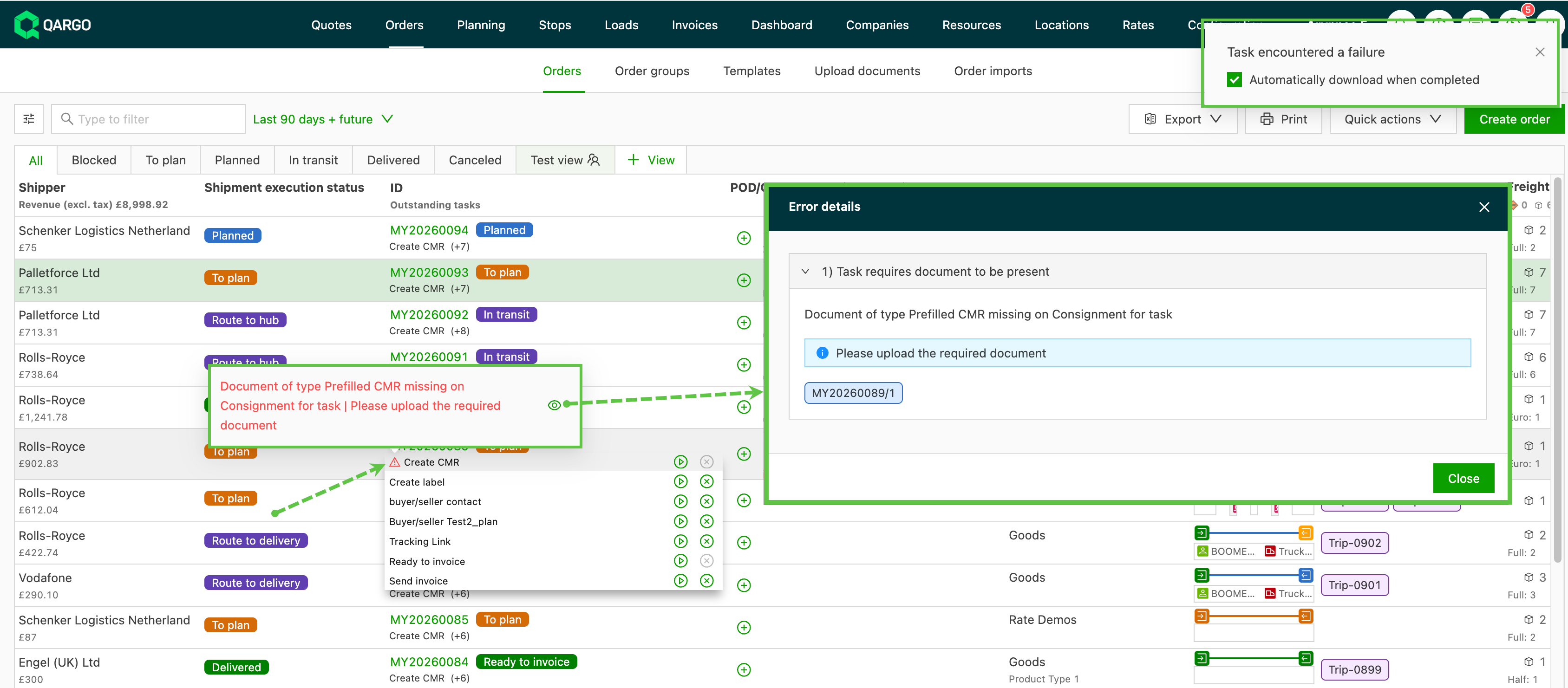
What’s included:
- A hover tooltip on the failed task icon shows the error message immediately
- Full error message inline on Order, Load and Stop detail pages, plus a dedicated filterable error column in the overview
- ”+ View” control to save filters and column layout as a named view, shareable via Share with other users (All users, Private or Specific users)
- Applies to all task types and all task errors
🔧 Tasks — Load tasks for third-party cost contract carriers
Load tasks can now create tasks automatically for third-party cost contract carriers. These are external parties added to loads for non-transport services such as customs handling, cleaning or port fees. Previously, these contract carriers were excluded from automated workflows, so follow-up had to happen outside Qargo.
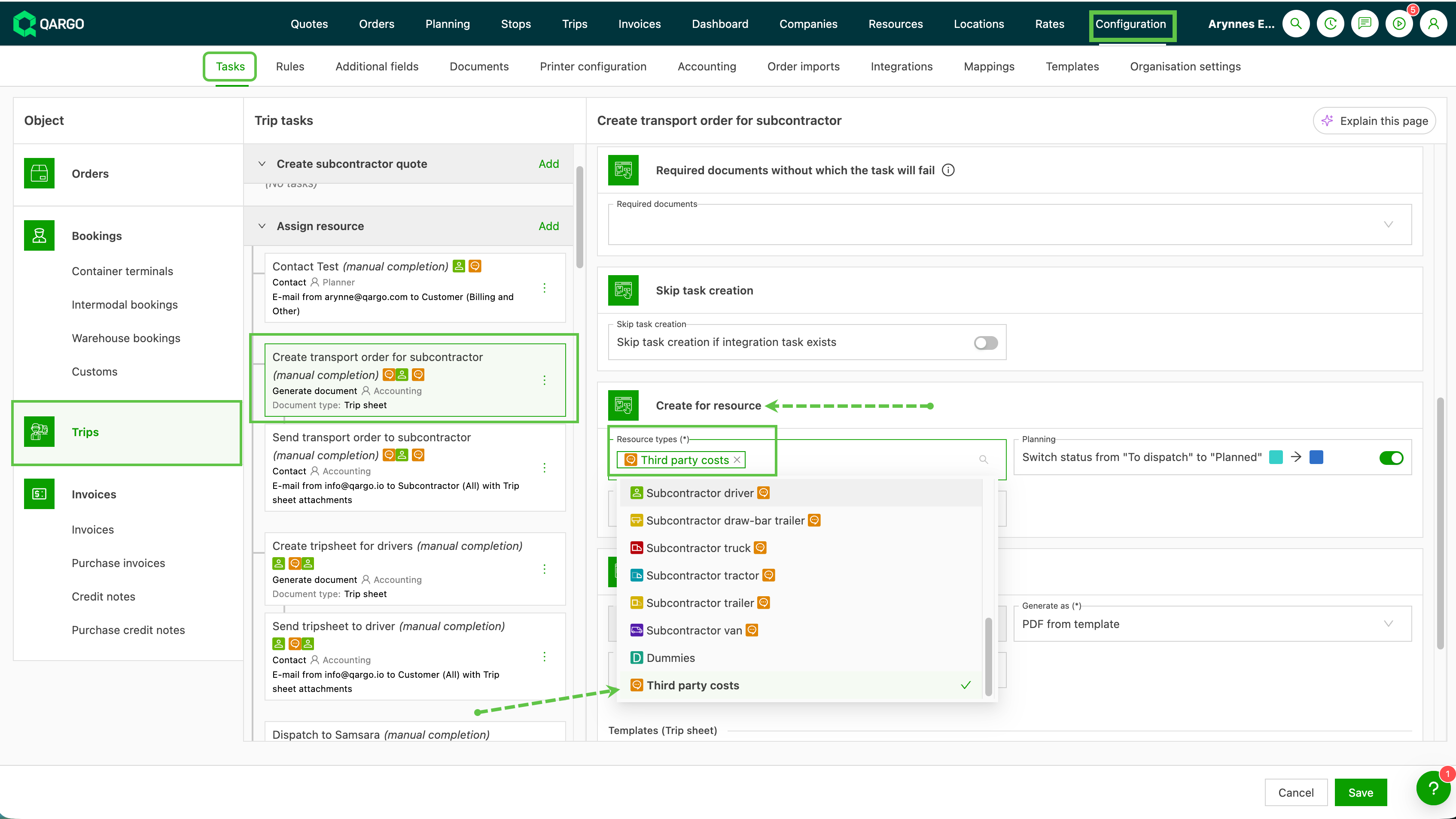
What’s included:
- New “Third party costs” option in the resource type multi-select under Configuration > Tasks
- Tasks created automatically when a third-party cost contract carrier is added to a new load
- Requires third-party contract carrier functionality to be enabled for the tenant
Load tasks to automatically add third-party costs
✅ Tasks — Autocomplete tasks on a status change
A workflow task can now complete automatically the moment its parent order, shipment or load reaches a specific status. Previously, it fired at creation, which was often too early. This keeps automated actions, such as generating documents, sending emails or unblocking billing, aligned with the real operational stage of the journey.
What’s included:
- 20 additional status-based triggers in the “Schedule task after” setting
- Trigger autocomplete when an entity is planned, carried out, delivered or reaches any other status
- Configured per task template under Configuration > Tasks
Autocompleting tasks on status updates
🙈 Orders — Restrict incident views from the customer portal
It is now possible to control which customers see each incident type on the customer portal. This allows more flexible viewing controls on internally logged incidents. Incidents are often recorded for internal tracking only. Restricting views prevents avoidable customer queries and reduces support work.
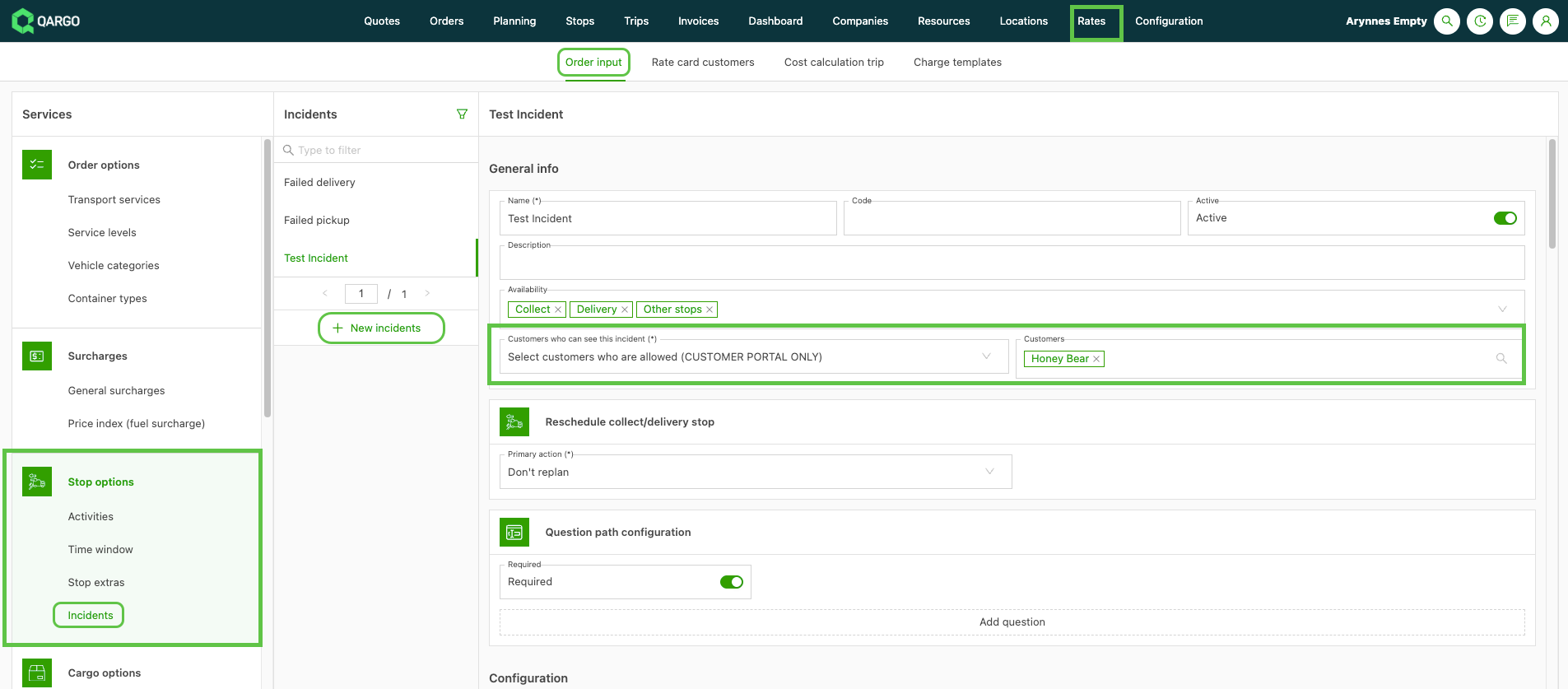
What’s included:
- New “Customers who can see this incident” setting per incident type, under Rates > Order input > Stop options > Incidents
- Stay visible to all customers, or limit to a selected list
- A hidden incident type disappears everywhere on the portal: order list indicator, detail header, operations section and related columns
- Internal recording is unchanged; only portal visibility changes
Viewing incidents from the customer portal
🚢 Customer portal — Intermodal booking visibility
Intermodal ferry and rail booking details can now be shared with end customers directly on the customer portal. A new opt-in setting adds a read-only Booking section to the portal order detail for orders with an active intermodal leg. This removes the need to send booking references manually by email.
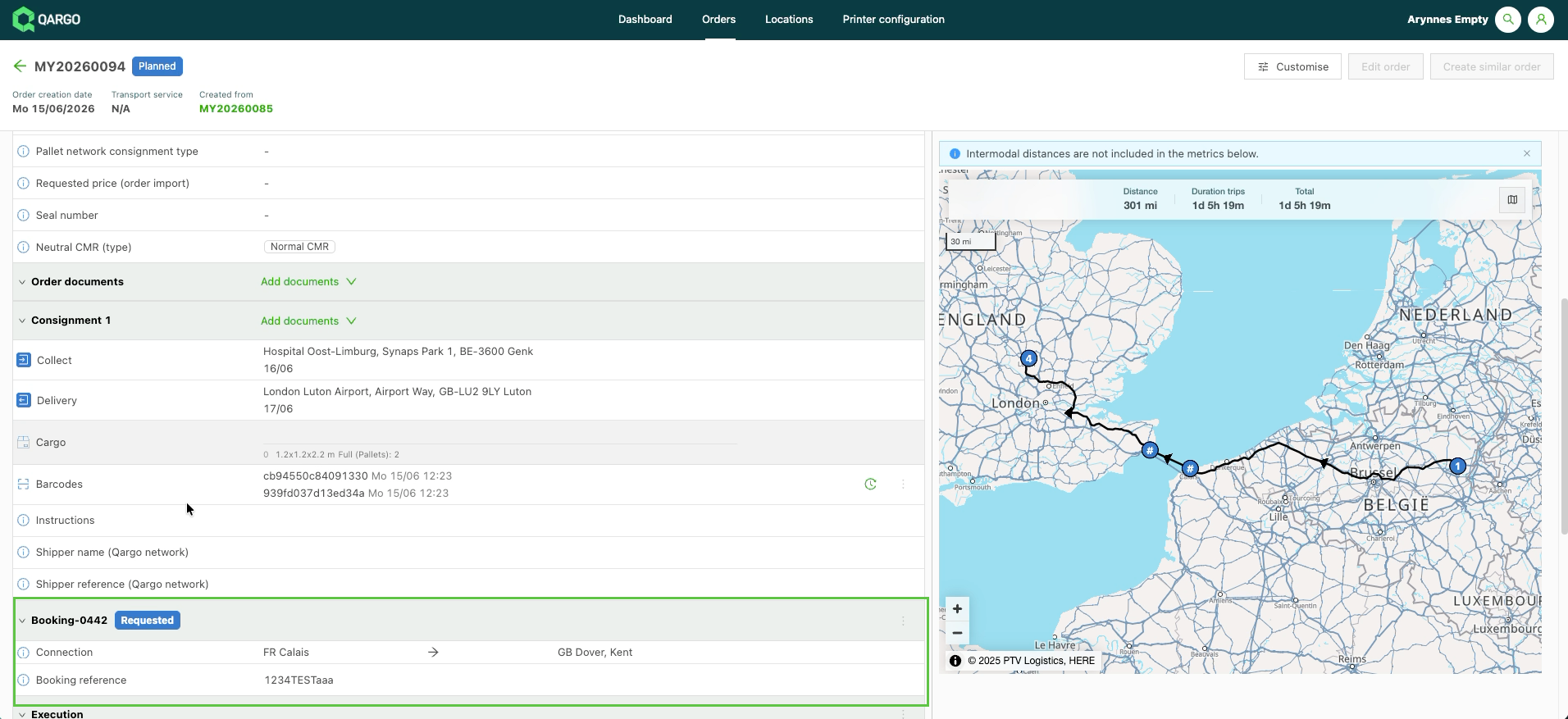
What’s included:
- Enabled via Configuration > Organization settings > Customer portal settings (off by default)
- Shows booking name, status, reference and the from/to stop locations
- Read-only for end customers; the section is hidden automatically when there is no active or non-canceled booking
Week 3 - Planning updates
📊 Planning — Live freight totals on loads without saving
Freight totals now update instantly when orders are added to or removed from a load. No save is required to see whether the next order still fits. Previously, totals only refreshed after saving. On large consolidated or distribution loads, that save can take 15–20 seconds, turning every “does this fit?” check into a wait. Live totals remove that wait. They use the same “max needed space” logic as the saved totals, so the totals shown while editing match the saved result.
What’s included:
- Live loading meters, weight, volume, pallet spaces and quantity as orders change
- Updates at stop, leg and full-load level on the planning timeline
- Same “max needed space” calculation as saved totals
- Customize which metrics are shown per planning view
- On by default for all tenants: no configuration needed
View live freight totals while planning
🗓️ Planning — Per-day resource availability in To plan: Resources
The To plan: Resources view now includes narrow per-date columns, one per date in the selected range. Each column shows a single availability status per resource: available, planned, unavailable or rest day. Statuses are generated dynamically from the planning range. This gives a real-time read on which trucks, trailers and drivers are genuinely free, without cross-checking every resource against the board by hand.
What’s included:
- One status column per date across the selected planning date range, with today highlighted. A date range must be selected for this feature to display.
- Statuses: Available, Planned, Unavailable, Rest day
- Hover over any cell for details: load number and times, unavailability reason or shift name
- Sort or filter a date column to surface, for example, every resource free next Wednesday
- Optional Highlight trips that don’t connect badge when consecutive loads start and end in different locations
- Enabled via the view’s Customize panel (Rest day requires a configured shift schedule)
Using per-day resource availability
🚛 Planning — Assigning compartmentalized trailers at load level
Orders can now be assigned to specific compartments of a compartmentalized trailer directly at load level. A compartment assignment modal opens from the load and shows the trailer’s compartment layout. Planners can distribute goods across compartments and review the full load when several orders share a trailer. This gives a complete loading plan in one place. It reduces loading errors and documentation discrepancies on temperature-controlled, tanker and similar loads.
What’s included:
- Assign orders to individual compartments from a modal opened on the load
- Distribute goods across compartments by selecting items per compartment
- Full-load compartment view when multiple orders share one trailer
- Existing order-level compartment assignments migrated automatically: no re-entry needed
- Assignments saved to the load and reflected on load documents
Using compartments in containers
🔎 Planning — Combined location column filter
The location column filter now shows all five sections at once and allows them to be combined. It replaces the old single-select dropdown. Previously, only one subfield could be applied at a time, so common needs like “all French orders with a ZIP code starting with 25” were impossible. Now Search, Location, Postal code, Country and Coordinates are all visible together. They combine with AND, and with filters on other columns.
What’s included:
- All filter sections shown at once: no dropdown switching
- Combine sections (e.g. Country = FR and Postal code starts with 25)
- Works everywhere a location column appears: Orders, Loads, Planning board, To plan
- Existing saved views migrate automatically with no cleanup
Using more flexible location filters
📋 Planning — ‘To plan: Loads’ mode on the planning board
A new To plan: Loads option in the planning board’s To plan dropdown lists every load still waiting for a real resource in a single view. This covers both loads parked on a dummy resource and loads with no resource at all. Standard planning board views only show a rolling 7-day window, so older staged loads could drop out of sight and be forgotten. This view removes that limit and keeps staged and resourceless loads visible until a resource is assigned.
What’s included:
- New To plan: Loads entry in the To plan dropdown
- One combined list of dummy-resource loads and resourceless loads
- No 7-day cap: infinite scroll keeps older loads visible
- Drag a load onto the planning board to assign a real driver or vehicle
- Reorderable columns (Resource and Load start no longer frozen)
- No configuration required: appears automatically
Using the new ‘To plan: Loads’ planning feature
📦 Planning — Assign previous container to orders on a load
When multiple orders are combined on one load, a container or trailer can now be copied from the previous order leg to the next directly from the right-click menu on a stop. There is no need to open each order to allocate the same resource manually. The option appears automatically when the previous order leg has a container or trailer allocated and the selected order does not.
What’s included:
- Assign previous container and Assign previous trailer options in the stop right-click menu
- Copies the order-level allocation from the immediately preceding leg
- Appears automatically when conditions are met: nothing to configure
- Requires the container/trailer fields to be enabled in the planning view
Week 4
✅ Orders — Stop documents and tasks on order detail
Stop-level tasks and documents are now visible and actionable directly on the order detail page. It is no longer necessary to open each load to track contact tasks. Tasks appear in a collapsible section, so they can be triggered, completed or retried without leaving the order view.
What’s included:
- New Stop documents and tasks section on order detail
- Lists all stop-level tasks and documents tied to the order’s shipments
- View, trigger, complete or retry tasks directly from the order
- Tasks listed in stop sequence order
- Pre-existing task configuration applies: no new setup required
Learn more about stop tasks and documents
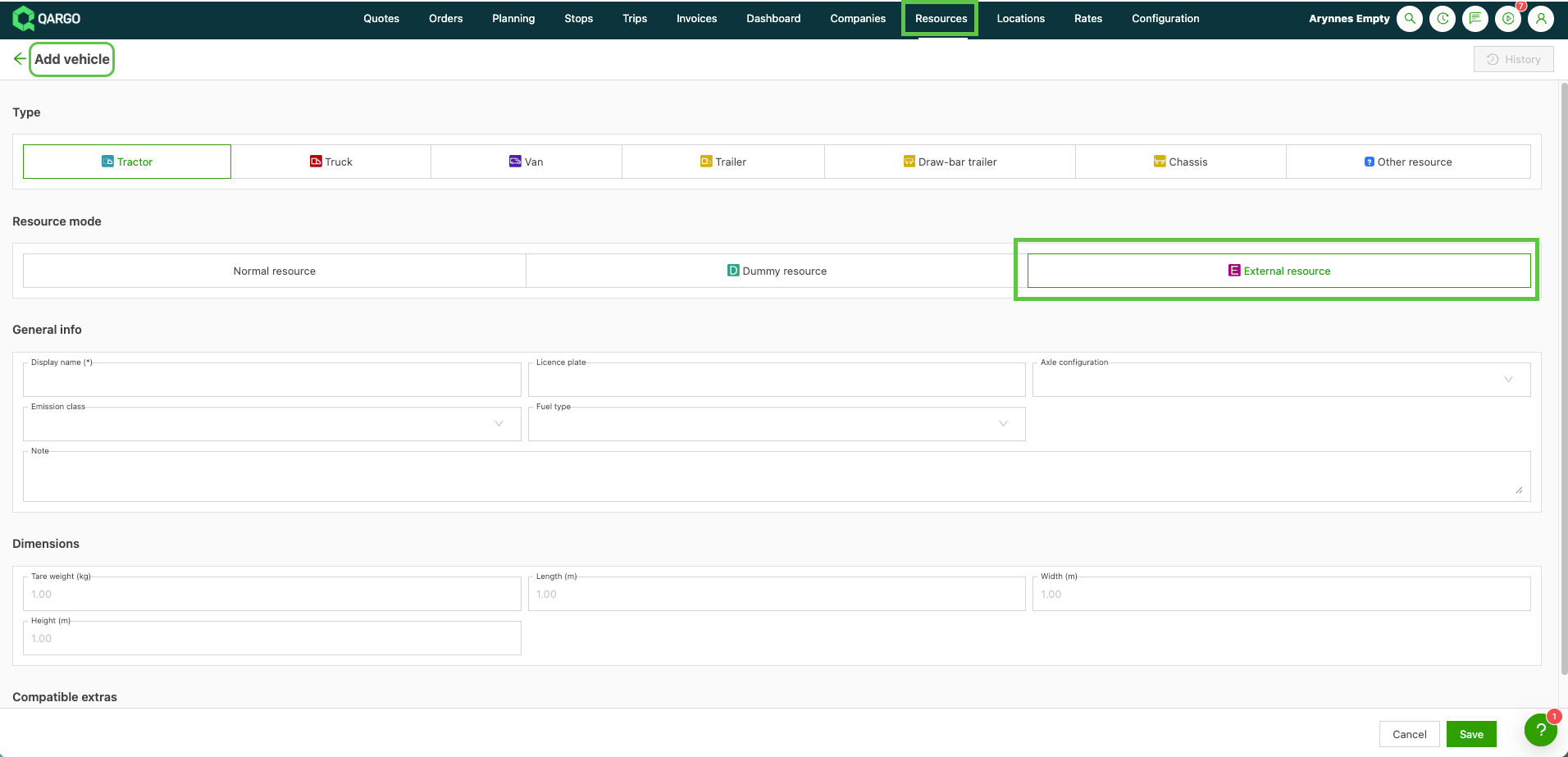
📋 Planning — External resources: Per-load name, license plate & container no.
Individual resources (trailers, containers, drivers) can now be created as external resources, with load-specific details entered directly on the load. These details override the default resource information for that load only. This prevents discrepancies on load documents, customs declarations and invoices when using borrowed equipment or third-party personnel.
What’s included:
- Create resources as an external resource
- Super Admins can set default names, license plates or container nos. per resource
- Planners enter per-load overrides via the resource assignment panel
- Overrides appear on all load documents and customs declarations
- Supports hired trailers, shipper-supplied containers and third-party drivers
Adding and using external resources
📦 Other — Export locations
The locations list can now be exported to a spreadsheet (XLSX), either for selected rows or for the entire filtered list. Just like the existing Customers, Drivers and Vehicles exports, this makes location data available outside Qargo for auditing or cross-referencing with external systems.
What’s included:
- Export selected rows or all locations matching active filters
- The default export covers name, display name, code, external ID, address, coordinates, time zone and location type flags
- Super Admins can customize export columns via the Templates > Create export function.
📍 Planning — Intermodal planning: Timing violation indicators on the intermodal table
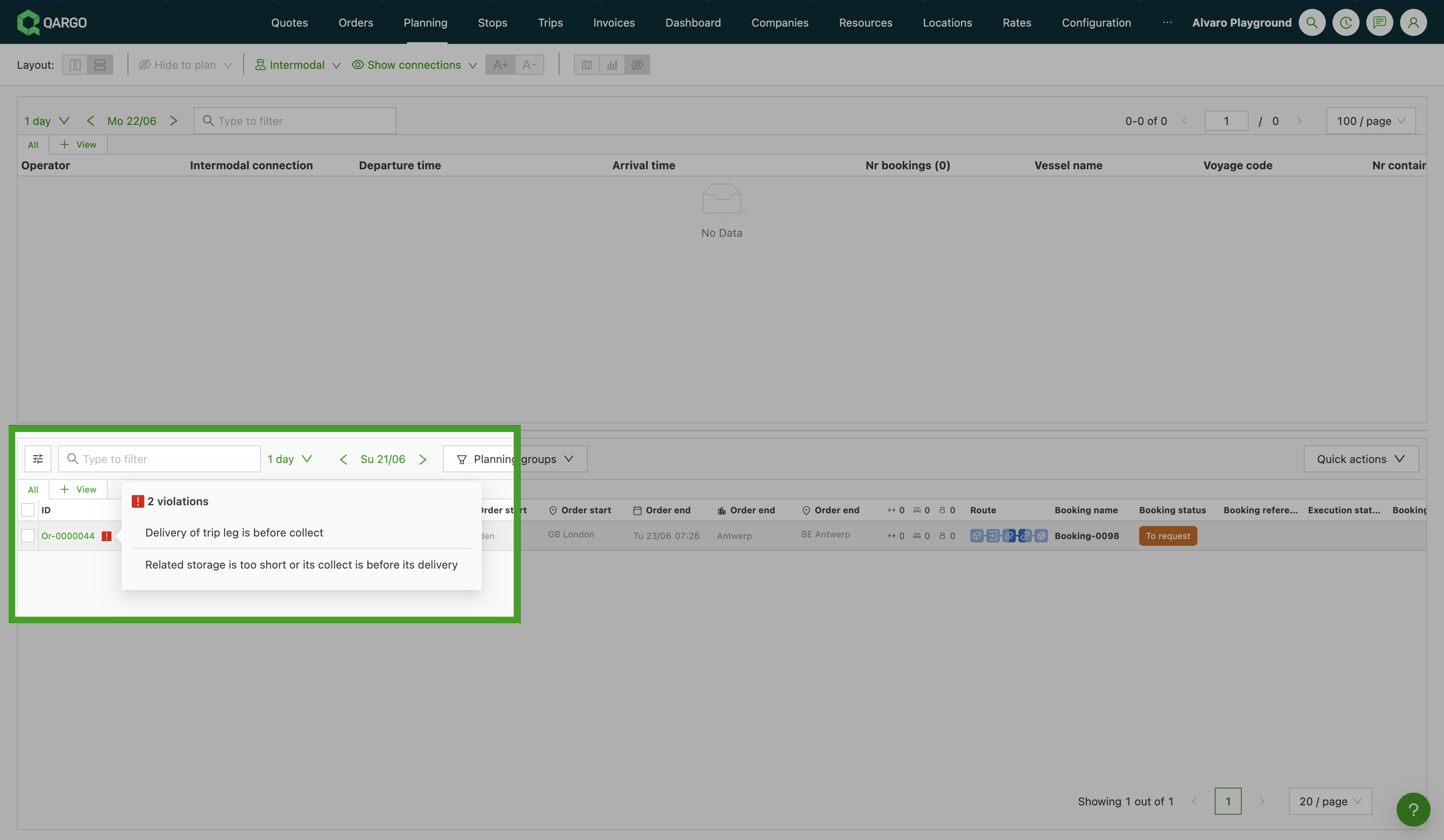
Intermodal bookings now flag connected legs with impossible timing, using the same detection logic as the planning timeline. A red violation indicator appears on conflicting rows. It shows which leg is in conflict and the problematic timestamps. This makes it easier to spot and resolve scheduling conflicts without leaving the intermodal table.
What’s included:
- Red violation indicator on rows with timing conflicts
- A hover popover shows which leg is conflicting and the relevant timestamps
- Detects pickups carried out after intermodal departure, or deliveries starting before the pickup finishes
- Non-blocking indicator: impossible schedules must be corrected manually
Intermodal planning - Timing violation indicators
🛣️ Planning — Customer portal: Hide excluded stops and the empty stop option
Route planning settings can now hide selected operational stops from the customer portal timeline. This keeps the portal view aligned with the visualized order route. A new Empty option excludes stops such as empty container moves, hooking activities and day-boundary stops from both price calculations and customer visibility.
What’s included:
- New Empty option in the Ordered route: stops to exclude dropdown
- The Hide excluded stops on customer portal toggle removes selected stop types entirely from the portal timeline
- Applies tenant-wide to selected stop types
- Portal users no longer see gaps or grayed-out placeholders for hidden stops
- On by default for new tenants; off by default for existing tenants
Customer portal - Using excluded stops and empty stop options