
Invoices – Loads to bill: Charge view and amount filter
A Charge view tab on Invoices > Loads to bill that shows one row per purchase charge line, plus an amount filter (With amount / Without amount) to surface zero-cost loads instantly.
Table of contents
Summary
What: Invoices > Loads to bill:
- A Charge view tab that displays one purchase charge line per row (alongside the unchanged Load view).
- An Amount column filter with With amount and Without amount options to split the list by whether a cost is present.
Why: The original load-level view showed one row per load with no visibility into individual charge lines. Finance teams could not filter or sort by charge amount, spot zero-cost lines or select specific charges when creating a carrier invoice without opening each load.
The amount filter closes a separate gap. The amount column could be sorted but not filtered, so spotting missing rate card charges meant manual scrolling.
How: Switch to Charge view to see one row per charge. Filter or sort by Amount, Budgeted cost or Difference. Multi-select charges and click Create carrier invoice or Create billing proposal.
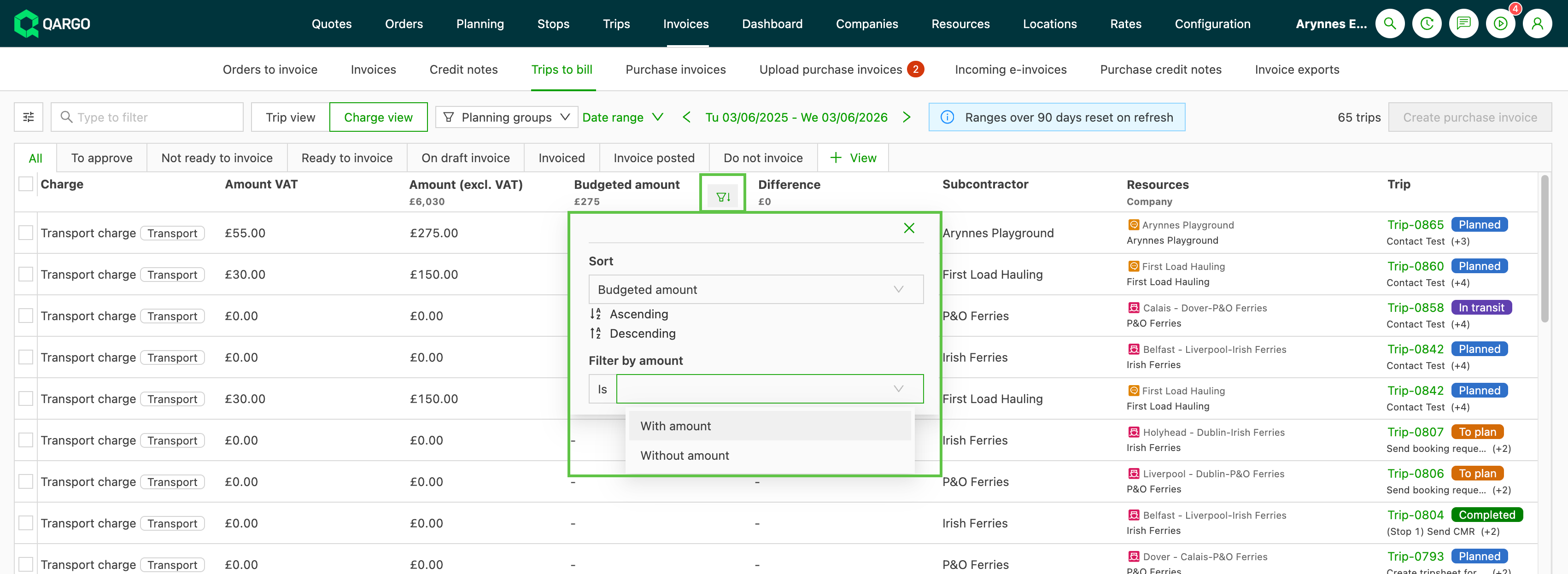
Use the Amount column filter to instantly show only loads with (or without) a cost amount.
Use cases
- Review per-charge costs before paying a contract carrier: switch to Charge view, sort Amount to surface outliers and check the Difference column for divergences from the budgeted cost.
- Create a carrier invoice for specific charges only: select individual charge lines and click Create carrier invoice without processing the full load.
- Manage charge approval status: use the approval status tabs (To approve, Ready to invoice, Do not invoice, etc.) to action charges at the right workflow stage.
- Find contract carriers who have not yet invoiced: apply the With amount filter to list loads with a cost. Then follow up on outstanding invoices for the period.
- Catch rate card configuration issues: apply the Without amount filter to surface £0-cost loads. These indicate that a rate card did not fire.
Terminology
| Term | Definition |
|---|---|
| Charge view | The new tab on Loads to bill that shows one row per purchase charge line. |
| Load view | The original tab on Loads to bill that shows one row per load (unchanged). |
| Charge line | An individual cost item attached to a load, such as a base rate, fuel surcharge or wait time charge. |
| Budgeted cost | The expected contract carrier cost from the price list for a given charge type. |
| Difference | A visual flag that appears when the actual charge amount and the budgeted cost diverge. |
| Approval status | The workflow state of a charge line (for example, To approve, Ready to invoice, Do not invoice). |
| With amount | Amount filter option that returns only loads where the cost is greater than zero. |
| Without amount | Amount filter option that returns only loads where the cost equals zero. |
| Experimental Elastic Search | Tenant-level setting under Configuration > Features that is required to unlock the amount column filter. |
Using the Charge view
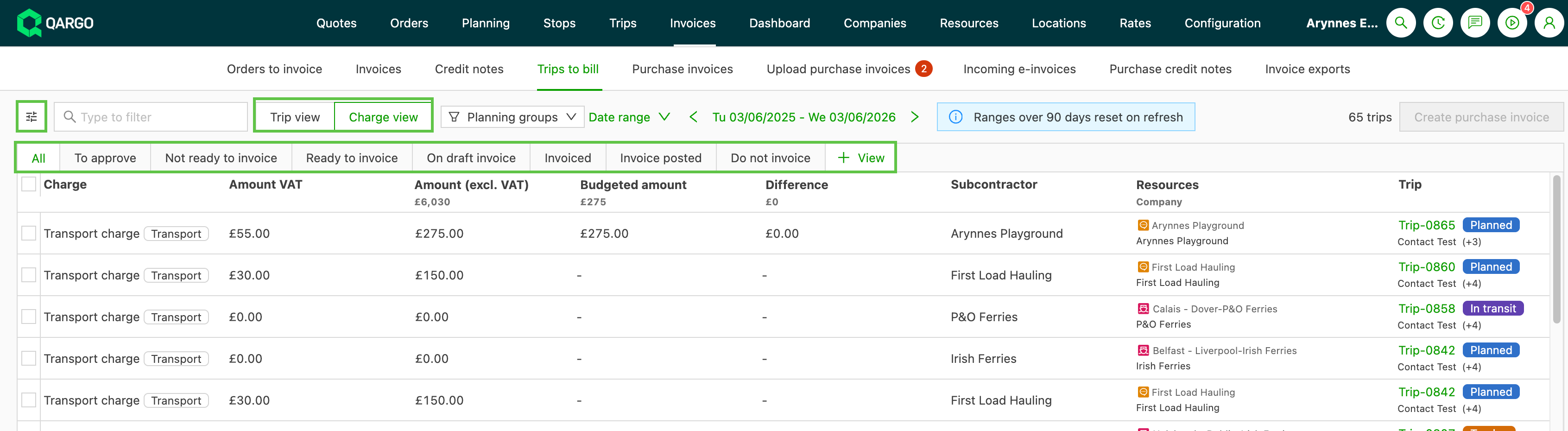
Switch to the Charge view
- Go to Invoices > Loads to bill.
- Click the Charge view tab (next to Load view).
The list now shows one row per purchase charge line.
Available columns
| Column | Description | Filterable | Sortable |
|---|---|---|---|
| Charge type / name | Charge type or add-on name | — | — |
| Amount | Actual cost. Can be shown with or without tax (enable with the Edit icon) | ✅ | ✅ |
| Budgeted cost | Expected cost from the contract carrier price list | ✅ | ✅ |
| Difference | Flag when the actual and budgeted amounts diverge | ✅ | — |
| Contract carrier | Contract carrier entity | ✅ | — |
| Resources | Who or what completed the load segment that generated the assigned charge (cost) | ✅ | — |
| Load ref | Load specifically linked to the charge | ✅ | ✅ |
| Order ref(s) | Linked orders | — | — |
| Tax | Tax rate applied | ✅ | — |
| Charge description | Free-text description | ✅ | — |
Status tabs
Click any tab to filter by charge status:
- All
- To approve
- Not ready to invoice
- Ready to invoice
- On draft invoice
- Invoiced
- Invoice posted
- Do not invoice
- + View (custom saved view)
Filter and sort charges
- Click the filter icon column header to sort ascending or descending.
- Use the filter icon on Amount or Budgeted cost to filter for a specific range or for zero-cost lines.
- Enable the Difference filter to show only charge lines where the actual and budgeted costs diverge.
Create a carrier invoice or billing proposal
- Check the checkboxes on one or more charge lines.
- Click Create carrier invoice or Create billing proposal.
- Complete the invoice creation flow as usual.
Troubleshooting
| Symptom | Resolution |
|---|---|
| Charge view tab not visible | Insufficient role or feature not enabled. Confirm that the Finance role is assigned. Contact Qargo support if the tab is still missing. |
| Budgeted cost column is blank | No cost value is defined on the rate card for this charge type. Add a cost value to the relevant rate card entry. |
| Charge lines are grayed out / cannot be selected | The load is not in an invoiceable status. Move the load to the correct status before invoicing. |
| Create carrier invoice button not available | The selected charge lines are not in a status that allows invoicing. Make sure the charges are in Ready to invoice. Charges in Do not invoice cannot be actioned. |
| Difference flag shows for all lines | The rate card has no expected cost configured for those charge types. Verify that the contract carrier price list has cost values for the relevant charge types. |
| Filtered list looks incomplete | Other active filters are combining with the amount filter. Check for additional active filters (date, contract carrier, status). |
| Zero-cost loads appear even though a rate card is configured | The rate card did not match the load conditions. Open the load and verify that the rate card conditions (stops, resource type, dates) match. |