
Orders – Pallet pools
Track pallet swaps, balances, and settlements as auditable, billable assets, now with optional comments and manual transactions logged directly from the customer page.
Table of contents
Introduction
Pallets are one of the most widely used tools for transporting goods efficiently and securely. A pallet pool is a system that manages the circulation, exchange, and balance of pallets across supply chains. Instead of each company owning and tracking its own pallets, pallet pools allow multiple stakeholders to share and reuse pallets in a structured way. This ensures that pallets are always available where they are needed while reducing costs, losses, and inefficiencies.
A pallet pool works by recording:
- How many pallets are delivered to a location and how many are picked up again.
- Calculates a balance at both the customer and location level, showing whether pallets are owed or returned.
- Balance can be settled, resetting the account between parties.
Such systems not only optimize packaging flows but also create transparency in supply chains, ensuring that logistics partners are held accountable for pallet movements.
Terminology
| Term | Definition |
|---|---|
| Full pallets | Pallets loaded with goods. |
| Empty pallets | Pallets returned or exchanged, ready to be reused. |
| Pallet swap | Pallet swap – The process of exchanging pallets during pickup or delivery. |
| Balance | The net total of pallets at a customer or location (positive if more were received, negative if more were given away). |
| Settlement | The process of resetting pallet balances between parties to zero. |
| Question path | A structured set of questions drivers answer in the mobile app to record pallet movements at pickup and delivery stops. |
| Contract carrier balance | The net total of pallets exchanged between the tenant and a specific contract carrier, tracking how many pallets the contract carrier is currently holding on the tenant’s behalf. |
| Two-balance architecture | Qargo’s pallet tracking model that maintains two separate balances per order: the tenant–customer balance (commercial) and the tenant–contract carrier balance (operational). |
| Transaction attribution | The link between a pallet exchange at a customer location and the contract carrier who physically performed that exchange. |
Pallet pools in Qargo
Qargo integrates pallet pool management directly into its transportation workflows, allowing carriers to track pallet exchanges alongside goods. With pallet swap tracking enabled, users can:
- Automatically pre-fill pallet counts based on order quantities (both full and empty pallets).
- Record actual swaps at pickup and delivery through the driver response.
- Manually adjust values in the system when needed.
- Track balances per customer and location, with clear visibility into positive and negative values.
- Settle balances easily, ensuring accurate records across both customer and location levels.
- Apply rating rules that account for pallet usage, empty pallet returns, or swaps through new rate card metrics.
In Qargo, pallet pool tracking creates a transparent, auditable flow of pallet movements, ensuring that packaging and pallets are treated as valuable assets, not forgotten costs.
Configuration
Step 1: Activate the feature
-
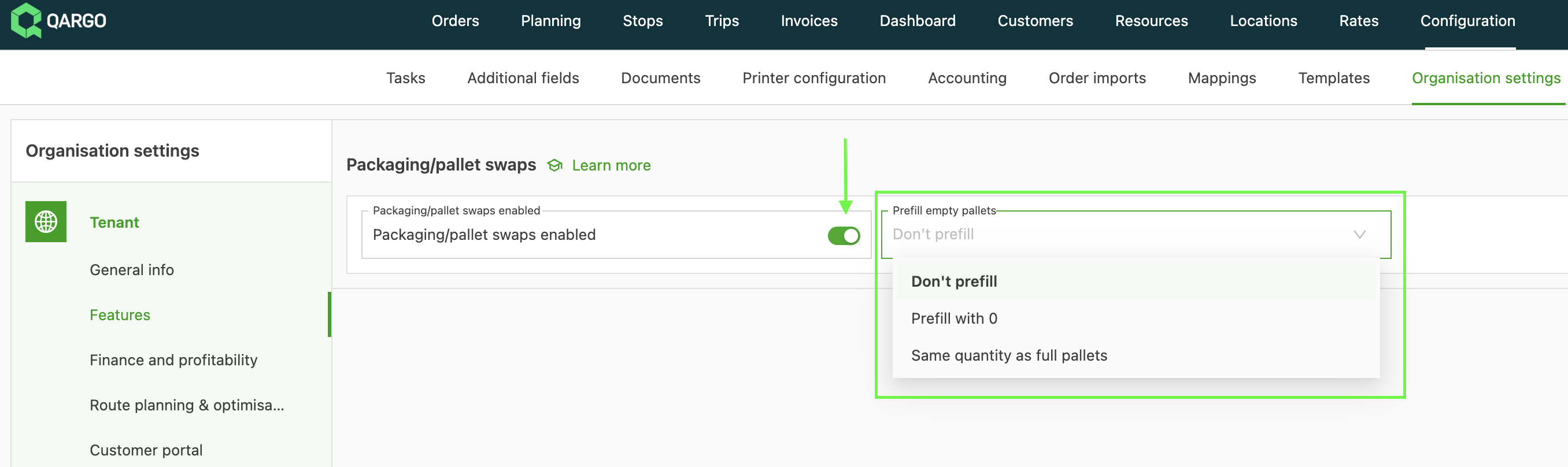
Navigate to Configuration > Organization settings > Features
-
Scroll to the Packaging / Pallet swaps enabled panel
- Toggle the feature on
-
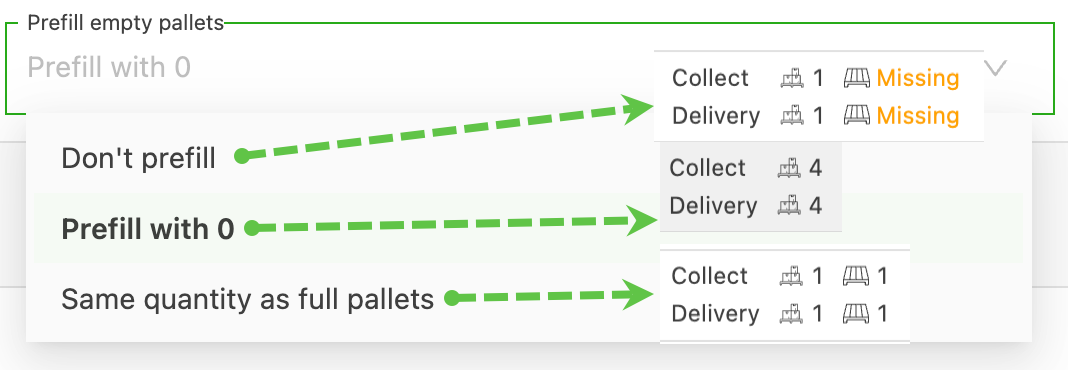
Select the default pre-fill value for empty pallets. Options include:
- Don’t pre-fill: the value will be left blank and relies on manual input by the user
- Pre-fill with 0: the value will default to 0 when empty pallets are left at a pickup or delivery location
- Same quantity as full pallets: the default will match the original value from the loaded pallets on the order
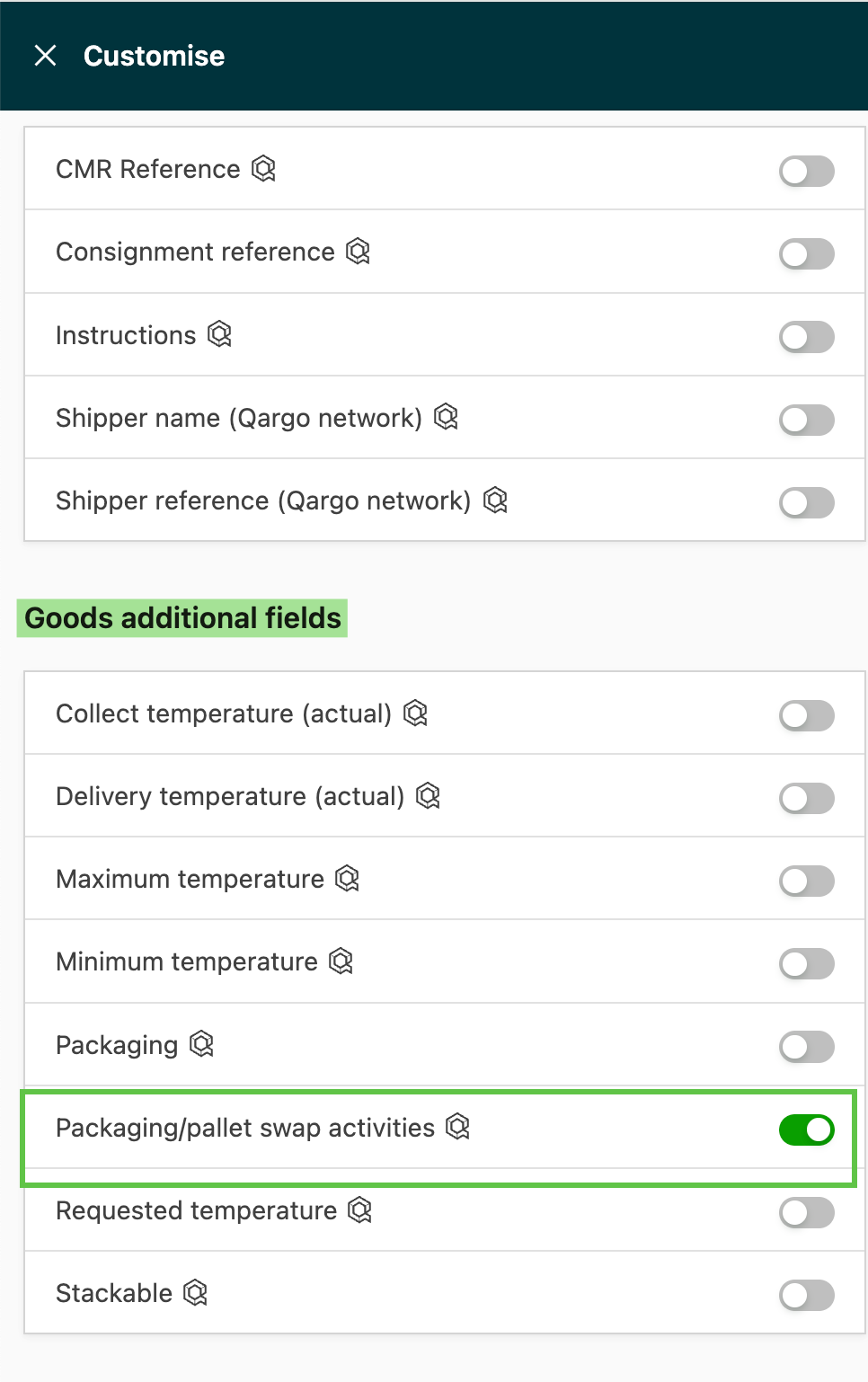
Step 2: Enable additional fields for freight
-
Navigate to Configuration > Additional fields
-
From the Orders side menu, select Freight
-
Select the option for Packaging / pallet swap activities
- Set the field as active
- Select the transportation services this will apply to
-
Click Save.
Step 3: Enable packaging / pallet swaps on packaging types
-
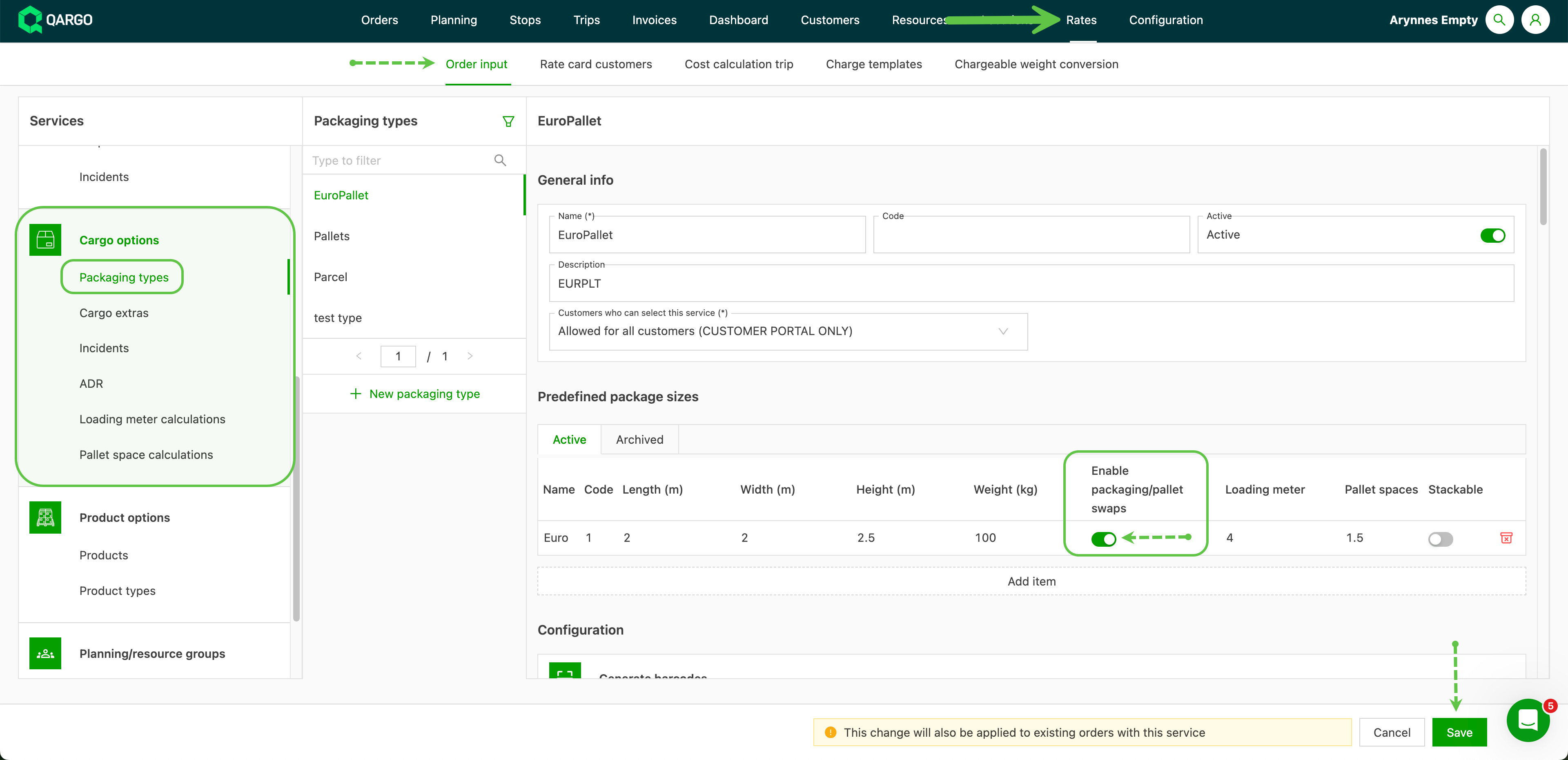
Navigate to Rates > Order input
-
From Freight options in the side menu, select Packaging types
- Choose the packaging types that will be enabled for swaps
- Set the toggle to the on position
-
Click Save
Step 4: Create driver question paths to be completed (tasks)
-
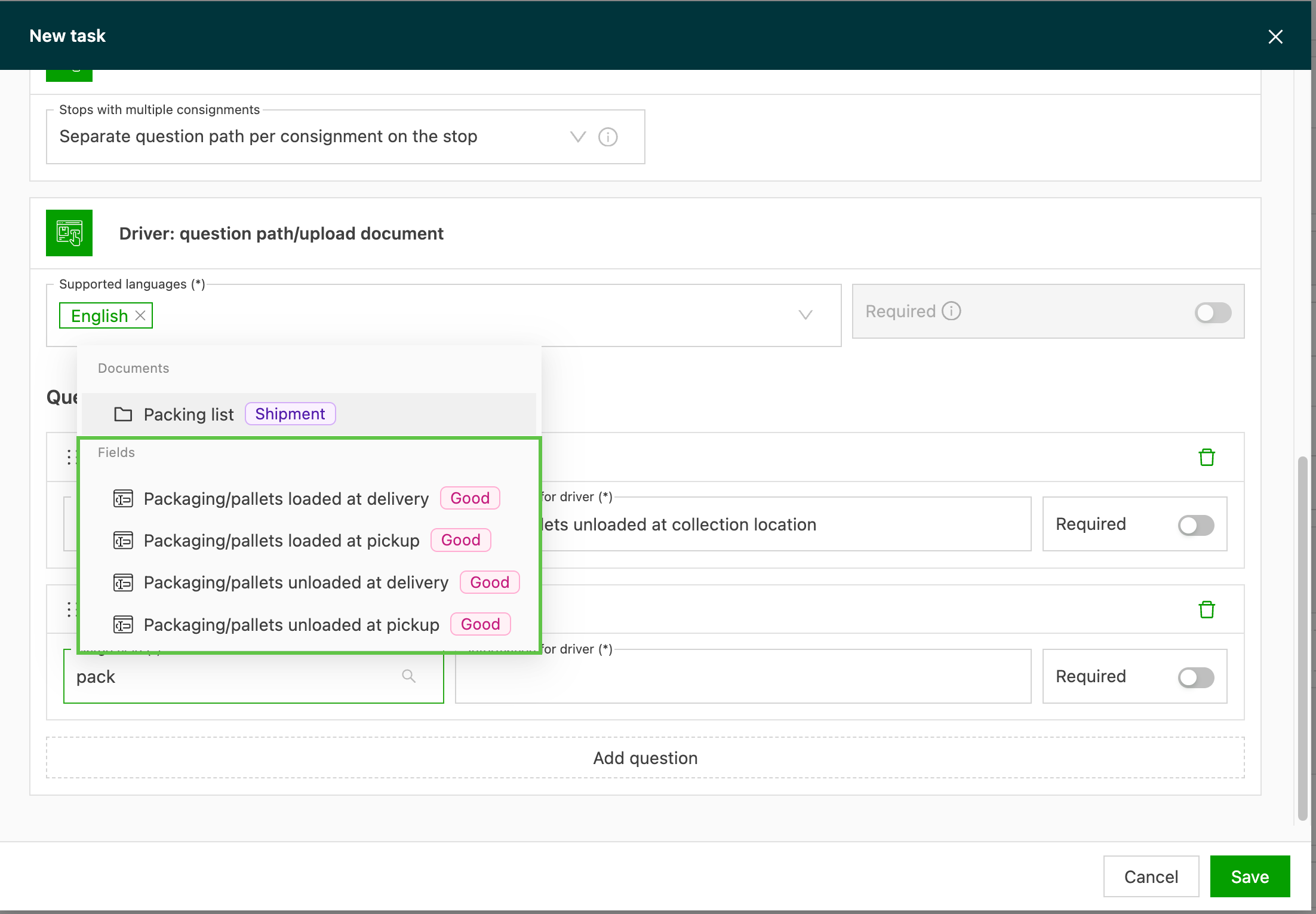
Add questions to stop details so the driver can enter in the app how many full / empty pallets are picked up / delivered at locations
-
Navigate to Configuration > Tasks
-
Create the question path at the point that best suits the operating workflow
- For example: Loads > Create stop > Loading at pickup
-
Questions can be added for the following stop activities:
- Pallets loaded at pickup/delivery = the driver will enter the number of empty pallets loaded at that stop
- Pallets unloaded at pickup/delivery = the driver will enter the number of empty pallets unloaded at that stop.
Step 5: (Optional) Customer override swaps
-
Default: Pallet swaps will be tracked on pickup and delivery activities
-
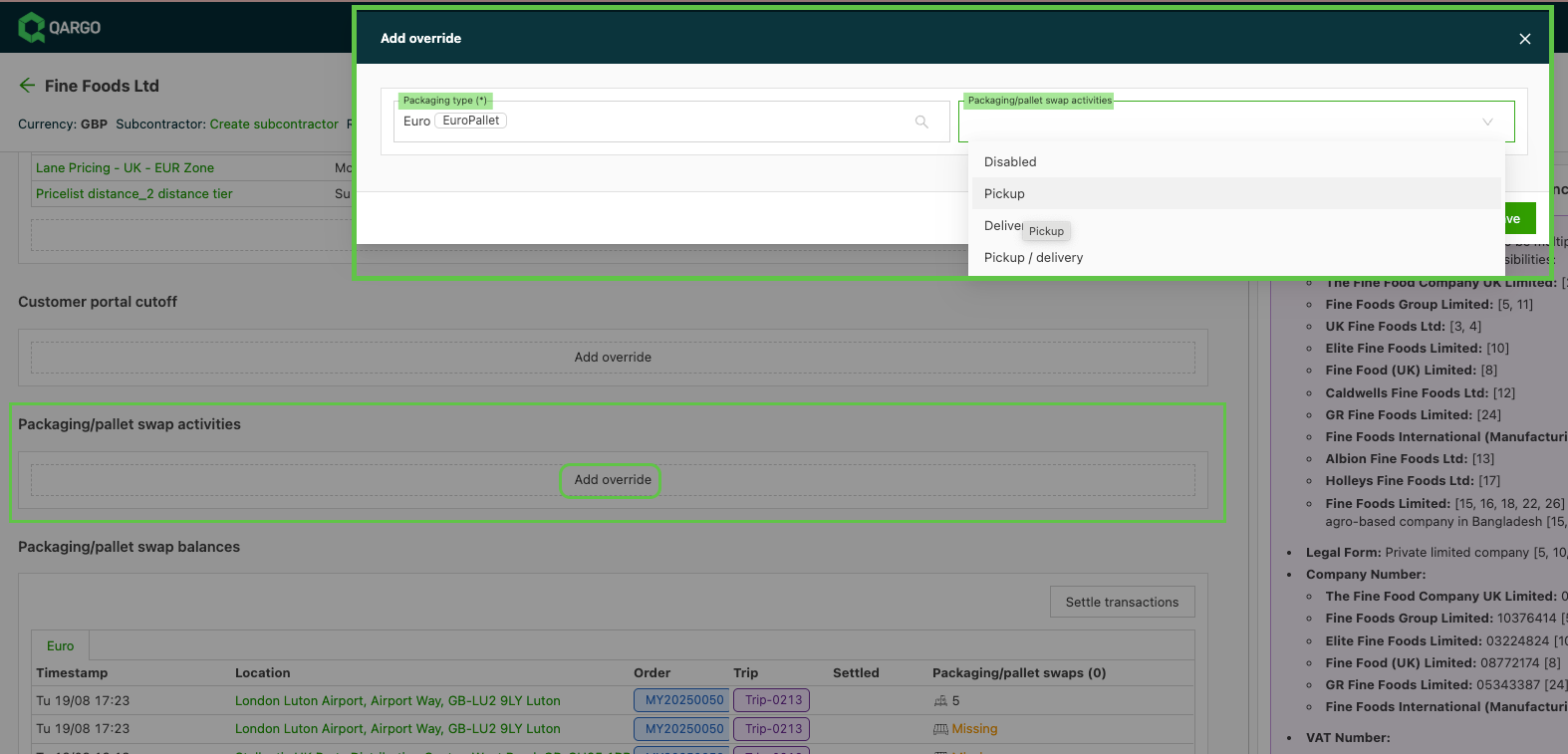
Optional: A customer override can be set for specific stop activities, and by packaging type.
-
From the customer profile, scroll to Packaging / pallet swap activities
-
Packaging types will display the list of available options configured
-
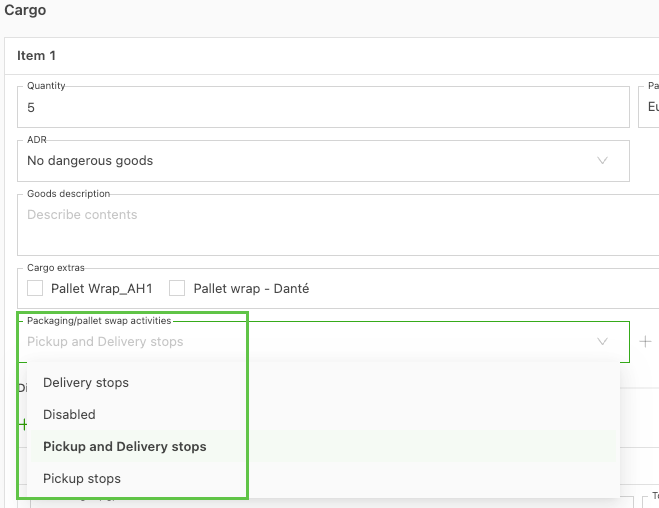
Select the swap stop activity override. Options include:
-
Disabled: tracking is not available for this packaging type at either the pickup or delivery stop
-
Pickup: tracking is only available at the pickup location
-
Delivery: tracking is only available at the delivery location
-
*Pickup/delivery: tracking is available at both the pickup and delivery location (same as default)
- If multiple packaging types have specific overrides, this can be selected to make clear which ones use the default
-
-
Step 6: (Optional) Add charges to rate cards
-
Charges for pallet swaps can be added as a rate card metric
- Available on Formula and Rate table as metrics
- Available as a condition metric
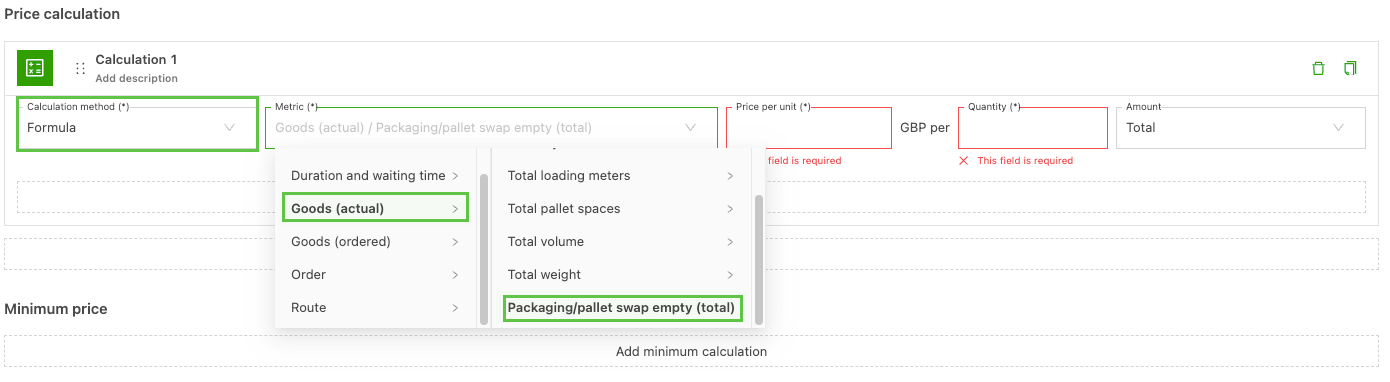
Formula:
-
Available as a per-unit charge, based on the total swap activity
- For example: £15 per 1 swap
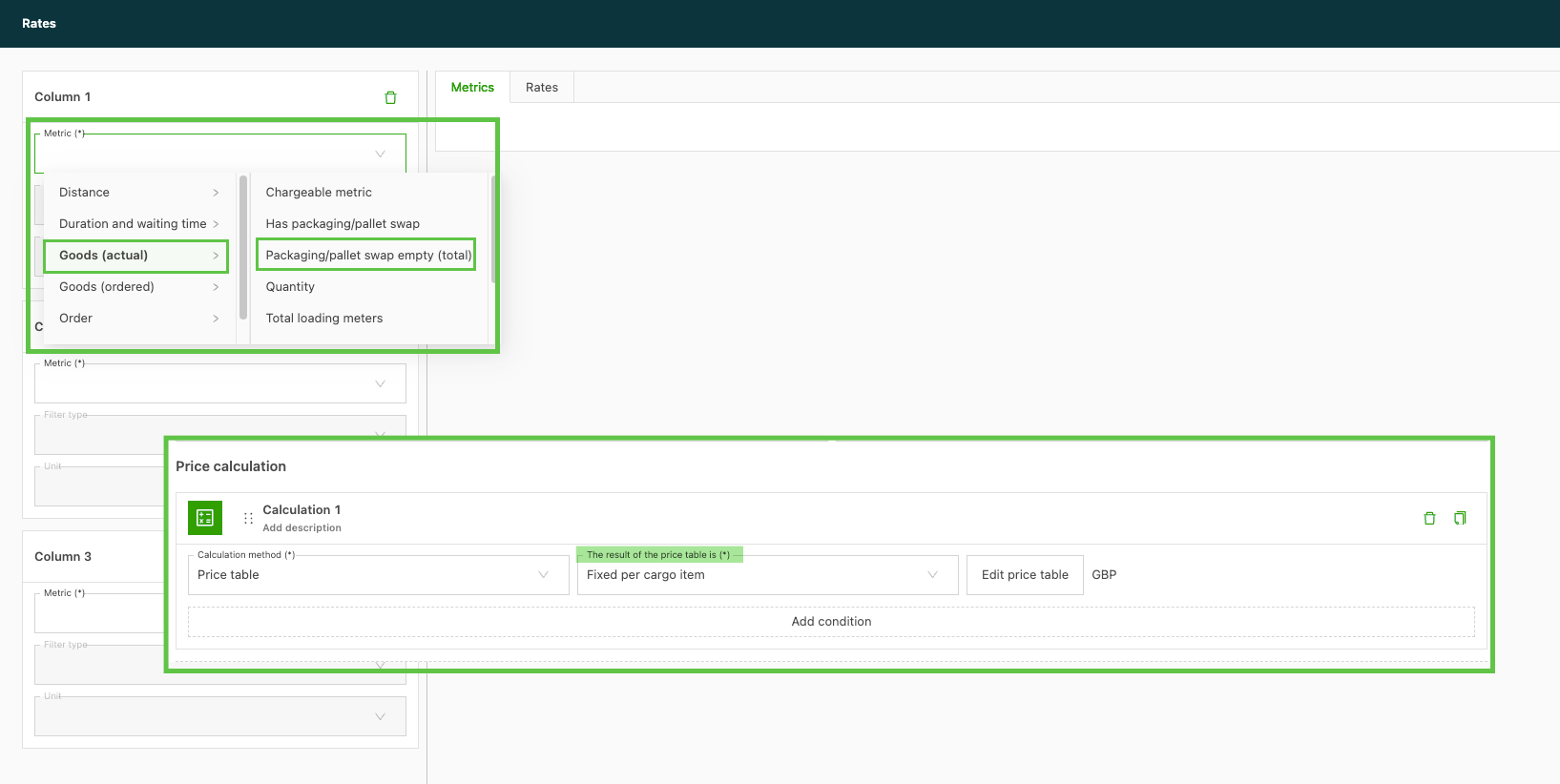
Rate table:
- Fixed per freight item: rate table options include both Has swap and Total swap
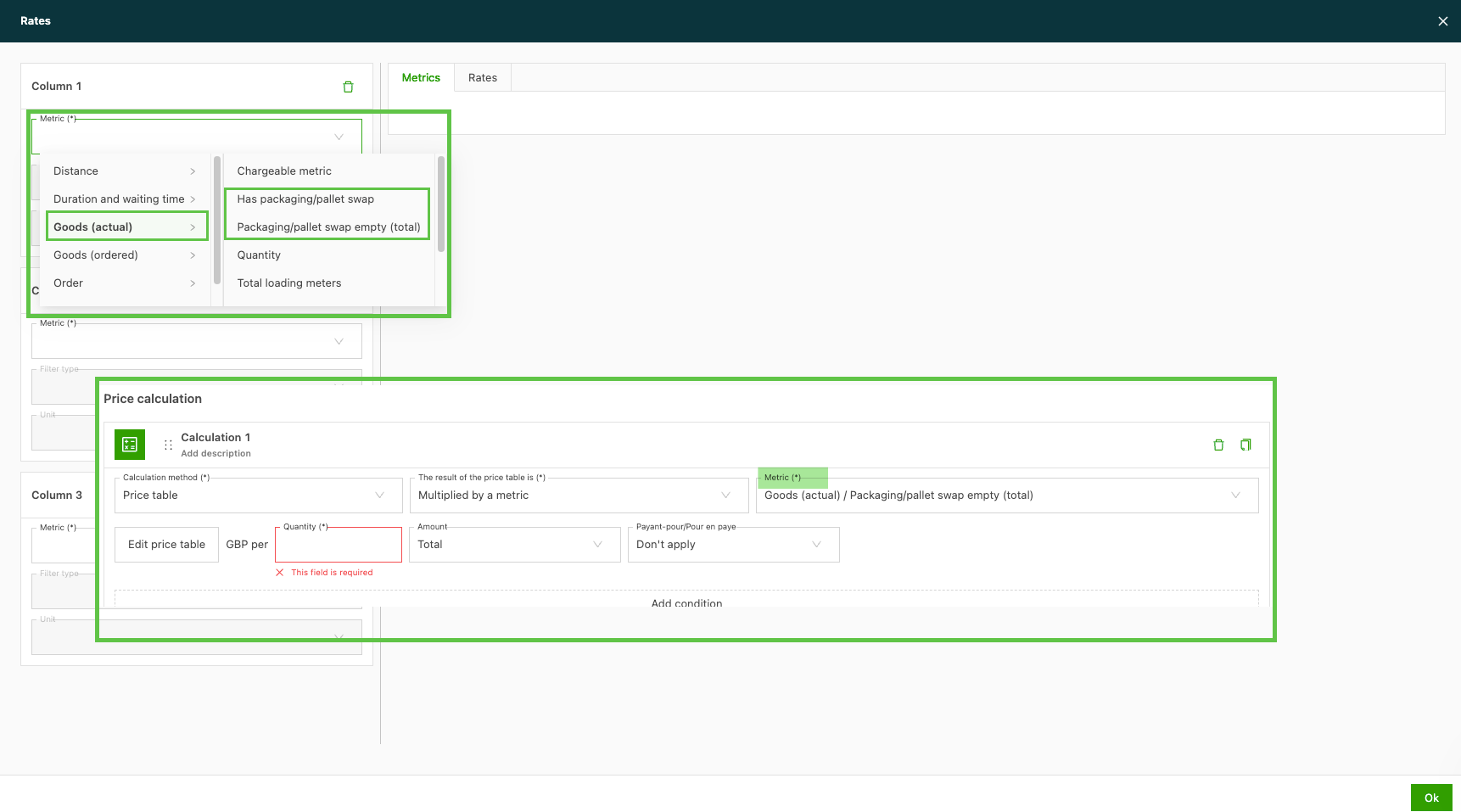
-
Multiplied by metric: can be selected as the metric, and both options are available in the rate table configuration.
- For example: selecting this will multiply the rate table result based on the quantity
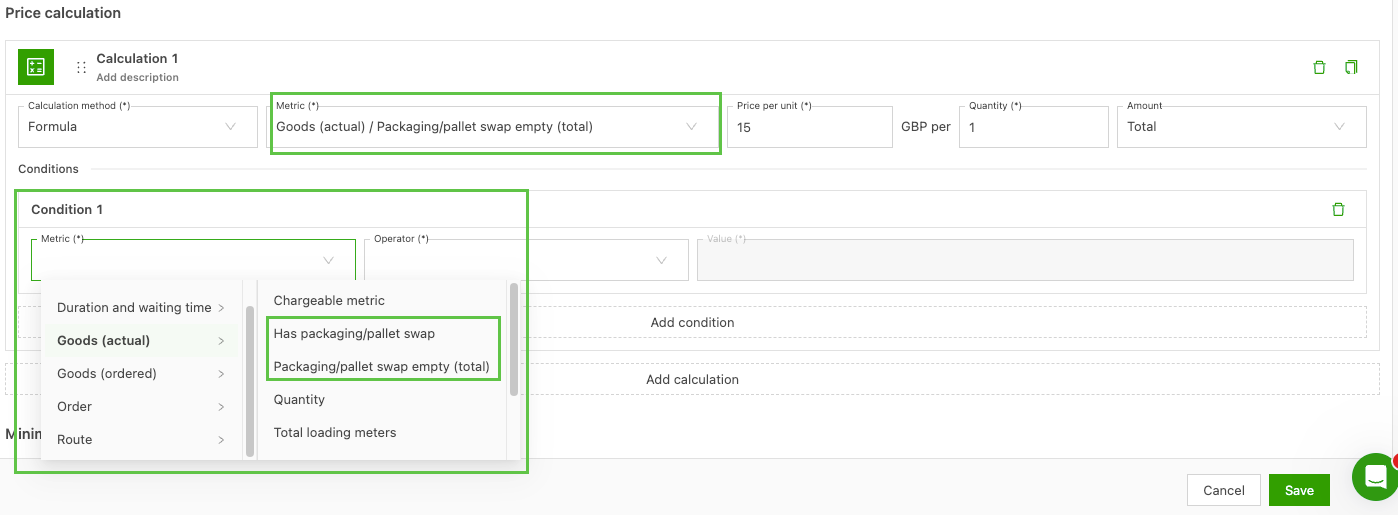
Add as condition:
2 options: Goods (actual) / Has swap (Y/N) or Total swap
Pallet swaps workflow
1.) Build order
-
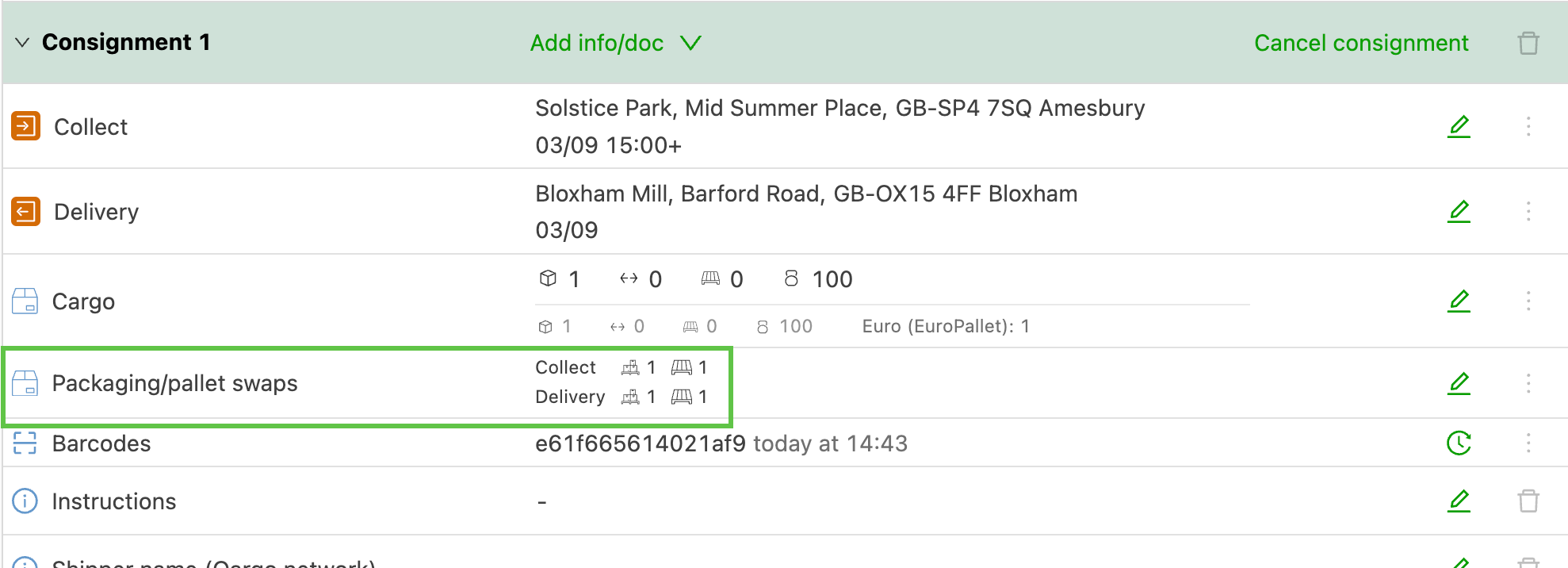
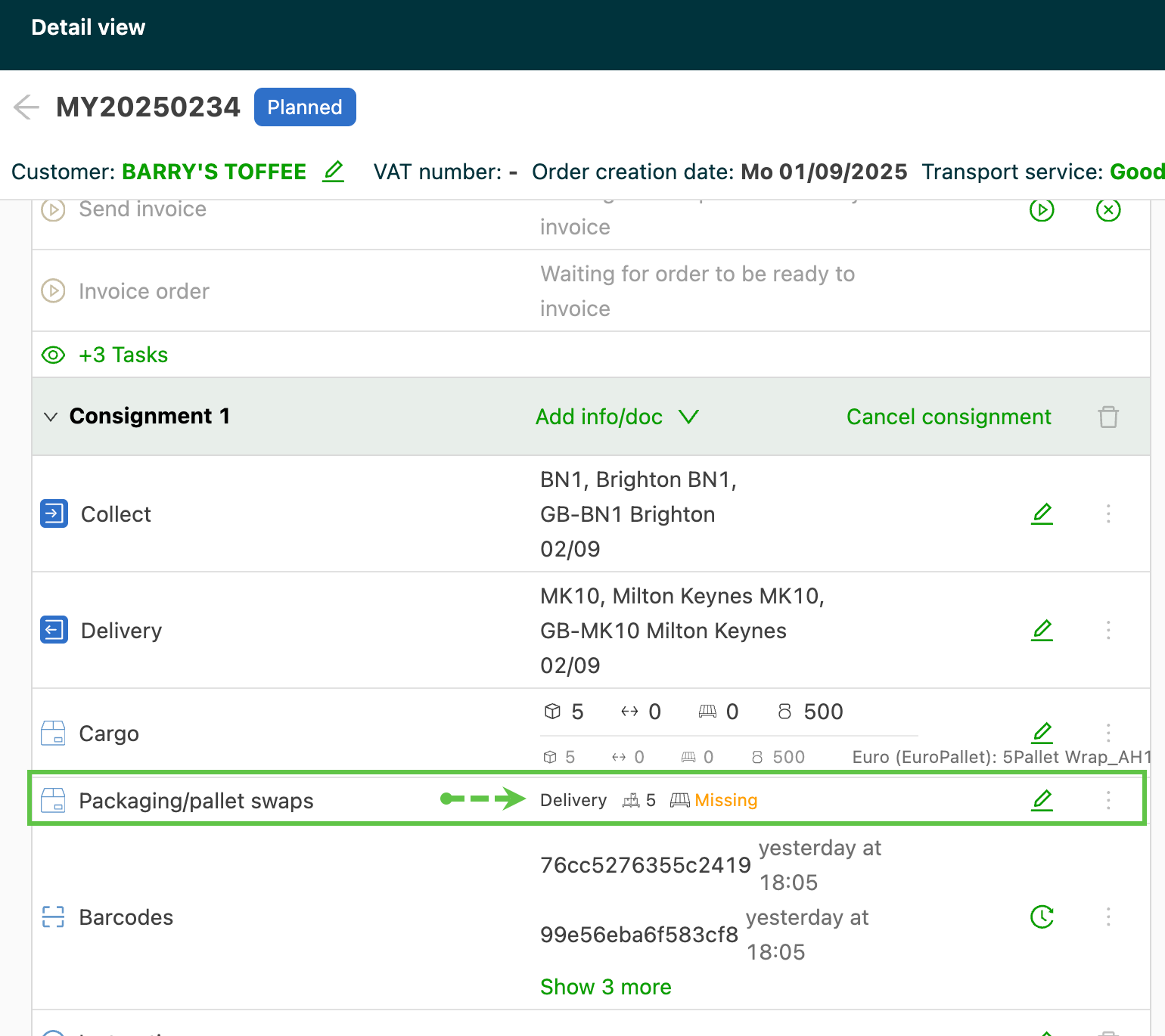
When enabled, the default values for pickup / delivery will automatically be included in the order, based on the enabled packaging types
- For example: if enabled for Europallets and that is the packaging type used on the order, the number of pallets entered will be used automatically.
- Default tenant settings are used for the empty pallets
-
An alternate pallet swap stop activity can be selected when building the order
-
If a customer override is present, it will pre-fill instead of the default.
-
Use Standalone stops to add pallet swaps to an order
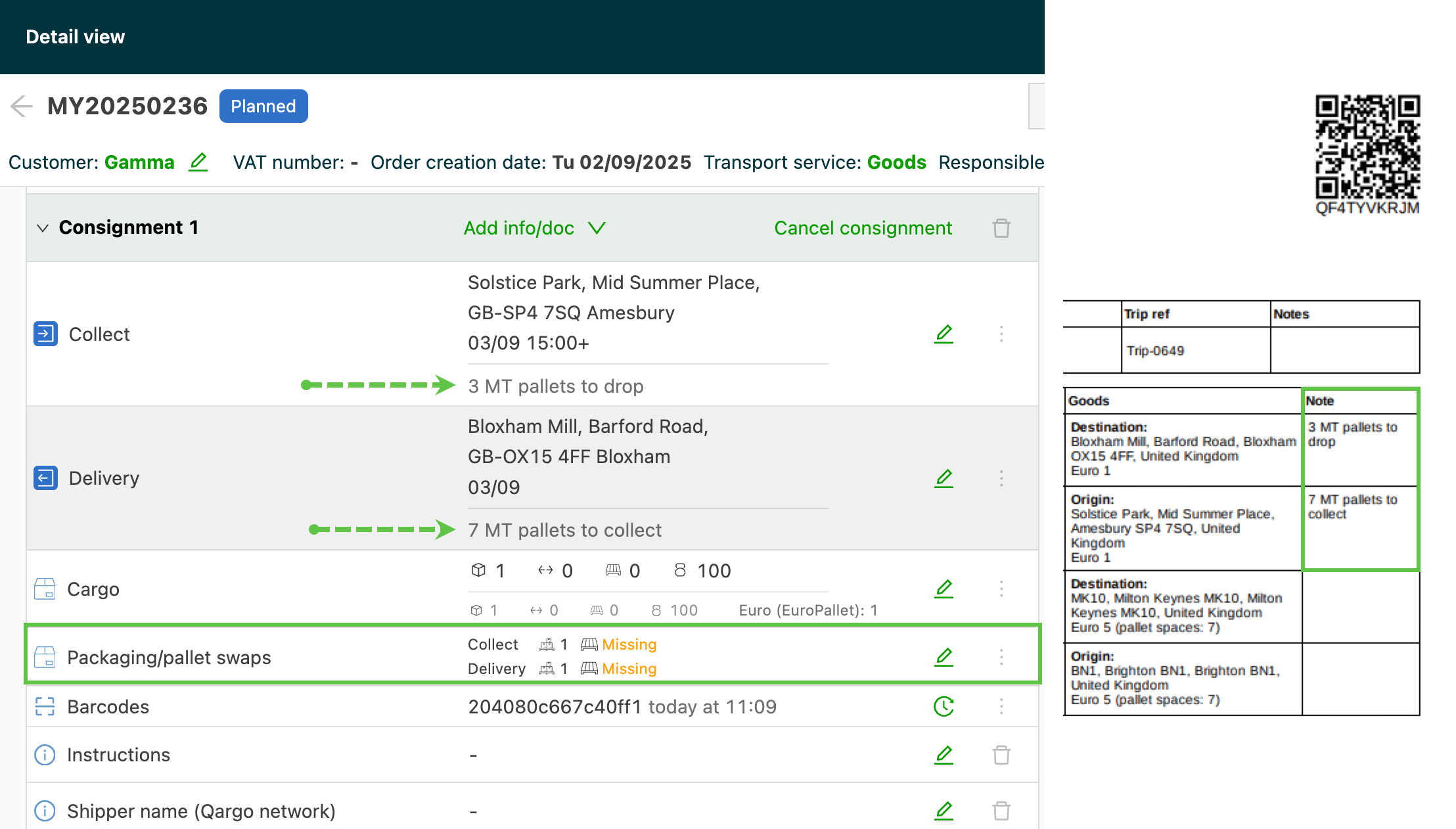
2.) Load operations, including a pallet swap
- Using the question path, drivers can enter the quantity of loaded and empty pallets at locations.
- The order updates with the details entered by the driver.
- The order can be updated manually to add or edit the quantity of pallets
Settle transactions
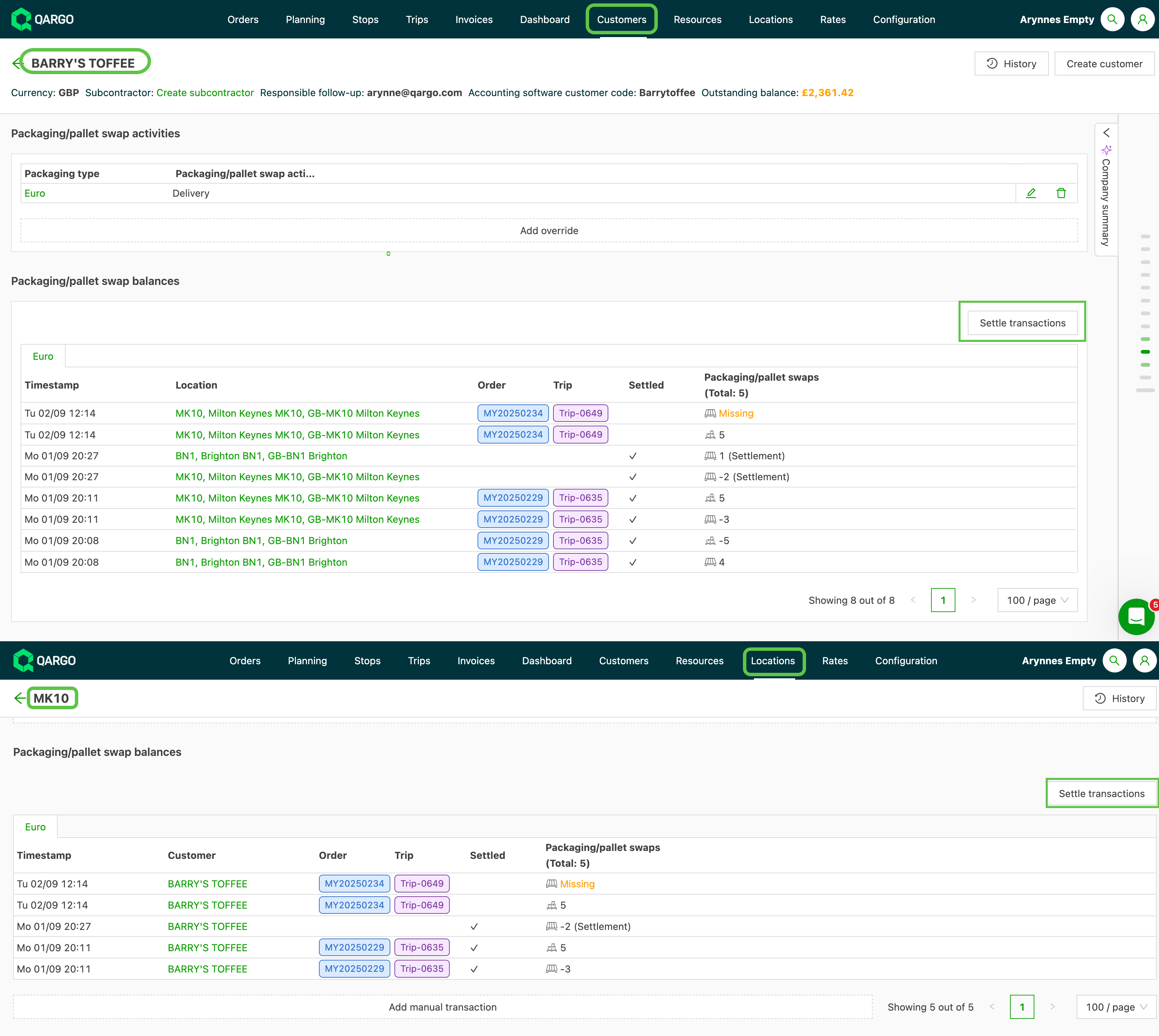
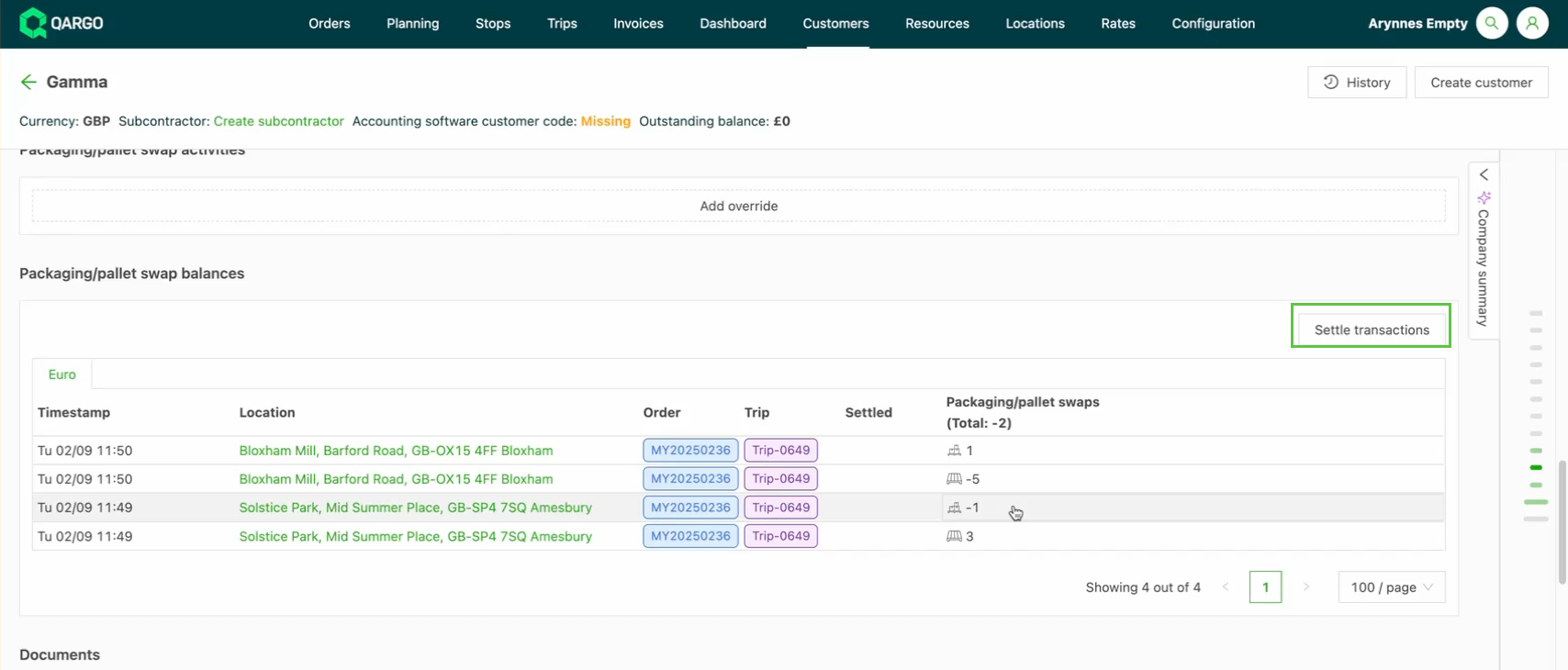
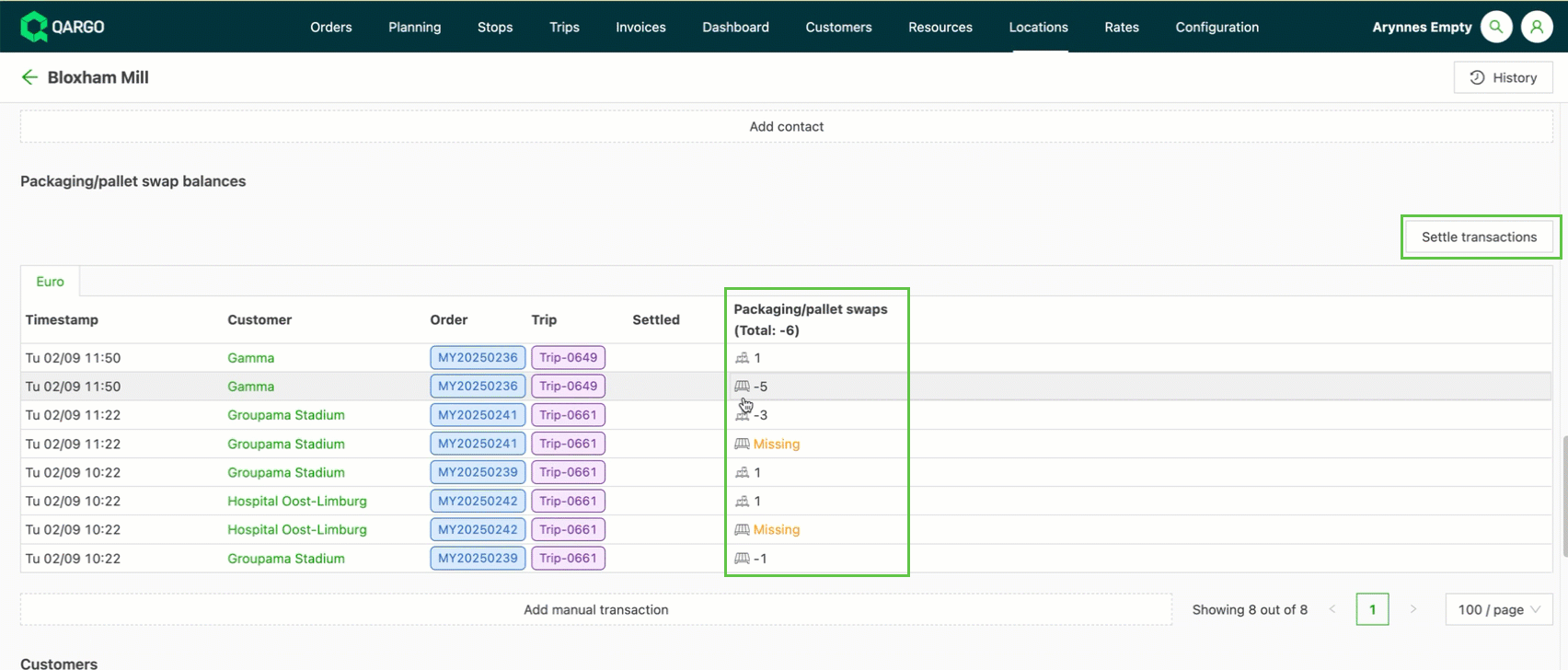
- The pallet balance can be settled by customer or by location
-
The pallet balance can be settled on either the customer or the location
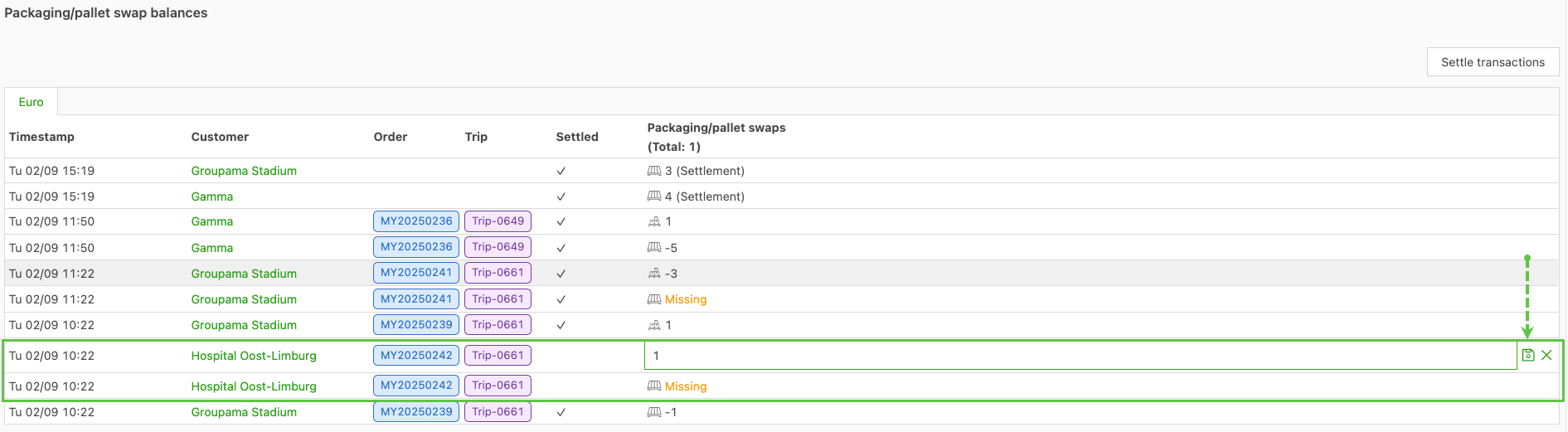
- An update to the customer will also update the location, and vice versa
-
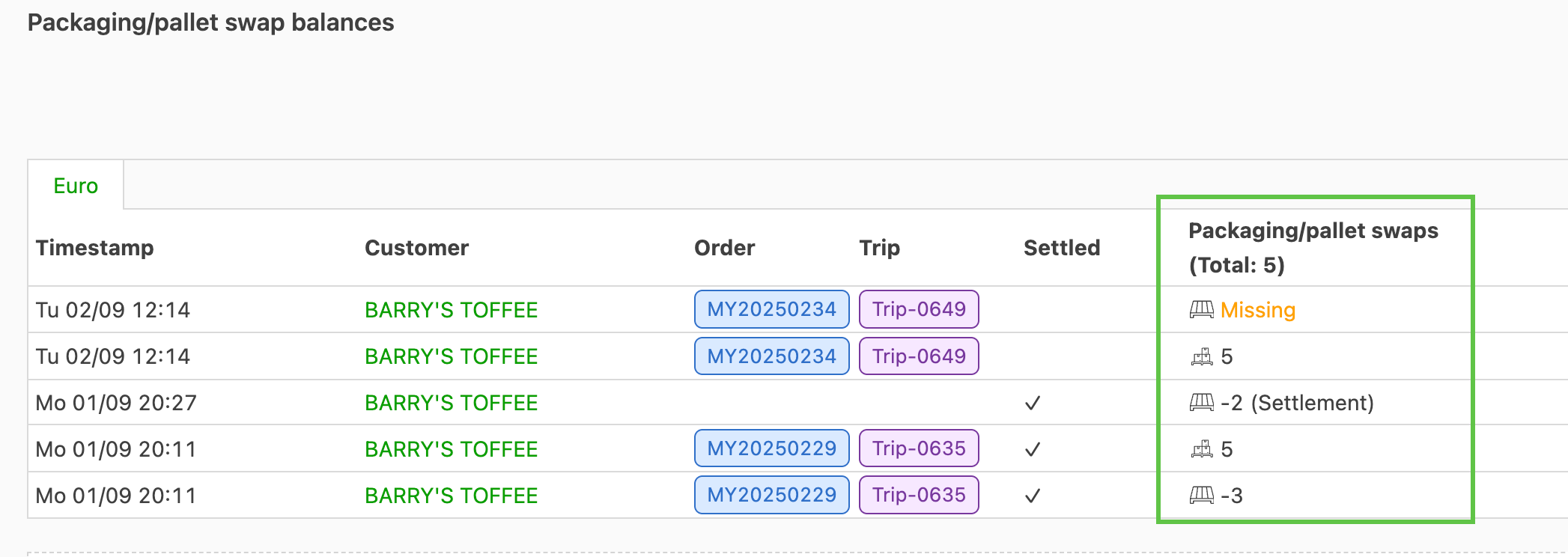
Negative value = pallet moved from location to carrier (tenant)
-
Positive value = pallet moved from carrier (tenant) to location
-
Missing = value not pre-filled for the empty pallet
- Also not completed in the question path
Settle customer level
-
Required to complete the settlement transaction:
-
Date / time stamp
-
Location: single or multiple locations can be added.
- If left blank, all pallets within the date/time range will be updated as settled
-
Settle location level
-
Required to complete the settlement transaction:
- Date / time stamp
- Customer name
Recording empty pallet swaps at stop level (mixed types)
Empty pallet swaps can now be recorded at the stop level as a single transaction per packaging type, independent of the goods lines on the order. This makes it possible to capture mixed-type exchanges (for example, delivering loaded Euro pallets and receiving empty Block pallets back), including packaging types that are not on the order at all. Previously, empty swaps were limited to like-for-like returns tied to each goods line.
Loaded (full) pallet swaps are unchanged: they stay at the goods level and are created automatically at pickup and delivery, exactly as described in the sections above. Only empty swaps move to the stop level.
How empty swaps are recorded
- Empty swaps are captured as one transaction per packaging type, per stop, aggregated across all of the order’s goods lines. If several goods lines at a stop use the same packaging type, the empties returned for that type are recorded as a single line rather than being split across each goods line.
- The stop-level pallet swap section is now available on pickup and delivery stops, not only on the stop types where it appeared before. Each row still captures packaging type, picked-up quantity, and delivered quantity.
- A read-only summary of the stop-level swaps is shown on the order detail, scoped to that order’s stops. The editable source of truth remains the stop.
Recording empty swaps from a driver question path
For tenants using the Trimble or Samsara board-computer integrations, a question path on a stop can be mapped to a stop-level empty pallet swap transaction, rather than only to a goods-level swap.
- Navigate to Configuration > Tasks > Loads.
- Create one question path per packaging type to be captured at the stop, for example How many empty Euro picked up? or How many empty Block delivered?.
- Map each question to a stop-level empty pallet swap transaction.
- Save the question path.
When the driver answers a question on the board computer, each answer writes a single empty transaction for that packaging type at the stop. Questions can be configured for packaging types that are not present on the order, allowing drivers to record unplanned empties they picked up or returned.
Automatic empties
- Tenants that prefer automatic like-for-like empties keep that behavior as a setting. In that case, the stop-level empty transaction is created when the order is created and stays in sync with the total goods quantity, until a driver optionally answers a question and overrides it.
Manual settlement
Use case: At the end of the year, the carrier has a debt of 100 empty pallets, which the carrier needs to record against a specific company and location.
Solution:
-
Navigate to the location where the pallets need to be recorded
-
From Packaging / pallet swap balances, click Add manual transaction
-
Enter the details in the pop-up:
-
Date/time the pallet swap is recorded (this can be backdated if needed)
-
Company to assign the manual transaction to
- The transaction will also be shown in the customer profile
-
The number of empty pallets picked up / delivered at the location
-
Add an optional comment
-
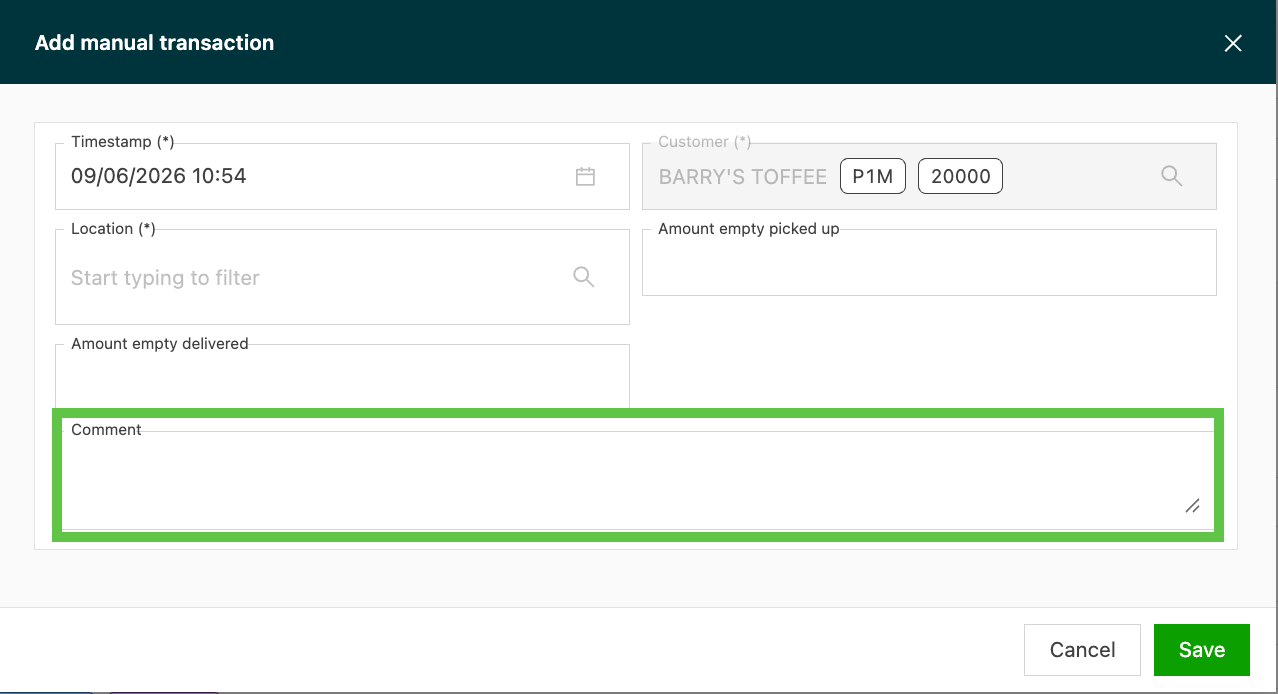
Result: A manual transaction allows carriers to quickly record a number of pallets (empty or full) at a specific location, outside of specific loads. Adding it to the location also adds the pallet swap details to the company profile, reducing manual entry and keeping details aligned.
Adding a comment to a manual transaction
- Click Add manual transaction from the customer detail page or location detail page.
- Complete the date, packaging type, and quantity fields.
- Enter an optional note in the Comment field.
- Click Save.
The comment is stored with the transaction and displayed in the Comment column.
Comment column in pallet balance overview
A Comment column is now visible in the pallet balance overview table on both the customer and location detail pages. The column displays the comment text when one was entered; the cell is empty when no comment was provided.
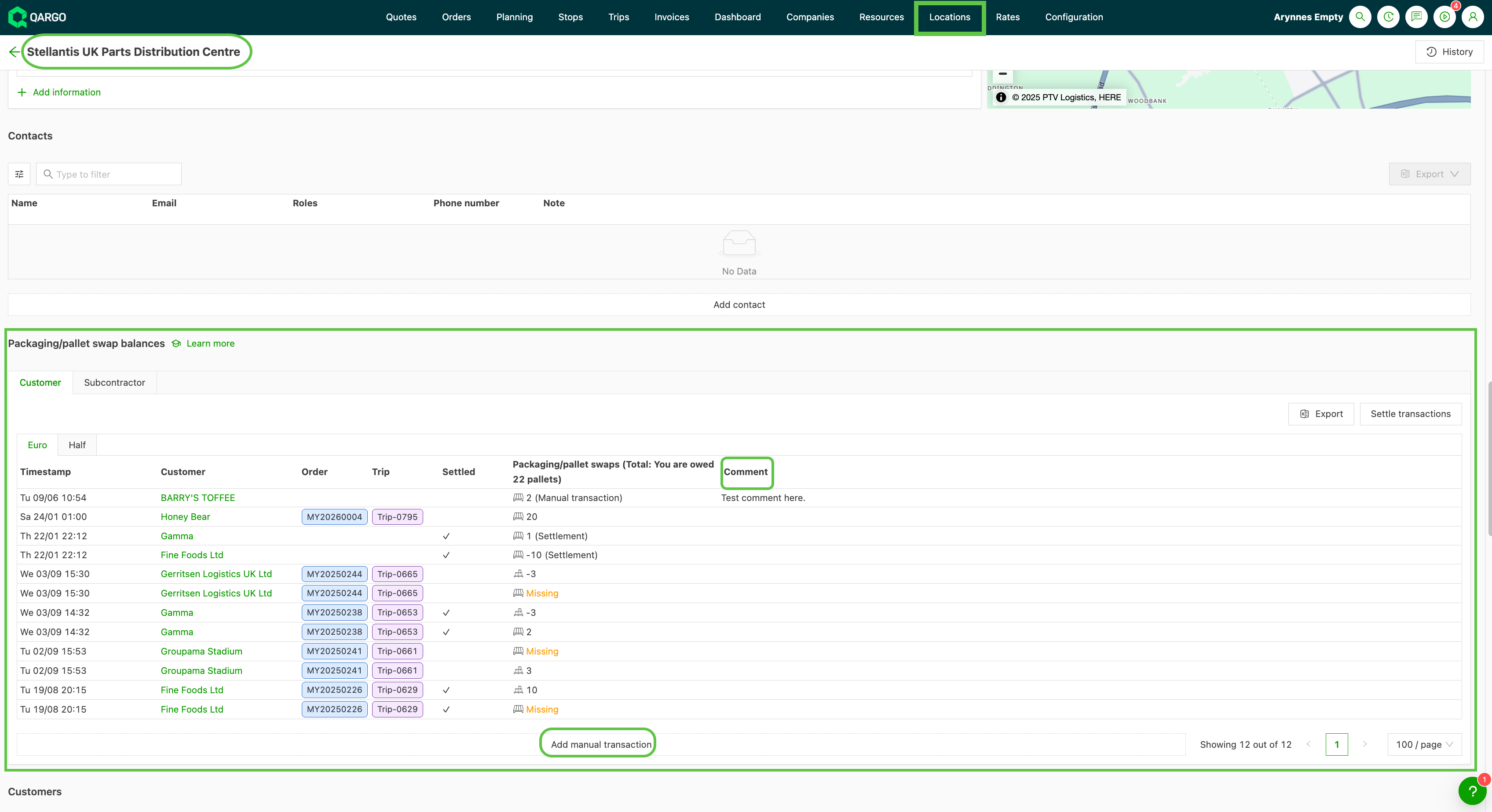
The Comment field is also included in the Excel export of pallet balance data.
Exporting pallet swap transactions to Excel
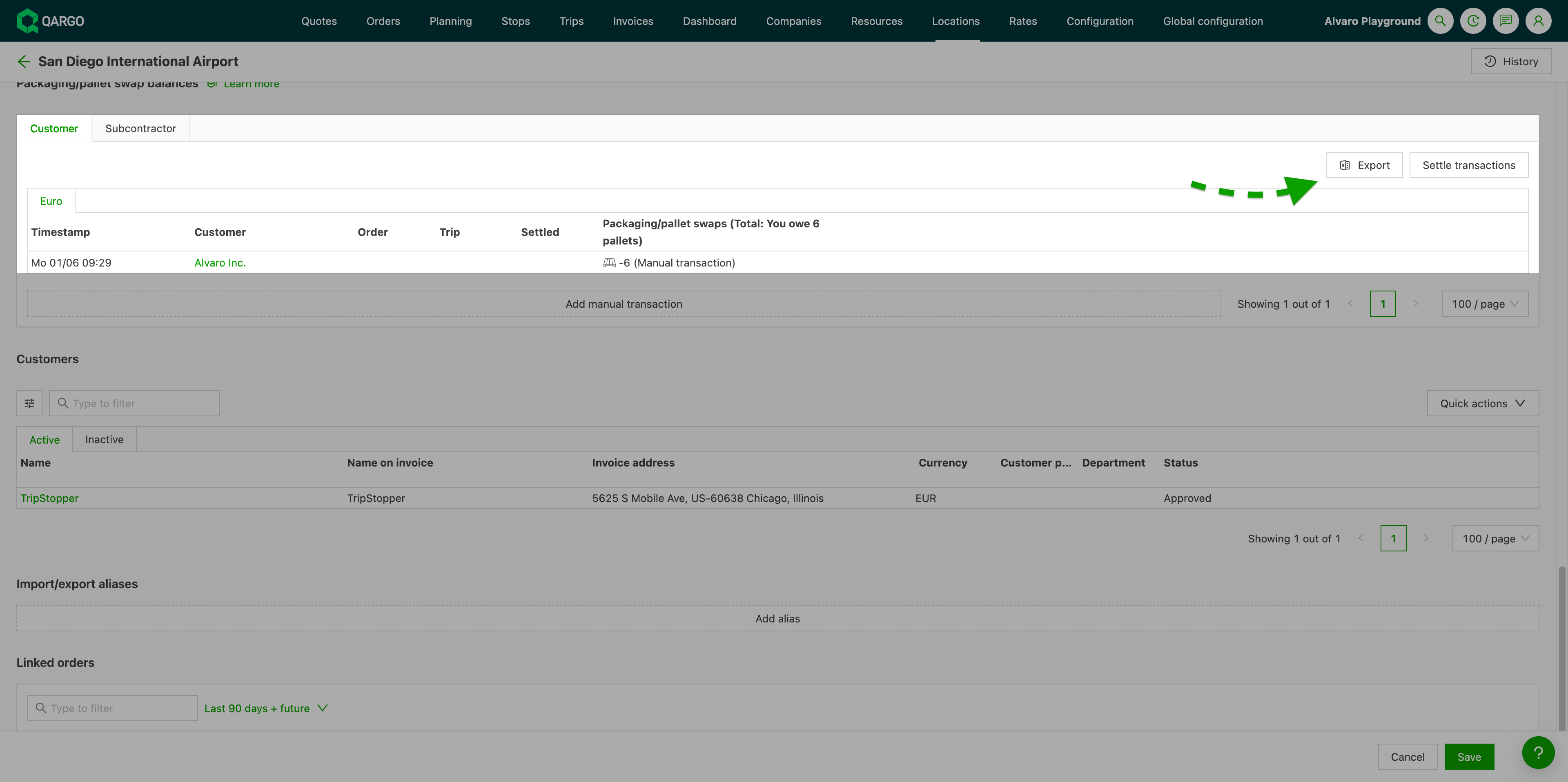
All pallet swap transaction records stored against a location can be exported to Excel for reconciliation, reporting, or external sharing.
How to export
- Navigate to Locations and open the relevant location detail.
- Scroll to the Packaging/pallet swap balances section.
- Select the packaging type tab to export (for example, Euro).
- Click Export, next to the Settle transactions button.
Exported columns
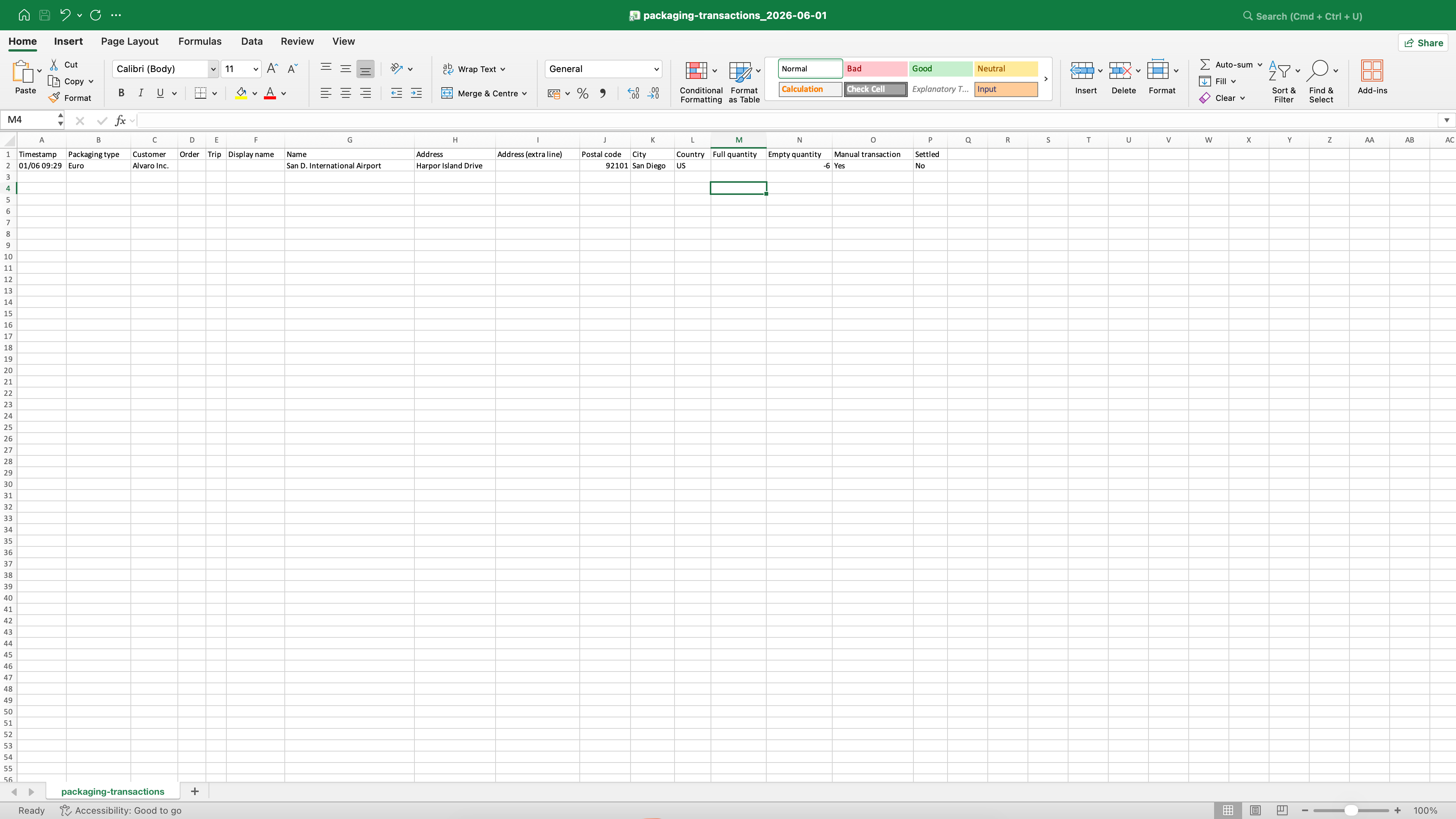
| Column | Description |
|---|---|
| Timestamp | Date and time the transaction was recorded |
| Packaging type | The packaging type for the transaction |
| Customer/Contract carrier | The company linked to the transaction |
| Order | The associated order reference |
| Load | The associated load reference |
| Display name | Display name of the linked party or location |
| Name | Full name of the linked party or location |
| Address | Street address |
| Address extra | Additional address information |
| ZIP code | ZIP code |
| City | City |
| Country | Country code |
| Full quantity | Number of full units exchanged |
| Empty quantity | Number of empty units exchanged |
| Manual transaction | Indicates whether the entry was added manually |
| Settled | Indicates whether the transaction has been settled |
Contract carrier pallet tracking
When orders are dispatched to a contract carrier, the standard pallet pool flow is extended to track not only the commercial relationship with the customer, but also the physical custody of pallets held by the contract carrier.
The two-balance model
Qargo maintains two separate pallet balances per order:
- Tenant ↔ Customer (commercial): Tracks the contractual pallet relationship with the customer and location, as described in the sections above. This balance already exists and is unaffected.
- Tenant ↔ Contract carrier (operational): Tracks how many pallets the contract carrier is physically holding, has returned, or still owes to the tenant.
The two balances are independent. The customer balance reflects who owes whom pallets contractually. The contract carrier balance reflects who currently has physical custody of those pallets.
How contract carriers register pallet data
Contract carriers record pallet quantities through the Carrier portal using the same question path configured in Step 4 above. No additional question path setup is required.
When a contract carrier completes the question path at pickup or delivery, Qargo records two things simultaneously:
- The customer/location balance is updated (as normal).
- The transaction is attributed to the contract carrier, updating the contract carrier balance to reflect the pallets now in the contract carrier’s custody.
The tenant can review and confirm or dispute values reported by the contract carrier.
Viewing the contract carrier pallet balance
-
Navigate to the relevant contract carrier page in Qargo.
-
The pallet balance tab displays:
- The current net balance per packaging type, expressed in plain language (e.g. Transport BV owes you 4 pallets or You owe Subco 2 pallets)
- A full transaction history showing each exchange, the location where it occurred, and the date
- Unsettled amounts: pallets that have not yet been formally returned or reconciled
Settling contract carrier transactions
Contract carrier balances can be settled in the same way as customer and location balances, typically when the contract carrier physically returns pallets to the tenant’s terminal.
To settle a contract carrier balance:
- Navigate to the contract carrier page and open the pallet balance tab.
- Select Settle balance
- Choose the location (terminal or warehouse) where the return is being recorded.
- Select the packaging type and confirm the quantity being settled.
- Click Save. A settlement line is added to the transaction history and the balance is reduced accordingly.
Limitations
-
Pallet swaps are tracked on pickup and delivery activities by default.
- This can be overridden at customer level, but it is not possible to configure this override at tenant level.
-
Only one question path per shipment is supported.
- If a shipment has multiple goods, a question path can only be created for one of them.
-
The number of swapped pallets cannot yet be added to document templates (invoice, POD).
-
Pallet swaps are not yet supported via the API.
-
Contract carrier pallet tracking only applies when a single contract carrier is assigned to the load. If multiple contract carriers are assigned, no contract carrier pallet balance is recorded.
-
Partial settlement is not supported: the settlement always resets the full open balance for the selected date range. To record a partial settlement (for example, 8 of 12 pallets), settle all transactions and then add a manual transaction for the remaining balance. Use the Comment field to document the split (for example: “Settled 8 of 12 via invoice 1133 — 4 pallets re-added as manual transaction”).
Troubleshooting
| Issue | Resolution |
|---|---|
| The Comment field does not appear on the settlement pop-up | Confirm that Packaging / Pallet swaps enabled is toggled on in Configuration > Organization settings > Features. Contact a Super Admin if the setting is unavailable. |
| The Add manual transaction button is not visible on the customer page | The pallet pool section only appears for tenants with pallet swap tracking enabled. Confirm the feature is active in Organization settings. |
| The Comment column is not visible in the pallet balance table | Use Edit columns to enable the Comment column in the table view. |
| The Excel export does not include the Comment column | Re-export after the feature has been enabled. Exports from before the feature release do not include the Comment column. |