
Orders – Adding multiple packaged items on orders.
Add non-ADR item details to handling units on goods, tracking descriptions, weights, dimensions, and barcodes per pallet or packaging unit.
Table of contents
Introduction
-
What is this feature?
- Qargo now supports adding detailed item-level information to individual handling units (goods), beyond just ADR-related data. Each good can contain multiple packaged items, each with fields for description, quantity, weight, volume, dimensions (length, width, height), barcodes, and packaging type. This allows transport companies to record exactly what is on each pallet or packaging unit.
-
Why was it introduced?
- Transport companies often receive detailed information from customers about the contents of each pallet — not just hazardous goods data, but also product descriptions, weights, and quantities. Previously, item-level details on handling units were limited to ADR-related goods only. This forced users to manage non-ADR item information outside of Qargo or work around the limitation using custom fields. The feature brings full item-level tracking into the standard goods workflow.
-
How does it work?
- The feature is enabled via the Packaging items feature flag at tenant level (Qargo Admin only).
- Once active, a Packaged items section becomes visible on non-ADR goods during order input and on the order detail page. Items can be added manually in the web app or imported via the External API. A new Packaged items quantity rating metric is also available for rate card configuration.
Terminology
| Term | Definition |
|---|---|
| Freight | A line on an order representing a collection of handling units — for example, “3 europallets”. Defines the packaging type, total quantity, weight, and volume. |
| Handling unit (freight trace) | A single physical unit within a good — for example, one individual pallet. Handling units can have barcodes and are automatically created based on the good’s quantity. |
| Packaged item (freight item) | The contents of a handling unit. For example, “10 boxes of electronics” on a single pallet. Previously limited to ADR items only; now supports non-ADR items as well. Also referred to as freight sub-item in some contexts. |
| ADR item | A packaged item containing hazardous goods information (UN number, classification, packing group). ADR items were the only type of good item supported before this feature. |
| Packaging type | The type of packaging used for the good — for example, europallet, half-pallet, or roll container. Defined as a predefined package size in the system configuration. |
| Feature flag | A tenant-level configuration toggle that enables or disables specific functionality. The Packaging items feature flag must be enabled for this feature to appear.\ |
| Requires activation by Qargo Admin. Contact Qargo Support or the account manager for assistance. | |
| Packaged items quantity | A new rating metric available on rate cards, representing the total number of packaged items across all goods on an order. |
Enabling the feature
The Packaging items feature is gated behind a feature flag and is off by default. It must be enabled at tenant level (Qargo Admin only) before any packaged item fields become visible.
Activating the feature flag (Qargo Admin only)
- Navigate to Configuration > Organization settings > Features
- Locate the Packaging items flag in the list.
- Enable the toggle to activate the feature for the tenant.
- Click Save.
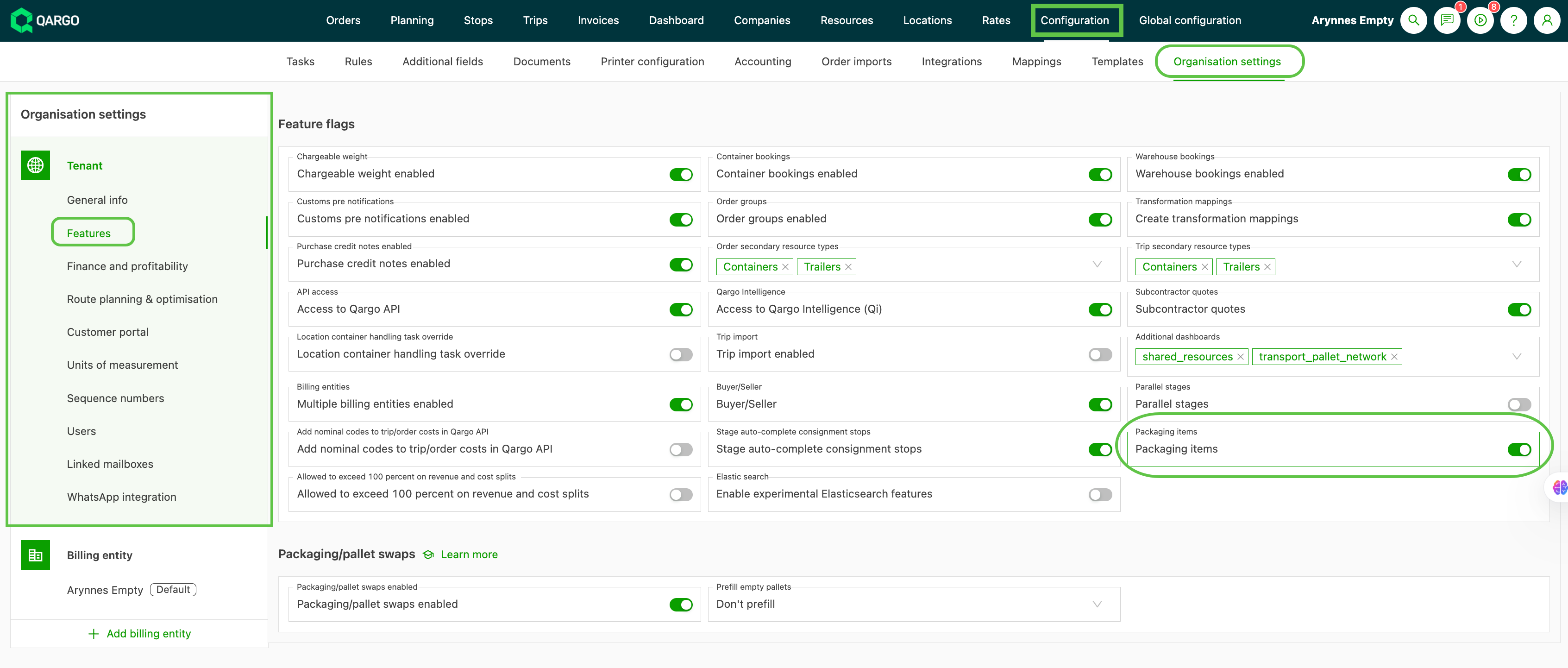
Once enabled, the Packaged items section appears on all non-ADR goods during order input and on existing order detail pages.
Goods hierarchy in Qargo
Understanding the three-level goods structure is essential for working with packaged items:
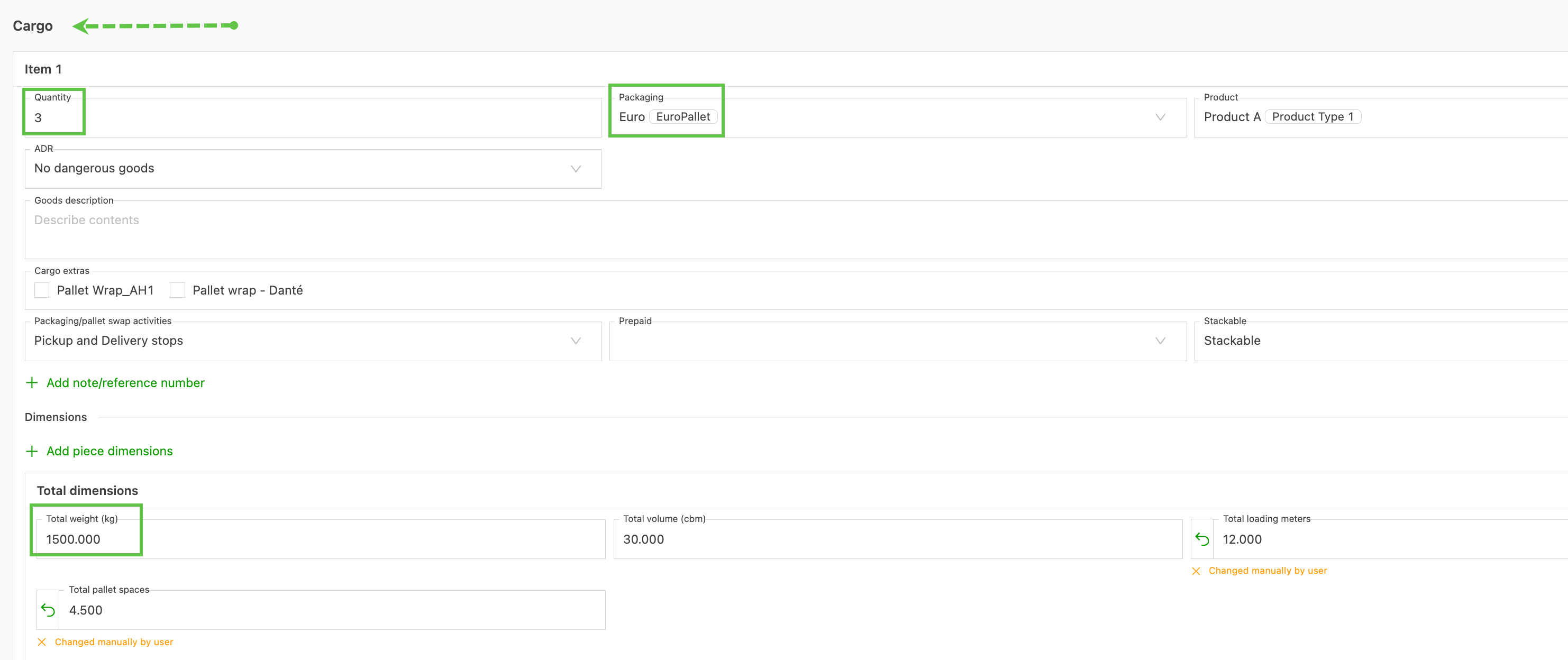
Level 1: Freight
The top level represents a collection of handling units. For example: 3 europallets, total weight 1,500 kg. This is the level visible in the order summary and is what most users interact with during order creation.
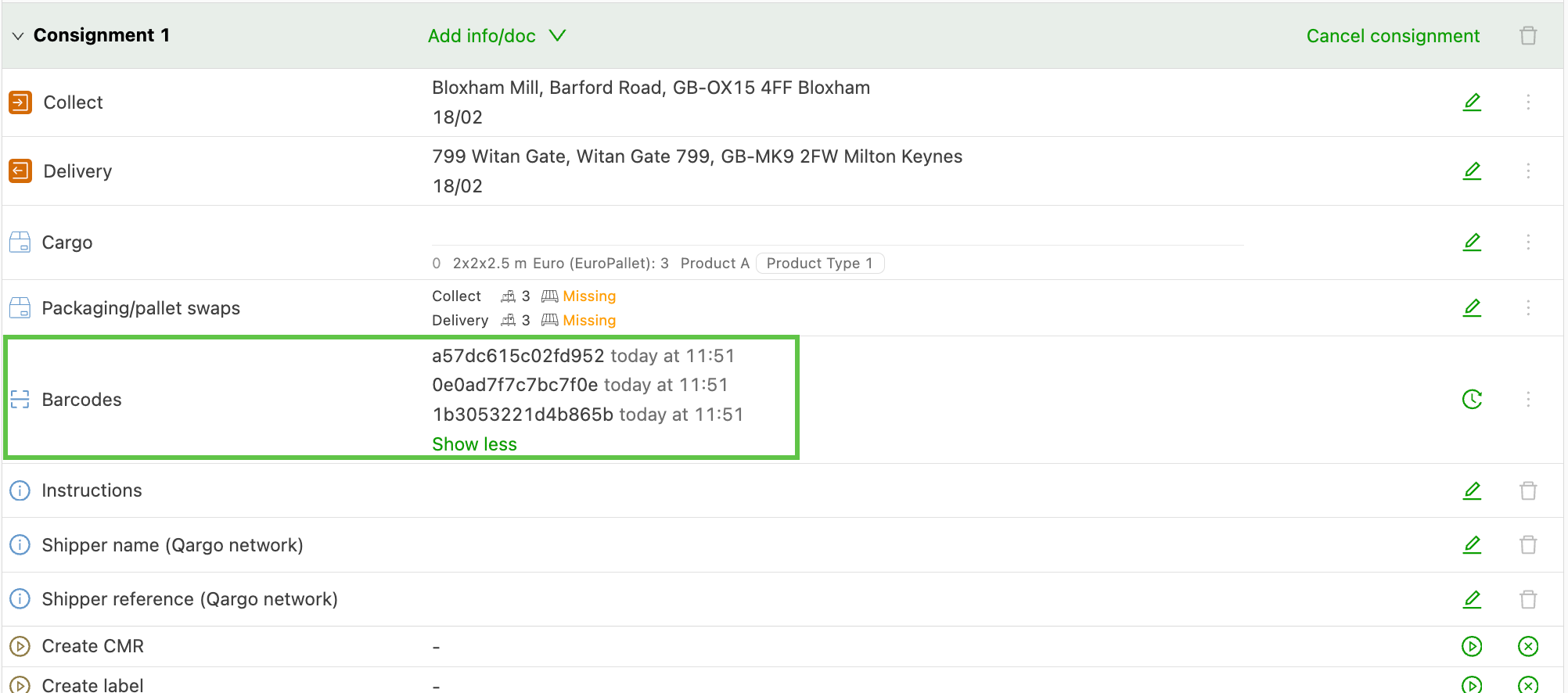
Level 2: Handling unit (freight trace)
Each individual physical unit within a good. For example: pallet 1 of 3. Handling units are created automatically based on the good’s quantity and can carry a barcode for tracking.
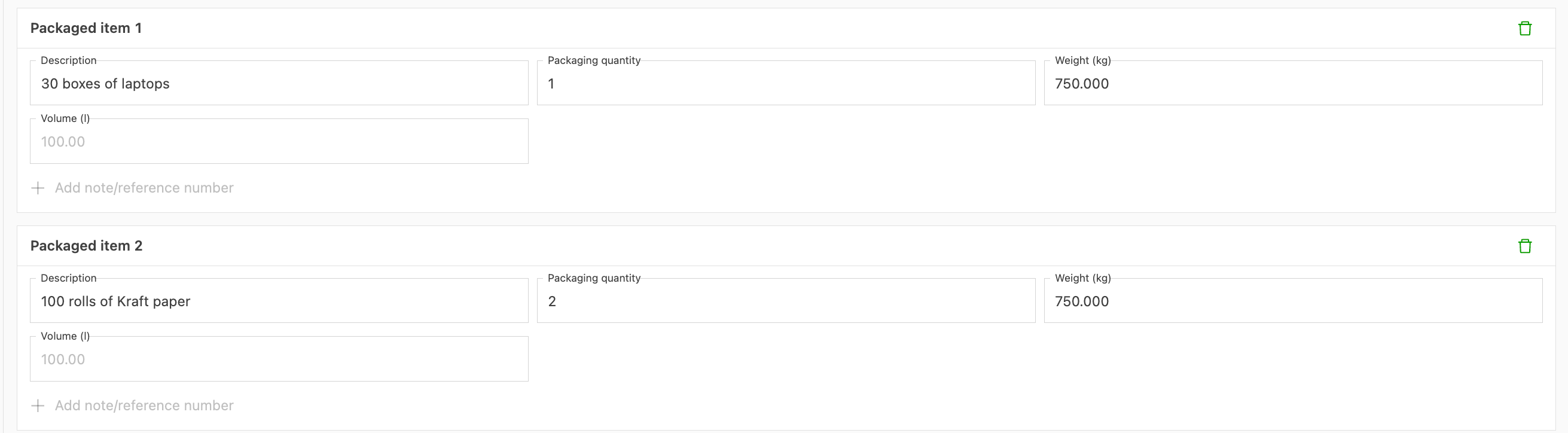
Level 3: Packaged item (freight item)
The contents of a handling unit. For example: 5 boxes containing laptops, weighing 250 kg. This is the level expanded by this feature — previously limited to ADR items, it now supports general product information.
Adding packaged items to a good
During order creation
-
Open the order input form and add a good with the desired packaging type and quantity.
-
Expand the good to reveal the Packaged items section (visible only when the feature flag is enabled).
-
Click the Add item button to create a new packaged item row.
-
Fill in the relevant fields for the item:
- Description — A text description of the item contents
- Quantity — The number of units of this item
- Weight — The weight of the item
- Volume — The volume of the item
-
Repeat for additional items on the same good as needed.
On an existing order
- Navigate to the order detail page.
- Expand the relevant good in the Goods section.
- Click Add item in the Packaged items sub-section.
- Enter the item details and click Save.

Packaged items via the External API
Packaged item data is fully supported through the External API, enabling automated import and export of item-level details on orders.
The following fields are available on packaged items via the API:
description— Item descriptionquantity— Number of unitsweight— Item weightvolume— Item volumeunit_height_m— Height in metersunit_width_m— Width in metersunit_length_m— Length in metersbarcodes— Array of barcode valuespackaging_type— Packaging classification
These fields can be used when creating or updating orders through the API, allowing integration partners and automated workflows to populate item-level data directly.
Rating with packaged items
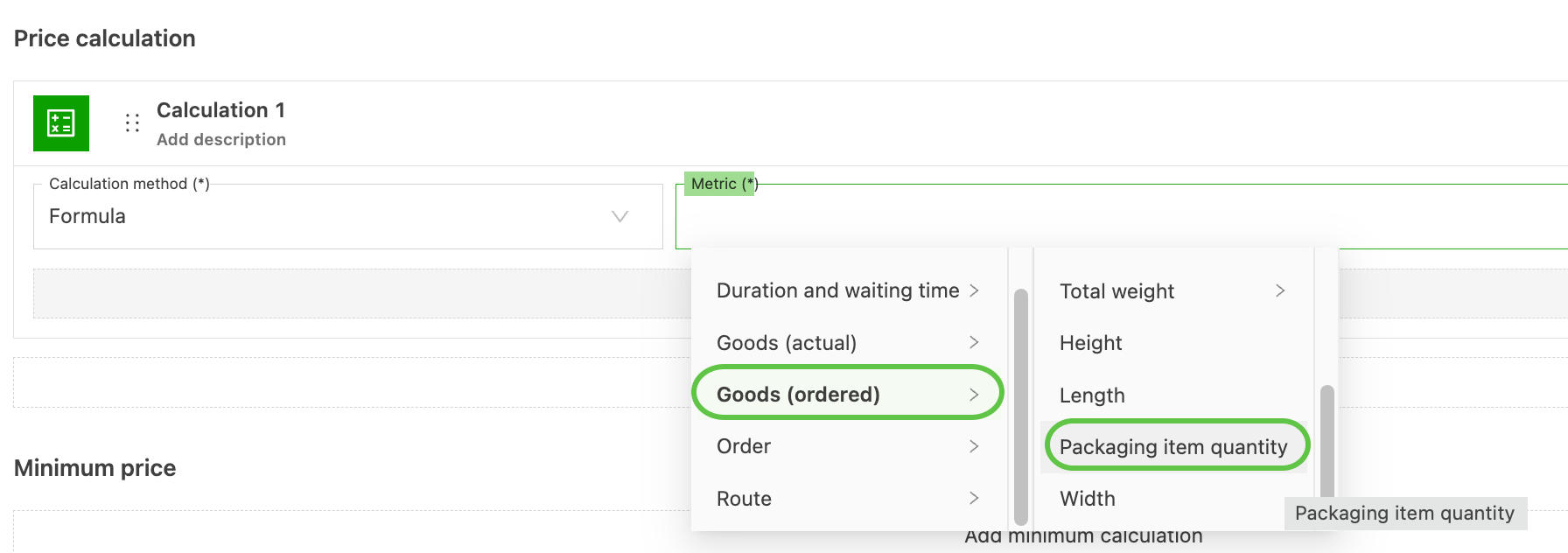
A new rating metric — Packaged items quantity — is available for use on rate cards. This metric represents the total number of packaged items across all goods on an order, enabling rating rules based on item counts rather than just handling unit counts.
Configuring the metric
- Navigate to the rate card configuration.
- Add a new calculation or condition.
- Select the Packaged items quantity metric from the available metrics list.
- Configure the rating rule as needed (e.g., a per-item surcharge or a tiered rating structure).
Use cases
Tracking pallet contents for multi-load shipments
When goods cannot be transported in a single truckload, each packaged item can be tracked separately to monitor when and how it is transported. This is particularly useful for partial loads where different pallets may travel on different vehicles or routes.
Detailed goods information from customers
Some customers provide item-level detail for each pallet — for example, “Pallet 1: 500 kg of Product A; Pallet 2: 1,000 kg of Product B”. With packaged items, this information can be recorded directly in Qargo rather than managed in spreadsheets or external systems.
Differentiated goods descriptions
Goods can now be broken down into more specific sections with detailed information per item, making it easier to communicate exact contents to drivers, contract carriers, and delivery recipients.
Limitations
- The feature is gated behind the Packaging items feature flag — it must be enabled per tenant before packaged item fields become visible. (Qargo Admin)
- Packaged items are not yet displayed in all areas of the application (for example, they are not shown in the order list columns).
- The feature applies to non-ADR goods only. ADR goods continue to use the existing ADR item workflow.
- Switching goods between handling unit and packaged item formats is not yet supported.
- The Packaged items quantity rating metric does not yet support per-item (PER_GOOD_ITEM) rating — it is available as a total quantity metric only.
Troubleshooting
| Issue | Solution |
|---|---|
| The Packaged items section is not visible on goods | Contact Qargo Support or the account manager to confirm that the Packaging items feature flag is enabled at tenant level, under Configuration > Organization settings > Features. The section only appears when the flag is active. |
| Some fields (e.g., dimensions, barcodes) are not visible on packaged items | Certain fields are disabled by default. Check the default fields configuration to enable additional fields for packaged items. |
| Packaged items are not appearing after API import | Ensure the API request includes the correct field names (unit_height_m, unit_width_m, unit_length_m, barcodes, packaging_type). Verify that the feature flag is enabled on the target tenant. |
| The Packaged items quantity metric is not available on rate cards | This metric becomes available once the feature flag is enabled. If recently activated, try refreshing the rate card configuration page. |
| Packaged items are visible on ADR goods | This is not expected. Packaged items should only appear on non-ADR goods. If ADR goods show a packaged items section, check whether the good’s ADR classification is correctly set. |
| Adding packaged items is slow or unresponsive | Large numbers of packaged items on a single good may affect performance. If experiencing issues, consider splitting items across multiple goods where operationally appropriate. |