
Orders – Freight and goods details for cross-border shipments
Record customs freight details (commercial invoice value, net weight, and shipping marks) directly on shipments and goods in Qargo for cross-border transport.
Table of contents
Introduction
What are customs freight details?
Customs freight details are the structured data fields required to prepare accurate customs declarations for cross-border shipments. In Qargo, these cover two levels:
- Shipment level: commercial invoice value, currency, and reference name
- Good item level: net weight, shipping marks, and commercial invoice value per item
These fields sit alongside existing operational goods data. They are designed specifically to meet the information requirements of customs authorities.
Why record customs freight details in Qargo?
Carriers operating cross-border routes, particularly between the EU, UK, and Ireland, must supply detailed freight information when submitting customs declarations. This includes the commercial value of the shipment, net weights per goods line, and package identification marks.
What’s new and how does it work?
Previously, Qargo’s goods data model was optimized for operational planning. The new customs fields make it possible to capture declaration-ready freight information within the same system. This reduces manual rework and ensures that PDF documents and API integrations carry the correct customs data.
The fields are optional default fields that must be enabled in Configuration > Additional fields before they appear in the order form. Once enabled, they can be populated manually during order creation or editing, or supplied via the order import API. All fields flow automatically into PDF document templates.
Terminology
| Term | Definition |
|---|---|
| Shipment | The shipment unit within an order, grouping goods under a single movement. Commercial invoice details are recorded at this level. |
| Good item | A packaged item within the freight section of an order. Net weight, shipping marks, and per-item invoice values are recorded at this level. |
| Commercial invoice value | The declared total monetary value of the goods being shipped, as stated on the commercial invoice. Used by customs authorities to assess duties. |
| Commercial invoice currency | The ISO currency code (e.g. EUR, GBP) corresponding to the declared invoice value. |
| Commercial invoice name | The reference name or number of the commercial invoice document (e.g. “INV-2026-00123”). |
| Net weight | The weight of the goods excluding all packaging material, expressed in the same unit as the existing gross weight. |
| Shipping marks | Identifying marks or labels applied to packages to enable individual identification. Required on many customs declarations (e.g. “ADDR” when marks are unknown). |
Enabling customs freight detail fields
All new customs freight fields are optional and must be activated in Configuration > Additional fields before they appear in the order form.
Shipment-level fields
Navigate to Configuration > Additional fields.
Locate the Shipment field group.
Enable the following fields by toggling them on:
- Commercial invoice value: the total declared value of the shipment
- Commercial invoice currency: the ISO currency code for that value
- Commercial invoice name: the reference or invoice number
Save the configuration.
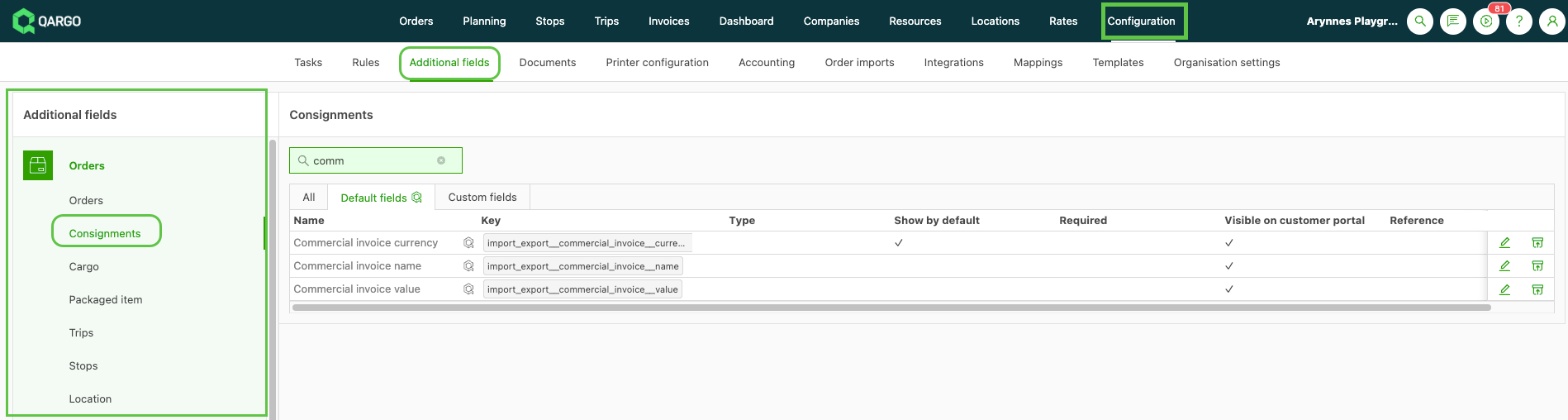
Once enabled, these fields appear in the Shipment section of the order edit form.
Good item-level fields
Navigate to Configuration > Additional fields.
Locate the Packaged item field group.
Enable the following fields:
- Net weight: the goods weight excluding packaging
- Shipping marks: package identification marks
- Commercial invoice value: the declared value for this specific goods line
Save the configuration.
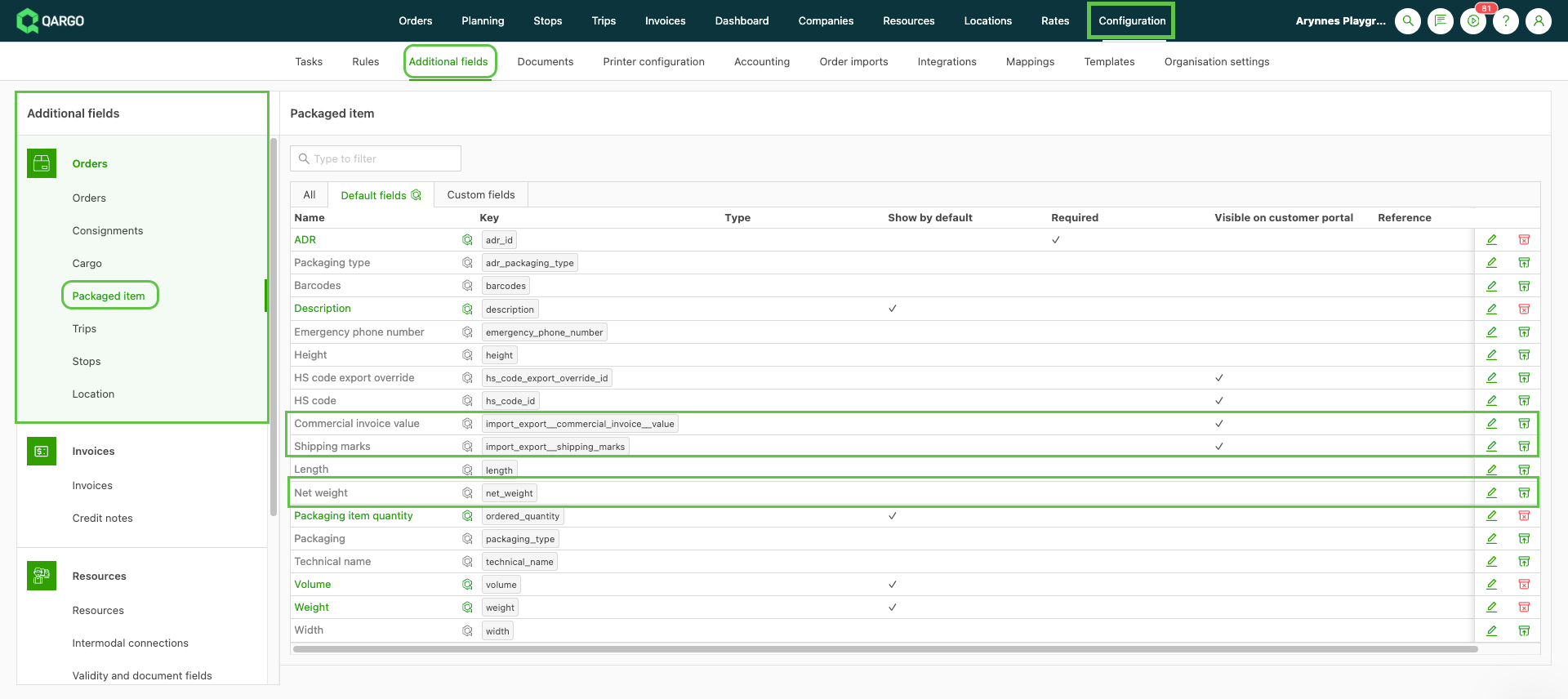
Entering customs details on an order
During order creation
- Open the order input form and complete the standard order fields.
- Locate the Shipment section and enter the commercial invoice value, currency, and reference name for the shipment.
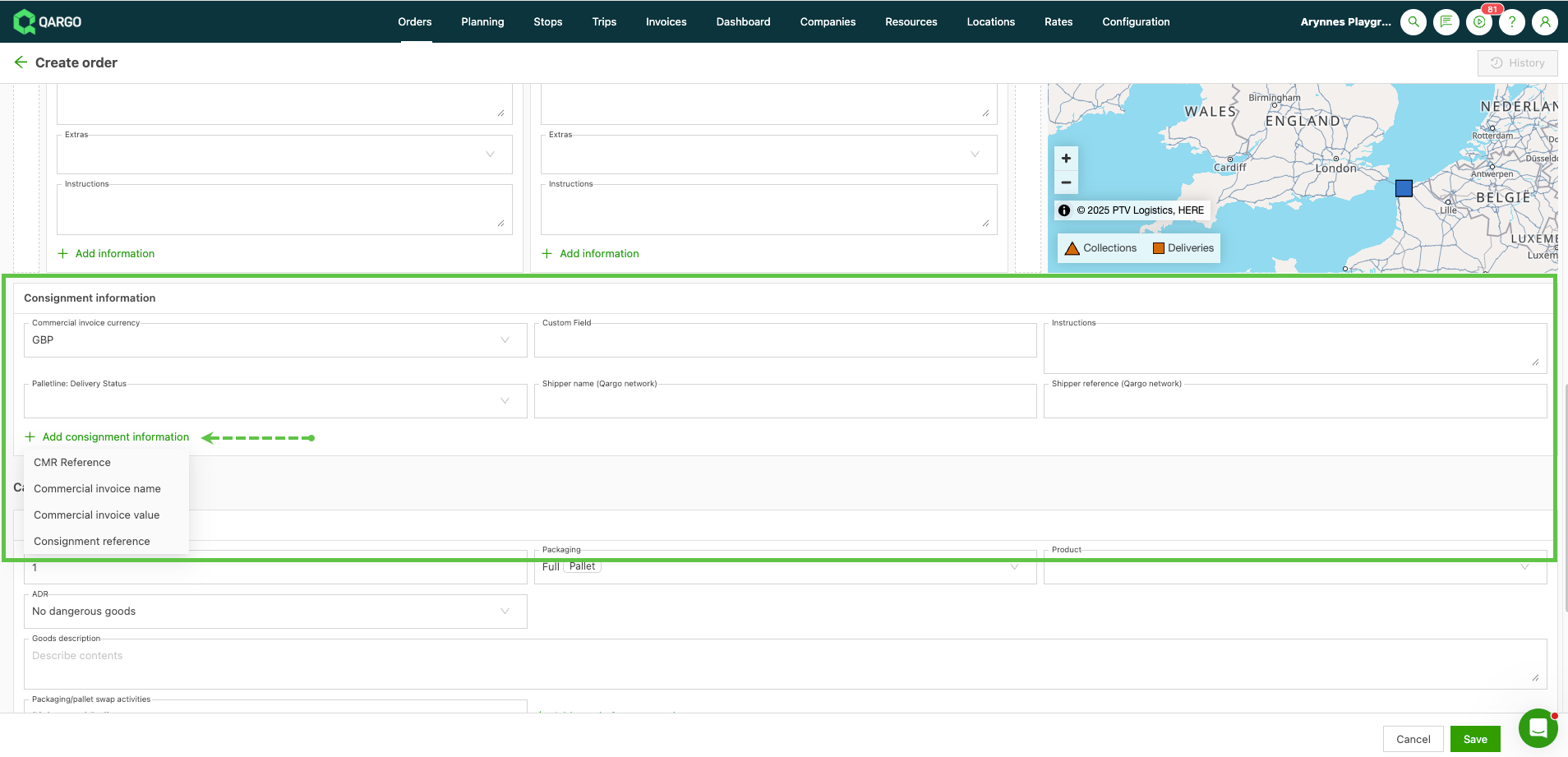
- Scroll to the Freight section and expand a good item.
- Enter the net weight, shipping marks, and per-item commercial invoice value as applicable.

- Save the order.
On an existing order
Navigate to the order detail page.
Click Edit order to open the order form.
Locate the Shipment section and populate the commercial invoice fields.
Expand each good in the Freight section and populate the goods-level customs fields.
Save the order.
Customs details via order import
All customs freight fields can be supplied when importing orders via the External API or file-based import.
Customs details in PDF templates and DFS
Once customs freight fields are populated on an order, they are automatically available in:
PDF document templates: commercial invoice value, currency, net weight, and shipping marks can be included in any document template that references shipment or good item fields, including:
- customs declarations
- CMRs
- commercial invoices
No additional template configuration is required beyond enabling the fields in Additional fields.