
Orders — Shipment customs fields: export, import, and transit overview
Dedicated Export, Import, and Transit customs sections on shipments replace a single shared MRN field. Tenant activation required. Includes UK- and Belgium-specific fields.
Table of contents
Summary
What is it?
- Shipments in Qargo now have dedicated sections for entering customs information, split by declaration type: Export, Import, and Transit
- Each section holds the relevant reference numbers, document types, and supporting fields for that part of the journey
- For shipments involving goods of animal origin, additional fields are available at the packaged item level (SPS and GGB references)
Why does it matter?
- A cross-border shipment often involves multiple customs declarations: one for leaving the country of departure, one for entering the destination country, and sometimes one or more for transit through other countries
- These declarations are issued by different customs authorities and carry separate reference numbers. Keeping them apart avoids mix-ups and makes it easier to see what has been submitted
- Previously, all MRN references were stored in a single field, which made it difficult to tell export and import references apart on the same shipment
Terminology
| Term | Definition |
|---|---|
| MRN | Movement Reference Number — a unique identifier assigned by customs authorities to a customs declaration |
| DUCR | Declarant’s Unique Consignment Reference — a UK-specific reference used in import and export declarations |
| ENS | Entry Summary Declaration — a pre-arrival declaration required for goods entering the EU |
| EXS | Exit Summary Declaration — a pre-departure declaration required for goods leaving the EU |
| LRN | Local Reference Number — a trader-assigned reference used in transit declarations (NCTS) |
| Transit MRN | The MRN assigned to a transit declaration by customs authorities |
| Temporary storage UCN | Unique Consignment Number used in Belgian temporary storage references |
| Temporary storage CRN | Customs Reference Number used in Belgian temporary storage references |
| SPS | Sanitary and Phytosanitary — certification category for goods of animal or plant origin |
| GGB | Goods Guarantee Bond — a financial guarantee reference for specific cross-border goods |
| Shipment | A shipment unit within an order, representing one set of goods crossing a border |
| Feature flag | A configuration switch in Qargo Admin that enables or disables a feature per tenant |
Use cases
- Operators managing EU-UK freight that requires separate export and import declarations on the same shipment
- Carriers transporting goods through Belgium who need to record temporary storage UCN and CRN references
- Freight forwarders using UK-specific customs fields such as DUCR (Declarant’s Unique Consignment Reference)
- Companies transporting goods of animal origin who need to capture SPS and GGB references at the packaged item level
- Logistics teams who need to view and filter customs reference data across orders without opening each order individually
Prerequisite
Export fields
The Export section captures outbound customs declaration data:
| Field | Description | Availability |
|---|---|---|
| Country | Country of the export declaration | All tenants |
| Document type | Type of export customs document | All tenants |
| Additional border process | Additional border procedure code | All tenants |
| Export MRN | Movement Reference Number for the export declaration | All tenants |
| Export DUCR | Declarant’s Unique Consignment Reference | UK only |
| Export EXS | Exit Summary Declaration reference | All tenants |
| Export emails | Email addresses linked to the export declaration | All tenants |
Import fields
The Import section captures inbound customs declaration data:
| Field | Description | Availability |
|---|---|---|
| Country | Country of the import declaration | All tenants |
| Document type | Type of import customs document | All tenants |
| Additional border process | Additional border procedure code | All tenants |
| Import MRN | Movement Reference Number for the import declaration | All tenants |
| Import DUCR | Declarant’s Unique Consignment Reference | UK only |
| Import ENS | Entry Summary Declaration reference | All tenants |
| Temporary storage UCN | Unique Consignment Number for Belgian temporary storage | Belgium only |
| Temporary storage CRN | Customs Reference Number for Belgian temporary storage | Belgium only |
| Import emails | Email addresses linked to the import declaration | All tenants |
Transit fields
The Transit section captures data for transit movements:
| Field | Description |
|---|---|
| Document type | Type of transit document (e.g., T1, T2) |
| Additional border process | Additional border procedure code |
| Transit LRN | Local Reference Number assigned by the trader |
| Transit MRN | Movement Reference Number from the transit declaration |
| Transit start office code | Customs office code at the point of departure |
| Transit end office code | Customs office code at the point of destination |
| Transit validity date | Date until which the transit declaration is valid |
Where the fields appear
Creating orders, order templates, and order import
Customs fields are available during order creation, when saving an order as a template, and when importing orders.
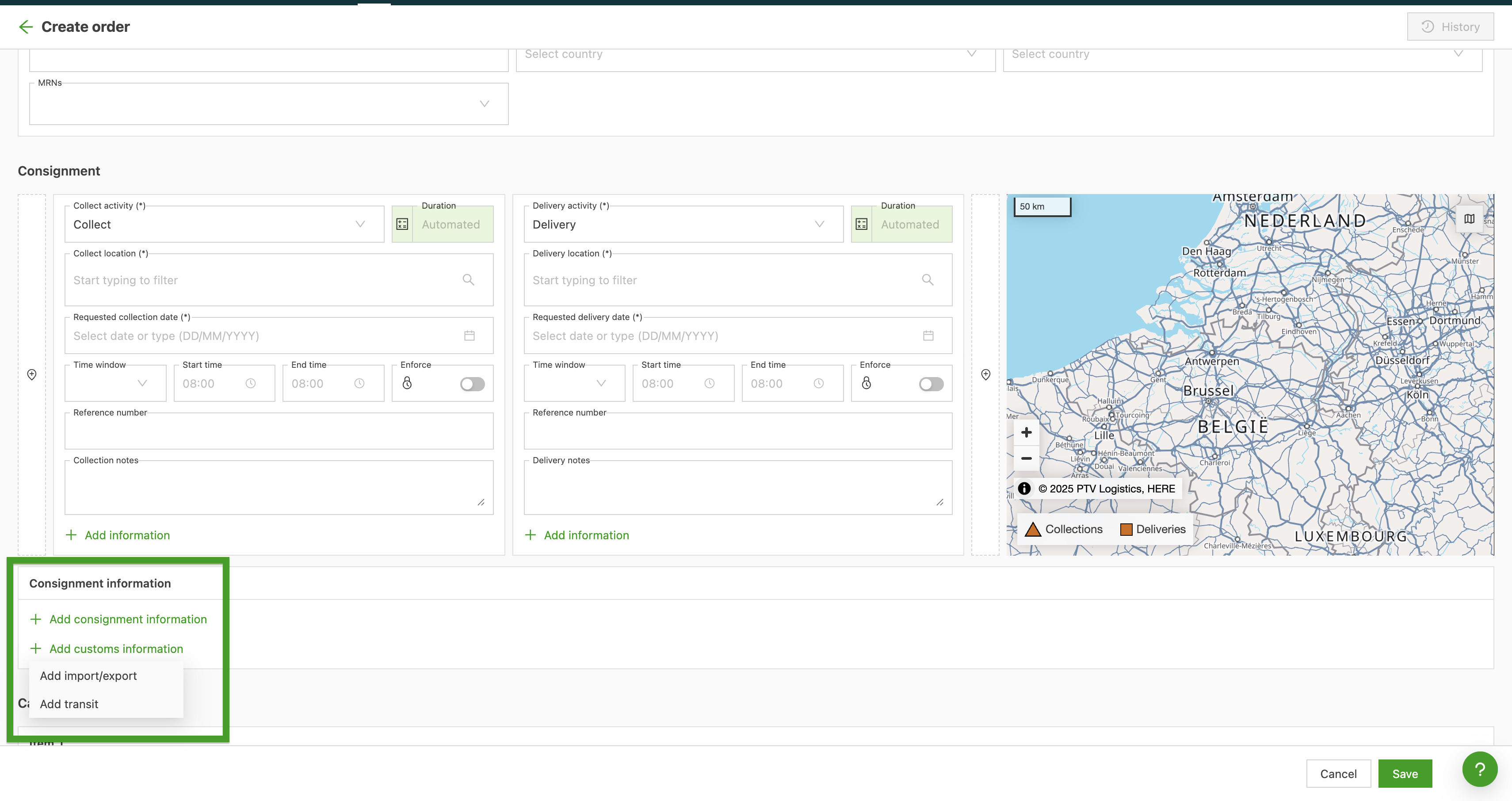
When creating an order:
- Navigate to Orders > Create order
- Go to Shipment information and click + Add customs information
- Import/export and transit information can be added here
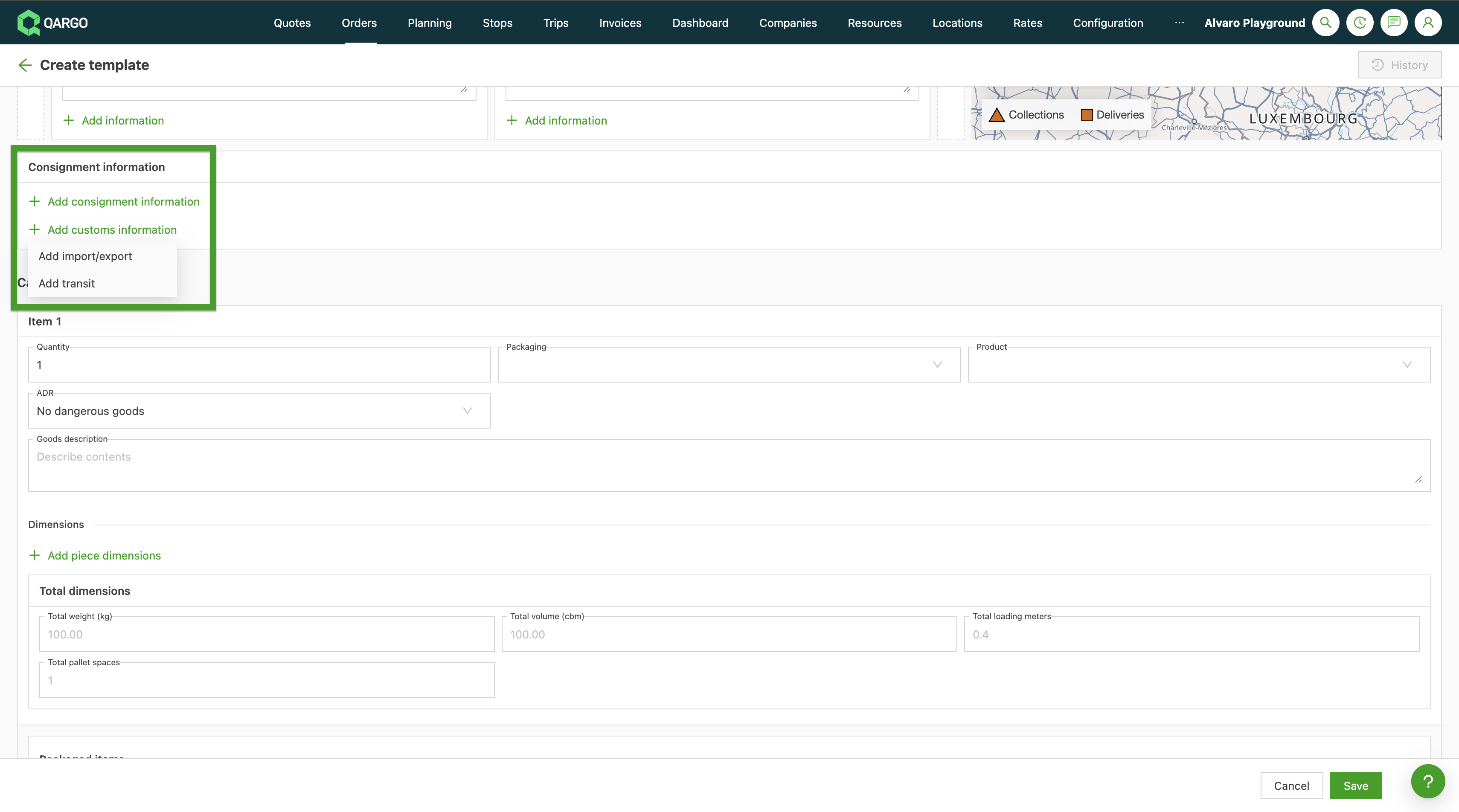
When creating an order template:
- Navigate to Orders > Templates
- Click Create template
- Import/export and transit information can be added here
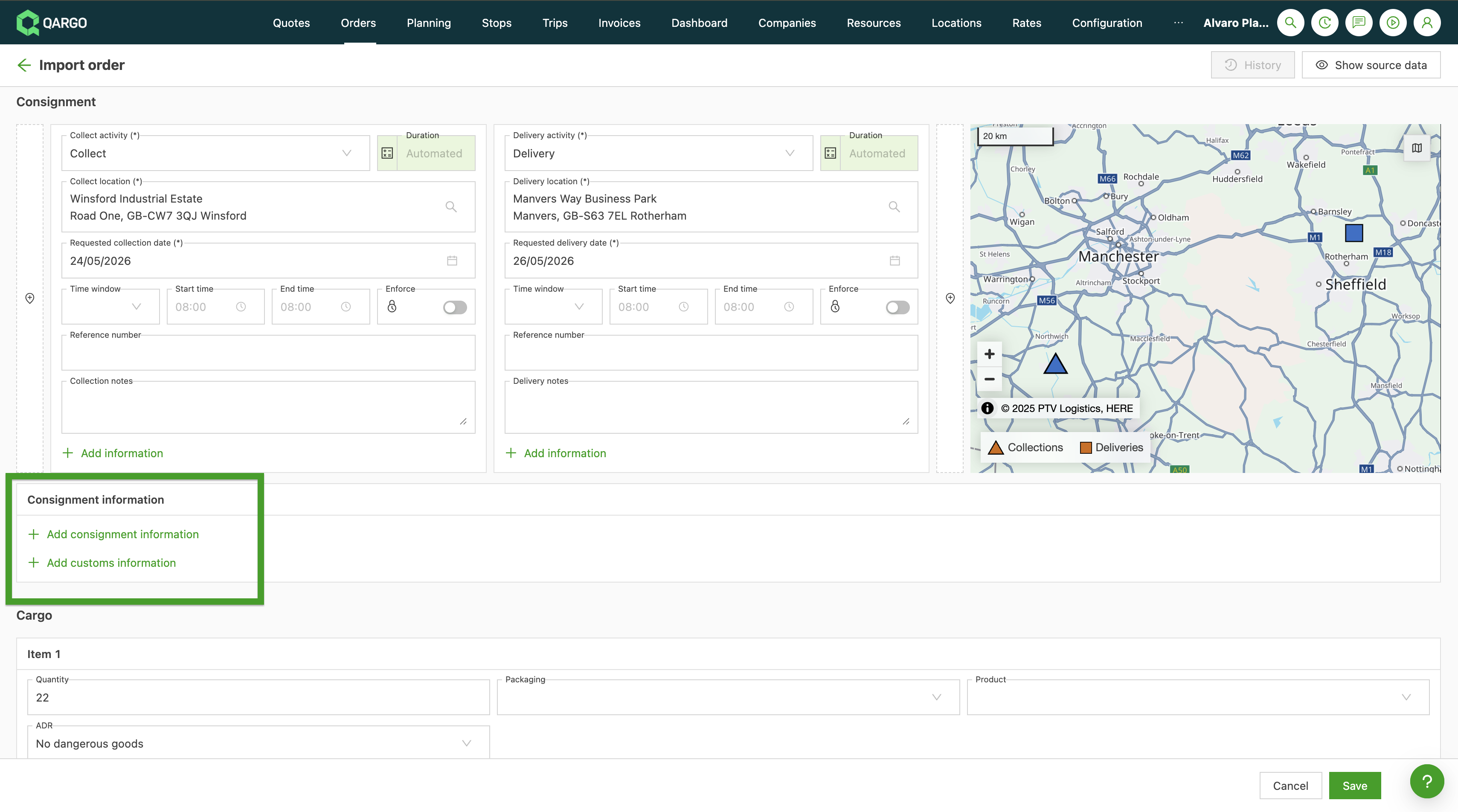
When importing orders:
- Navigate to Orders > Order imports
- Click Import from file
- Import/export and transit information can be added here
Order detail view
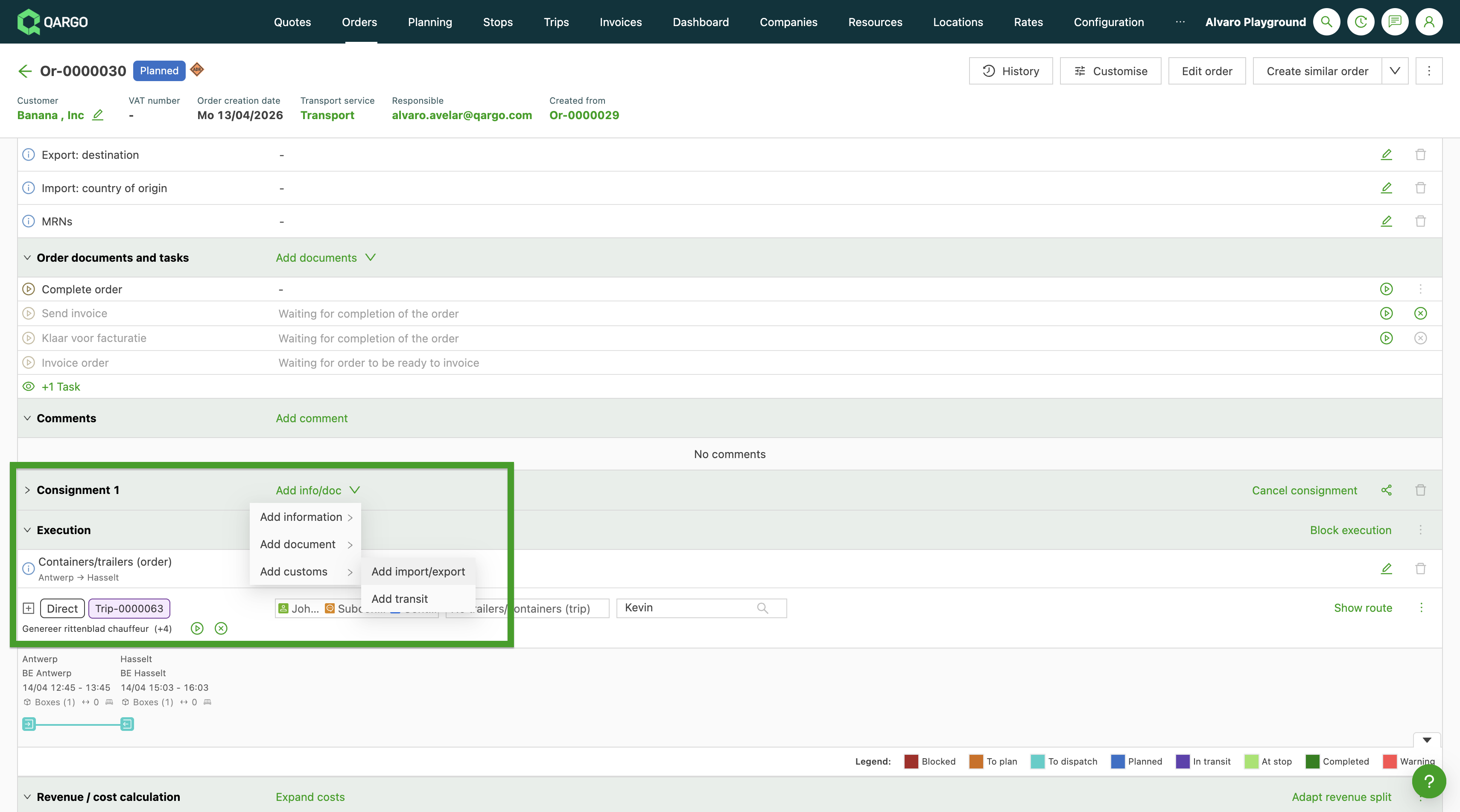
Fields can be filled in or updated on an existing order by opening the shipment section within the order detail view.
- Open an order > scroll to Shipment
- Click Add info/doc
Order list columns
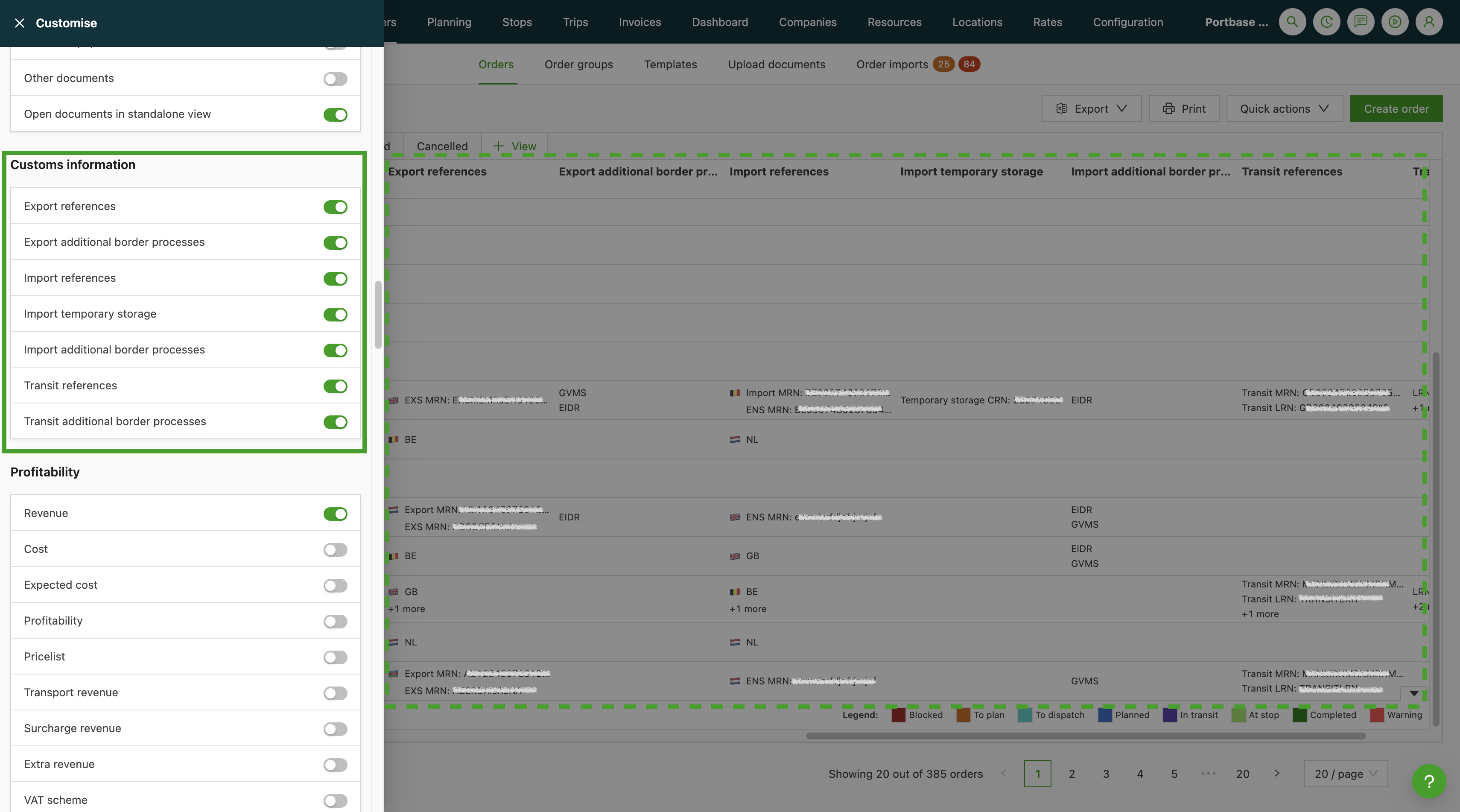
A set of customs columns can be toggled on in the order list to see customs data across orders at a glance. The columns support filtering.
Document templates and contact task email body
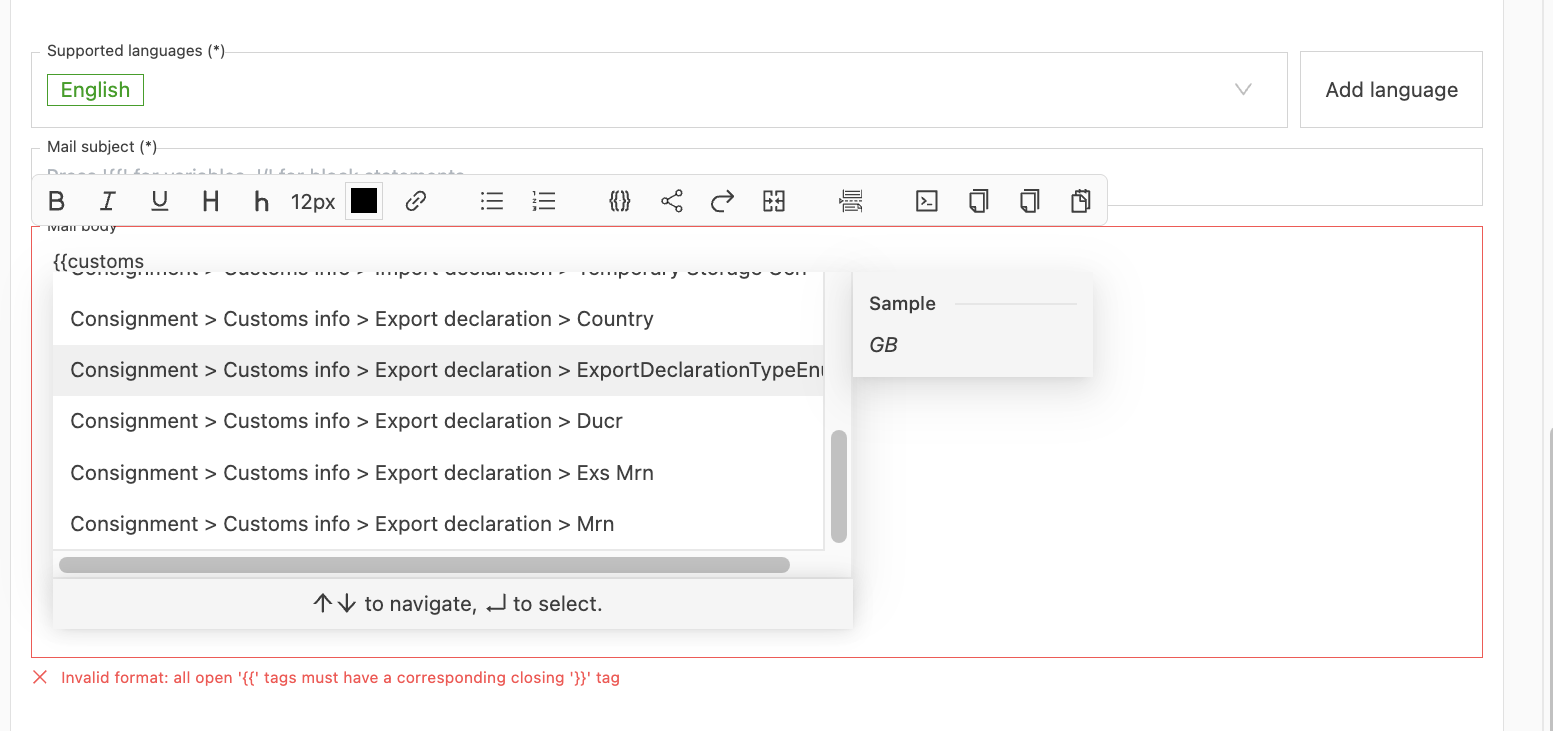
The same variables from Shipment > Customs info can be inserted into document templates and contact task email bodies.
Packaged item fields — goods of animal origin
Extra fields at the packaged item level support the transport of goods subject to sanitary controls:
| Field | Description |
|---|---|
| SPS goods flag | Checkbox to mark items as Sanitary and Phytosanitary goods |
| SPS reference | Reference number assigned to the SPS certificate |
| GGB reference | Goods Guarantee Bond reference number |
Customer portal
Customers with portal access can view and edit customs fields on their shipments:
- Open an order in the customer portal
- Select Edit order
- Navigate to the shipment’s Customs section
- Update the Export, Import, or Transit fields as needed
- Save the order
Inline editing of customs fields in the order detail view is not available in the portal; the Edit order button must be used. Multiple transit entries cannot be added or edited from the portal (single transit per shipment only).
Customs pre-notifications
The shipment-level customs fields automatically pre-fill the customs pre-notification workflow on loads:
- Export MRN, Import MRN, Transit MRN, and related fields pre-populate the pre-notification form when the order is planned to a load
- This reduces manual re-entry when preparing border crossing notifications
For more information on the pre-notification workflow, see Intermodal - Customs pre-notification process.
Troubleshooting
| Issue | Likely cause | Resolution |
|---|---|---|
| Customs section not visible on the shipment | Feature flag not enabled for this tenant | Contact Qargo support to request activation of the shipment customs data model |
| Only one Export or Import section available | By design: only 1 Export and 1 Import section are supported per shipment | Use the Transit section for additional declarations; multiple transits can be added manually |
| Multiple transits not available in order import | Not currently supported | Add additional transits manually in the order detail view after import |
| Customs columns not appearing in Planning, Loads, or Intermodal views | Not supported in those views | Customs columns are only available in the Order list and Order detail views |
| Customer cannot edit customs fields inline in the portal | By design | Instruct customers to use the Edit order button to access and edit customs fields |
| Export or Import emails not available in contact task templates | Not currently supported | This will be addressed in a future development |
| Historical MRN data not appearing in the new customs fields | Historical data migration was not included in this release | Existing data remains in the legacy MRN field and will be migrated in a future release |