
FAQ: How to add questions in the Qargo driver mobile app
Create question paths in the Tasks menu so drivers enter stop information in the mobile app, with answers optionally prefilled from the value already stored in Qargo.
Table of contents
Q. Can the Qargo driver mobile app ask drivers questions such as “take load picture” or “ask for pallet count”? Is it possible to give the driver specific instructions to enter required information at a stop? How can what the driver sees and responds to in the app be changed?
A. Yes! With the task workflow, drivers can be directed to enter specific stop information or details in the Qargo driver mobile app. To include custom questions or instructions for the driver, create a Question path in the load workflow. The steps are simple, but the super admin or admin role is needed to set them up.
Steps to set up a Question path:
-
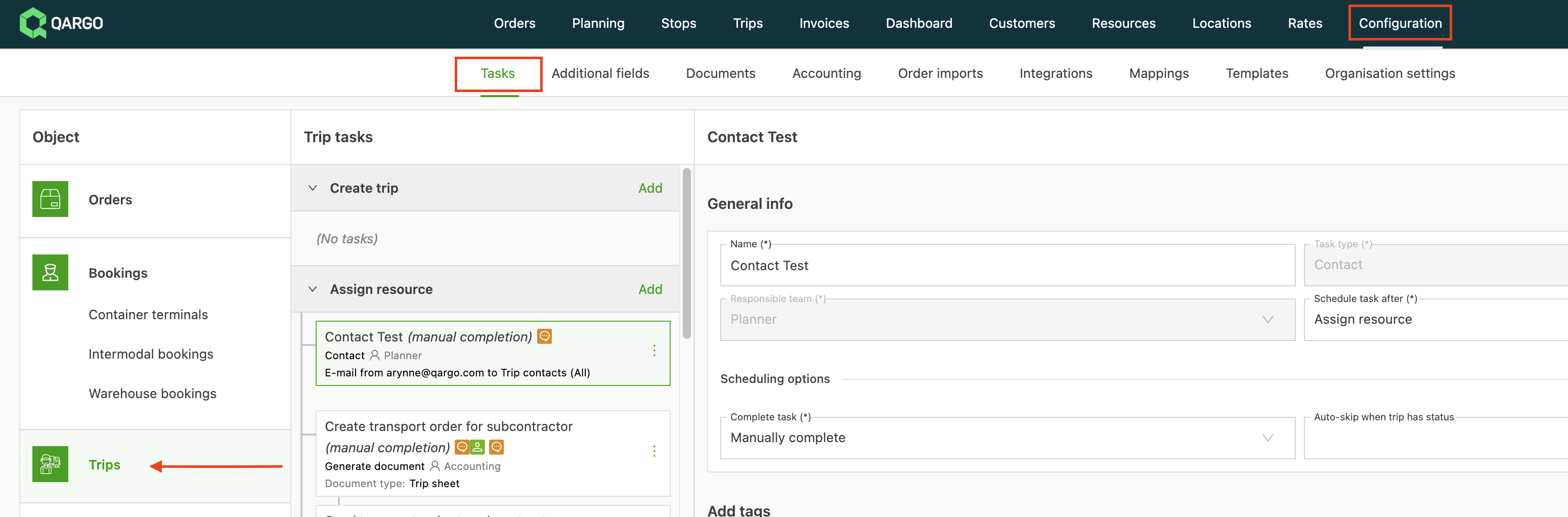
Go to Configuration > Tasks.
-
Navigate to Loads and select the point in the workflow where the questions should appear.
-
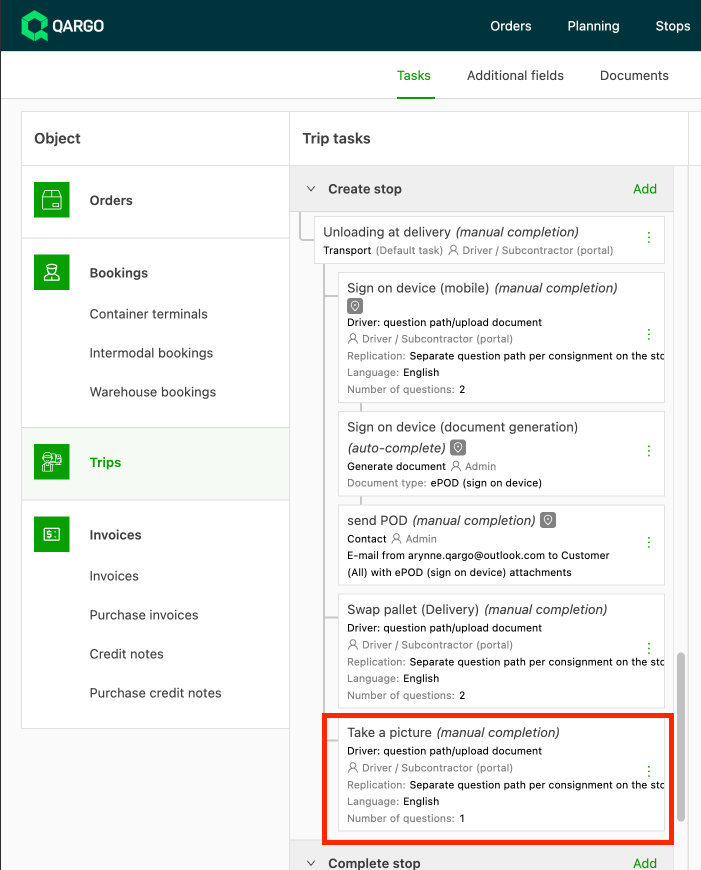
Add the desired questions, for example:
- Request a load picture
- Ask for pallet count
-
Use the toggle to choose whether the response is required or whether the driver can skip it.

-
Once the task is created, every new order assigned to the driver includes these questions in the workflow.
Click the link below to learn more about tasks
Goods-level questions on stops with multiple goods lines
Q. When a stop has several goods lines, can drivers answer goods-level questions for each line separately?
A. Yes. Goods-level questions now generate one question per goods line, so each line is answered individually and the answer syncs back to the correct line.
A goods-level question (for example a pallet count, a pallet swap, or a packaging update) previously appeared only once per stop and was always tied to the first goods line. On a stop with several goods lines, the driver’s answer overwrote only the first line. The other lines kept their original planned quantities, which produced incorrect order totals.
Now, for every goods-level question, the question path generates one separate question per goods line on the stop.
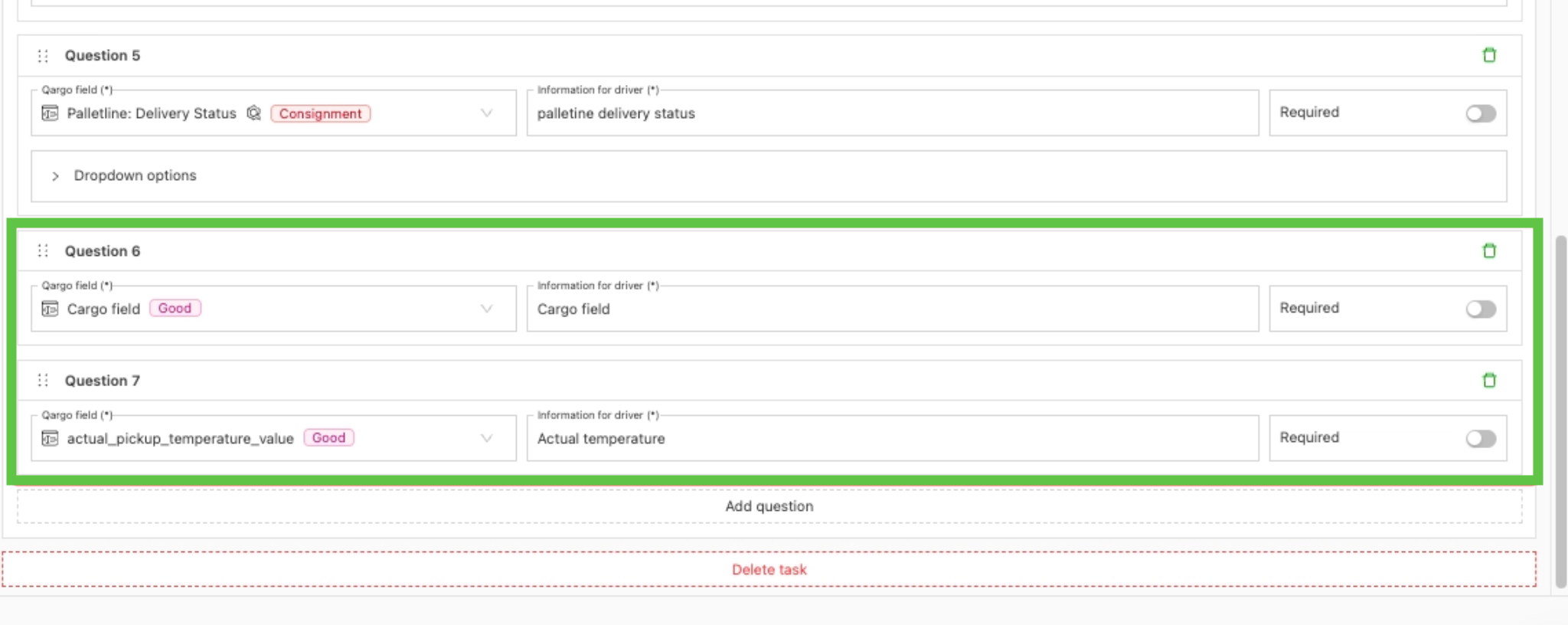
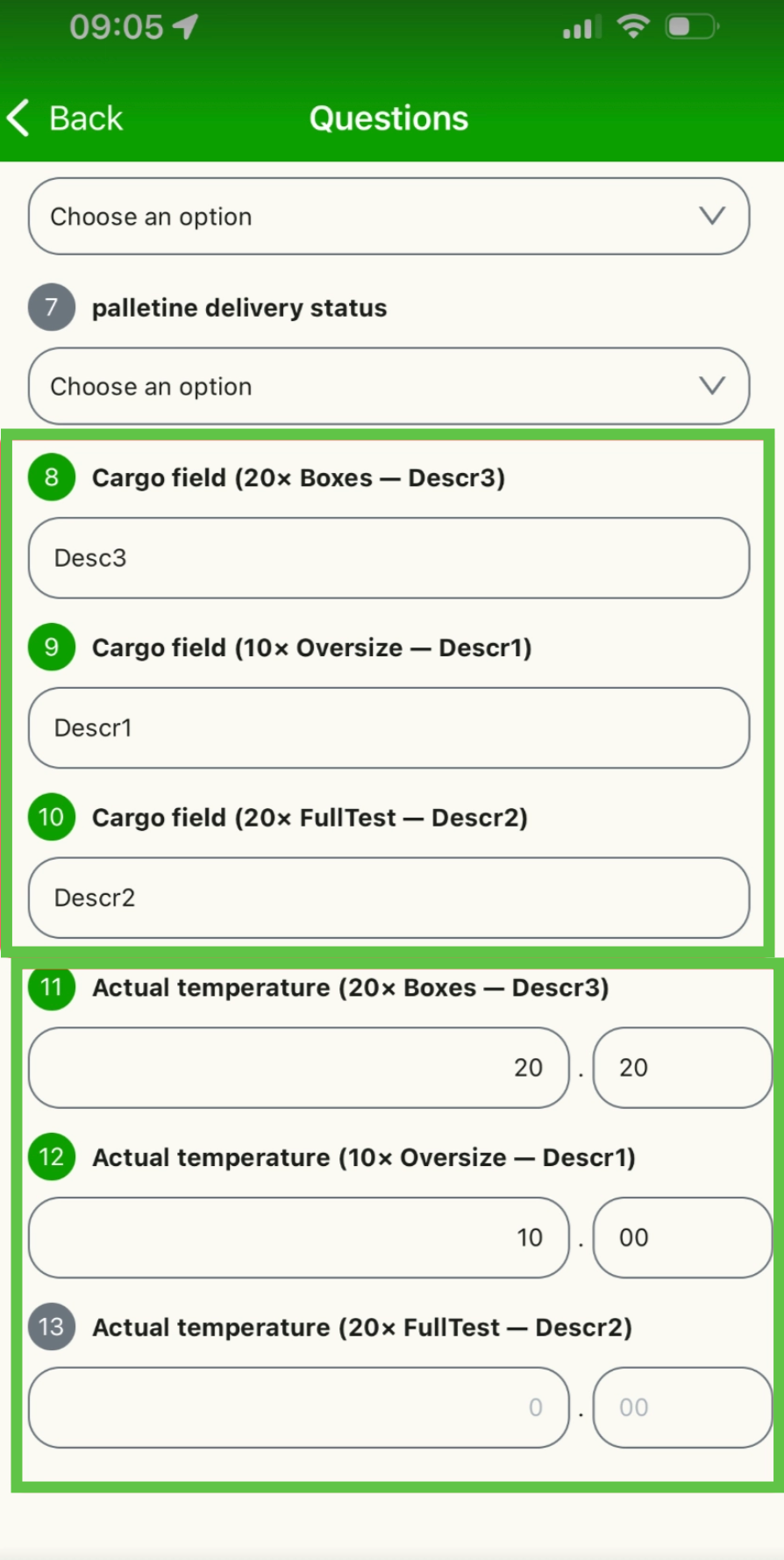
Each question is labeled with a goods identifier (a combination of packaging type, product type, goods description, and quantity), so the driver can tell which line the question refers to. The answer is written back to that specific goods line.
How drivers answer per goods line
- Open the stop in the Qargo driver mobile app or the carrier portal and start the question path.
- Review each goods-level question. On a stop with multiple goods lines, one question appears per line, each labeled with its goods identifier.
- Enter the value (pallet count, pallet swap, or packaging update) for each goods line.
- Confirm the answers. Each value syncs back to the goods line it belongs to, identified by that line’s row ID.
Stops with a single goods line are unchanged: one question appears, with the same wording as before. No configuration is required, because goods-level questions already in use automatically fan out per goods line.
For older mobile clients, or integrations that do not send a goods identifier, the question path falls back to the previous behavior and writes the answer to the first goods line.
Prefill question answers with the existing Qargo value
Q. A question asks the driver for information that is already stored in Qargo, such as the order customer reference or a planned quantity. Can the question open with that value filled in instead of empty?
A. Yes. Each question in a question path has a Prefill with current value in Qargo option. When it is switched on, the question opens with the value already stored in the field it writes back to. The driver confirms it or types over it.
Without prefill, a question always opens empty (or at 0 for a quantity), even when the planner has already entered the value on the order. The driver then retypes it. On a required question, a driver without the right value on hand often overwrites a correct value with a guess.
With prefill on:
- The question opens with the current Qargo value in the input.
- The driver can leave the value as it is or type over it.
- Only the submitted value is written back to Qargo.
- A prefilled required question counts as answered, so the driver can confirm it and move on.
- When the field in Qargo is empty, the question opens empty, exactly as before.
How to switch on prefill
Prefill is set per question, on a task of type Driver: question path/upload document. Default tasks such as Loading at pickup or Unloading at delivery (type Transport) have no questions, so the option is not available there.
-
Navigate to Configuration > Tasks.
-
Open Loads.
-
Open the question path task in the workflow, or
Add one with task type Driver: question path/upload document at the point where the questions should appear. -
Add a question, or open an existing one.
-
Select the Qargo field the answer is written to, for example Order customer reference.
-
Switch on Prefill with current value in Qargo, next to the Required toggle.
-
Save the task.
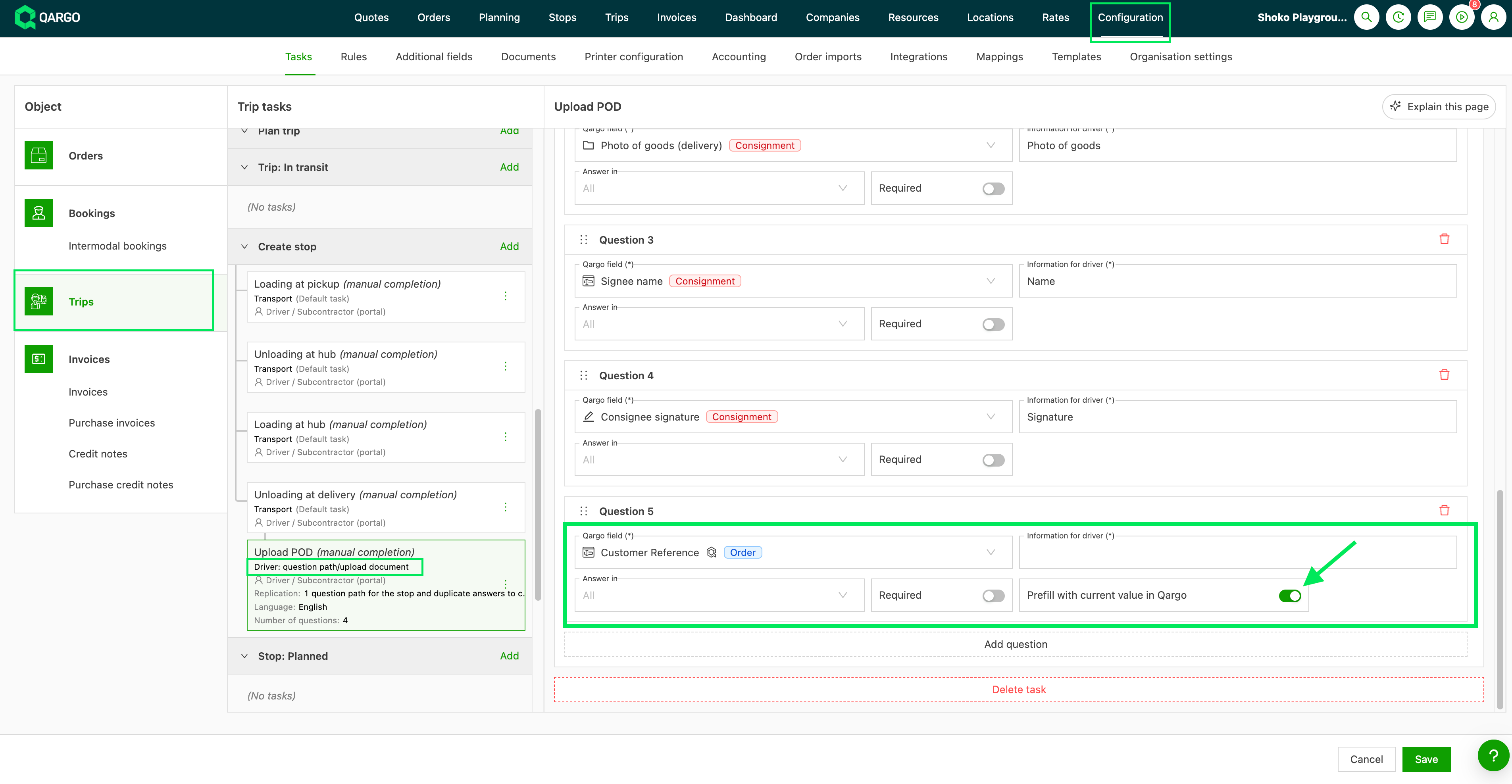
Which fields can be prefilled
Prefill is available only on questions that write back to a single value. The question prefills from the same field its answer is written to. A different field cannot be shown as context.
Examples: order customer reference, stop reference and note, goods quantity and weight, and custom fields of type text, number, or dropdown.
How drivers see prefilled questions
- Open the stop in the Qargo driver mobile app or the carrier portal.
- Start the question path.
- Review the question. The current Qargo value is already in the input.
- Keep the value when nothing has changed, or type over it when the real value differs.
- Confirm the answer. The submitted value is written back to Qargo.
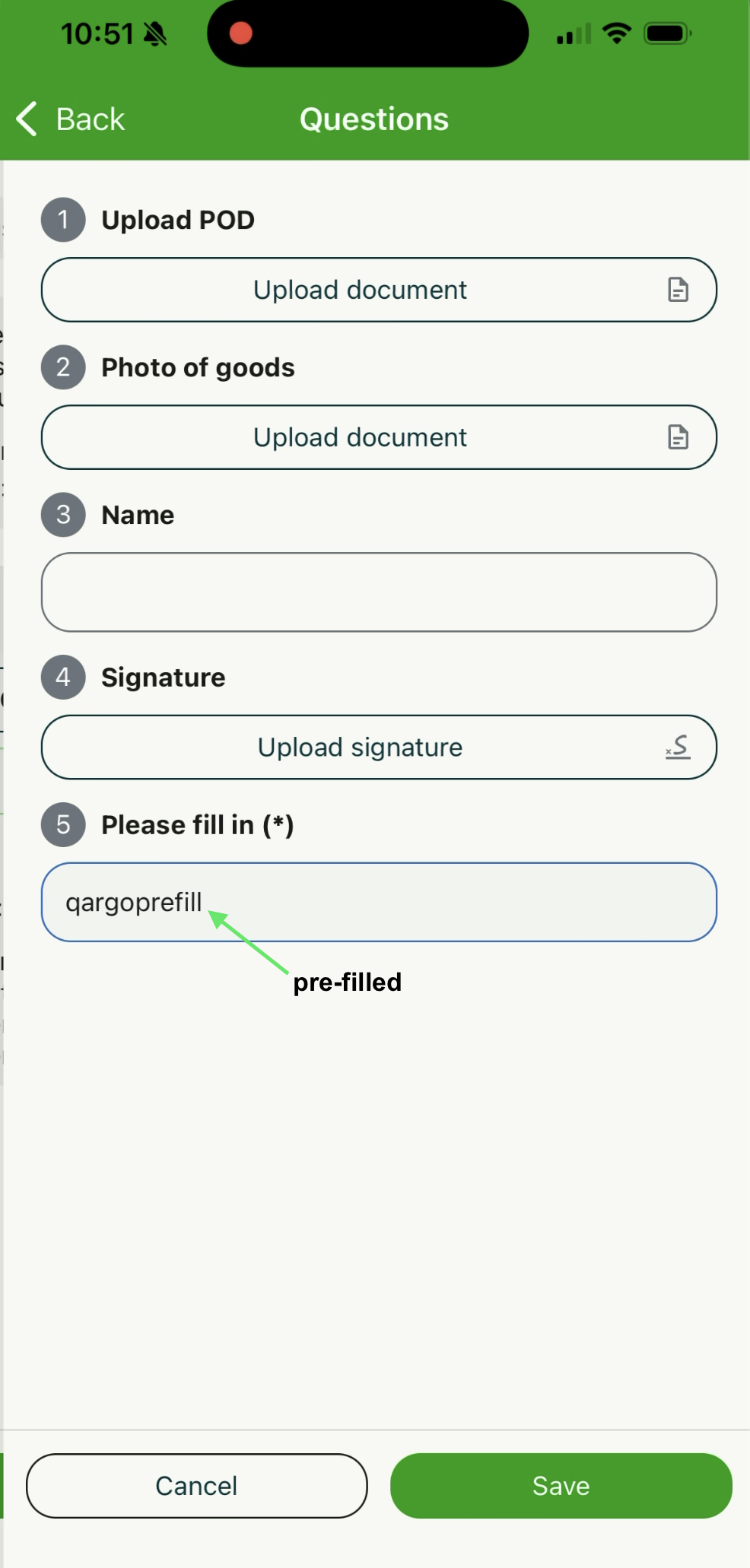
Goods-level questions prefill per goods line, so each line shows its own value: the actual loaded value if one is recorded, otherwise the planned value.
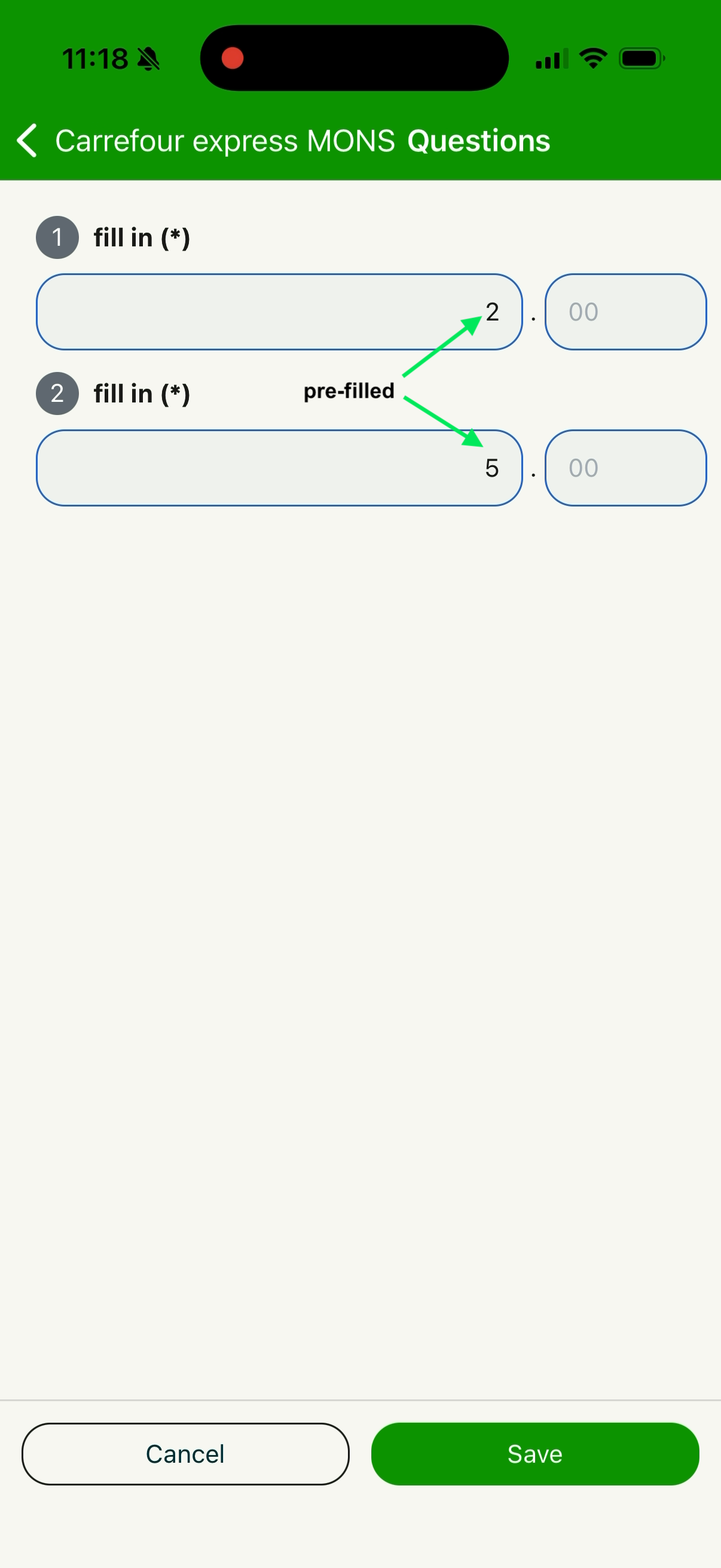
Prefill works in the Qargo driver mobile app and in the carrier portal.
Troubleshooting
| Issue | Fix |
|---|---|
| No question settings are shown on a task such as Loading at pickup | Add or open a task of type Driver: question path/upload document |
| The Prefill option is not shown on a question | Select a field that can be prefilled |
| The question opens empty although the order has a value | Switch on Prefill with current value in Qargo for the question |
| The question opens empty on one driver’s phone only | Update the Qargo driver mobile app to the latest version |
| The question shows an outdated value | Redispatch the load to the driver or contract carrier. The value is read at dispatch, so a change made in Qargo afterward only reaches the question after a redispatch. |