
Intermodal – HS commodity codes: what, why and how
Add HS commodity codes to goods for customs-compliant declarations. Qargo provides a searchable, centrally managed code dataset with EU, UK and US regional editions. Automate customs charges based on the number of HS codes per order.
Table of contents
Introduction
What are HS commodity codes?
-
HS codes (Harmonized System codes) are internationally standardized numeric codes used to classify traded goods across borders.
-
Qargo provides a centrally managed HS code dataset with regional editions for the EU, UK and US.
-
Two optional fields are available on good items:
- HS code: the base import code
- HS code export override: used when a good’s export classification differs from its import classification.
Why use HS codes in Qargo?
- Customs declarations cannot be validated or rated correctly without proper goods classification.
- Selecting codes directly in Qargo keeps customs information in a single system and reduces manual errors.
- The searchable dropdown uses the same interaction pattern as ADR. Planners can find the right code quickly using either the numeric code or a plain-language description.
How does it work?
- HS code fields are optional default fields on *Good items*. They must be enabled in the default fields configuration before they appear in the order form.
- For non-ADR goods, the *Packaging items* feature flag must also be active at tenant level.
- Once populated, HS code data flows through to DFS, PDF document templates and order imports automatically.
Terminology
| Term | Definition |
|---|---|
| HS code | A Harmonized System code: an internationally standardized numeric string used to classify goods for customs purposes. Also called a commodity code or tariff code. |
| HS code export override | An alternative HS code applied when a good’s export classification differs from its import classification in a given region. Only required when the two codes are not the same. |
| Good item | A packaged item within a handling unit on an order. HS codes are recorded at this level. |
| Default fields | Configuration settings that control which optional fields are visible on goods during order creation and editing. |
| Regional edition | A region-specific version of the HS code dataset (EU, UK or US), reflecting local tariff schedules. Qargo maintains these centrally. |
| Packaging items feature flag | A tenant-level toggle that enables item-level goods detail for non-ADR goods. Required for HS code fields to appear on non-ADR goods. |
| Number of HS codes (automatic) | A metric counting the good items on an order that have the HS code field populated |
| Number of HS codes (manual) | A metric summing a numeric HS code count entered manually per goods line via an additional field |
| Tiered charge | A rating structure where the rate changes based on a threshold (e.g., first 3 codes at £5, each extra code at £2) |
Enabling HS code fields
HS code fields are optional and must be activated before they appear in the order form.
Step 1: Enable the packaging items feature flag (non-ADR goods only)
- For HS codes to appear on non-ADR goods, the Packaging items feature flag must be enabled at tenant level. Only a Qargo admin can perform this action.
- HS codes on ADR goods do not require the Packaging items feature flag. They are available once the default fields are enabled.
Step 2: Enable default fields
- Navigate to Configuration > Additional fields
- Locate the HS code and HS code export override fields in the good item field list.
- Enable both fields by toggling them on.
- Save the configuration.
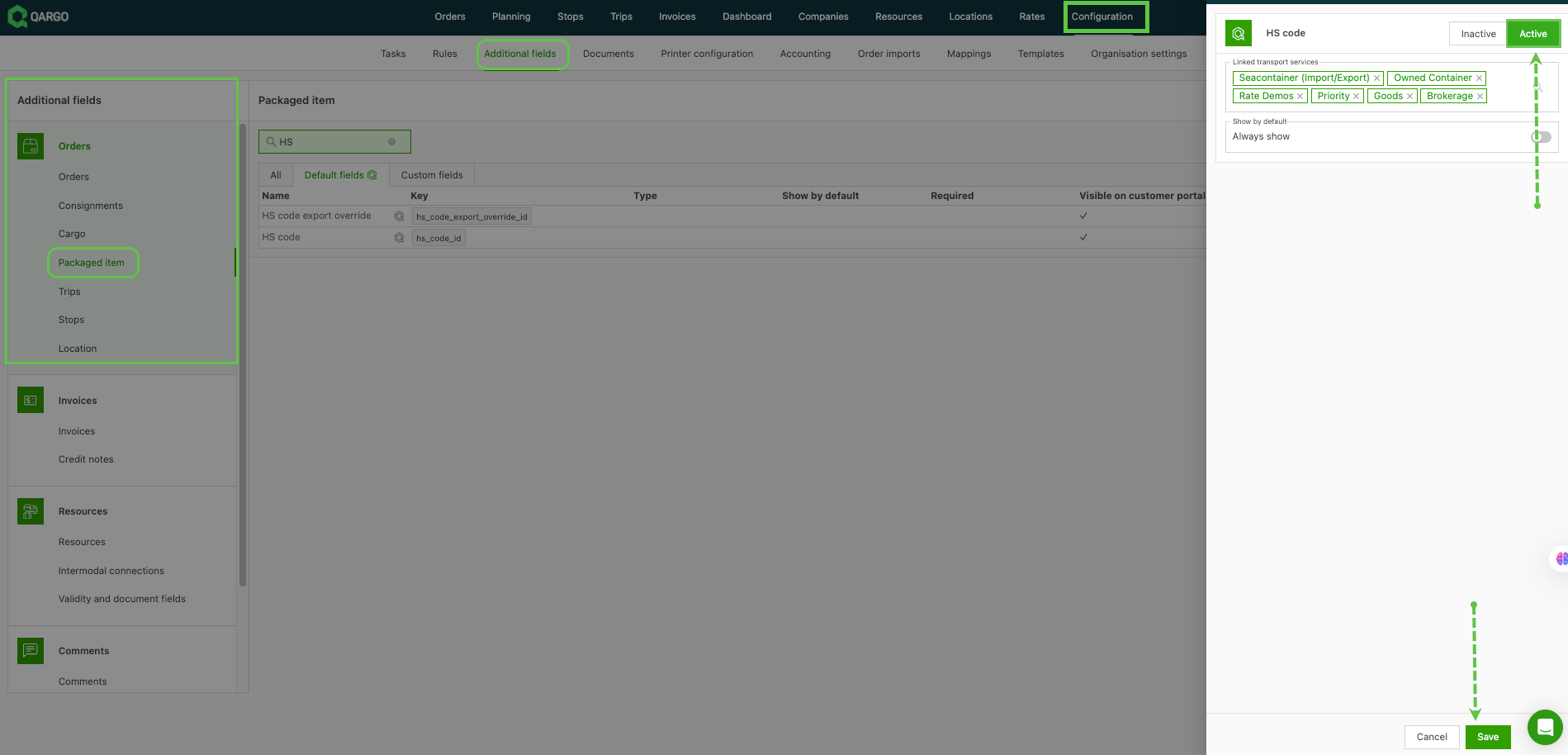
- Once enabled, the HS code and HS code export override fields appear on good items during order creation and on existing order detail pages.
Selecting an HS code on a good item
During order creation
- Open the order input form and add a good.
- Expand the good item section to reveal the *HS code* field (and *HS code export override* if applicable).
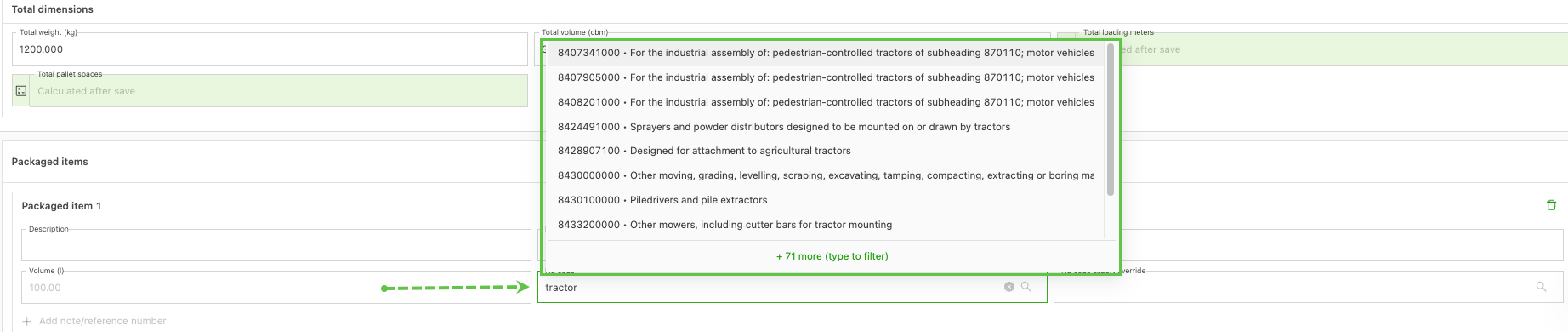
- Click the HS code field to open the dropdown search.
- Search by entering either the numeric HS code or a plain-language description of the goods. The system returns matching codes with their descriptions from Qargo’s central dataset.
- Select the appropriate code from the results. A details view is available for each code to confirm the full classification before selecting it.
On an existing order
- Navigate to the order detail page.
- Expand the relevant good in the Freight section.
- Locate the HS code field on the freight item.
- Click the field to open the search dropdown, select the appropriate code and save.
HS codes via order import
HS code data can be included when importing orders via the external API or file-based import.
Two methods are supported:
- Direct code entry: Provide the exact HS code value. The system matches it directly against the Qargo dataset.
- Description-based lookup: Provide a text description of the good. The system searches the dataset and assigns the closest matching HS code.
Both the HS code (import) and HS code export override values can be included in import files. This allows the full customs classification to be passed in along with the rest of the order data.
HS code rating metrics
Two metrics are available in the rating engine for automating customs charges based on the number of HS commodity codes per order:
-
Number of HS codes (automatic): automatically counts the good items on an order that have the existing HS code field populated.
- Available when the HS code additional field is enabled on the tenant.
-
Number of HS codes (manual): backed by a new toggleable additional default field on freight (Configuration > Additional fields).
- Planners enter a numeric HS code count per goods line; Qargo sums these to order level.
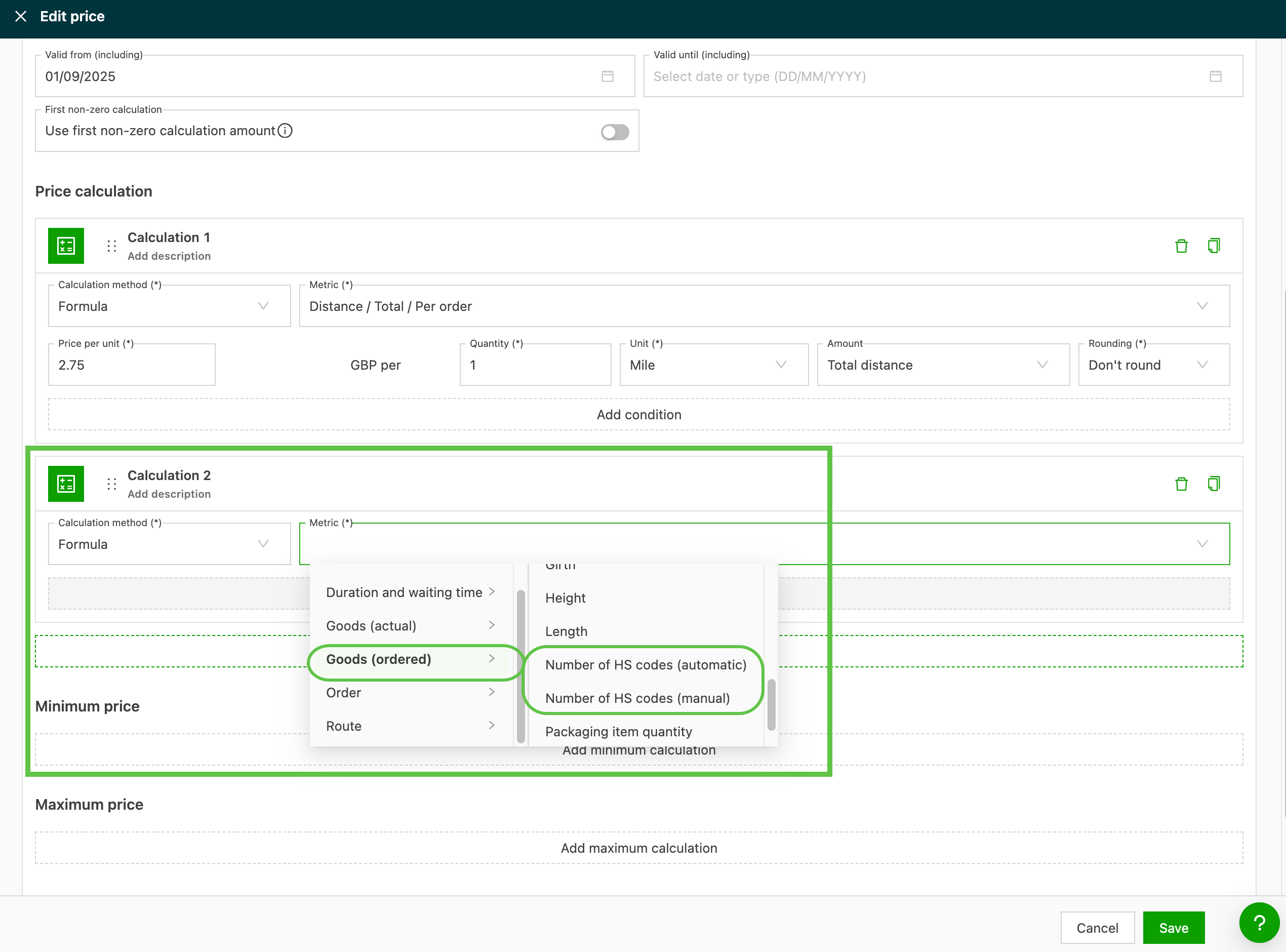
Both metrics appear under the Goods ordered category in the rating engine. They can be used as a condition or tiered charge basis on sales and purchase price lists.
How to use the HS code count metrics in a price list
- Enable the relevant additional field in Configuration > Additional fields (Super Admin).
- Navigate to Rates > Rate card customers and open the relevant sales or purchase price list.
- Add a new calculation or condition.
- Under Goods ordered, select Number of HS codes (automatic) or Number of HS codes (manual).
- Configure the tiered rate structure as needed (e.g., threshold-based tiers).
- Save the price list.
Limitations
- Both metrics are available for price calculations and filters only (not for cost calculations).
- Conditional rating on a specific customs document type (export / import / T-doc / EUR-1) is not currently supported
- There is no automatic export of commodity-line data to external broker systems.
HS codes in documents and DFS
Once an HS code is populated on a freight item, it is automatically available in:
- PDF document templates: the HS code (and export override, where applicable) can be included in any document template that references good item fields, such as customs declarations, CMRs or commercial invoices.
- DFS (Data Feed Service): both import and export HS code values are exposed via DFS for downstream system integration.
No additional configuration is required for this exposure beyond enabling the fields.
Why does it exist?
Cross-border customs charges are often tiered based on the number of commodity lines per order (e.g., first 3 codes at a fixed rate, each additional code at a different rate). Qargo had no order-level metric to drive this calculation automatically. Carriers had to count HS codes and apply customs charges manually.
Prerequisites
-
Super Admin: To use either metric, first enable the relevant additional field via Configuration > Additional fields:
- For Number of HS codes (automatic): enable the HS code field on good items (packaged item level).
- For Number of HS codes (manual): enable the new Total nr of HS codes per order (manual) field on freight (good level).
A tenant typically enables one of the two metrics, depending on whether HS codes are filled in Qargo or counted externally.
Troubleshooting
| Issue | Solution |
|---|---|
| HS code fields are not visible on good items during order creation | Confirm that HS code and HS code export override are enabled under Configuration > Additional fields > Packaged item. |
| HS code fields are not visible on non-ADR goods | In addition to enabling default fields, the Packaging items feature flag must be active at tenant level. Contact Qargo Support or the Qargo account manager to enable it. |
| The HS code dropdown returns no results | Try searching with a shorter keyword or a partial code. Qargo maintains the dataset. If a specific code is missing or appears incorrect, contact Qargo Support. |
| The export override field does not appear | Make sure the HS code export override field is enabled separately in default fields, as it is a separate field from HS code. |
| HS codes do not appear in PDF documents | Confirm that the document template includes a field mapping for the HS code good item field. The template configuration may need to be updated to include the new fields. |
| HS code is not populated after an order import via description lookup | The description must be specific enough to return a unique match. Where possible, provide the exact HS code in the import file for precise matching. |
| HS count metrics are not available as a rate basis | Additional fields are not enabled. Enable the fields in Settings > Additional fields |
| Automatic count returns zero | HS code fields are blank on the goods lines. Populate the HS code fields on the order’s goods lines |
| Manual count does not match expectations | Per-goods-line count values have not been entered. Enter the count value on each goods line in the order |