
Tasks: troubleshooting tasks
Task best practices and troubleshooting for some typical task issues. See right away why a task failed, and save named, filtered views of the failed task overview to share with colleagues, just like order list views.
Table of contents
Qargo tasks: creation best practices
-
Use standard task templates configured in Qargo
-
Keep naming, email bodies, and schedules consistent.
-
Confirm recipients and email content for Contact tasks
- When configuring tasks to email load sheets, make sure the Addressed to field is set to Contract carrier and the Context role field is set to Driver. This makes sure emails are sent to all drivers, including those linked to contract carriers.
-
Verify From, Addressed to, Subject, and Body before enabling a flow.
-
Choose the right execution mode per task type
-
Manual complete vs. Auto-complete vs. Auto-skip. Document the reason in the task description.
-
Keep context linked
-
Make sure tasks reference the correct order, load, shipment, contract carrier, or customer so downstream actions pick up the right data.
-
Schedule and dependencies
-
Order the task list logically and use conditions so only relevant tasks appear for departments, services, or scenarios.
-
Pre‐go‐live test
-
Do an end‐to‐end dry run in a sandbox tenant with realistic data and attachments.
-
Review task configurations regularly to make sure they align with operational needs, and test them with sample loads to confirm correct email delivery.
Qargo tasks: troubleshooting triage
Step 1: Identify the symptom
- Task is stuck (spinner) or never progresses
- Document updated but contact email still shows old document
- Skip vs. Reset confusion on task panes
- Audit/history looks incomplete for shipments
- Contact task didn’t re-send after a change
Step 2: Quick checks in Qargo
- Reload the page and reopen the task to confirm status
- Check if the task needs a retry
- Distinguish between document generation and sending via Contact task
- Expand operations/shipment sections when reviewing history
- Validate that task conditions didn’t hide the task due to department/service filters
Step 3: Fixes in Qargo
-
Stuck task
- Reset the task back to TODO and retrigger it. If queued work was lost, a retry usually resolves the issue.
-
Document regenerated but email unchanged
- Regenerating a load sheet or document does not re-send it. Re-run the related Contact task to email the latest version.
-
Skip vs. Reset
- Some default tasks (e.g., certain post‑invoice steps) cannot be skipped by design. Use Reset to return to TODO.
-
Audit trail seems incomplete
- Expand the shipment in the order’s operations panel to reveal shipment documents and tasks in history.
-
Contact task visibility after earlier send
- Previously sent emails won’t update automatically. Generate the new document and run the Contact task again.
Failed task overview
Terminology
| Term | Definition |
|---|---|
| Task | A background action in Qargo such as a container booking, document generation, dispatch task, or rule. |
| Failed task overview | The shared list of all failed tasks across the tenant. |
| Error details dialog | The existing dialog showing the complete error information for a failed task. |
| Saved view | A stored filter configuration plus column ordering and visibility on the failed task overview. |
| Shared view | A saved view made available to other users; only Super Admins can create, edit, and share these. |
| Personal view | A saved view available only to the user who created it. |
Viewing errors
-
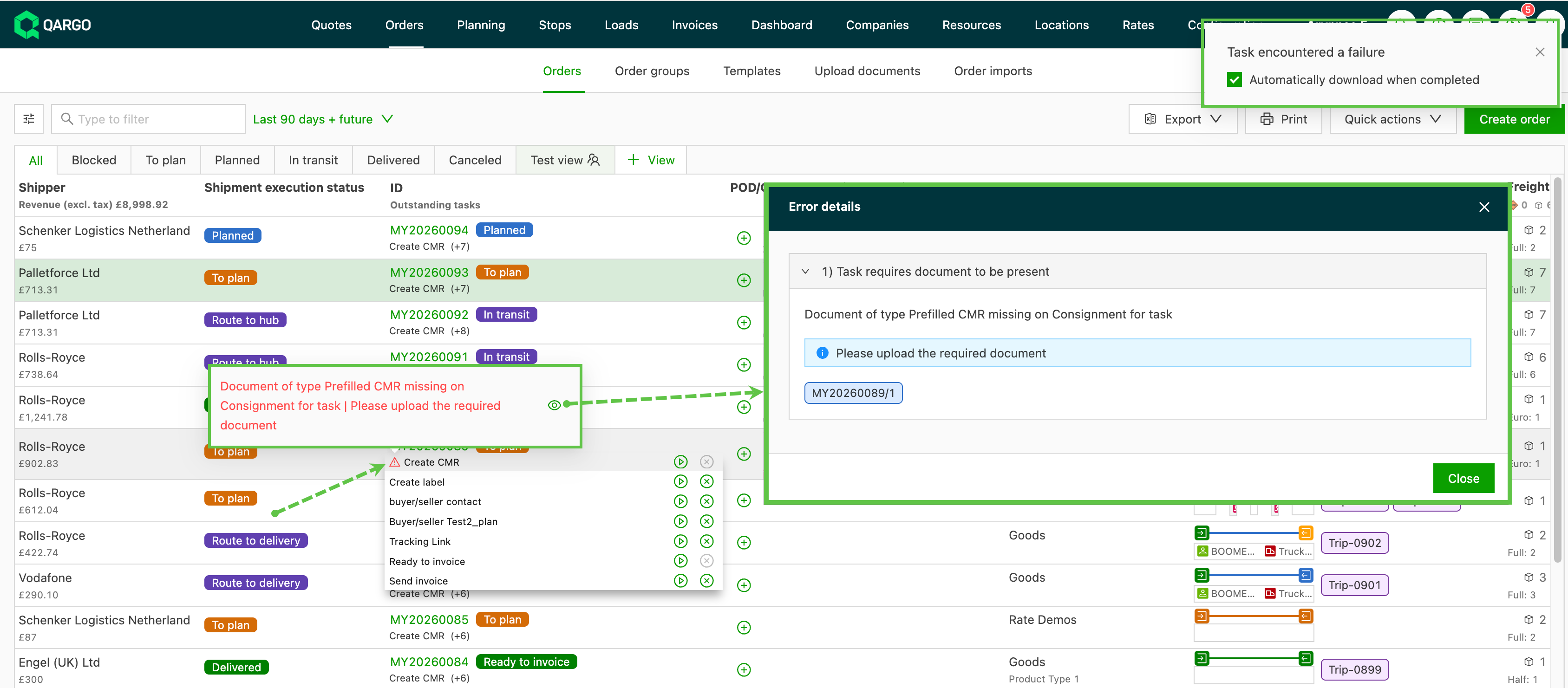
Hover tooltip: Hovering over the failed task icon in list and overview views shows the error message right away, without opening anything.
-
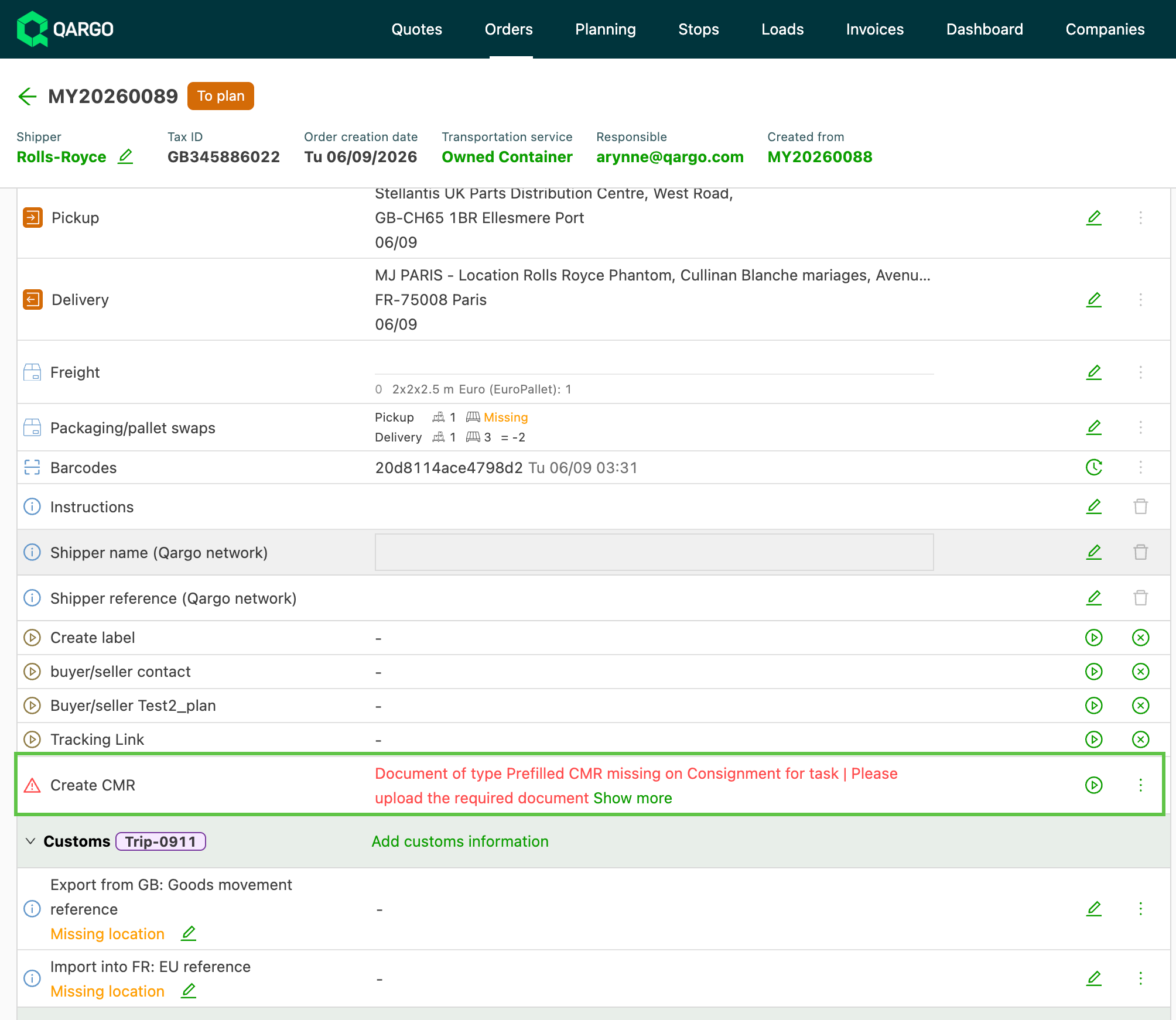
Detail pages: The full error message is shown inline on the related Order, Load, and Stop detail pages, keeping the existing Show more option for the complete details.
-
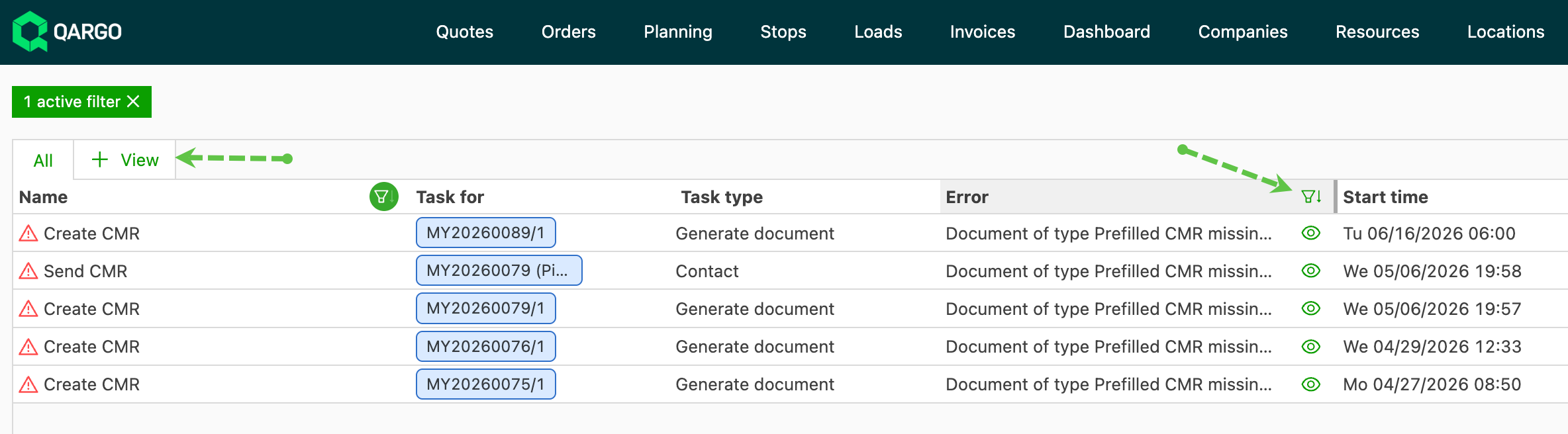
Failed task overview: A dedicated, filterable error column shows each failed task’s error per row, without opening the Error details dialog.
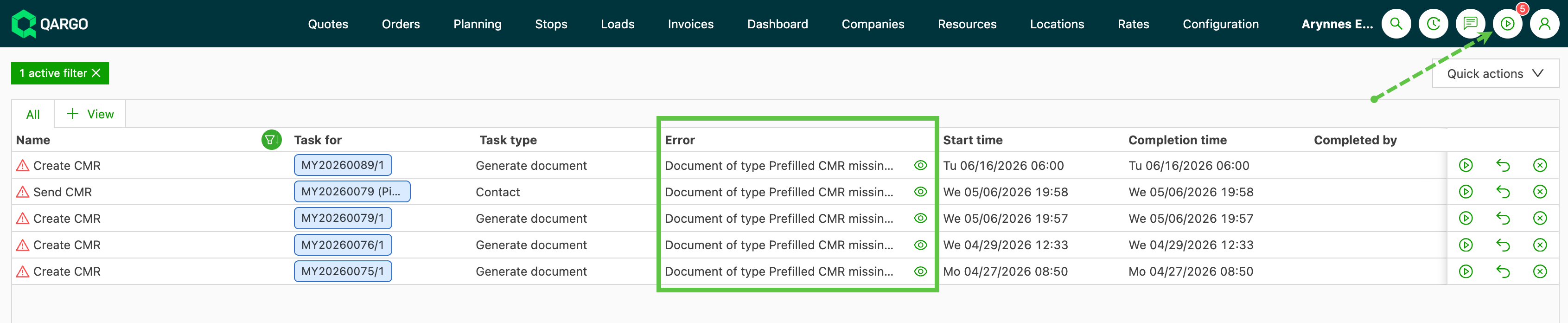
The change applies to all task types and all task errors, not only container booking tasks.
Filtering on errors
-
Navigate to the failed task overview.
-
View the error column showing the error message per row.
-
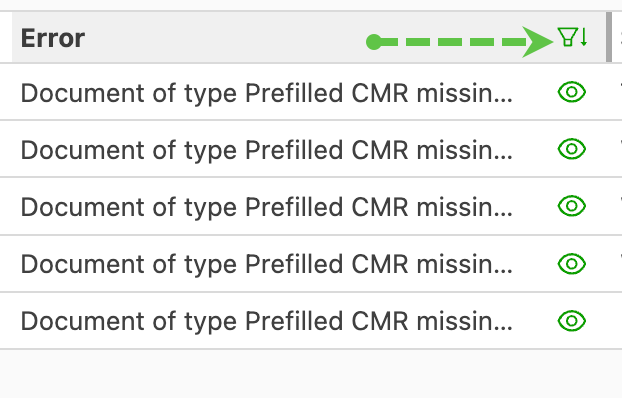
Filter on the error column to narrow the list to the relevant failures.
Creating and sharing a view
-
Navigate to the failed task overview.
-
Apply the required filters and column configuration.
-
Select + View and save the result as a named view.
-
Share the view via Share with other users, choosing All users, Private, or Specific users.
Troubleshooting
| Issue | Cause / resolution |
|---|---|
| The error message is truncated on a detail page. | Use the Show more option to open the complete error details. |
| The error column is not visible in the overview. | Confirm column visibility settings; the error column can be shown alongside the other columns. |
| The Share with other users option is unavailable. | Only Super Admins can create, edit, and share shared views. Regular users can create personal views only. |
| A saved view does not keep its columns. | A saved view stores filters together with column ordering and visibility; re-save the view after adjusting columns. |
Bulk retrigger, reset, and skip failed tasks
How to bulk manage failed tasks
- Navigate to the Failed tasks page (accessible via Configuration > Automation > Failed tasks, or via the failed tasks notification indicator in the header).
- Click the quick action button in the top-right area of the Failed tasks table.
- Select one of the three bulk actions from the dropdown: Retrigger tasks, Reset tasks, or Skip tasks.
- Check the checkboxes next to each task to include. Tasks that are incompatible with the selected action are grayed out and cannot be selected.
- Review the footer, which shows the selected action name and enables the Execute button once at least one task is selected.
- Click Execute to apply the action to all selected tasks, or Cancel to return to the default view without applying changes.
Troubleshooting
| Symptom | Likely cause | Action |
|---|---|---|
| A task is grayed out and cannot be selected | The task is not eligible for the selected action type | Switch to a different action type, or manage the grayed-out task individually |
| Execute button is disabled | No tasks have been selected | Select at least one checkbox before clicking Execute |
| Tasks reappear as failed after retriggering | The underlying cause of the failure has not been resolved | Investigate and resolve the root cause before retriggering |
| A task is stuck in a loading state | The task is frozen mid-execution | Use Reset tasks to return it to its initial state |