
Tasks: what, why, and how?
This article gives a general overview of tasks, including what they are, why they are needed, and how they work in the application
Table of contents
Introduction
Tasks create a form of workflow in the Qargo application. Configuring tasks adds automation to a workflow. This improves efficiency and reduces potential errors or delays in the process. Default tasks are created for all new accounts. These can be modified to create a unique process that suits individual business needs.
| Term | Definition / context in Qargo | Notes for logistics / trucking use case |
|---|---|---|
| Task | A discrete unit of work or action in the Qargo system, which may be manual or automated, forming part of a workflow. | Tasks can represent steps such as sending documents, verification, approvals, or driver actions. |
| Workflow | A sequence or combination of tasks configured for a particular process (e.g., order-to-delivery) | Helps ensure consistency and visibility across operations and departments. |
| System task | A task automatically generated by the system; cannot be modified by users. | These represent core built-in steps essential for the platform’s integrity. |
| Contact task | A task involving communication with a contact (e.g., client, vendor, or third party). | May include sending emails or requesting confirmations. |
| Dispatch task | A task related to dispatching operations (e.g., assigning freight or loads). | Central to coordinating trucks, routes, and schedules. |
| Driver task | A task assigned to the driver or contract carrier; may require the driver to answer questions or upload documents via the driver mobile app. | Examples: upload proof of delivery, answer inspection checklist, take photos. |
| General task | A flexible, non-specialized task type for miscellaneous steps not covered by more specific types. | Use for ad hoc tasks or additional checks. |
| Generate document task | A task whose action is to generate a document (e.g., PDF, manifest, label). | Useful for automating paperwork like load sheets, invoices, or regulatory compliance forms. |
| Upload document task | A task that requires attaching a document or file (e.g., certificate, photograph, invoice). | Ensures that necessary documents are collected and stored. |
| Automatic (auto) complete | A task that completes itself automatically when its preconditions are satisfied. | Reduces manual intervention and speeds process throughput. |
| Manual complete | A task that requires user action to mark as done (e.g., human review, approval). | Useful for quality control, alert handling, or custom checks. |
| Always skip task | A task configuration option that causes the task to be omitted from the workflow, unless overridden. | Useful when certain steps are not relevant for particular customers, lanes, or freight types. |
| Override (customer override) | A per-customer configuration that customizes or replaces default task behavior (e.g., change task to manual, adjust document requirement). | Enables flexibility per client or route without altering the global workflow. |
| Tagging | The practice of labeling tasks with tags or markers for categorization, filtering, or status tracking. | Tags may denote priority, region, freight type, or alert status. |
| Scheduling option | Configuration settings that determine when a task is triggered relative to other events (e.g., before or after order creation, at load dispatch, upon invoice creation). | Helps align tasks with real-world process timing and dependencies. |
Configuration
Types of tasks
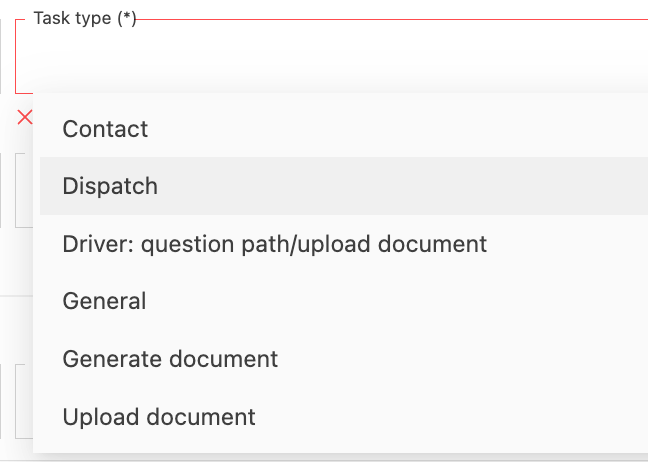
Task types determine what action is required. Options include:
- System: Automatically generated; cannot be modified.
- Contact: This task generates a form of communication as set in the task (i.e., EDI, email, etc.) and sends it to the configured recipients. Additional communication templates can be included here; for instance, generic email content can be added here.
- Dispatch: This task performs a dispatch action to the selected integration.
- Driver: question path/upload document: This task allows users to create specific actions to be completed by users of the Qargo mobile app. For example, question-path tasks must be completed exclusively through the Qargo mobile app and cannot be fulfilled via external systems like a fleet management system (FMS). Tasks may be skipped if the load is not sent to the mobile app.
- General: This is a generic task with no additional actions.
- Generate Document: This task generates a document as configured (draft invoice / invoice).
- Upload document: This task requires an upload of a document.
-
Each option opens additional configuration panels, depending on the action required.
- For instance, a ‘Generate document’ task shows the option to generate either a draft invoice or an invoice.
Who is responsible?
-
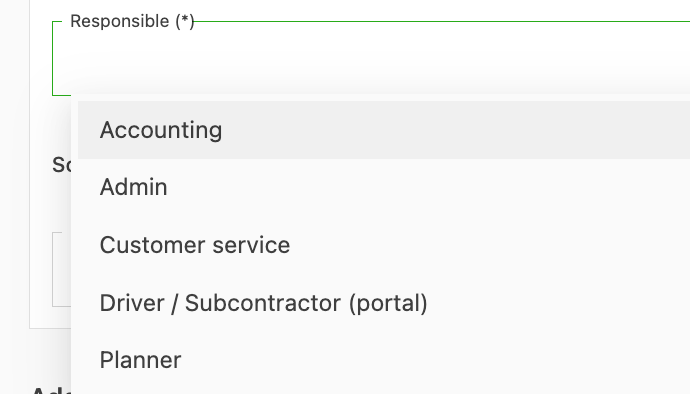
Assign tasks to specific roles, i.e., planners or admin.
-
Task type may determine who is responsible; some tasks do not have a portal option
-
Options include:
- Accounting
- Admin
- Customer service
- Driver / Contract carrier (portal)
- Planner
When to schedule a task?
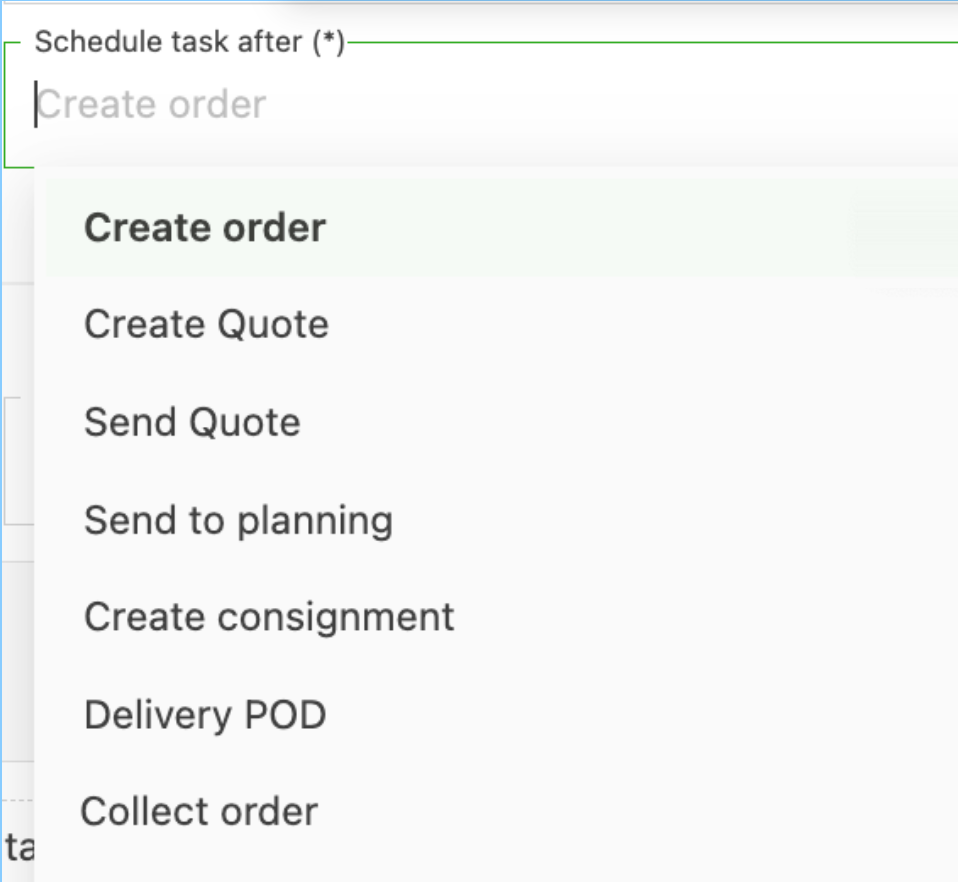
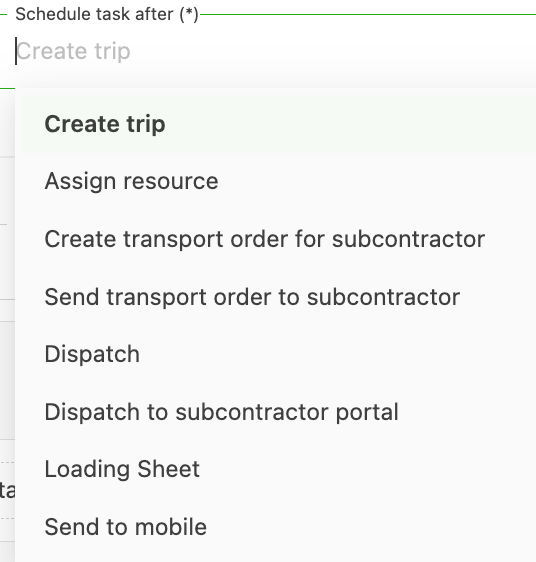
Each task category has different options based on other activities or tasks that might already be set up.
- Schedule the task within the workflow, with new tasks added at the appropriate part of the workflow
- Schedule options are based on the tasks that already exist in the workflow
Orders:
Loads:
Invoices:
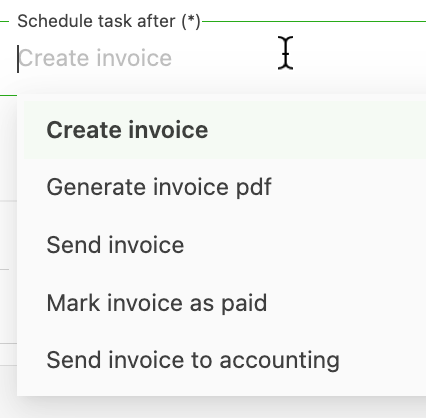
- Create invoice
- Generate invoice PDF
- Send invoice
- Mark invoice as paid
- Send invoice to accounting
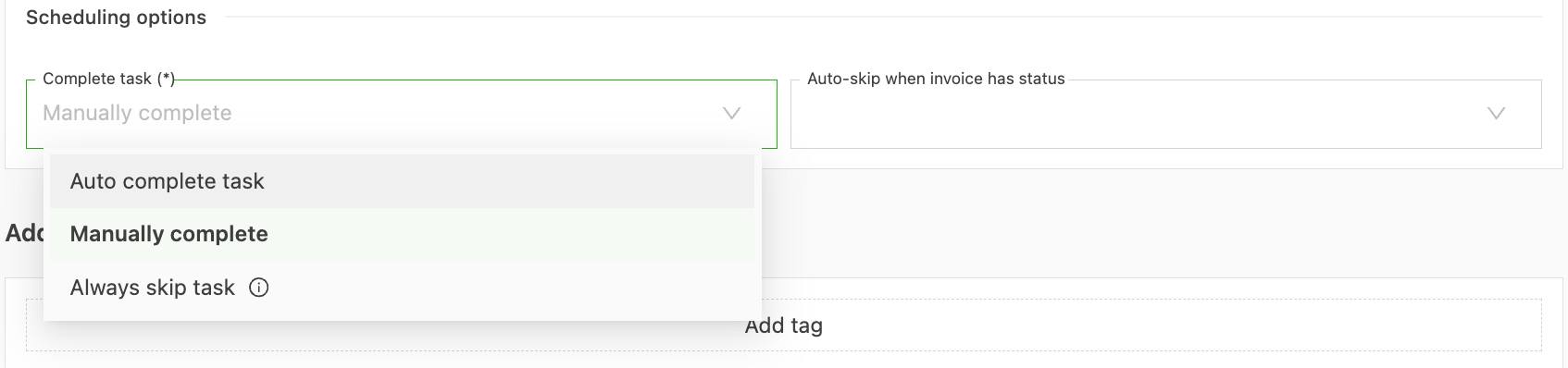
Scheduling options
-
To automate tasks, select this option when scheduling a task.
-
Manual tasks require some level of user interaction to complete.
-
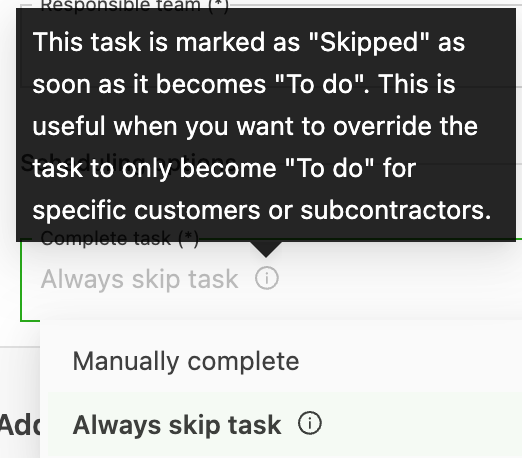
Tasks marked ‘Always Skip Task’ are automatically skipped in the workflow.
- Create tasks with this option if required for specific customers or contract carriers, and use the ‘override task’ option.
-
Use auto-skip settings to bypass tasks that meet predefined completion conditions, optimizing workflows and eliminating redundant steps. For example, a task marked as ‘Auto-skip if completed’ is automatically skipped when the system identifies that the condition has been satisfied. However, new skip settings apply only going forward and do not retroactively alter existing tasks or documents.
How tasks generate
Auto complete
-
The system generates and completes the task as part of the workflow. No manual updates are required to complete the task.
- Example: Auto complete sending an invoice to the customer once it’s been generated. Once the invoice is created, the system uses the contact task to send the invoice directly to the specified contact. The ‘Send invoice’ task is then automatically completed.
Manual complete
- The user must manually execute the task
- Depending on the task, this may be via the execute button, but it could also be a ‘generate document’ task, where creating the document completes the task.
- Once the user has manually completed or executed the task, it updates to completed by the user.
Skipped task
-
Auto-skip settings in Qargo streamline processes by skipping redundant tasks when specific conditions, like completion, are met. For example, if an invoice is generated after enabling the auto-skip rule, the system bypasses associated tasks, like proof of delivery (POD), as expected.
-
Typically used with overrides
-
The task is marked ‘Skipped’ and only becomes part of the workflow for specific customers or contract carriers
-
Exceptions include tasks like ‘Question-Path Tasks,’ which require completion via the Qargo mobile app and are not compatible with external systems. Additionally, auto-skip configurations apply only to tasks created after the rule is set, meaning retrospective changes must be made manually.
Tagging:
- Tagging adds colored labels to indicate something that needs a user’s attention
- Tagging is flexible, so the user can configure it to suit individual business requirements

Customer tasks / overrides
For some tasks, different customers may have their own requirements.
-
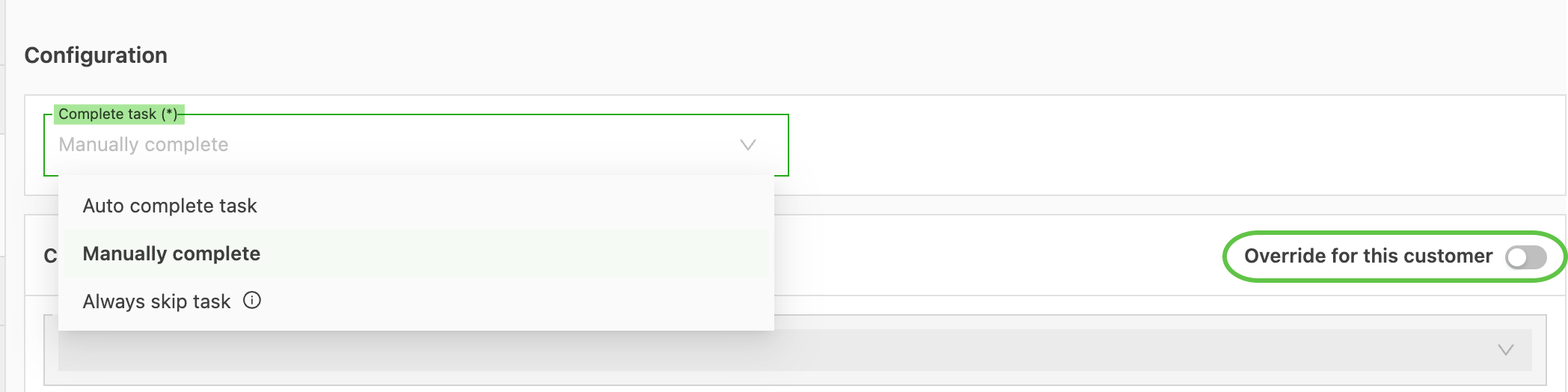
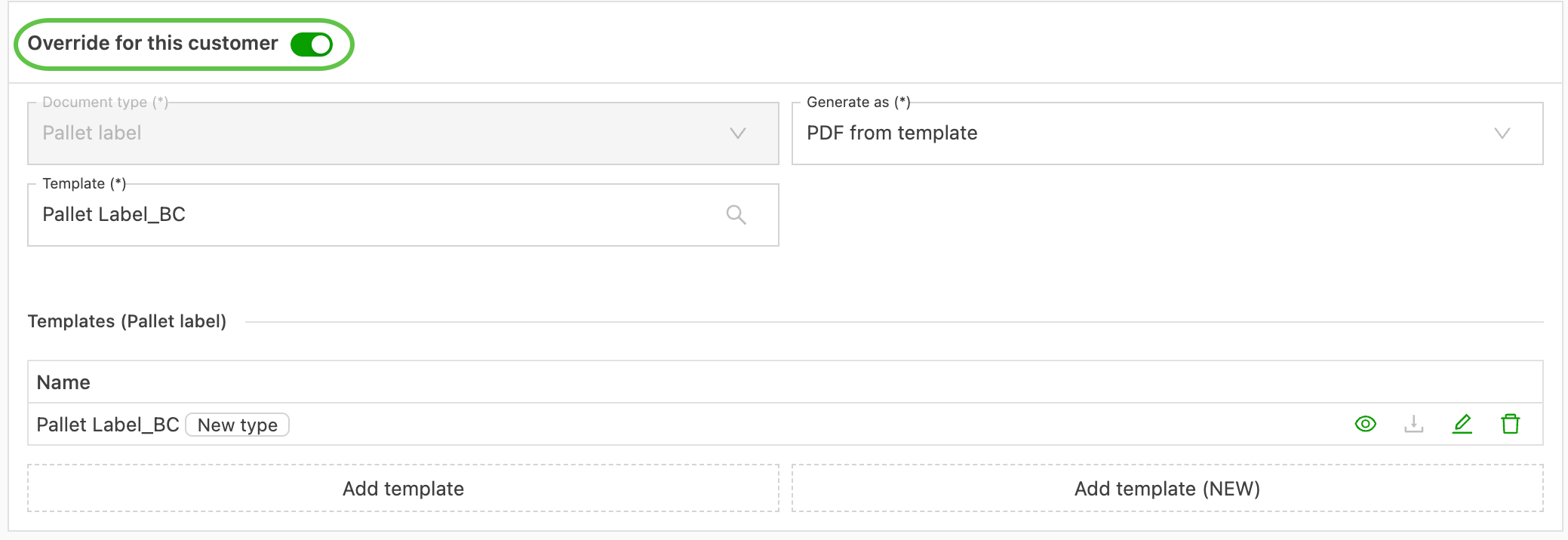
Use the ‘Override’ toggle in the customer profile tasks to create a task specifically for that customer.
-
Override options include:
-
Complete task function (manual / automatic)
-
Conditions for required documents
-
Template used if generating a document, for instance a customer-specific load sheet or label, etc.
-
-
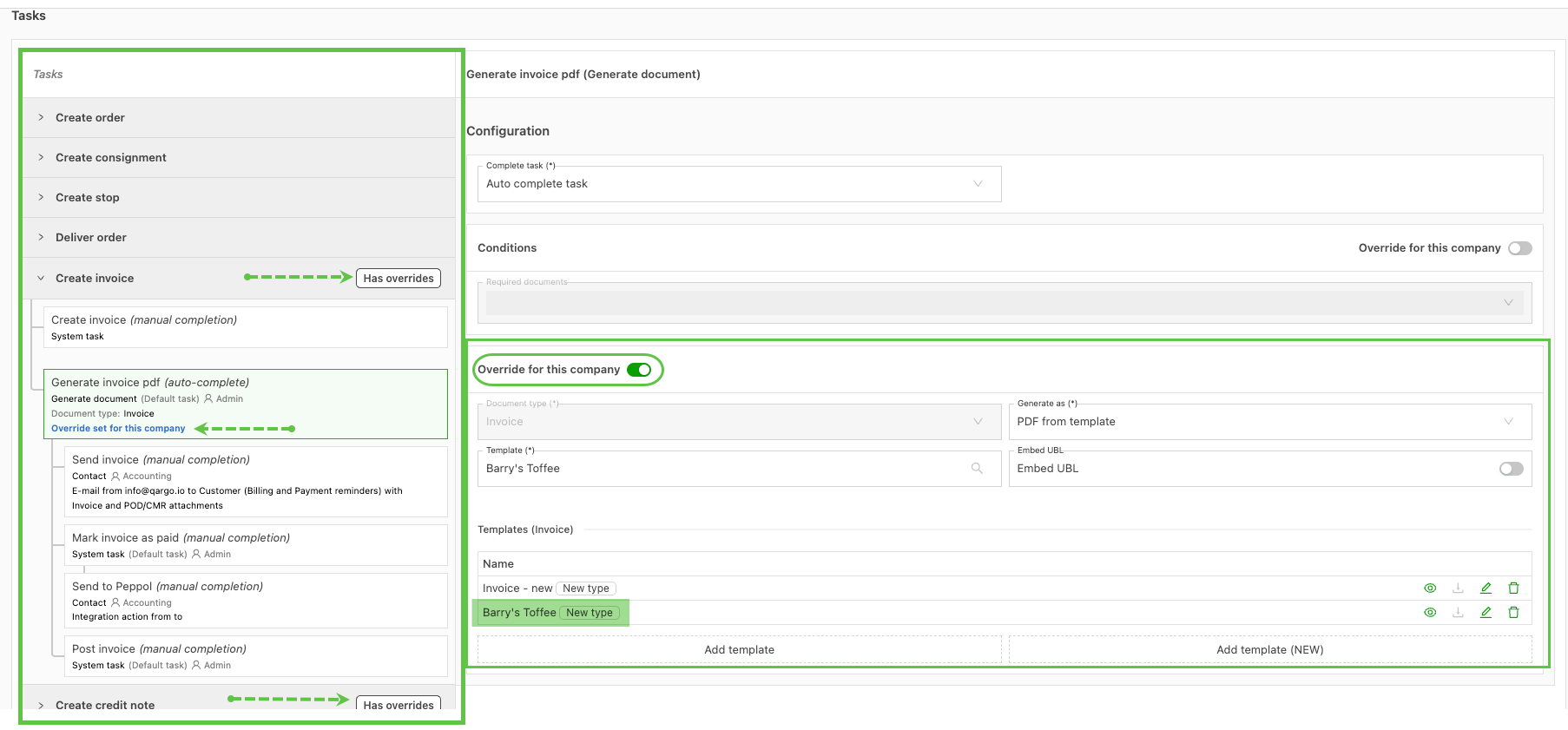
Once an override is active, a label displays on the task workflow in the customer profile, indicating an override is present.
-
A warning shows in the specific task on the workflow, indicating where the customer override is present.
-
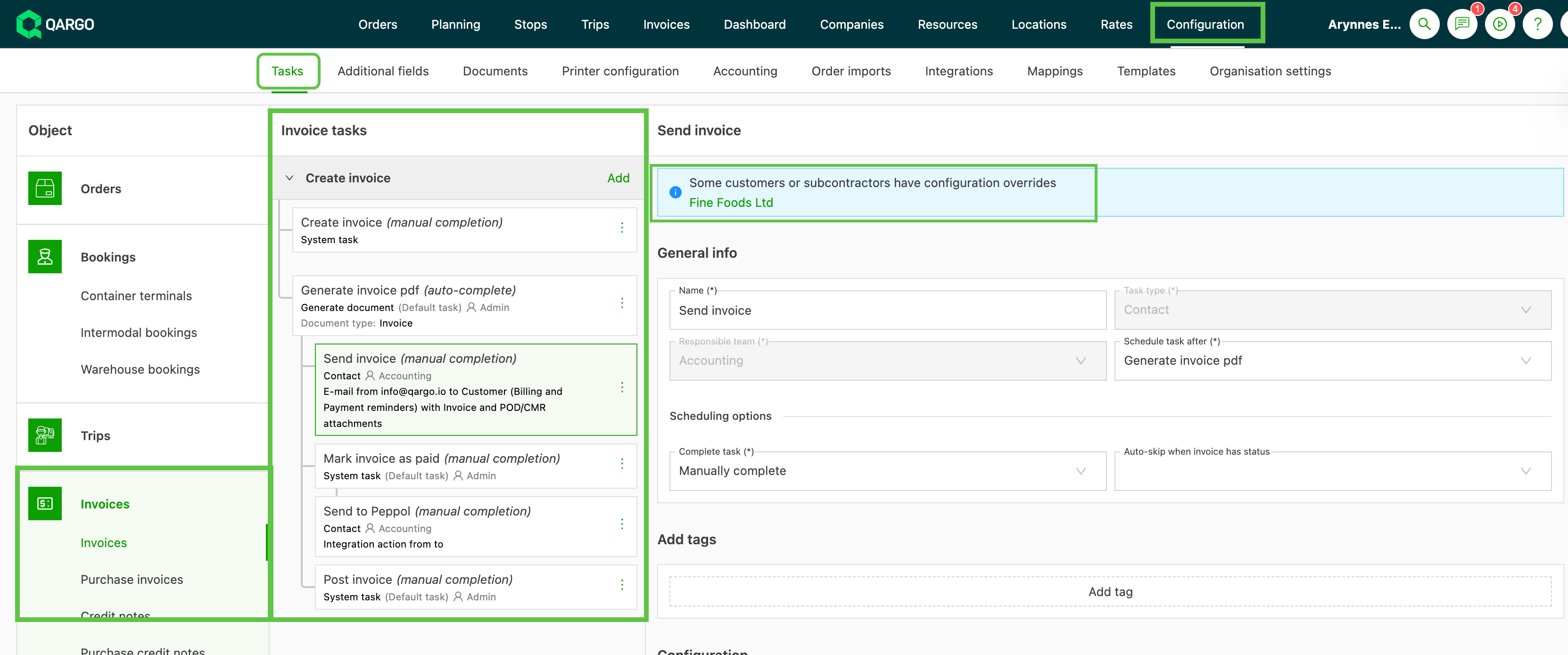
Customer overrides are indicated in the specific tasks
-
Click the customer name to access specific overrides
-