
Invoices: configure an invoice task
Tasks automate workflows and improve efficiency. Configure invoice and credit memo tasks, and modify or add tasks to fit business needs.
Table of contents
Introduction to invoice tasks
Tasks create a form of workflow in the Qargo application. Configuring tasks adds automation to a workflow. This improves efficiency and reduces potential errors or delays in the process. Default tasks are created for all new accounts. These tasks can be modified, which gives the flexibility to create a unique process that suits individual business needs.
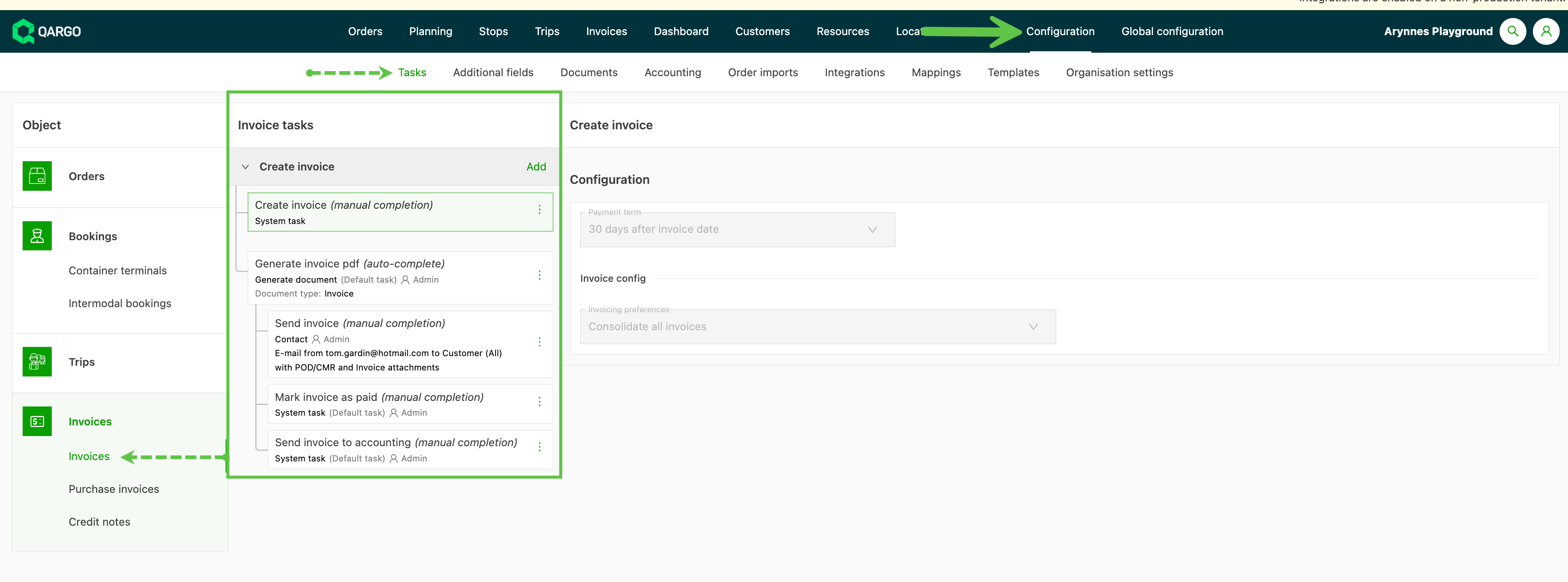
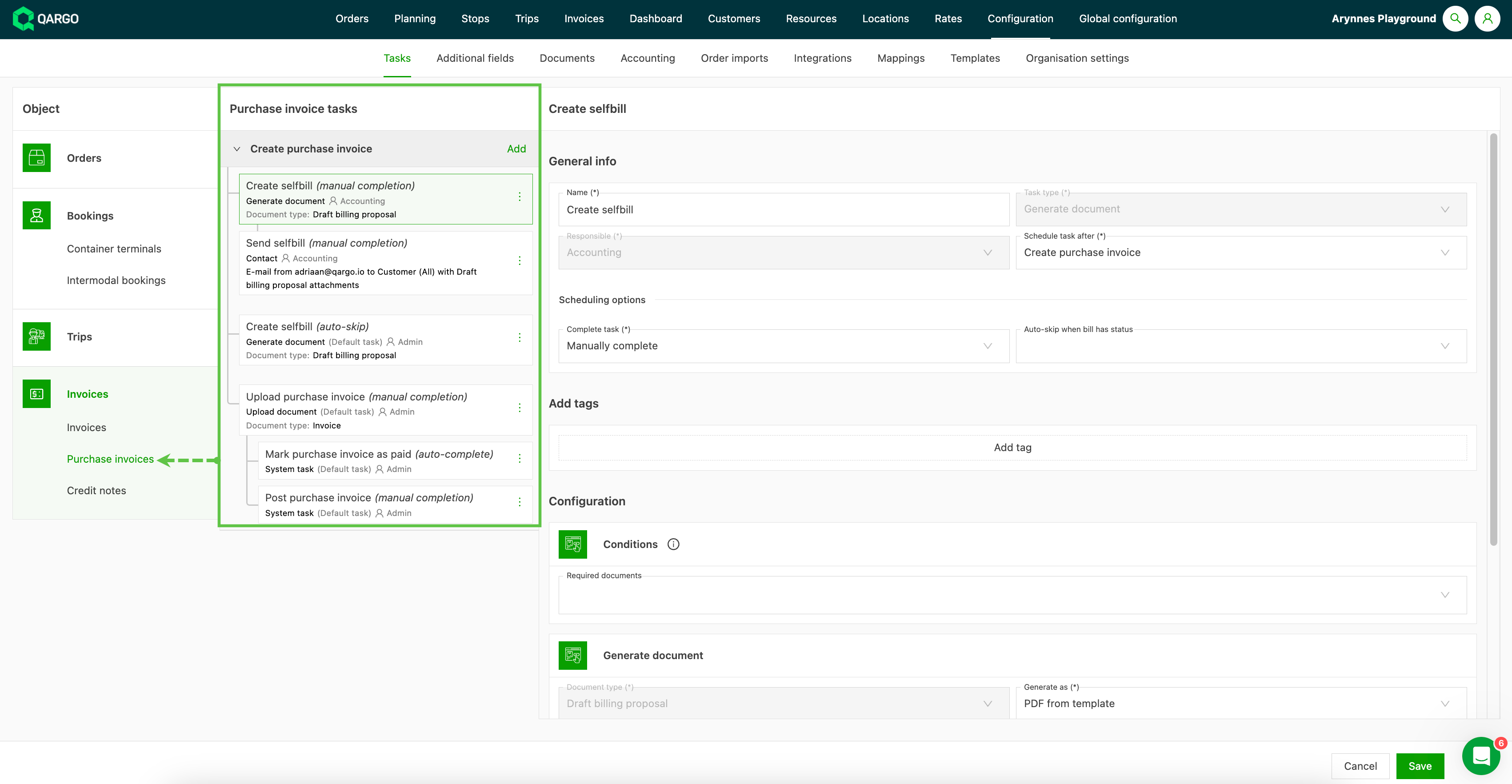
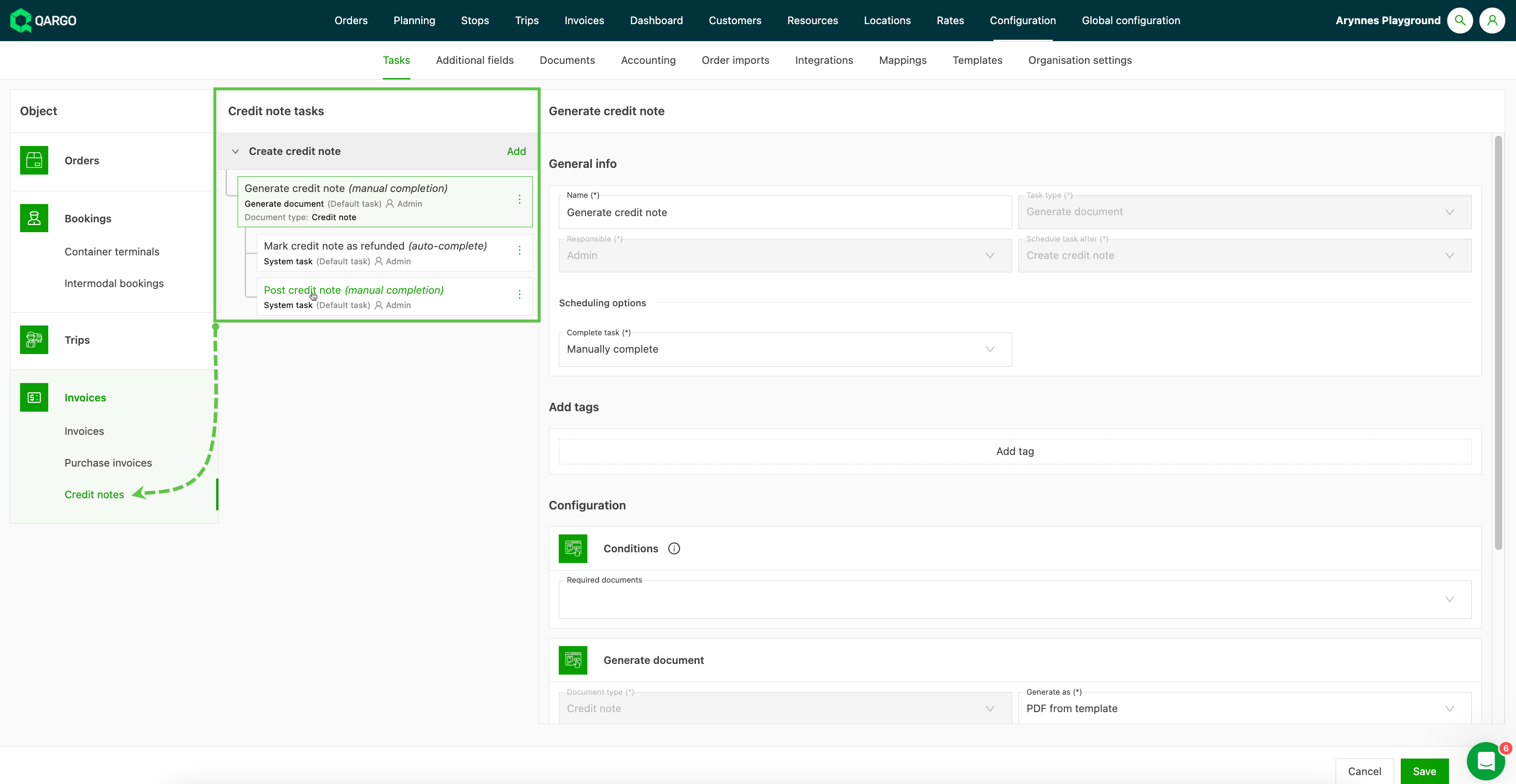
Navigate to Configuration > Tasks. There are 3 options to configure tasks for the Invoices module:
- Invoices (Revenue)
- Carrier invoices (Costs)
- Credit memos
Invoice tasks (default)
Carrier invoice tasks (default)
Credit memo tasks (default):
Create a new invoice task
If the default tasks do not fully support the internal workflow, tasks can be added to or deleted from the workflow.
- Tasks can be added as a new part of the process with the ‘Add’ option.
- This creates a new task that forms part of the workflow.
- Alternatively, each task has a menu (3 dots) with the option ‘Add a new task after’. Selecting this option automatically adds the new task to the flow directly after that task.
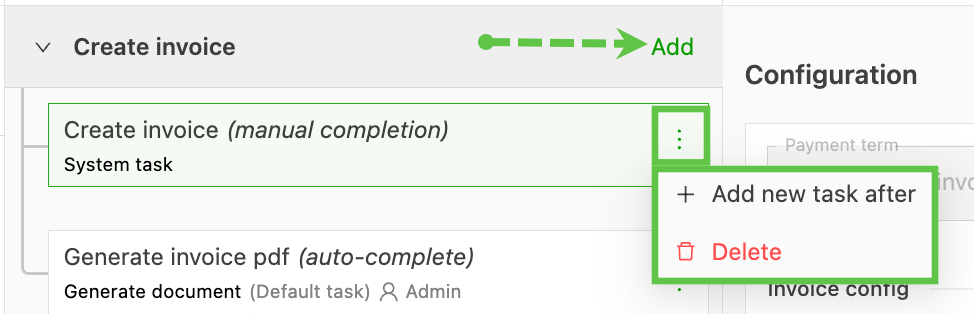
- To remove a task, open the menu on the specific task and select Delete.
- It is possible to create customer-specific preferences for invoices in the customer profile tasks.
Steps
-
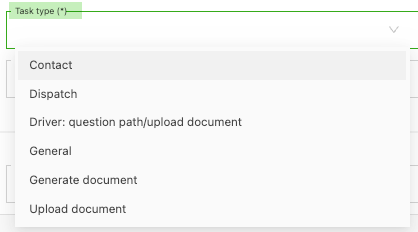
Select the appropriate task type
-
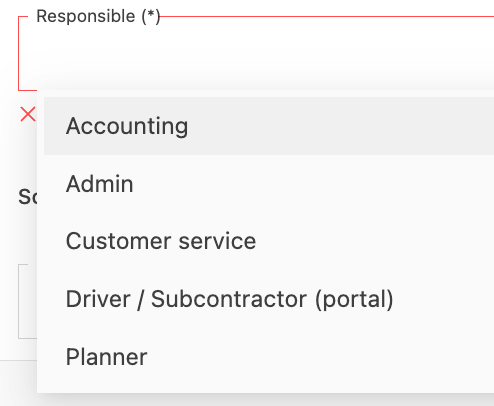
Assign the user role that will be responsible for performing the task
-
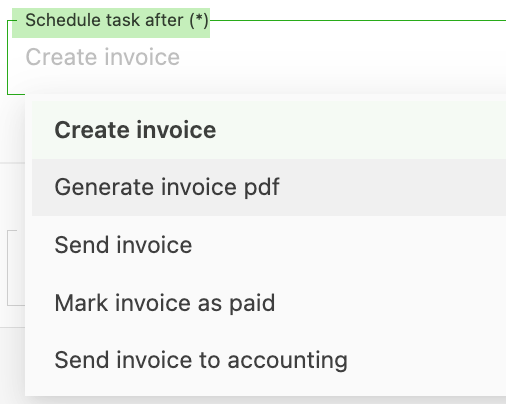
Select where in the workflow the task should be scheduled
-
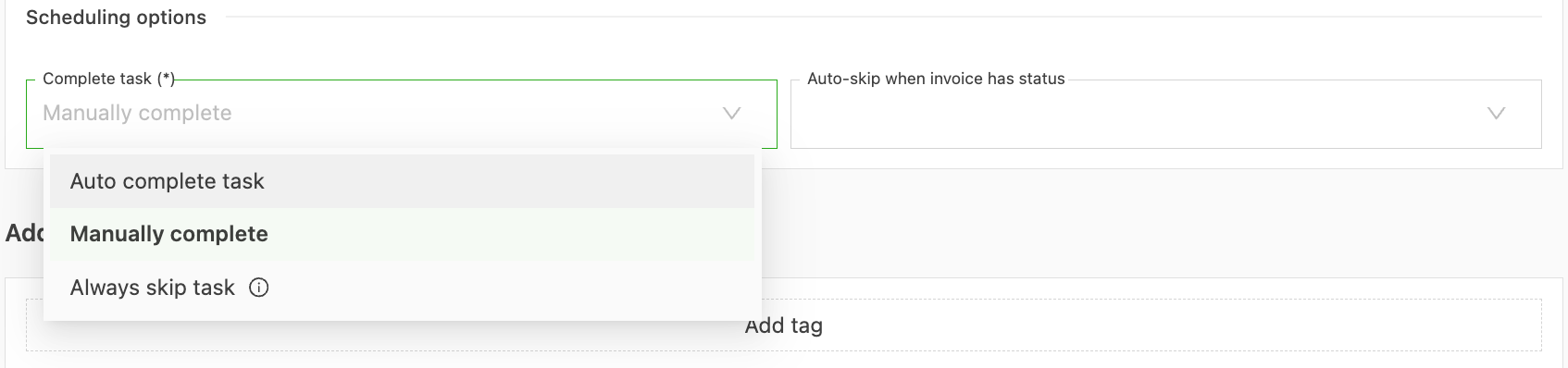
Set how the task should be completed (Auto / Manual / Skip)
Click the link below👇 to learn more about tasks in Qargo.