
Qargo mobile app: cross-dock 'tap' mode (no scanning)
The cross-dock module supports a tap-based mode that replaces barcode scanning with tap confirmations. Warehouses can digitize loading and unloading without scanner hardware.
Table of contents
Summary
-
What is tap-based mode?
- Tap-based mode is a cross-dock mode that switches the module to manual selection. Pallet movements are confirmed by clicking the barcode ID instead of scanning a barcode.
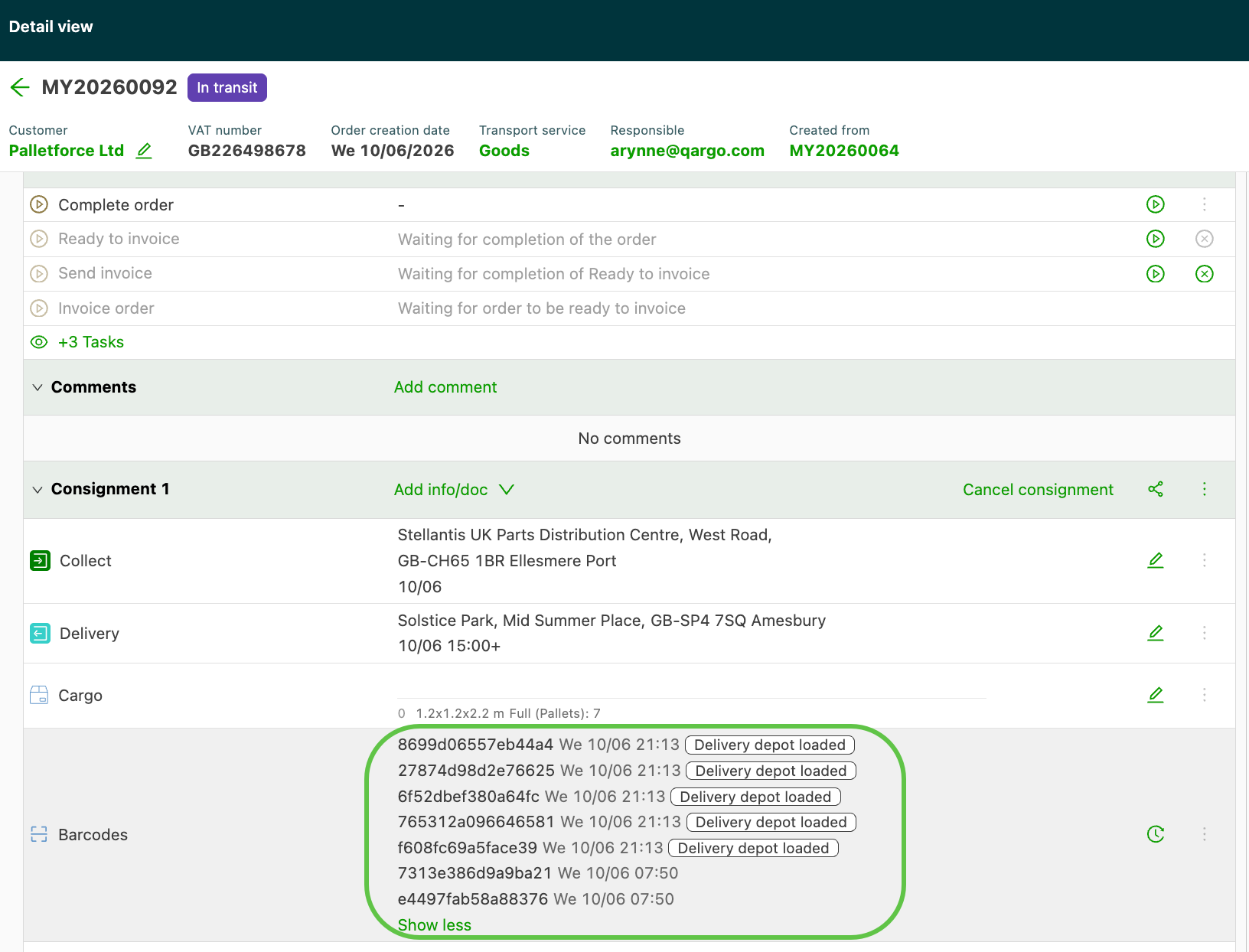
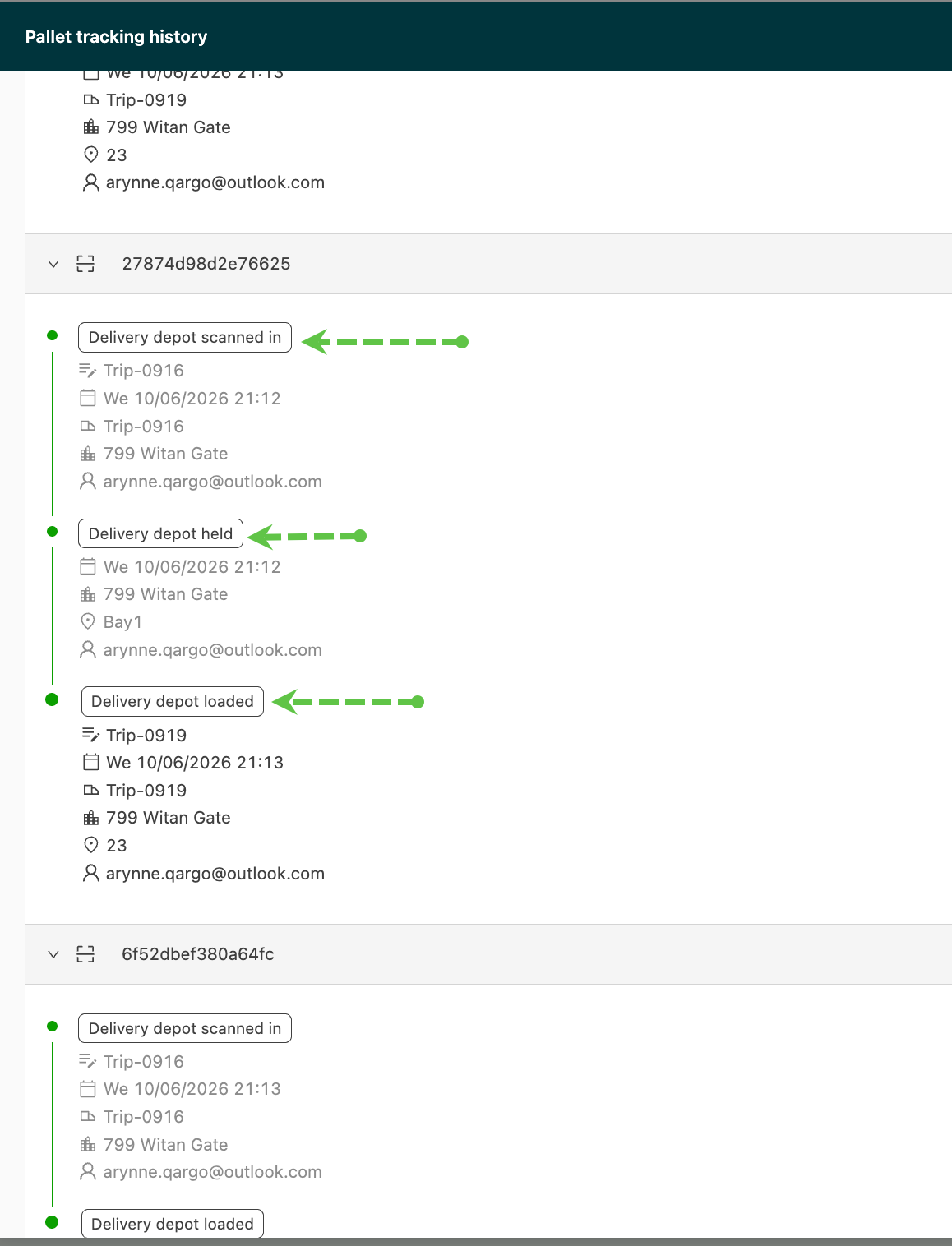
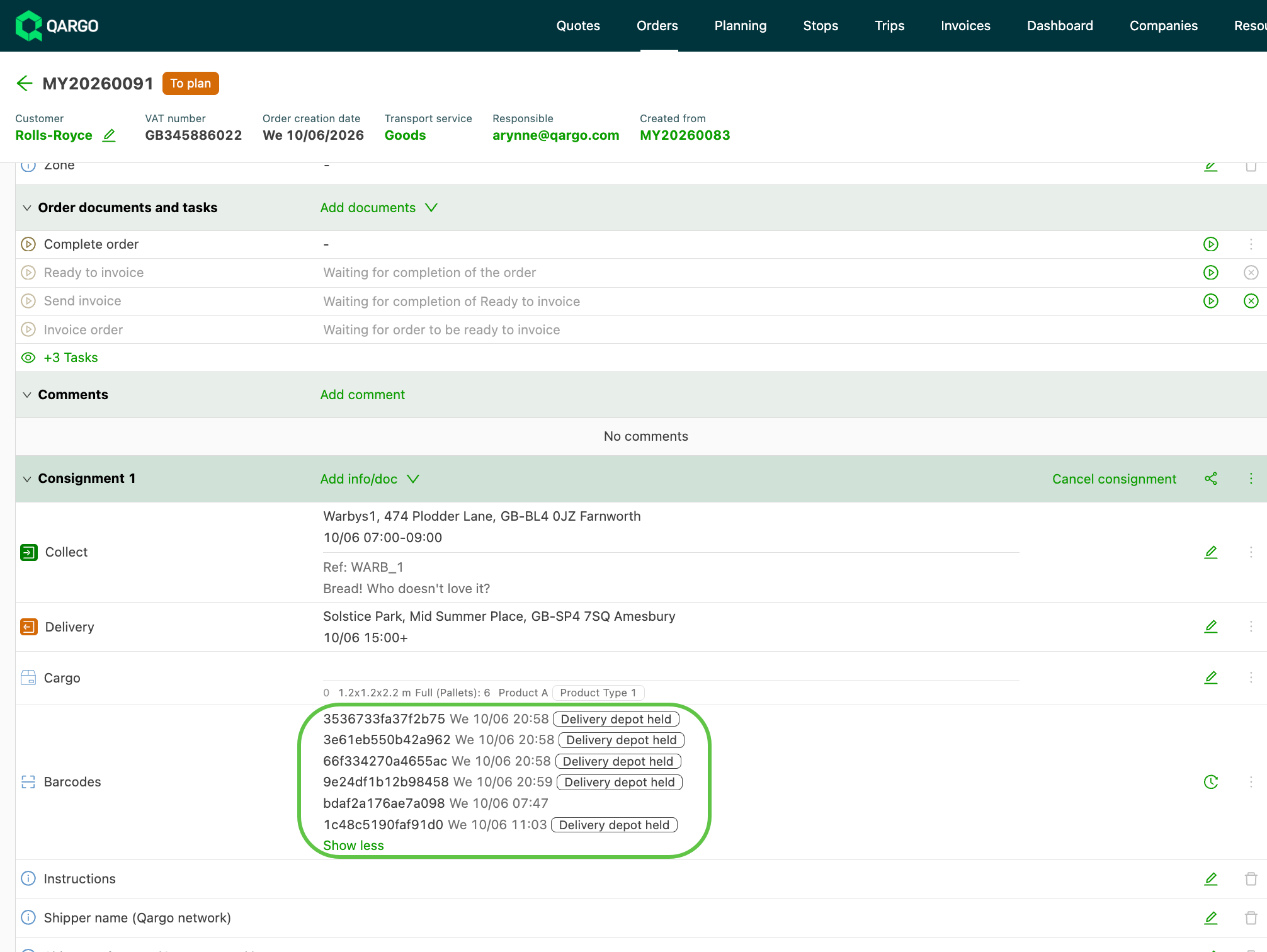
- Tap confirmations generate the same tracking statuses as barcode scans (SCANNED_IN, SCANNED_OUT, STORED), so customer portal visibility is unaffected.
-
Why use it?
- It removes the need for scanner hardware and printed barcode labels. This lowers the barrier for warehouses that want to start digitizing cross-dock operations.
- It can run in parallel with barcode scanning (free scan/terminal scan). It acts as a stepping stone toward full scanning adoption, with no data migration required.
-
How does it work?
- Once tap-based mode is enabled, operators select a load and see the full list of pallets to load or unload. The user can tap the barcode ID on each pallet to confirm the movement. A progress counter tracks completion.
- Tap-based mode is configurable per tenant or terminal and is activated by Qargo.
Prerequisites
Use cases
- A transport company migrating to Qargo as its TMS wants to digitize unloading and loading across multiple cross-dock terminals. However, it is not ready to roll out barcode printing and scanner hardware at the same time as the TMS change. Tap-based mode lets warehouse staff confirm pallet movements from a tablet by tapping through a list.
- A warehouse receives full trailers that need to be unloaded, labeled, and routed. It wants a lighter entry point into cross-dock digitization before committing to barcode scanning.
Terminology
| Term | Definition |
|---|---|
| Tap-based mode | A cross-dock mode where pallet movements are confirmed by tapping instead of scanning a barcode |
| Load sheet | The reference used to identify the load whose pallets are being loaded or unloaded |
| Progress counter | The x/y indicator showing how many pallets have been loaded or unloaded |
| SCANNED_IN / SCANNED_OUT / STORED | Tracking statuses generated when a pallet is unloaded, loaded, or stored; identical whether confirmed by tap or by scan |
| Free scan | A flow where a single pallet is looked up directly and an action is applied to it |
Enabling tap-based mode
- Contact Qargo to request activation of tap mode for the relevant tenant or terminal.
- Qargo enables the tap mode feature flag in the Mobile app / Carrier portal integration settings.
- Once tap mode is enabled, the cross-dock flows display tap confirmation controls instead of requiring a barcode scan.
🎥 This video shows how to process goods using tap-based mode in the mobile app:
Loading a vehicle in tap-based mode
-
Select a load by entering or scanning the load number to start the loading flow.
-
View the full list of pallets to be loaded. Each row shows meaningful details (sender, recipient, reference, description), and a progress counter (for example, 0/12 pallets loaded) appears at the top. Barcode numbers are de-emphasized because they are not needed in this mode.
-
Confirm each pallet by selecting the row. This generates the same SCANNED_OUT status as a barcode scan. Color-coded indicators apply as usual (dark green = loaded, orange = warning, red = error).
-
Assign a location (optional). After selecting the pallet, a cross-dock location can be entered or scanned for that pallet. If no location is entered, the action is still registered.
-
Complete the load. Once all pallets are confirmed, the load is marked as fully loaded. A Complete all button marks every remaining unprocessed pallet at once.
Unloading a vehicle in tap-based mode
-
Select an incoming load by entering or scanning the load number.
-
View all pallets expected for that load. Each row shows sender, recipient, reference, and description, with a progress counter (for example, 0/8 pallets unloaded) at the top.
-
Confirm each pallet by tapping the barcode as it comes off the truck. This generates the same SCANNED_IN status as a barcode scan.
-
Select an action and storage location (optional). After selecting the pallet, an action can be chosen (keep on truck, store in terminal, or to delivery vehicle) and a cross-dock location entered or scanned.
- The selected action is remembered for the next pallet. There is no separate bulk mode and no need to re-enter the same choice each time.
-
Flag discrepancies. If the physical pallet count does not match the expected list, this can be flagged directly in the flow. Detailed incident handling is covered by the cross-dock incident question paths.
-
Complete the load. Once all pallets are confirmed, the load is marked as fully unloaded.
Scan on load in tap-based mode
- Open the overview of loads with associated pallets.
- Tap a pallet to either store it in the terminal or load it onto a load.
- Enter the load name (or scan it) to assign the pallet to that load.
Flows that still require scanning
- The free scan and terminal scan flows are unchanged and still require a barcode scan to look up pallets.
- In tap mode, the unload vehicle option without a load sheet is hidden. This keeps the unloading flow consistent with the loading flow, which is always based on a load sheet. Other scanning modes, such as free scan, remain available.
Troubleshooting
| Issue | Guidance |
|---|---|
| Tap confirmation controls are not visible | Tap mode is not enabled for the tenant or terminal. Contact Qargo to request activation.\ |
| The Qargo mobile app must be updated to a supported version. | |
| The unload-without-load-sheet option has disappeared | This is expected when tap mode is enabled. The unloading flow is based on a load sheet, matching the loading flow. Use free scan for ad hoc lookups. |
| A pallet movement does not appear on the customer portal | Tap confirmations generate the same statuses as scans. Confirm that the pallet checkmark was tapped and the load was completed. |
| The physical pallet count differs from the expected list | Flag the discrepancy in the flow. Detailed handling follows the cross-dock incident question paths. |
| A location cannot be entered for a pallet | A location is optional unless configured as required. A custom location can be typed into the location field, or a predefined location can be selected. |