
Qargo mobile app: cross-dock scan multiple barcodes to a single location
Scanning multiple pallets to a single location with cross-dock scanning in the mobile app requires minimal effort.
Table of contents
The cross-dock function in the Qargo mobile app offers 2 workflow options: single pallet scans or multiple pallet scans.
Configuration
Some scanning functions in the mobile app must first be set up in the Qargo software.
-
Navigate to Configuration > Integrations (Qargo admin)
-
From the side menu, select Mobile app / Subco portal
-
The Configuration panel has options that can be toggled on or off:
- Location scan required.
- Default keep pallet on trunk when unloading
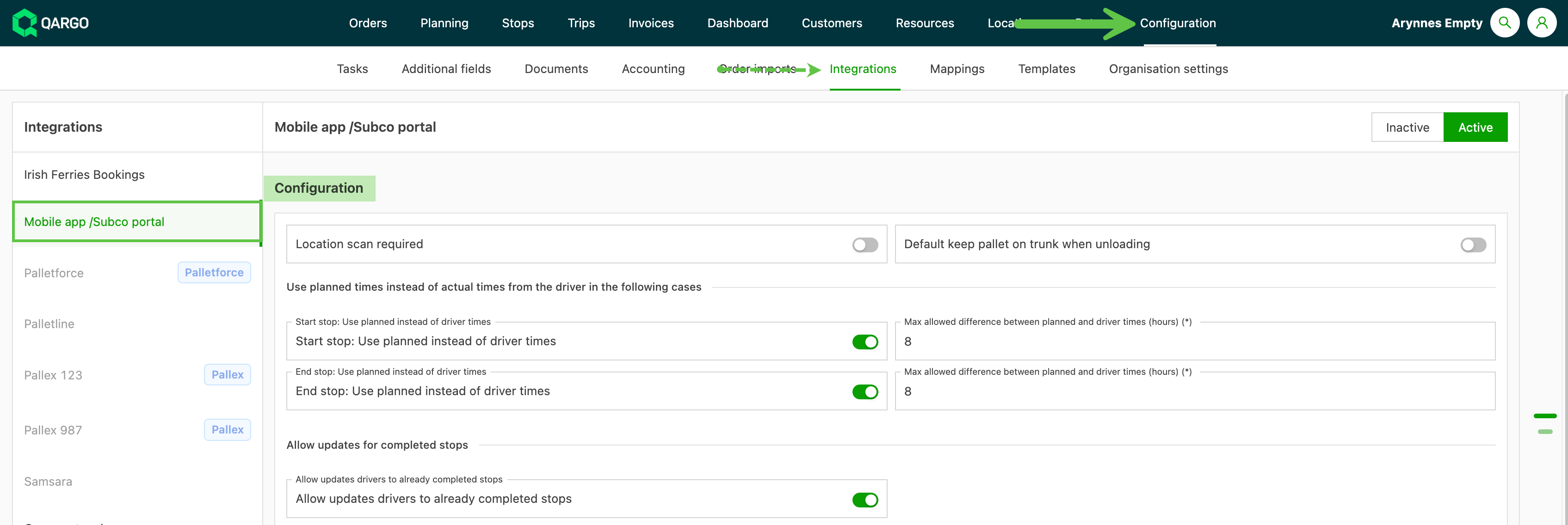
Location scan required.
When this option is toggled on, a location must be scanned before the pallet is scanned.
Default keep pallet on trunk when unloading.
When this option is toggled on, no location or action option is shown. Scanning goes straight to pallets by default.
Bulk scanning workflow
- Select the Pallets in bulk scanning mode
- Select the location or action option (based on configuration)
- Scan the location or action barcodes
- Scan all pallets that go to that location or require that action
When processing multiple pallets, the option can be switched for each pallet as needed. For example, an incoming vehicle carries multiple pallets. Some go onto the delivery vehicle, and others are held pending delivery. Use the Choose new action option to change the action.
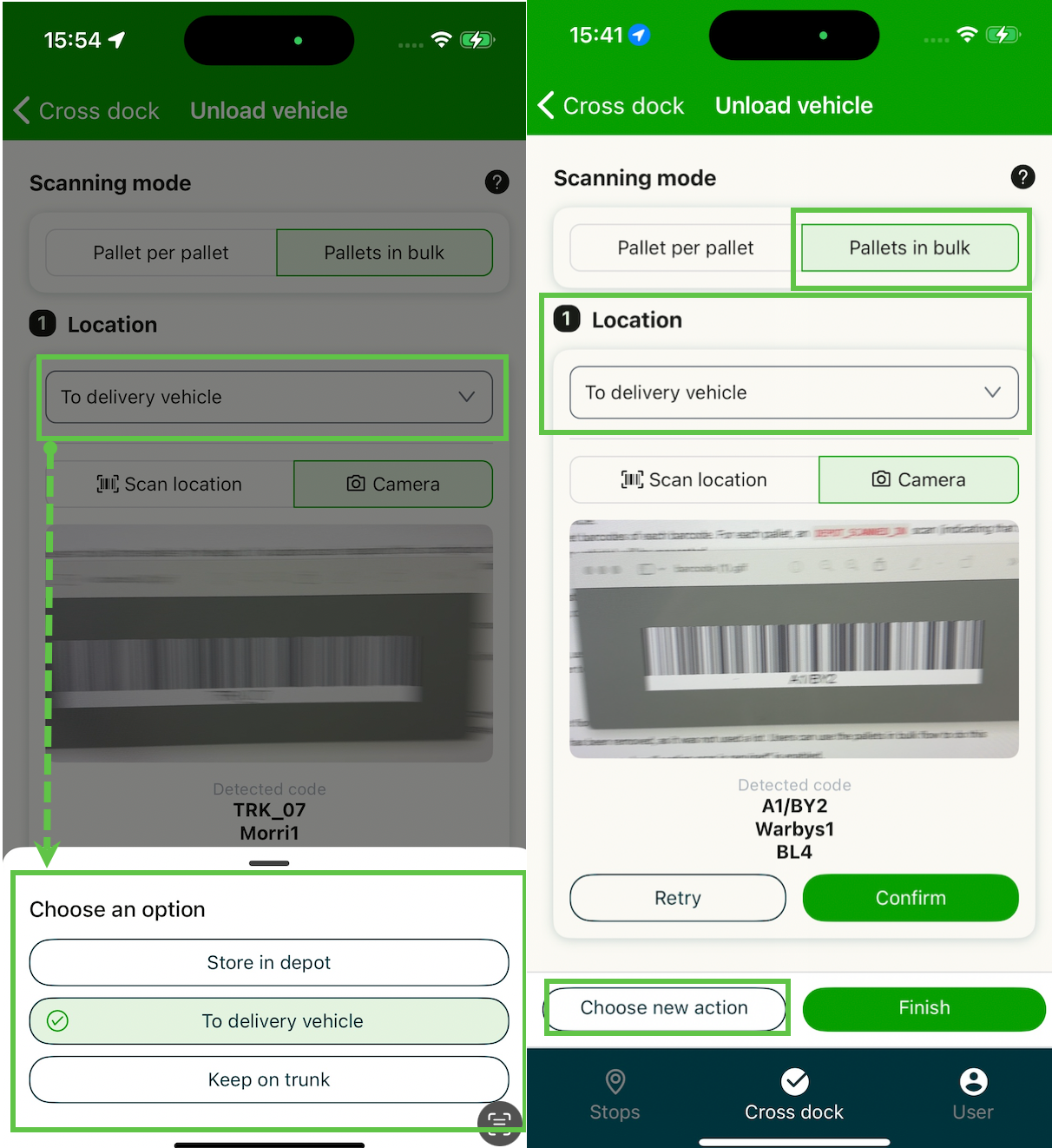
Location/action options
Store in terminal
Store pallets in the terminal. If a location is required, users first scan the location barcode of the terminal location. They then scan the barcode of each pallet to be stored at that location. Statuses generated:
- Terminal scanned in (arrived at terminal)
- Terminal stored (delivery terminal held)
To delivery vehicle
Move pallets from the incoming vehicle (pickup vehicle) to the delivery vehicle. If a location scan is required, users first scan the location barcode of the delivery vehicle. They then scan each pallet to be loaded. Statuses generated:
- Terminal scanned in (arrived at terminal)
- Terminal scanned out (delivery terminal loaded)
Keep on trunk
Sometimes pallets arrive at the cross dock and stay on the trunk vehicle, often because of limited space in the terminal. The pallets are not moved from the vehicle, so no location scan is required. Each pallet is still scanned to record its arrival at the terminal. Statuses generated:
- Terminal scanned in (delivery terminal held)
- Pickup terminal scanned in
The pallet status label appears in the shipment details.
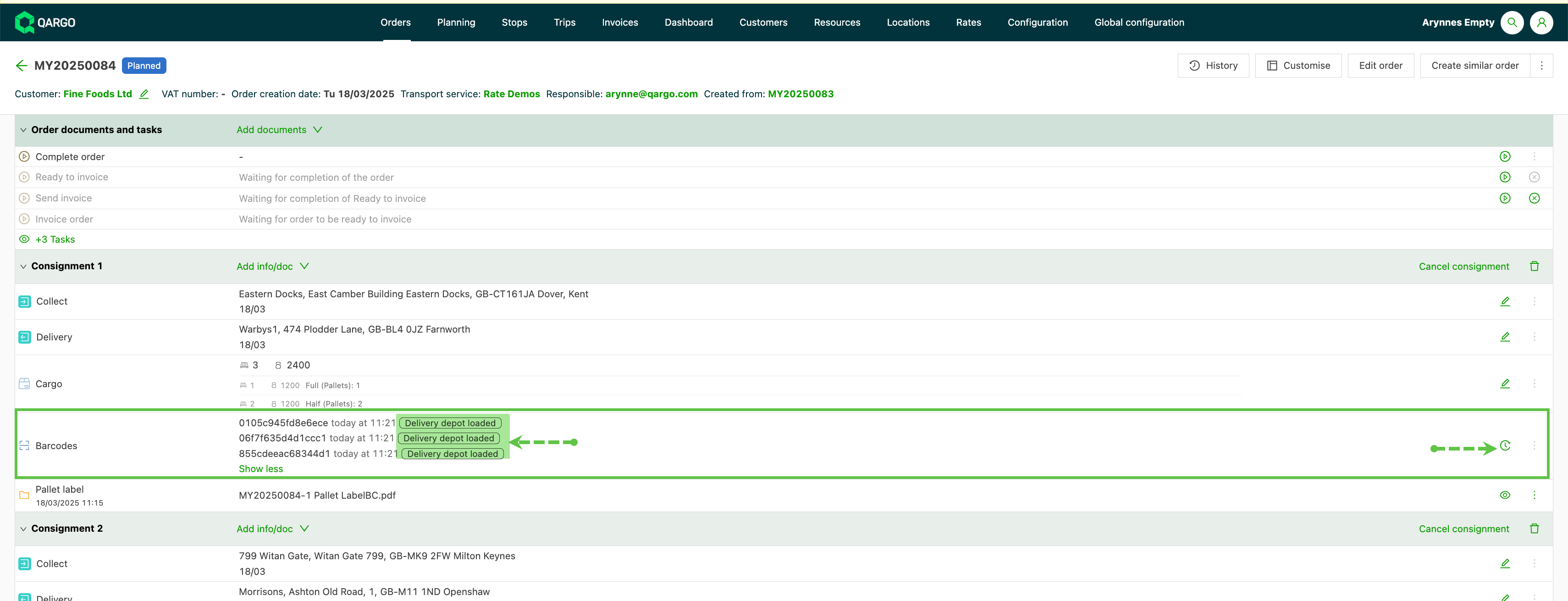
Use the clock icon to view the history of a specific pallet.
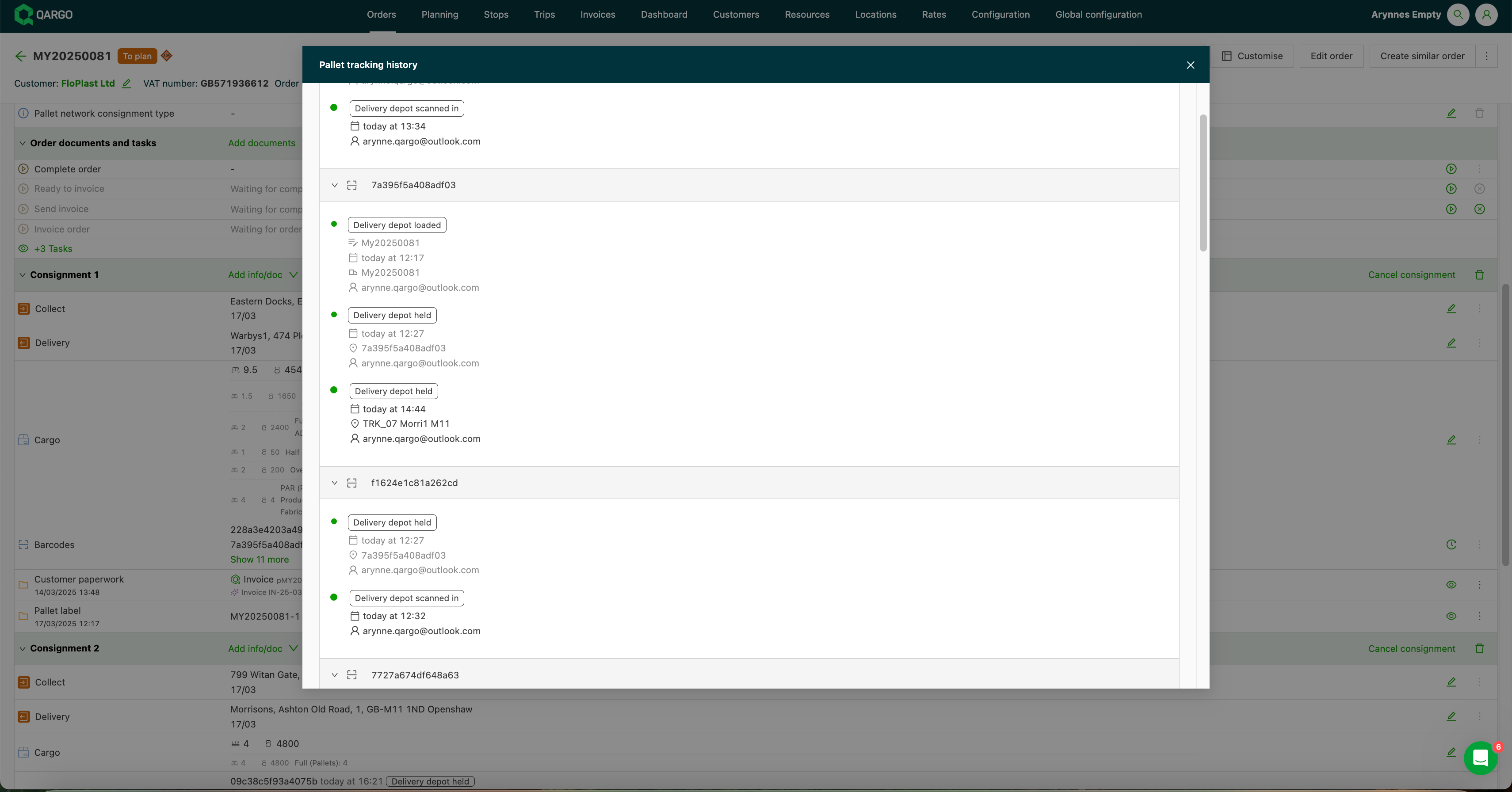
Once all pallets are scanned, use the Finish button to complete the process in the app. The statuses are updated in the Qargo software application. Integration updates do not change.