
Qargo mobile app: cross dock scanning
The cross dock module in the Qargo mobile app supports pallet scanning, unloading, loading, and warehouse workflows for smoother operations.
Table of contents
The Qargo mobile application includes a dedicated cross dock module that supports warehouse operators in their daily workflows.
Configuration
Some scanning functions in the mobile app require setup in the Qargo software.
- Go to Configuration > Integrations > Mobile app / Subco portal.
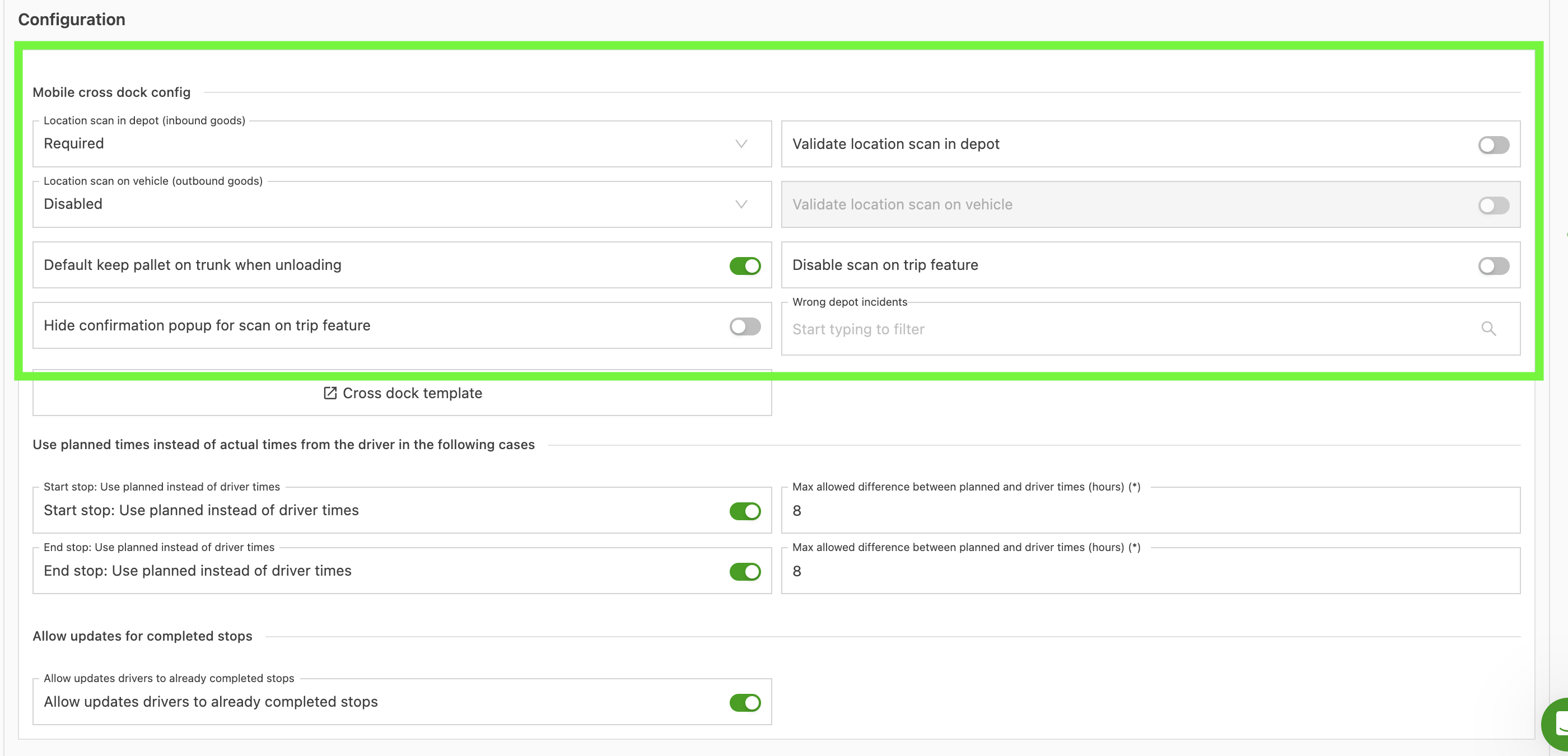
The Configuration panel has the following location scan settings:
| Setting | Description |
|---|---|
| Location scan in terminal (inbound goods) | Controls location scanning when pallets are unloaded from an incoming vehicle. Options: Disabled, Enabled (optional: the scan can be skipped), Required (the scan must be completed before proceeding). |
| Location scan on vehicle (outbound goods) | Controls location scanning when pallets are loaded onto an outbound vehicle. The same three options: Disabled, Enabled, Required. |
| Validate location scan in terminal | Toggle. When enabled, the app warns the operator if the scanned terminal location does not match a valid bay. |
| Validate location scan on vehicle | Toggle. When enabled, the app warns the operator if the scanned vehicle location (license plate, name or code) does not match the resources assigned to the load. |
Permissions
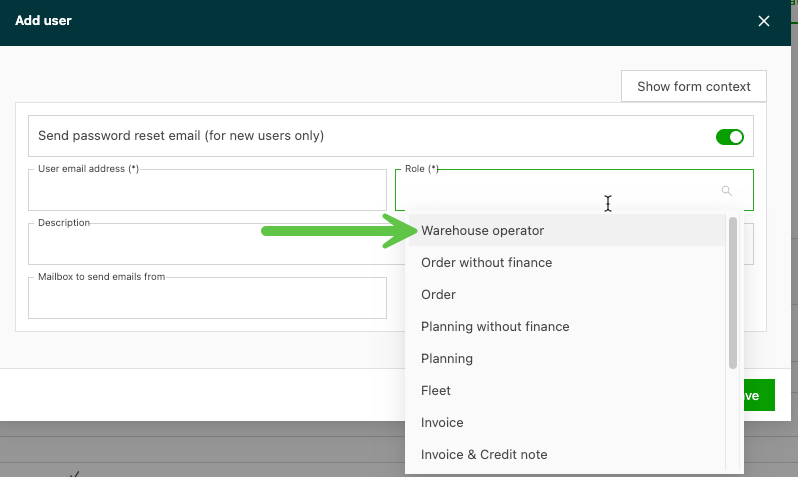
The module is available for the following roles: Admin, Super Admin, Qargo Admin and Warehouse operator. It is not visible to drivers.
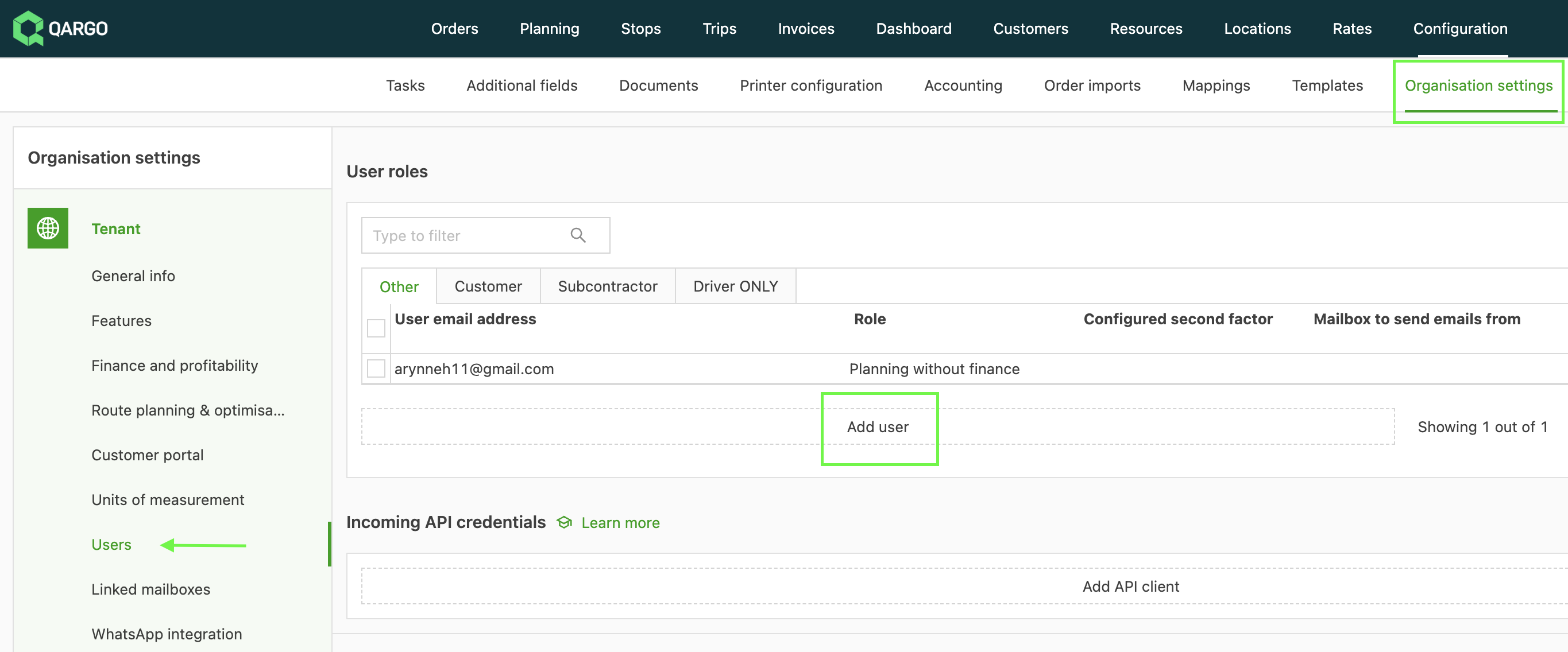
- Go to Configuration > Organization settings > Users.
- Scroll down, click ‘Add user’ and give the user the Warehouse operator role.
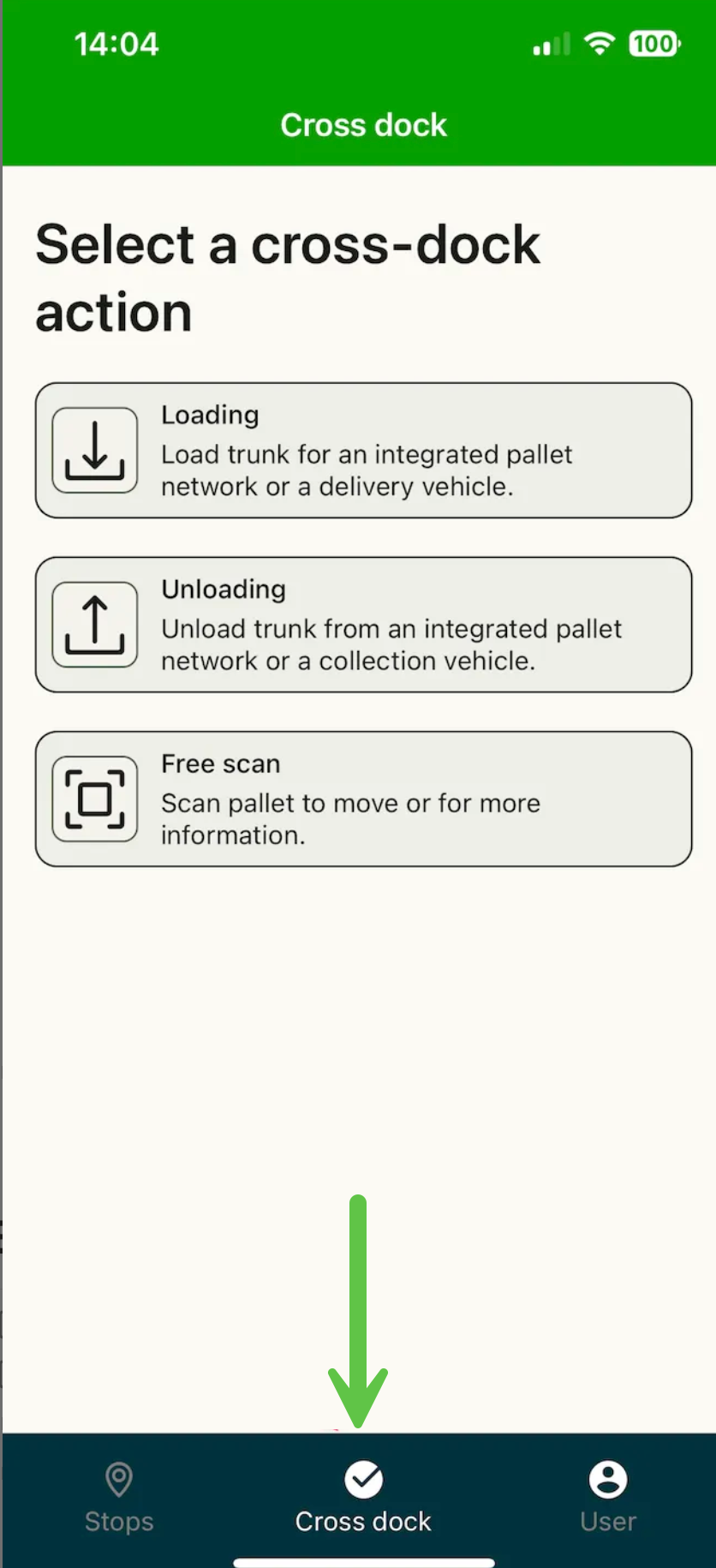
Once the role is enabled, an additional tab appears in the mobile app:
Modes
The cross dock app has 2 modes (pallet by pallet and bulk pallets). These modes control the behavior of the built-in flows.
Location scanning
- Scan the location where pallets are put down (for example, a bay in the cross dock or a delivery vehicle). This location then appears in the pallet tracking history.
Keep pallets on truck while unloading
- Where terminals do not have space to offload and store freight, the freight can stay on the trailer and be loaded directly from there onto the outbound vehicle.
Location scan validation
Location scanning can be activated for the loading (outbound) flow as well as for the inbound unloading flow. When it is enabled, the workflow for loading an outbound vehicle is:
-
Scan the load sheet barcode to bring up the vehicle and pallet list.
-
Scan the pallet barcode for each pallet being loaded.
-
Scan a location. This is typically the barcode of the vehicle’s license plate or of a bay.
-
If Validate location scan on vehicle is enabled, the app checks the scanned value against the vehicle license plates, names and codes assigned to the load:
- Match found → The scan is accepted and recorded.
- No match found → A warning appears. The operator can acknowledge it and continue, or retry the scan.
Enabled vs. required
When location scanning is set to Enabled, a Skip button appears. The operator can proceed without scanning a location. This setting suits operations where location scanning is encouraged but not enforced.
When it is set to Required, a location must be scanned before the pallet scan is accepted. The skip option is not available.
Location scan validation for inbound goods
When Validate location scan in terminal is toggled on, the app checks whether the scanned terminal location is a valid, expected location for the pallet’s routing. If the scanned location is not recognized, a clear warning appears before the operator proceeds.
Limitations
- Outbound location validation only checks against the vehicle license plates, names and codes assigned to the load. Bay or compartment barcodes inside a vehicle are not yet supported.
- Operators can always acknowledge a location validation warning and proceed.
Bulk scanning workflow
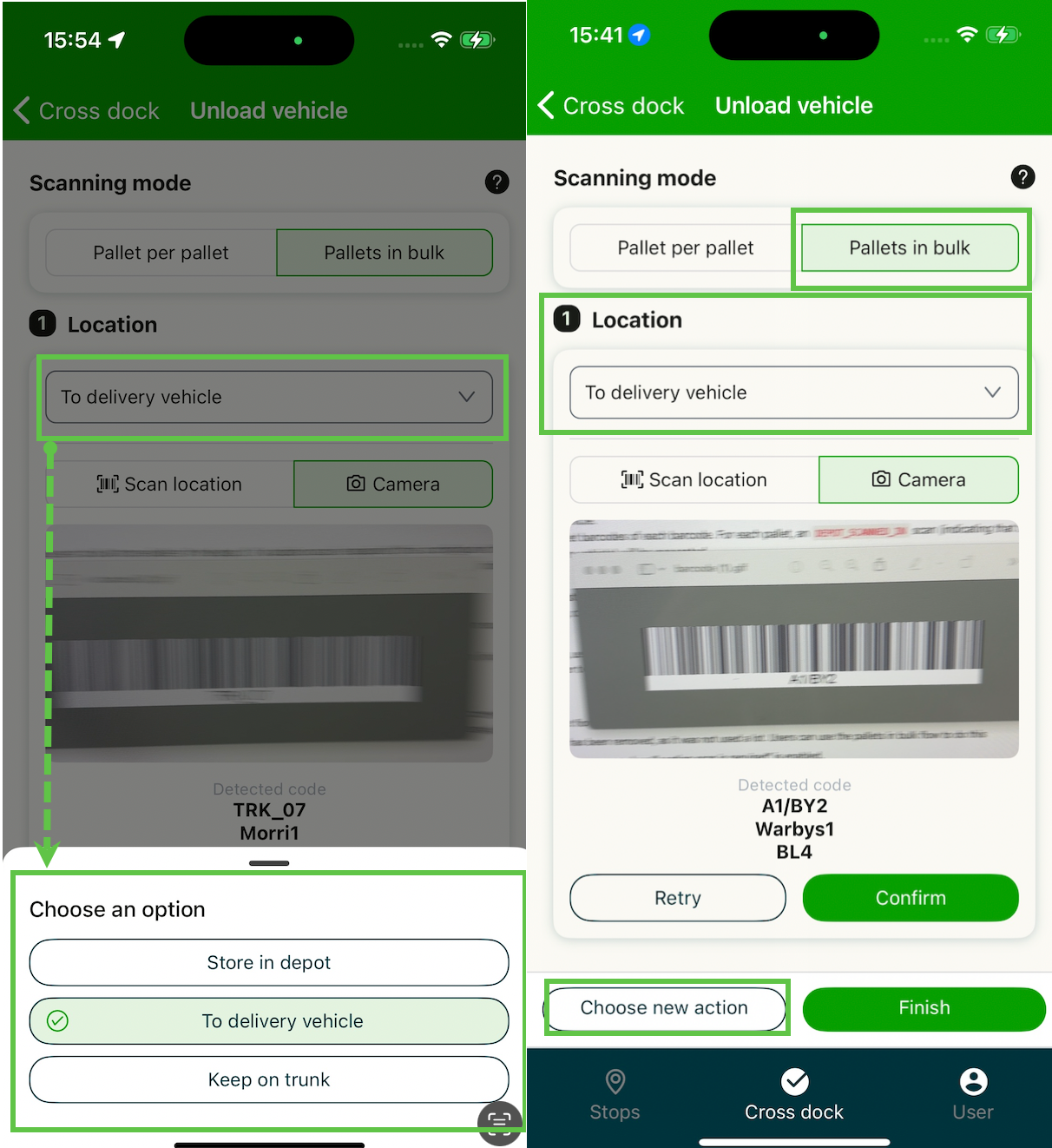
- Select the ‘Pallets in Bulk’ scanning mode.
- Select the option for location or action (based on the configuration).
- Scan the location or action barcodes.
- Scan all pallets that go to that location or that require that action.
When processing multiple pallets, the option can be switched for each pallet as needed. For example, an incoming vehicle carries multiple pallets: some go onto the delivery vehicle and others are held pending delivery. Use the ‘Choose new action’ option to change the action.
Reporting incidents
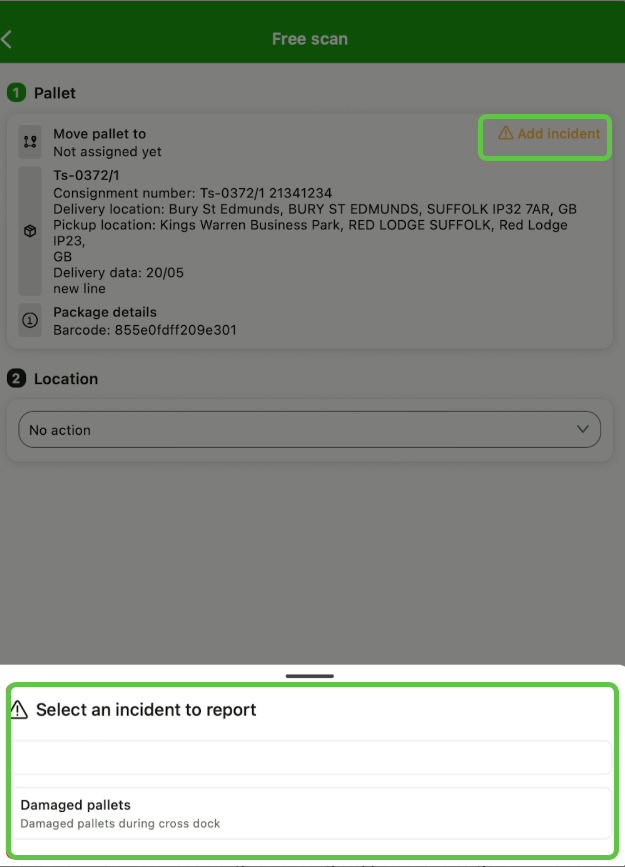
Question paths can be added to the cross-dock scanning app. They allow warehouse operators to report incidents, anomalies and information updates directly from the mobile app during the unloading, loading and free scan workflows.
What’s included
- Configurable question paths in the unloading, loading and free scan workflows
- Incident reporting directly from the mobile app (for example, damaged goods, missing pallets, quality issues or unexpected pallets)
- Photo and document attachments to a question path (for example, damage photos or pictures of the loaded trailer)
How to raise a cross-dock incident with a question path
- Scan the load sheet or pallet barcode in the cross-dock scanning app to start the workflow.
- At the designated trigger point, the question path appears on screen.
- Answer the questions as prompted (for example, select the incident type and add details).
- Attach photos or documents if required by tapping the attachment option.
- Submit the question path response to log the incident.
Use cases
The app is built around 3 main use cases:
- Use case 1: unloading an inbound vehicle
- Use case 2: loading an outbound vehicle
- Use case 3: free scanning
Use case 1: unloading an inbound vehicle
This use case covers the “unloading” and “store” cross dock events.
The unloading action:
-
tells warehouse operators what to do with a pallet they are unloading. This is the digital equivalent of the pallet label. The app shows all relevant routing information so the operator can put the pallet onto the correct outbound vehicle. If the outbound truck has not been assigned yet, the app tells the operator to store the pallet in the cross dock.
-
registers the following scans:
- “scanned in” when the pallet is scanned, because from that point the pallet is known to be in the terminal
- “scanned out” when the outbound vehicle is known at the time of the scan (does not happen when Keep pallets on truck while unloading is enabled)
- “stored” when the outbound vehicle is not yet known at the time of the scan (does not happen when Keep pallets on truck while unloading is enabled)
Unload vehicle: load sheet scanning
The Unload vehicle flow starts with a load sheet scanning step (users can also enter the load number manually) before pallet scanning begins. This step generates a checklist of expected pallets, sorted with the back of the truck first. Color-coded progress indicators and a running pallet counter are shown throughout the unload. This process mirrors the loading workflow below.
-
Open the Qargo mobile app.
-
Tap the Cross dock tab in the three-part menu at the bottom.
-
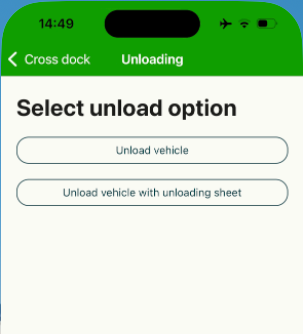
Tap Unloading.
-
Select Unload vehicle with unloading sheet.
-
Scan the load sheet barcode with the device camera or a connected scanner, or enter the load number manually.
The app retrieves the load and shows a list of the pallets expected to be unloaded at the terminal:
- Load details, including the driver and vehicle information
- Shipment details and a list of the pallet barcodes to be unloaded at the location
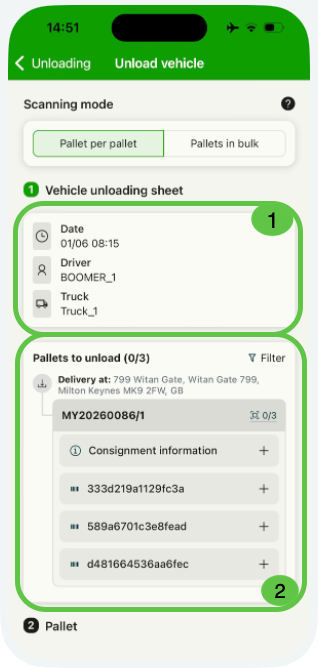
Each row shows the pallet barcode and its loading position on the inbound vehicle. As pallets are scanned, the color-coded indicators update in real time:
| Color | Meaning |
|---|---|
| Dark green | Pallet scanned in the current session: just confirmed. |
| Pale green | Pallet scanned in a previous session: previously confirmed. |
| Orange | Warning: the pallet requires attention before proceeding. |
| Red | Error: the pallet could not be found or has a routing problem. |
- A running counter at the top of the screen shows the number of pallets scanned against the total expected on the inbound load.
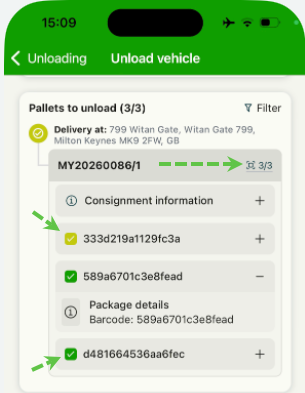
- Scan each pallet barcode as the pallet is removed from the vehicle. The checklist indicator updates immediately and the counter goes up.
Use case 2: loading an outbound vehicle
This use case covers the “loading” cross dock event.
The loading action:
-
gives the warehouse operator an extra check that all pallets planned on the load are also present on the truck
- this check is only relevant when the loads are also planned in the TMS. For outbound trunks that are not planned in the TMS, the check does not happen.
-
registers the “scanned out” scan for each scanned pallet
- this scan may already exist if the “unloading” and “free scanning” flows were run for the pallets. Those flows can also generate a “scanned out” scan when a pallet is moved from the inbound vehicle or from the cross dock (only happens when Keep pallets on truck while unloading is enabled).
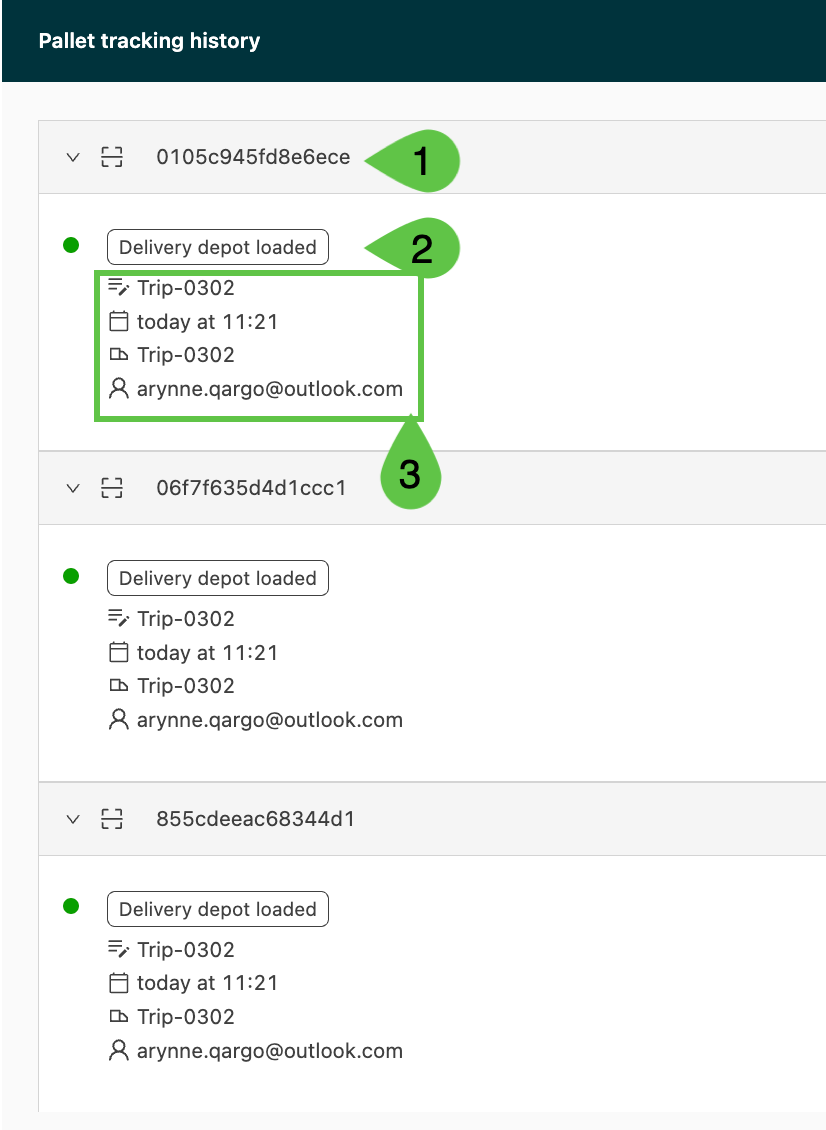
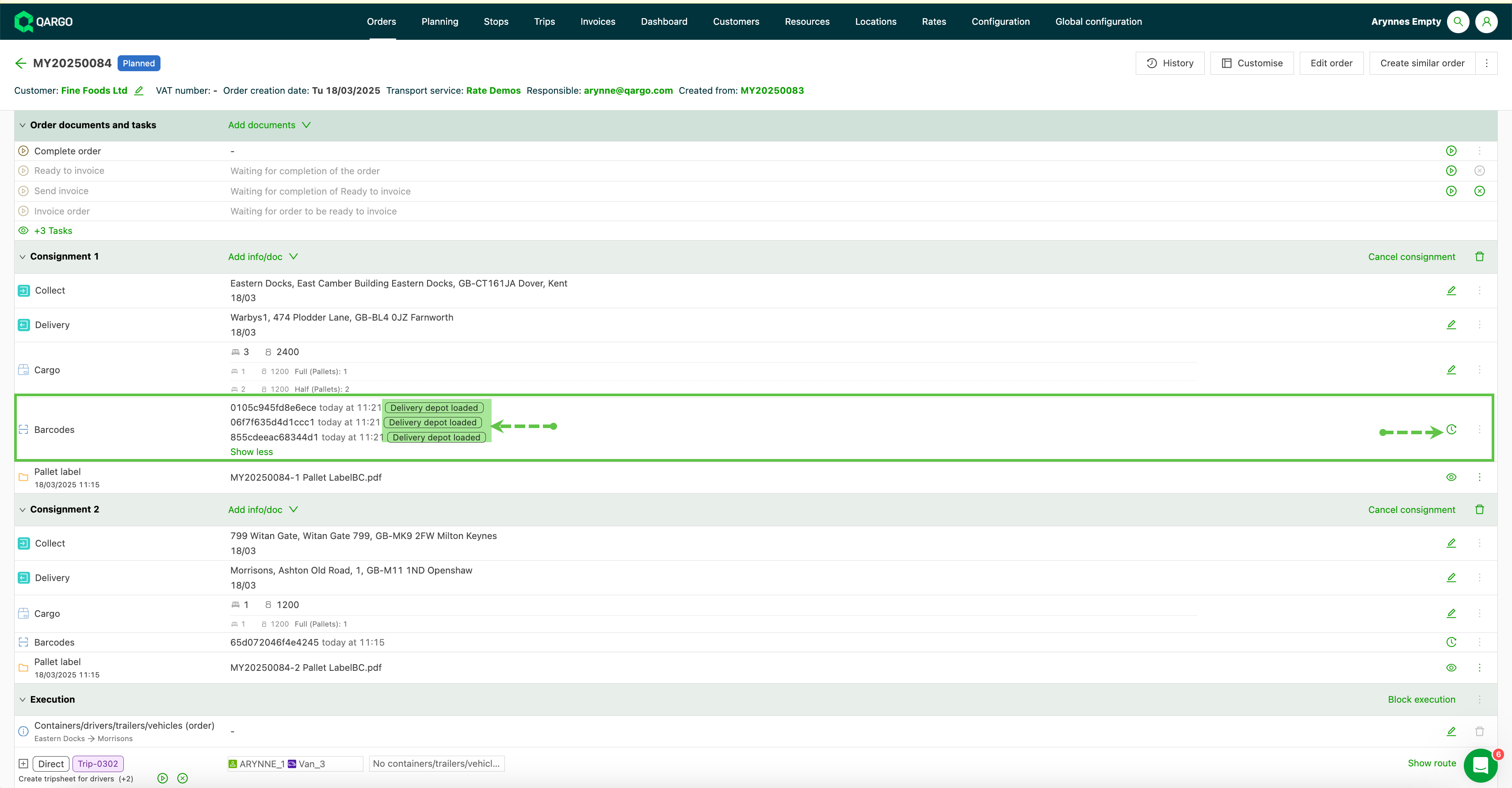
- Pallet barcode reference.
- Scan action status. In this case, the pallet was scanned as loaded onto the vehicle.
- Load details for the scan activity. Depending on the activity, this can also show a vehicle ID or location. It also includes the user details (email).
When loading freight at the cross dock, not all required pallets may be loaded at the same time. Often only one pallet is loaded on a truck, and more are loaded later.
- Color-coded indicators show which pallets have already been loaded, along with additional alerts for potential errors.
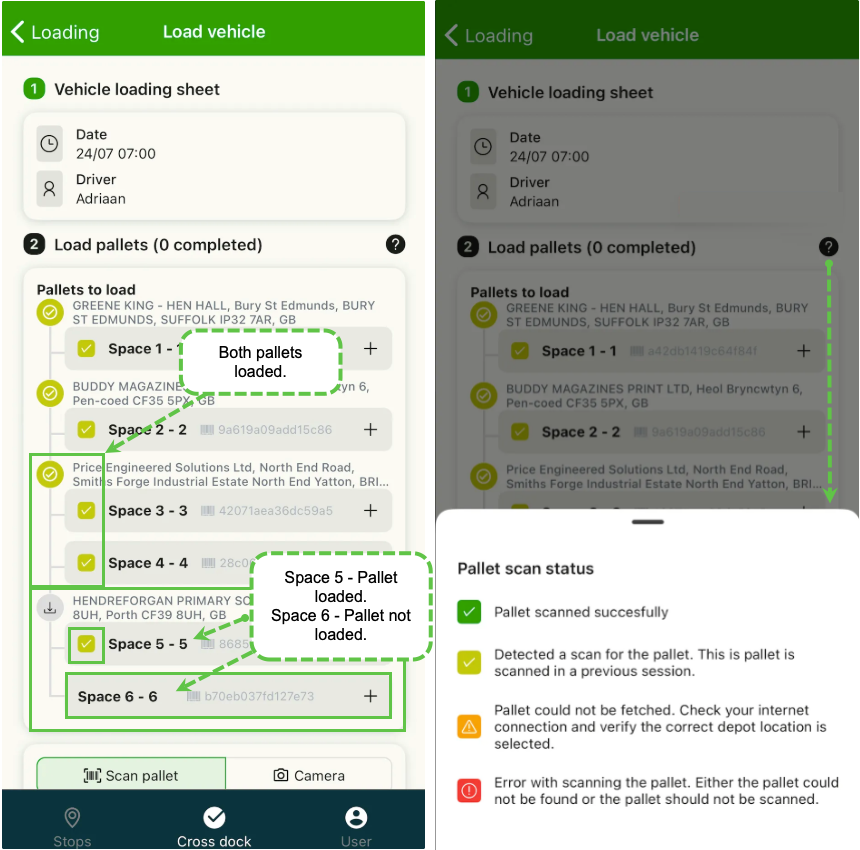
- Dark green: the pallet is successfully scanned to the vehicle; loading is confirmed.
- Pale green: the pallet was previously scanned to the vehicle and is already loaded.
- Orange: warning; the pallet cannot be verified and checks are required.
- Red: error alert; the pallet could not be found or should not be loaded.
Use case 3: free scanning
This use case covers the “loading” and “store” cross dock events.
The free scan action:
-
supports the warehouse operator in handling a pallet that is in the cross dock
- the operator can check whether routing information is available, and load the pallet if it is
- the operator can also move a pallet from one location in the cross dock to another
-
registers the following scans:
- the “scanned out” scan for each pallet loaded on an outbound truck
- the “stored” scan for each pallet moved inside the cross dock
Free scan to assign an order to a load
Use the free scan option to assign available pallets to an existing load and reduce friction in the warehouse workflow.
- This function is enabled by default. It can be disabled if it is not required.
-
The order must be in ‘To Plan’ status and have the available leg created for the terminal location.
-
In the cross dock scan app, click ‘Loading’ to load pallets.
-
Scan the vehicle loading sheet, or type the load number manually to bring up the details.
- The vehicle loading sheet details appear, including the driver and vehicle details.
- Pallets already scanned onto the vehicle are marked with a light green check.
-
Scan a pallet. A message appears to indicate that the pallet is not planned on the load. The user must confirm to continue loading the pallet.
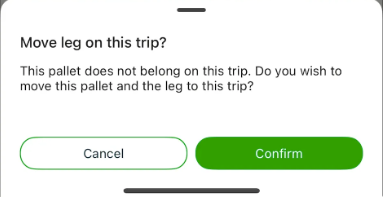
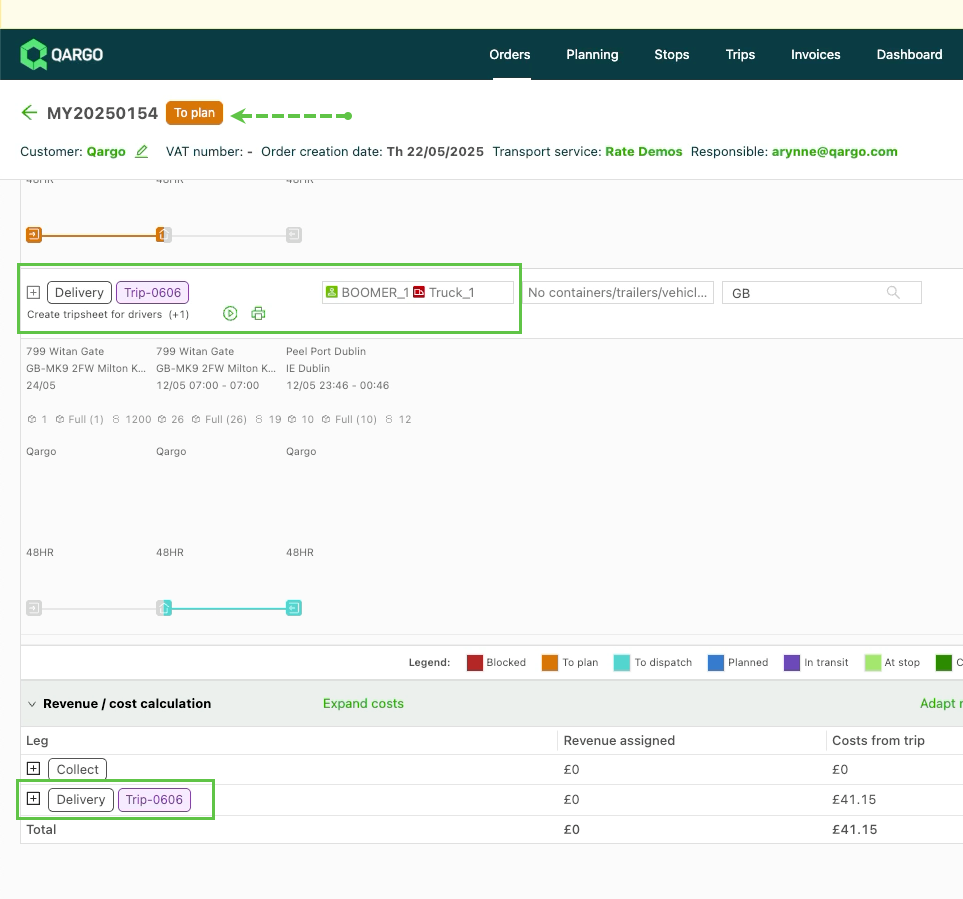
- A dark green check appears for each pallet that is scanned successfully.
- The pallet is added to the load and the route is optimized.
- The order leg updates to show the assigned resource and load number.
-
A warning pops up if the pallet cannot be loaded.
-
Click the green icon to copy the barcode.
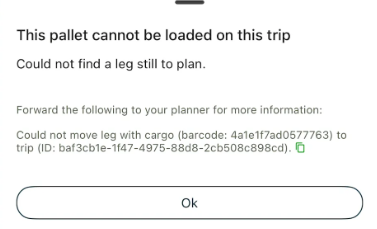
-
Why can the pallet not be loaded on the load?
- The leg is not in ‘To Plan’ status
- Multiple eligible legs that are still to plan are found
- The target load cannot be found
- The target load does not contain the terminal stop
- The target load is not planned yet
- The terminal location has not been selected.
Which scanner brands are recommended?
- Zebra
- Honeywell
- Minimum requirement: Android 8 (2017)