Trunk scanning
Information about palletline inbound and outbound trunk scanning
Table of contents
Unloading a palletline trunk
-
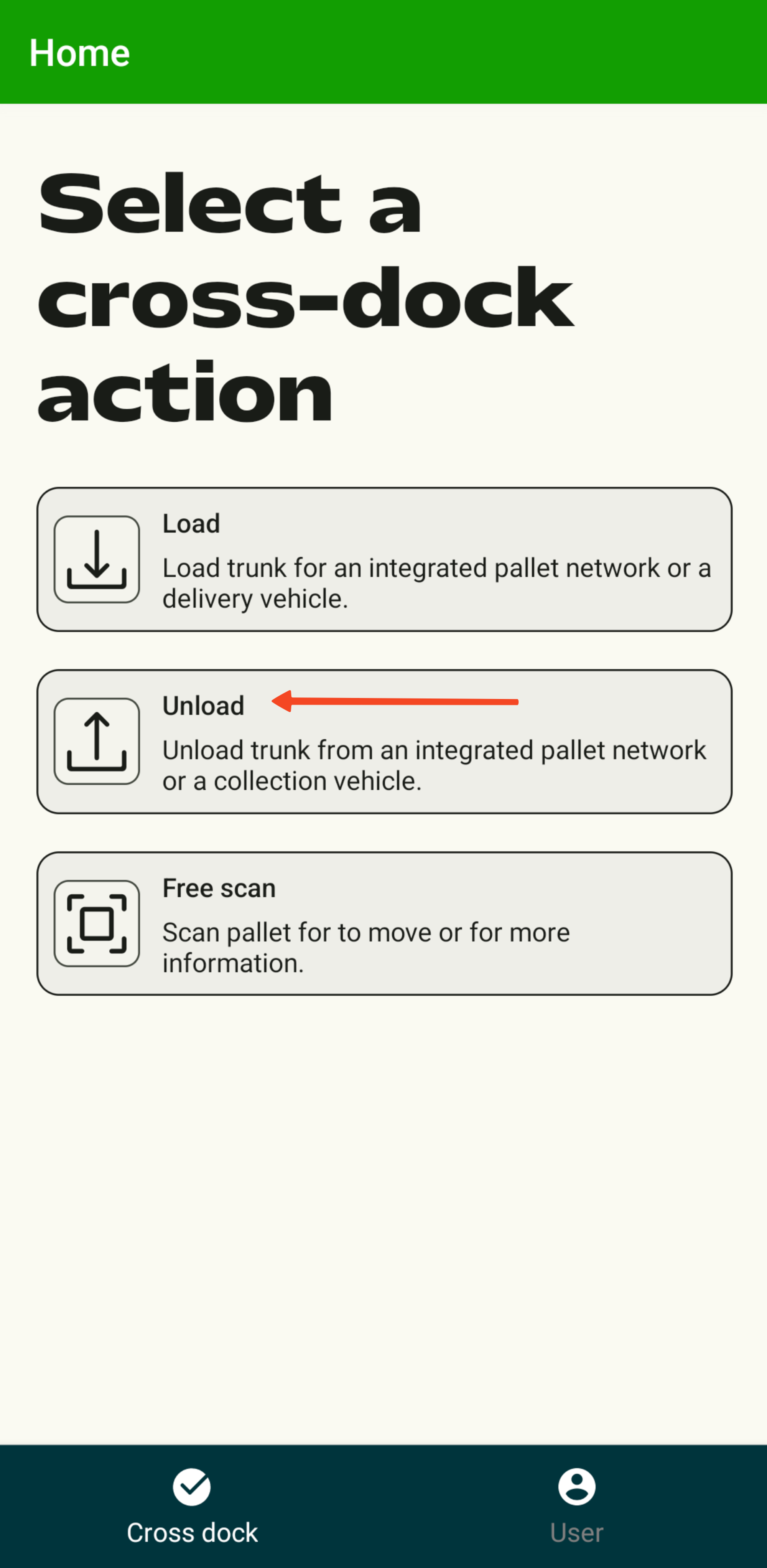
Select Unload trunk.
-
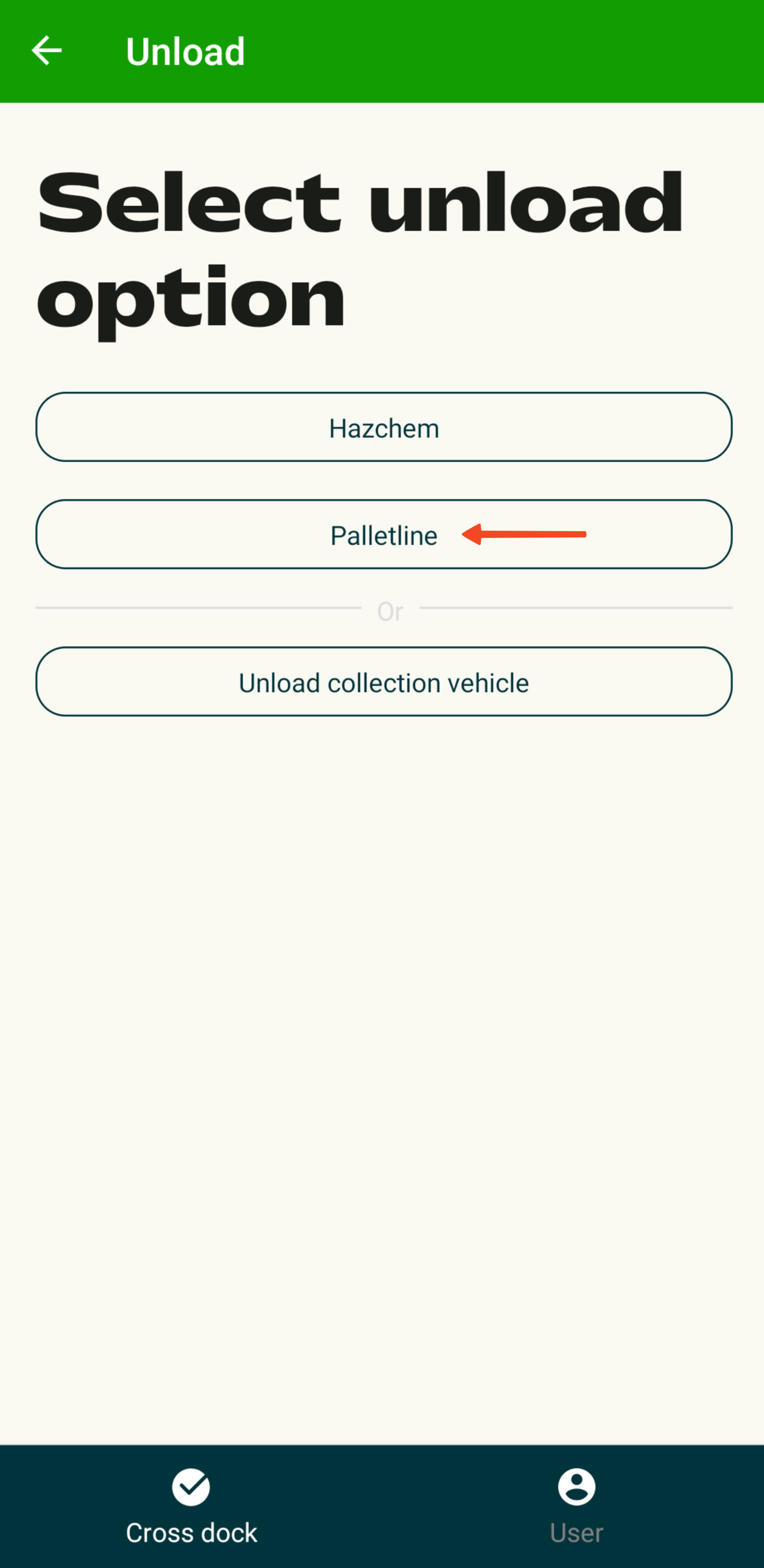
Select Palletline trunk.
-
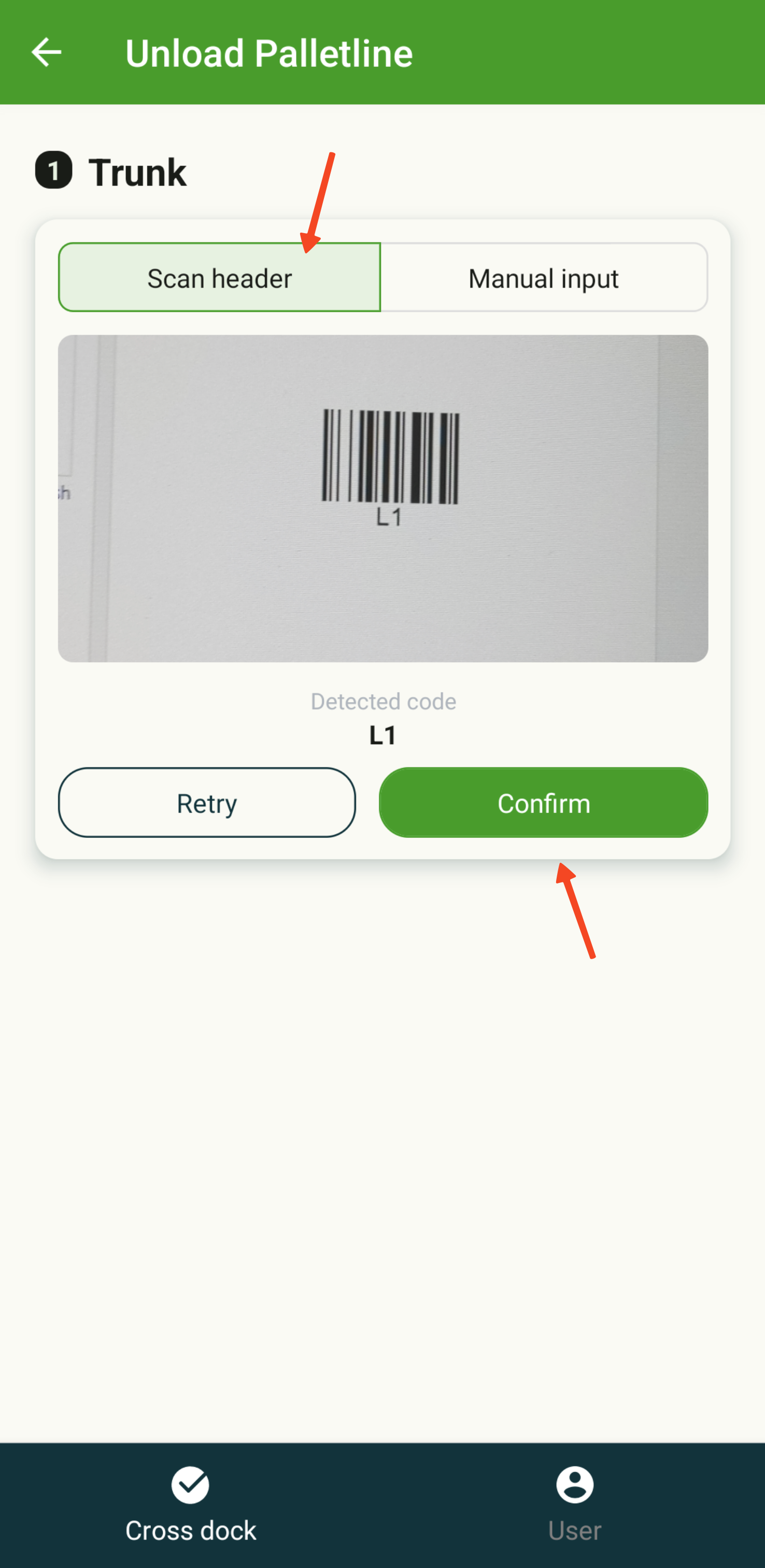
Scan the header from the inbound trunk.
-
Scan the barcodes of the individual pallets.
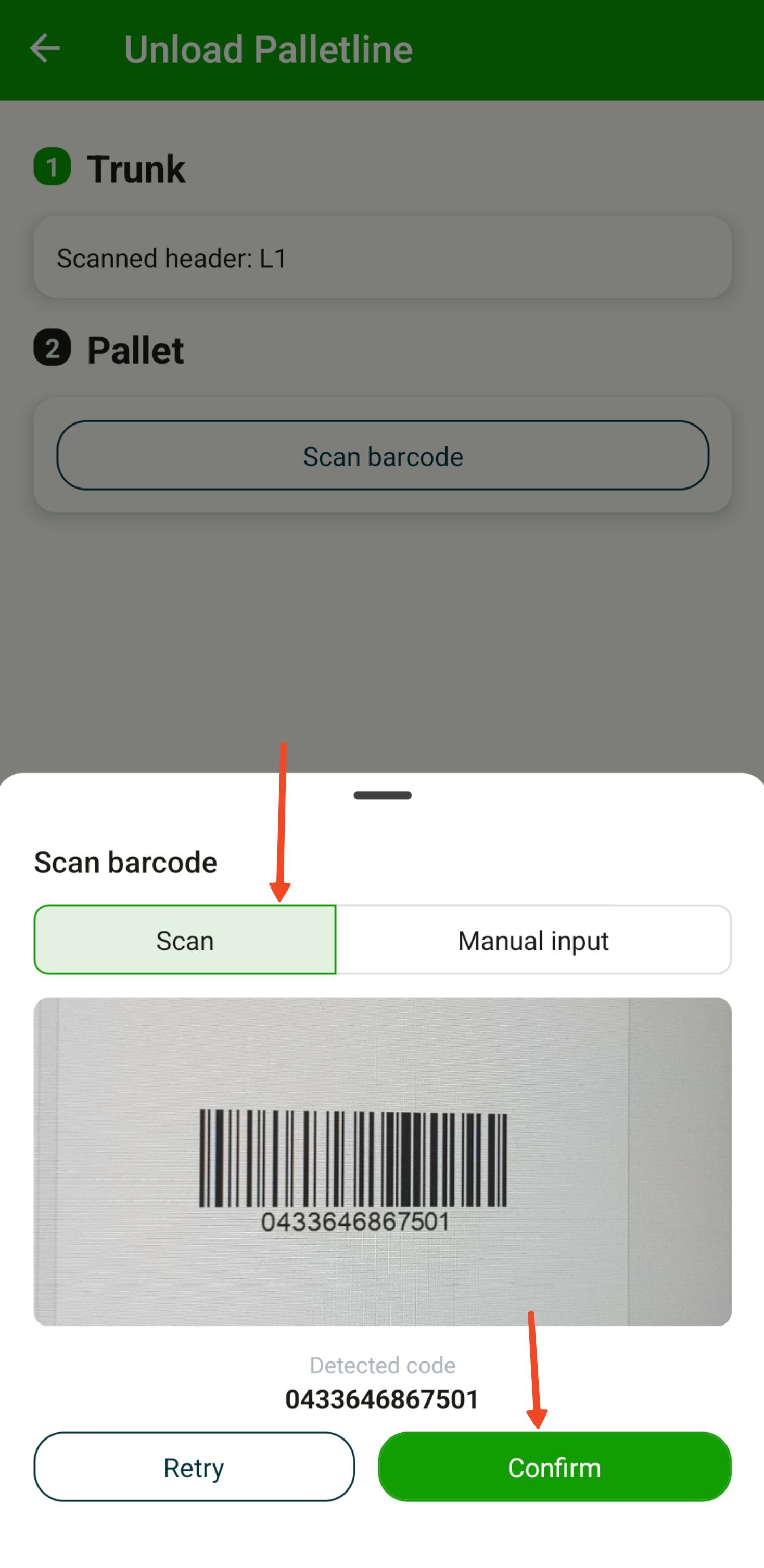
-
After a pallet is scanned, the app shows where to put the pallet:
-
“No load assigned”: The pallet has not been planned yet, so it goes on the floor or rack.
-
“Load name”: The app shows the name or ID of the load the pallet needs to go to. After the pallet is placed on the correct vehicle, press the “Load pallet on truck” button. Scanning the next pallet does this automatically.
If the pallet cannot be placed on the vehicle, press the “Store pallet in terminal/loading bay” button.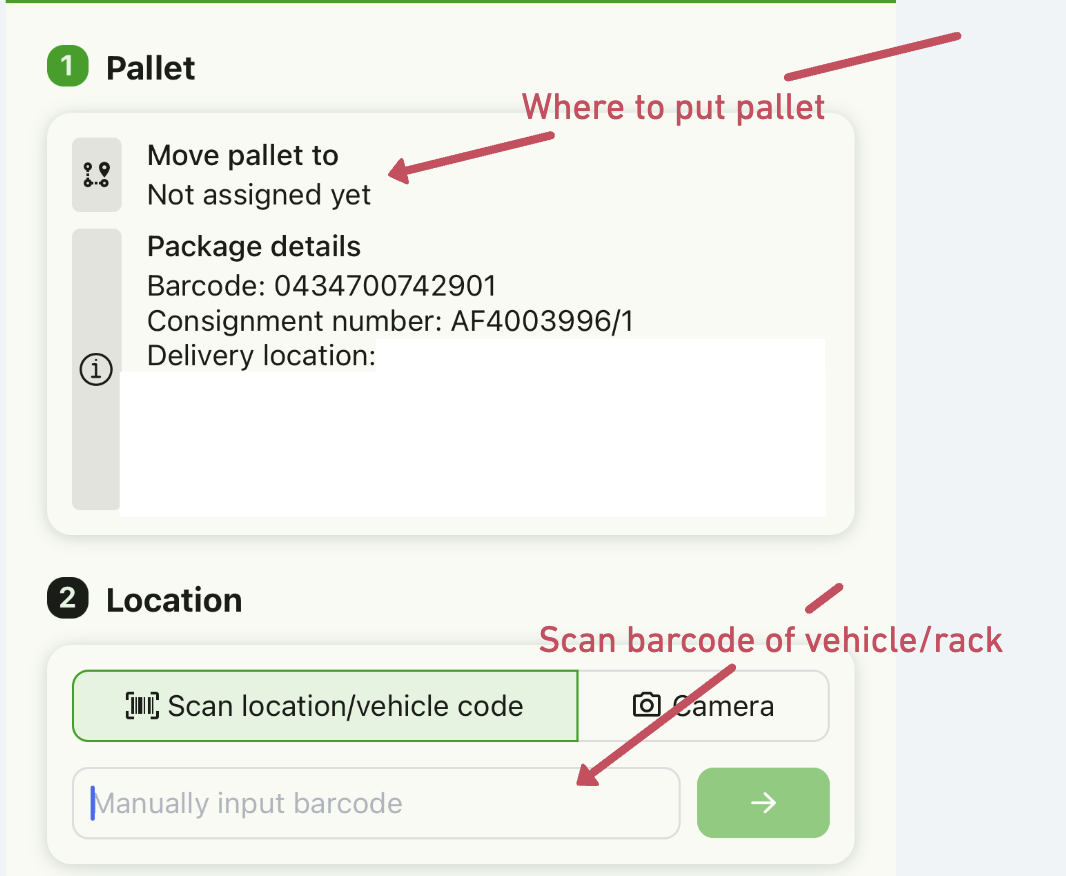
-
-
After scanning is finished, press the back button to return to the home screen.
Loading a palletline trunk
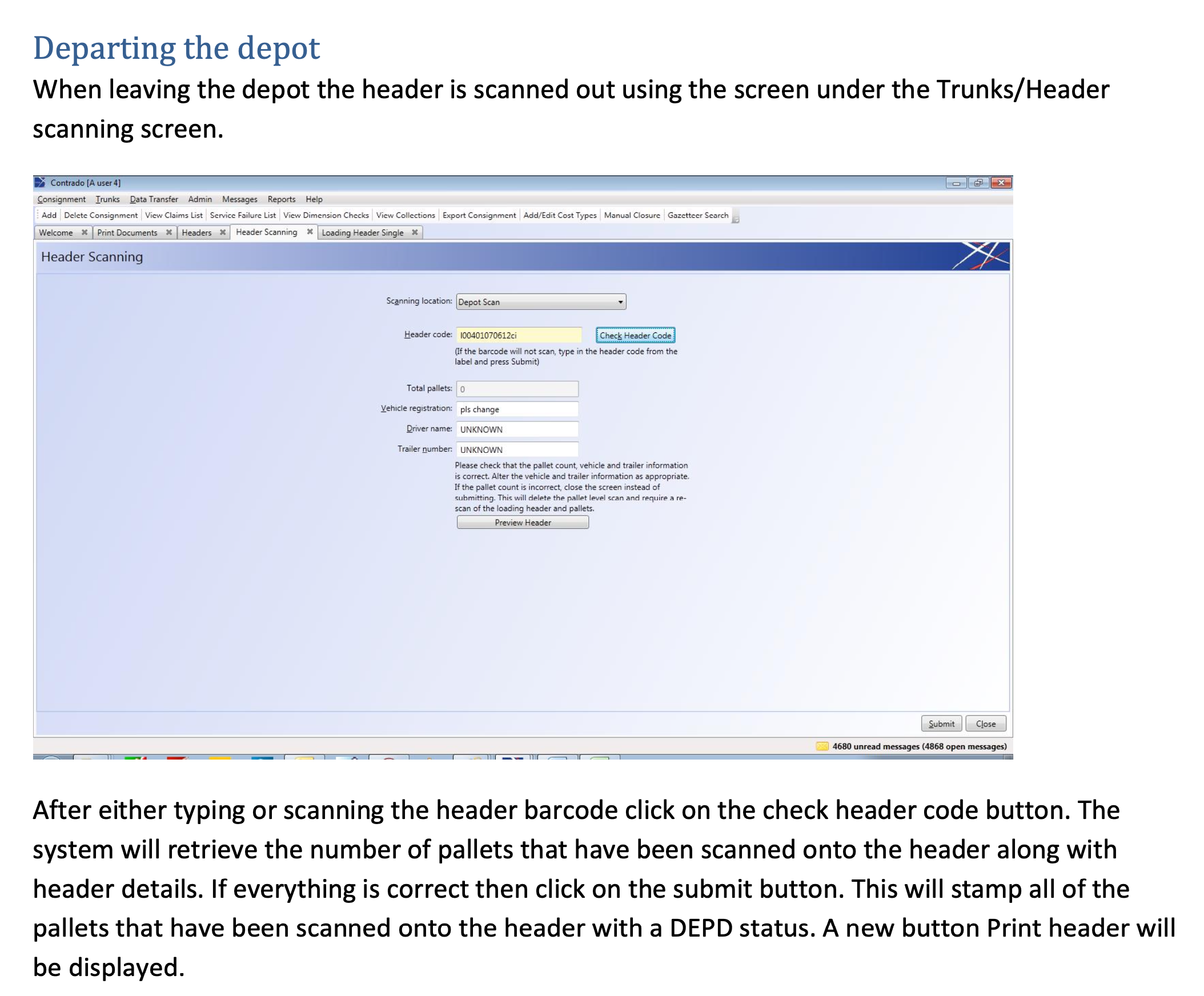
First, generate the loading header in Contrado:
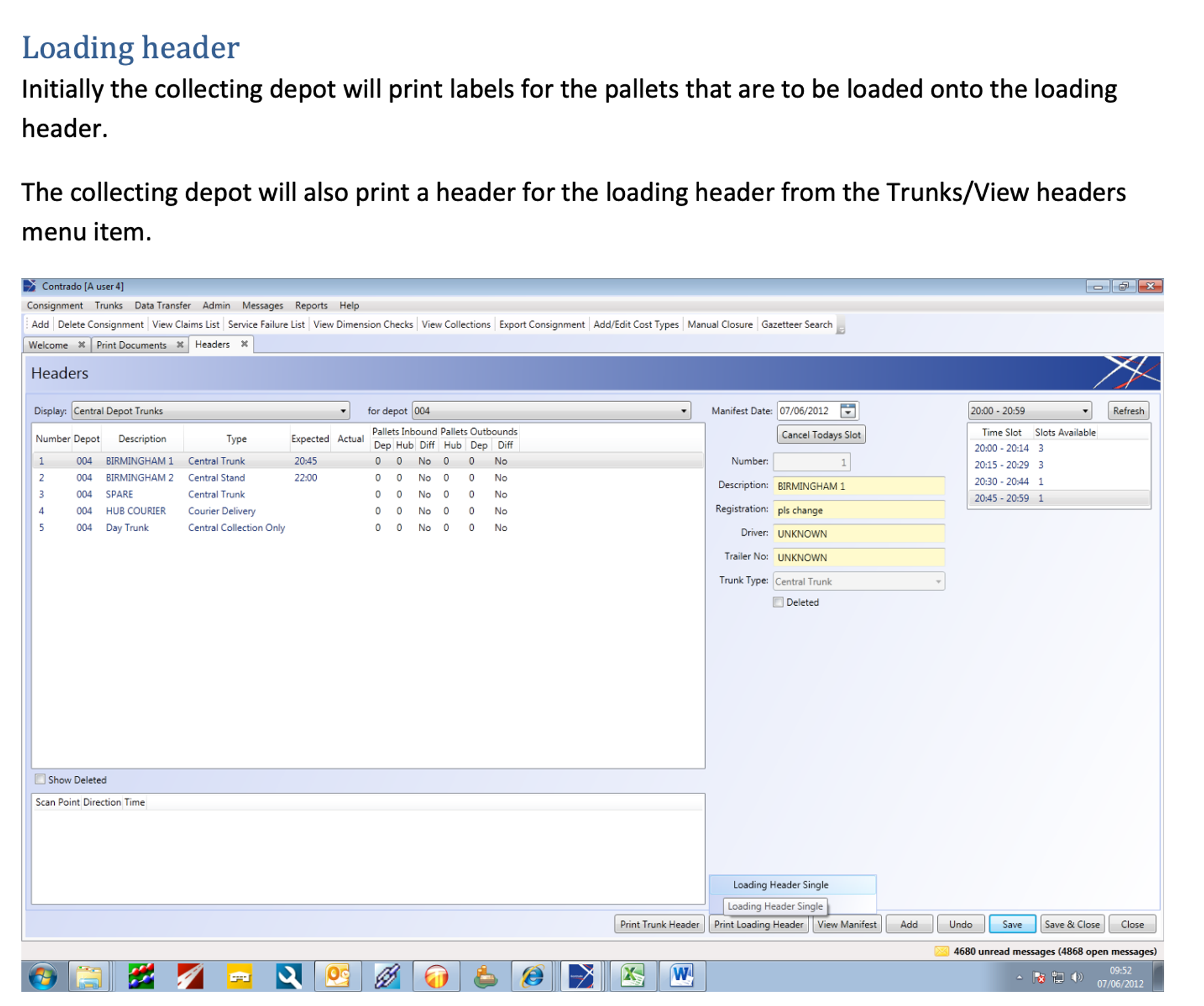
Then use the Qargo crossdock app:
-
Select Loading > Load palletline trunk.
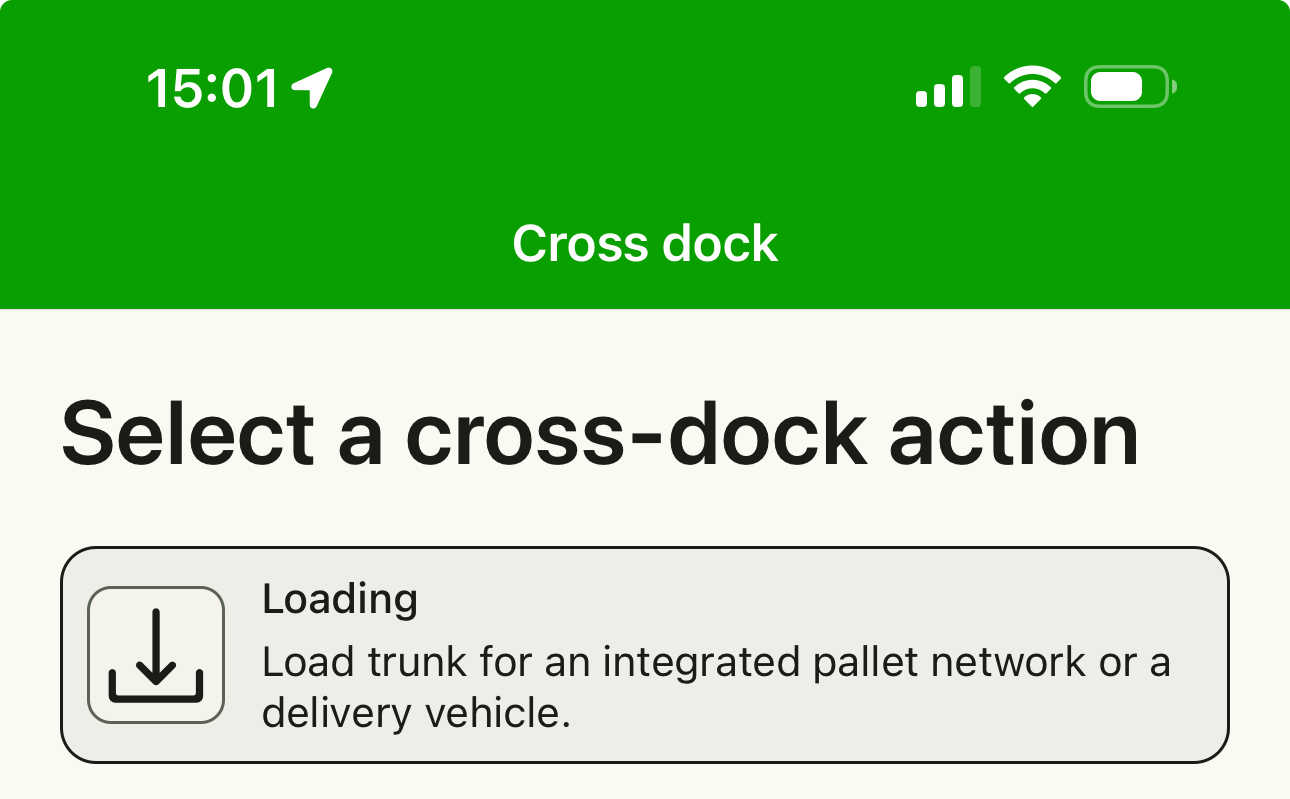
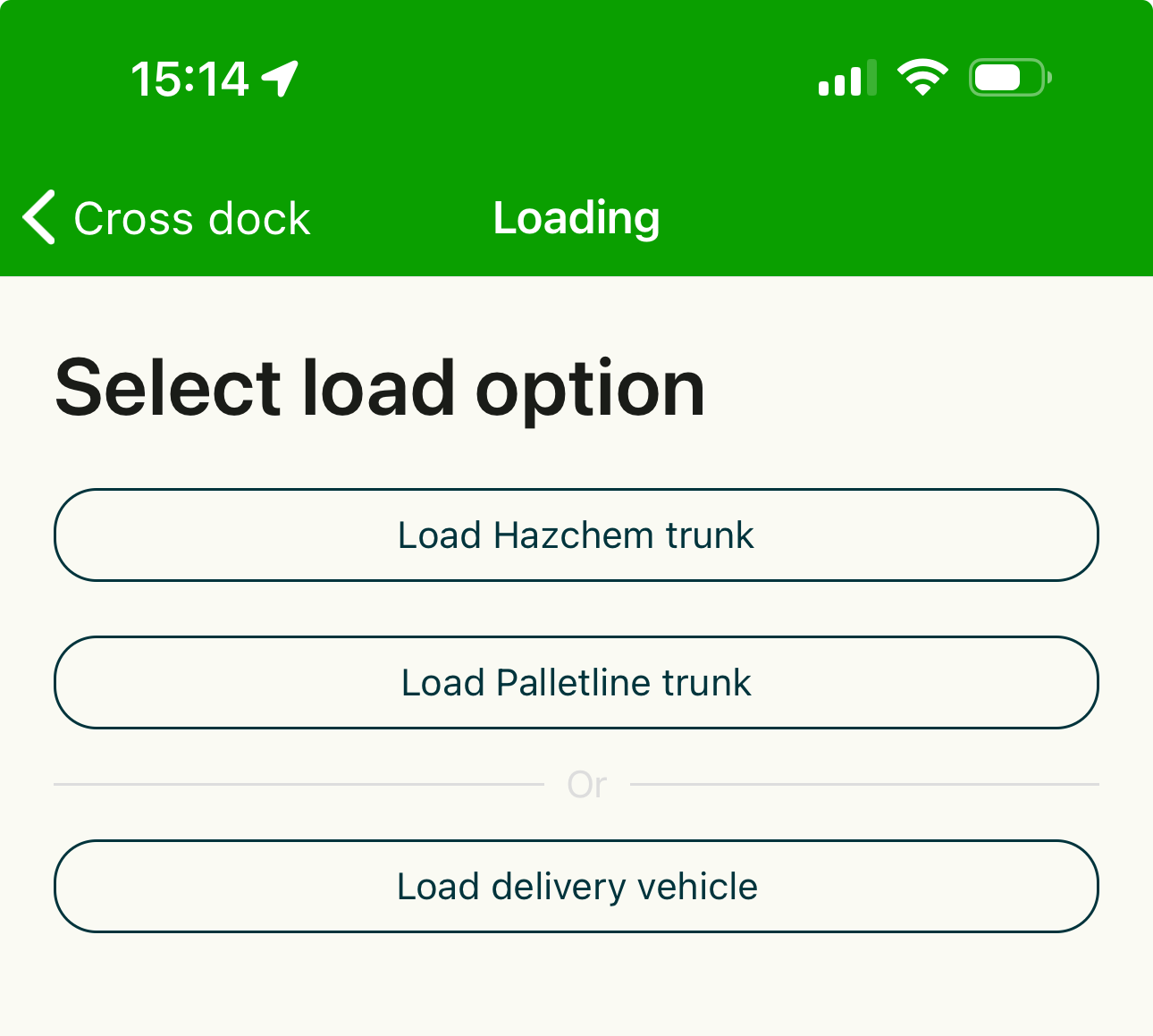
-
Scan the barcode on the palletline header printed from Contrado.
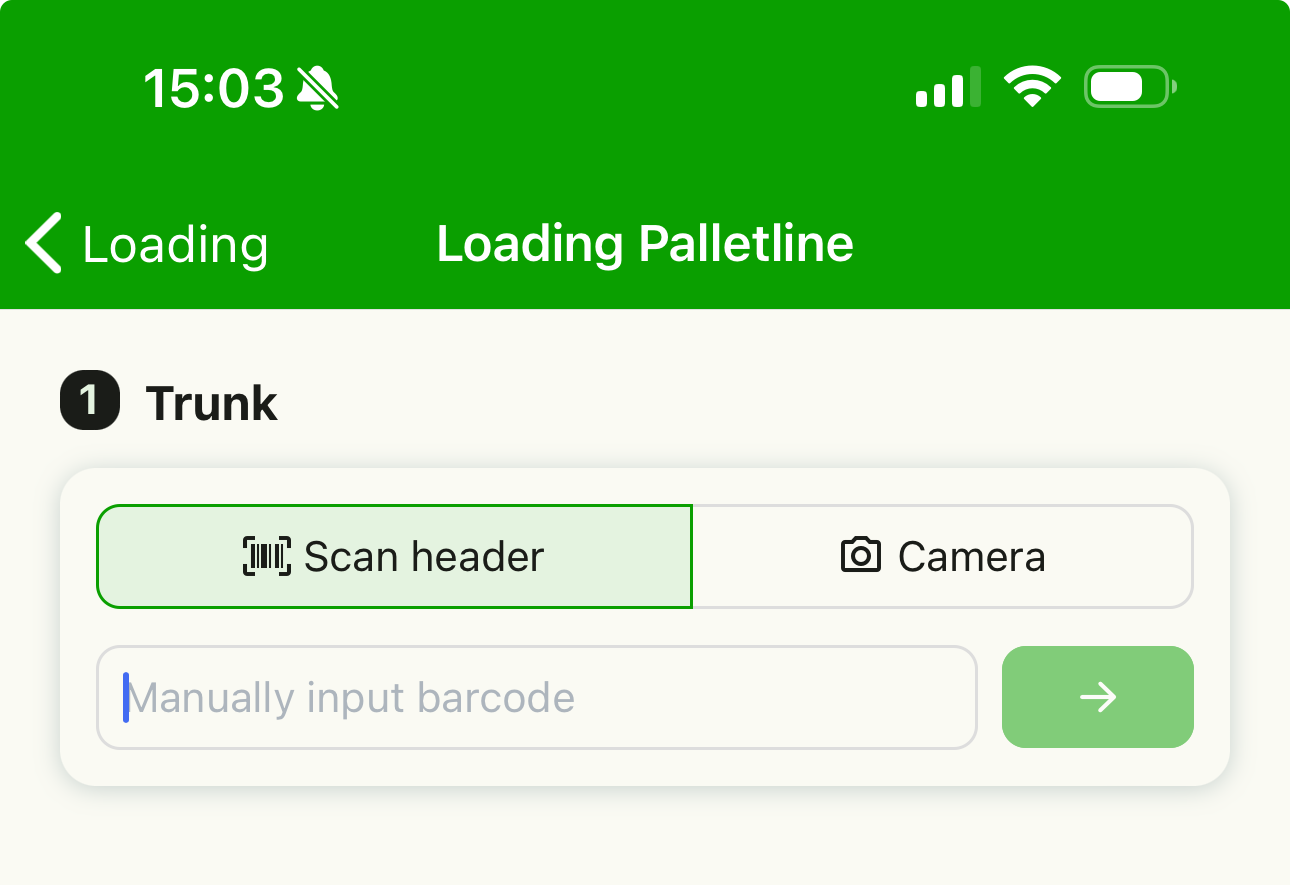
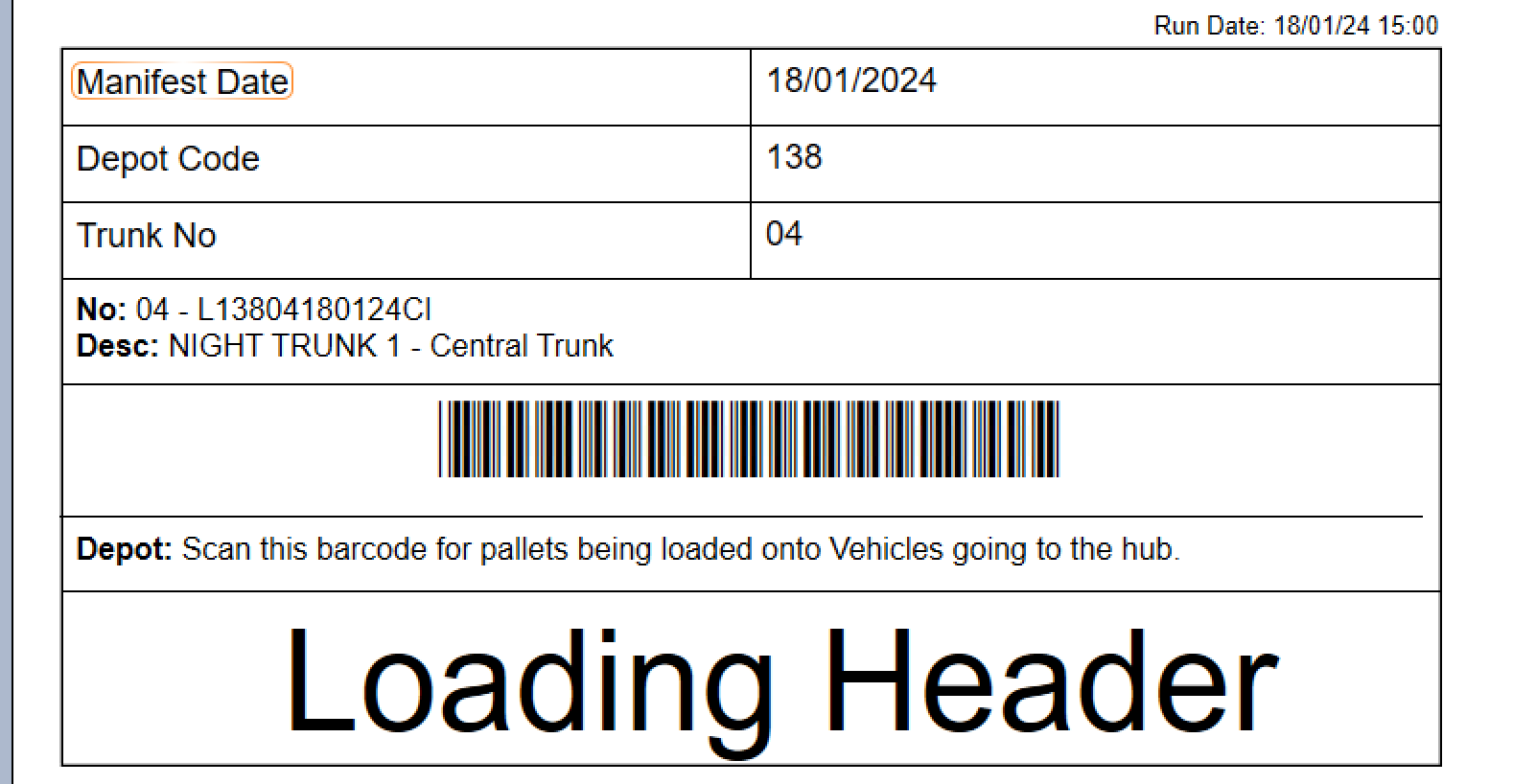
-
Pallet scanning for the trunk starts.
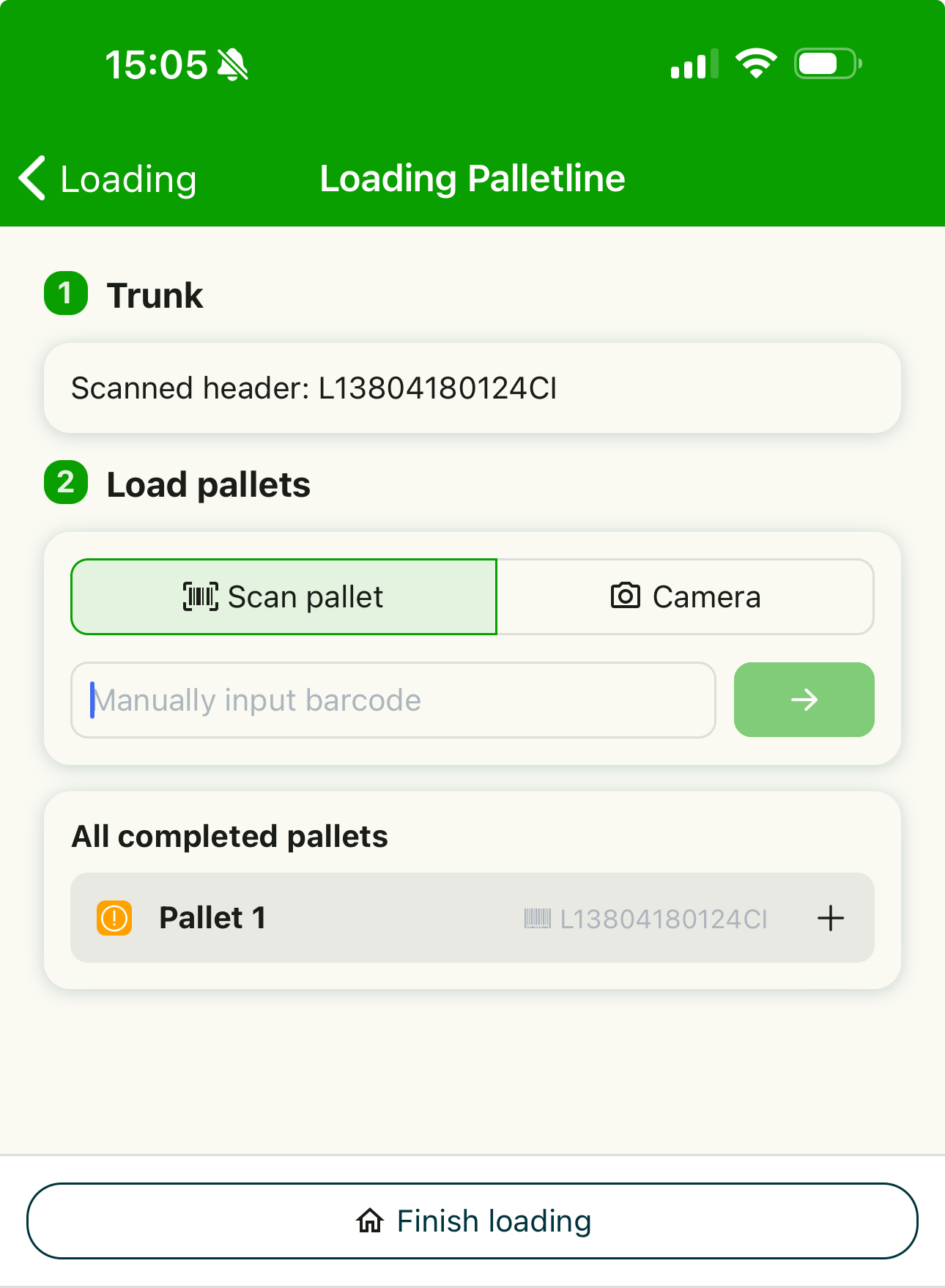
-
Each pallet scan creates a scan in Qargo and sends it to Contrado:
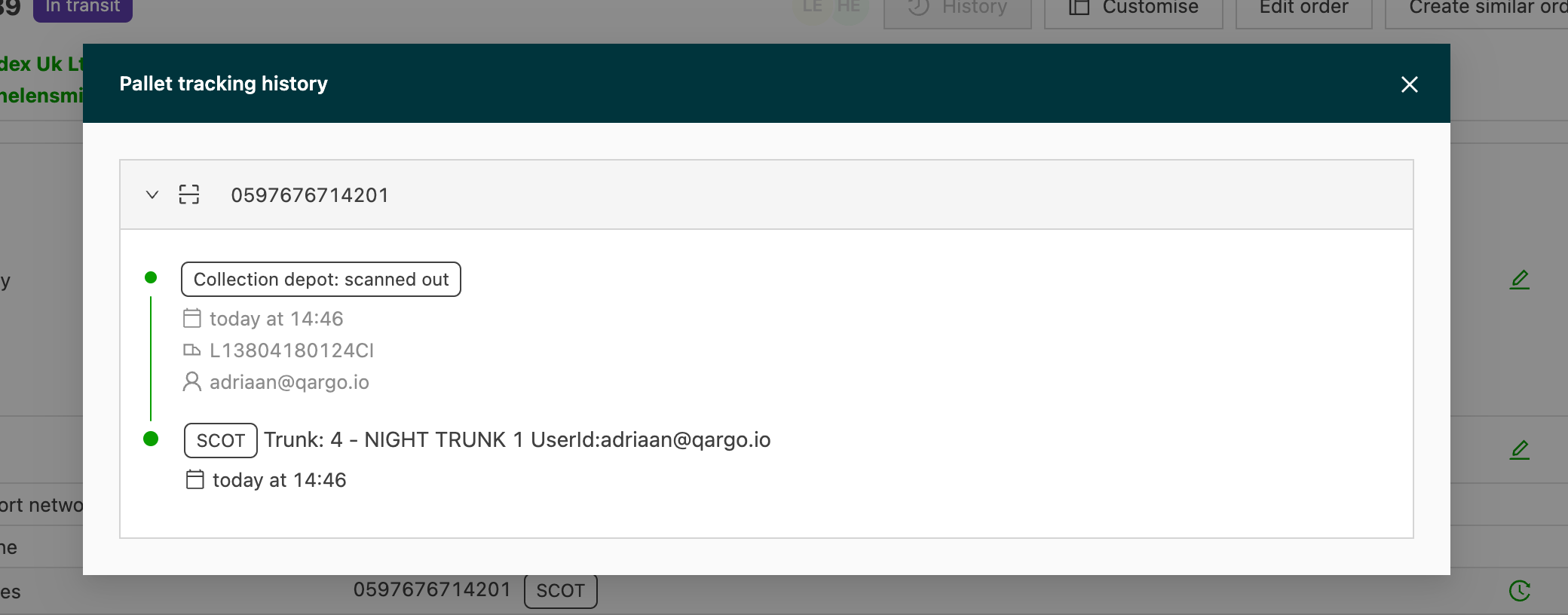
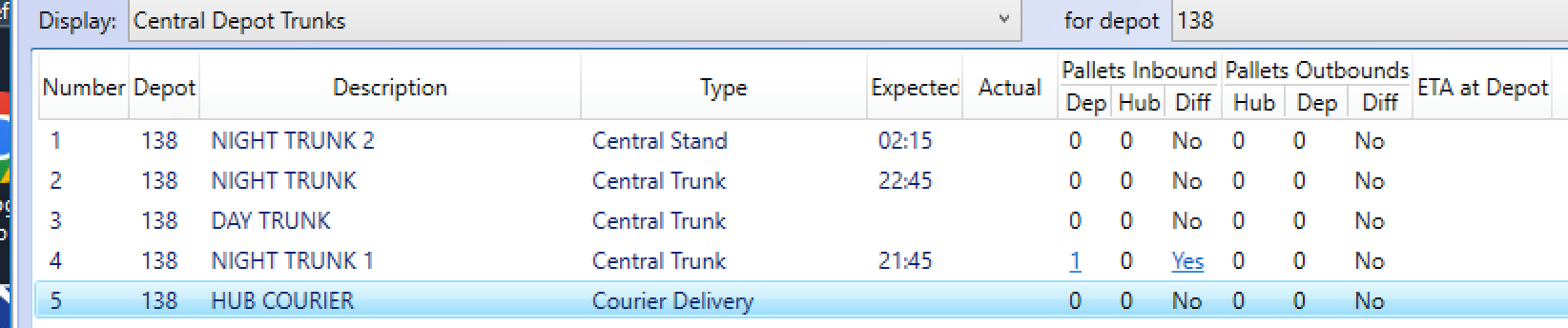
Contrado then assigns it to the correct trunk:
-
When the trunk is fully loaded, the terminal needs to scan out the trunk in Contrado.