
Delivery vehicle scans
This article explains how to do the scan on delivery (SCDV) and depart delivery vehicle (DPDV) scans with the Qargo crossdock scanning app
Operational flow
In the Qargo crossdock application, follow these steps:
-
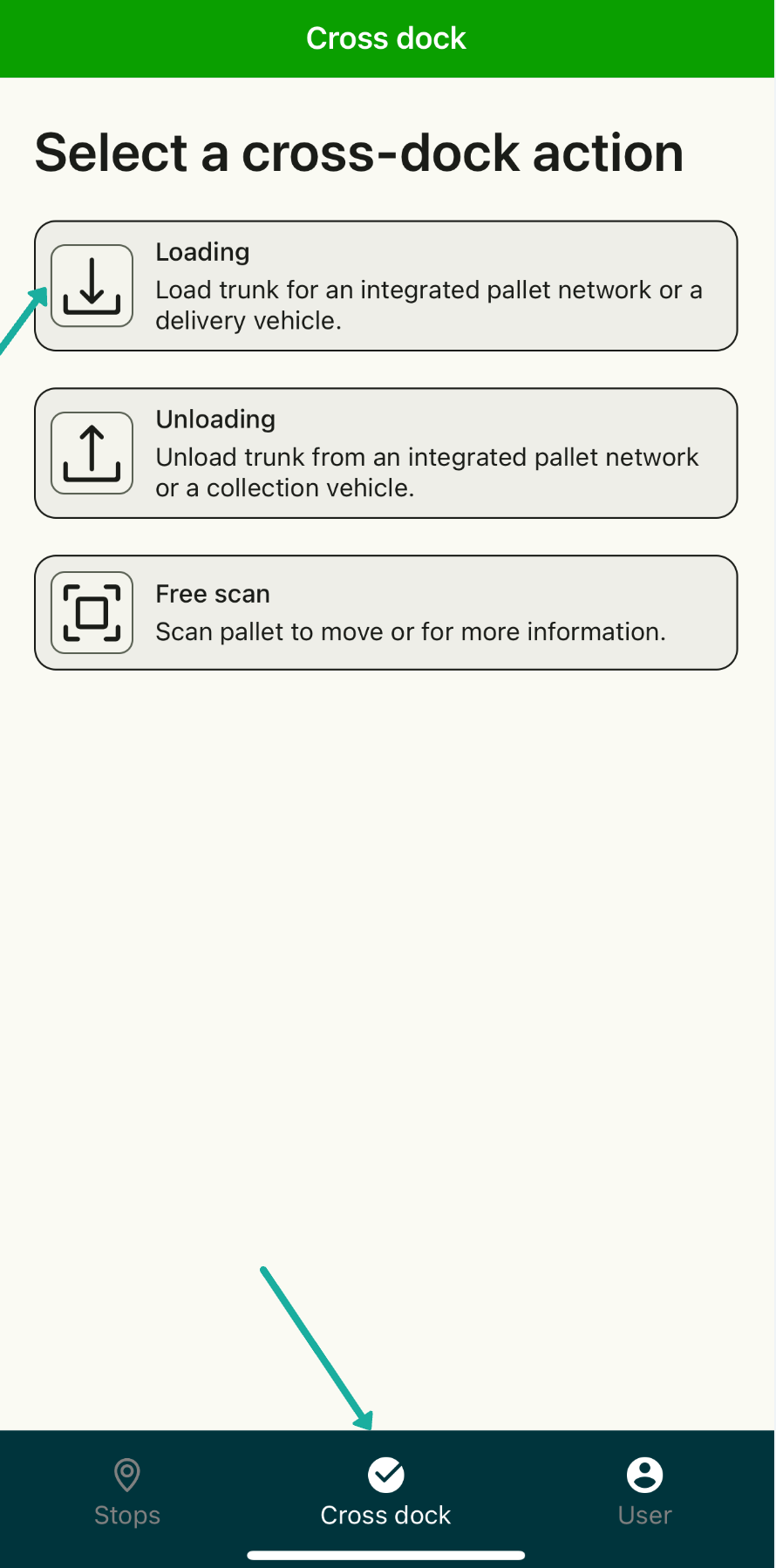
Select Loading.
-
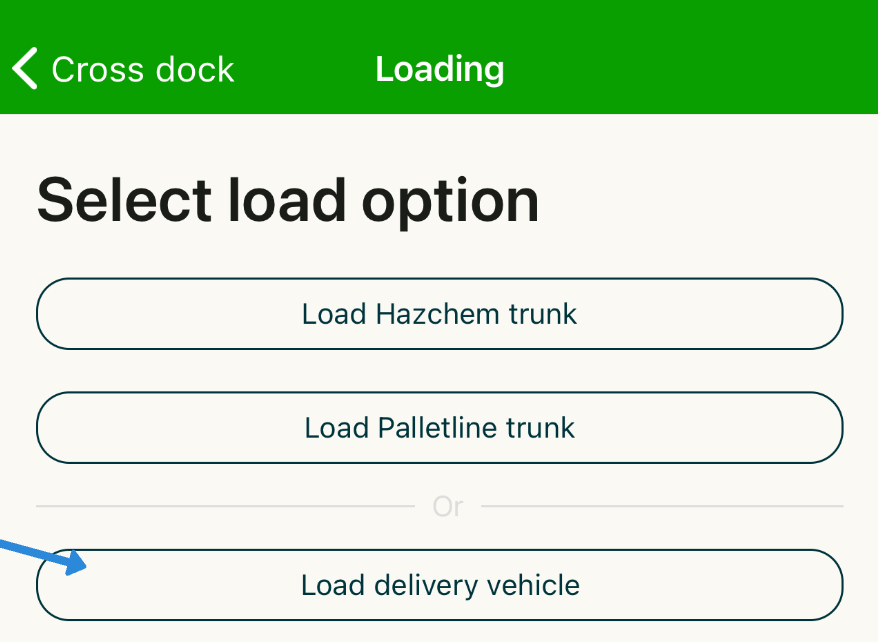
Then select Load delivery vehicle.
-
Scan the load sheet to identify the vehicle and the pallets that need to be loaded:
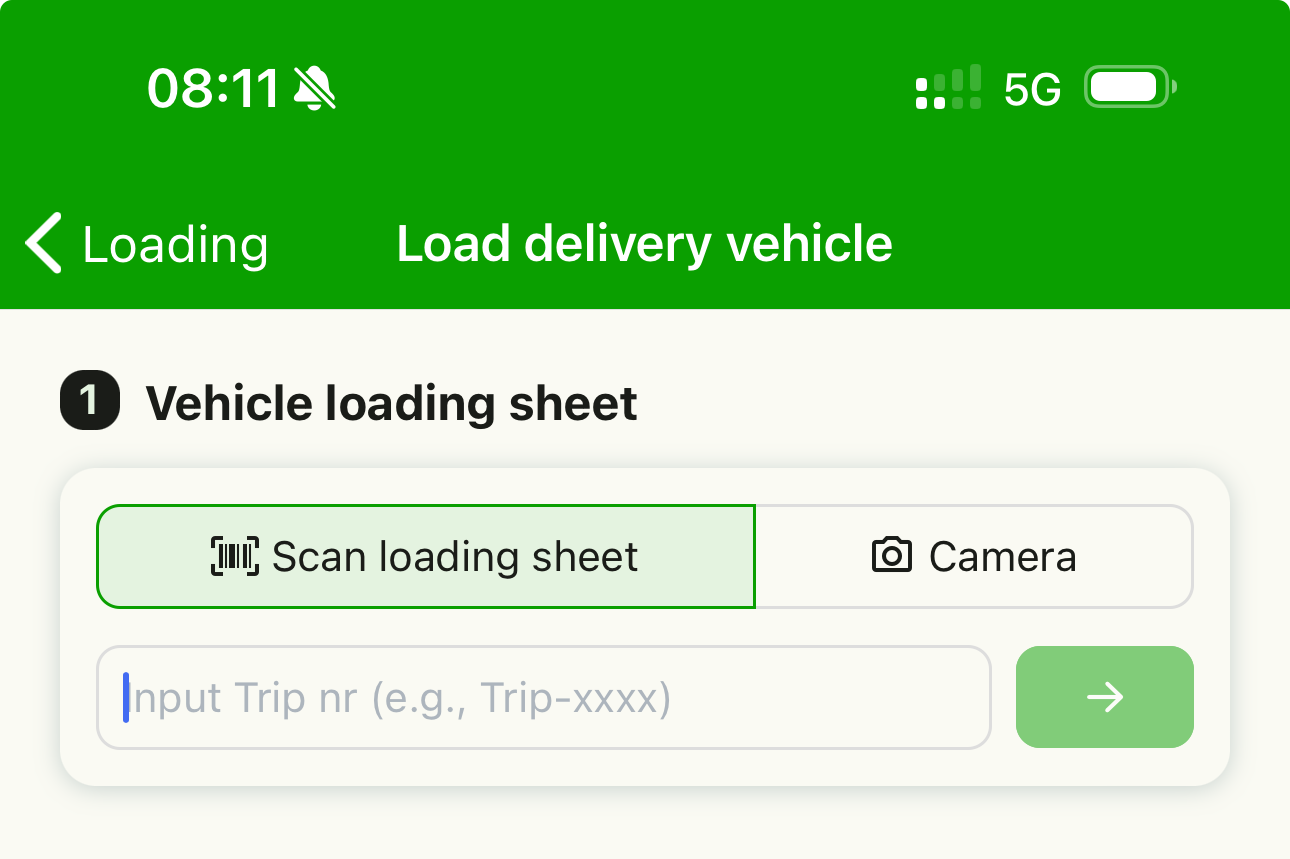
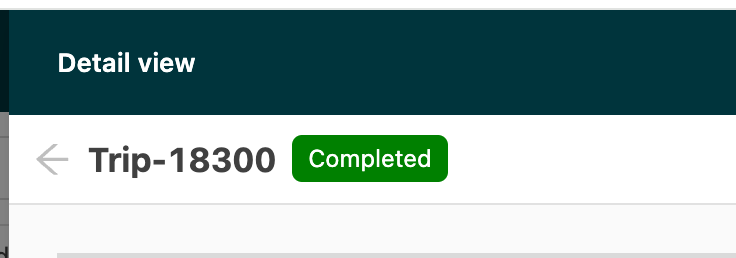
If there is no load sheet or loading sheet with a barcode, type the load ID instead. The load ID is shown in the Qargo web app:
-
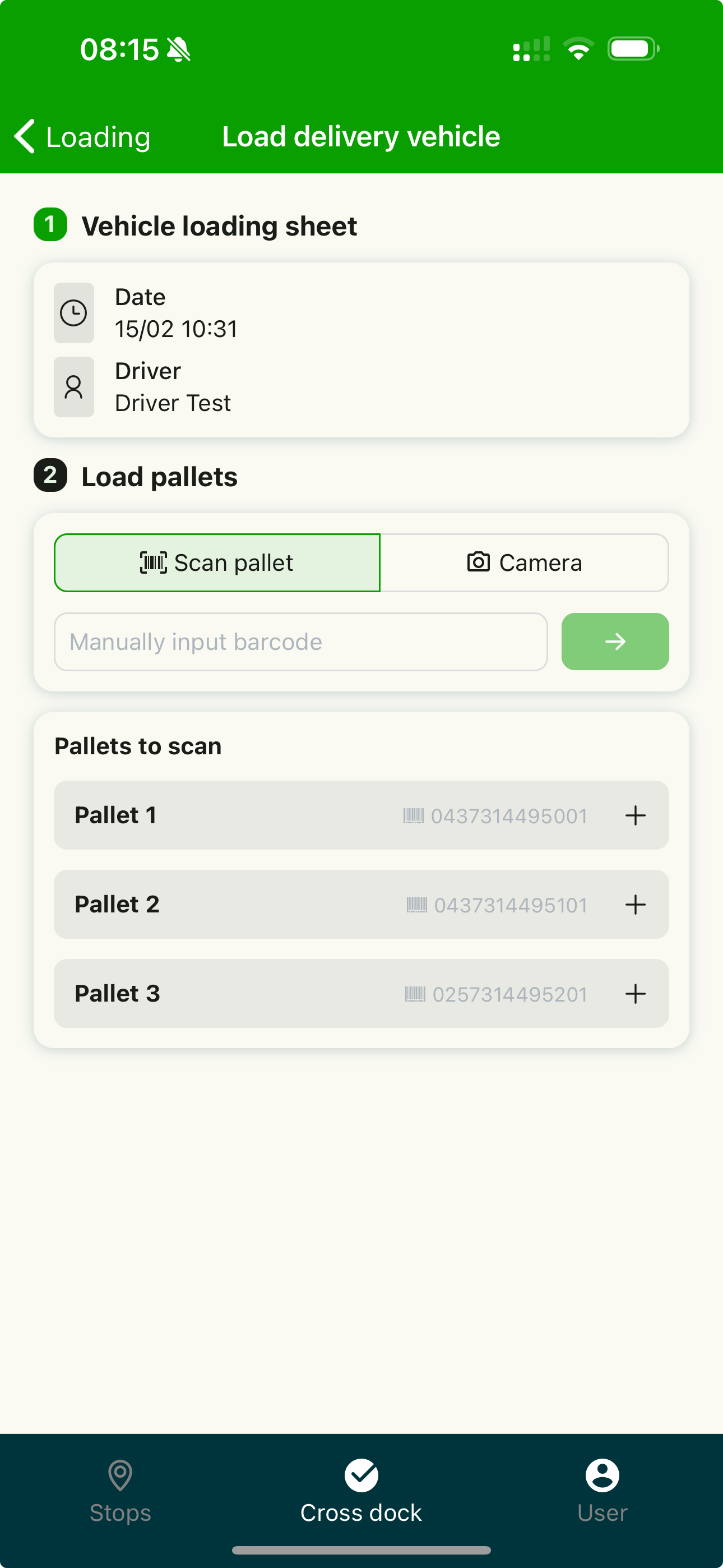
An overview of the load details then appears, with:
-
Start time + driver
-
Number of pallets that need to be scanned (at the bottom)
-
-
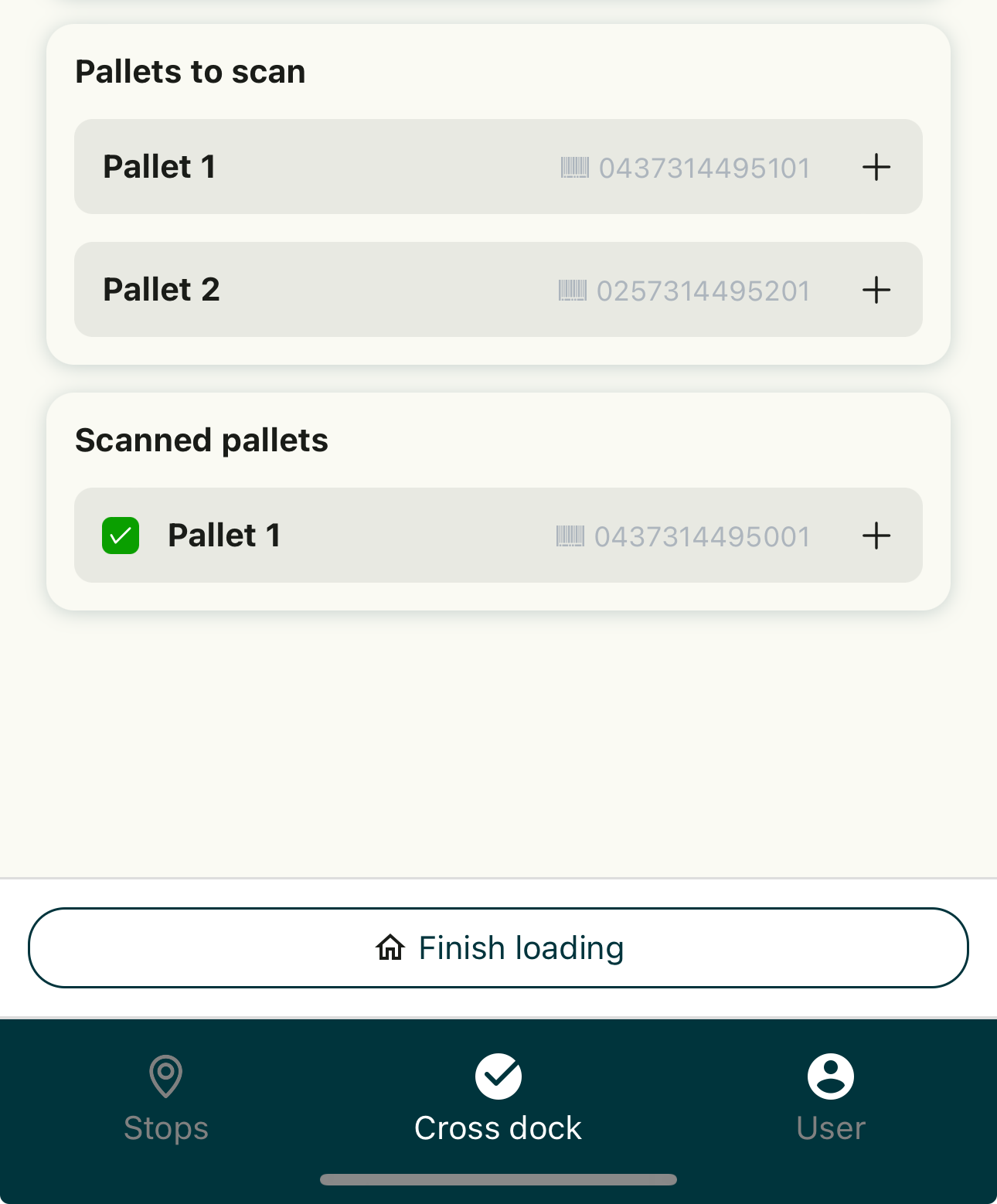
Each scanned pallet appears at the bottom under scanned pallets. The app also shows which pallet space on the vehicle to put it in.
-
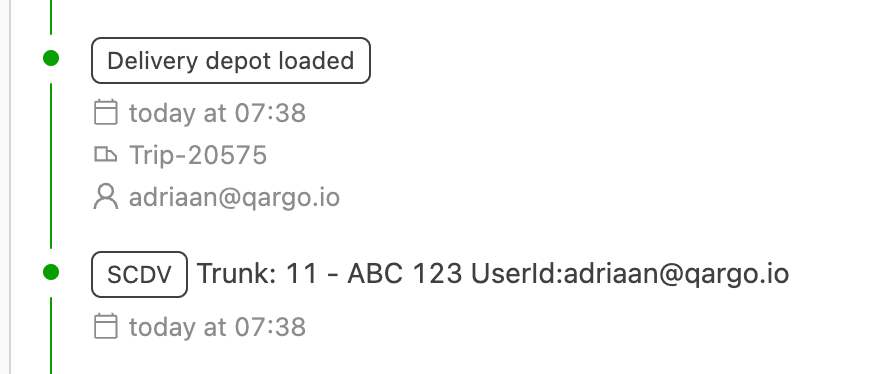
This action creates a Delivery terminal loaded event, which is sent to Contrado. Contrado converts this into an SCDV scan.
-
The depart delivery vehicle (DPDV) scan does not need to be done in Contrado. Qargo does this automatically when the driver departs the terminal.
Only for drivers who do not use the driver mobile app
The following steps are only needed for drivers who don’t use the driver mobile app. The DPDV is only sent when the driver departs the terminal using the driver mobile app.
-
Go to Contrado:
-
Then select Delivery vehicles:
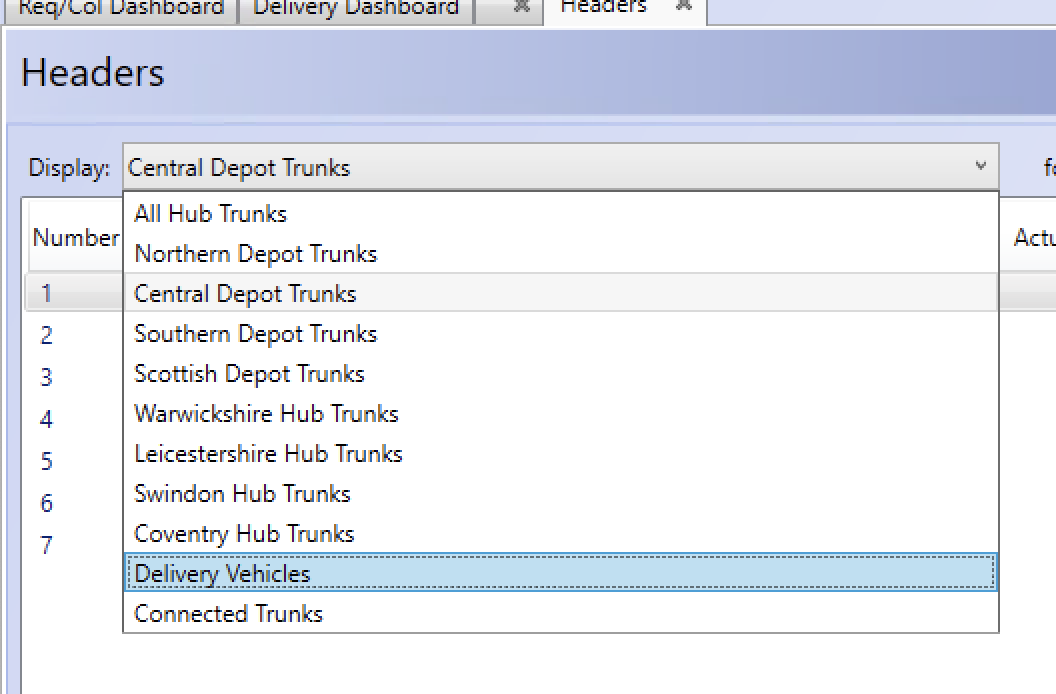
-
Select the correct delivery vehicle or vehicles, then click Print delivery headers:
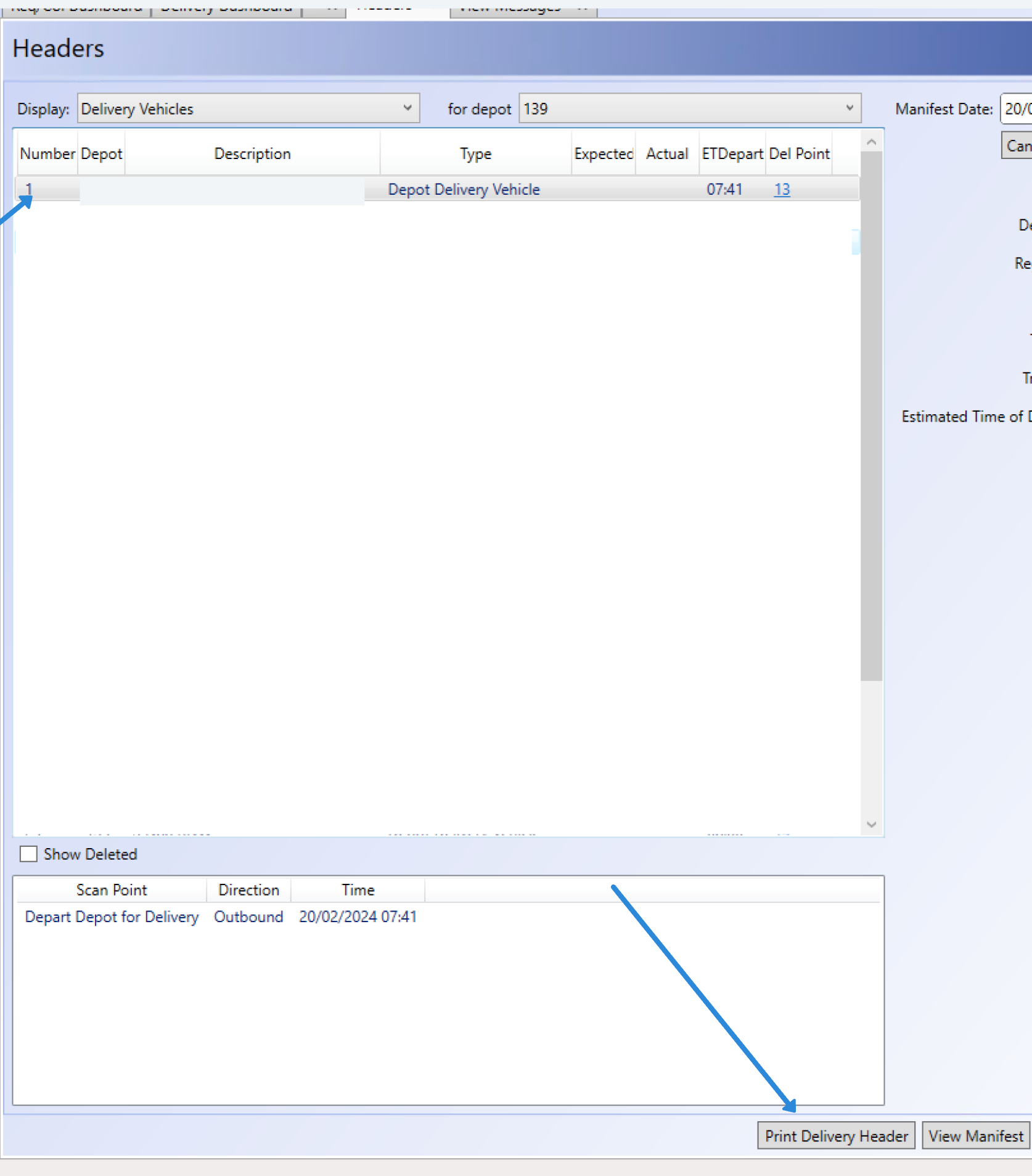
-
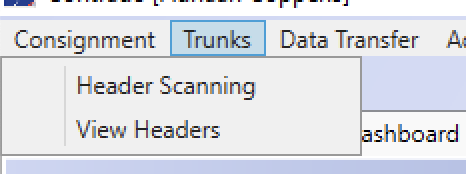
Repeat this for all delivery vehicles that are set up and in use. After printing the delivery vehicle headers, go to Trunks > Header scanning:
-
Then select Depart depot for delivery:
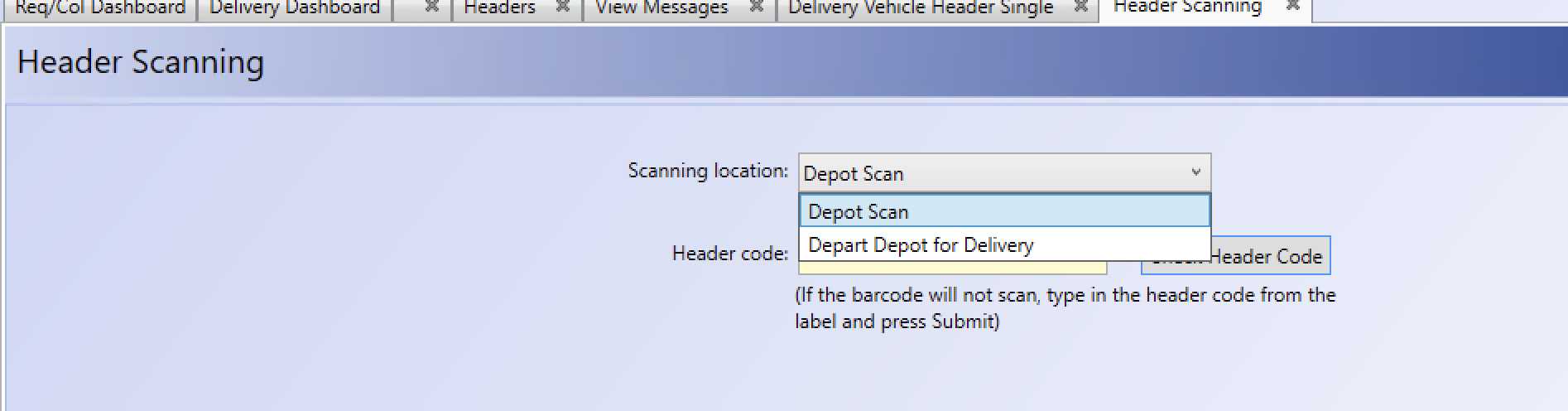
Then scan all the headers printed in the previous step.
Configuration
The vehicle codes need to be configured so that delivery vehicle scanning synchronizes correctly with Contrado:
-
Go to Trunks > View Headers:
Then select Delivery vehicles:
-
A list of all delivery vehicle headers appears:
-
Make sure that this header matches the vehicle code in Qargo:
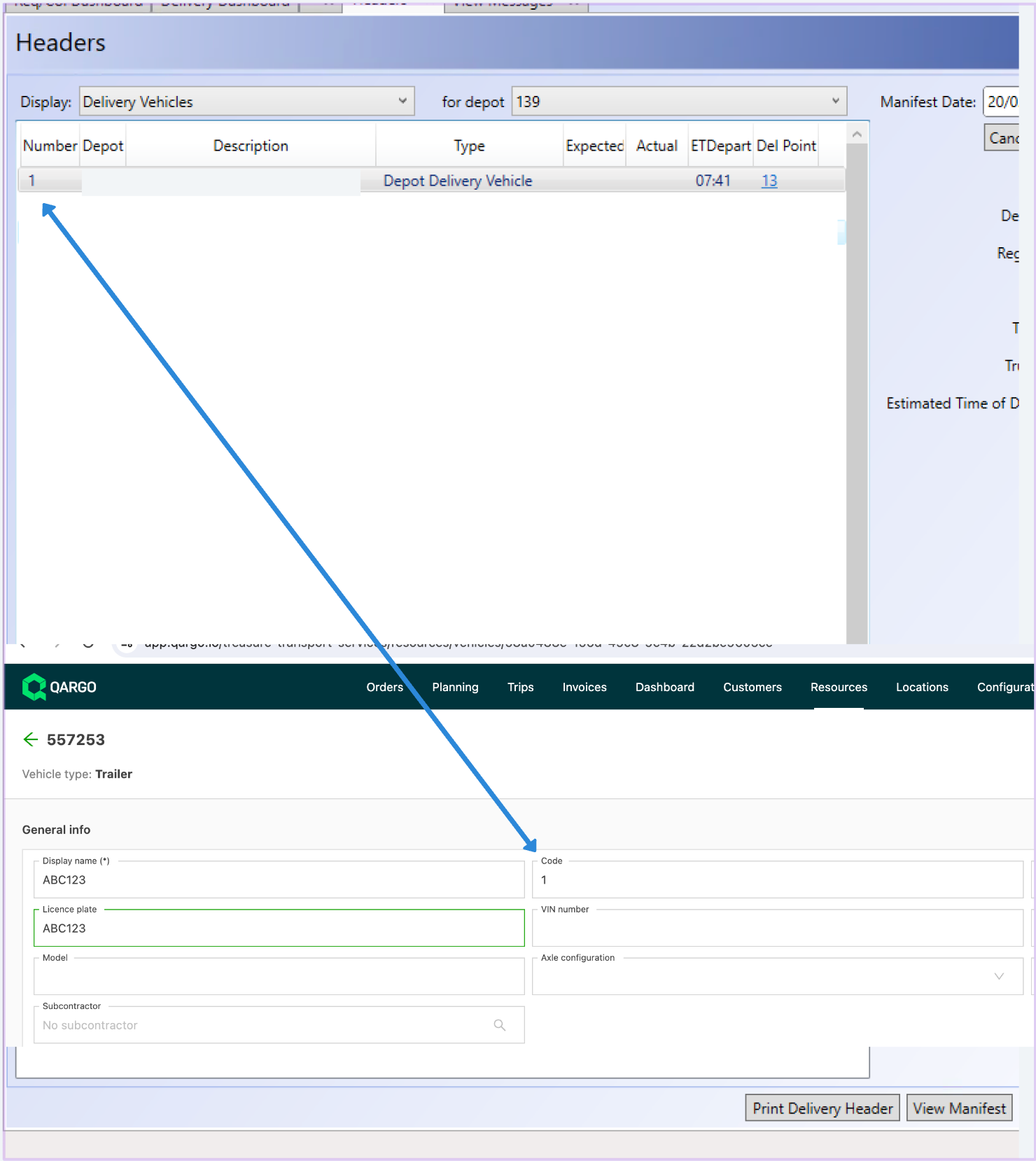
All delivery vehicles in Contrado must have a matching code in Qargo. In other words, the Contrado number field = the Qargo resource code field.