
Planning — Per-day resource availability in To Plan: Resources
A per-day status grid in To Plan: Resources shows at a glance which resources are free, planned, unavailable, or off-shift across the selected date range.
Table of contents
Summary
-
What is it?
- New narrow per-date columns in the To Plan: Resources view. There is one column per date in the selected planning range, and each shows a single availability status per resource.
-
Why use it?
- The view is meant to show which trucks, trailers, and drivers are free, but the old location and availability data did not reflect reality. Planners had to cross-check every resource against the planning board by hand.
-
How does it work?
- Each cell shows one status (available, planned, unavailable, or rest day), generated dynamically from the date range selected on the planning board. Cells are sortable and filterable, and they reveal detail on hover.
Prerequisites
- The columns are switched on through the view’s Customize panel.
- The Rest day status requires a configured shift schedule on the resource. Without a shift schedule, off-shift days cannot be flagged as Rest day.
Use cases
- A planner finds parked resources confusing and wants a clear, real-time read on which resources are genuinely free.
- A trailer is emptied during the day but keeps showing as in use until the next day. Planners need availability that reflects actual load completion.
- A planner needs to spot when a resource’s load ends in a different location from where its next load starts.
Terminology
| Term | Definition |
|---|---|
| To Plan: Resources | The planning view listing trucks, trailers, and drivers so planners can see which are free to take new work. |
| Per-date availability columns | The new narrow columns, one per date, each showing a single status icon per resource. |
| Available | No load planned and no unavailability on that date. |
| Planned | A load is planned or in progress on that date. |
| Unavailable | A maintenance, vacation, inspection, or other unavailability is registered. |
| Rest day | The date falls outside the resource’s shift schedule. |
| Current Activity | The column showing a resource’s live status: break or rest time, driving status, ETA, and current location. |
| Shift schedule | The work roster defining which days a resource is scheduled to work; it feeds the Rest day status. |
🎥 Check out this feature video walkthrough.
Turning on the availability columns
-
Navigate to Planning and switch to the To Plan: Resources view.
-
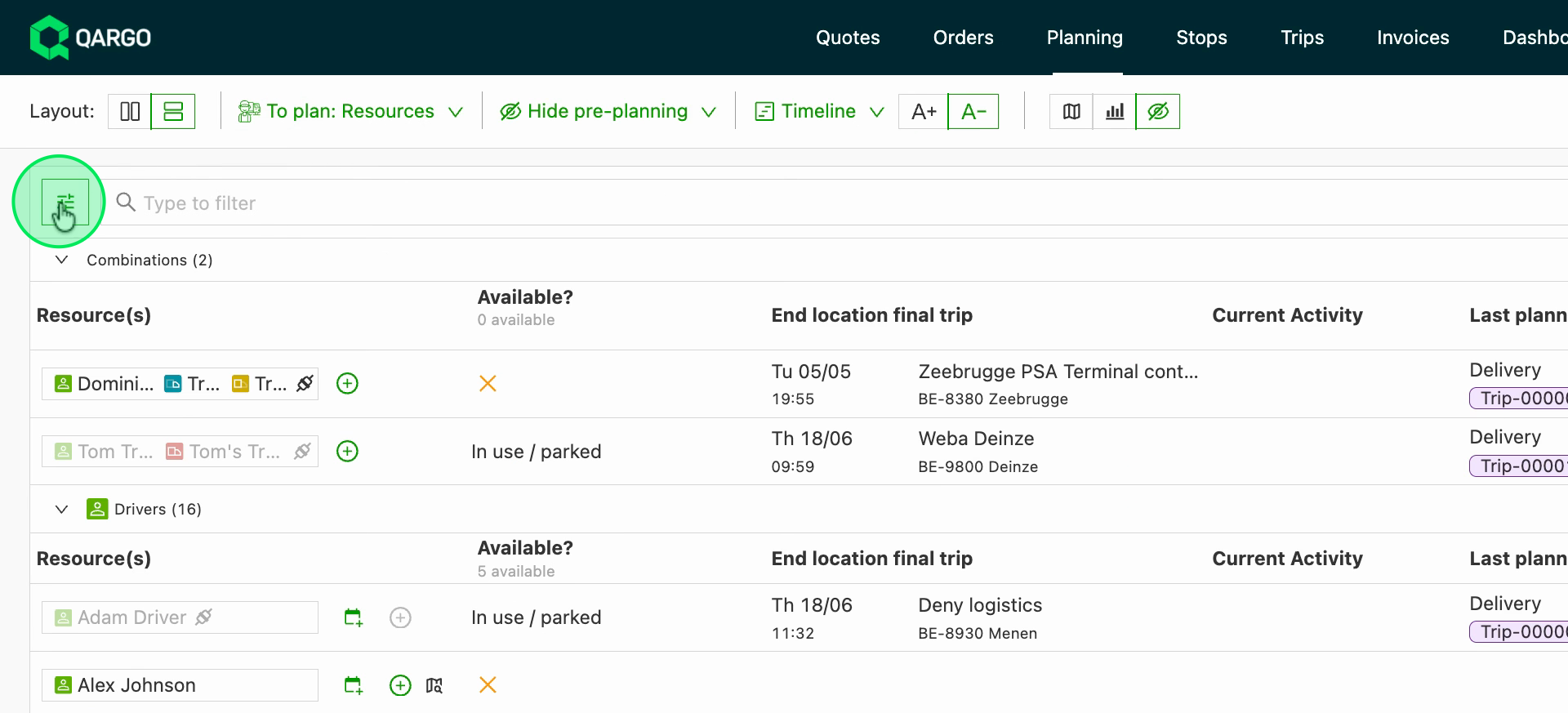
Open the Customize panel for the view.
-
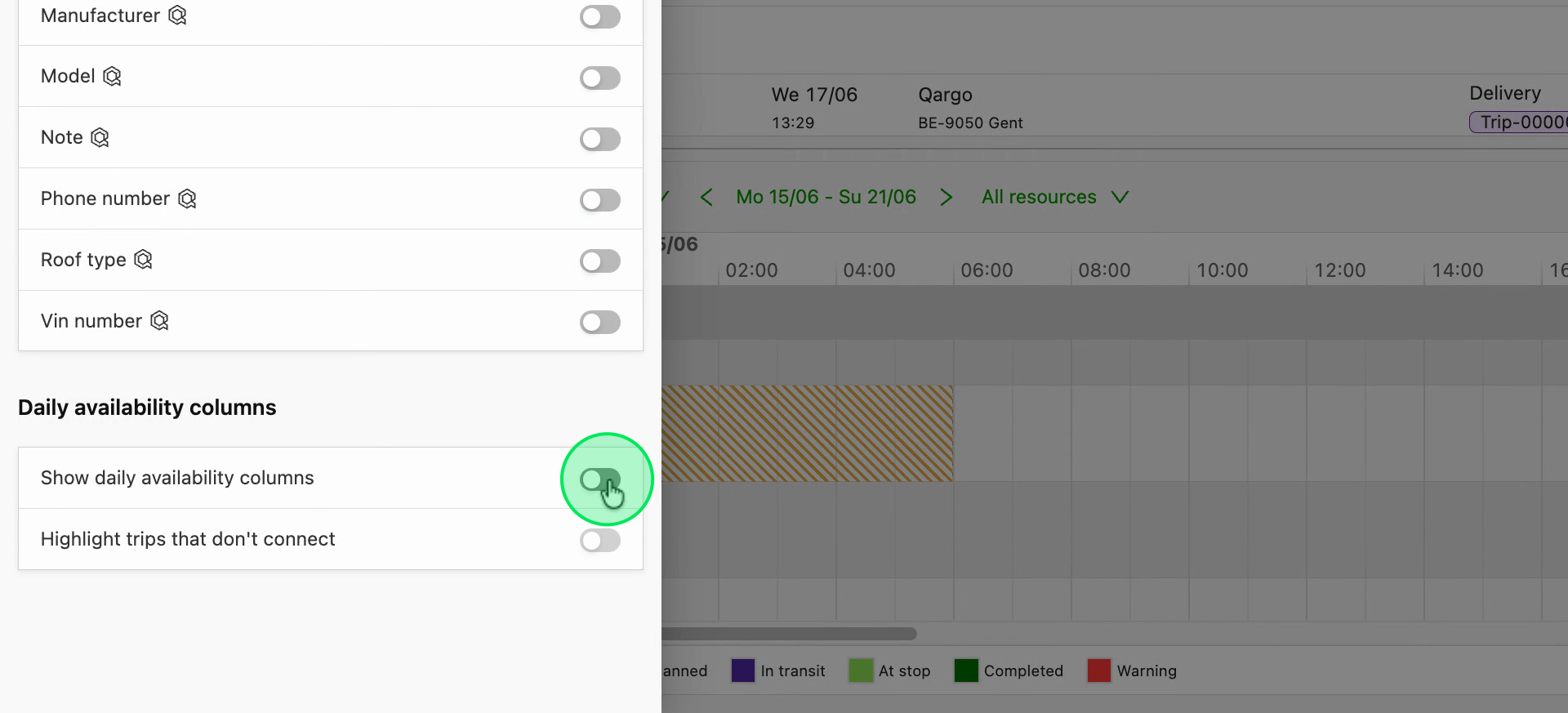
Enable Show daily availability columns.
-
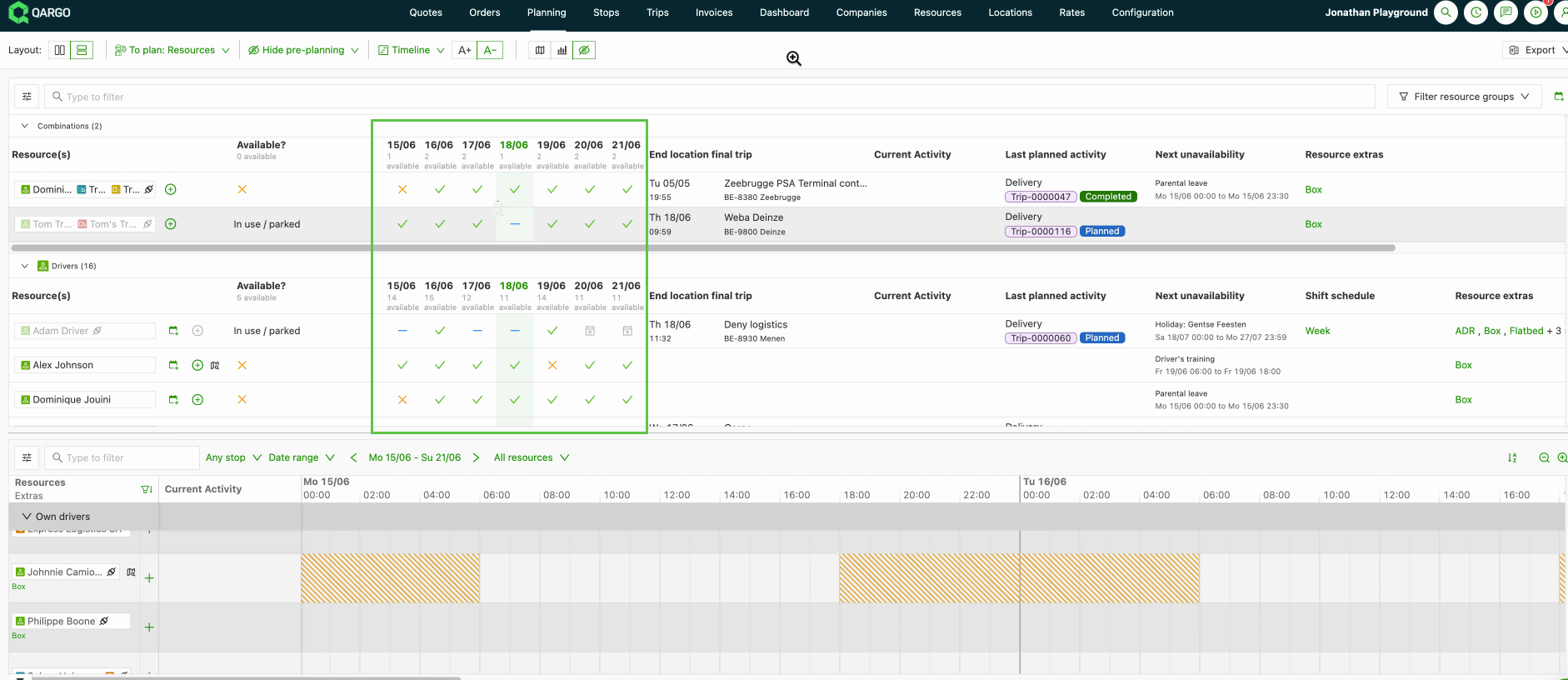
Visualize one narrow column per date in the selected planning range, each headed by its date, with today’s column highlighted.
Reading the status grid
-
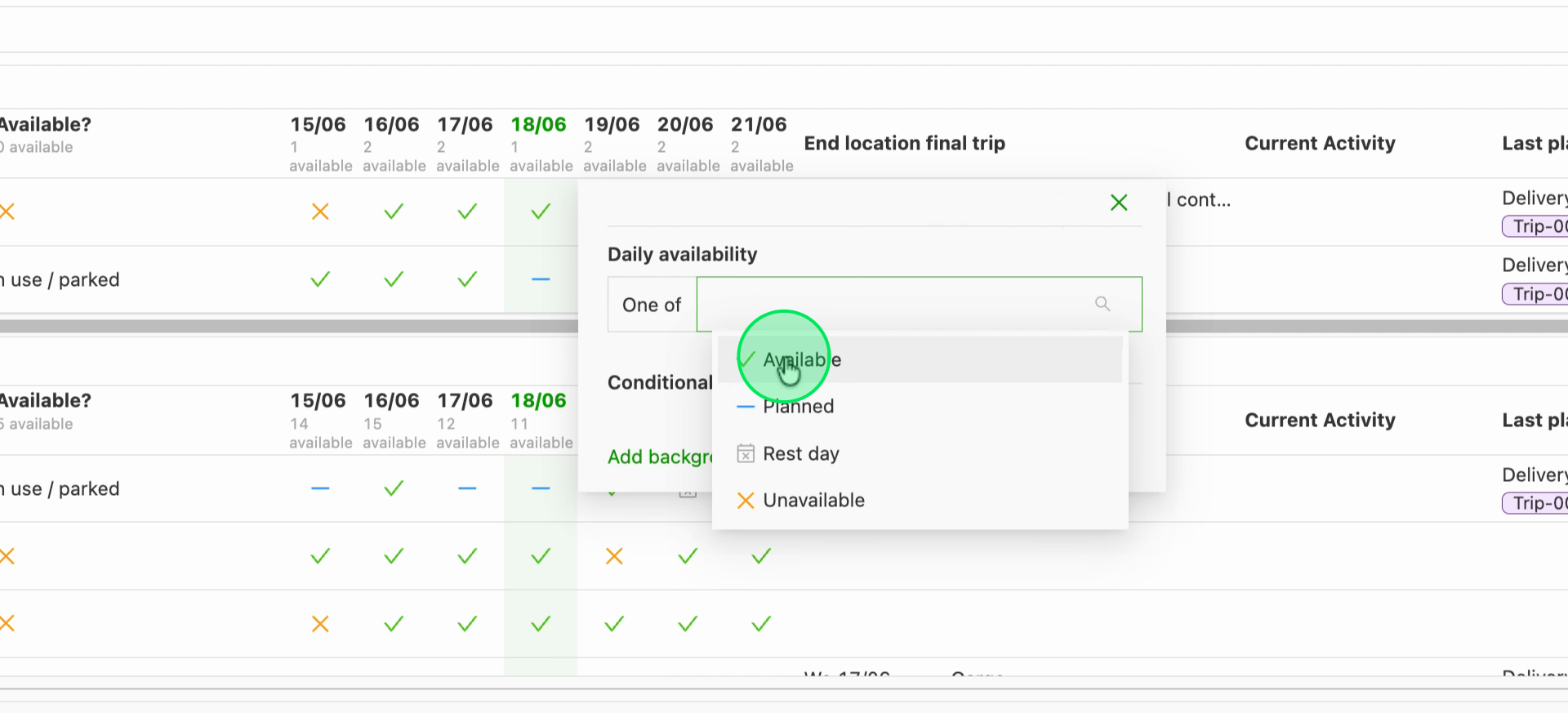
Visualize each cell’s status: available, planned, unavailable, or rest day. When more than one applies on a day, the most important one wins, in the order unavailable, planned, rest day, available.
-
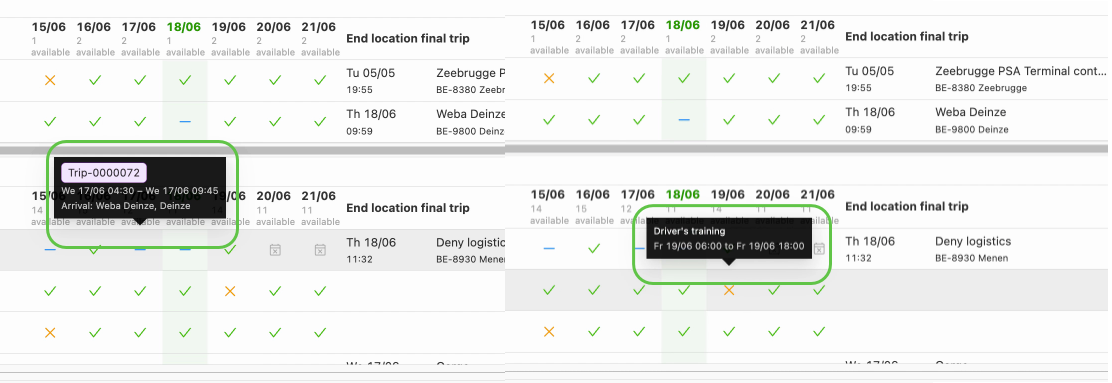
Hover over any cell for detail. A planned cell shows the load number, times, and arrival location; an unavailable cell shows the reason and dates; a rest day shows the shift schedule name.
-
Sort a date column to group statuses together, or filter it to a single status to surface, for example, every resource free next Wednesday.
Highlighting loads that don’t connect
-
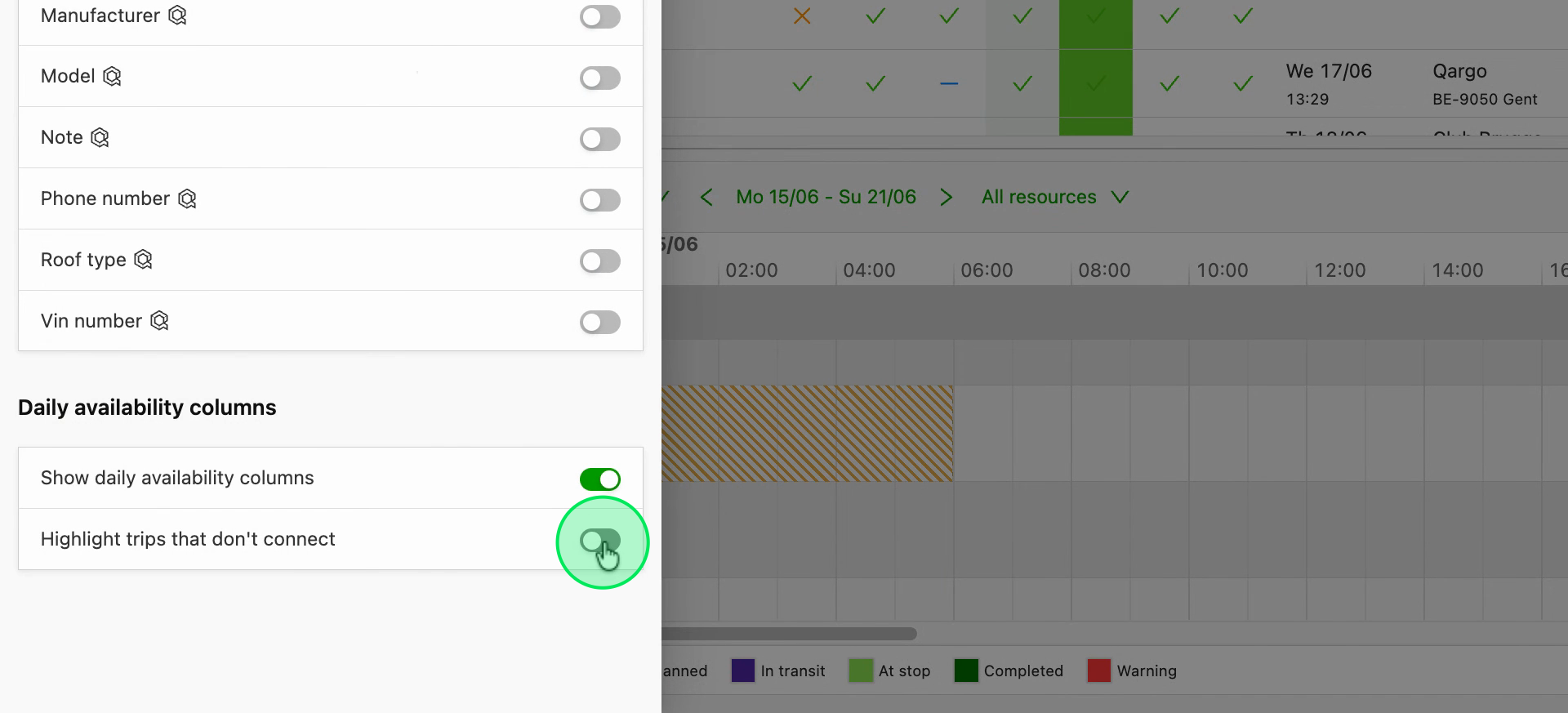
Enable Highlight loads that don’t connect in the Customize panel.
-
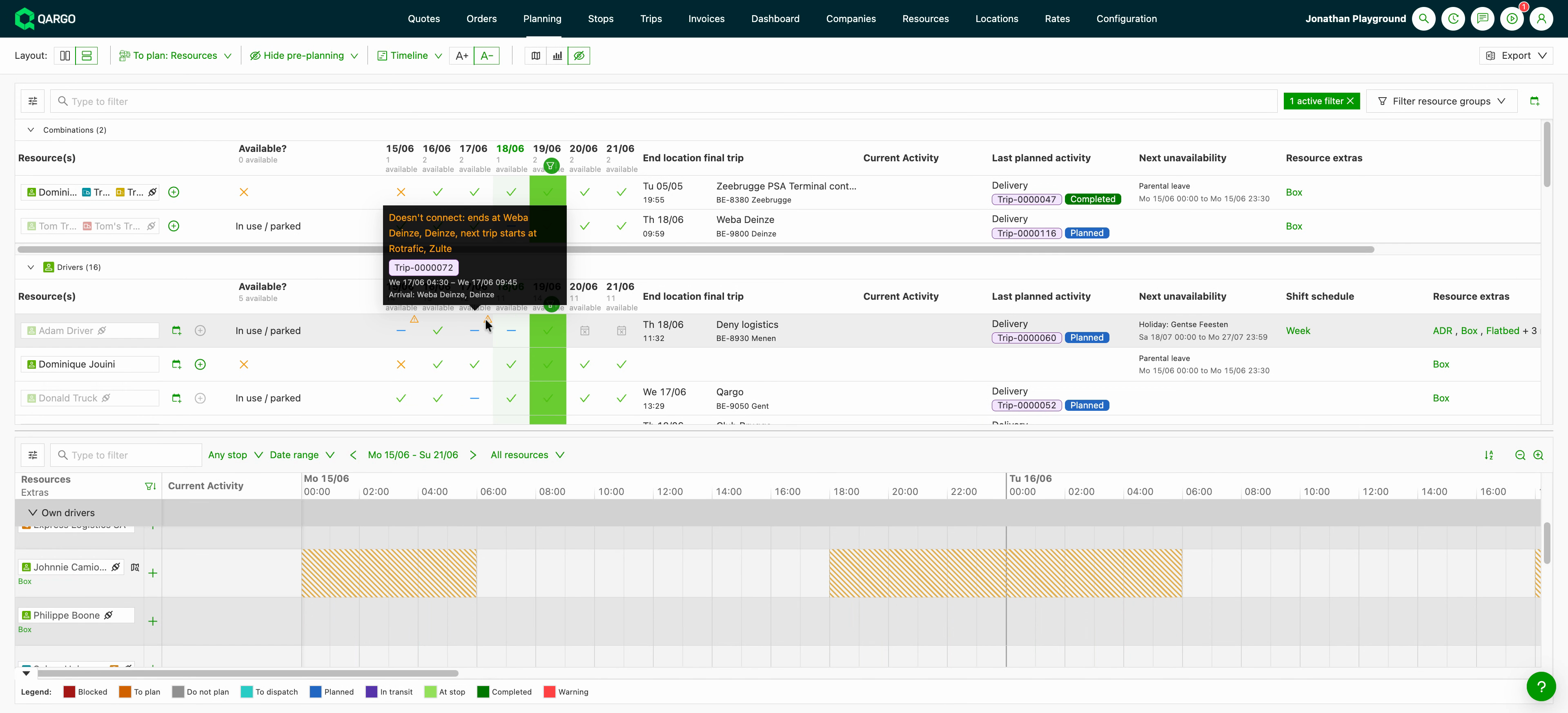
Visualize a warning badge on any day where a resource’s load ends in a different location from where its next load starts.
-
Hover over the badge to see both locations spelled out.
Good to know
- The per-date columns show status only, with no inline locations or activities. For location and activity detail, use the existing columns or the planning board. The upgraded Current Activity column now mirrors the planning board, showing break or rest times, driving status, ETA, and current location.
- The Available? filter in Filter(s) on the planning board uses the same statuses as the To plan: Resources badge: Available, Outside shift schedule, Unavailable and In use / parked. It also counts planned loads and only looks at time after the red line. See Planning - Board filter options.
Troubleshooting
| Issue | Explanation / Resolution |
|---|---|
| No date columns appear | Confirm that Show daily availability columns is enabled in Customize and that the planning range covers more than a single day.\ |
| Scroll to the far end of the panel and drag the columns to the desired location. | |
| A day is not flagged as Rest day | A configured shift schedule is required on the resource for off-shift days to show as Rest day. |
| A resource shows Planned when expected to be free | A load is planned or in progress on that date; hover over the cell to see the load number and times. |
| No location-mismatch badge appears | Enable Highlight loads that don’t connect in Customize; badges only show when consecutive loads start and end in different locations. |
| The Available? filter and a date cell show different results | The per-date cells show one status per full day. The Available? filter looks at the whole remaining range from the red line onward, so any free time in the range keeps a resource Available. |