
Feature release - March 2026
Week 1
🛂 Intermodal - Improved border crossing GB - NI
🏷️ Intermodal - Add HS commodity codes
 Qargo mobile app - Send documents to driver via WhatsApp
🔎 Planning - Filter on available resources in Timeline & Blocks view
🔦 Planning - Additional resource field visibility and filtering
☣️ Planning - ADR log visibility improved
🧾 Invoices - Peppol configure document attachment
Week 2
📲 Qargo mobile app - Cross dock scanning location scan and validation
📲 Qargo mobile app - Customize pallet templates
🧾 Orders - Bulk updates for ‘invoice externally’ via quick actions
🧮 Rate cards - Automatically charge load costs to customer orders
📦 Customer portal — make parcel dimensions required when placing orders
🗓️ Planning - Real-time trailer and container availability on the resource board
🏦 Invoices - Improve visibility for BIC / IBAN numbers on carrier invoice
Week 3
✂️ Split order: choose which shipments go through the terminal
📎 Contact tasks: see document attachments before sending
⚖️ Revenue split overrides: now supports chargeable weight
⚡ Bulk update price index (fuel surcharge) values
Week 4
🎨 Planning - Background coloring rules are now available on the To Plan: Resources table
🗺️ Planning - Load progress visualized on tracking map
📄Load groups - Show documents for orders & loads associated with load groups
💰 Load groups - Profitability overview in the detail page now includes a Revenue / Cost Calculation section
🎟️ Orders - Create product from order screen
📋 Orders - Customize option to show additional fields at stop level in list view
🪵 Orders - Contract carrier pallet tracking
✅ Tasks - Order template tasks
📊 Dashboards - Update to dashboards and charts
Week 1
🛂 Intermodal - Improved border crossing GB - NI
Customs pre-notifications are now generated automatically for shipments traveling between Great Britain and Northern Ireland. Qargo detects GB↔NI crossings using Northern Ireland’s postal code prefix (BT) and generates the required customs objects automatically.
What’s included:
- Automatic detection of GB ↔ Northern Ireland crossings based on pickup and delivery postal codes.
- A border crossing is generated specifically for UK–NI route sections, triggering the standard customs pre-notification booking flow.
- Applies to both directions: Great Britain → Northern Ireland (e.g. Liverpool → Belfast) and Northern Ireland → Great Britain (e.g. Belfast → Glasgow).
Benefits:
- Customers shipping between GB and NI no longer need to create customs bookings manually. They are generated automatically, in line with all other cross-border shipments in Qargo.
- Reduces the risk of missing customs pre-notifications on UK-internal routes that cross the GB/NI regulatory border.
Intermodal - Customs pre-notification process
🏷️ Intermodal - Add HS commodity codes
Select HS (Harmonized System) commodity codes directly on goods in Qargo. HS codes are internationally standardized numerical codes used to classify traded products. They are required for customs declarations to be validated and rated correctly. This removes the need to track HS codes outside of Qargo and reference them manually when generating customs documents.
What’s included:
- A searchable HS code dropdown on the Good Item, with code and description visible in the selection interface.
- Two new optional fields on Good Item: HS code (for import classification) and HS code export override (for cases where the export code differs from the import code).
Benefits:
- Goods are classified correctly at the point of entry, ensuring customs declarations can be validated without rework.
- Import and export code differences can be handled in one place, reducing manual reconciliation.
- Searching by code or description makes it faster to find the right classification, especially for teams handling a wide range of goods.
Intermodal - HS commodity codes - What, why & how.
 Qargo mobile app - Send documents to driver via WhatsApp
The WhatsApp driver chat now works in both directions for documents. Previously, drivers could send documents and media to the office team, but not the other way around. Documents can now be sent directly to drivers from within Qargo.
What’s included:
- Upload a document from a device and send it directly in the driver chat conversation.
- Attach an existing document from an open order or load detail page, selecting from documents already associated with that order or load.
- Sent documents appear in the chat with a download option, consistent with how inbound driver documents are displayed.
Benefits:
- Dispatchers can share CMRs, loading instructions, delivery confirmations, or other documents with drivers without leaving Qargo or switching to a separate messaging tool.
- Documents attached from an order or load keep the context of the relevant shipment, reducing the risk of sending the wrong file.
FAQ - Qargo WhatsApp integration for drivers
🔎 Planning - Filter on available resources in Timeline & Blocks view
The Available filter on the planning board makes it easy to focus only on resources and resource combinations that are free of logged unavailabilities within the selected date range. Rather than scanning the entire board to find a free combination, filter to show only those that can actually be assigned.
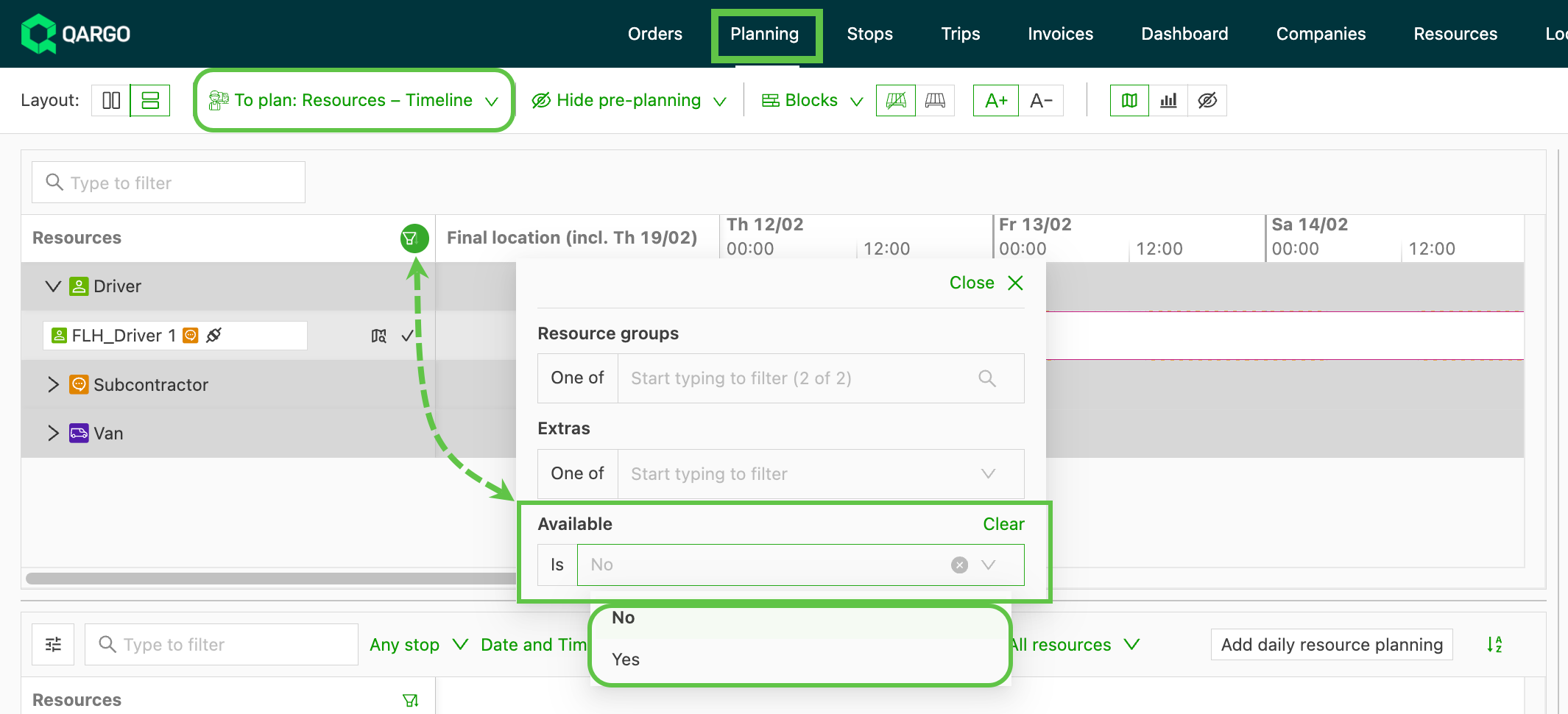
What’s included:
- Available filter (Yes / No) accessible from the resource filter menu in Timeline view, Blocks view, and To-Plan Timeline view.
- Combinations are filtered as a unit: if any resource in a combination (driver, truck, or trailer) has a logged unavailability, the whole combination is hidden when filtering to Available = Yes.
- Unavailabilities are evaluated at full-day resolution. Absences that span midnight count against both days.
- All absence types are treated equally. Vacation, sickness, vehicle maintenance, and others all apply.
Benefits:
- Cuts the time spent scanning through unavailable combinations during planning, especially on busy days with many resources.
- Reduces planning errors by making it clear which combinations are genuinely free before assigning a load.
🔦 Planning - Additional resource field visibility and filtering
Show Resource fields directly in the To Plan Resources panel and use them to filter the resource list. This removes the need to rely solely on resource groups when searching for the right driver, vehicle, or trailer.
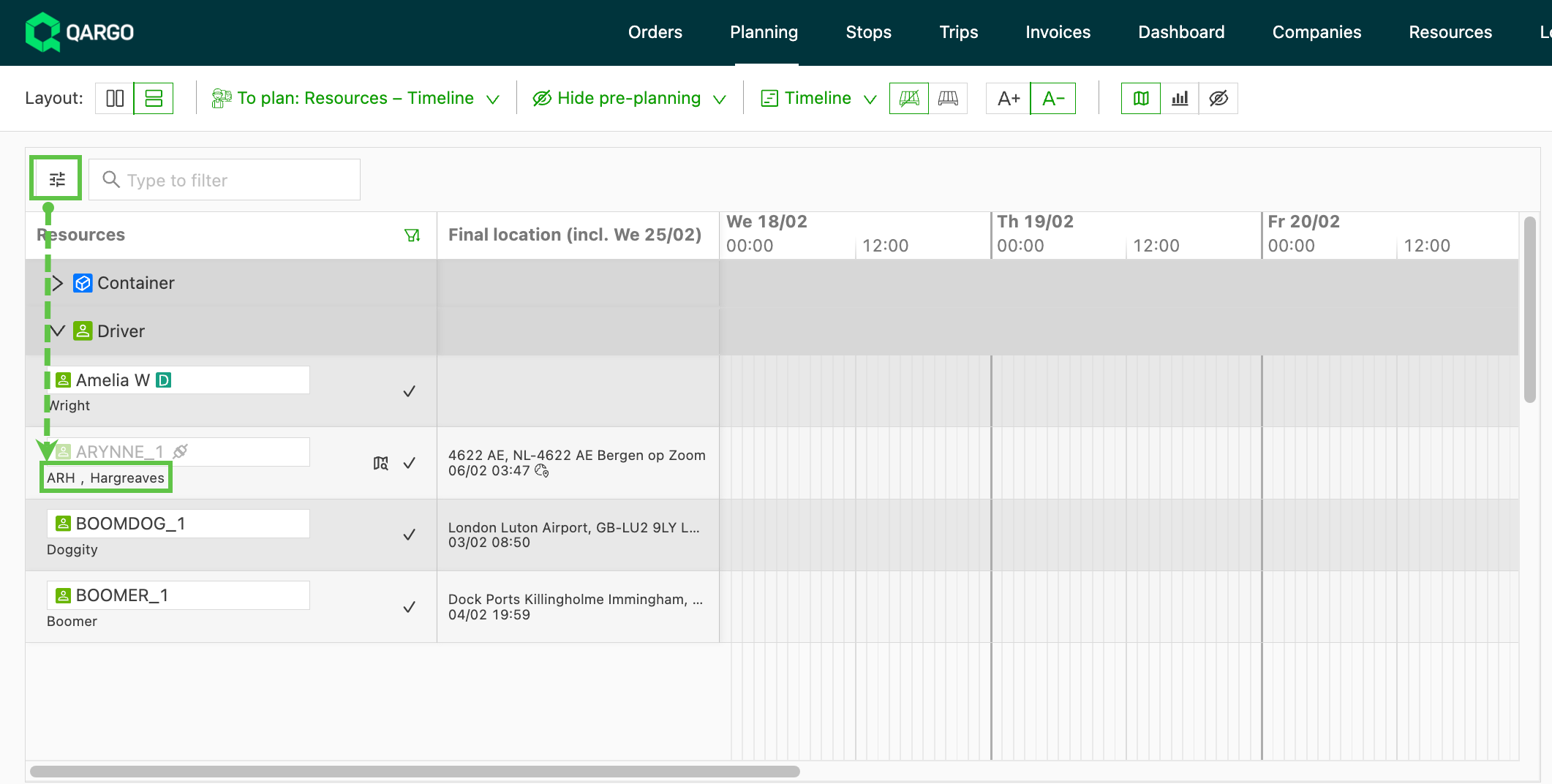
- A dedicated Customize button in the To Plan Resources section (separate from the view-level Customize button) makes it possible to toggle custom field columns on and off in the resource table.
- Custom field columns support column-level filtering: hover over a column header and click the filter icon to filter the resource list by that field’s values.
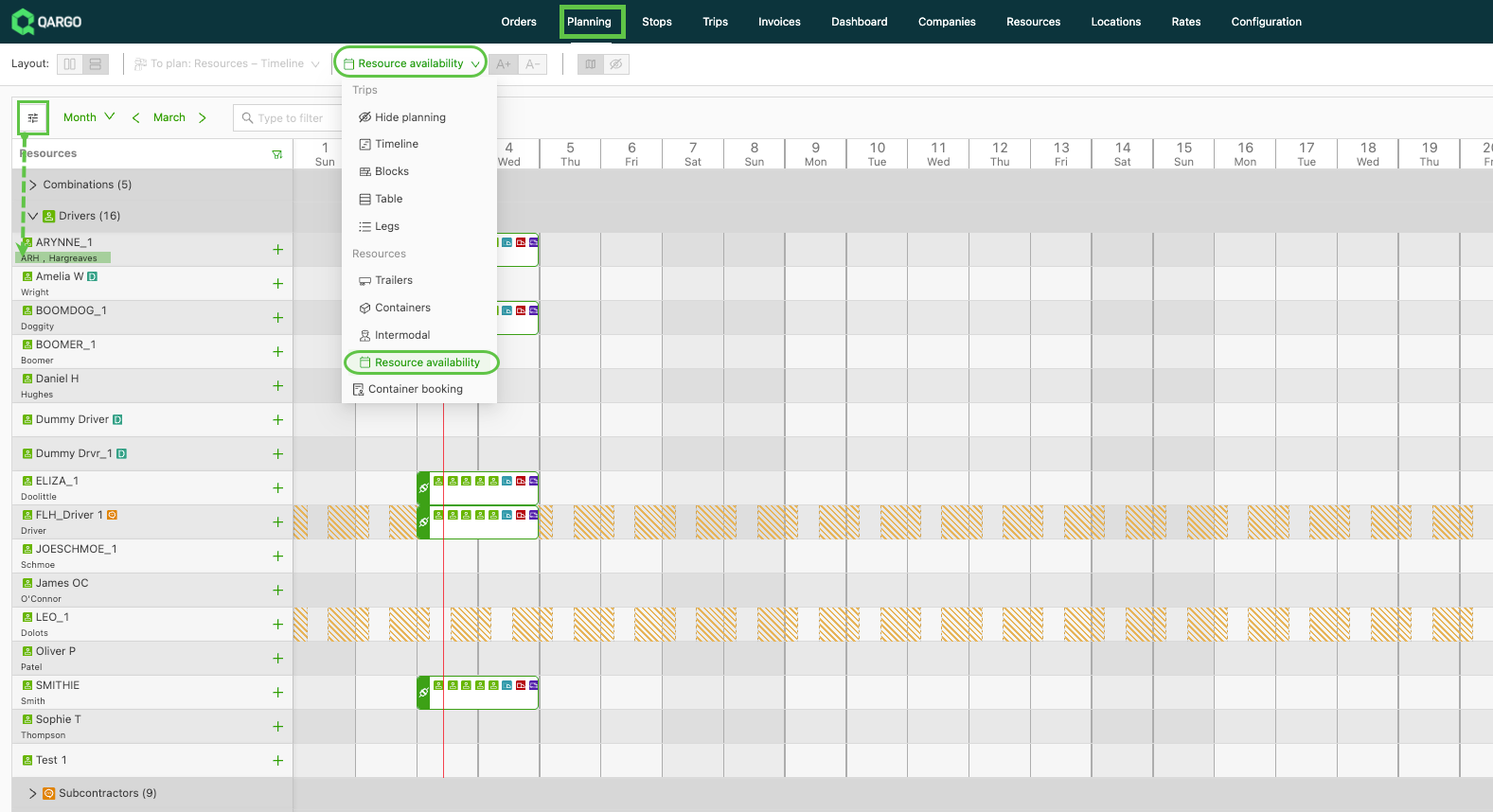
- Custom field values are also shown below the resource name in Timeline view and Resource Availability view, giving planners at-a-glance context without opening the resource record.
☣️ Planning - ADR log visibility improved
The ADR icon on stops in the planning board has been moved to the first position, so it is always visible, even in dense views where space is limited.
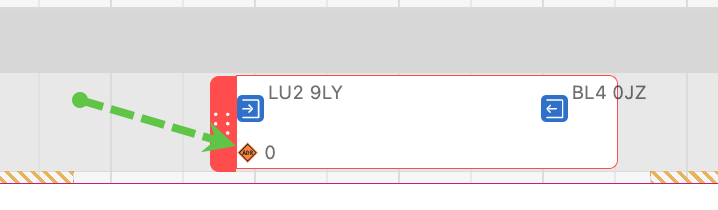
- The ADR icon is now rendered first on stop cards, before quantity and other fields, ensuring it appears even when the stop is narrow.
- Planners can spot ADR goods at a glance without scrolling or expanding a stop, reducing the risk of missing hazardous goods information during route planning.
🧾 Invoices - Peppol configure document attachment
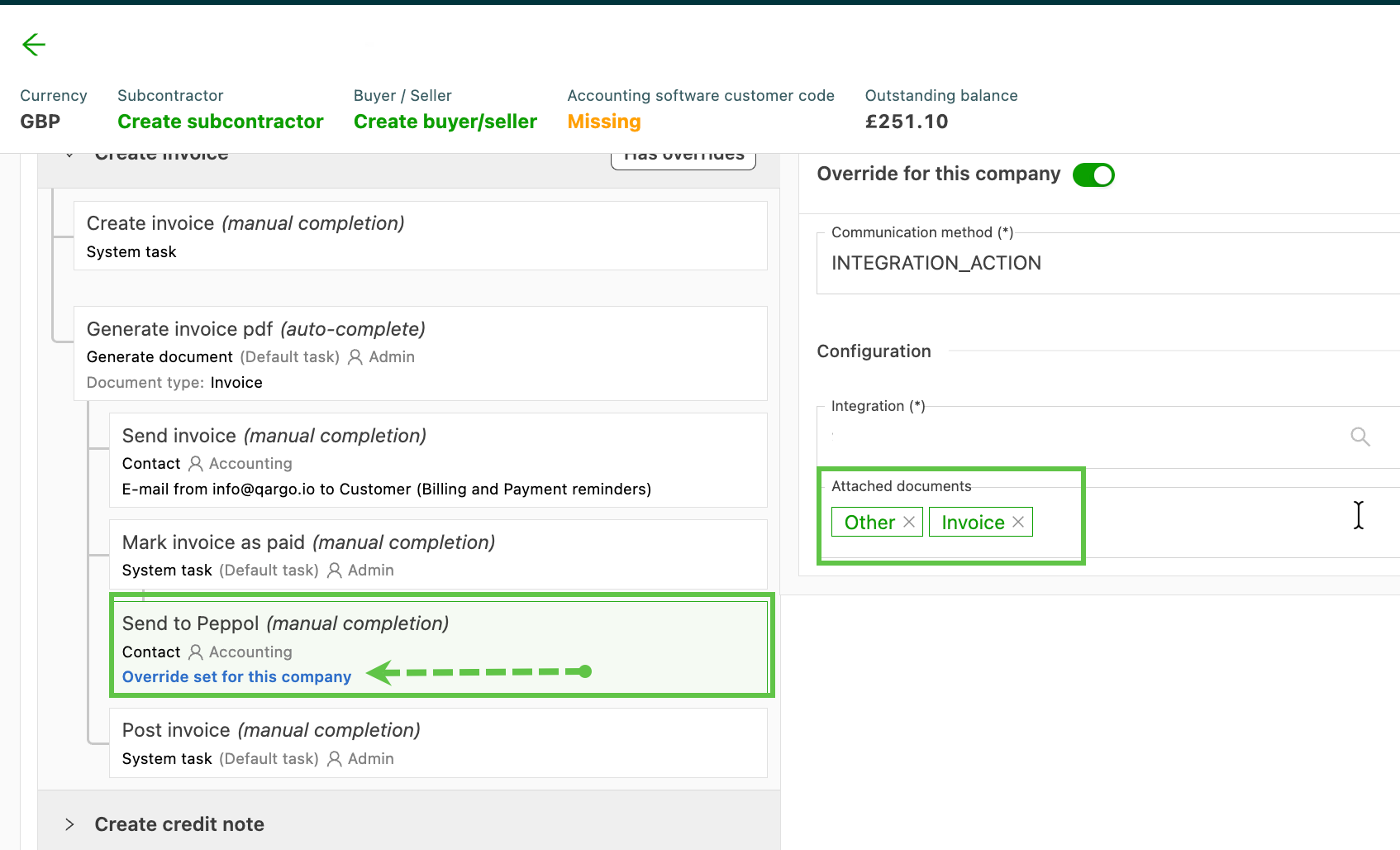
Configure the document types that are automatically attached when sending invoices via Peppol, directly from the task configuration interface. Supported attachment types include proof of delivery, invoice, credit memo, and other order documents.
What’s included:
- Document attachment configuration in Configuration > Tasks > Send to Peppol: update the Contact panel of the task.
- Company-level override: where a specific customer does not need certain document types, the attachment configuration can be overridden per company from the company profile.
- When a Peppol action is triggered directly from the interface (rather than through automated task execution), an attachment selection modal appears, similar to the email contact task flow. Select or deselect documents for that specific transmission.
Benefits:
- Changing which documents accompany a Peppol invoice no longer requires Qargo admin involvement. The configuration is self-service from the task UI.
- Per-company overrides make it possible to tailor document attachments to each customer’s requirements without duplicating tasks.
Week 2
📲 Qargo mobile app - Cross dock scanning location scan and validation
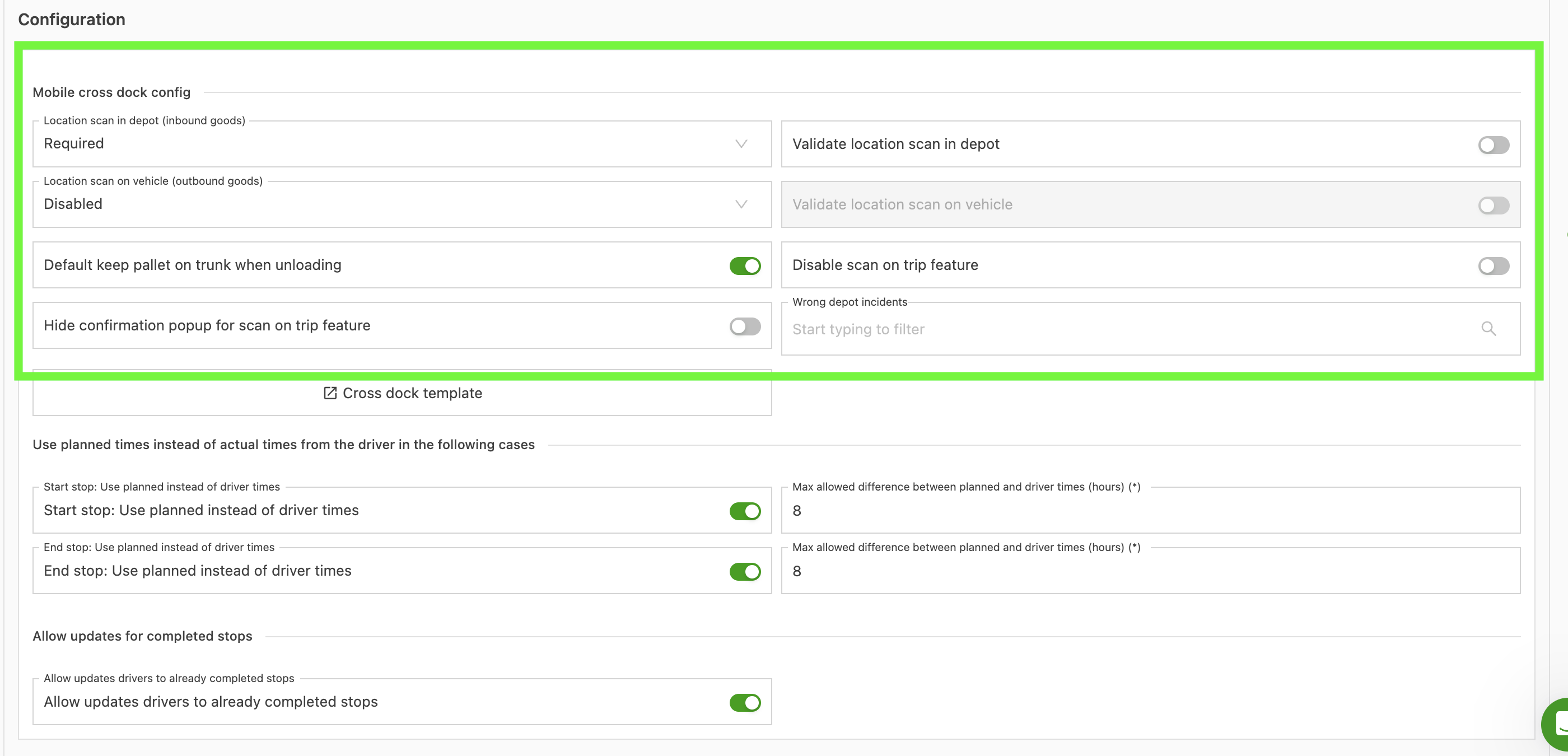
Location scanning during cross dock operations can now be configured separately for inbound (unloading) and outbound (loading) flows, with optional validation that warns operators if a pallet is being scanned to the wrong vehicle or terminal location.
Four settings are available:
- Location scan in terminal (inbound goods) — controls location scanning when pallets are unloaded from an incoming vehicle.
- Location scan on vehicle (outbound goods) — controls location scanning when pallets are loaded onto an outbound vehicle.
- Validate location scan in terminal — when enabled, warns the operator if the scanned terminal location doesn’t match a valid inbound location
- Validate location scan on vehicle — when enabled, warns the operator if the scanned vehicle location doesn’t match the license plate, name, or code of the vehicle assigned to the load
When validation is on and the scan doesn’t match, a warning is shown. Operators can acknowledge the warning and continue, or retry the scan.
- Catch misdirected pallets at the point of scanning, before they end up on the wrong vehicle or in the wrong terminal bay
- Configure inbound and outbound scanning independently to match the actual warehouse workflow
- The Required mode enforces location scanning without relying on operators to remember, which is useful for high-volume or error-sensitive operations
Qargo mobile app: Cross dock scanning
📲 Qargo mobile app - Customize pallet templates
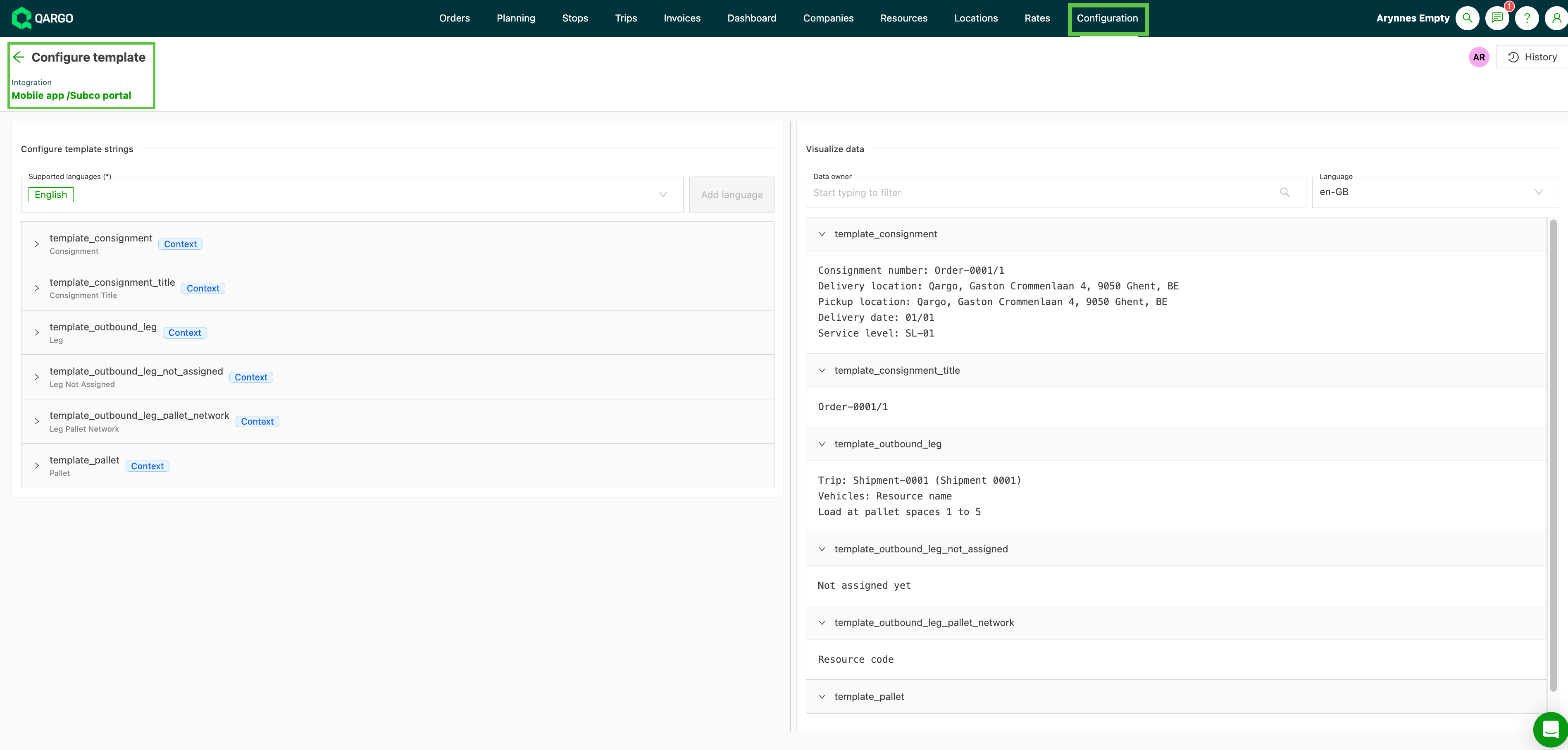
The information shown on screen during cross dock scanning can now be customized, so warehouse operators always see the most relevant shipment and routing details.
- Show only the fields that matter for the operation, with no more irrelevant information cluttering the scanning screen
- Operators get the right shipment and routing context at each step, reducing scanning errors
- Template variants switch automatically based on planning state, so the correct information is always shown without any manual intervention

Qargo mobile app - Customize pallet templates
🧾 Orders - Bulk updates for ‘invoice externally’ via quick actions
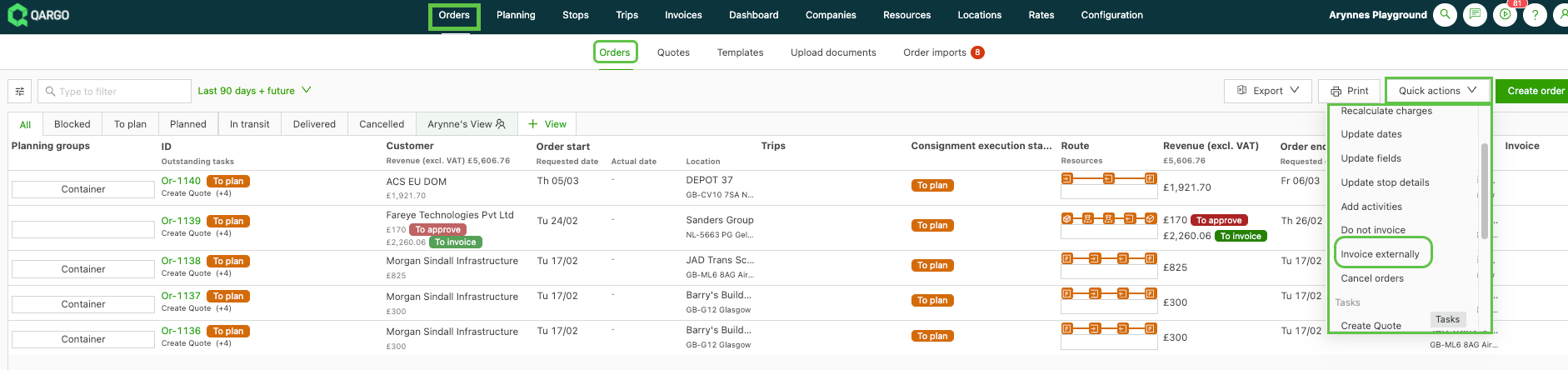
Mark selected orders as Invoice externally in bulk directly from the Orders page using the Quick actions menu.
- Invoice externally means the charge lines for those orders will be handled outside of Qargo (e.g. via a third-party billing system).
- Orders with this status are excluded from Qargo’s billing workflow.
Any charge lines that are already processed are not affected:
- Lines already in another status (e.g. Approved, Posted, Do not invoice) are not affected.
- Setting “Invoice externally” at the quote level is not currently available via this quick action. This must still be done per order.
🧮 Rate cards - Automatically charge load costs to customer orders
Configure surcharges to automatically mirror what was charged on the linked load, rather than entering a fixed amount or calculating from the order value. This is especially useful for ferry costs, fuel surcharges (FSC), BAF, ETS, and other pass-through charges where the amount varies per load.
-
Set the Calculation method to Percentage of charges and select Load cost charge as the charge type.
-
Choose which cost on the load the surcharge should mirror:
- All charges on the load — mirrors the full load cost total
- A specific surcharge (e.g. Ferry FSC, BAF) — mirrors only that named cost
- Transport charge — applies to the base transport charge only

Benefits
- Eliminates manual calculation for pass-through surcharges. The system works out each order’s share automatically
- Reduces billing errors on consolidated loads where cost splitting has historically been done by hand
- Supports a markup percentage, making it possible to pass through costs with a margin built in, without a separate line item
Rate cards - Automatically charge load costs to orders
📦 Customer portal — make parcel dimensions required when placing orders
Configure length, width, and height as required fields in the customer portal, so senders can’t submit an order without providing parcel dimensions. Each dimension can be toggled individually, giving full control over exactly what’s enforced.
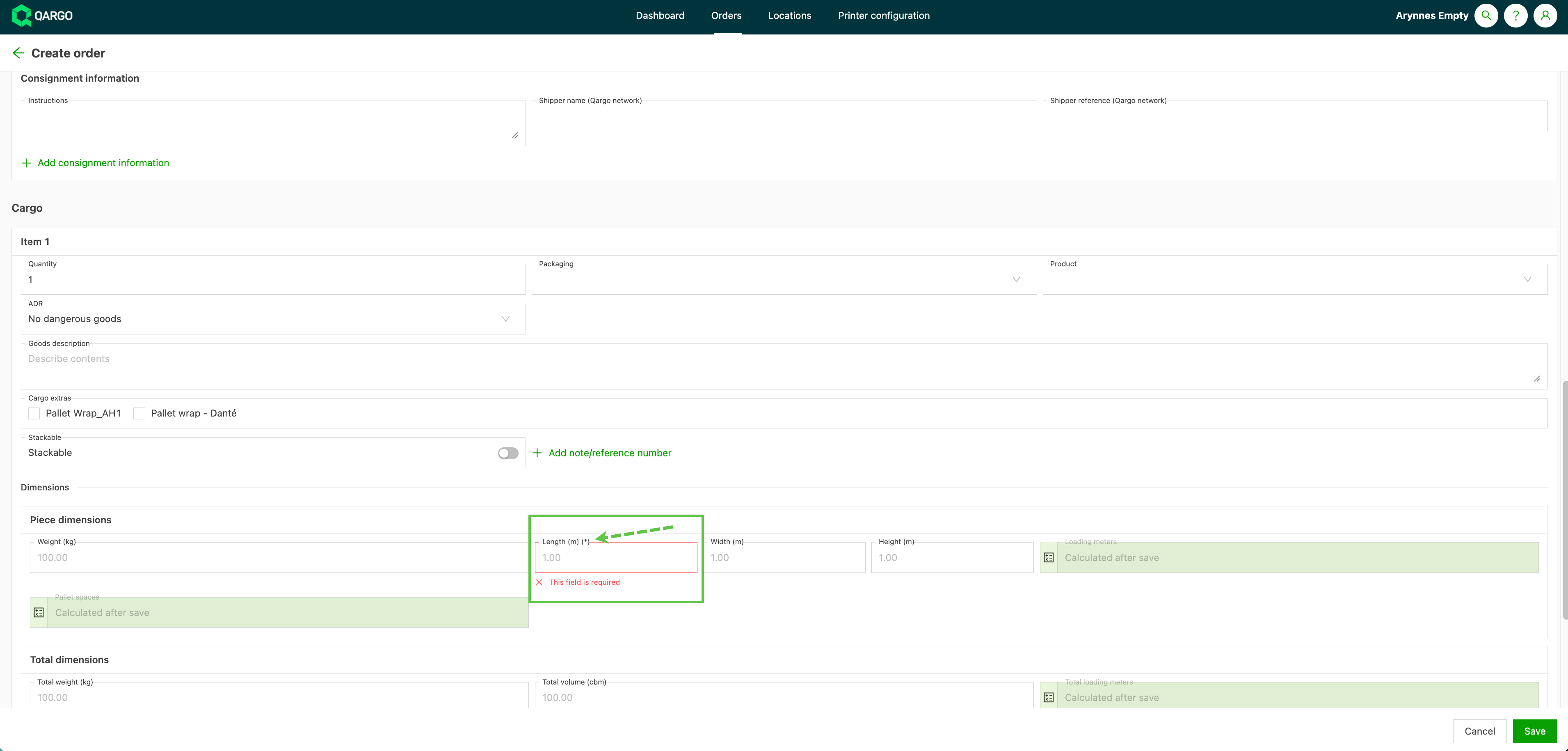
Benefits
- Eliminates incomplete orders caused by senders skipping parcel dimensions. This is particularly important for operations that rely on dimensions for loading meter calculations
- Each dimension is configurable individually, so only what the operation actually needs is enforced
- The dimensions panel appears automatically for the customer as soon as a required field is configured, with no manual steps needed on the sender’s side
Limitations
- Configuration is global across all customer portal users. It is not possible to make dimensions required for some senders but not others
- Applies to the customer portal only. Dimensions are not enforced as required in the mobile app, carrier portal, or order import flows
Customer portal - Order status and defaults
🗓️ Planning - Real-time trailer and container availability on the resource board
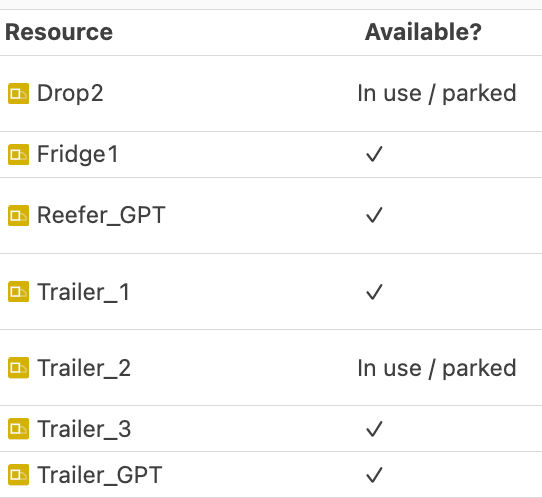
Trailers and containers on the resource board now update their availability status the moment a load is completed, so planners always see an accurate picture of what’s free to assign. Each trailer and container on the planning resource board shows one of three statuses:
-
Available (✓) — the resource is free and can be assigned to a new load
-
In use — the resource is linked to an active load that is not yet completed
-
Parked — the resource is parked and not currently in active use
-
No more guessing whether a resource is actually free. The status reflects reality the moment a load closes
-
Planners can reassign trailers and containers to new loads straight away, without waiting for an overnight refresh
-
Reduces back-and-forth between planners and drivers to check whether a resource has been dropped off
Click the link below👇 to learn more about how this feature works
Planning - Trailer and container availability on the resource board.
🏦 Invoices - Improve visibility for BIC / IBAN numbers on carrier invoice
When a carrier invoice is opened, the IBAN and BIC/SWIFT codes of the supplier or contract carrier are now visible directly in the invoice header, next to the tax number.
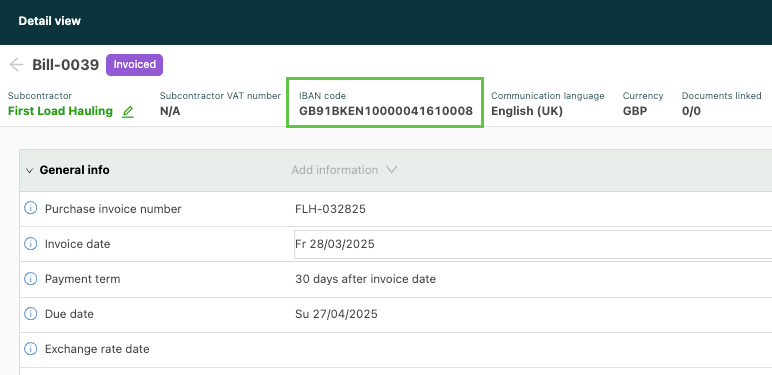
This makes it easier for finance and admin staff to access payment details without leaving the invoice view. :::
Week 3
✂️ Split order: choose which shipments go through the terminal
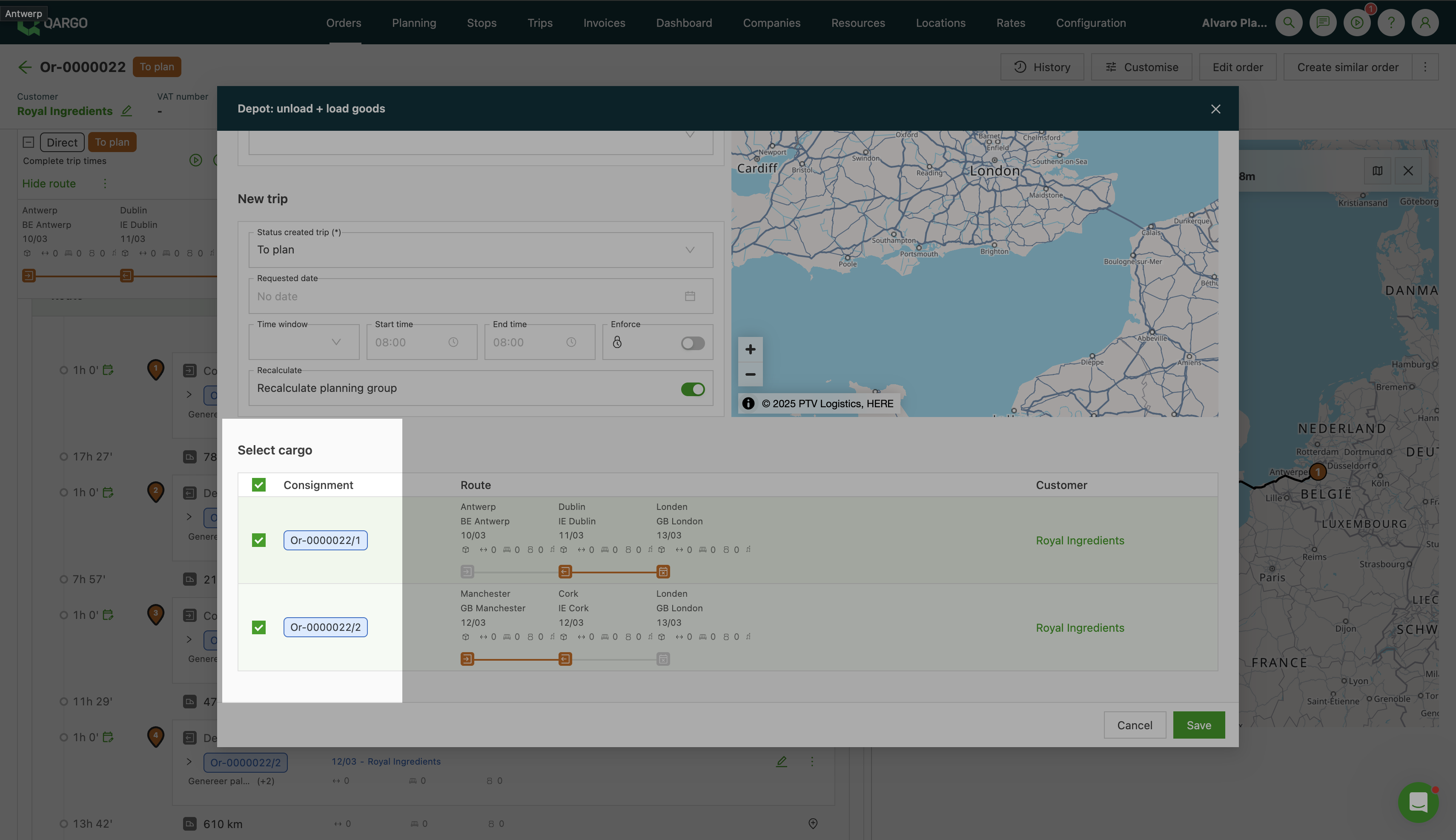
When splitting an order to route it through a terminal stop, planners can now select exactly which shipments are included in the split, rather than all shipments being forced through the terminal automatically. This gives teams granular control over how orders are broken up at the planning stage.
- Trigger the ‘Split order’ action
- A selection screen appears showing all shipments on the order.
- All are preselected by default. Simply deselect the shipments to keep on the original route.
Selected shipments will be routed through the terminal, and a new load is automatically created to handle the pickup and delivery leg. This works from both the order view and the load view.
Key use cases & benefits
- Plan partial terminal runs without disrupting all shipments on a multi-stop order
- Reduce manual rework caused by unwanted full-order splits
- Greater planning flexibility for consolidated and multi-leg shipments
FAQ - How to handle splitting orders
📎 Contact tasks: see document attachments before sending
Contact tasks on detail view pages now display which document types will be attached to an email before the task is executed, including which documents are required.
- Removes the need to open every invoice individually to check whether the right documents are included.
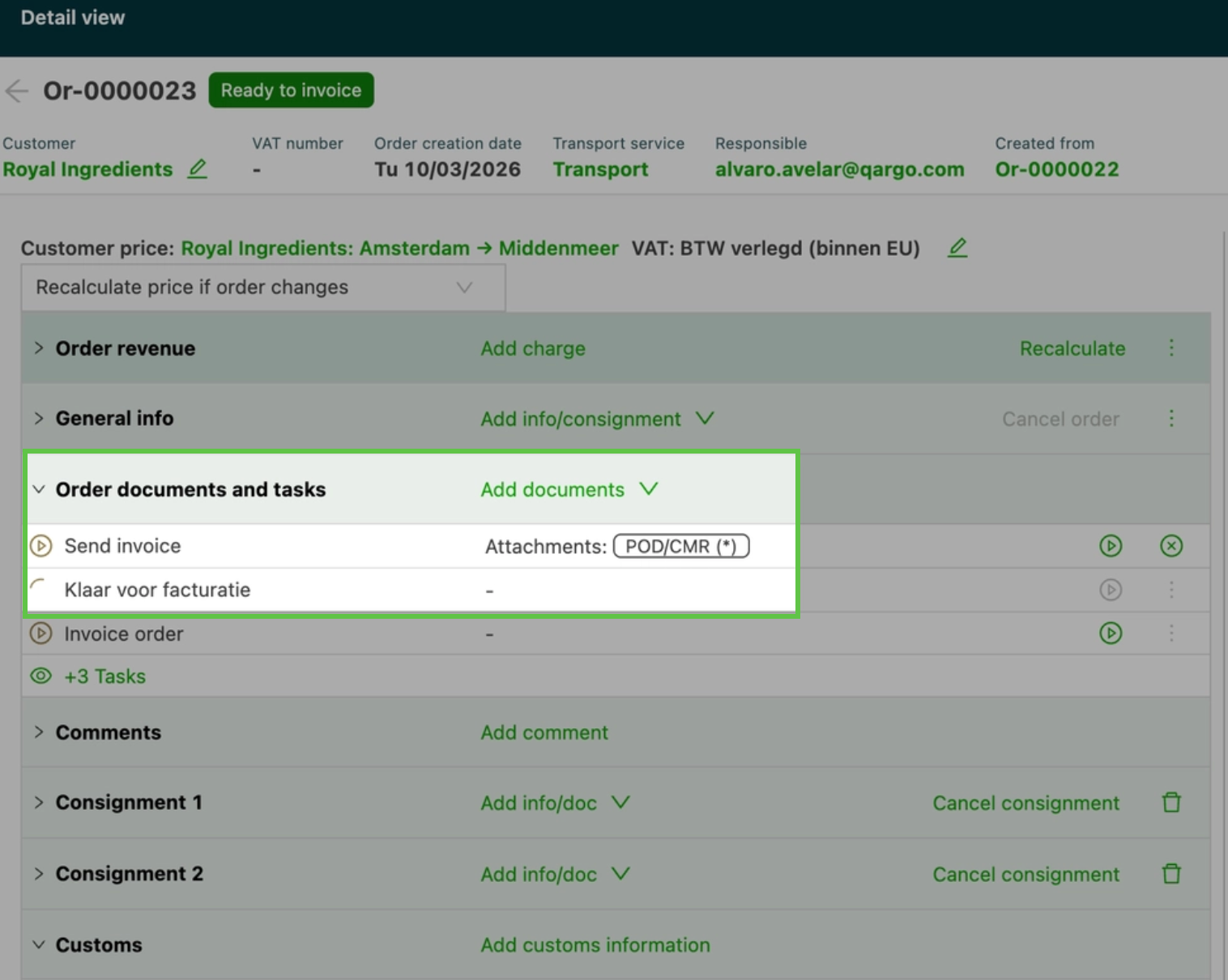
- The contact task detail view shows a list of the document types configured to be attached to the outgoing email.
- Required document types are clearly marked (*)
- For tasks that have already been executed, the view shows which document types were included in the sent email.
Key use cases & benefits
- Quickly verify that PODs, CMRs, or invoices will be sent correctly before executing a task
- Reduce errors from missing required documents in customer communications
- Save time by checking attachment status directly from the task list, without drilling into individual records
Contact tasks - Viewing document types
⚖️ Revenue split overrides: now supports chargeable weight
Chargeable weight is now available as a metric when configuring revenue split override rules on a transportation service. Companies that rate shipments based on chargeable weight can now set up accurate revenue splits directly at the transportation service level.
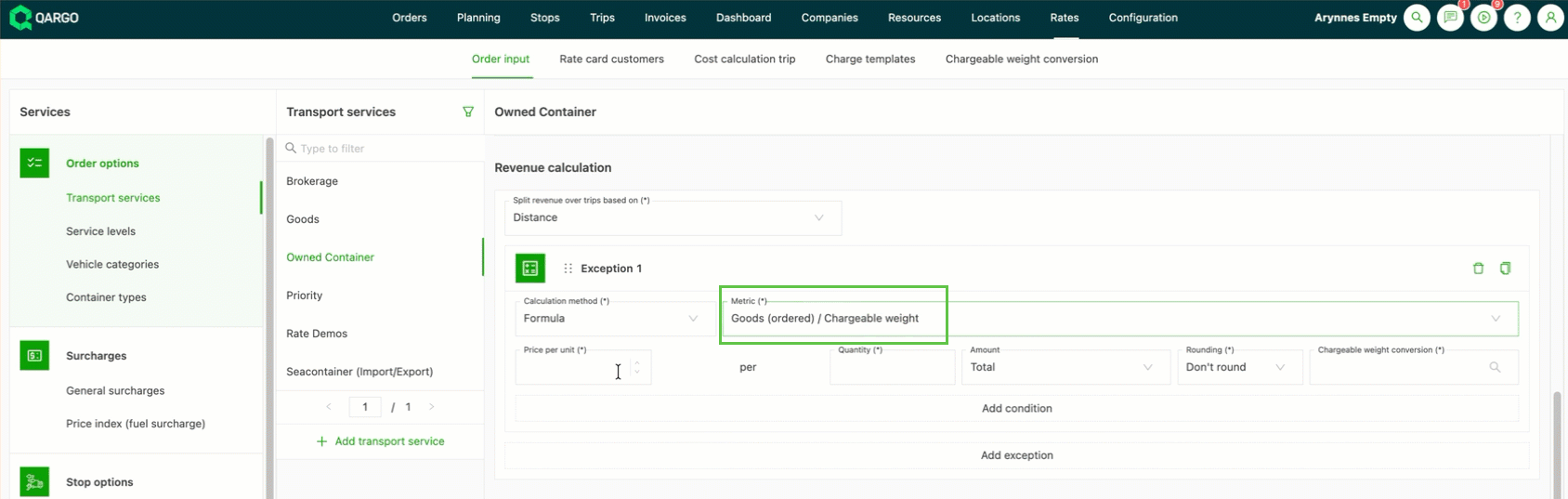
- Setting up or editing revenue split override rules on a transportation service now offers chargeable weight as a new metric option, alongside the existing total weight.
- It works the same way as other override configurations, supporting fixed amounts, formulas, and rate tables, with chargeable weight as the calculation input.
Key use cases & benefits
- Accurately reflect rating agreements for shipment types where chargeable weight drives the rate
- Align revenue split calculations with the same weight logic already used at the order level
- Eliminate manual adjustments caused by mismatches between the rating basis and revenue allocation
FAQ - Using chargeable weight as an exception when splitting revenue
⚡ Bulk update price index (fuel surcharge) values
Updating fuel surcharge values after each diesel price change no longer requires editing each customer rate individually. Users can now add or update price index values for multiple customers at once using a copy/paste workflow directly from Excel.
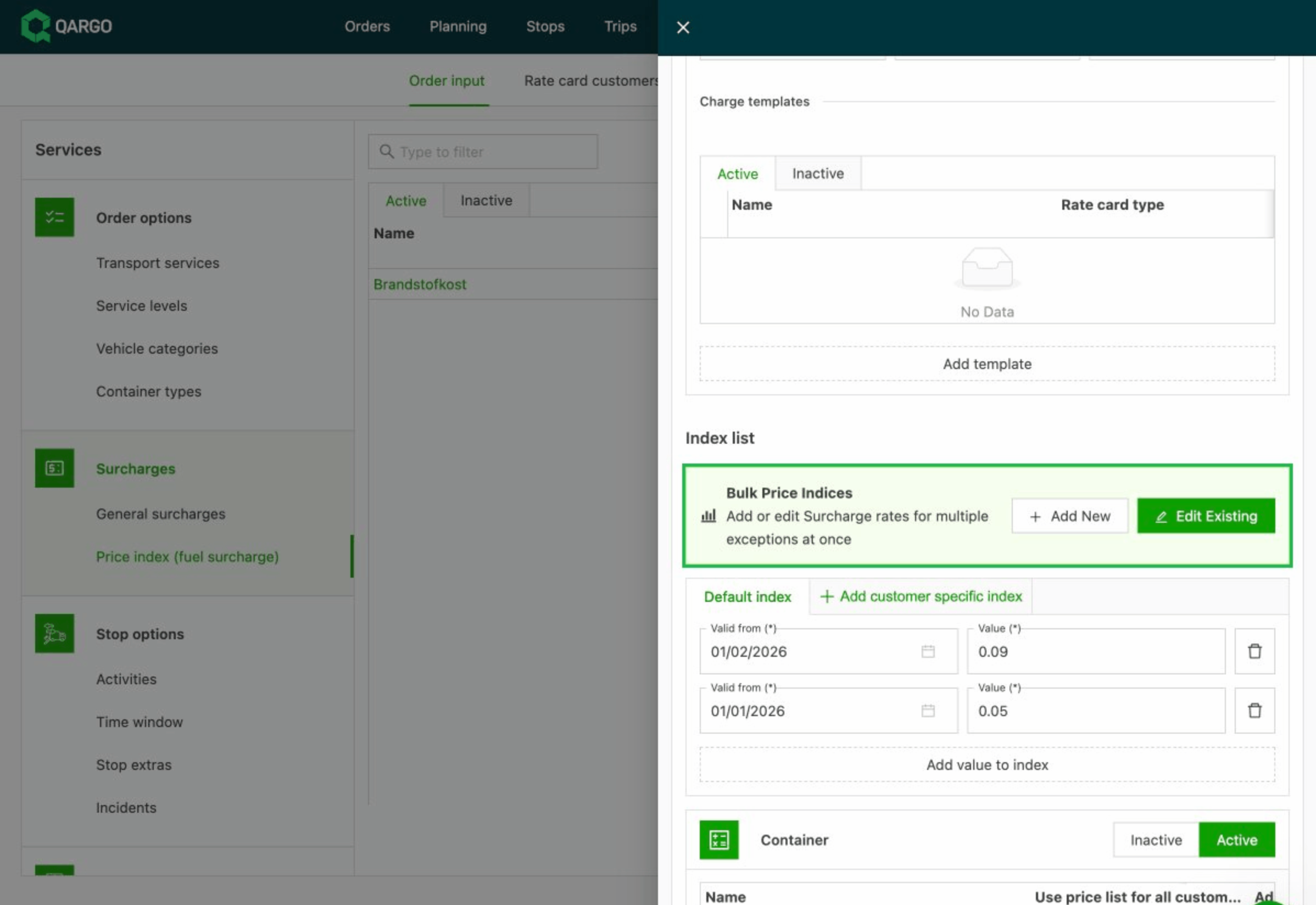
- A new Add button allows users to paste in new price index values for multiple customers in one go, pulled directly from an Excel sheet.
- A new Edit button opens a spreadsheet-style grid showing all current price index values across customers, which can be updated in bulk.
- Both views support filtering by exception name, date range, and value range to help find and manage exactly what is needed.
Key use cases & benefits
- Cut the time spent on routine fuel surcharge updates from hours to minutes
- Keep rating accurate and consistent across the full customer base after each diesel price revision
- Reduce the risk of errors that come with manually updating rates one by one
Price index (fuel surcharge) bulk updates
:::
Week 4
🎨 Planning - Background coloring rules are now available on the To Plan: Resources table.
Planners get the same visual highlighting tools already used on the orders table.
- Define personal coloring rules on any column, e.g. highlighting trailers by freight category (food, pharma, bulk). This makes it much faster to scan and sort resources during planning, especially for operations with large fleets.
- Rules are set up directly from the column header in the Resources table and apply to the personal view immediately.
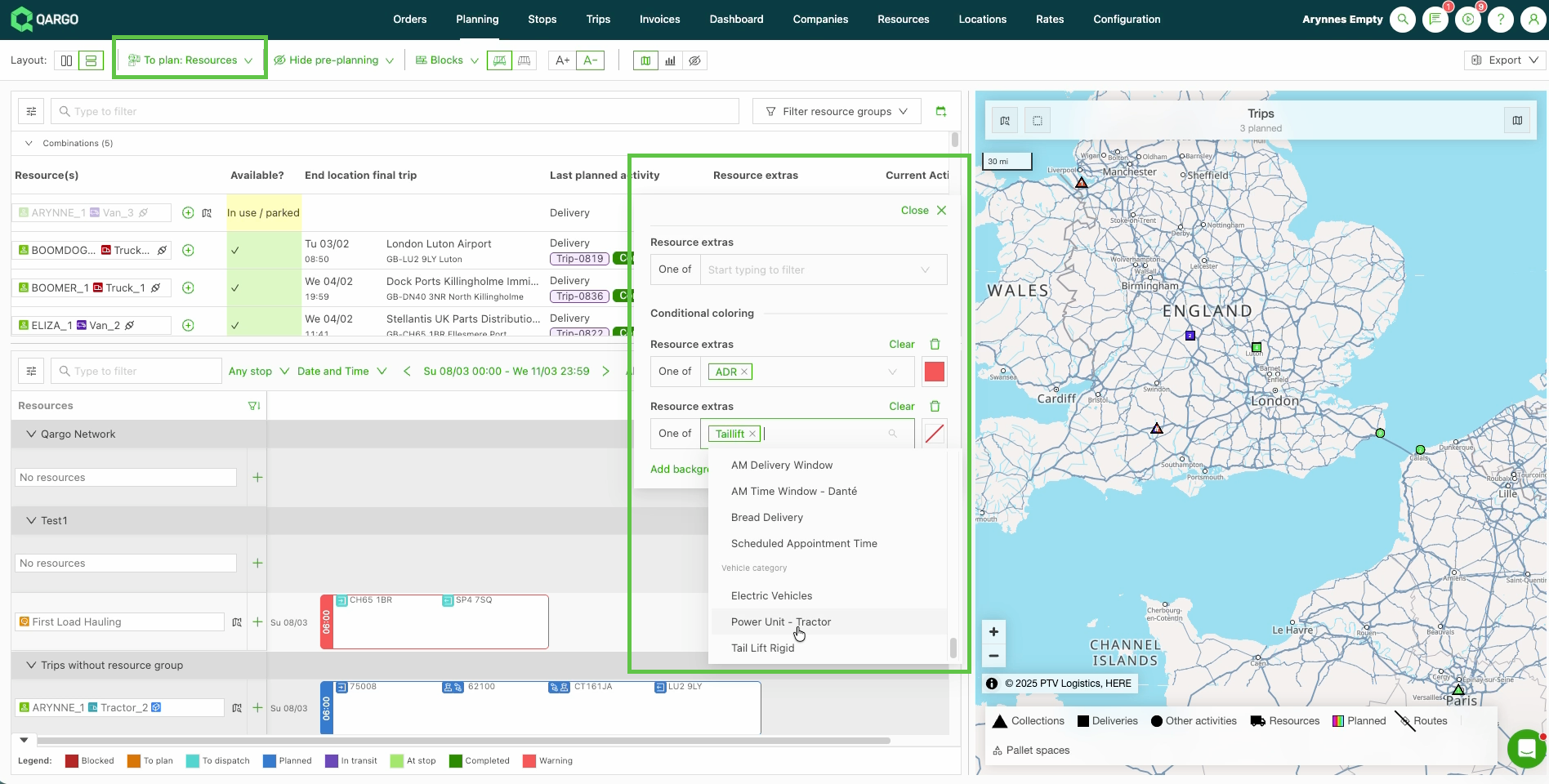
Using conditional cell highlights
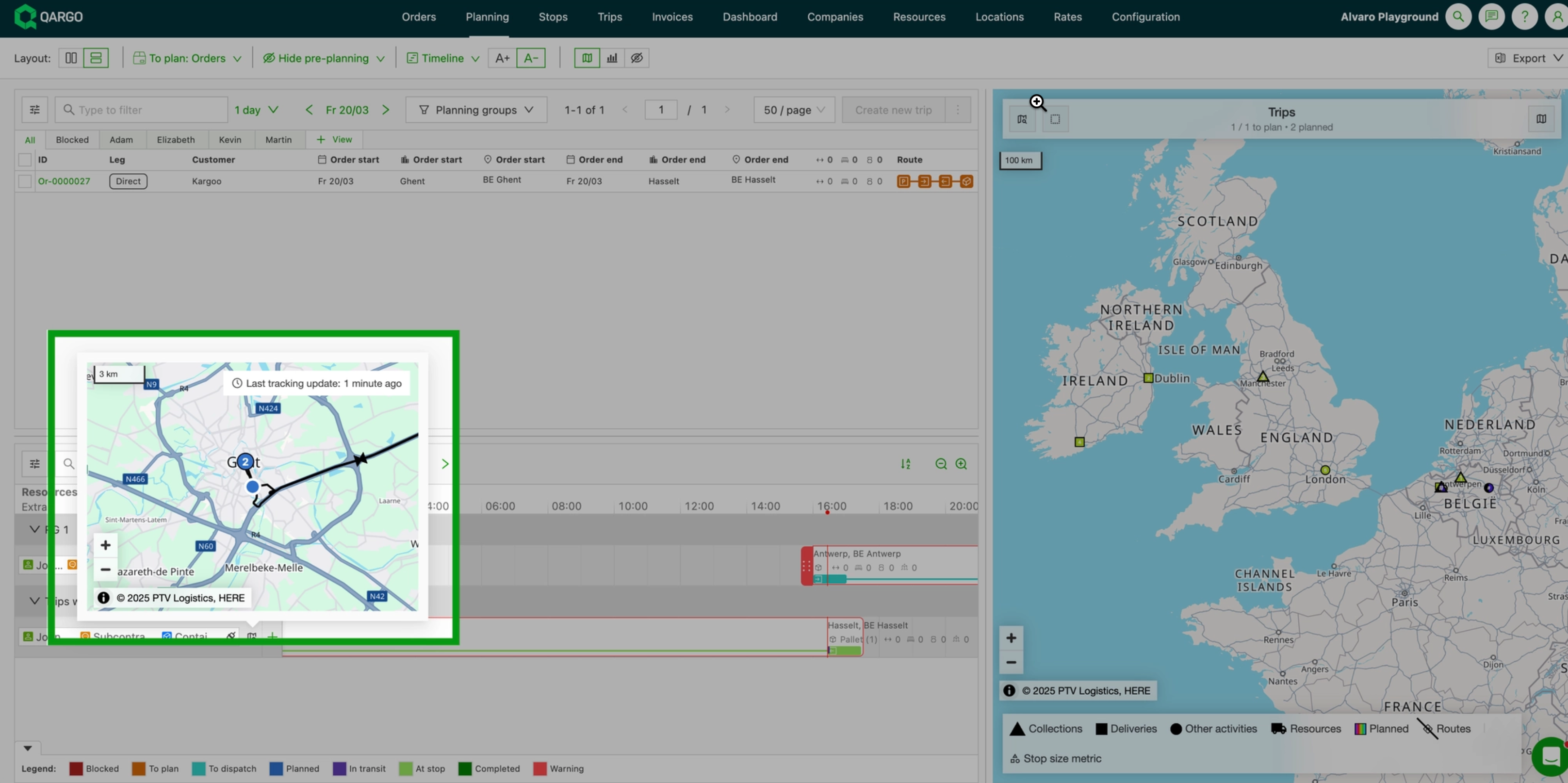
🗺️ Planning - Load progress visualized on tracking map
The planning board’s driver tracking popup now shows the active load route
- See exactly where a driver is headed without leaving the board.
- Hovering over a resource now displays the driver’s current GPS position alongside their active load
- Numbered stop markers (triangles for pickups, squares for deliveries, circles for other stops) are connected by route lines, using the same visualization as the load detail view.
📄Load groups - Show documents for orders & loads associated with load groups
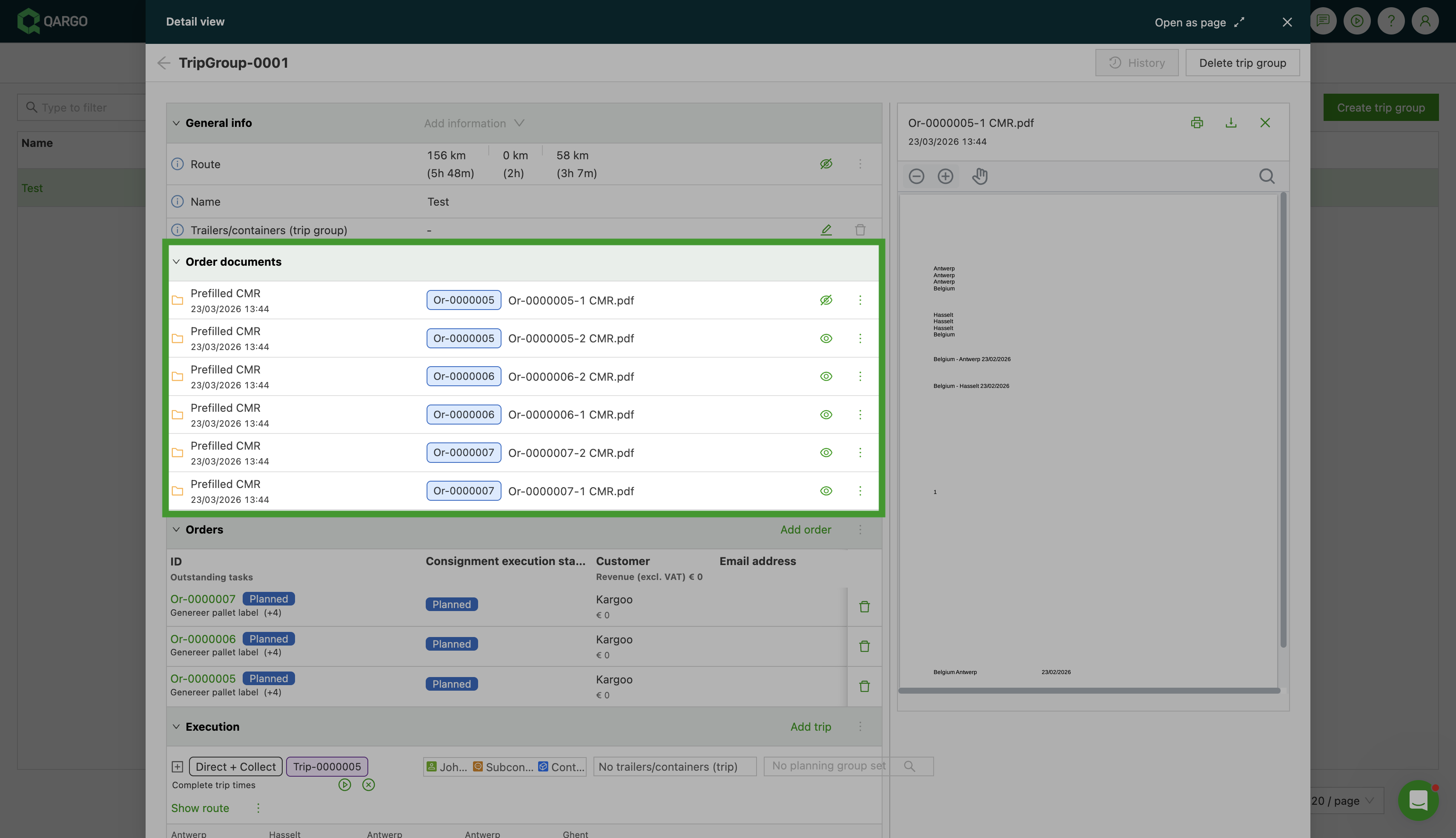
The Order Documents section on the load group detail page now displays all documents aggregated from the orders and loads within the group.
- Dispatchers and planners do not need to navigate into each individual order or load to find relevant paperwork. All documents are surfaced in one place.
-
The Order Documents section on the load group detail page aggregates everything automatically, split into two clear sections:
- Order documents - including shipment-level documents
- Load documents - tagged to show which order or load they belong to, and sorted chronologically for easy scanning.
💰 Load groups - Profitability overview in the detail page now includes a Revenue / Cost Calculation section {#h_45bb548b8f}
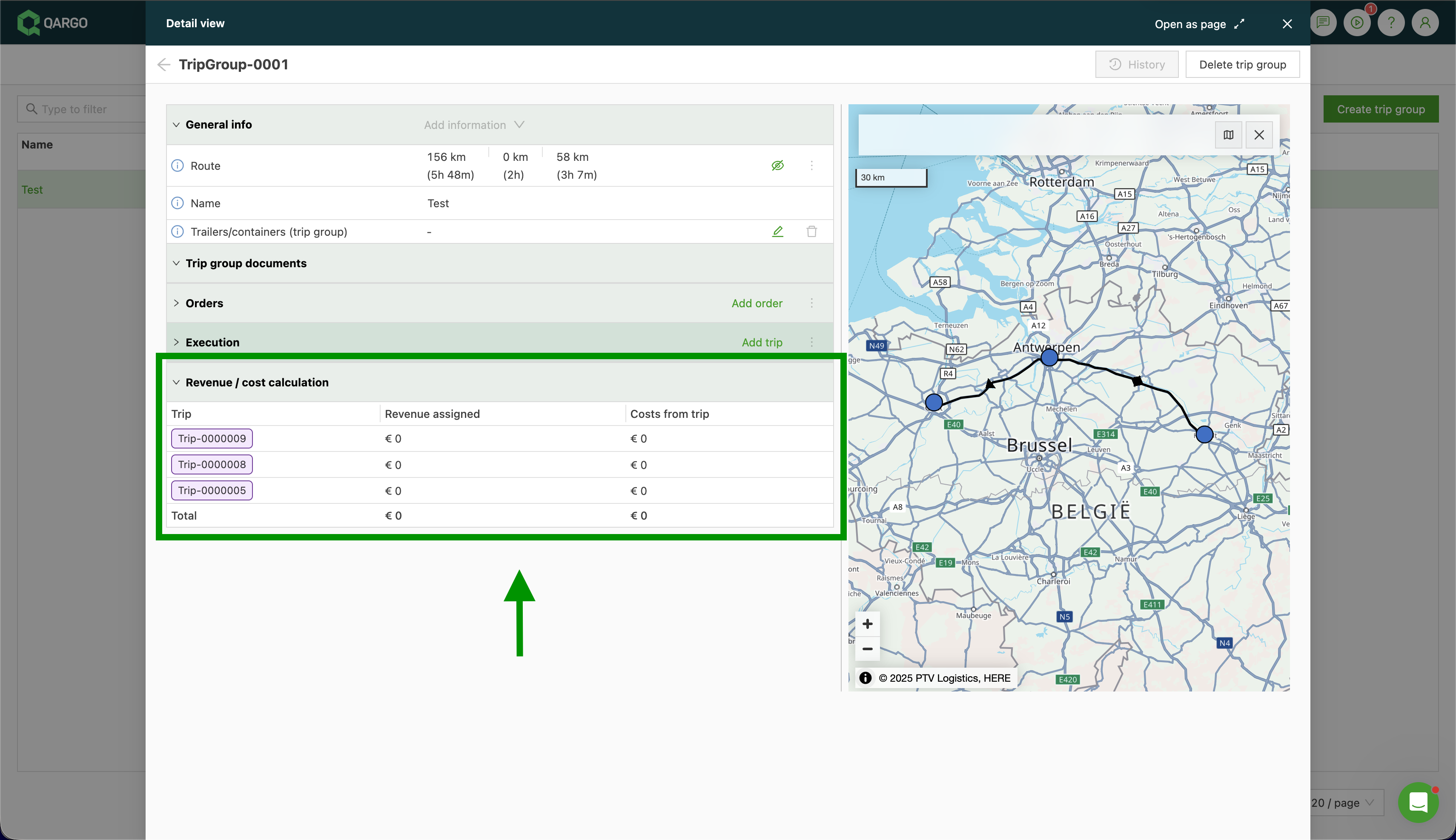
Dispatchers and planners get a consolidated financial overview of all loads in the group at a glance.
-
The summary table shows one row per load, including:
- Revenue assigned
- Total costs
- Combined total per currency —
Assess group profitability without having to open each load individually!
- Each load row is also a clickable link straight to that load’s detail page.
- The table loads automatically when a load group is opened and is read-only. Revenue splits and cost adjustments still need to be made at the individual load or order level.
🎟️ Orders - Create product from order screen
When creating or editing an order in Qargo, a new product can now be created on the fly, directly from the product selector on the order form. There’s no need to navigate away to Configuration, create the product there, and then come back.
- On the order creation or order edit screen, click the Product field.
- Start typing the product name.
- If no match is found, a ”+ Create new product” option appears at the bottom of the dropdown.
- Click it to open the product creation form.
- Fill in the product details and save.
- The newly created product is immediately selected on the order, with no page reload needed.
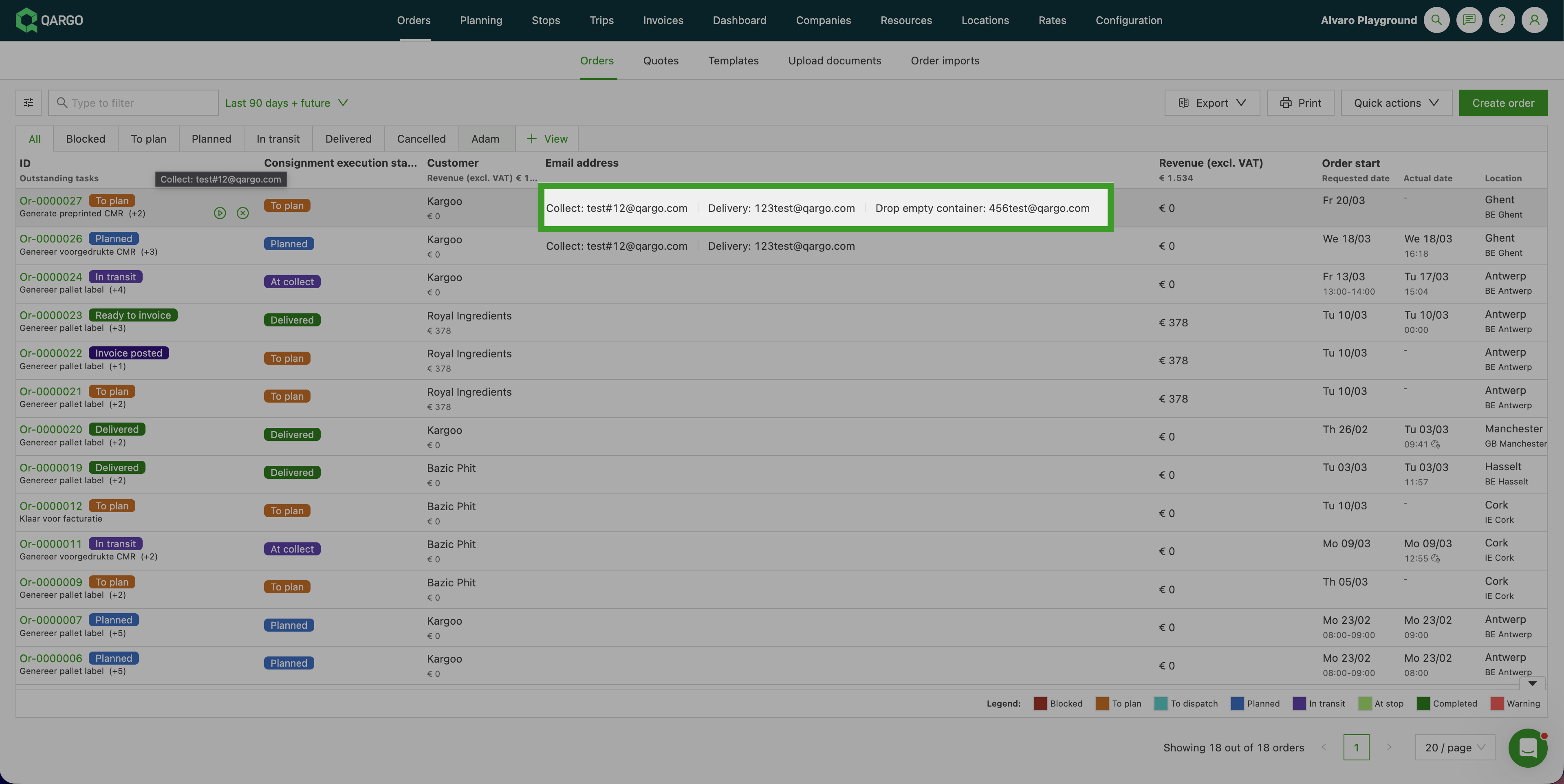
📋 Orders - Customize option to show additional fields at stop level in list view
Stop fields can now be displayed as columns in the Orders list, giving planners and dispatchers a faster way to view stop-level information, such as references, delivery receipts, or custom fields, without having to open each order individually.
- Simply toggle on any stop field from the Customize panel to add it as a column.
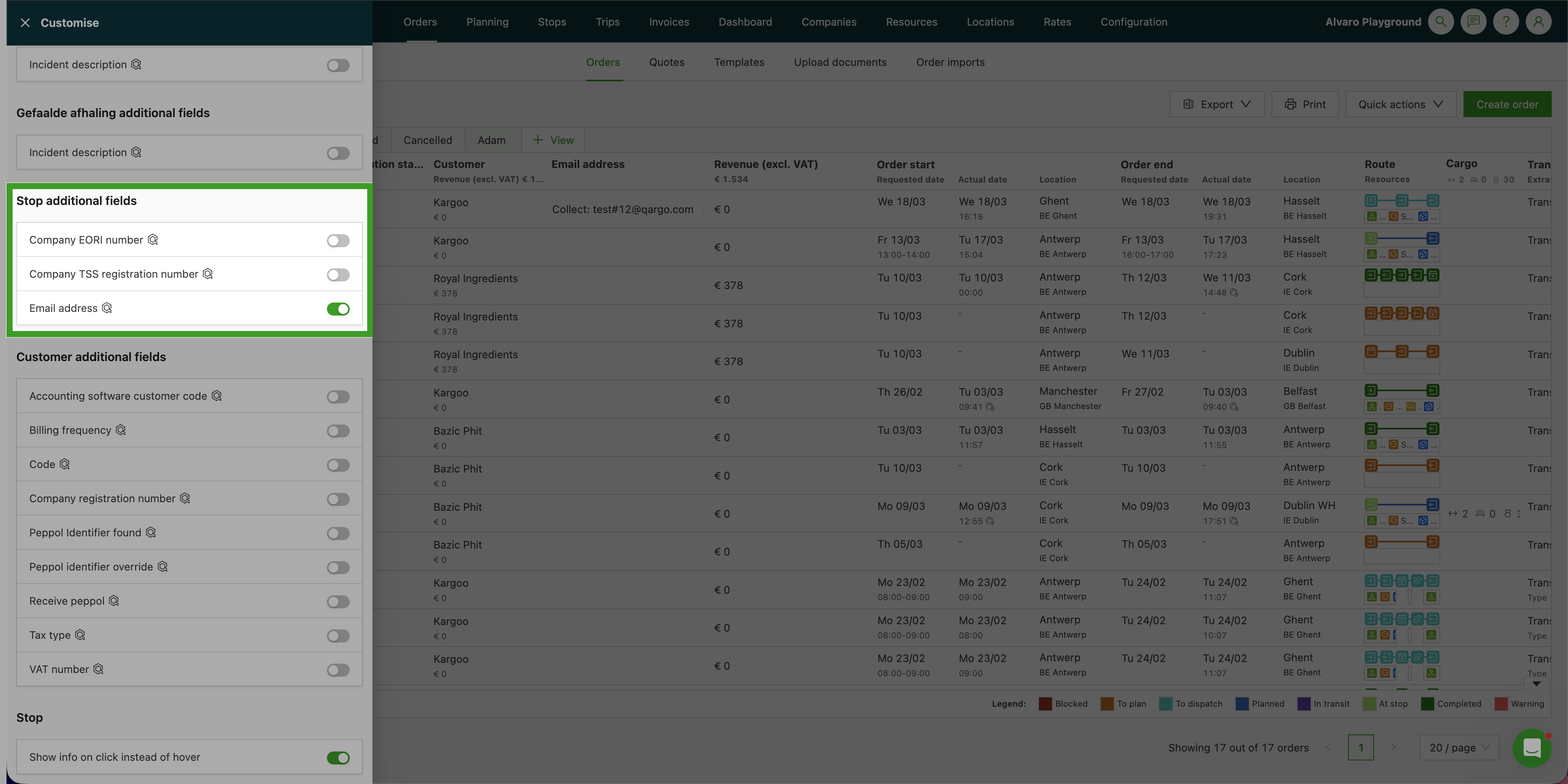
- When an order has multiple stops, all values appear in a single cell, with each value prefixed by its stop activity name so the source is always clear.
🪵 Orders - Contract carrier pallet tracking
Qargo now tracks pallet custody with contract carriers separately from the commercial pallet balance with customers.
When a load is dispatched to a contract carrier, two independent balances are maintained:
- Contractual relationship with the customer
- Physical pallets in the contract carrier’s custody.
Contract carriers record quantities through the carrier portal, and both balances update automatically.
- View and settle the contract carrier balance directly from the Contract carrier page in Qargo.
Learn more about contract carrier pallet tracking
✅ Tasks - Order template tasks
Tasks can now be configured on order templates, making it possible to build structured workflows directly into the quote process.
-
Tasks appear automatically on any order in Template status, including actions such as:
- Generating a PDF quote
- Logging a follow-up call
- Uploading a signed confirmation
-
Live orders created from the template include only regular workflow tasks. Template-specific tasks stay on the template and are not copied across.
Learn how to set up order template tasks
📊 Dashboards - Update to dashboards and charts
-
New filters added across several dashboard tabs:
- Shipment planning group and Resource planning group on the Operational, Profitability, and Distance tabs
- Department name and Contract carrier filters on Profitability
- Extra filters, including Resource planning groups, on the Incidents dashboard
- Packaging size name added to the Pallet balance table.
-
A new Fuel surcharges dashboard provides a consolidated, real-time overview of fuel surcharge (FSC) data across all customers. Transport teams can see which customers have FSC applied, the total amounts charged, and how FSC compares to total transport charges, without navigating individual rate cards or processing bulk exports.
-
A new Revenue per department bar chart on the Revenue dashboard lets finance and operations teams see revenue broken down by internal business unit.
-
A new Customer OTIF table on the Customers dashboard shows the on-time delivery percentage per account, which is useful for tracking delivery performance at a glance.
-
Two new charts on the Transport / Pallet Network dashboard: total pallet spaces per transportation service over time, and total packaging quantities per transportation service over time.
-
A new Resources tab on the dashboard consolidates Resource validities and Resource expiration into a single view, making it easier to monitor resource compliance.
Dashboards - Summary of options
Planning - Select & drop to plan order on load - terminal stops :::